

While WhatsApp might not be the fastest at rolling out new features, it certainly keeps up with its competitors. With the recent update, WhatsApp has added the ability to share the screen during video calls on both mobile and desktop, similar to its rival Telegram.

Whether you need to guide someone through a smartphone setup or watch a video together, WhatsApp’s screen-sharing feature can be pretty useful. This guide will take you through the process of sharing your screen on WhatsApp and provide solutions if you encounter any issues on your Android, iPhone, or Desktop.
How to Share Your Screen During WhatsApp Video Calls
Sharing your screen during WhatsApp video calls is a straightforward process, regardless of whether you are using the app on your phone or computer. Here are the steps you can follow.
On Android
Step 1: Open WhatsApp and select the contact with whom you want to share the screen. Then, tap the video call icon at the top.


Step 2: Wait for the other person to join the call, and tap the screen sharing icon at the bottom. Select Start to confirm.


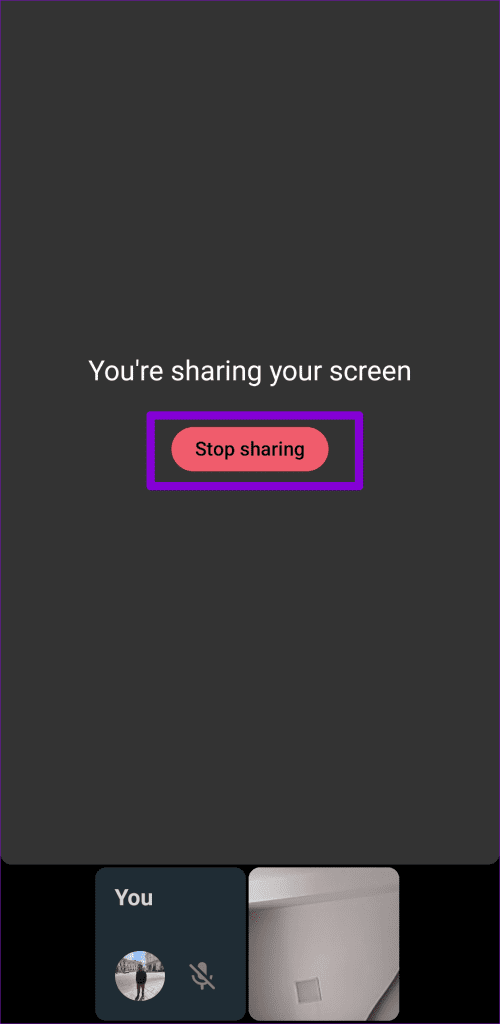
The person on the call will see your screen. To end screen sharing at any point, return to WhatsApp and tap the Stop sharing button.
On iPhone
Step 1: Open WhatsApp and select the contact you wish to share your screen with. Tap the video call icon at the top.


Step 2: When the other person joins the call, tap the screen sharing icon at the bottom and select Start Broadcast to confirm.


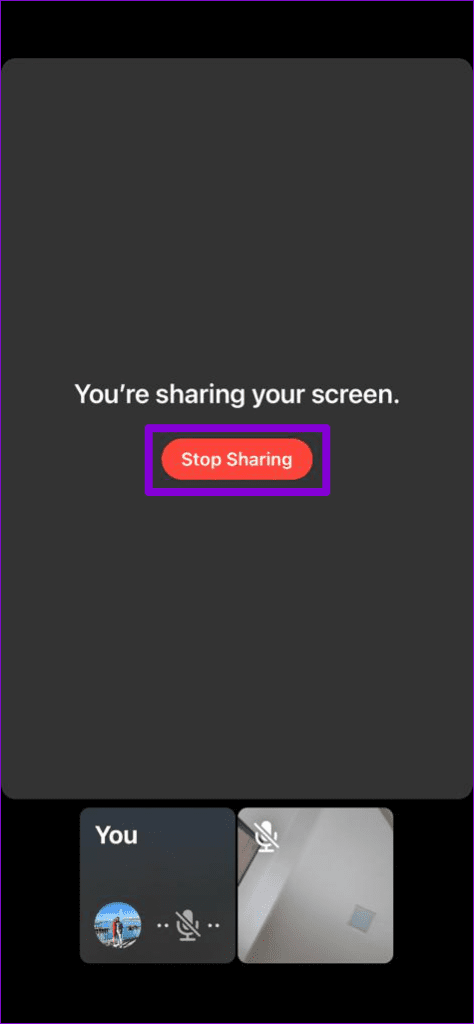
After that, you can switch to your home screen or another app and share what’s on it. To end the screen sharing session, return to WhatsApp and tap the Stop Sharing button.
On Desktop
Step 1: Open WhatsApp on your computer. Locate and select the contact with whom you want to share your screen. Then, tap the video call icon at the top.

Step 2: When the video call connects, click the screen share icon at the bottom.

Step 3: Select the computer window that you want to share and click OK.

Alternatively, if you want to share the entire computer screen, click the drop-down menu at the top and select the ‘Share your display’ option. Then, click OK.

When you initiate screen sharing, the other participant on the call can view your computer screen. To stop screen sharing, go back to the WhatsApp video call window and click on the Stop Sharing Screen button.

What to Do if You Can’t Share Your Screen on WhatsApp
If you are having trouble sharing your screen on WhatsApp using the steps above, here are some troubleshooting tips that may help:
1. Rule Out Issues With Your Internet
Since features like screen sharing require high-speed internet, you’re likely to encounter problems if your internet connection is slow or inconsistent. To rule this out, you can run a quick internet speed test on your mobile or computer.
We recommend switching to the 5GHz frequency band of your Wi-Fi network for a smoother experience.
2. Allow the Necessary Permissions (Mobile)
Have you denied any permissions to WhatsApp on your Android or iPhone? If so, you are likely to experience problems while using features like screen sharing on WhatsApp. Here’s what you can do to fix the issue.
Android
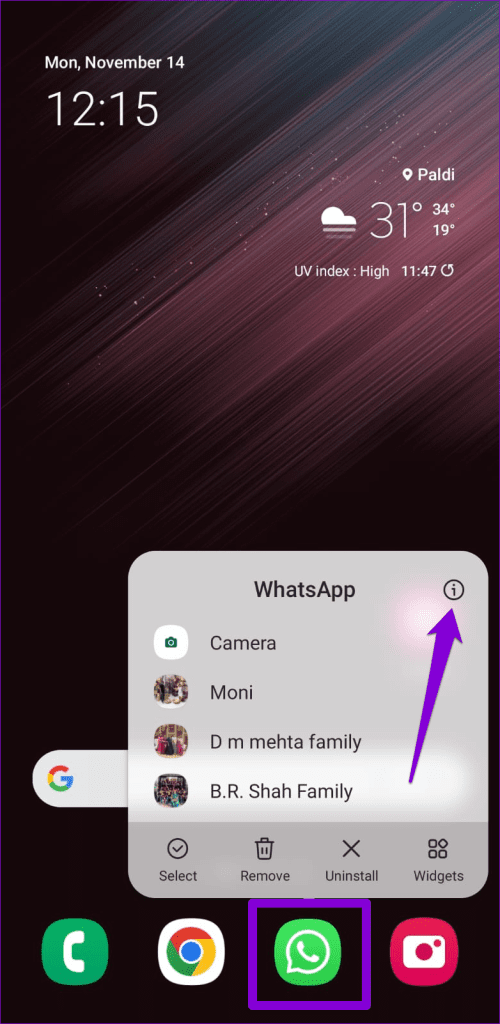
Step 1: Long-press on the WhatsApp icon and tap the ‘i’ icon from the menu that appears. Then, tap on Permissions.
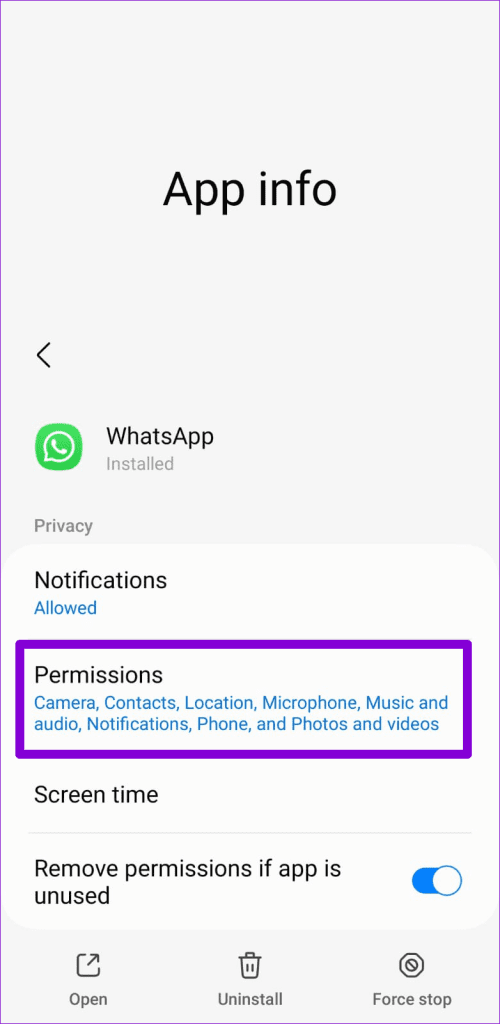
Step 2: Go through each permission one by one and allow it.


iPhone
Step 1: Open the Settings app on your iPhone.
Step 2: Scroll down to tap on WhatsApp and use the toggles in the following menu to enable all the necessary permissions.


3. Turn Off Low Data for Calls (Mobile)
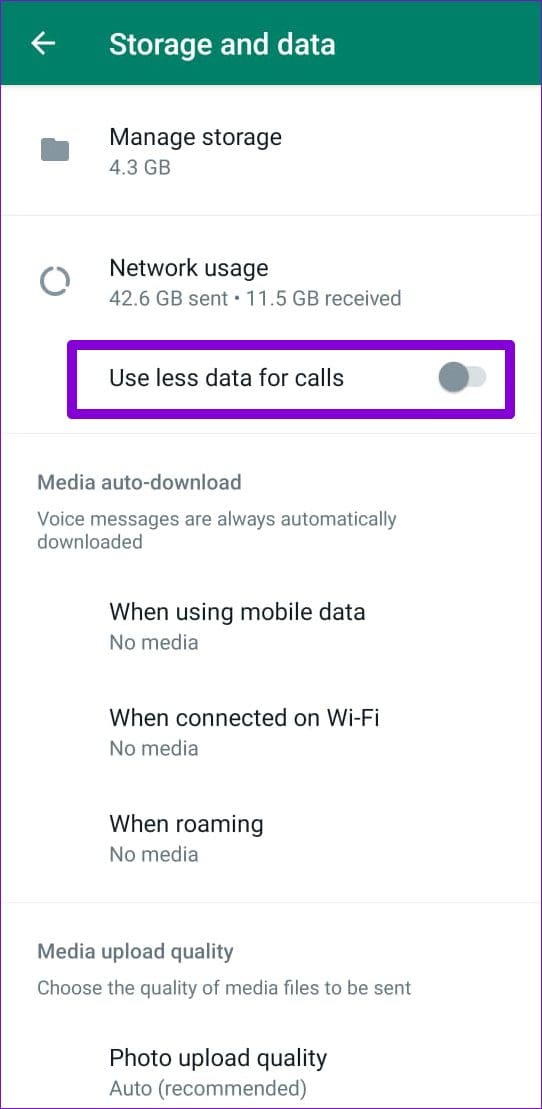
WhatsApp for Android and iPhone offers a ‘Use less data for calls’ option, which can be useful when on a limited data plan. However, this feature can sometimes result in poor call quality or issues with the screen sharing feature. Hence, it’s best to disable this option.
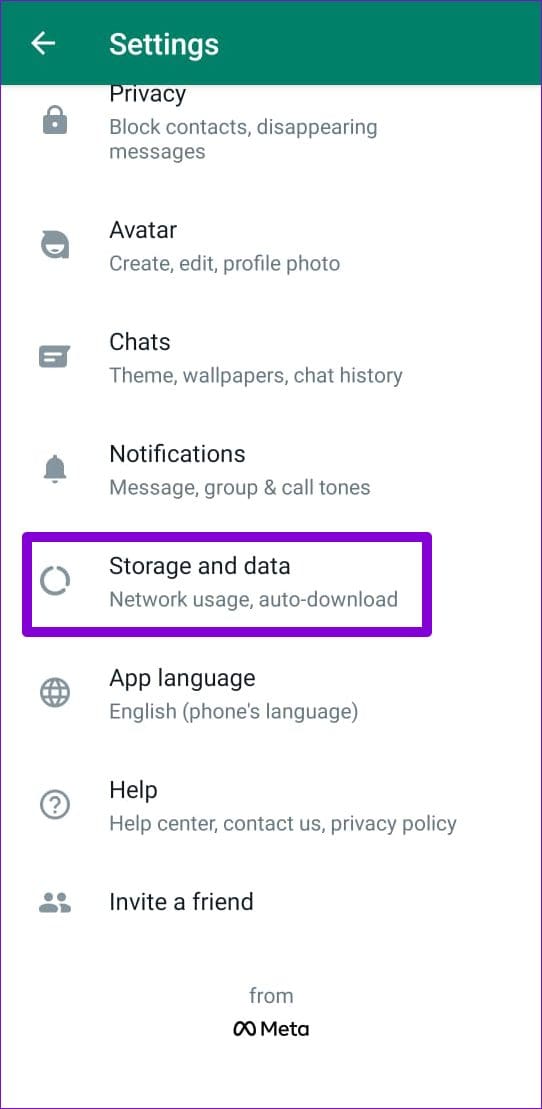
Step 1: Open WhatsApp on your phone. Tap the three-dot menu icon in the top right corner and select Settings.


If you’re using WhatsApp on an iPhone, tap the Settings option in the bottom right corner.

Step 2: Tap on Storage and data. Then, toggle off the switch next to ‘Use less data for calls.’
4. Clear App Cache (Android)
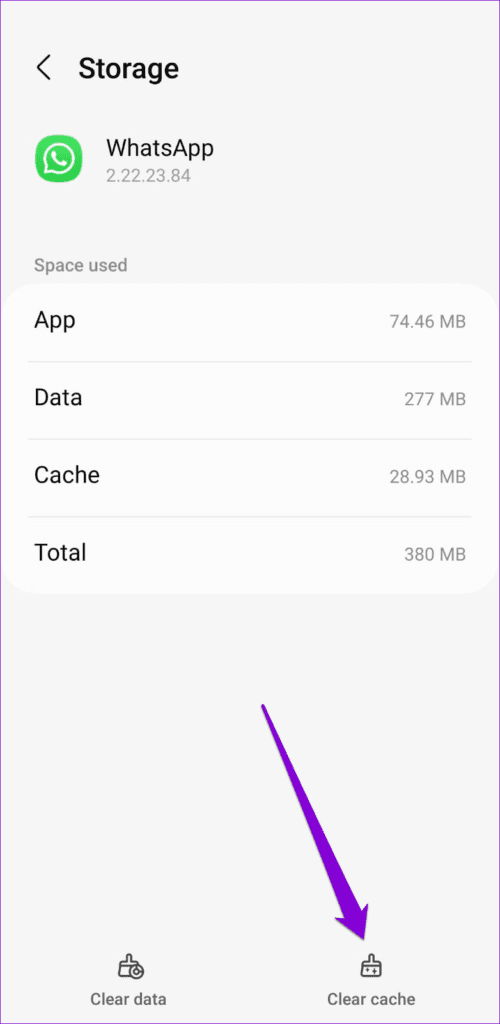
Clearing the WhatsApp cache can help you eliminate any old or corrupted temporary files that might have impacted the app’s performance. To clear WhatsApp cache on your Android, use these steps:
Step 1: Long-press on WhatsApp icon and tap the ‘i’ icon from the menu that appears.
Step 2: Go to Storage and tap the Clear cache option at the bottom.

5. Log Out and Log Back In (Desktop)
If you face trouble sharing your screen using WhatsApp for desktop, remove the linked device and add it again. This will help take care of any account-specific issues and restore your ability to share the screen.
Step 1: Open WhatsApp on your computer. Tap the profile icon in the bottom-left corner.
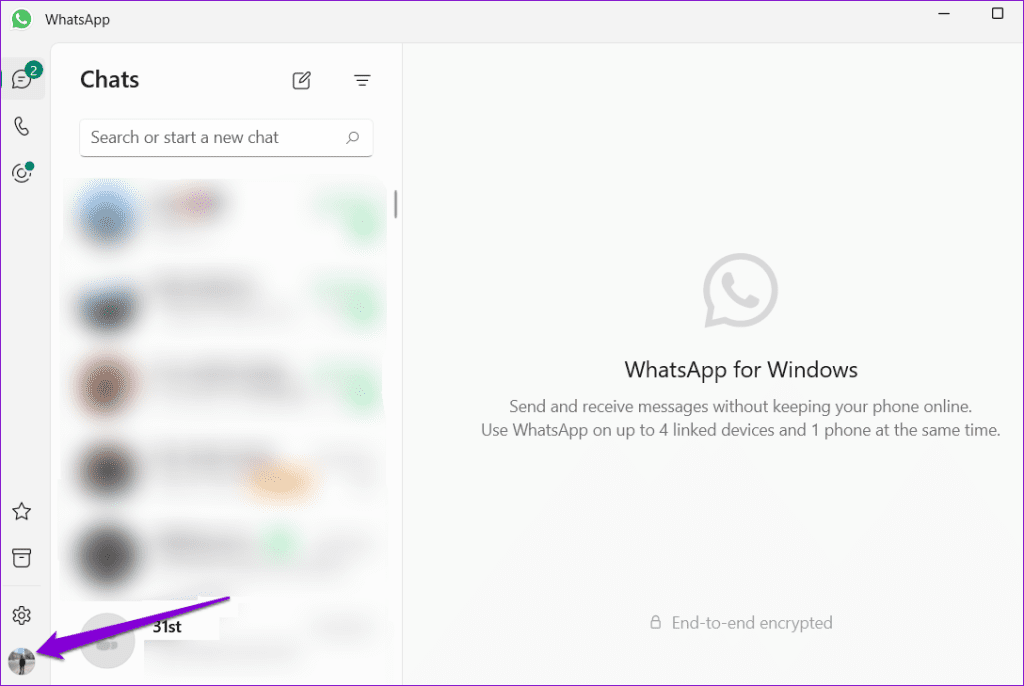
Step 2: In the General tab, click the Log Out button.

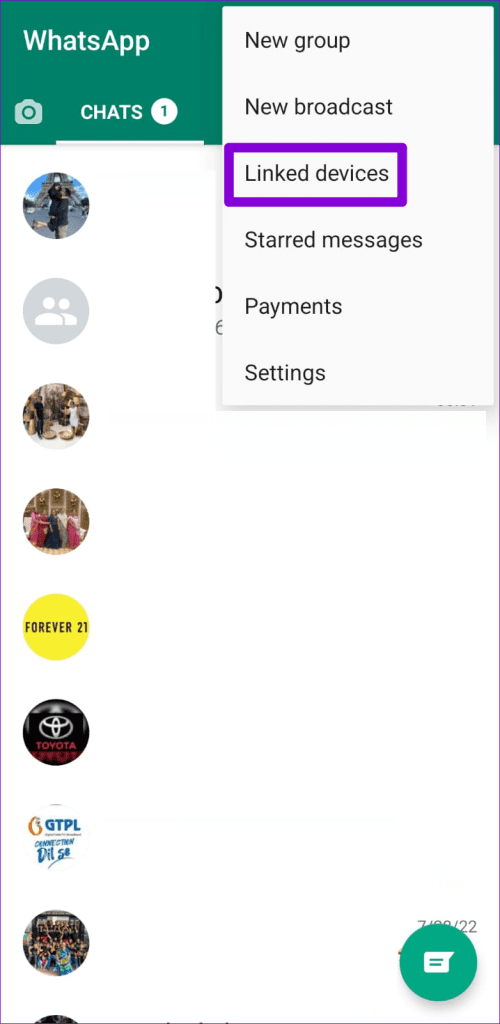
Step 3: Open WhatsApp on your phone. Tap the three vertical dots menu icon in the top-right corner and select Linked devices.
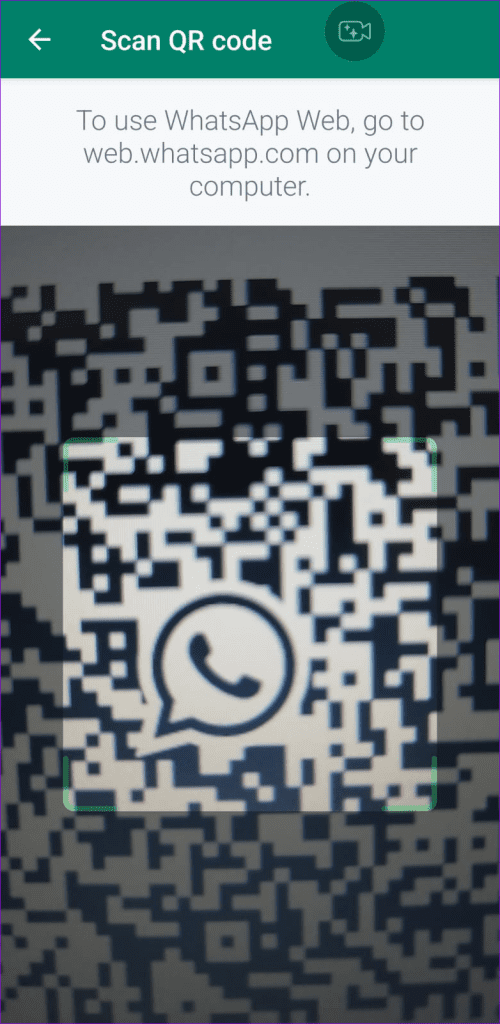
Step 4: Tap the ‘Link a Device’ button and use your phone’s camera to scan the QR code on your computer.

6. Update the App
If you still can’t share your screen on WhatsApp, you may have an outdated or buggy version of the app. Use the link provided below to update WhatsApp on your mobile or desktop, and then check if the issue still occurs.
Bridging the Gap
WhatsApp has made significant improvements recently by introducing various new features like multi-device support, WhatsApp Communities, and the ability to edit messages. Screen sharing is yet another noteworthy addition to this growing list. What are your thoughts about WhatsApp’s screen-sharing feature? Do you find it useful? Let us know in the comments below.
Was this helpful?
Last updated on 31 July, 2023
Read Next
 Customize Android Share Menu, Share With Multiple Apps
When compared to the iPhone, Android has always had significantly better intra-app sharing features or the share menu as it is called.
 Screenleap: Quickly Share Screen in Seconds, No Installation
Do you think that screen sharing is only for designers and programmers; or for that matter, any one working in virtual teams?
 ShowMeWhatsWrong Lets You Share Screen & Resolve Errors Easily
If you are the computer guy in your family and get approached by family members and friends frequently for solving their computer issues, then you’d know that it isn’t an
 Top 4 Fixes for Google Meet Screen Share Not Working on Firefox
For many reasons, screen-sharing has become one of the most important features to look out for in a video conferencing tool.
 7 Best Ways to Fix Microsoft Teams Won’t Share Screen
Microsoft Teams has come a long way since its inception, and they keep adding new features to their product all the time.
 How to Share Screen on Google Meet and Other Tricks
Video conferencing apps such as Zoom, Microsoft Teams, Skype, etc., are witnessing a surge in demand.
 How to Share Screen in Discord on Desktop and Mobile
Discord is great for connecting with people sharing the same interests as you.
 How to Share Screen in Facebook Messenger on Mobile and Desktop
Besides sending messages, pictures, and videos, the Facebook Messenger lets you make voice and video calls to friends.
The article above may contain affiliate links which help support Guiding Tech. The content remains unbiased and authentic and will never affect our editorial integrity.