Facebook is one of the oldest social media platforms for connecting with your friends online. And with the progress of time, the app has seen a lot of new features and changes. For example, you can create a Restricted List on Facebook to hide updates from your friends without unfriending them.

But Facebook has always kept you notified about your friend’s birthdays. However, if those birthday notifications are not showing on Facebook, here are a few troubleshooting methods to fix this problem. We are covering solutions for both Android and iPhone.
1. Check Birthday Notification Settings
If you are not getting birthday notifications on Facebook, you need to check the app’s notification settings on your Android or iPhone. Facebook now lets you control notifications of different categories like friend requests, comments, tags, birthdays, and more. Here’s how to check the same.
Step 1: Open the Facebook app on your iPhone or Android.
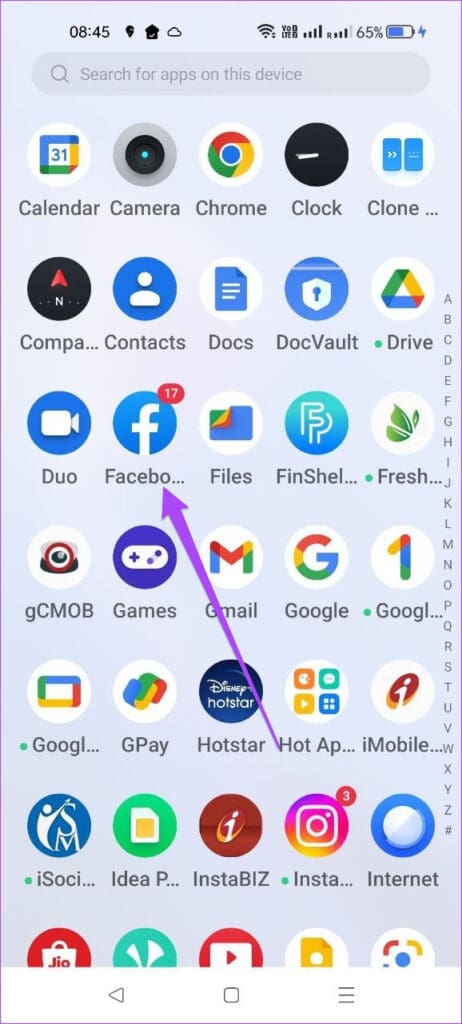
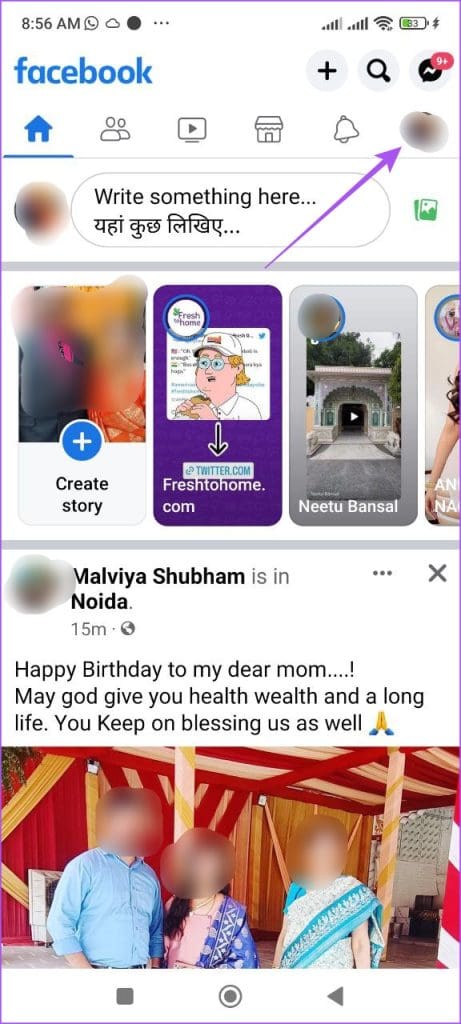
Step 2: Tap on your profile icon at the bottom-right corner (iPhone). Tap the profile icon at the top-right corner (Android).

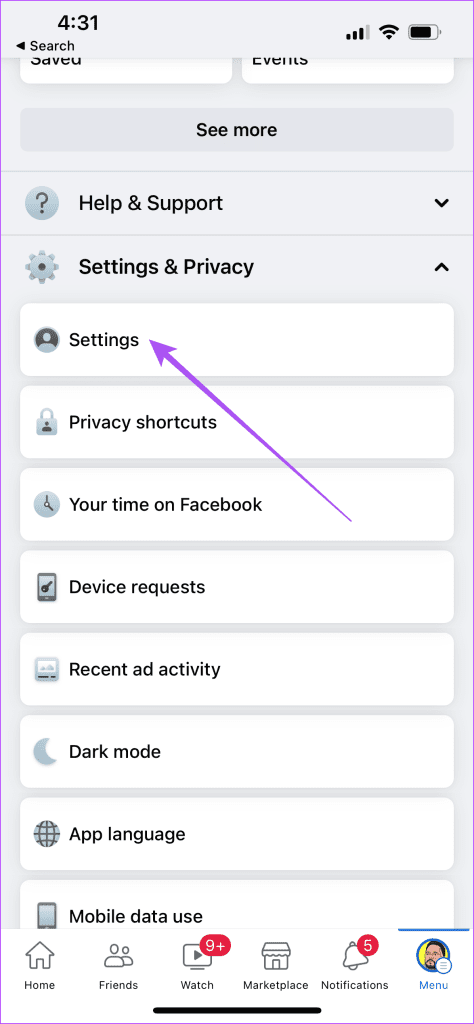
Step 3: Scroll down and tap on Settings and Privacy.

Step 4: Tap again on Settings.
Step 5: Select Notifications from the list of options.
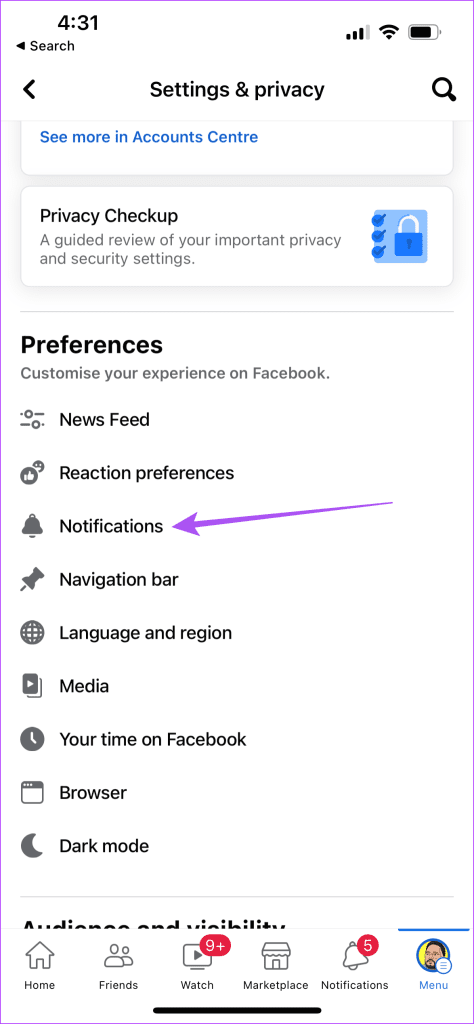
Step 6: Scroll down and tap on Birthdays.

Step 7: Check if all Birthday notifications are enabled.
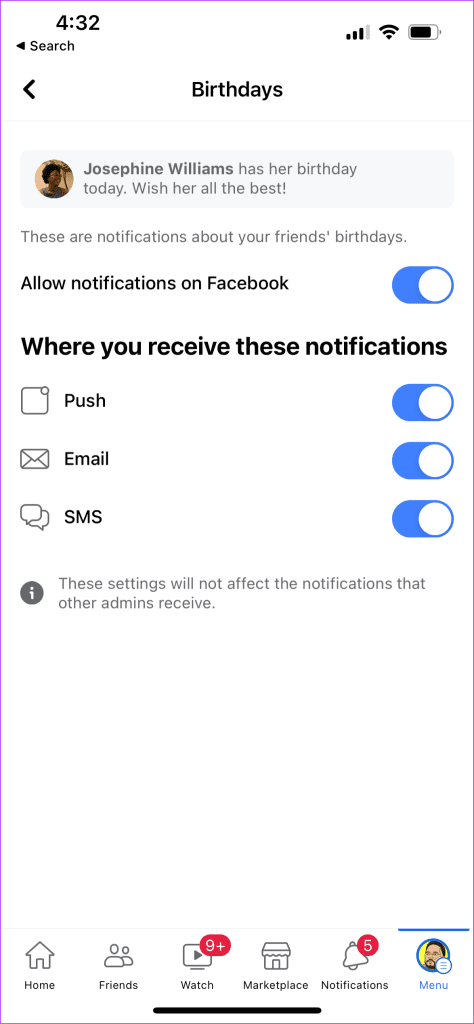
Step 8: After that, return to notifications to check if it shows the birthdays.
2. Check Facebook App Notification Settings
After you enable birthday notifications on the Facebook app, you need to check the general notification settings for the app on your device. You may have turned off Facebook notifications on your Android or iPhone.
On iPhone
Step 1: Open the Settings app on your iPhone.

Step 2: Scroll down and tap on Facebook.

Step 3: Select Notifications.
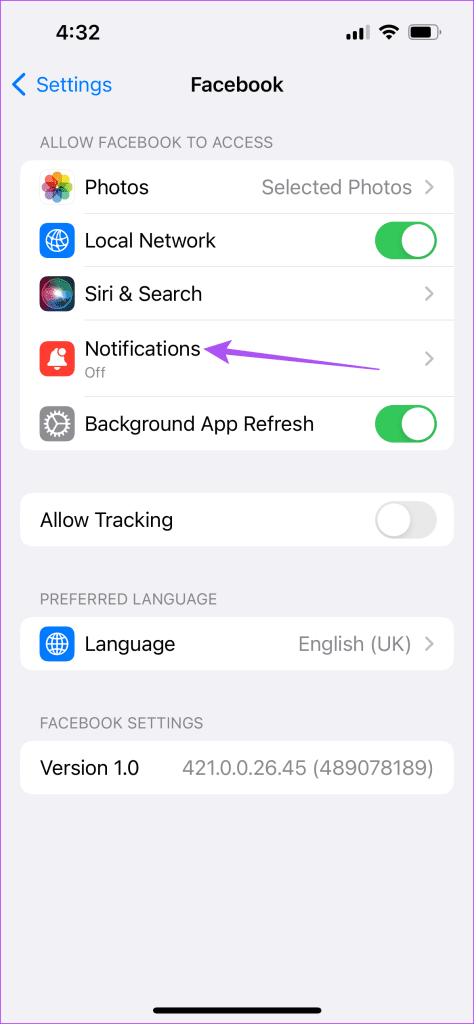
Step 4: Tap the toggle next to Allow Notifications to enable it.
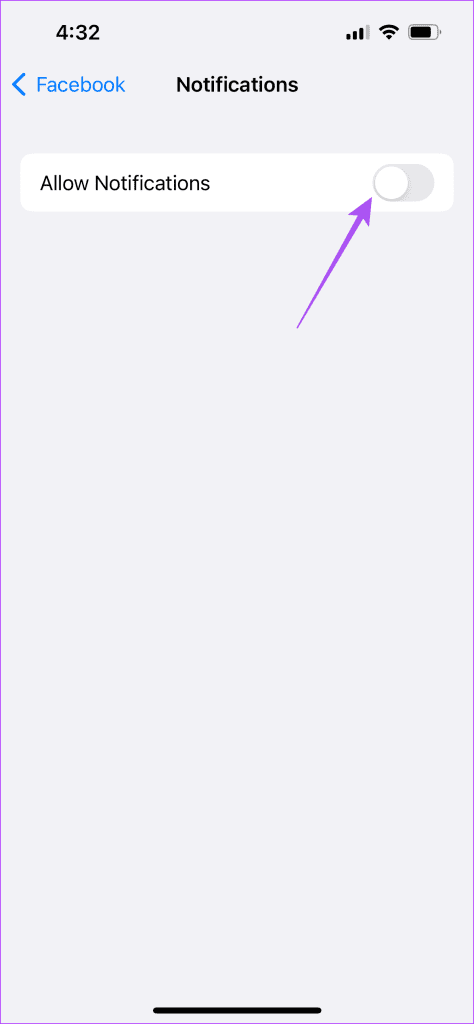
Step 5: Close the Settings app and open Facebook to check if the problem is solved.
On Android
Step 1: Long-press the Facebook icon on your Android and tap on App Info.
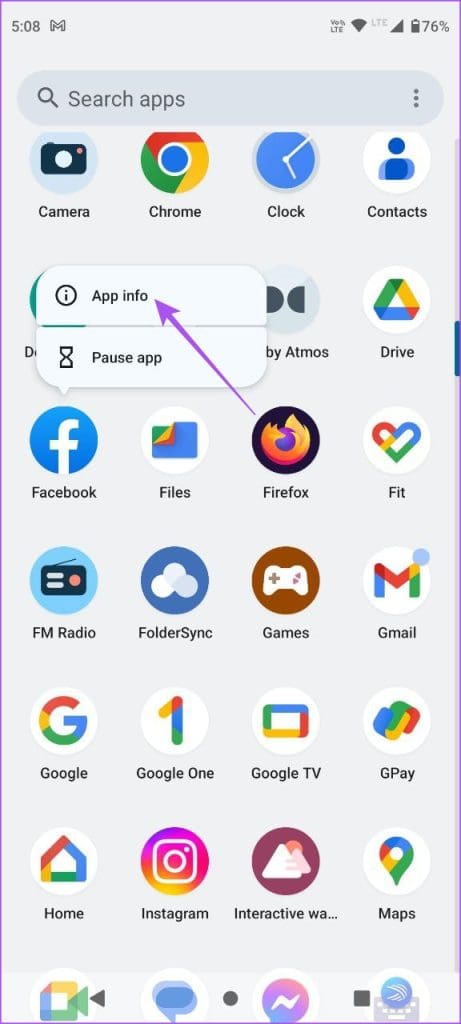
Step 2: Tap on Notifications.

Step 3: Ensure that all types of notifications are allowed for Facebook.
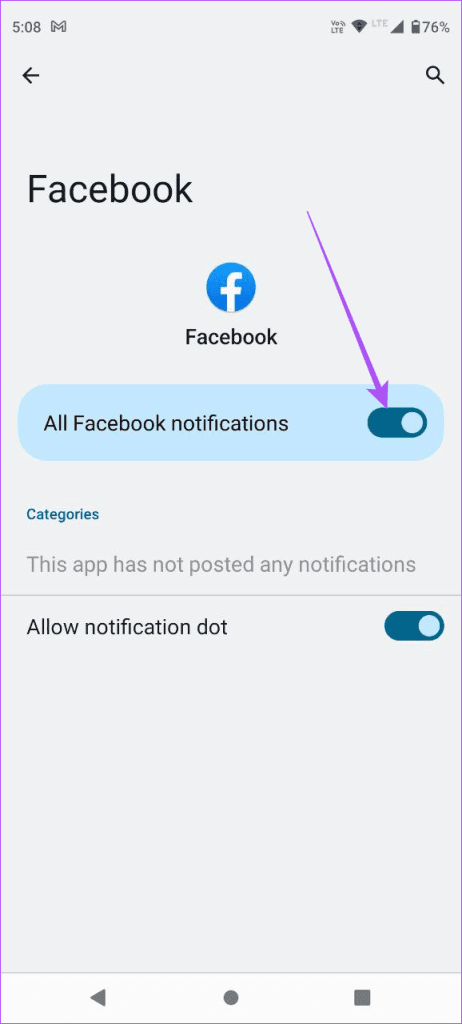
Step 4: Close App Info and check if the problem is solved.
3. Check Blocked Accounts
If your Facebook birthday notifications are still not showing up, you should check if you have blocked some of your friends. In case things are fine between you and them, you can unblock them to receive their birthday notifications.
Step 1: Open Facebook on your Android or iPhone.
Step 2: Tap on your profile icon at the bottom-right corner (iPhone). Tap the your profile icon at the top-right corner (Android).
Step 3: Tap on Settings and Privacy. Then tap on Settings.
Step 4: Scroll down and tap on Blocking.
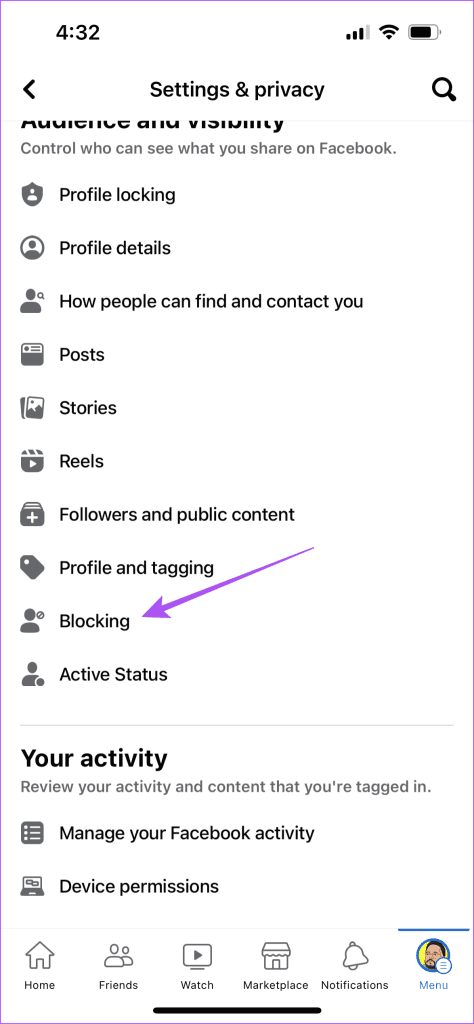
Step 5: Tap on Unblock button next to the friend’s name.

Step 5: Exit the Facebook app’s settings to check if the problem is solved.
4. Check Focus Mode Settings (iPhone)
Focus Mode for iPhone users is a way of restricting notifications for certain apps during a particular time of the day. So if you have included Facebook in your Focus Mode profile, we suggest removing it and checking whether that solves the problem.
Step 1: Open the Settings app on your iPhone.
Step 2: Tap on Focus.
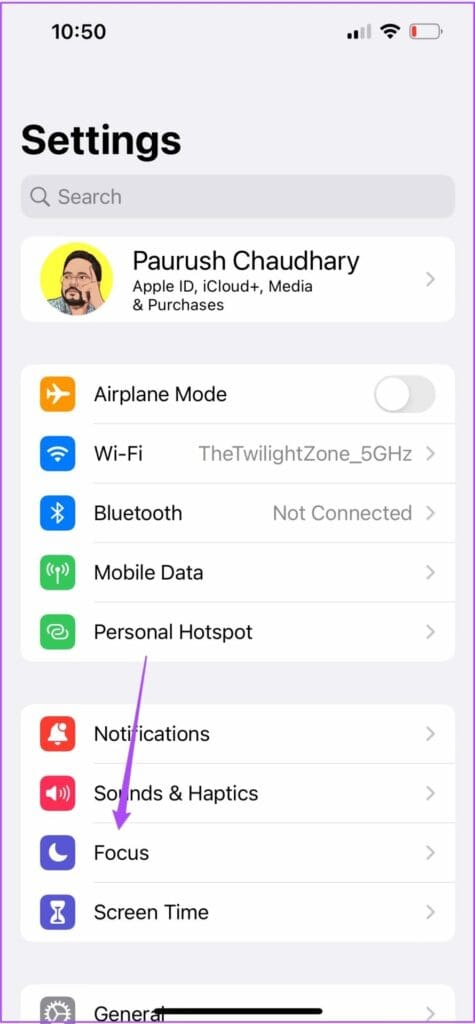
Step 3: Select the Focus Mode you are currently using or the one in which you have added Facebook.
Step 4: Tap on Apps.
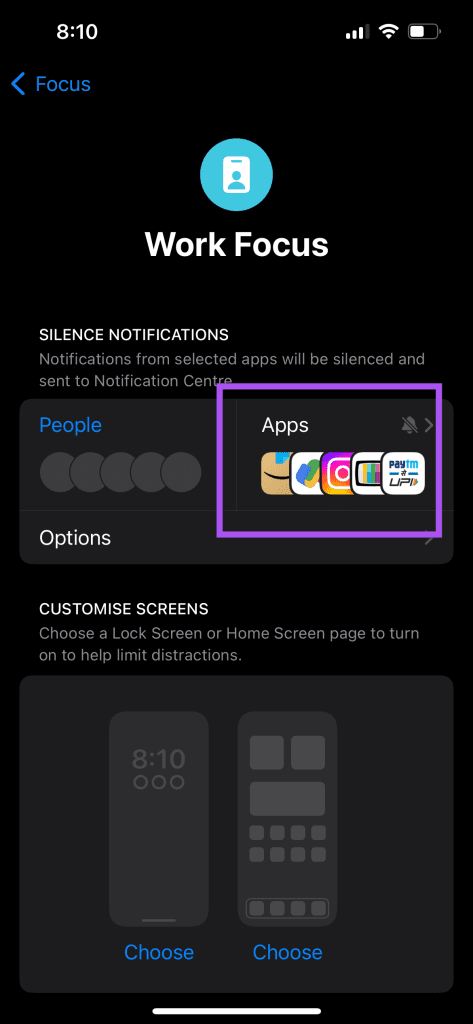
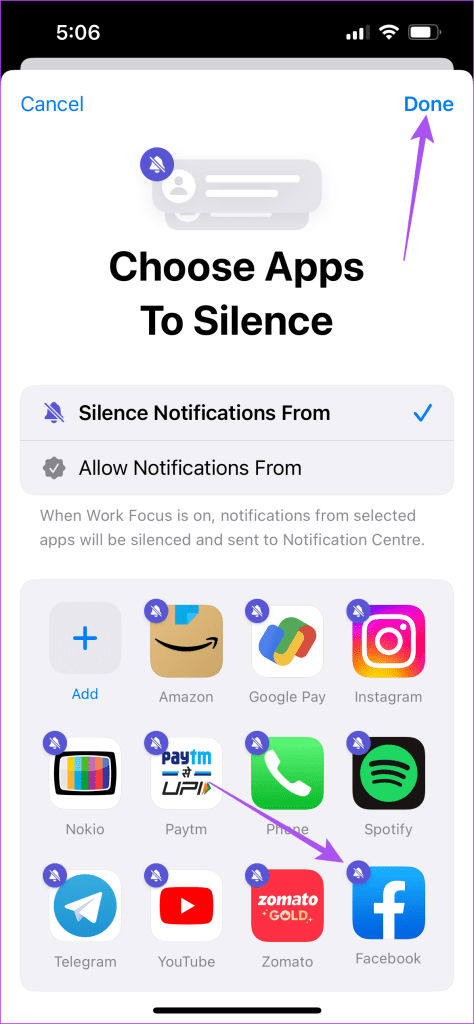
Step 5: Select ‘Silence Notifications From.’

Step 6: Tap on Facebook to exclude the app. Then tap on Done at the top-right corner.
Step 7: Close the Settings app to check if the problem is solved.
5. Force Quit and Relaunch Facebook
A basic yet effective solution is to force quit and relaunch the Facebook app to give it a fresh start on your Android or iPhone.
On iPhone
Step 1: On the Home Screen, swipe up and hold to reveal the background app windows.
Step 2: Swipe right to look for Facebook. Then swipe up to remove the app.
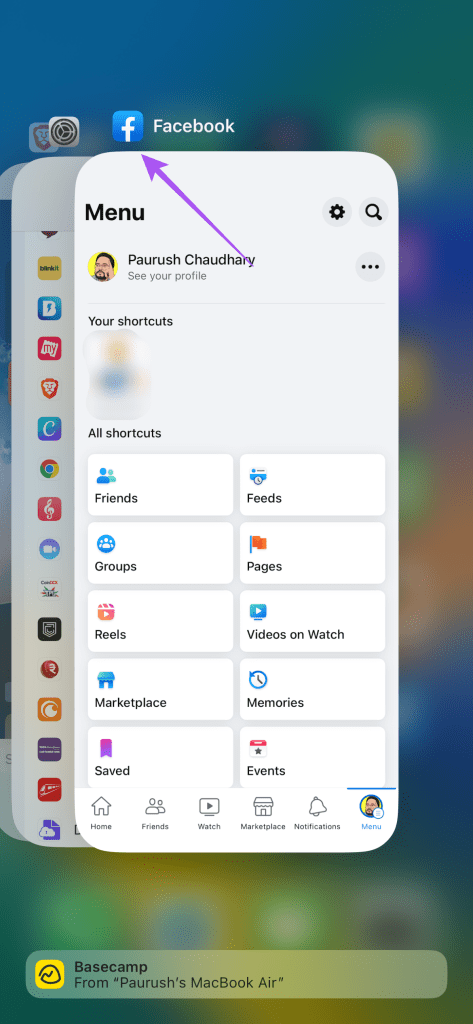
Step 3: Open Facebook again to check if the problem is solved.
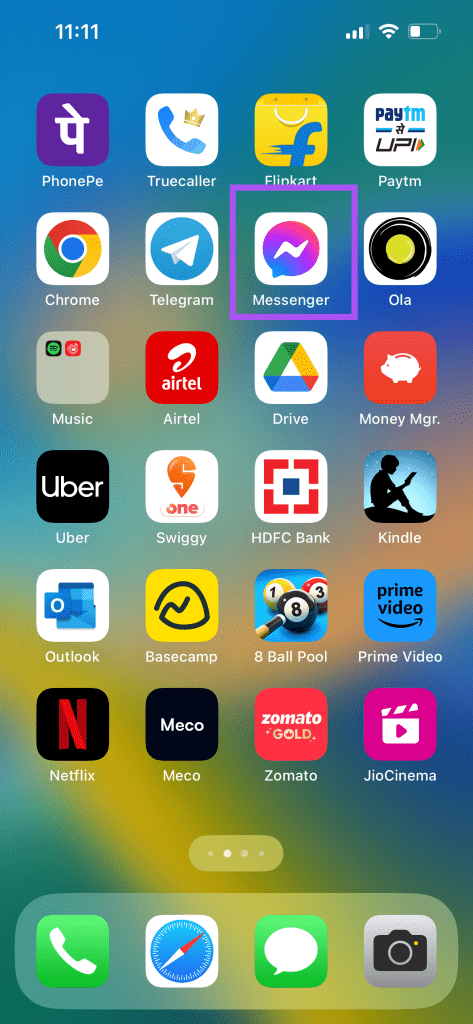
On Android
Step 1: Long-press the Facebook icon and tap on App Info.
Step 2: Tap on Force Stop.
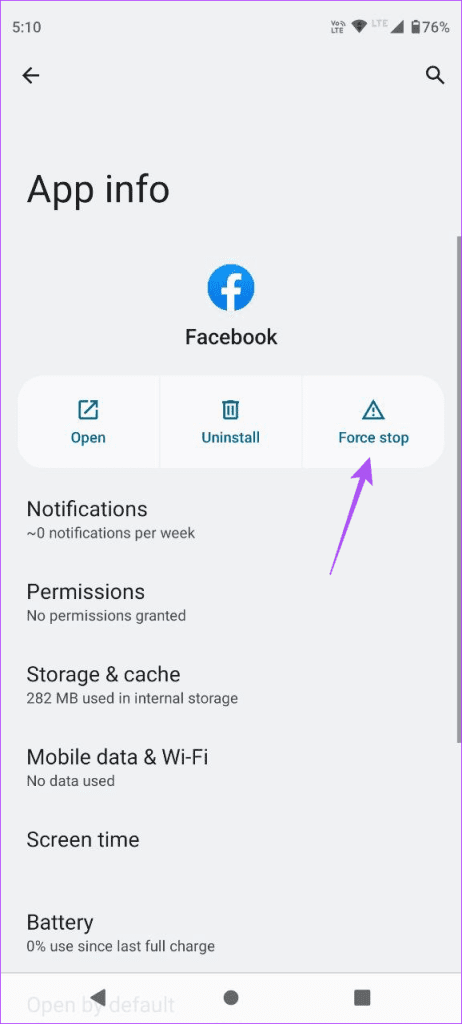
Step 3: Tap on Ok to confirm.

Step 4: Close App Info and open Facebook again to check if the problem is solved.
6. Update Facebook App
The last resort is to just update the version of Facebook on your iPhone or Android. This will remove the bugs in the current version that are causing this issue.
Never Miss Birthdays
These solutions will help when birthday notifications are not showing on Facebook. You can also read our post if you want to turn off your birthday on Facebook.
Was this helpful?
Last updated on 05 July, 2023
Read Next
 How to Set Up Quick and Easy Facebook Birthday Alerts With JibJab
If you have a huge number of friends on Facebook, which most of us do these days, you would agree that one major hassle that comes with keeping a long
How to Set Up Quick and Easy Facebook Birthday Alerts With JibJab
If you have a huge number of friends on Facebook, which most of us do these days, you would agree that one major hassle that comes with keeping a long
 How to Auto-Post Birthday Wishes on Facebook Walls of Friends
Birthdays come and birthdays go.
How to Auto-Post Birthday Wishes on Facebook Walls of Friends
Birthdays come and birthdays go.
 How to Hide Your Birthday from Your Friends on Facebook
Birthdays are special.
How to Hide Your Birthday from Your Friends on Facebook
Birthdays are special.
 How to Turn Off Your Birthday on Facebook
Are you tired of birthday notifications and well wishes that inundate your Facebook feed each year?
How to Turn Off Your Birthday on Facebook
Are you tired of birthday notifications and well wishes that inundate your Facebook feed each year?
 Auto-Schedule Birthday Wishes to Facebook Friends From iPhone
How many times have you forgotten to say hi to your friends in Facebook on their birthdays?
Auto-Schedule Birthday Wishes to Facebook Friends From iPhone
How many times have you forgotten to say hi to your friends in Facebook on their birthdays?
 9 Best Fixes for Facebook Stories Not Showing on Mobile and PC
Like most social media platforms, Facebook also allows you to view and share stories that disappear after 24 hours.
9 Best Fixes for Facebook Stories Not Showing on Mobile and PC
Like most social media platforms, Facebook also allows you to view and share stories that disappear after 24 hours.
 Top 8 Fixes for Notifications Banners Not Showing on Windows 10
Typically, when you receive a notification on your Windows 10 computer, you will hear a sound, and a banner will appear near the Action Center.
Top 8 Fixes for Notifications Banners Not Showing on Windows 10
Typically, when you receive a notification on your Windows 10 computer, you will hear a sound, and a banner will appear near the Action Center.
 10 Fixes for Notifications Not Showing Up on Wear OS Smartwatch
A smartwatch serves multiple purposes.
10 Fixes for Notifications Not Showing Up on Wear OS Smartwatch
A smartwatch serves multiple purposes.
The article above may contain affiliate links which help support Guiding Tech. The content remains unbiased and authentic and will never affect our editorial integrity.