

Gestures have been a part of OnePlus phones for quite some time now. Drawing an O to launch the camera app is perhaps one of the most used gestures amongst OnePlus users. And with the OnePlus 5, a new set of customizable gestures have made their entry.

But rather than ignore these new gesture options (previous OnePlus had 2 customizable gestures), let’s dig deeper and explore how we can make the most out of the OnePlus 5 Gestures.
Also See: 11 Cool OnePlus 5 Camera Tricks For Power Users1. O — Open YouTube Search Bar in an Instant
Odds are that YouTube is your de facto choice for watching videos, tutorials and what not. And if it’s true, chances are that you use its search bar more often than you realize.

A quick and nifty way to access the YouTube Search bar is through gestures. All you need to do is select one of the gestures, select YouTube from the app list and choose Search as the shortcut.
So, if you get a sudden idea to check out Taylor Swift’s new album, all you need to do is draw on your screen and Tada! The search bar would be right there waiting for you. Even when your screen is off.
See More: Download YouTube Videos on Android … Legally2. V — Find the Best Route to Your Home
As you might already know, Google Maps lets you save your home or work addresses through Settings > Your Places which in turn helps you in getting directions faster.

You can make this feature even faster with the OnePlus 5 gestures. All you have to do is select a gesture type, select Google Maps and select one of the shortcuts (either home or office).
The next time you want to have a quick glance at the traffic conditions before you leave for home, all you need to do is draw a neat little V on your phone’s screen.
Also See: 22 Best Google Maps Tips and Tricks That You’ll Love3. S — Add Contacts in a Jiffy
Adding a new contact can be quite a process if you go by the conventional way. Wake up your phone > punch in the security code > open contacts — you get the drift.
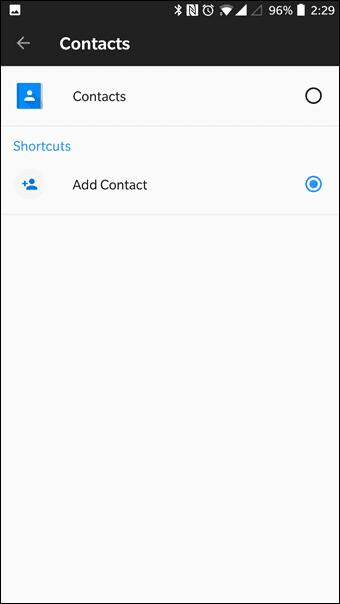
Well, this process can be incredibly shortened if you just assign the contacts app to one of the gestures. Similar to the above process, just assign the Add Contact shortcut.
So the next time you meet someone new in a party, draw an S and add their contact number directly. Nifty, right?4. M — Scan and Connect to Available WiFi Networks
Another cool way of maximising the OnePlus 5 gestures is by utilizing it to scan and connect to available WiFi networks. All you have to do is select Settings in App Shortcuts and choose WiFi as the shortcut.
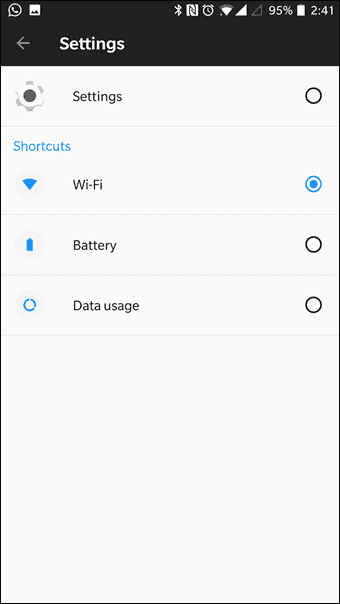
This set of gestures can also be used to see the battery percentage or your data usage.
Cool Tip: The gesture to control music playback5. Easy Screenshot [OnScreen]
Screenshot or Screengrab is perhaps one of the most used features in any smartphone. So whether it’s a video or message, all you have to do is press the volume key and power button.
But then again, no system is perfect. And this too has one major issue — from time to time the system volume gets lowered instead of the screen being captured.

Well, OnePlus has a cool workaround (and Xiaomi too). All you need to do is swipe down with three fingers. That’s it. To enable this setting, head over to Settings > Gestures.
Check out the 7 Cool Android Apps to Help You Take Better ScreenshotsWrapping Up!
It’s no secret that over the years, gestures have been steadily replacing the repetitive functions. For instance, a swipe down reveals all the open tabs on Google Chrome or a left swipe on the space bar removes all the typed phrases or sentences (Gboard).
In the case of the OnePlus 5 gestures, you might have a little hard time remembering them, but trust your brain to transform them into muscle memory.
See Next: 5 Cool Hidden Android Gestures You Need to Know
Was this helpful?
Last updated on 03 February, 2022
Read Next
 Smart Plug vs Smart Outlet: Which Is Better for Your Smart Home
Smart home devices are no longer a thing of the future.
Smart Plug vs Smart Outlet: Which Is Better for Your Smart Home
Smart home devices are no longer a thing of the future.
 Use Dolphin Browser Gestures, Sonar on Android For Productive Browsing
With smartphones evolving in both looks and performance, more and more people have started using it to browse the web.
Use Dolphin Browser Gestures, Sonar on Android For Productive Browsing
With smartphones evolving in both looks and performance, more and more people have started using it to browse the web.
 Instantly Launch Apps, Settings on Android Using Gestures
Laptops with touchpads and phones with touch-screens have been around for many years, even before iPhone triggered the smartphone revolution.
Instantly Launch Apps, Settings on Android Using Gestures
Laptops with touchpads and phones with touch-screens have been around for many years, even before iPhone triggered the smartphone revolution.
 GT Explains: Motion and Touch Gestures on Zen UI
Almost all Android phone manufacturers give a special touch to the Android OS and give them few apps and features that make them exclusive.
GT Explains: Motion and Touch Gestures on Zen UI
Almost all Android phone manufacturers give a special touch to the Android OS and give them few apps and features that make them exclusive.
 How to Get iPhone X-like Gestures on Your Android
The Apple iPhone X caught quite a number of eyeballs when it was launched, for its incredible camera, stunning design, and huge screen.
How to Get iPhone X-like Gestures on Your Android
The Apple iPhone X caught quite a number of eyeballs when it was launched, for its incredible camera, stunning design, and huge screen.
 How to Get iPhone X-like Gestures on Latest Xiaomi Devices
If you look at the current trend, it can be safely said that Apple's iPhone X inspired quite a number of phones this year — both in terms of looks
How to Get iPhone X-like Gestures on Latest Xiaomi Devices
If you look at the current trend, it can be safely said that Apple's iPhone X inspired quite a number of phones this year — both in terms of looks
 How to Customize and Use Quick Tap Gestures on Android
Google released useful quick tap gestures with Android 12 in 2021.
How to Customize and Use Quick Tap Gestures on Android
Google released useful quick tap gestures with Android 12 in 2021.
 Top 7 Ways to Fix Gestures Not Working on Android
Your Android phone supports a variety of gestures that allow you to switch between apps, take screenshots, and perform other advanced functions.
Top 7 Ways to Fix Gestures Not Working on Android
Your Android phone supports a variety of gestures that allow you to switch between apps, take screenshots, and perform other advanced functions.
The article above may contain affiliate links which help support Guiding Tech. The content remains unbiased and authentic and will never affect our editorial integrity.

