

 When it comes to using the internet efficiently, bandwidth usage is something that you should keep a track of. Similarly, when it comes to using the computer, you should watch out for CPU usage.
Though the operating systems take utmost care to relatively distribute the CPU and maintain a harmony among applications, there are certain tools that force the machine to allot them the processor on a priority basis, thus compromising on other heavier tasks.
Anti-virus tools are often the culprit in such scenarios. Usually, they eat up a huge portion of CPU, and the like; for example Microsoft Security Essentials (MSE) is set to consume 50% of the CPU by default.
So, during a security scan, if you are running some other heavy tasks that require more attention, then you can limit the CPU consumption of MSE. Here’s how.
Step 1: Launch MSE. It should be sitting in the system tray.

Step 2: Navigate to the Settings tab, select Scheduled scan from the left pane, select a value (ranging from 10% to 100% on a scale of 10%) from the drop down to Limit CPU usage during scan to and then click on Save changes.
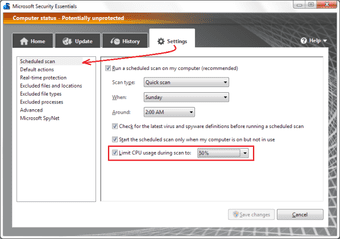
Exit the interface. Next time you run a scan you will be able to note the difference.
Was this helpful?
Last updated on 03 February, 2022
Read Next
 What Is the Difference Between Windows Defender and Microsoft Security Essentials
Microsoft Windows is one of the most popular and also the most widely used operating systems in the world.
What Is the Difference Between Windows Defender and Microsoft Security Essentials
Microsoft Windows is one of the most popular and also the most widely used operating systems in the world.
 Microsoft Office 365 Essentials vs Premium: Which Plan You Should Use
Microsoft Office 365 suite is considered as the Gold standard in the productivity space.
Microsoft Office 365 Essentials vs Premium: Which Plan You Should Use
Microsoft Office 365 suite is considered as the Gold standard in the productivity space.
 Top 7 Fixes for 100% CPU Usage in Microsoft Edge on Mac
Microsoft Edge is a reliable browser option for Mac users besides Safari and Google Chrome.
Top 7 Fixes for 100% CPU Usage in Microsoft Edge on Mac
Microsoft Edge is a reliable browser option for Mac users besides Safari and Google Chrome.
 7 Best Ways to Fix Microsoft Edge High CPU Usage on Windows 11
Microsoft Edge is the go-to web browser for many users since it comes pre-installed with Windows 11.
7 Best Ways to Fix Microsoft Edge High CPU Usage on Windows 11
Microsoft Edge is the go-to web browser for many users since it comes pre-installed with Windows 11.
 8 Best Ways to Fix Microsoft Teams High CPU Usage on Windows
Microsoft Teams is an outstanding team collaboration app pre-installed on Windows.
8 Best Ways to Fix Microsoft Teams High CPU Usage on Windows
Microsoft Teams is an outstanding team collaboration app pre-installed on Windows.
 An Overview of Windows Live Essentials 2011
The Window Live Essentials 2011 suite by Microsoft includes free products for mail, photos, instant messaging, movies, writing and more.
An Overview of Windows Live Essentials 2011
The Window Live Essentials 2011 suite by Microsoft includes free products for mail, photos, instant messaging, movies, writing and more.
 Top 5 Ways to Fix High CPU Usage on Mac
macOS is known to use resources in a very friendly way and longer battery of MacBooks are a testament to that.
Top 5 Ways to Fix High CPU Usage on Mac
macOS is known to use resources in a very friendly way and longer battery of MacBooks are a testament to that.
 Windows Audio Device Graph Isolation: Fix High CPU Usage
The productivity of your work can be easily influenced by how your Windows PC performs.
Windows Audio Device Graph Isolation: Fix High CPU Usage
The productivity of your work can be easily influenced by how your Windows PC performs.
The article above may contain affiliate links which help support Guiding Tech. The content remains unbiased and authentic and will never affect our editorial integrity.