

 The simplest and quickest way to open the Command Prompt is to key in cmd in Windows Search and hit Enter. Or you can always pin it somewhere. However, that does not start the Command Prompt as administrator; unless, you have changed the settings to always start it as administrator.
Another way is to navigate to the cmd.exe file location (on Windows directory, via start menu or any other method), right-click on it and say Run as administrator.
Well, you know these things, don’t you? What you might not know is, if you start cmd from the Windows Task Manager it runs as administrator. Here’s how:-
Step 1: Simply hit Ctrl + Shift + Esc on your keyboard (that starts the Task Manager) and then click on File -> New Task.
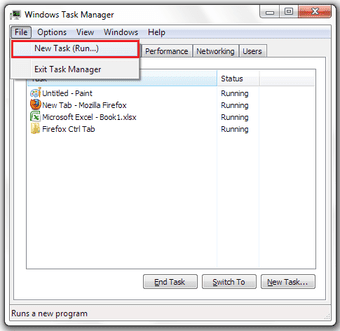
Step 2: A new dialog box will open. Type cmd and hit Enter to start the Command Prompt as administrator.

Cool Tip: If you want, you can cut down on Step 2 as well. That is, you can click on New Task in Step 1 while holding the Ctrl key and that will directly start the Command Prompt.
Was this helpful?
Last updated on 07 February, 2022
Read Next
 Start, Stop and Analyze Services Using Windows 8 Task Manager
When we introduced you to Windows 8 task manager we showed how it is more than just a task manager and is more powerful than the ones we have used
Start, Stop and Analyze Services Using Windows 8 Task Manager
When we introduced you to Windows 8 task manager we showed how it is more than just a task manager and is more powerful than the ones we have used
 Task for iPhone: A Cool Gesture-Based iOS Task Manager
If you are an iPhone user, one of the things that you probably have installed on it is a task manager to help you keep track of your to-do lists.
Task for iPhone: A Cool Gesture-Based iOS Task Manager
If you are an iPhone user, one of the things that you probably have installed on it is a task manager to help you keep track of your to-do lists.
 2 Best Ways to Disable Command Prompt and Windows PowerShell on Windows 11
Are you concerned about the security of your Windows PC?
2 Best Ways to Disable Command Prompt and Windows PowerShell on Windows 11
Are you concerned about the security of your Windows PC?
 Show Admin Settings in Windows 8 Start Screen and Group Them
Previously, we have seen how to customize the Windows 8 Start Screen (the Start Menu as we know it) but we only discussed how we can change the background color
Show Admin Settings in Windows 8 Start Screen and Group Them
Previously, we have seen how to customize the Windows 8 Start Screen (the Start Menu as we know it) but we only discussed how we can change the background color
 How to Customize Command Prompt, Adjust Its Window Size on Windows 7
The Windows command prompt isn’t something an average user uses often these days.
How to Customize Command Prompt, Adjust Its Window Size on Windows 7
The Windows command prompt isn’t something an average user uses often these days.
 How to Fix Command Prompt Not Working in Windows 10 Error
In the early days of computing, Command Prompt reigned the operating systems before the elegant graphic user interfaces became the primary mode of interaction with the computers.
How to Fix Command Prompt Not Working in Windows 10 Error
In the early days of computing, Command Prompt reigned the operating systems before the elegant graphic user interfaces became the primary mode of interaction with the computers.
 Top 7 Ways to Fix Command Prompt Not Working on Windows 11
Command Prompt is a powerful utility on Windows and is often underutilized.
Top 7 Ways to Fix Command Prompt Not Working on Windows 11
Command Prompt is a powerful utility on Windows and is often underutilized.
 Top 6 Ways to Fix Command Prompt Keeps Popping Up in Windows 11
It's natural to feel clueless when Command Prompt keeps popping up on your Windows 11 PC for no apparent reason.
Top 6 Ways to Fix Command Prompt Keeps Popping Up in Windows 11
It's natural to feel clueless when Command Prompt keeps popping up on your Windows 11 PC for no apparent reason.
The article above may contain affiliate links which help support Guiding Tech. The content remains unbiased and authentic and will never affect our editorial integrity.

