

Yesterday, we talked about changing default browser manually and I showed how we can set Firefox, Chrome or Internet Explorer as the default browser without the need to restart them.
Today, we will see how to make Safari or Opera as your default browser. The scenario remains the same – you had been using Safari or Opera as default and some changes to the system caused another browser (like Chrome or IE) to set itself as the default. So now you need to change it back to the way it was.
Make Safari Your Default Browser
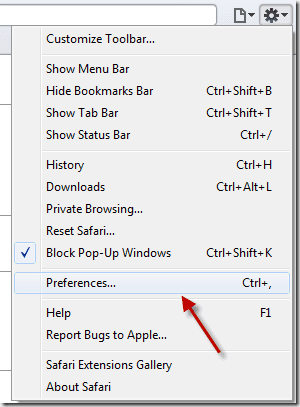
To set Safari as default, you would first need to visit its Preferences.
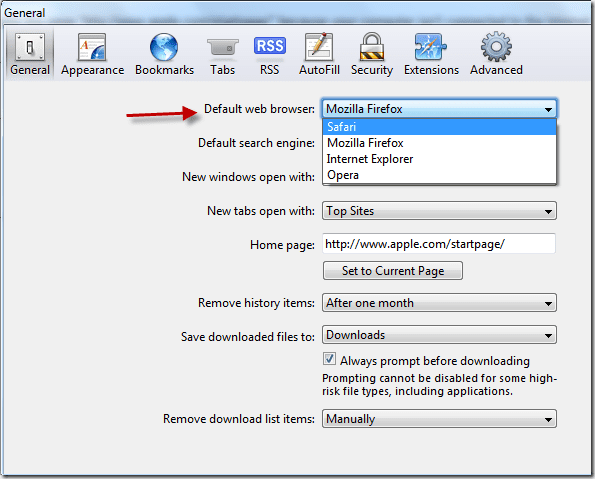
Under General, you’ll find the Default web browser option and a drop-down menu to select the default browser. The unique thing here is that it lists all the browsers installed in your system, and you can select any one of them as your default browser.
Make Opera Your Default Browser
In Opera, the browser preferences are found under Settings in the Menu options.

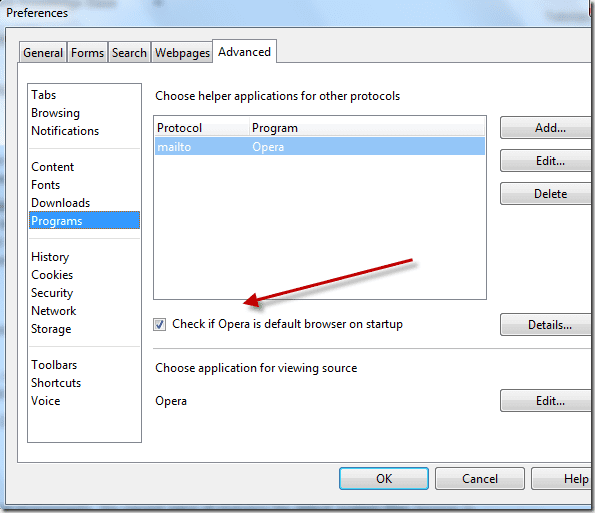
Here, you’ll need to go to the Advanced tab and click on Programs. You’ll see a checkbox that says Check if Opera is default browser on startup. Check it, click on OK and restart the browser. It’ll ask you if you want to make it default. Click on Yes.
Unlike other browsers, where a restart wasn’t needed to set them as default, in Opera I couldn’t find a way to do that..unless you select Opera in the default web browser menu in Safari’s preferences. ????
Was this helpful?
Last updated on 02 February, 2022
Read Next
 Opera Mini vs Opera Touch: Which Is the Better Mobile Browser
Opera has pioneered its name in the browser market.
Opera Mini vs Opera Touch: Which Is the Better Mobile Browser
Opera has pioneered its name in the browser market.
 Opera vs Opera GX: Should You Switch to the Gaming Browser
Opera is one of the better Chromium-based browsers out there.
Opera vs Opera GX: Should You Switch to the Gaming Browser
Opera is one of the better Chromium-based browsers out there.
 Opera Browser vs Opera Mini: Which One Should You Use
Recently, I was traveling to a remote area and connectivity became an issue.
Opera Browser vs Opera Mini: Which One Should You Use
Recently, I was traveling to a remote area and connectivity became an issue.
 How to Change Default Browser, Make Firefox or Chrome Default
So the other day I downloaded and installed the latest version of Opera.
How to Change Default Browser, Make Firefox or Chrome Default
So the other day I downloaded and installed the latest version of Opera.
 Opera GX vs. Chrome: Is Opera GX better than Chrome
For the longest time, Google Chrome has been the go-to browser for a majority of us.
Opera GX vs. Chrome: Is Opera GX better than Chrome
For the longest time, Google Chrome has been the go-to browser for a majority of us.
 How to Clear Cache in Opera and Opera GX
Opera and Opera GX are popular feature-rich browsers that enhance your browsing experience.
How to Clear Cache in Opera and Opera GX
Opera and Opera GX are popular feature-rich browsers that enhance your browsing experience.
 Brave vs Opera: Which Browser Is the Best to Surf Privately
Privacy concerns are on the rise with top Internet giants allegedly following the "data is the new oil" mantra.
Brave vs Opera: Which Browser Is the Best to Surf Privately
Privacy concerns are on the rise with top Internet giants allegedly following the "data is the new oil" mantra.
 How to Update Opera Browser on Desktop and Mobile
Browser bugs, changes in app styles, or even updates in websites can lead to the browser not performing adequately if it's not updated.
How to Update Opera Browser on Desktop and Mobile
Browser bugs, changes in app styles, or even updates in websites can lead to the browser not performing adequately if it's not updated.
The article above may contain affiliate links which help support Guiding Tech. The content remains unbiased and authentic and will never affect our editorial integrity.

