


Apple’s MacBook Pro and MacBook Air are more useful when you hook them to a monitor. As long as you have a USB Type-C adapter or hub along with the right USB Type-C to HDMI cable, you can view the contents of your MacBook on a bigger screen. If you want to keep things simple or it’s the first time you’re getting a larger screen, it’s best to stick to budget monitors for your MacBook Air and MacBook Pro.

These monitors are far more affordable than their Thunderbolt monitors or 4K counterparts while not making several compromises. We have tried to include as many USB Type-C monitors as possible for seamless connectivity, but there are a couple of non-USB Type-C displays. However, let that not deter you from checking them out because the other features make up for it and ensure you get the best value.
Let’s check some of the best budget monitors for your MacBook. But first,
- Want to get a lot of work done simultaneously? Take a look at some business monitors for a dual monitor setup.
- Carry a large screen wherever you go by getting portable sliding monitors for laptops.
- It’s best to pick up a USB Type-C cable with Power Delivery for fast-charging your Mac.
1. LG 29WN600-W UltraWide Monitor
- Resolution: 2560 x 1080 (Ultrawide) | Size: 29-inch | Panel: IPS
- USB Type-C: No
- Ports: 2 x HDMI, 1 x DisplayPort, 1 x 3.5mm Audio
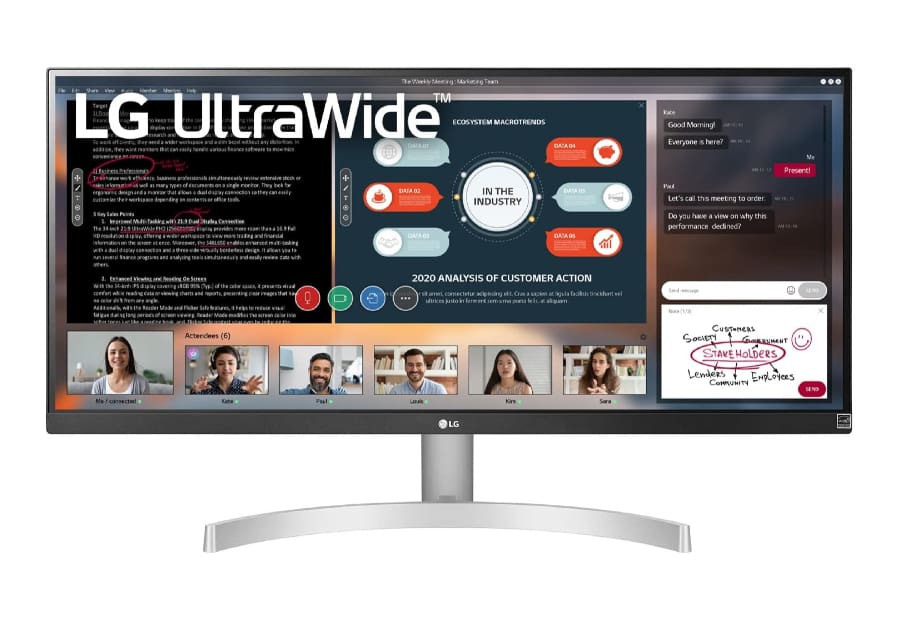
If you want to boost your productivity levels, there’s nothing like an ultrawide display, and the LG 29WN600-W fits the requirement. The 29-inch 21:9 screen gives you ample screen real estate to go about your job. At the same time, the thin bezels along the sides help its case and make it easy to pair it with a second monitor.
It’s one of the least expensive monitors on this list, and for the price, it delivers impressive picture quality. At the same time, the IPS screen panel makes sure that you get vivid colors and wide viewing angles. If we talk numbers, the LG 29WN600-W can display 98.5% of the sRGB color spectrum.
At the same time, the panel is bright and can go up to 300cd/m2, which is more than sufficient for regular office work.
The ergonomics are fairly decent. Again it’s a budget monitor, so you will have to give up on features such as height adjustments. It offers minimal tilt adjustments. But the good news is that you can mount it on a monitor arm. You also get a decent amount of ports. The lack of a dedicated USB Type-C port means you will have to use a USB Type-C hub or adapter to connect it to your Mac.
Why you should buy it: The ultrawide screen gives you ample screen real estate. It’s an excellent option if you’re looking for a cheap ultrawide monitor for your MacBook Pro and MacBook Air.
2. ASUS ProArt Display PA247CV Monitor
- Resolution: 2560×1440 | Size: 27-inch | Panel: IPS
- USB Type-C: Yes
- Ports: 1 x DisplayPort 1.2, 1 x HDMI 1.4, 1 x DisplayPort Out, 4 x USB 3.0, 1 x USB Type-C

If you want a monitor for creative purposes within a certain budget, the ASUS ProArt Display PA278CV checks the right boxes. This one is the successor to ProArt PA278QV and brings an interesting mix of features, including a USB Type-C port. At the same time, the USB Type-C port can supply power of up to 65W, which makes it apt for charging the MacBook Air. And being created for creative professionals, you can expect rich and accurate colors from this 1440p screen.
For one, this monitor offers refresh rate of 75Hz. This translates into smooth scrolling while going through long web pages. Plus, you can also expect movies and videos to be smooth.
This 27-inch display is more than sufficient to run multiple windows side by side, provided the app supports it. And on the off-chance that you’d connect it to a Windows laptop, you can reap maximum benefits from the DisplayPort connection. With it, you can daisy chain multiple monitors, thereby reducing cable clutter.
Why you should buy it: This budget monitor brings an interesting mix of features, which includes a USB Type-C PD port, a color-accurate display, and a 75Hz refresh rate.
3. HP E24u G4 USB-C Monitor
- Resolution: 1920 x 1080 | Size: 24-inch | Panel: IPS
- USB Type-C: Yes (100 W)
- Ports: 1 x HDMI 1.4, 1 x DisplayPort 1.2, 1 x DisplayPort 1.2 Out, 1 x USB Type-C downstream, 4 x USB 3.1 downstream
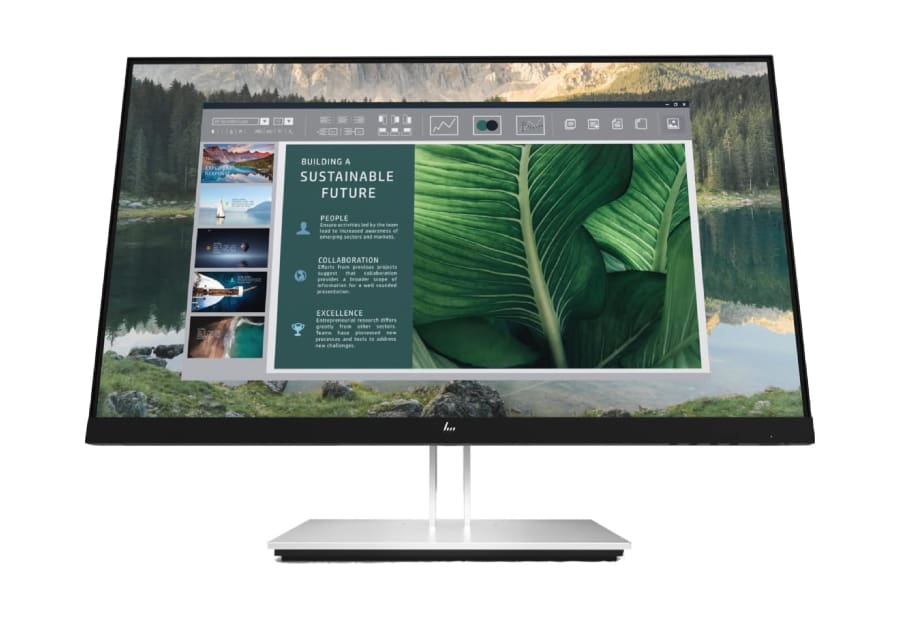
If a business monitor is more of your cup of tea, then the HP E24u is worth checking out. This budget MacBook monitor bundles a 24-inch FHD screen and is adequate for regular office work. But the feature that helps it stand apart from the rest is its support for 100W charging power. So yeah, you needn’t connect a separate power cable to juice your laptop. Plus, it bundles a built-in USB Type-C hub which lets you connect several peripherals and accessories. It helps to transfer data to external storage.
Surprisingly, the HP E24u has a wide array of ports. Apart from the USB Type-C ports, there are HDMI and DisplayPort connectors.
As noted earlier, this monitor is designed for regular office work and is not ideal for color-critical work. However, you can dabble with casual photo editing.
Why you should buy it: The HP E24u is an affordable business monitor and is perfect for regular office work.
You can also check out the Samsung SJ55W 34-inch 4K ultrawide monitor, especially if you want a much bigger screen. It’s in the same price bracket as the ones above. It doesn’t have a USB Type-C port, and you will have to get a USB hub to make the connection.
4. LG 27UK650-W UHD Monitor
- Resolution: 3840 x 2160 | Size: 27-inch | Panel: IPS
- USB Type-C: No
- Ports: 2 x HDMI 2.0, 1 x DisplayPort 1.2, 1 x 3.5mm

If you want a 4K monitor to connect to your Apple MacBook and do not want to spend as much, then the LG 27UK650 is a good pick. For the price, it checks off all the right boxes. For one, the IPS panel gets you vibrant picture quality. The details appear sharp and clear, thereby staying true to its 4K monitor tag. At the same time, you can use it for color-sensitive work as well. It can display 99% of the sRGB color spectrum.
It has a premium look, all thanks to the slim bezels and the curved monitor stand. The stand is ergonomic, and you will be able to adjust the height by around 100 mm. The viewing angle is decent at 178-angle, and if you have to share your screen with your colleagues from time to time, it shouldn’t be an issue.
The affordable price tag means you will have to give up on some features and in this case, it’s the HDR. Though it supports HDR 10, the resulting picture quality when playing HDR quality leaves a little to be desired. The lack of local dimming and the low brightness ceiling may not deliver dark or deep color like its premium counterparts and can result in washed-out colors at times.
Here too, you do not get a USB Type-C port. Instead, you get to pick from dual HDMI 2.0 ports and a DisplayPort 1.2. Without a dedicated USB Type-C port, you will have to rely on the good old USB Type-C adapter to connect your Mac to the display.
Why you should buy it: Affordable 4K monitor for Apple MacBooks.
Alternatively, you can check out the LG 34WN750-B monitor. It’s an ultrawide QHD IPS monitor with impressive picture quality and a bright display.
5. Dell P2720DC Monitor
- Resolution: 2,560 x 1,440 | Size: 27-inch | Panel: IPS
- USB Type-C: Yes, 65W
- Ports: 1 x HDMI, 1 x USB Type-C, 4 x USB-A, 1 x DisplayPort In, 1 x DisplayPort Out

Another slightly budget monitor for MacBooks is the one by Dell. The Dell P2720DC monitor is a little more expensive than the monitors above. You can’t go wrong with this monitor, especially if you are looking for a productivity-focused monitor for your MacBook. The 27-inch 1440p screen of the monitor is big enough and will let you open 2 (or more) windows side-by-side. The best part is that the IPS screen displayed vivid and crisp visuals.
On top of that, the USB Type-C port can deliver 65W of power, removing the hassle of connecting a power cable separately. And the built-in USB Type-C dock eases the process of connecting laptops. At the same time, the build quality is excellent, and you get a robust stand with this Dell monitor. More importantly, it’s highly ergonomic, and you will be able to tilt, swivel, and rotate the monitor as per your requirement.
This new Dell 1440p monitor boasts a sleek design and renders almost a bezel-less design. Apart from productivity-focused work, this monitor for MacBooks can also be used for color-correction work. If we talk numbers, it covers 99% of the sRGB color space and 82.6 percent of the DCI-P color space.
Why you should buy it: Ergonomic and productivity-focused monitor.
FAQs for Budget Monitors for MacBook Air and MacBook Pro
An M1 MacBook only supports one external monitor. However, you can get a DisplayLink dock to connect multiple external monitors.
While an ultrawide monitor is primarily meant for multitasking, watching movies in the 21:9 aspect ratio is a pleasant experience.
Yes, macOS has native support for high refresh rate displays so feel free to pick up a gaming monitor to connect to your Mac and PC.
The Second Eye
If you pick up any of the best budget monitors for the MacBook Air and MacBook Pro from above, do get a laptop riser to go with it. With both screens at the same level, you will be able to work more efficiently. And trust me, your neck will thank you. Alternatively, you can take the deal further by mounting it on a desk mount (provided the monitor has VESA-compatible mounts).
Was this helpful?
Last updated on 02 August, 2023
1 Comment
Leave a Reply
Read Next
 Top 6 Ultrawide Monitors for the New Apple MacBook Air and MacBook Pro
The new Apple MacBook Pro and MacBook Air with Apple's silicon aim to take your productivity to the next level by promising seamless performance.
Top 6 Ultrawide Monitors for the New Apple MacBook Air and MacBook Pro
The new Apple MacBook Pro and MacBook Air with Apple's silicon aim to take your productivity to the next level by promising seamless performance.
 5 Best USB-C Monitors for M1 MacBook Air and M1 MacBook Pro
Apple's new M1 MacBook Pro and the M1 MacBook Air are efficient than previous laptops, thanks to the new Apple M1 processor.
5 Best USB-C Monitors for M1 MacBook Air and M1 MacBook Pro
Apple's new M1 MacBook Pro and the M1 MacBook Air are efficient than previous laptops, thanks to the new Apple M1 processor.
 2 Easy Ways to Factory Reset a MacBook Air or MacBook Pro
If you're looking to sell or give away your Mac, it's important to ensure that all your data and files are securely erased from the device.
2 Easy Ways to Factory Reset a MacBook Air or MacBook Pro
If you're looking to sell or give away your Mac, it's important to ensure that all your data and files are securely erased from the device.
 M2 Pro vs M1 Pro vs M2: Which MacBook Pro Is Right For You
To say that Apple had an eventful start to the new year would be a bit of an understatement.
M2 Pro vs M1 Pro vs M2: Which MacBook Pro Is Right For You
To say that Apple had an eventful start to the new year would be a bit of an understatement.
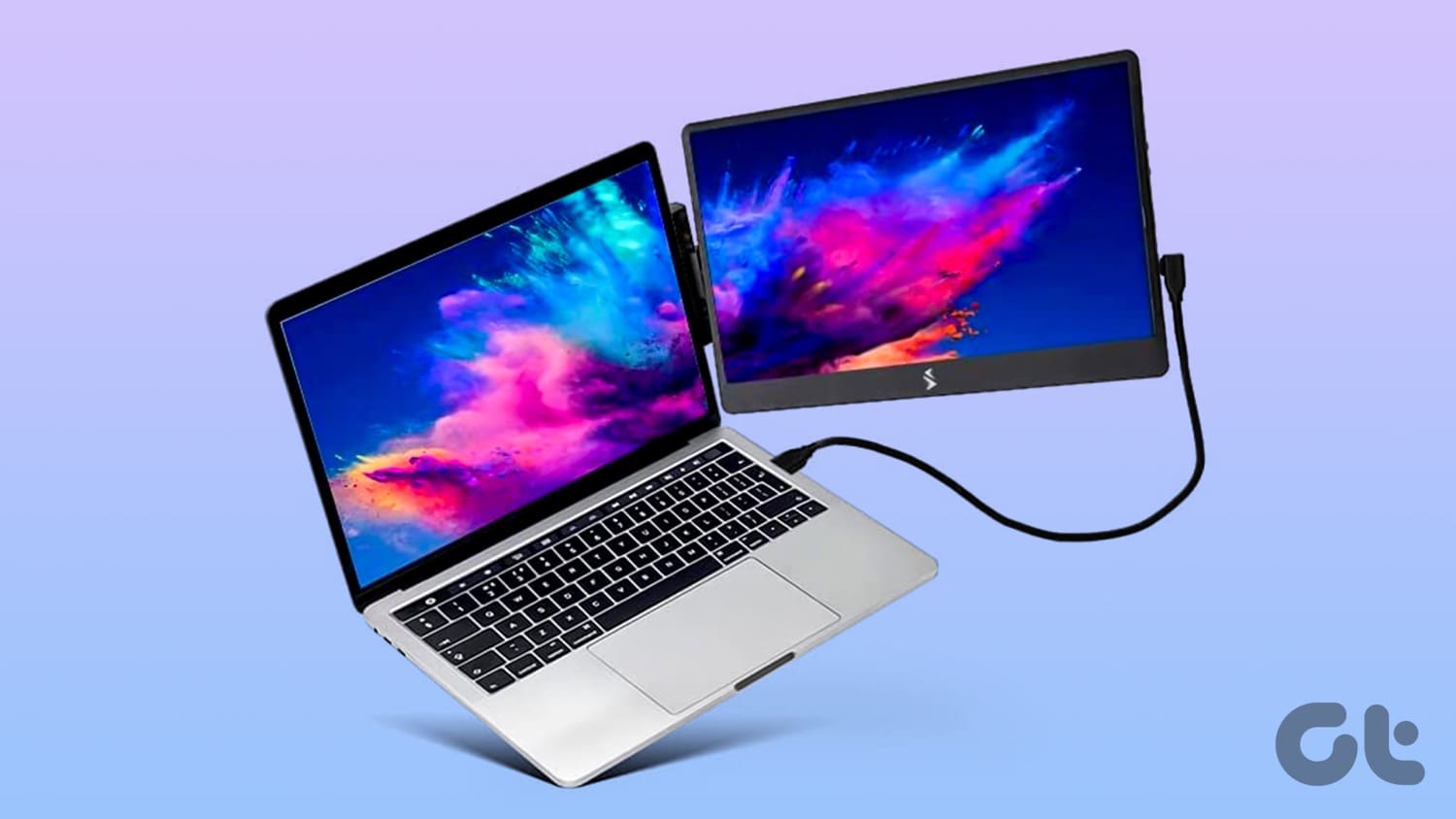 5 Best Portable Monitors for Apple MacBook Pro
Hooking up your MacBook Pro to a monitor will up your productivity levels.
5 Best Portable Monitors for Apple MacBook Pro
Hooking up your MacBook Pro to a monitor will up your productivity levels.
 6 Best USB Type-C Cables to Connect MacBook Pro to Monitors
The best way to connect your Apple MacBook Pro to a monitor is through a USB Type-C cable.
6 Best USB Type-C Cables to Connect MacBook Pro to Monitors
The best way to connect your Apple MacBook Pro to a monitor is through a USB Type-C cable.
 6 Best Apple MacBook Air Protective Cases That You Can Buy
Apple MacBook Air is built with aluminum but is prone to scratches and dents.
6 Best Apple MacBook Air Protective Cases That You Can Buy
Apple MacBook Air is built with aluminum but is prone to scratches and dents.
 8 Best Sleeves for Apple MacBook Air M2 15-inch
The new Apple MacBook Air M2 15-inch delivers impressive power and versatility, making it the ideal laptop for students, professionals, and creatives.
8 Best Sleeves for Apple MacBook Air M2 15-inch
The new Apple MacBook Air M2 15-inch delivers impressive power and versatility, making it the ideal laptop for students, professionals, and creatives.
The article above may contain affiliate links which help support Guiding Tech. The content remains unbiased and authentic and will never affect our editorial integrity.


great article, but I could also really use this info (or some of it, with pricing range) in a table. Thanks!