

If you are a student, you do not have to carry heavy textbooks that give you a sore back. You can easily store digital copies on your computer. However, you’d also want to ensure that these copies are in the correct format to access and read them easily. Hence, if you’re looking to change the format of your ebook, here’s how you can convert files between EPUB and PDF formats on any device.
There are various advantages that each format has on each other, depending on how you want to read them. In this article, we’ll explain all the differences between the PDF and the EPUB format to help you decide. We’ll also show you some of the best free apps for Windows, Mac, iPhone, and Android, using which you can easily convert files between the two formats. Let’s begin.
EPUB vs. PDF: What are the Differences
The key difference is that EPUB files are designed to be responsive and reflowable, meaning the content adapts to different screen sizes and orientations. This makes it more suitable for reading on smartphones, tablets, and e-readers.
Whereas a PDF document maintains a fixed layout, preserving the exact formatting and page structure as intended by the author. It is more suitable for documents where precise page layouts are essential, like forms, brochures, or documents intended for printing.

Therefore, if you want to increase the text size while reading or change the layout of your book, it is best to use the EPUB format, as it significantly improves readability. However, PDF is the better choice for more detailed documents containing infographics and the ones that are intended to be printed.
Best Ways to Convert PDF to EPUB on Windows and Mac
Here are some of the best free tools that you can use to convert EPUB and PDF files on your desktop.
1. Calibre – Ebook Management App With Offline Converter
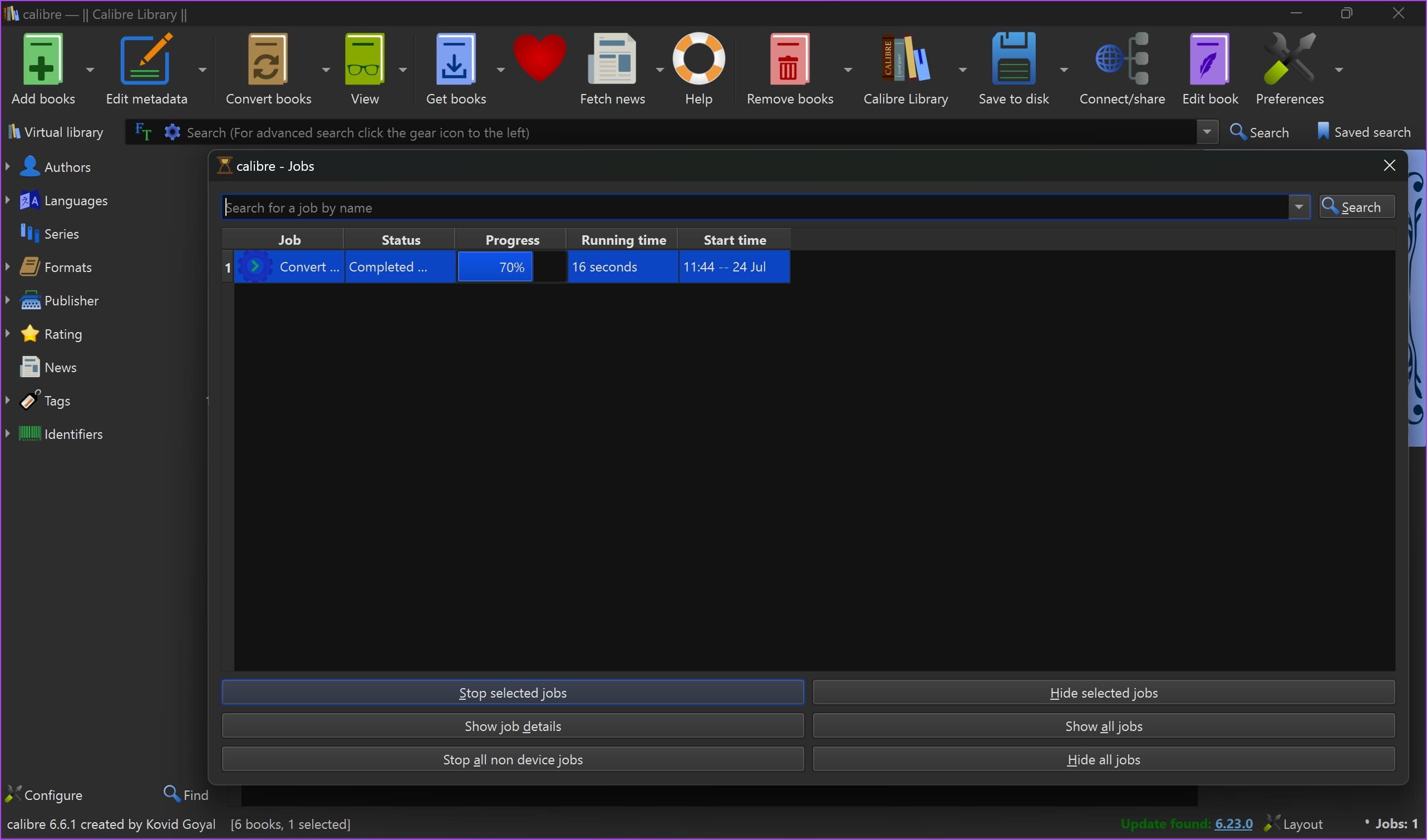
Calibre is an all-in-one ebook management app for Windows and macOS. This app is a must-have if you have a Kindle reader and you often add books to Kindle from your computer. It also has an offline converter to convert EPUB to PDF and vice versa. Furthermore, you can also convert your books to all the other formats like MOBI, AZW, etc.
Price: Free
2. CloudConvert: Free EPUB to PDF Converter Online
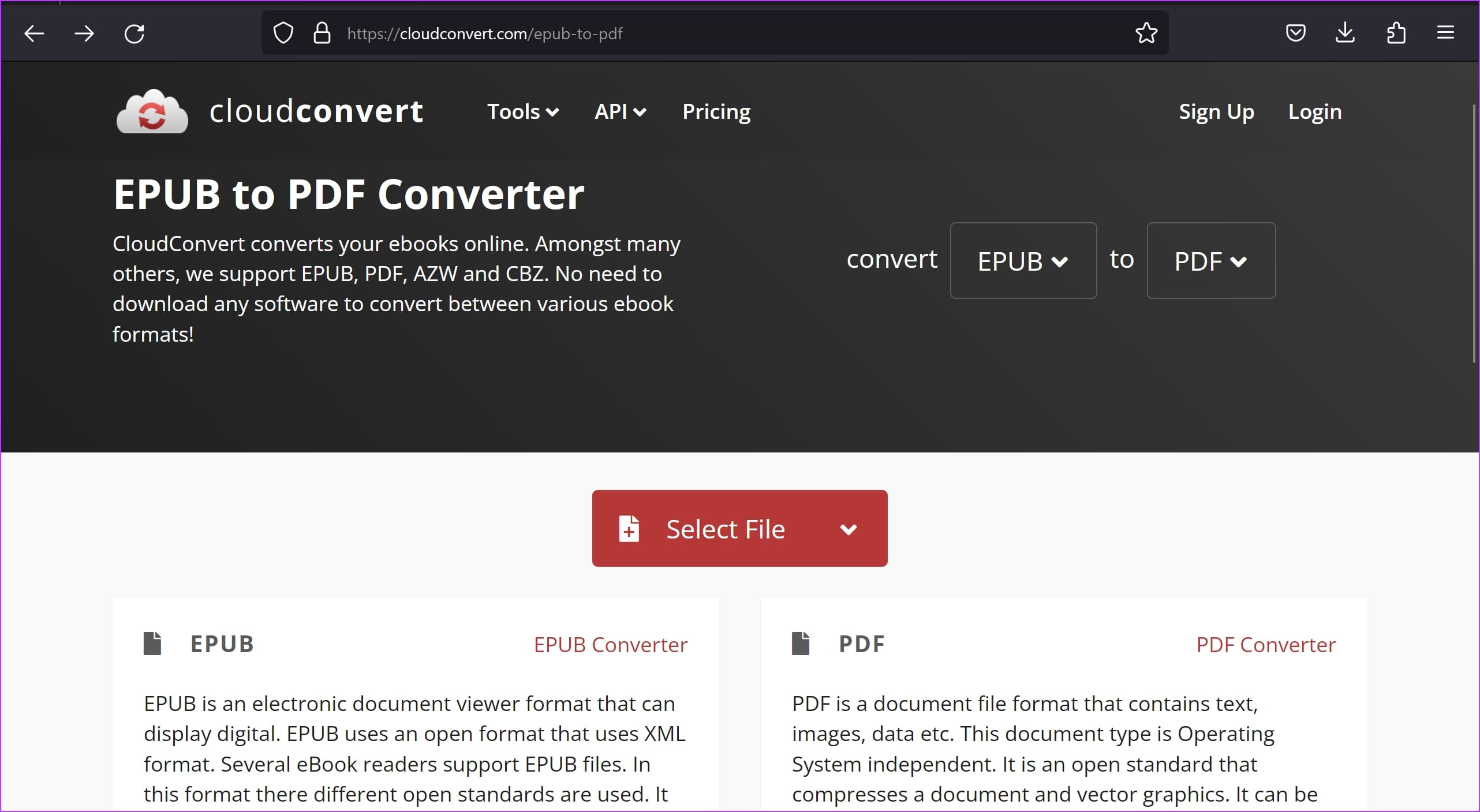
If you want to skip the hassle of installing a third-party app to convert EPUB and PDF documents, here’s a one-click converter that you can use called CloudConvert. You can use this application on your web browser itself.
Simply select the input and the output format and upload the source document. Within seconds, the converted document will be available for download. The service claims that the upload process is entirely safe and does not store any data related to the uploaded document.
The tool is free to use, with up to twenty-five conversions per day. Additionally, it can help you convert any popular file format.
Price: Free; Paid plans: $9 onwards
3. File Converter: Browser Extension to Convert EPUB to PDF
If you want a tool that converts EPUB to PDF and vice-versa at your fingertips, consider using an extension for your web browser. File Converter is a highly rated, free-to-use extension for Chrome, Edge, Brave, and Firefox web browsers.
The extension converts EPUB files to PDF, but to convert a PDF to EPUB, go to the extension website by clicking on the title of the extension on top. The website also has more conversion options, which you can use for free.

Price: Free
You can use all of these above-mentioned websites on your mobile – iPhone and Android devices as well. However, here are some options if you prefer using an app to convert PDF and EPUB files.
Best PDF to EPUB Conversion Apps on iPhone and Android
While there are a lot of applications to convert EPUB files to PDF, there are only a few apps that let you do both ways – convert PDF to EPUB as well on iPhone and Android. Here are two reliable apps that we can recommend for your device.
4. Ebook Converter: Free PDF to EPUB Converter for iPhone
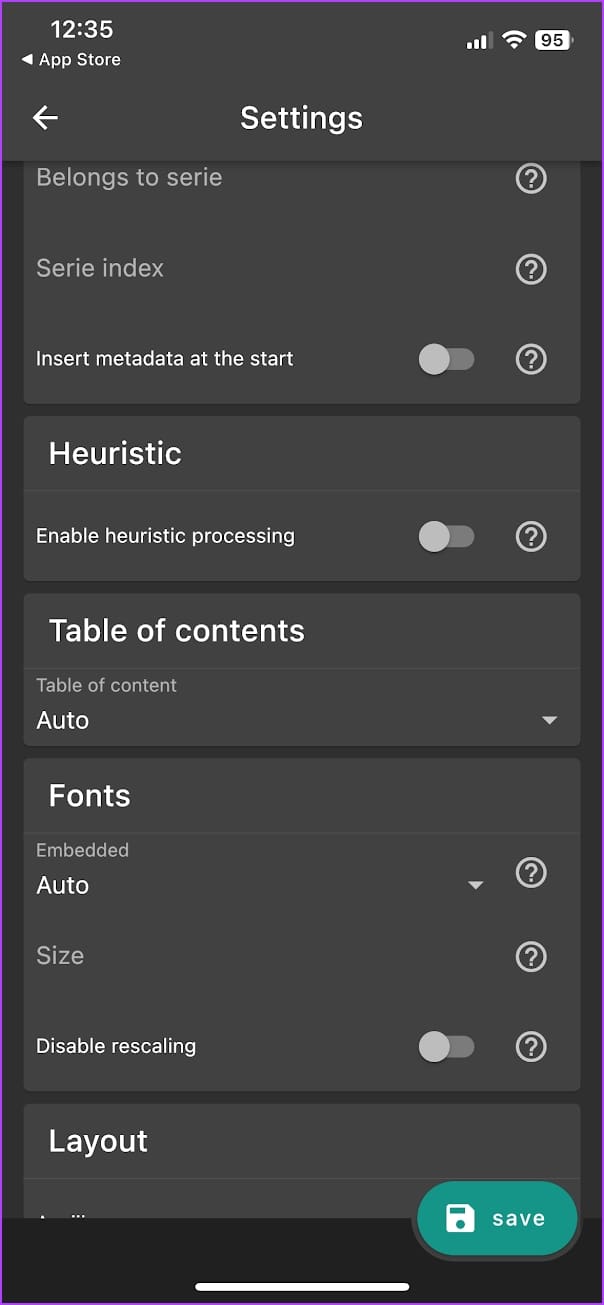
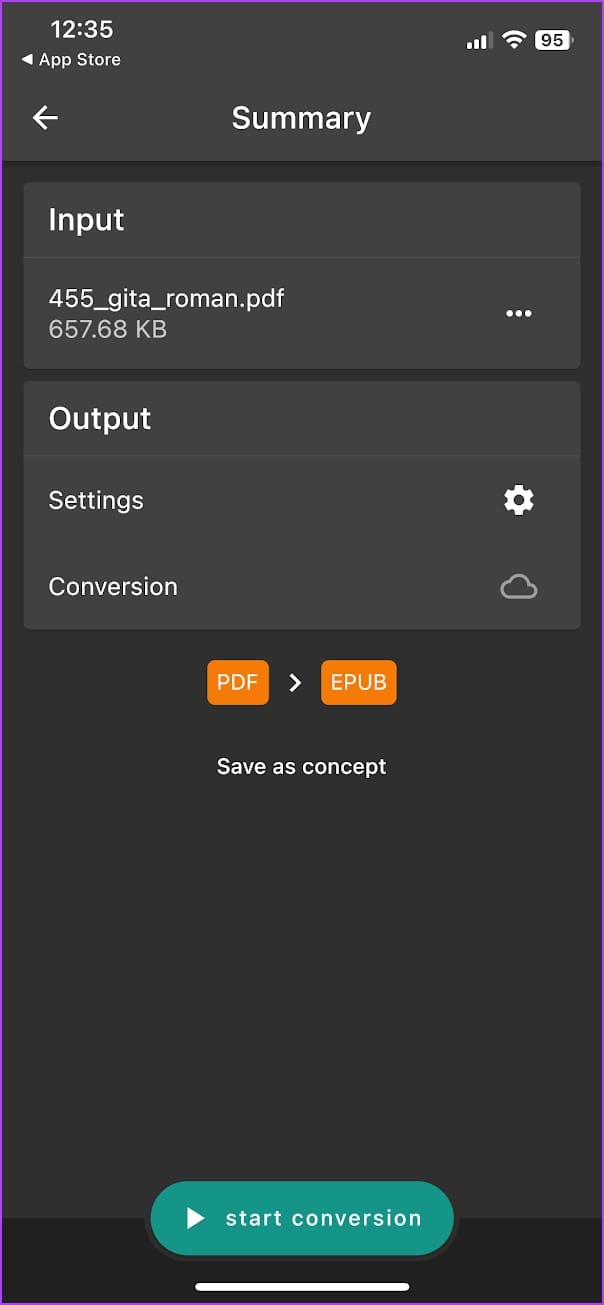
Ebook Converter has to be the best app to convert EPUB and PDF files on iPhone. Our favorite aspect of this app has to be the various options to edit the metadata of the document you’re converting. You can also restructure the layout of the book and even recognize text using the built-in OCR tool. It also has a simple and an easy to navigate interface.
The app has ads, but we did not encounter any that interfered with our experience. The free version of the app has a few restrictions regarding conversions. For example, you cannot perform a batch conversion. To do so and remove all the ads, you can purchase the paid version of the app.
Price: Free; Paid Version: $1.99 onwards
5. Ebook Converter – Simple, Lightweight PDF to EPUB Converter for Android
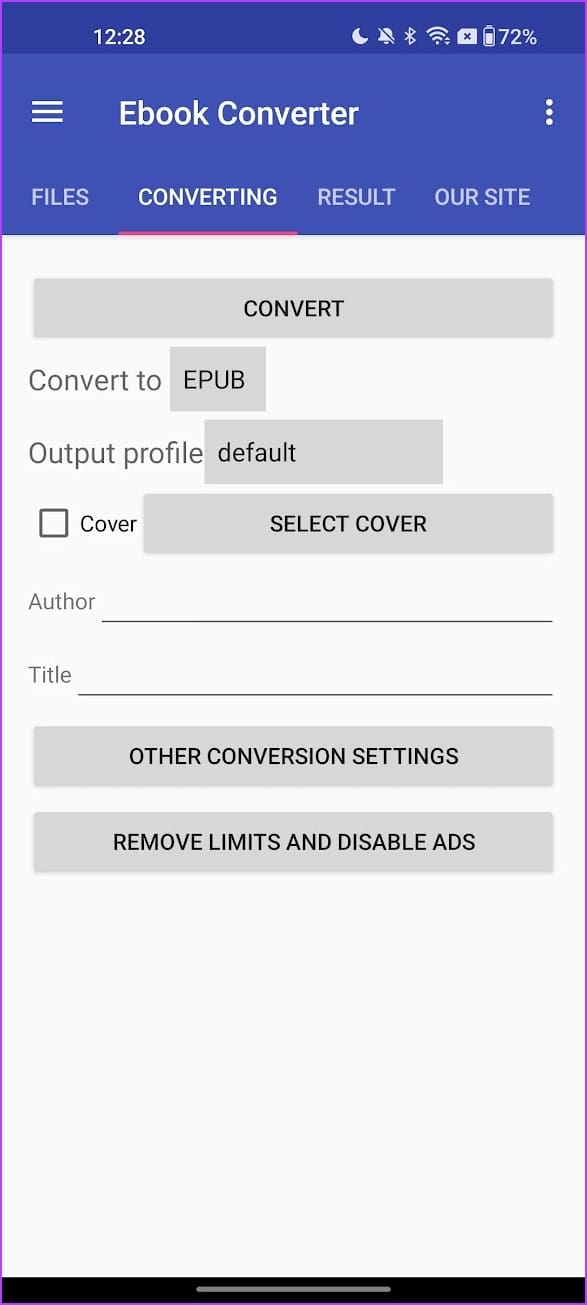
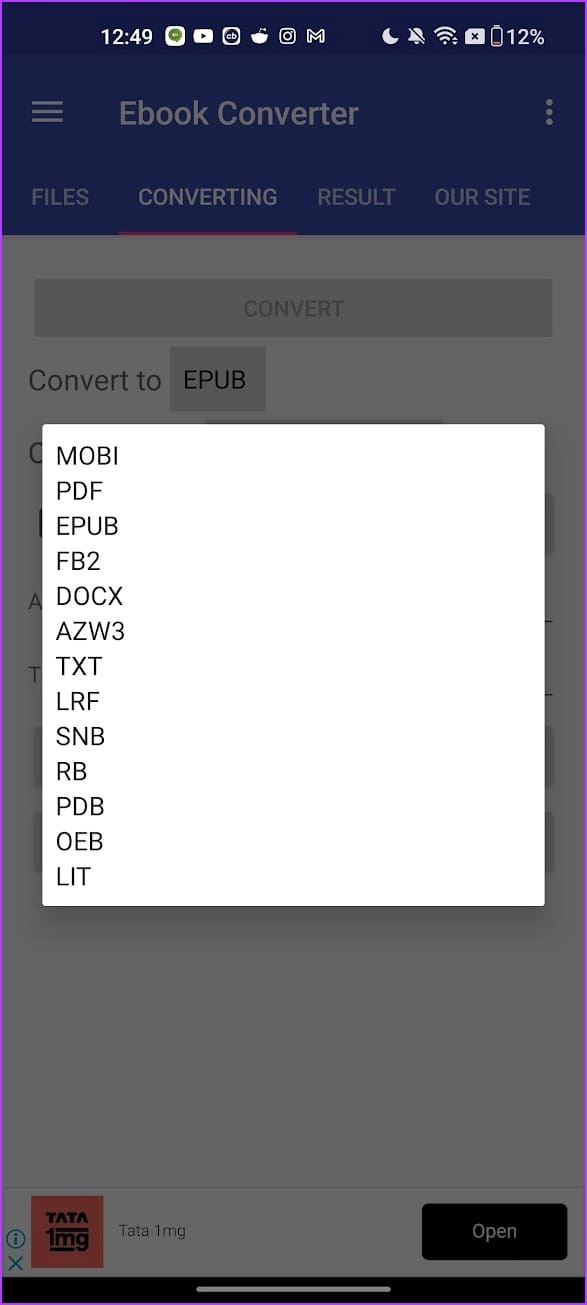
Ebook Converter is a free-to-use app on the Play Store that lets you convert PDF and EPUB files. You can quickly convert your books and documents and also modify a few details, like changing the title, cover, and more while you convert.
The free version allows you to convert up to 5 files at once. While it has an easy-to-use interface, we encountered a few ads. However, you can disable these ads along with any conversion restrictions by purchasing the paid version of the app.
Price: Free; Paid Version: $3.99
That is everything you need to know on how to convert EPUB and PDF files. If you have further questions, look at the FAQ section below.
FAQs on EPUB and PDF Files
No. You cannot remove DRM protection from a PDF or EPUB file.
You can look at our detailed guide to learn how to add passwords to a PDF document.
Yes. Kindle supports both EPUB and PDF files.
Read Your Book in the Desired Format
Electronic devices have changed the way we read books for many of us. We hope this article helps you easily convert EPUB files to PDF and vice-versa on any device. If you have any doubts, drop them in the comments section, and we’ll get back to you at the earliest.
Was this helpful?
Last updated on 28 July, 2023
Read Next
 What’s the Difference Between EPUB, MOBI, AZW and PDF eBook Formats?
Even as recent as a few years back, eBooks were read by a niche audience.
 How to Easily Read EPUB eBooks on Firefox
We normally think of reading ebooks on ereaders and tablets these days.
 3 Best Online Video Converters for Twitter
If you are a Twitter buff, you must know by now that it's not an easy task to upload videos.
 Top 7 Free Number to Words Converters
You are in the bank filling in a cheque and need to convert the amount in words.
 Top 7 Free Words to Number Converters
I recently wrote an article on number to words converters and thought to myself, if people are looking for number to word converters then there must be people looking for
 How to Save Google Docs as PDF on Desktop and Mobile
When we want to convert a document or file from one file type to another, we take the help of third-party services usually.
 Top 5 Travel Power Adapters and Converters in India
If you are a frequent flyer you must know that not all countries have the same power plugs and outlets.
 5 Best Standing Desk Converters for Dual Monitors
Whether you work from home or just use a computer for gaming or browsing, a standing desk converter can really help you take a break from sitting all the time.
The article above may contain affiliate links which help support Guiding Tech. The content remains unbiased and authentic and will never affect our editorial integrity.

