

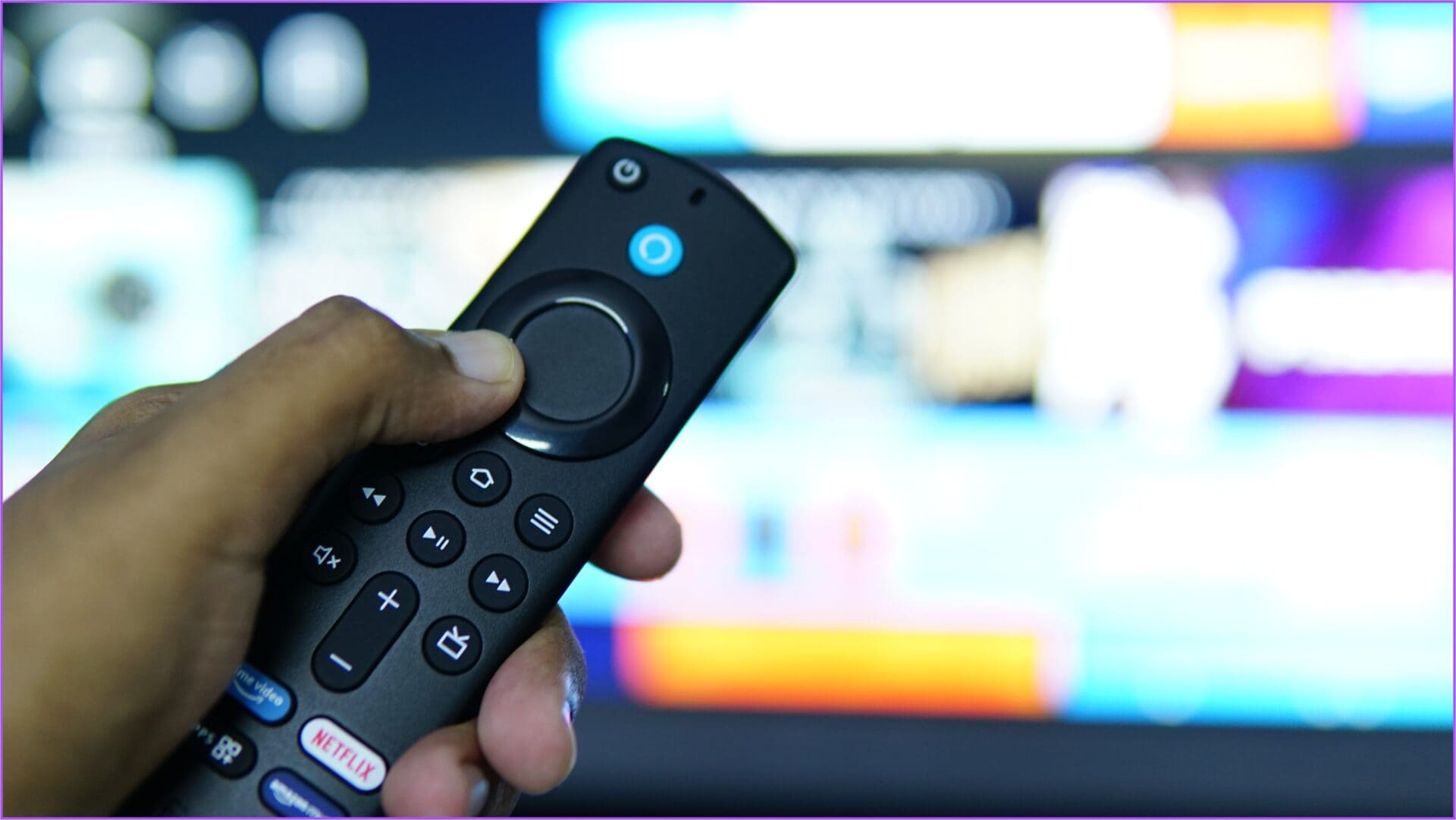
Amazon Fire TV Stick 4K comes with a dedicated remote to operate the interface easily on your TV. The new 3rd gen Alexa Voice Remote for Fire TV comes with dedicated buttons to quickly launch your favorite apps like Netflix, Prime Video, Disney Plus, and Hulu. Of course, the availability of the streaming apps is subject to your region.

But if the Fire TV remote stops working, you won’t be able enjoy any TV shows or movies in Ultra HD experience. If you’ve been struggling to get the Fire TV remote to work properly, here is our list of solutions to fix the Fire TV Stick 4K remote not working. Before you begin, you’ll need to check if your Alexa Voice Remote is compatible with the Fire TV Stick 4K. That won’t be an issue if you’re using the bundled remote. However, first generation Alexa Voice Remote may not work properly. The solutions in this post apply too all models of Fire TV, Fire TV Stick models (including Fire TV Stick Lite), and Fire TV Cube that are compatible with the Alexa Voice Remote.
1. Bring the Fire TV Remote Closer to Your TV
Let us start with solutions that will help when the Fire TV remote is not working at all. After pressing the buttons several times, you’ll need to bring the Fire TV remote closer to your TV. The Amazon’s manual for Fire TV Stick 4K recommends to keep the Fire TV remote not more than 10 feet away from the Fire TV Stick 4K. So if you’re sitting far away from your TV, try to move closer and use the remote. If you’ve paired the Fire TV Stick remote with a compatible TV, check you can use it to change TV controls like volume.
Alternatively, you can always use Voice Control with the Alexa button on the remove (provided it works).
2. Avoid Any Obstructions Between Your Remote and TV
Have you placed any solid objects like a vase or a sofa between your TV and the place you try to use the Fire TV remote? If yes, then removing such physical obstacles will clear up the way for the Bluetooth inside your remote to work seamlessly. Also, if you have too many Bluetooth devices around your Fire TV, try to remove some or most of them so that the remote can work with the Fire TV Stick 4K easily. Also, plug the Fire TV Stick directly in the HDMI port of your TV instead of using the HDMI extender cable that comes bundled.
For delivering a consistent power supply to the Fire TV Stick, ensure that you use the bundled USB cable with the original power adapter instead of uncertified third-party USB cable.
3. Check Battery Health of Remote
At times the problem remains with the device, That means you’ll need to inspect the battery health of the remote. It’s quite possible that the batteries are running out of the juice and you’ll need to replace them with the fresh ones. While there’s no way to check that physically, the Fire OS integrates a way to check the Battery health. Here’s how to check the remote’s battery health on Fire TV Stick 4K.
Assuming that you can use the Fire TV remote when standing close to your TV, follow these steps. Or you can jump to method 8 to use the Fire TV remote app on your phone.
Step 1: On your TV, go to Settings on your Fire TV home screen.
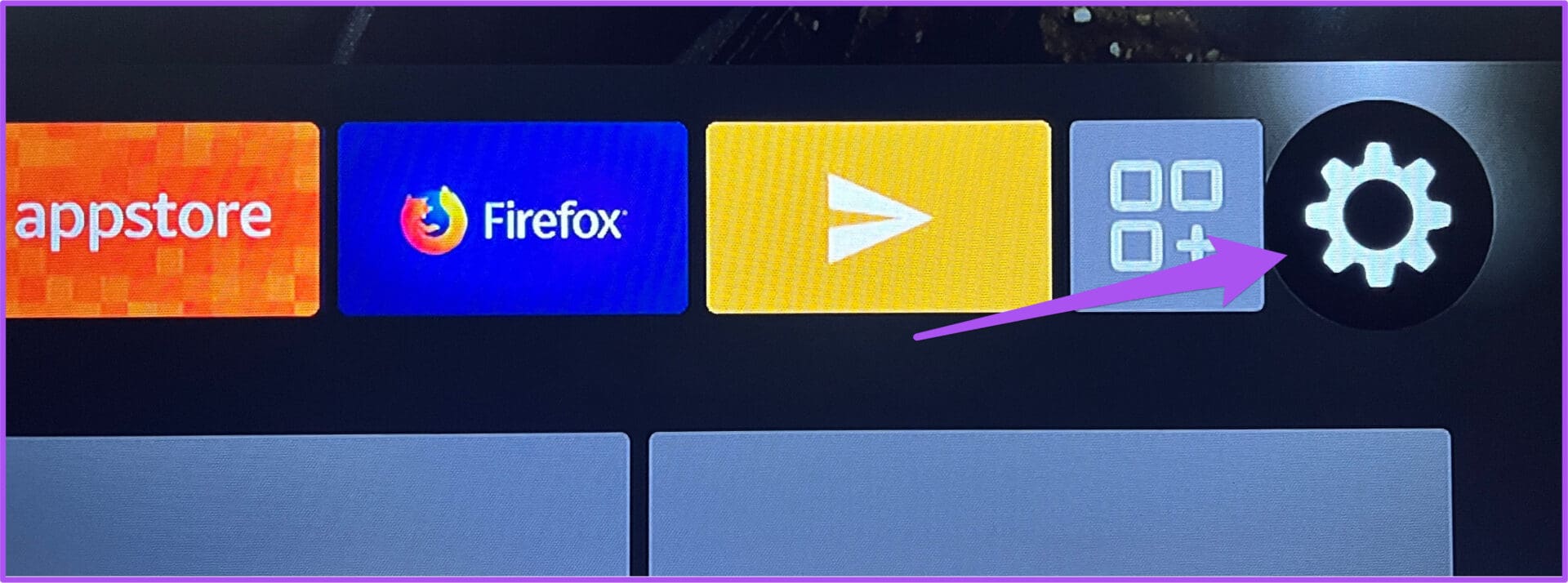
Step 2: Select Remote and Bluetooth Devices from the options.

Step 3: Select Amazon Fire TV Remote.

Step 4: Keep Amazon Fire TV Remote selected and check the Battery level on the right side.

If the Battery level is OK, you are good to go. If it says Low, you need to change the AAA alkaline spare batteries of your Fire TV Stick 4K remote. Also, it’s a good idea to check the battery chamber to inspect for any leaks.
4. Update the Fire TV Remote Software
After inserting new batteries, if your Fire TV Stick 4K remote is still not working, we recommend checking for the remote’s software update. This process is something that happens automatically. But checking for an update is worth giving a shot. Here’s how to do it.
Step 1: Go to Settings on your Fire TV home screen.
Step 2: Select ‘Remote and Bluetooth Devices’ from the options.
Step 3: Select Amazon Fire TV Remotes.
Step 4: If there’s an update available, the installation will begin automatically.
Step 5: Go back to the home screen and use your Fire TV Stick 4K to check if the problem is solved.
5. Unpair and Pair the Remote Again
If the remote is still not working, the next solution is to unpair and pair the remote again with your Fire TV Stick 4K. This will reset the remote setting for your Fire TV Stick 4K and give it a fresh start. The steps remain the same for 2nd gen and 3rd gen Fire TV remote.
Step 1: Press the Left Navigation button, Menu button, and Back button until the blue light blinks on the remote.

Step 2: Wait for a few seconds and press the Home button on your remote to pair it again.

6. Restart Fire TV Stick
After pairing your remote again with Fire TV Stick 4K, we recommend restarting your Fire TV Stick 4K. Your device might be experiencing a glitch, making it unable to respond to your remote commands. Simply turn off the power source of your Fire TV Stick 4K, wait for a few seconds, and switch it on again. If the remote still doesn’t work properly, you can try the next solution.
7. Update Fire OS
If you haven’t updated Fire OS for quite some time, you should definitely consider doing it now. It is possible that the current version of Fire OS on your device is buggy and therefore causing troubles for remote functions.
Step 1: Go to Settings on the home screen of your Fire TV Stick 4K.
Step 2: Select My Fire TV.

Step 3: Select About from the list of options.

Step 4: Go to Check for Updates.

Step 5: If an update is available, download and install the same.
After installation, check if the problem is solved.
8. Use Fire TV Remote App if Nothing Works
If none of the steps have worked for you, switch to the Fire TV Remote app that is available to download for Android and iPhone.
Once installed, here’s how to pair it with your Fire TV Stick 4K. You must ensure that your phone and Fire TV Stick 4K are connected to the same Wi-Fi network.
Step 1: Open the Fire TV Remote app on your Android or iPhone.

Step 2: Tap on your device name at the bottom.

Step 3: Enter the 4-digit PIN display on your TV in the Fire TV Remote app.

You will now see a remote-like interface in the Fire TV Remote app for operating your Fire TV Stick 4K.

Take Remote in Your Control
These solutions mentioned above will help you to fix connection issues between your Fire TV remote and Fire TV Stick 4K. However, if you can’t get it working despite following the solutions, reach out to Amazon Customer Support and request a replacement if your unit is still under warranty.
Otherwise, you’ll need to buy a new Fire TV Stick remote from Amazon. Meanwhile, you can use the Fire TV app for Android and iPhone to control the Fire TV Stick 4K. And if you want to change the network before you new remote arrives, read our guide on changing Wi-Fi on Fire TV Stick without remote.
Was this helpful?
Last updated on 02 December, 2022
4 Comments
Leave a Reply
Read Next
 5 Best Fixes for Spotify Not Working on Amazon Fire TV Stick
You can access your Spotify playlist or podcasts from any device, including your Amazon Fire TV Stick.
5 Best Fixes for Spotify Not Working on Amazon Fire TV Stick
You can access your Spotify playlist or podcasts from any device, including your Amazon Fire TV Stick.
 Top 8 Ways to Fix Fire TV Stick Remote Volume Not Working
While Amazon Fire TV Stick offers an exceptional streaming experience at home, the same isn’t true for the supplied remote.
Top 8 Ways to Fix Fire TV Stick Remote Volume Not Working
While Amazon Fire TV Stick offers an exceptional streaming experience at home, the same isn’t true for the supplied remote.
 6 Best Fixes for Amazon Fire TV Stick 4K Not Playing 4K Content
If you have a 4K TV or a 4K projector at home, you can consider pairing it with a Fire TV Stick 4K.
6 Best Fixes for Amazon Fire TV Stick 4K Not Playing 4K Content
If you have a 4K TV or a 4K projector at home, you can consider pairing it with a Fire TV Stick 4K.
 6 Best Fixes for Apps Not Launching on Amazon Fire TV Stick 4K
The Fire TV Stick 4K lets you download your favorite apps like Netflix, Hulu, Apple TV, etc.
6 Best Fixes for Apps Not Launching on Amazon Fire TV Stick 4K
The Fire TV Stick 4K lets you download your favorite apps like Netflix, Hulu, Apple TV, etc.
 6 Best Fixes for Audio Not Syncing With Video on Amazon Fire TV Stick 4K
Amazon Fire TV Stick 4K is a relatively cheaper yet effective solution compared to watching content in Ultra HD resolution.
6 Best Fixes for Audio Not Syncing With Video on Amazon Fire TV Stick 4K
Amazon Fire TV Stick 4K is a relatively cheaper yet effective solution compared to watching content in Ultra HD resolution.
 8 Best Fixes for No Sound in YouTube App on Amazon Fire TV Stick 4K
The YouTube app lets you watch content in Ultra HD resolution with your Amazon Fire TV Stick 4K.
8 Best Fixes for No Sound in YouTube App on Amazon Fire TV Stick 4K
The YouTube app lets you watch content in Ultra HD resolution with your Amazon Fire TV Stick 4K.
 6 Best Fixes for Cannot Sign In to Apple TV on Amazon Fire TV Stick 4K
You can download and install the Apple TV app on your Fire TV Stick 4K to enjoy your favorite content like Ted Lasso, Servant, and Severance.
6 Best Fixes for Cannot Sign In to Apple TV on Amazon Fire TV Stick 4K
You can download and install the Apple TV app on your Fire TV Stick 4K to enjoy your favorite content like Ted Lasso, Servant, and Severance.
 7 Best Fixes for Amazon Fire TV Stick 4K Not Recognizing USB Drive
You can connect an Amazon Fire TV Stick 4K with your old 4K television to enjoy a smart viewing experience.
7 Best Fixes for Amazon Fire TV Stick 4K Not Recognizing USB Drive
You can connect an Amazon Fire TV Stick 4K with your old 4K television to enjoy a smart viewing experience.
The article above may contain affiliate links which help support Guiding Tech. The content remains unbiased and authentic and will never affect our editorial integrity.

I have 2 firesticks living room and bedroom. Can I have your firesticks installed in the living room while keep my same firesticks in the bedroom
Also do have to go to a Amazon store or can I purchase your product at a Target store
Fire tv stick is not working
After on the tv the fire stick remote is not
Connecting .
Red light is Bell
The real question is; why are firesticks made so badly? Why do they keep failing in the first place?
Why do we have to jump through hoops to re-pair them? I had one that had 1GB of RAM. Some of the newer ones have 2GB. Was that the issue?
Pairing my fire stick remote to TV on off button works great. Once it tells me it’s paired. I hit OK the on off button quits working.