

Fingerprint scanners on phones have been around for a long time now. They’ve evolved from capacitive scanners on the back of a phone to ultrasonic in-display fingerprint scanners. Using your fingerprint to unlock your phone is secure and convenient. We’re used to it so much that it can get annoying when your fingerprint sensor is not working.

If you use an Android phone with a fingerprint scanner – regardless of whether it’s rear-mounted, side-mounted, or in-display, and it’s not working, there are a few solutions you can try to fix the problem. Here are a few ways to fix the error with fingerprint hardware not available on your phone.
Why Is My Fingerprint Sensor Not Working
There are various types of fingerprint scanners on phones. Depending on the type of phone, the reason why your biometrics are not working could vary. It could be a software issue or something as simple as your fingerprints not being registered properly.

Regardless of the cause of the issue, the included solutions should help you if your Android fingerprint scanner is not working. Ensure you follow every procedure carefully to completely get rid of the issue.
How to Fix Fingerprint Scanner Not Working on Android Phones
Here are some solutions to fix the issue and reset the fingerprint reader performance on your Android phone.
1. Unregister and Re-Register Your Fingerprints
Though cumbersome, this is one of the straightforward ways to make the fingerprint scanner work. Registering your fingerprints again might help you bring your fingerprint scanner back to life. Here’s how you can do it.
Step 1: Open the Settings app on your Android phone and select Biometrics and Security. This option name might be different on various Android phones.
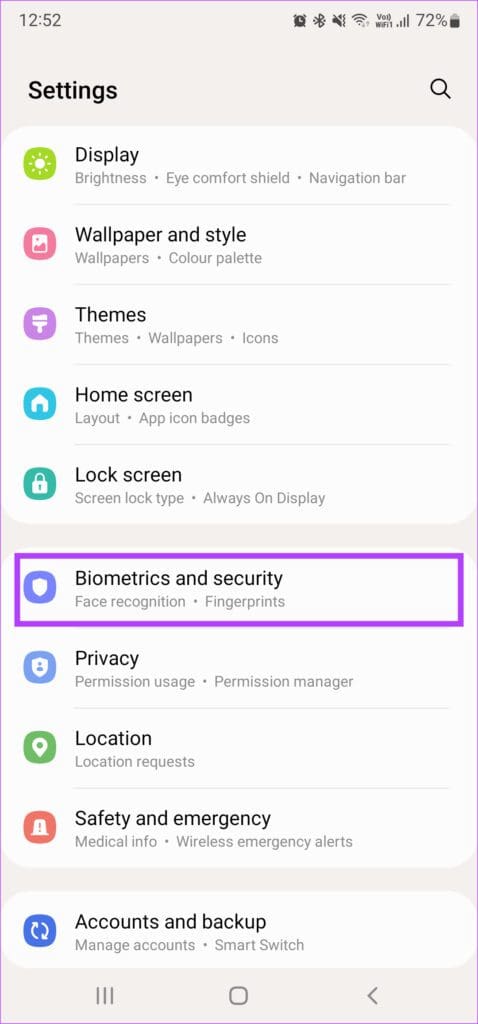
Step 2: Tap on the Fingerprints option.
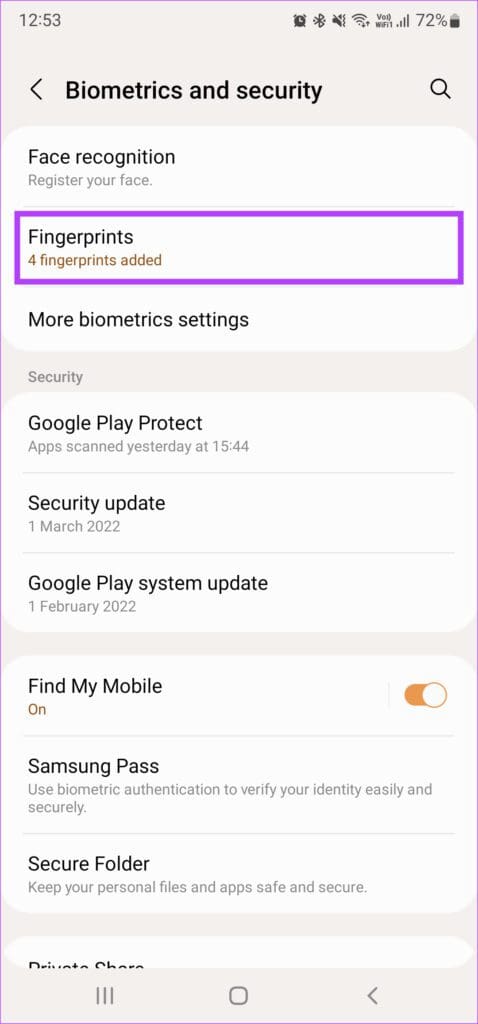
Step 3: Enter your PIN. You can now access your registered fingerprints.
Step 4: Select a registered fingerprint and tap on the Remove or Delete option. Repeat the process for all the registered fingerprints.

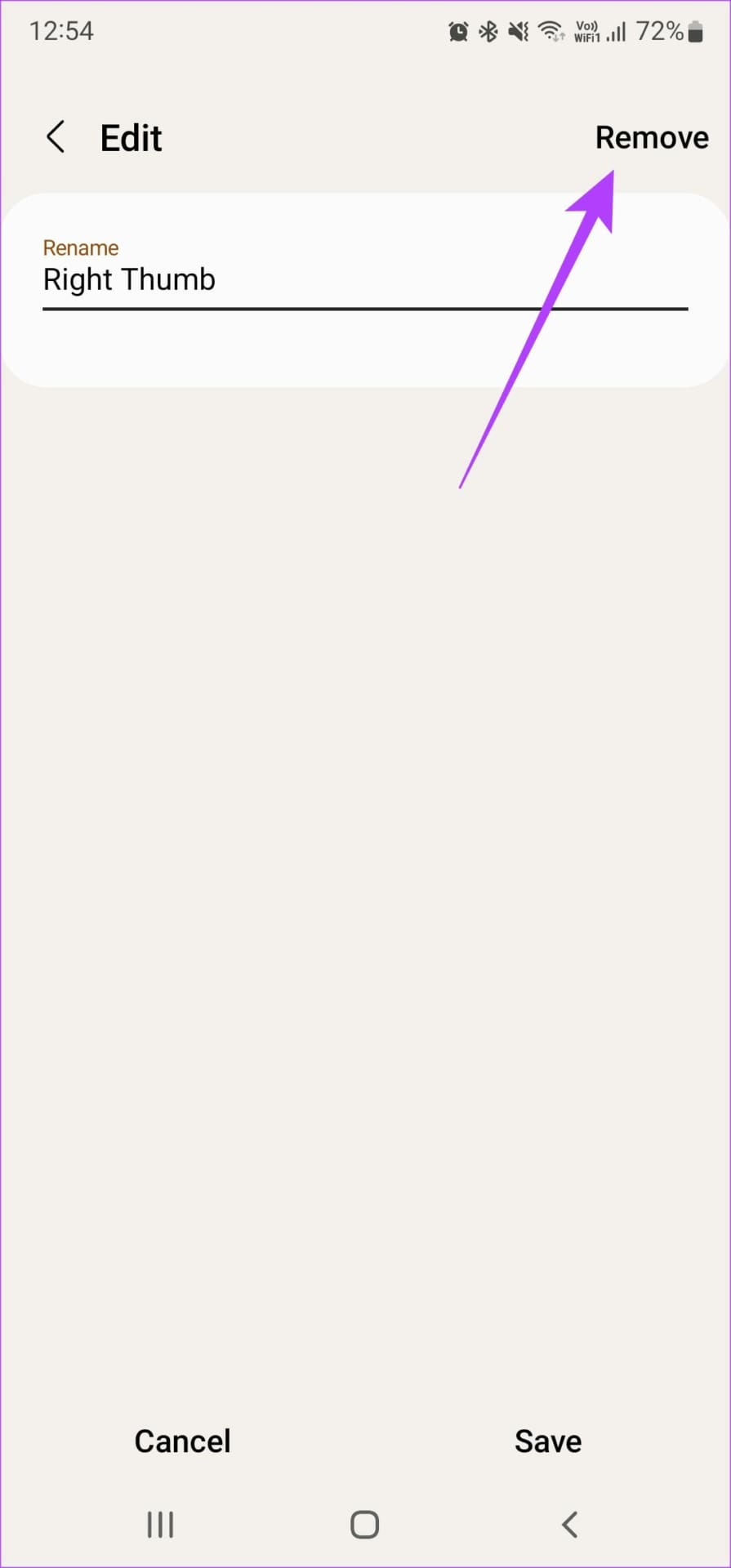
Step 5: Choose the Add fingerprint option and register all your fingerprints one at a time.

2. Make Sure Your Fingers Are Dry and Clean
Capacitive and optical fingerprint scanners cannot read your finger if they are wet or dirty. That’s why the fingerprint scanner can’t detect it. Wipe your fingers clean by patting them on a dry cloth or a tissue. After that, use them again to unlock your phone.
3. Clean the Fingerprint Scanner Surface
Apart from making sure your fingers are clean, it’s also essential for the fingerprint scanner to be free from any sort of dirt or grime. Take a microfiber cloth and rub it gently on the surface of the fingerprint scanner to clean it.

If your phone has an in-display fingerprint scanner, wipe your display with Isopropyl alcohol dabbed on a microfiber cloth.
4. Remove Screen Protector for In-Display Fingerprint Scanners
In-display fingerprint scanners are of two main types – optical and ultrasonic. Optical scanners shine a light through the glass and capture an image of your fingerprint. This is how your phone is unlocked. Such scanners generally don’t have a lot of issues with a screen protector.

However, ultrasound scanners reflect a sound wave off of your finger to unlock the phone. Such scanners can have issues with a screen protector if it’s too thick. Regardless of which type of in-display fingerprint scanner your phone has, it’s good to get rid of the screen protector and then scan your finger to see if it is functional.
It’s advisable to use a screen protector that the OEM officially makes of your smartphone for the best compatibility.
5. Remove the Case if It’s a Side-Mounted Fingerprint Scanner
Just like how a screen protector can interfere with an under-display fingerprint scanner, a thick case can cause issues with a side-mounted sensor.
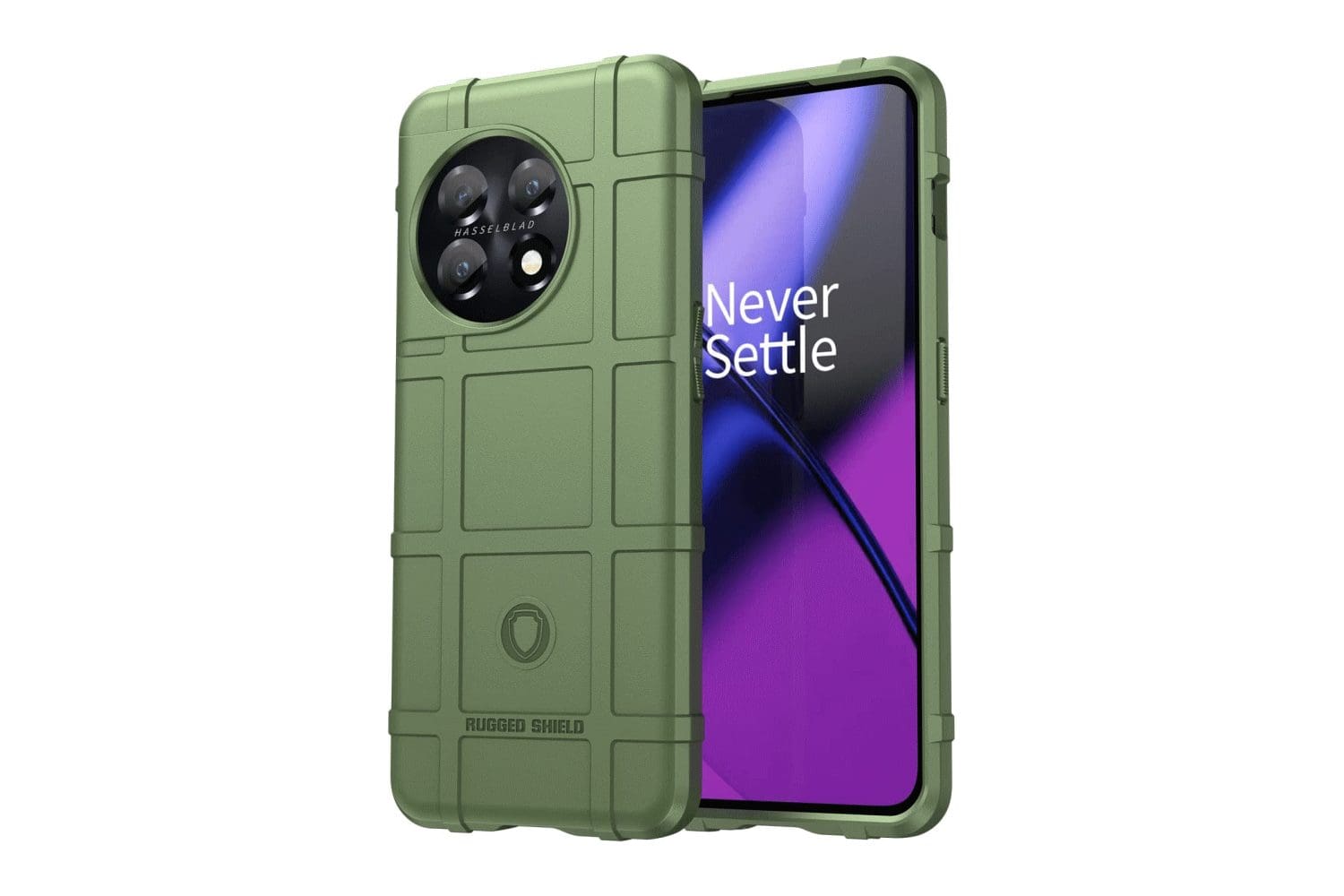
If the lips on the case are too thick, your fingers may not touch the surface of the scanner entirely. This leads to frequent rejections and eventually, a non-functional fingerprint reader. Try taking your case off and scan your finger. Additionally, we would also suggest you remove the case and scan your fingers once again from scratch.
6. Enable Increased Touch Sensitivity for In-Display Fingerprint Scanners
If you want to continue using a screen protector on your phone, try increasing the display’s touch sensitivity to get the in-display fingerprint scanner to work. Unfortunately, this option isn’t present on all Android phones. You will find it mostly on Samsung and Google Pixel phones. Check the Display settings on your device to see if there’s a similar option available.
Step 1: Open the Settings app on your Android phone and navigate to the Display section.

Step 2: Scroll down and find the Touch Sensitivity option. Enable the toggle next to it.

7. Add the Same Finger Twice
Some Android phones have a fingerprint scanner that’s not very fast or accurate. If that’s the case with your phone too, you can try adding the same fingerprint twice to improve the accuracy. This step is a must especially if your Pixel 7/6 fingerprint sensor is not working.
Step 1: Open the Settings app on your Android phone and select Biometrics and Security. The name of this option may change depending on the phone you have but it’s generally something along the lines of Lockscreen and Security.
Step 2: Tap on the Fingerprints option.
Step 3: Enter your PIN. You can now access your registered fingerprints.
Step 4: Choose the Add fingerprint option. Then, register a particular finger.
Step 5: Return to the previous menu and add another fingerprint. Add the same finger as you did in the last step.
8. Replace the Glass if Your Display Is Cracked
If your phone has an under-display fingerprint scanner and the display is shattered, the scanner may not work. So, head to the service center and get your display replaced. This should let you use your fingerprint scanner normally again.
9. Use the ‘Check Added Fingerprints’ Options to Verify Biometrics
A good way to check if your phone has registered your fingerprint or not is by using the ‘Check added fingerprints’ option. This will tell you which fingerprints have been registered on your phone.
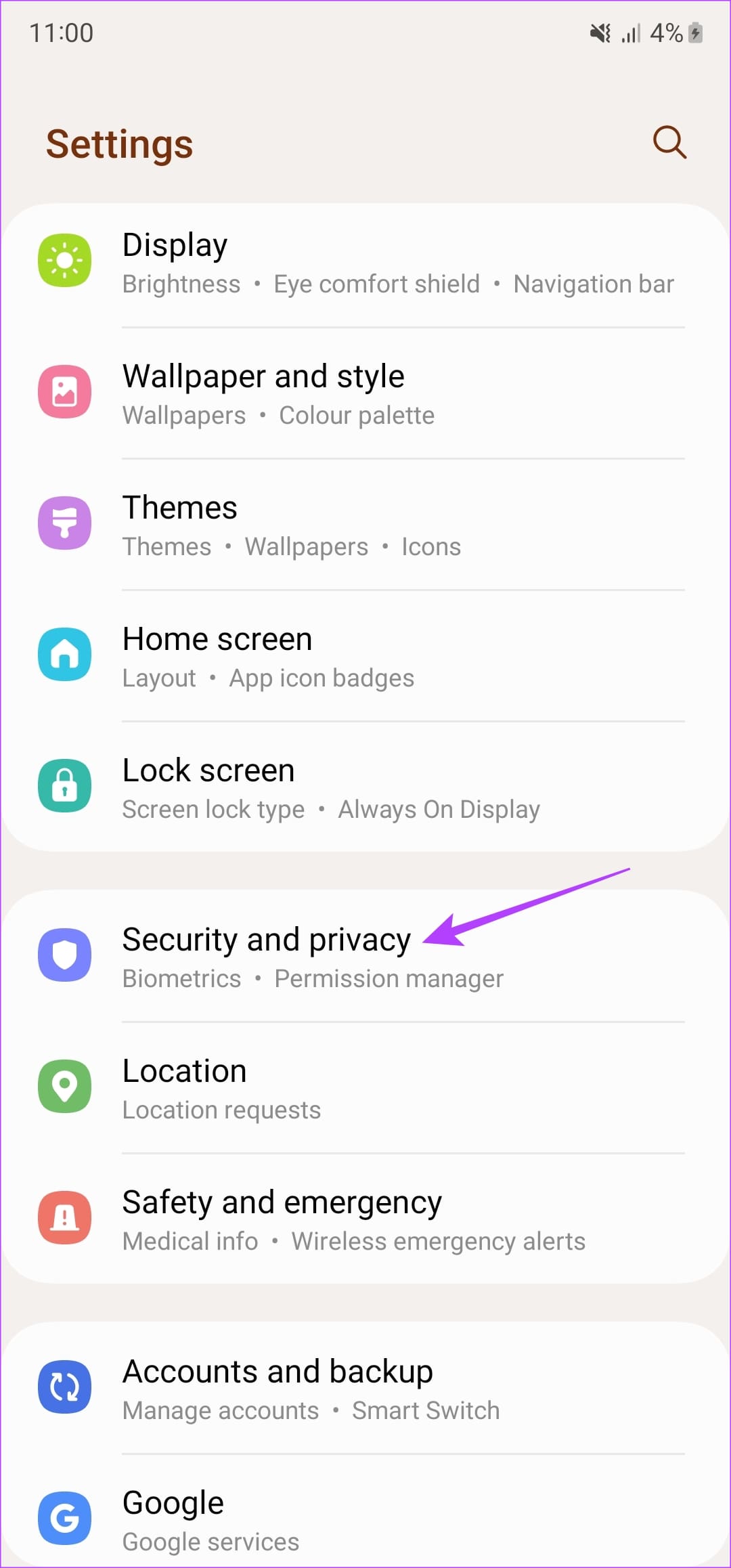
Step 1: Open the Settings app on your phone. Navigate to the ‘Security and privacy’ section. Then, scroll down and select Biometrics.
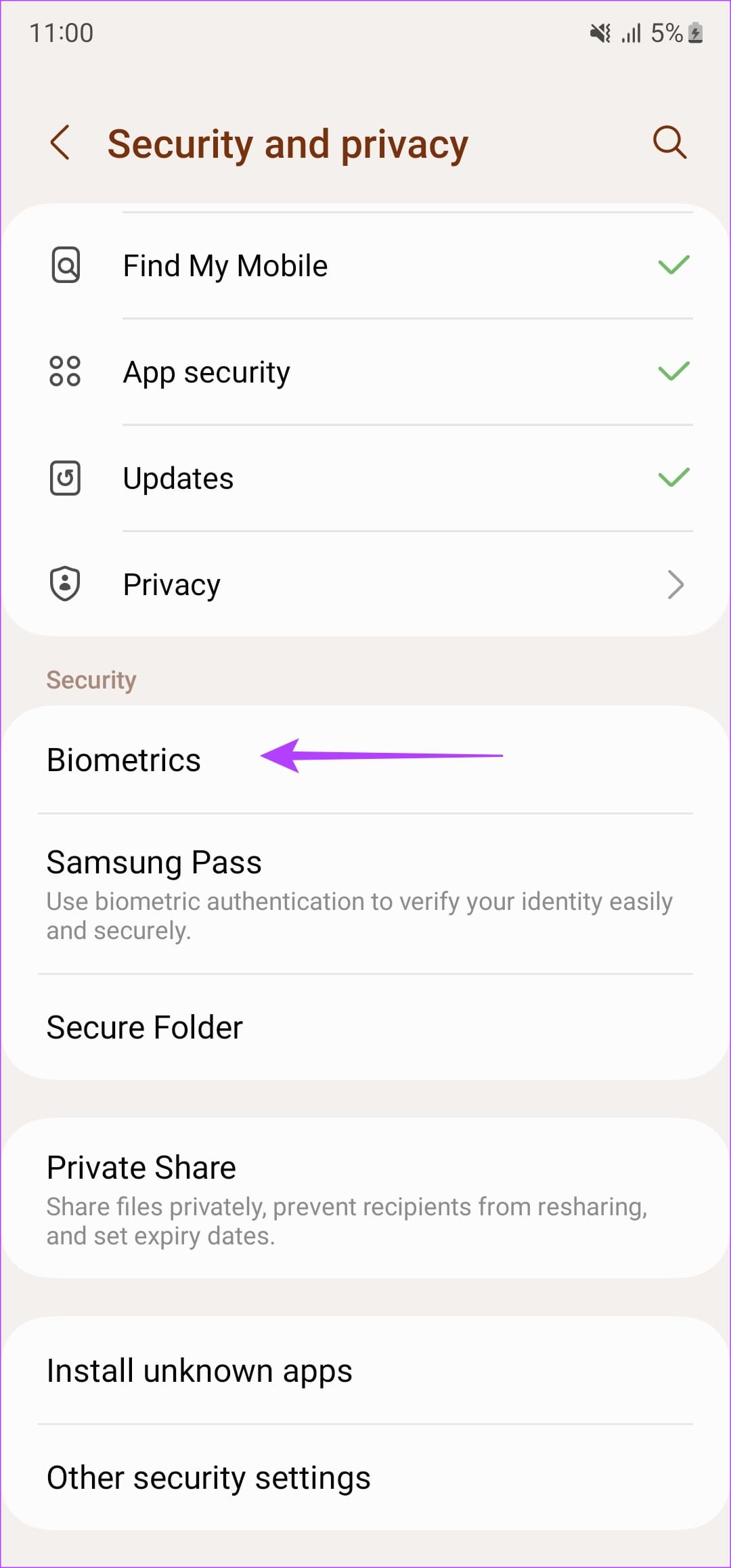
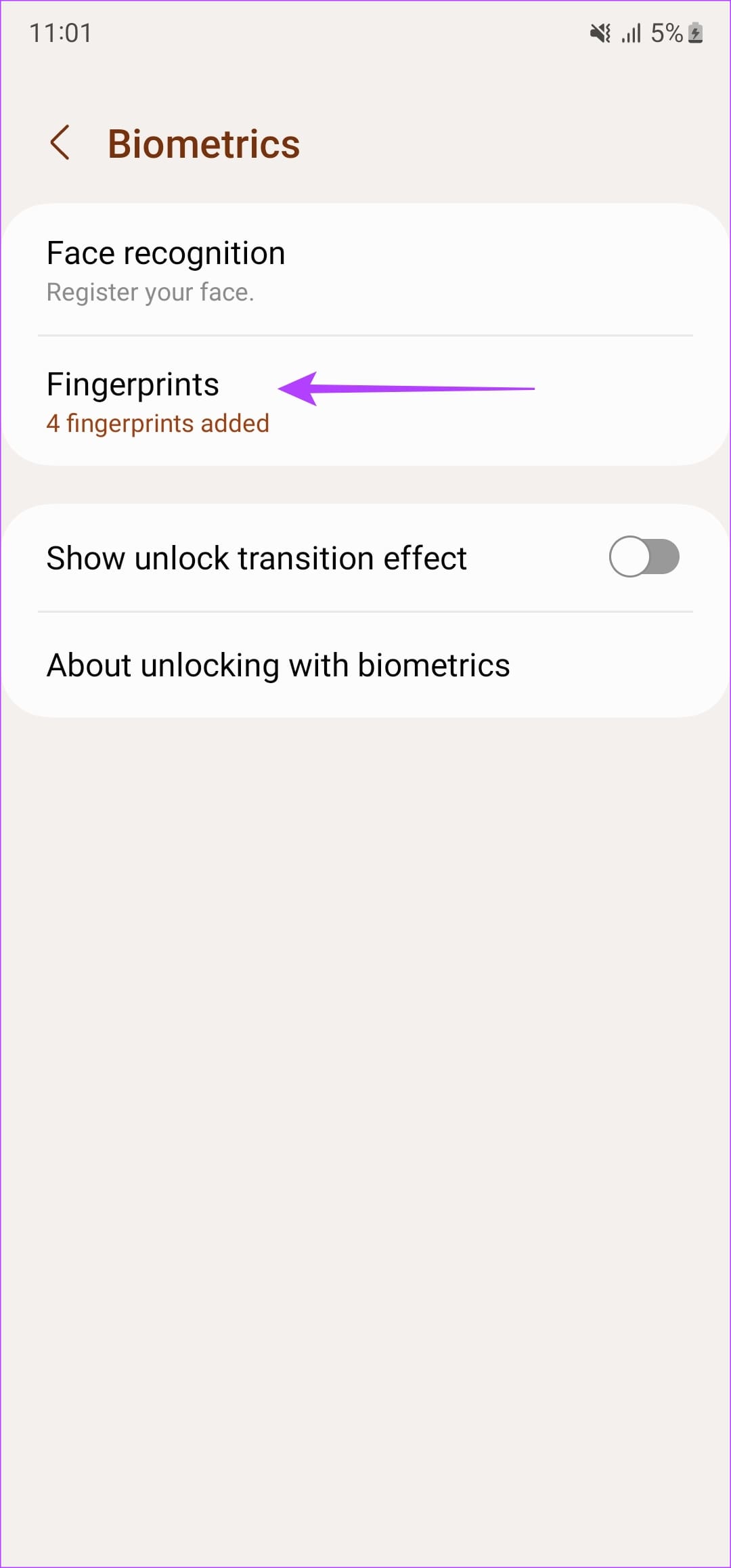
Step 2: Head to the Fingerprints section. Then, tap on ‘Check added fingerprints’.
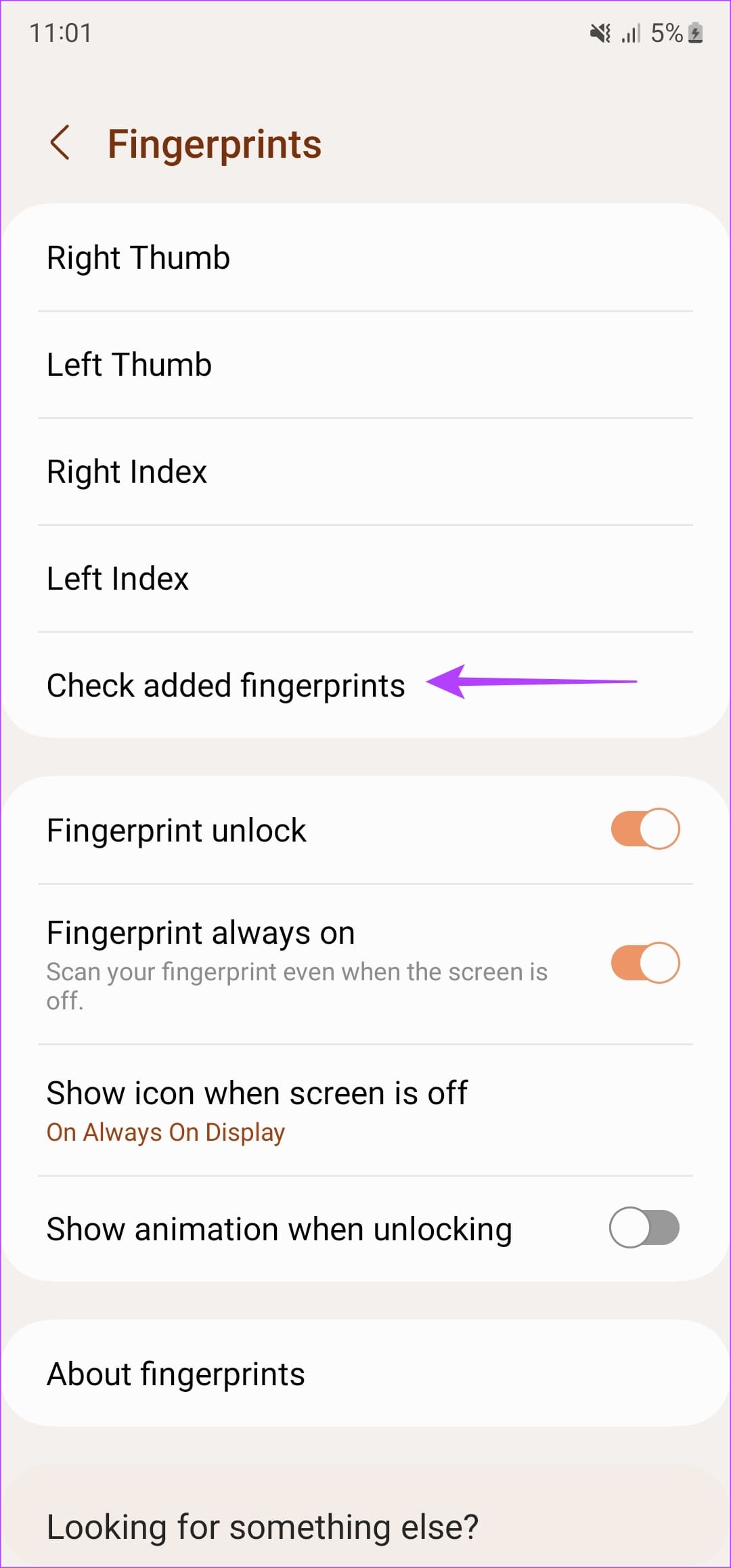
Scan your fingerprint now and see if your phone detects it. If it doesn’t, it’s time to re-register your finger by following the first method at the top.
10. Change the Unlock Method
The fingerprint scanner will only work if you’ve set your unlock method to a secure one. So if you’ve set your phone to simply swipe up to open, you won’t be able to use the fingerprint reader. Change your unlock method to either PIN, password, or pattern to use the fingerprint scanner. Here’s how.
Step 1: Open the Settings app and navigate to ‘Security & privacy’. Then, tap on Device lock.

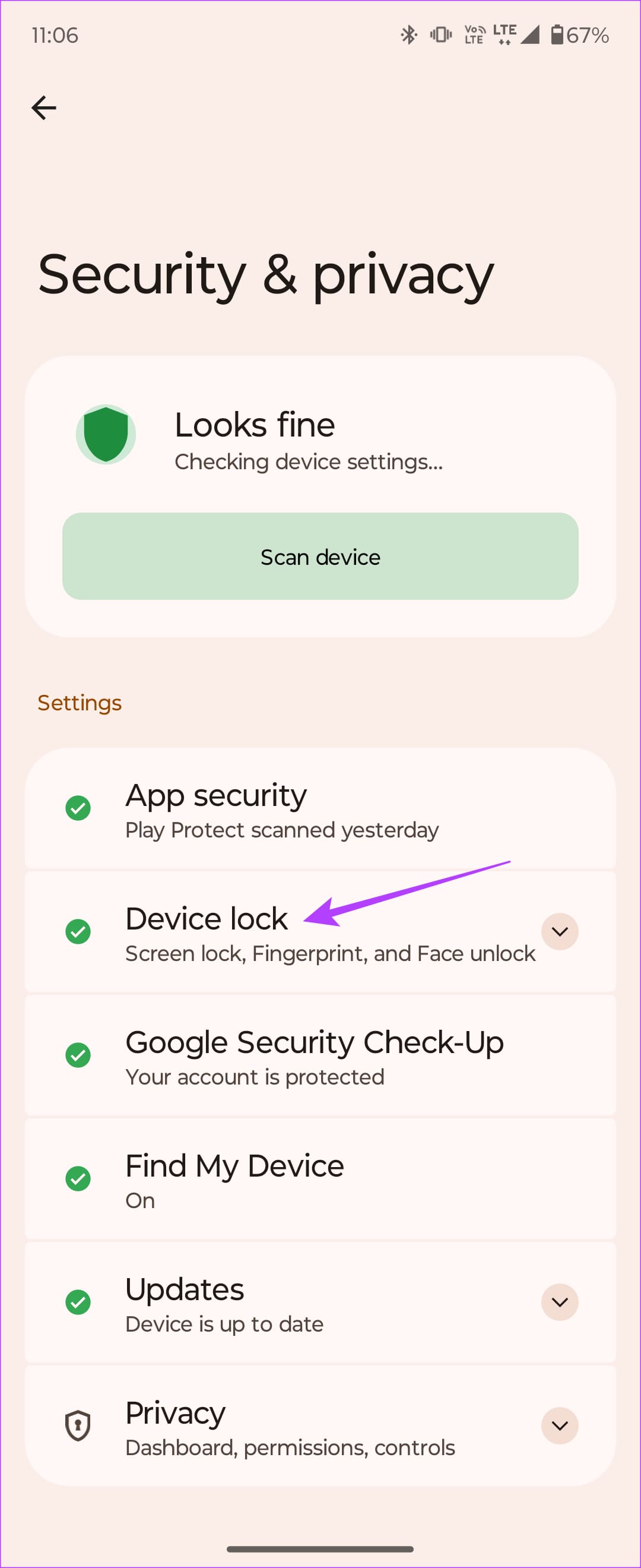
Step 2: Select the Screen lock setting. Choose any secure option from this screen as per your preference.
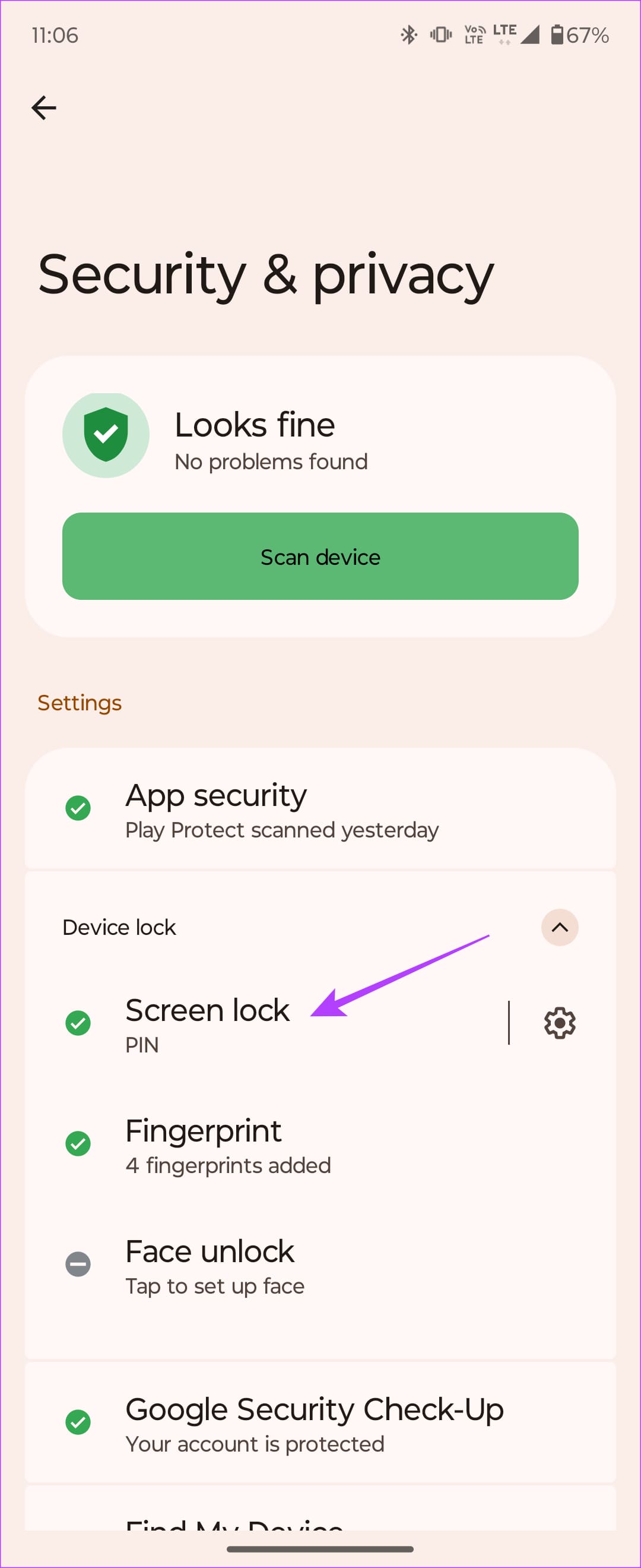

11. Turn Off Face Unlock
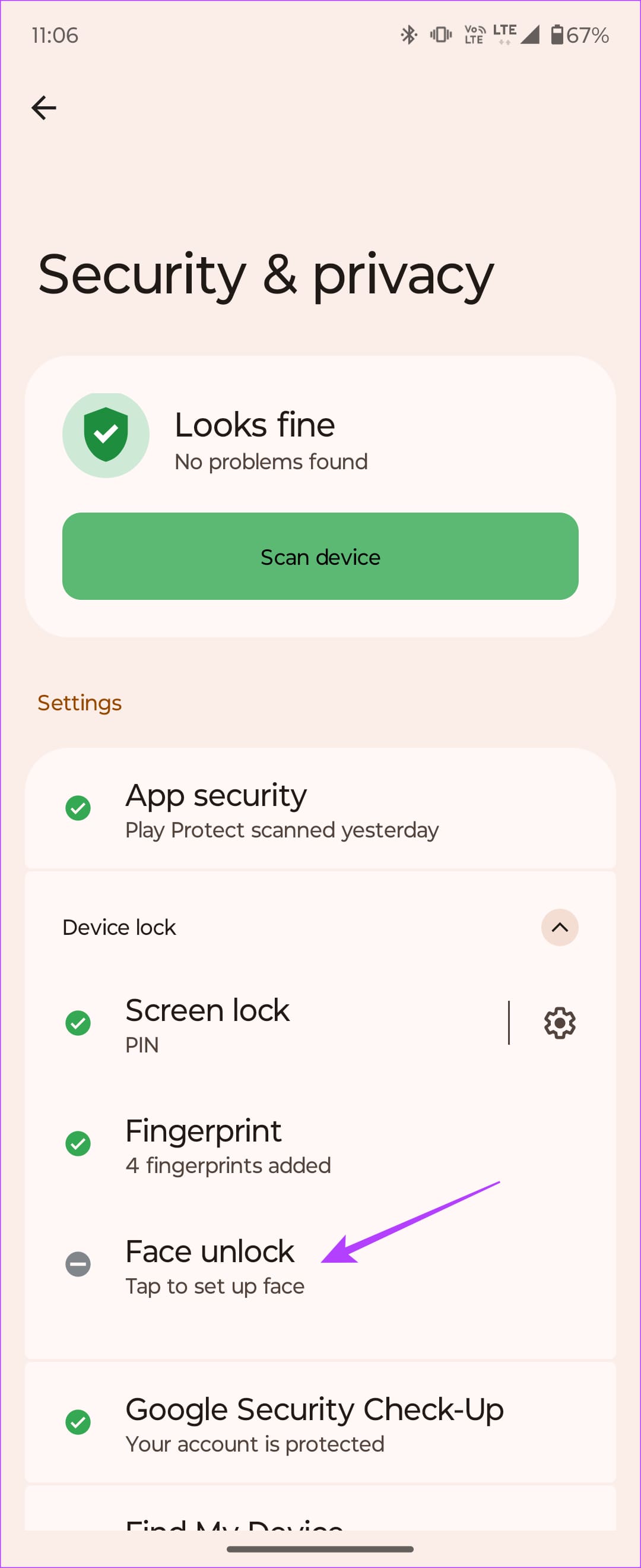
Most phones nowadays come with both fingerprint scanning and face unlock for biometrics. Depending on your preference, you may have enabled face unlock as well for convenience. In such a case, your fingerprint scanner may not work as expected. Try turning off face unlock and only enable fingerprint scanning. This should allow you to use your fingerprint scanner every time you want to unlock your phone.
Step 1: Open the Settings app and navigate to ‘Security & privacy’. Then, tap on Device lock.
Step 2: Select the Screen lock setting. Ensure face unlock isn’t enabled. If it is, delete the registered face.
12. Update Your Phone to the Latest Software Version
All hardware components on your phone, including the fingerprint scanner, are controlled by software. If something goes wrong with your phone’s software or if there are bugs, it can affect the fingerprint scanner’s performance. Check if there’s an update available for your phone and install it.
Step 1: Open the Settings app on your Android phone and select the Software Update option.

Step 2: Wait for your phone to check and download any updates. If an update is available, tap on Install and wait till it’s done.
13. Factory Reset
If none of these solutions work, resetting your phone to factory settings is your last resort. Take a complete backup of your Android phone before proceeding, as this will erase all the data.
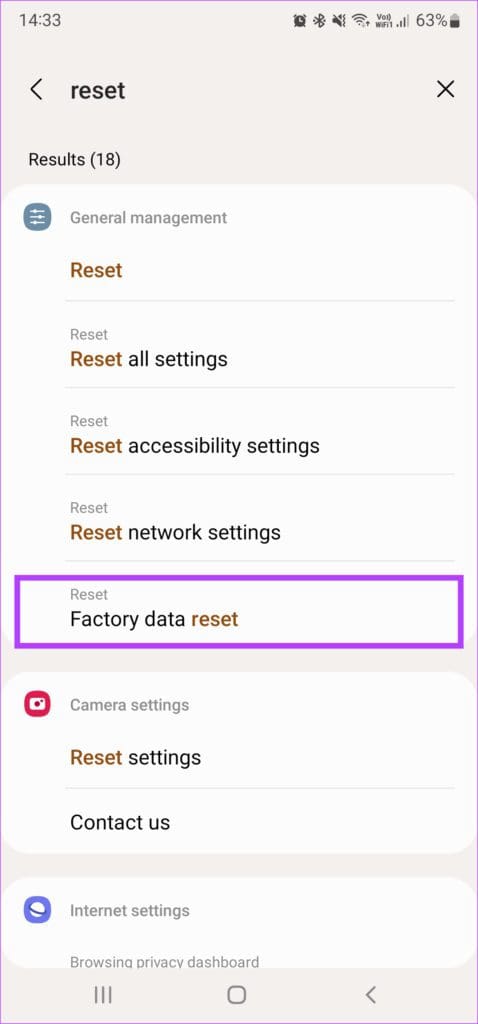
Step 1: Open the Setting app on your Android phone. Since the Reset option is present in different places on all phones, it’s best to use the search bar to locate it. Tap on it and type Reset.
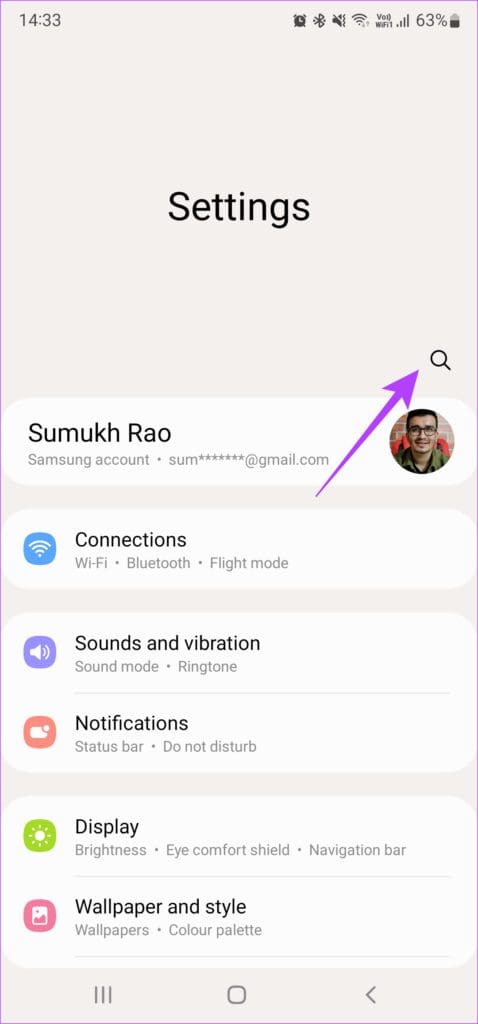
Step 2: Select Factory data reset from the results.
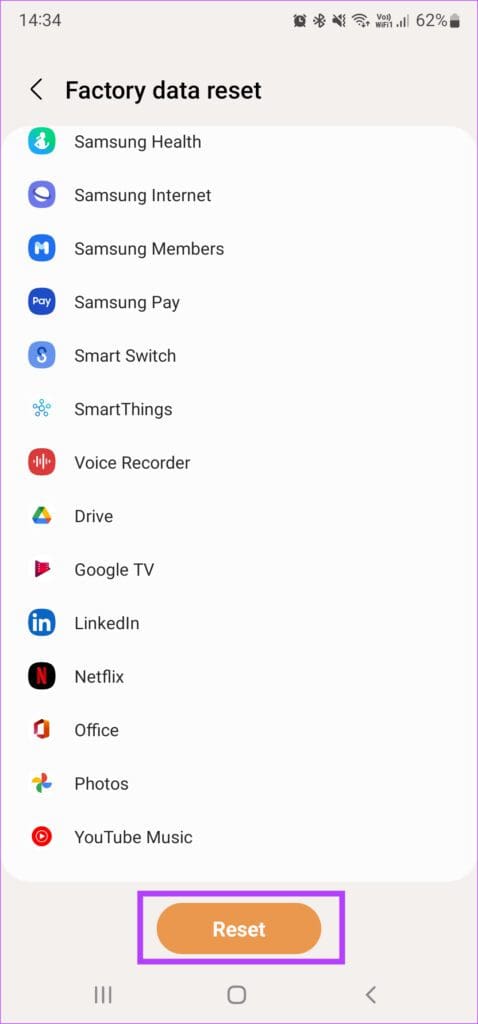
Step 3: Tap on Reset to begin the process. When prompted, enter the PIN or password to let your phone commence the process.
FAQs for Fingerprint Sensor Not Working on Android Phones
Yes, ultrasonic fingerprint scanners even work with wet or dirty fingers. However, it’s always recommended to use dry and clean fingers when unlocking your phone.
It depends on the phone you’re using. Generally, you can register 4-5 fingers on your phone.
Every phone has varied part costs. Depending on the type of fingerprint reader, the costs may vary. Under-display fingerprint scanners are generally more expensive than rear or side-mounted ones. It’s best to check with your closest service center regarding the cost of the sensor.
Scan Your Fingerprint and Unlock Your Phone
Following the above steps should surely help with your fingerprint sensor not working. Once it starts working as intended, you can scan your fingers to unlock your Android phone instead of using the PIN every single time.
Was this helpful?
Last updated on 22 July, 2023
2 Comments
Leave a Reply
Read Next
 3 Apps to Lock Apps on Android 6.0 Using Fingerprint Sensor
It’s been a while now that we have fingerprint sensors on Android devices to securely lock the phone with biometrics rather than using a pattern or a PIN.
3 Apps to Lock Apps on Android 6.0 Using Fingerprint Sensor
It’s been a while now that we have fingerprint sensors on Android devices to securely lock the phone with biometrics rather than using a pattern or a PIN.
 Top 8 Ways to Fix In-Display Fingerprint Scanner Not Working on Samsung Galaxy Phones
In-display fingerprint scanners have long taken over the physical scanners to authenticate on smartphones.
Top 8 Ways to Fix In-Display Fingerprint Scanner Not Working on Samsung Galaxy Phones
In-display fingerprint scanners have long taken over the physical scanners to authenticate on smartphones.
 Ultrasonic Fingerprint Scanner vs Optical Fingerprint Scanner: How Do They Differ
After big screens, if there is one thing that has evolved with smartphones is, the unlocking methods.
Ultrasonic Fingerprint Scanner vs Optical Fingerprint Scanner: How Do They Differ
After big screens, if there is one thing that has evolved with smartphones is, the unlocking methods.
 5 Additional Uses of Samsung Galaxy S7’s Fingerprint Sensor
Fingerprint sensors are becoming a prerequisite on every Android device and are not something only limited to flagship phones, these days.
5 Additional Uses of Samsung Galaxy S7’s Fingerprint Sensor
Fingerprint sensors are becoming a prerequisite on every Android device and are not something only limited to flagship phones, these days.
 How to Use Fingerprint Sensor as Home Key on iPhone
In one of my training while I was employed in the corporate IT world, I came across a very important lesson.
How to Use Fingerprint Sensor as Home Key on iPhone
In one of my training while I was employed in the corporate IT world, I came across a very important lesson.
 Top 8 Ways to Fix Proximity Sensor Not Working During Calls on Android
There are several components that contribute to the basic functioning of a smartphone.
Top 8 Ways to Fix Proximity Sensor Not Working During Calls on Android
There are several components that contribute to the basic functioning of a smartphone.
 Top 5 Ways to Fix Proximity Sensor Not Working on iPhone
Your iPhone contains a sensor that turns off the display when you hold the phone close to your face to answer a call.
Top 5 Ways to Fix Proximity Sensor Not Working on iPhone
Your iPhone contains a sensor that turns off the display when you hold the phone close to your face to answer a call.
 Why You Should Not Use Fingerprint as Lock in Android Smartphones
I still remember when Apple launched the iPhone 5s in September 2013.
Why You Should Not Use Fingerprint as Lock in Android Smartphones
I still remember when Apple launched the iPhone 5s in September 2013.
The article above may contain affiliate links which help support Guiding Tech. The content remains unbiased and authentic and will never affect our editorial integrity.


I am fed up with website like this answering different problem altogether even though the question is different. On the title it says”how to fix the fingerprint problem “yet the answer is how to change /add new fingerprint. Why?
If fingerprint is not working it doesn’t allow you to deregister the old ones and add the new ones. Simply can’t get access to fingerprint option to change them. The answer it should be” How on earth do you fix that, when fingerprint is not working and you can’t deregister old ones.
I tried restarting my phone several times, reset, vipe cache to no avail.
So tell us about this “fingerprint not working and no access”, not different solution.
Change phone man