YouTube is one of the most popular video streaming platforms. Whether watching educational tutorials or entertaining vlogs, spending time on YouTube can be informative and fun. However, being mindful of your time on the platform is essential to maintain a balanced lifestyle. We will show you all the ways to track your YouTube watch time.
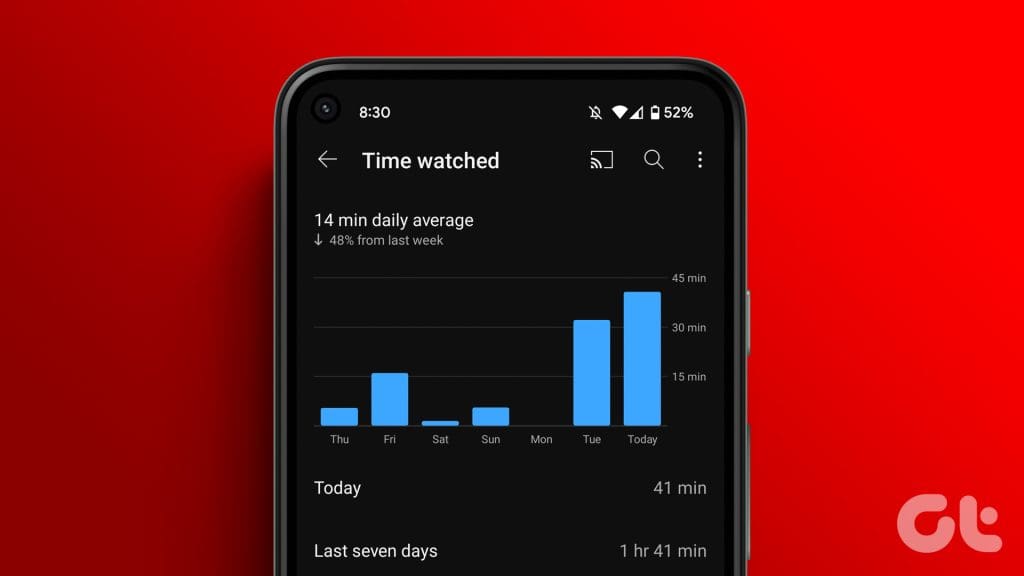
In this article, we will show you all the ways to find YouTube watching stats and, if needed, how you can set limits to it. So, let’s get started without any further ado.
1. View YouTube Watching Stats
YouTube understands the significance of managing screen time and provides the option through the Time watched feature. To access this feature, follow these simple steps:
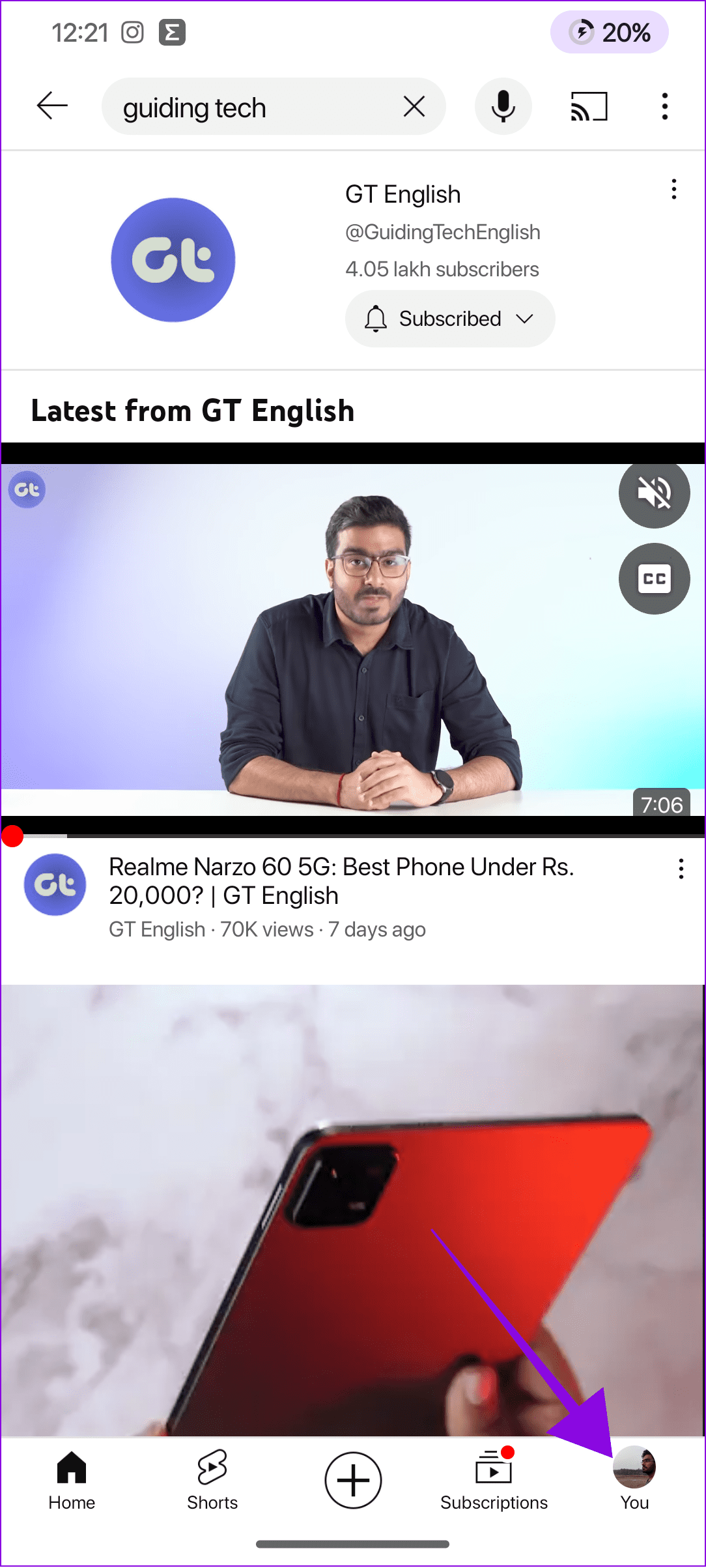
Step 1: Open the YouTube app on your smartphone and tap on your profile icon at the bottom.
Step 2: Choose Time watched

Once you access the Time Watched page, YouTube provides valuable insights into your viewing habits. This includes the watch time for the current week and an average for it.
2. Find YouTube Time Watched Using Phone Screen Time
You can also use your screen time feature on iPhone or Digital Well-being on Android to know the YouTube watching stats. We have already prepared a guide on how to check app’s screen time on Android devices and how to view screen time on iPhone.
How to Set Take a Break Reminder
YouTube also allows users to set reminders and notifications to help manage their time on the platform. By enabling these features, you can receive alerts or reminders after reaching a specified duration of watching videos. These reminders act as gentle prompts, encouraging you to take breaks or switch your focus to other important tasks.
Step 1: Open YouTube > tap your profile icon and choose Time watched.
Step 2: Scroll down and toggle on ‘Remind me to take a break.’
Step 3: Set the time limit and tap Done.
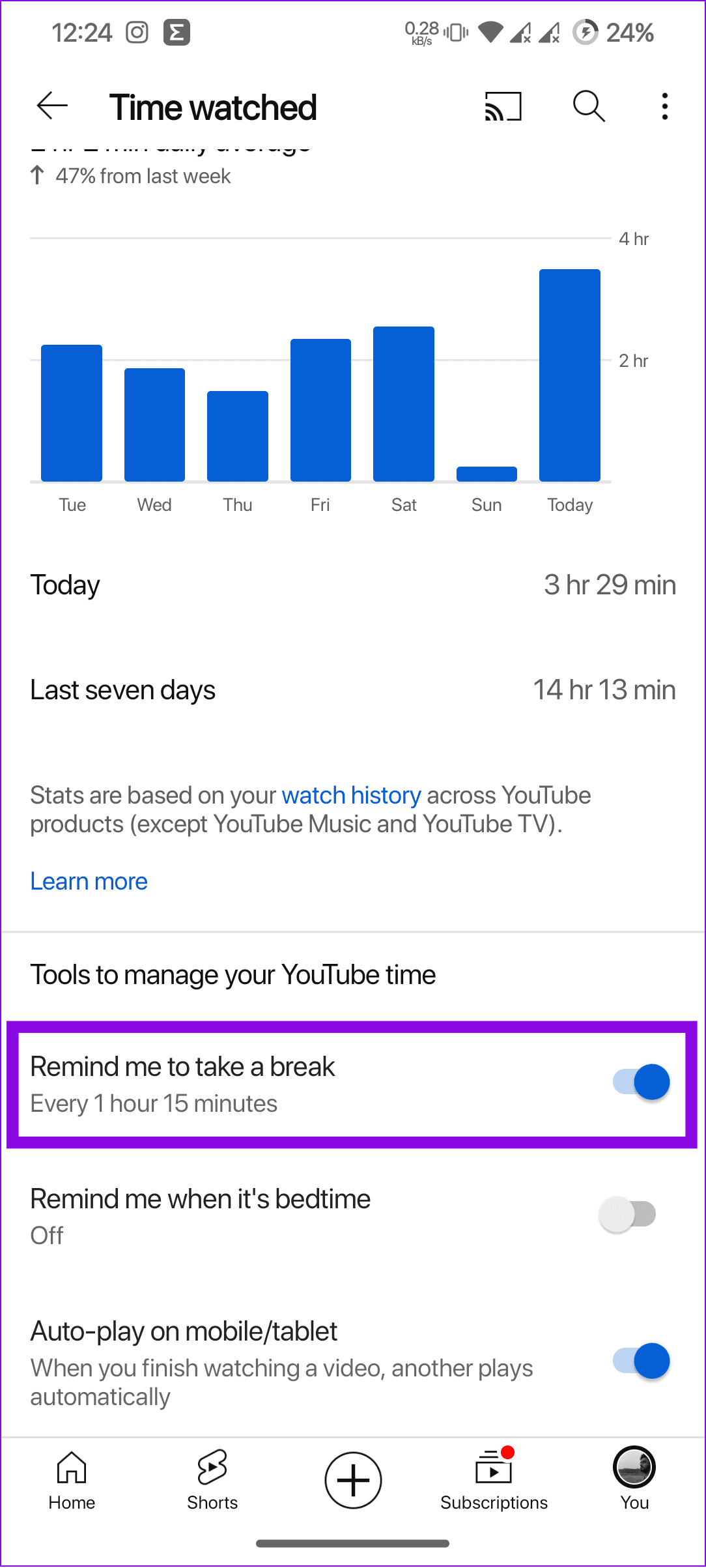
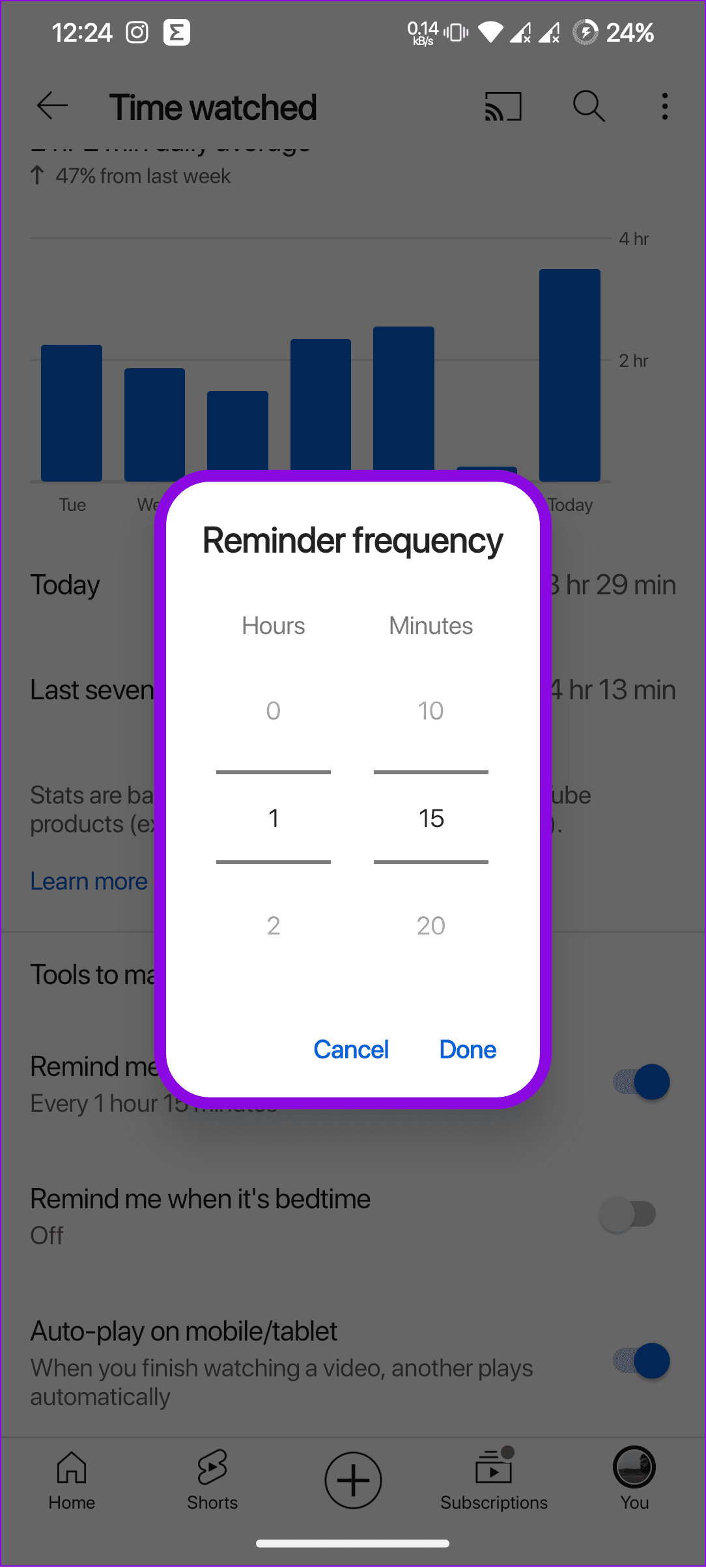
If you want to edit the time, choose ‘Remind me to take a break’ again and make the necessary changes. Apart from that, you can also enable app limits on Android and iPhone to limit the time you spend on YouTube.
Set Bedtime Reminders on YouTube
You can also make YouTube remind you when it’s bedtime. Fascinated? Here’s how to go about it.
Step 1: Open YouTube and tap on your profile icon > Time watched.
Step 2: Toggle on ‘Remind me when it’s bedtime.’
Step 3: Choose the Start time and End time.
Step 4: After setting the bedtime reminder, tap Ok to confirm.
Tip: You can also check ‘Wait until I finish my video to show the reminder.’
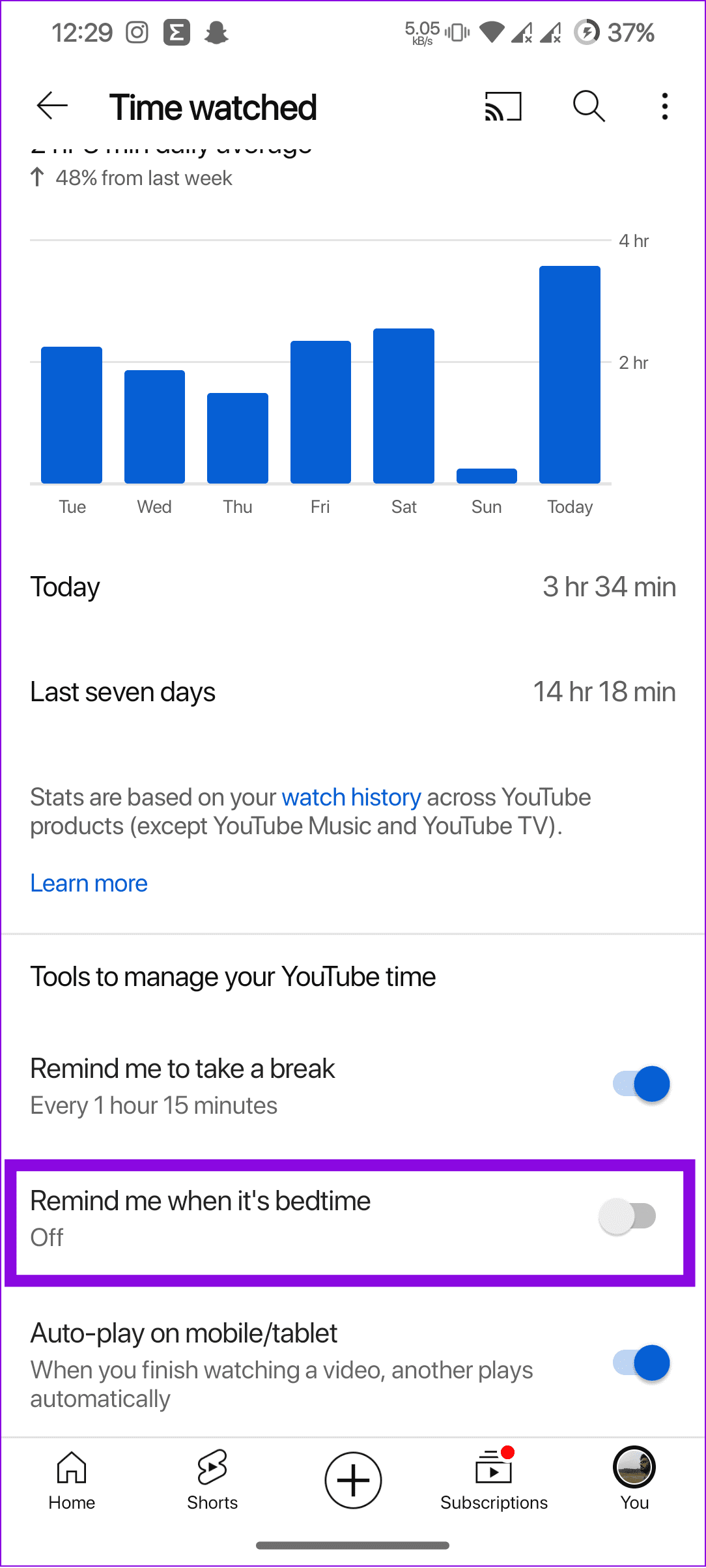
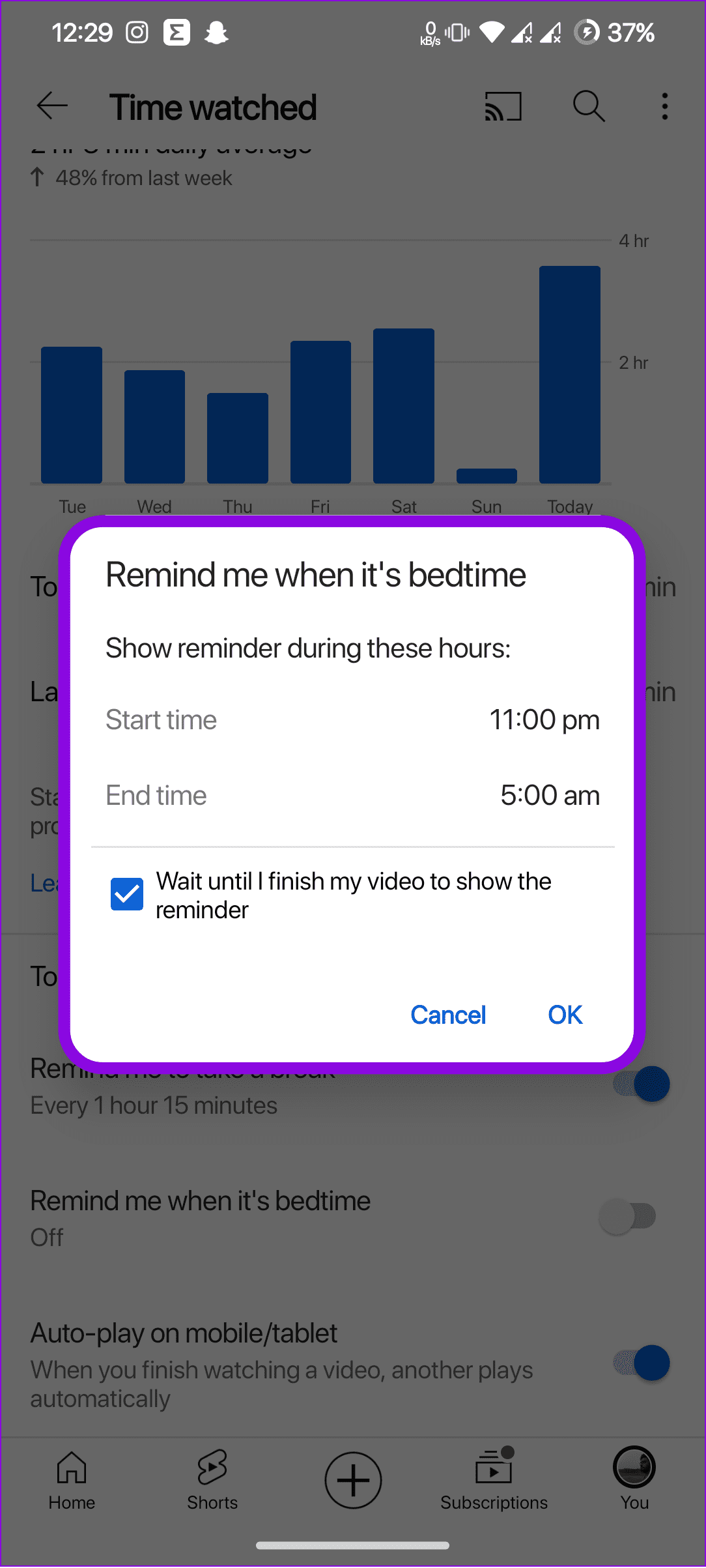
You can change the bedtime by going through the same steps if needed.
Tips to Manage Hours Watched on YouTube
Now that you know everything you need about your time on YouTube, here are some tips to remember and limit your time watching YouTube videos.
- Turn off autoplay: Autoplay automatically plays the next video in your watch history after you complete the existing one. This can be a major time-waster, so it’s a good idea to turn off auto-play on YouTube.
- Watch videos in PiP mode: Try watching videos in PiP mode. This will make it easier to avoid staying glued to the platform for long hours and, thus, keep your time in check.
- Take breaks throughout the day: If you watch YouTube for long periods, try taking breaks throughout the day. This will help you stay focused.
FAQs on Viewing YouTube Time Watched
No. You can’t revive your deleted YouTube watch history. This is because YouTube does not store a copy of your watch history. So, once it’s deleted, the data will be removed forever.
You can check our detailed guide on how to delete YouTube search history, where we have answered all the queries and steps to follow.
Track Your YouTube Watch Hours
Staying aware of YouTube watch hours can give you a better understanding of time. We hope that this guide helps you know your YouTube-watching stats. Additionally, you can also see your YouTube comment history to see how you interact on the platform.
Was this helpful?
Last updated on 24 July, 2023
Read Next
 New iPad (2017) vs. iPad Pro: Should You Spend the Extra Money?
If you were to ask which is the better iPad between the new 2017 iPad and the 9.7-inch iPad Pro, the answer is pretty obvious: iPad Pro.
New iPad (2017) vs. iPad Pro: Should You Spend the Extra Money?
If you were to ask which is the better iPad between the new 2017 iPad and the 9.7-inch iPad Pro, the answer is pretty obvious: iPad Pro.
 6 Cool Sites to Watch YouTube Without YouTube
I don’t know about you but I feel YouTube is a bit cluttered and full of distractions.
6 Cool Sites to Watch YouTube Without YouTube
I don’t know about you but I feel YouTube is a bit cluttered and full of distractions.
 How to Turn Off Smart Downloads on YouTube and YouTube Music
We're quite disciplined when it comes to clearing junk files on our phones.
How to Turn Off Smart Downloads on YouTube and YouTube Music
We're quite disciplined when it comes to clearing junk files on our phones.
 YouTube Guide: Best YouTube Tips, Hacks and Resources
Note: This is a Guiding Tech Feature post.YouTube, since its inception, has been growing in popularity by leaps and bounds every year.
YouTube Guide: Best YouTube Tips, Hacks and Resources
Note: This is a Guiding Tech Feature post.YouTube, since its inception, has been growing in popularity by leaps and bounds every year.
 YouTube and Jasmine: iPhone YouTube Apps Compared
As you surely know, YouTube is by far the most popular video sharing website out there, with its popularity only increasing even more with the arrival of mobile devices like
YouTube and Jasmine: iPhone YouTube Apps Compared
As you surely know, YouTube is by far the most popular video sharing website out there, with its popularity only increasing even more with the arrival of mobile devices like
 How to Block Unwanted YouTube Videos With YouTube Restricted Mode
Keeping kids safe on the Internet is important.
How to Block Unwanted YouTube Videos With YouTube Restricted Mode
Keeping kids safe on the Internet is important.
 YouTube Go vs YouTube App: What’s the Difference?
Most of the popular social apps now have a lite version.
YouTube Go vs YouTube App: What’s the Difference?
Most of the popular social apps now have a lite version.
 Top 9 Ways to Fix YouTube Won’t Let Me Log In on Android and iPhone
When signing into the YouTube app on your Android or iPhone, you may encounter errors like ‘There was a problem signing in to your account’ or ‘Couldn’t sign in.’ Such
Top 9 Ways to Fix YouTube Won’t Let Me Log In on Android and iPhone
When signing into the YouTube app on your Android or iPhone, you may encounter errors like ‘There was a problem signing in to your account’ or ‘Couldn’t sign in.’ Such
The article above may contain affiliate links which help support Guiding Tech. The content remains unbiased and authentic and will never affect our editorial integrity.