

Microsoft Store is the best source to get compatible apps for your Windows PC. You can choose to install many free apps and games. If the Microsoft Store starts acting up, the most common troubleshooting method is to reset it. But many users can’t reset Microsoft Store, and nothing happens when they run the WSreset tool.

This problem stems from multiple issues, like missing administrator privileges, corrupt Windows Store installation, or missing system files. Try out these eight methods to resolve the issue with the reset tool.
1. Attempt Reset With An Elevated Command Prompt
Before trying any advanced fixes, retry running the WSreset tool in an elevated Command Prompt window, i.e. with administrative privileges. Here’s how to do it:
Step 1: Press the Windows key to open the Start menu, type cmd in the search bar, and click on the Run as administrator option.

Step 2: The User Account Control window will pop up. Click on the Yes button.

Step 3: Now, type the following command and press Enter to execute it:
Wsreset.exe
Check if the reset happens successfully and Microsoft Store opens or not.
2. Enable the Built-in Admin Account
If granting administrator privileges didn’t have any effect, you’ll need to enable the built-in administrator account. It will grant you full control over your Windows PC and help you resolve the ‘WSReset is not working’ issue. Here’s how to do it:
Step 1: Press the Windows key to open the Start menu, type cmd in the search bar, and click on the Run as administrator option.
Step 2: The User Account Control window will launch. Click on the Yes button.
Step 3: Type the following command and press Enter:
net user administrator /active:yes
Step 4: Close the Command Prompt window.
Step 5: Open the Start menu and click on the Profile icon. Now, click on the Administrator option.

Step 6: Sign in to the administrator account. Try resetting Microsoft Store using Command Prompt.
3. Run the Windows Store Apps Troubleshooter
Windows 10 and Windows 11 have improved troubleshooters for major hardware and software components. You can use the Microsoft Store Apps troubletshooter to identify problems with the app and fix them in one go. Here’s how to do it:
Step 1: Press the Windows key to open the Start menu, type troubleshooter in the search bar, and press Enter.

Step 2: Scroll down and click on the Other troubleshooters option.
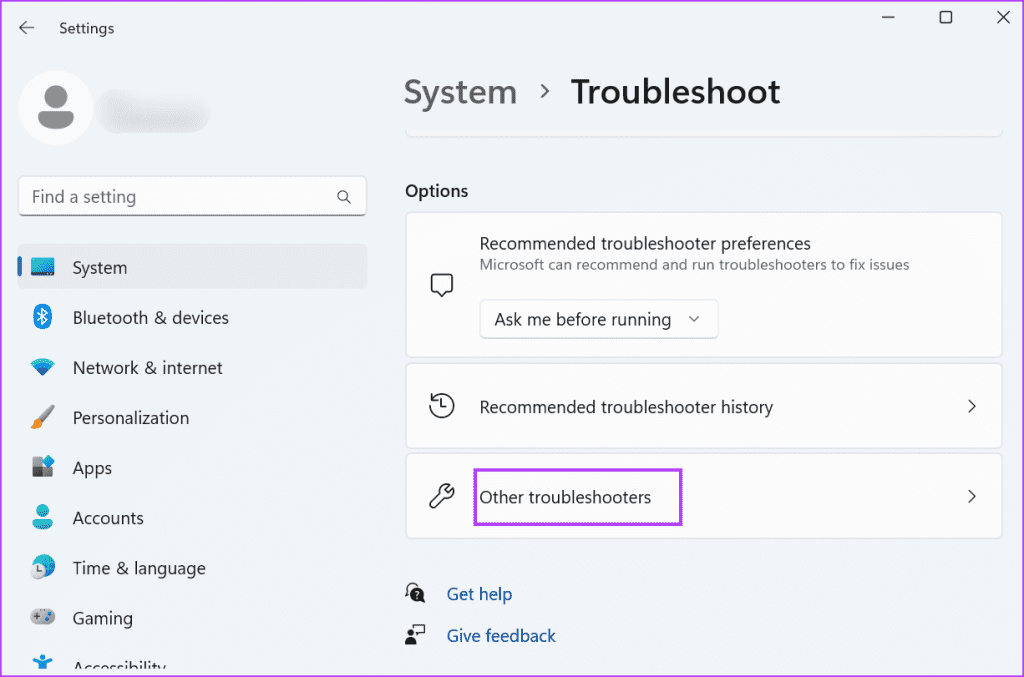
Step 3: Click on the Run button next to the Windows Store Apps troubleshooter.
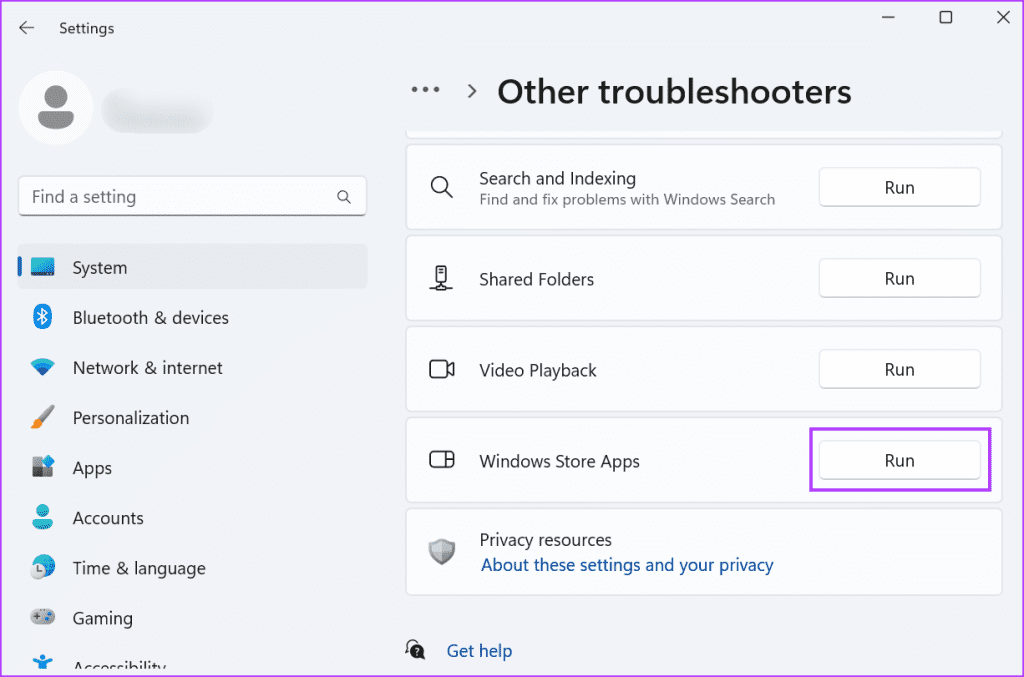
Step 4: The Windows Store App troubleshooter will launch. Follow the on-screen instruction to apply the suggested fixes for all the diagnosed issues. Then, click on the Close button.

4. Repair Microsoft Store Using Advanced Settings
The Windows apps have an advanced settings that you can use to modify their behavior, and repair, reset, and uninstall them if they don’t work properly. Before that, completely close the Microsoft Store. Use the following steps:
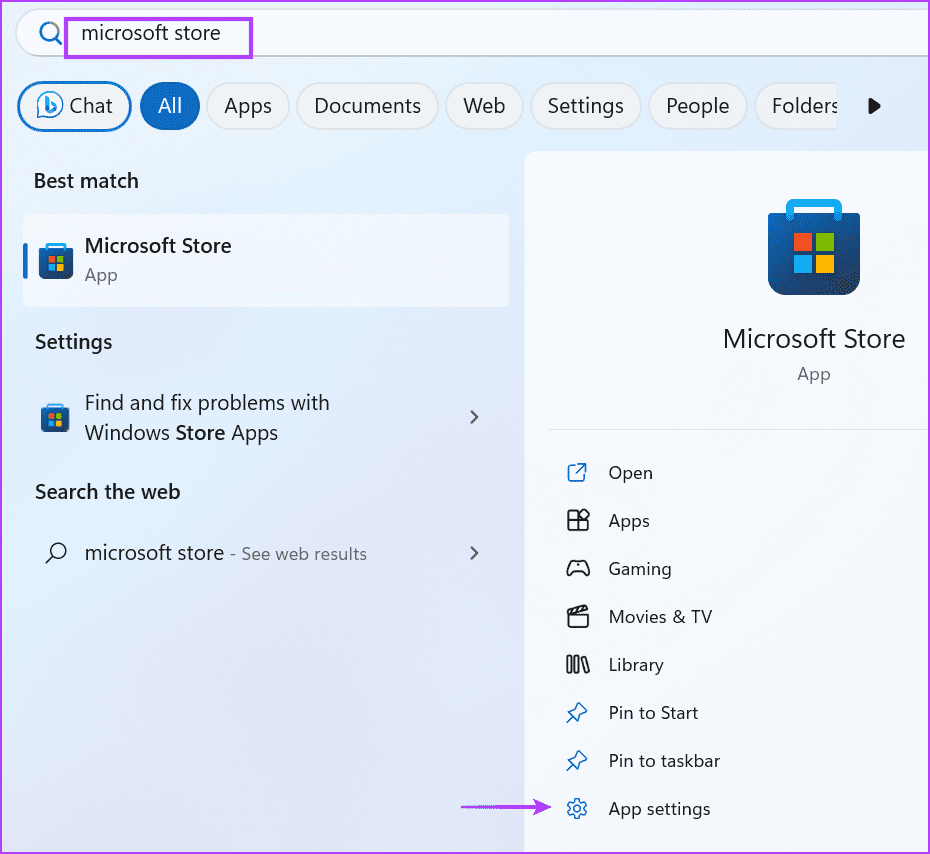
Step 1: Press the Windows key to open the Start menu, type Microsoft Store in the search bar, and click on the App Settings option.
Step 2: Scroll down and click on the Repair button.
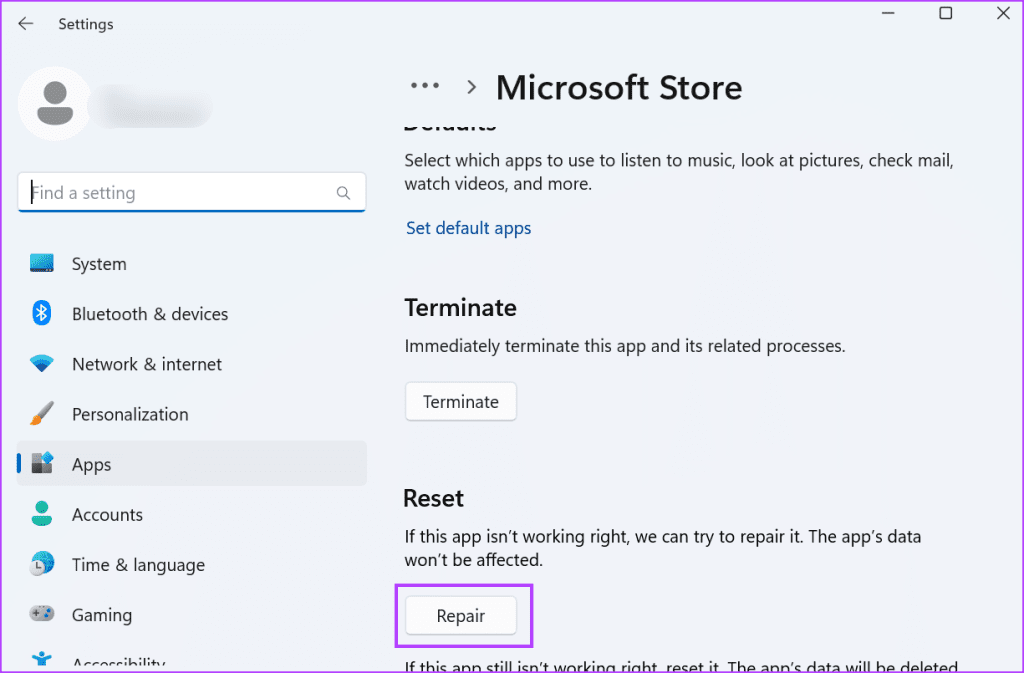
Step 3: Wait for the repair to complete and then retry to reset the app using WSreset.
5. Re-Register Microsoft Store
If the app repair didn’t fix the issue, you must re-register Microsoft Store. Repeat the following steps:
Step 1: Press the Windows key to open the Start menu, type powershell in the search bar, and press Ctrl + Shift + Enter keyboard shortcut to open it with administrative privileges.

Step 2: The User Account Control window will open. Click on the Yes button.
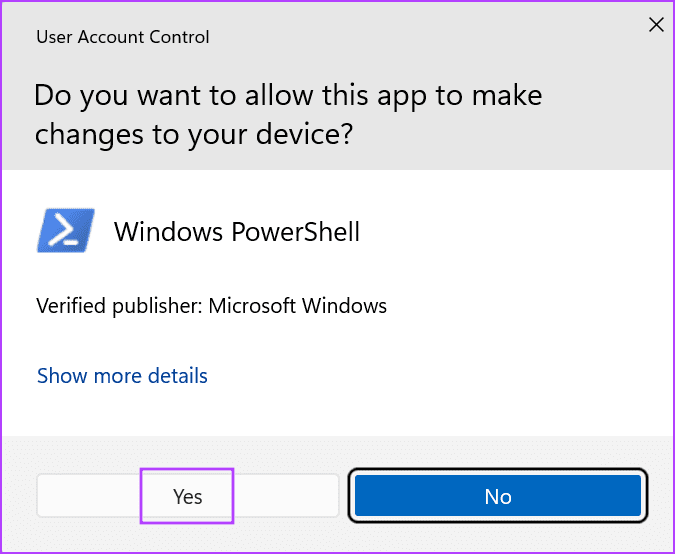
Step 3: Copy and paste the following command in the PowerShell window and press Enter:
Get-AppxPackage -allusers Microsoft.WindowsStore | Foreach {Add-AppxPackage -DisableDevelopmentMode -Register "$($_.InstallLocation)\AppXManifest.xml"}
Step 4: Close the PowerShell window and restart your PC.
6. Modify Registry to Clear Microsoft Store Cache
There are alternative methods to clean the Microsoft Store cache when WSReset.exe is returning an error. You can remove a specific Registry entry for that. But first, create a backup of your registry and export it to an external storage drive. After that, use the following steps:
Step 1: Press the Windows key to open the Start menu, type cmd in the search bar, and click on the Run as administrator option.
Step 2: The User Account Control window will open. Click on the Yes button.
Step 3: Type the following command and press Enter:
whoami /userStep 5: You will see the name and SID (Security Identifier) of the currently logged-in user account. Copy the SID from the Command Prompt window and paste it into a notepad file or sticky notes.
Step 6: Type cls in the Command Prompt window and press Enter.
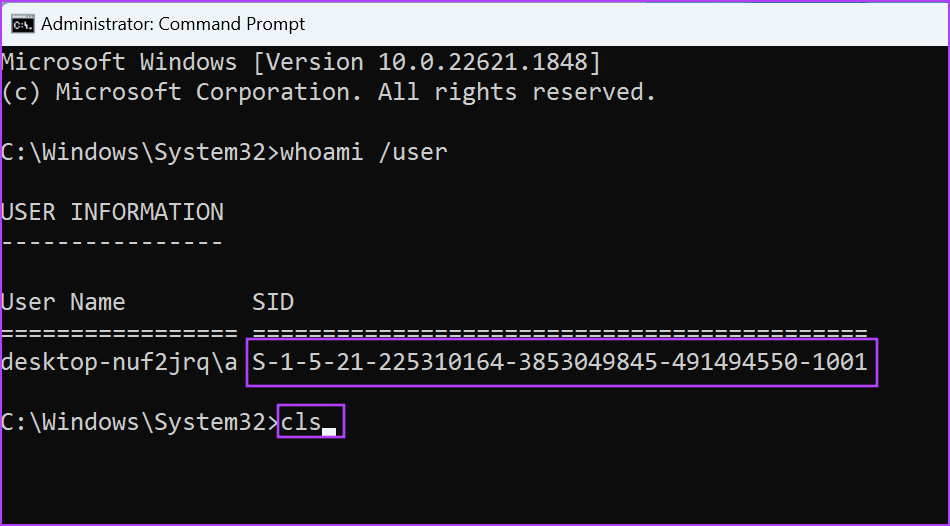
Step 7: Copy and paste the following command to delete the Microsoft Store cache is:
reg delete "HKEY_LOCAL_MACHINE\SOFTWARE\Microsoft\Windows\CurrentVersion\Appx\AppxAllUserStore\SID\Microsoft.WindowsStore_22305.1401.1.0_neutral_~_8wekyb3d8bbwe" /fNote that you’ll need to replace the SID part in the command with your account’s SID of your PC. So the command would look like this:
reg delete "HKEY_LOCAL_MACHINE\SOFTWARE\Microsoft\Windows\CurrentVersion\Appx\AppxAllUserStore\S-1-5-21-225310164-3853049845-491494550-1001\Microsoft.WindowsStore_22305.1401.1.0_neutral_~_8wekyb3d8bbwe" /f
Step 8: Hit Enter to execute the command and close the Command Prompt window.
After that, you’ll need to restart your PC.
7. Run an SFC and DISM Scan
Corrupt or missing system files and a damaged Windows component store can also lead to the unable to reset the Microsoft Store issue. So, run an SFC (System File Checker) scan followed by a DISM (Deployment Image Servicing and Management) scan to repair the system files and service the Windows installation. Here’s how to do it:
Step 1: Press the Windows key to open the Start menu, type cmd in the search bar, and click on the Run as administrator option.
Step 2: The User Account Control window will open. Click on the Yes button.
Step 3: Type the following command and press Enter:
sfc /scannowStep 4: After the command executes, type cls and press Enter to clear the Command Prompt window.
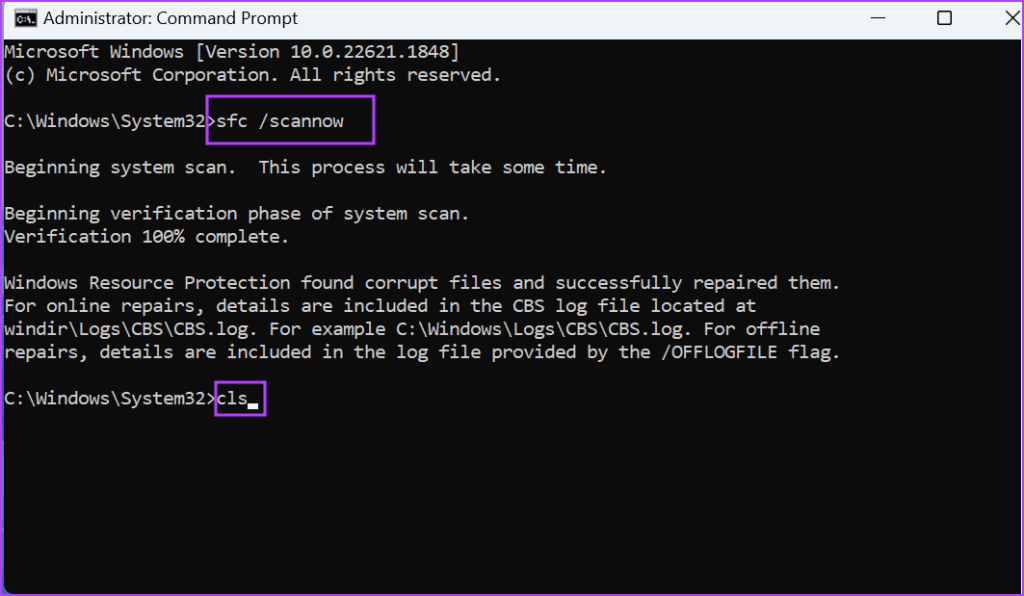
Step 5: Type and execute the following commands one by one:
DISM /Online /Cleanup-Image /CheckHealth
DISM /Online /Cleanup-Image /ScanHealth
DISM /Online /Cleanup-Image /RestoreHealth
Step 6: Close the Command Prompt window and restart your PC.
8. Use System Restore
The last resort is to use System Restore to revert to an earlier state when everything worked fine. All your personal files will remain unaffected if you apply a restore point on your PC. Here’s how:
Step 1: Press the Windows key to open the Start menu, type rstrui in the search bar, and press Enter.
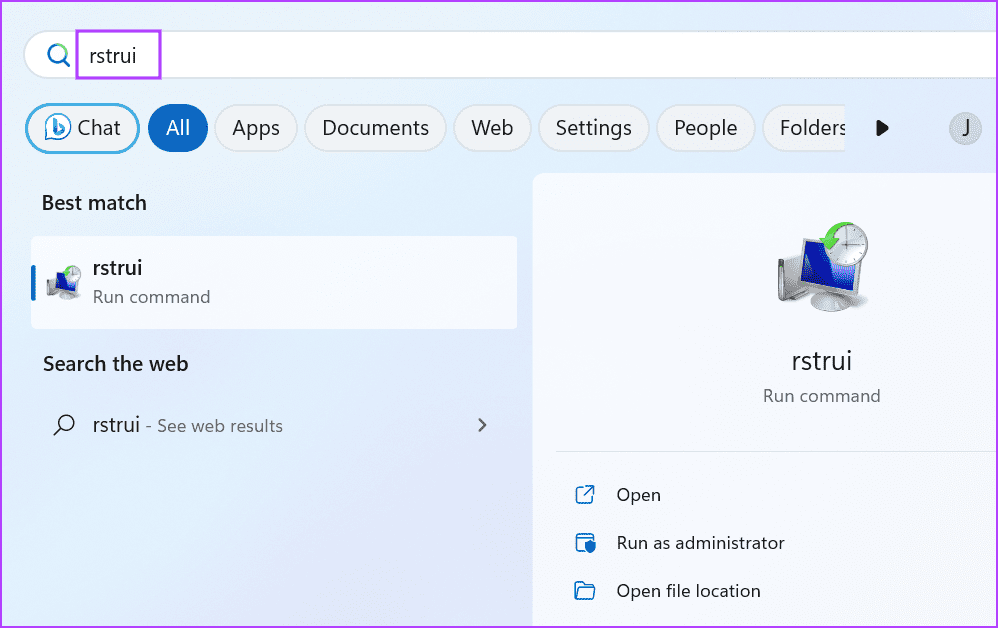
Step 2: Click on the Next button.

Step 3: Select a restore point from the list and follow the on-screen instructions to apply it on your PC.
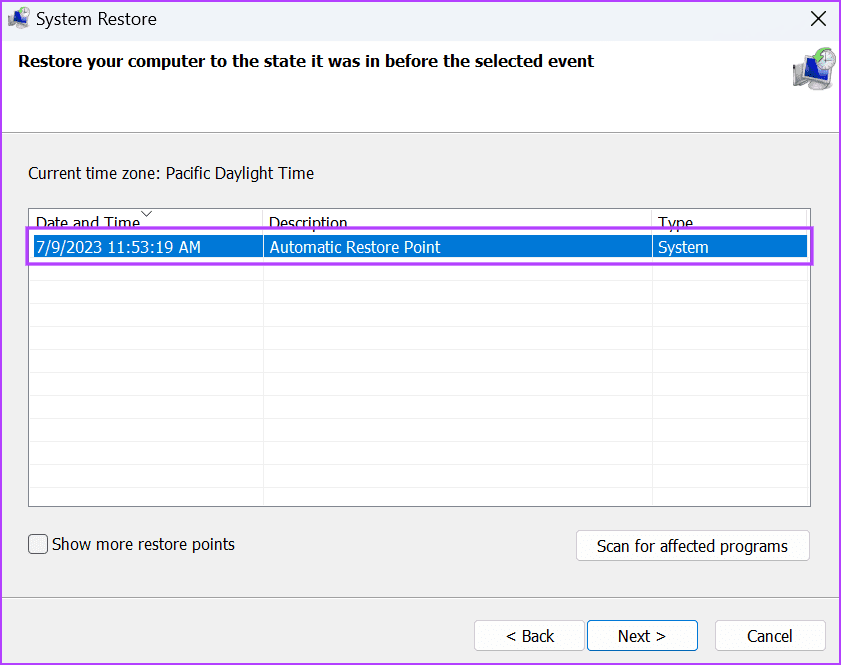
Your PC will automatically restart to finish applying the restore point and boot to the desktop.
Successfully Reset Microsoft Store
Resetting an app flushes its cache and deletes the account data in Windows. But when you can’t reset Microsoft Store, try the fixes mentioned above to reset Microsoft Store with the WSreset tool.
Was this helpful?
Last updated on 11 July, 2023
Read Next
 15 Ways to Fix Microsoft Store Not Downloading Apps or Games Issue
Microsoft Store (earlier known as Windows Store) is the official destination for Windows apps.
15 Ways to Fix Microsoft Store Not Downloading Apps or Games Issue
Microsoft Store (earlier known as Windows Store) is the official destination for Windows apps.
 5 Quick Ways to Reset Microsoft Store in Windows 11
Microsoft Store hosts many popular apps and games that you can download and install in a few clicks.
5 Quick Ways to Reset Microsoft Store in Windows 11
Microsoft Store hosts many popular apps and games that you can download and install in a few clicks.
 7 Best Ways to Fix Windows 10 Reset Failed Issue
When your Windows PC acts up and none of the solutions work, resetting it to the factory state might fix it.
7 Best Ways to Fix Windows 10 Reset Failed Issue
When your Windows PC acts up and none of the solutions work, resetting it to the factory state might fix it.
 Top 6 Ways to Fix Cannot Connect to App Store Issue on Mac
The App Store used to be one easy app to use on my Mac.
Top 6 Ways to Fix Cannot Connect to App Store Issue on Mac
The App Store used to be one easy app to use on my Mac.
 Top 15 Ways to Fix Google Play Store Stuck at Waiting for Download Issue
Whether you are installing multiple apps on your Android or updating them through the Google Play Store, the process is slow.
Top 15 Ways to Fix Google Play Store Stuck at Waiting for Download Issue
Whether you are installing multiple apps on your Android or updating them through the Google Play Store, the process is slow.
 Top 4 Ways to Fix Microsoft Store Missing in Windows 10
The Microsoft Store (previously known as Windows Store) is an integral part of any Windows-powered computer.
Top 4 Ways to Fix Microsoft Store Missing in Windows 10
The Microsoft Store (previously known as Windows Store) is an integral part of any Windows-powered computer.
 Top 8 Ways to Fix Microsoft Store Not Opening in Windows 11
Microsoft completely revamped the Microsoft Store on Windows 11.
Top 8 Ways to Fix Microsoft Store Not Opening in Windows 11
Microsoft completely revamped the Microsoft Store on Windows 11.
 Top 8 Ways to Fix ‘There Has Been an Error’ in Microsoft Store on Windows 11
Microsoft Store received a major overhaul with Windows 11 update.
Top 8 Ways to Fix ‘There Has Been an Error’ in Microsoft Store on Windows 11
Microsoft Store received a major overhaul with Windows 11 update.
The article above may contain affiliate links which help support Guiding Tech. The content remains unbiased and authentic and will never affect our editorial integrity.

