

Whether you’re a buyer or a seller, sending messages on Facebook Marketplace is something you may have to do often to ask or respond to questions, negotiate prices, or arrange meetups. All of this, however, may not be possible if you can’t send messages on Facebook Marketplace in the first place.

Such issues with Facebook Marketplace shouldn’t keep you from connecting with potential buyers and sellers. This guide has some useful tips that should help restore your ability to send messages on Facebook Marketplace. So, let’s take a look.
1. Wait It Out
Facebook Marketplace limits the number of messages one can send daily to reduce spam and unsolicited activities. If you have sent too many messages on Marketplace quickly, you may see the ‘Limit Reached’ error. This restriction usually applies to those who are new to Marketplace.
In that case, you need to wait a day or two before you can send messages again.
2. The Other Person May Have Blocked You
Can you only send messages on Facebook Marketplace to a specific person? If so, the other person has likely blocked you. Sometimes, you may see the ‘Not all buyers can message this seller’ error while trying to message someone on Facebook Marketplace.

If the issue occurs with all the accounts, continue with the fixes below.
3. Sign Out and Sign Back In
Sometimes, authentication issues with your account can prevent you from sending messages on Facebook Marketplace. In most cases, you can fix such issues by signing out of Facebook and signing back in.
Step 1: Open the Facebook app and tap the menu icon (three horizontal lines) at the top-right corner.

If you have an iPhone, tap the Menu icon at the bottom-right corner.

Step 2: Scroll down to tap on Log Out. Select Log Out again to confirm.


For those using Facebook in a web browser, tap the profile icon at the top-right corner and select Log Out.

Sign back into your Facebook account and check if you can send messages on Marketplace.
4. Request Facebook to Restore Your Marketplace Access
Facebook may revoke your Marketplace access if you violate its community guidelines. When this happens, you may be unable to send messages or view any listings on Marketplace.
If you believe your access was mistakenly revoked, you can request Facebook to reinstate your Marketplace access. To do so, head over to the Marketplace tab on Facebook, click the Request Review option, and fill out the form that appears.

5. Disable Extensions
This applies to those who are using Facebook Marketplace on a web browser. While third-party extensions are great for improving your browsing experience, they can sometimes interfere and cause Facebook Marketplace messages to stop working. You can temporarily disable your extensions to see if that gets things going again.
If you’re using Facebook in Google Chrome, type chrome://extensions in the address bar and press Enter. Then, use the toggles to turn off all extensions.

On Microsoft Edge, type edge://extensions in the address bar and press Enter. Use the toggles next to extensions to turn them off.
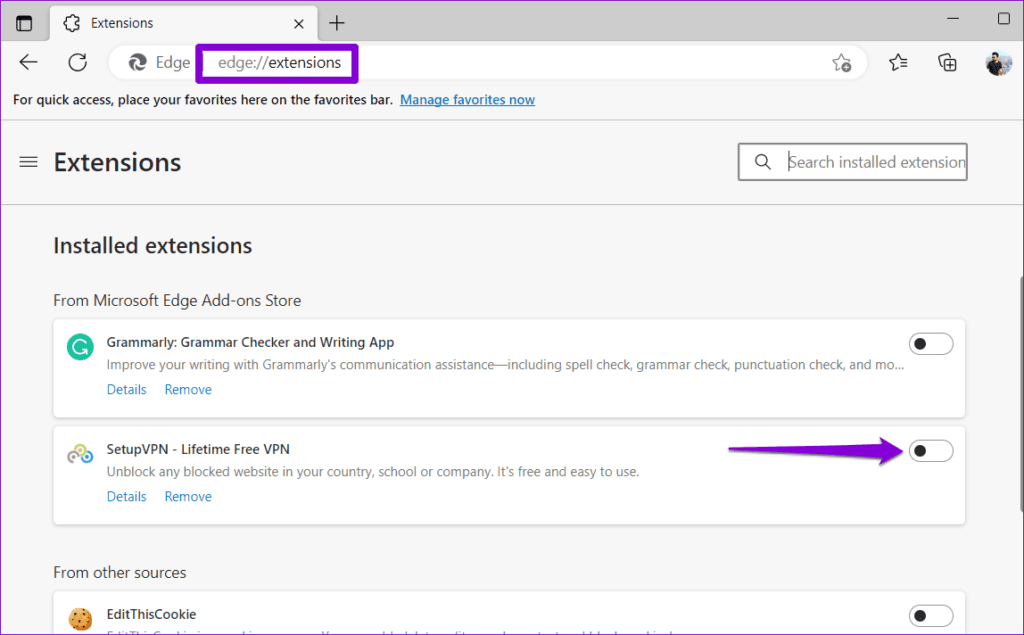
Restart your browser after this and try to send messages on Facebook Marketplace again. If this method works, you can re-enable your extensions one by one to isolate the one causing the issue.
6. Clear Cache Data
Such issues with the Marketplace can also arise due to corrupted app or browser cache data. Fortunately, it’s both safe and easy to get rid of this problematic cache data.
To clear browsing data in Chrome or Edge, press Ctrl + Shift + Delete (Windows) or Command + Shift + Delete (macOS) keyboard shortcut. Then, use the drop-down menu next to Time Range to select All time and tick the checkbox that reads ‘Cached images and files.’
After that, hit the Clear data button.

If you’re using Facebook Marketplace on an Android phone, use these steps to clear the cache.
Step 1: Long-press on the Facebook app icon and tap the info icon from the menu that appears.
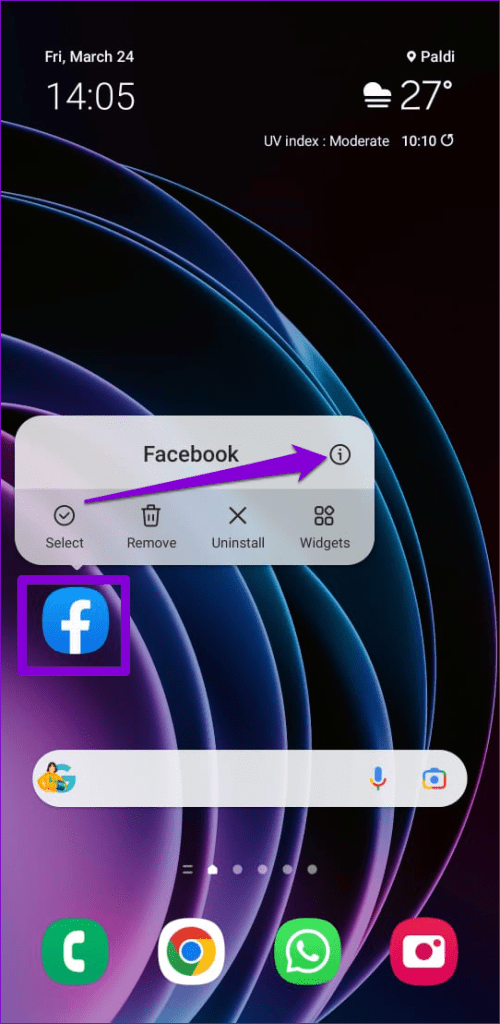
Step 2: Go to Storage and tap the Clear cache option at the bottom.


7. Update the App (Mobile)
Using an outdated Facebook app on your Android or iPhone could break some of its features and cause problems. So, if none of the above fixes help, you can update the Facebook app as a last resort.
Head to the Google Play Store (Android) or Apple App Store (iPhone) to update the Facebook app on the respective devices. Following that, you can send messages on Facebook Marketplace.
The Marketplace for Everyone
Effective communication plays a crucial role when you are buying or selling goods and services on Facebook Marketplace. Hence, it can be frustrating when you can’t message anyone on Facebook Marketplace. Hopefully, that’s no longer the case, and one of the above tips has helped you fix the problem.
Was this helpful?
Last updated on 04 July, 2023
Read Next
 Top 6 Ways to Fix Facebook Marketplace Not Working
Facebook Marketplace provides a convenient platform for users to discover, buy, and sell items.
Top 6 Ways to Fix Facebook Marketplace Not Working
Facebook Marketplace provides a convenient platform for users to discover, buy, and sell items.
 Top 9 Ways to Fix Facebook Marketplace Not Showing All Listings
While businesses and retailers prefer Amazon, most consumers use platforms like Facebook Marketplace to sell goods and used items.
Top 9 Ways to Fix Facebook Marketplace Not Showing All Listings
While businesses and retailers prefer Amazon, most consumers use platforms like Facebook Marketplace to sell goods and used items.
 Facebook Marketplace Guide: What is it and How to Use it
You may have noticed in the last few weeks that there is now a new tab on Facebook which is called ‘Marketplace’.
Facebook Marketplace Guide: What is it and How to Use it
You may have noticed in the last few weeks that there is now a new tab on Facebook which is called ‘Marketplace’.
 Top 4 Ways to Send WhatsApp Messages to Multiple Contacts
WhatsApp is undoubtedly the most popular instant messaging app in the world.
Top 4 Ways to Send WhatsApp Messages to Multiple Contacts
WhatsApp is undoubtedly the most popular instant messaging app in the world.
 How to Send Disappearing Messages in Facebook Messenger
During conversations, you might require sending confidential messages to another person.
How to Send Disappearing Messages in Facebook Messenger
During conversations, you might require sending confidential messages to another person.
 Top 7 Ways to Fix Android Won’t Send Picture Messages Issue
Have you been trying to send a family picture via text message to your grandma who doesn't use a smartphone but to no avail?
Top 7 Ways to Fix Android Won’t Send Picture Messages Issue
Have you been trying to send a family picture via text message to your grandma who doesn't use a smartphone but to no avail?
 Top 3 Ways to Send Text Messages from Computer
Being able to send and receive text messages from your PC brings a lot of comfort to the table, especially if you spend most of your day working on a
Top 3 Ways to Send Text Messages from Computer
Being able to send and receive text messages from your PC brings a lot of comfort to the table, especially if you spend most of your day working on a
 Top 11 Ways to Fix Facebook Messenger Not Showing Messages
With themes, stickers, emojis, and many other features, the Facebook Messenger app feels bloated on your Android or iPhone.
Top 11 Ways to Fix Facebook Messenger Not Showing Messages
With themes, stickers, emojis, and many other features, the Facebook Messenger app feels bloated on your Android or iPhone.
The article above may contain affiliate links which help support Guiding Tech. The content remains unbiased and authentic and will never affect our editorial integrity.

