

Although you can use Windows 11 without a Microsoft account, the entire experience is barebone. You need to sign in with your Microsoft account to unlock the full potential of Windows 11. Many have faced issues with signing in with their Microsoft account on Windows.

Microsoft Store, OneDrive, and Microsoft 365 apps are an essential part of Windows 11. You need a Microsoft account to unlock such apps and services on your computer. The issue also occurs when you try to add another user with their Microsoft account details. Here’s why you can’t sign into Windows with Microsoft account.
Also Read: How to Remove a Microsoft Account From Windows 11
1. Restart and Try Again
Rebooting a Windows PC lets you handle the usual software glitches in no time. Press the Windows key and select the power button to restart the PC, and try signing in with Microsoft account details again.

2. Check Microsoft Account Details
You should double-check the Microsoft account email and password. Even a single typo prevents you from logging in with a Microsoft account. When you type your account credentials, turn off the caps lock on the keyboard.
We also recommend storing your Microsoft account details in a password manager to stop forgetting such details.
3. Check Two-Factor Authentication
Many users enable 2FA (Two-Factor Authentication) for their Microsoft account to add an extra layer of security. Sometimes, Microsoft fails to send a security code and prevents you from activating the account on Windows.
You can read our dedicated guide to fix Microsoft not sending a security code.
4. Check Microsoft Server Outage
When Microsoft servers face an outage, you face issues with account authentication on Windows. You can visit Downdetector and search for Microsoft. High outage spikes confirm the server-side issues. You need to wait for Microsoft to resolve such problems on their end.
5. Disable Anti-Virus Software
Active third-party anti-virus software may prevent you from logging into your Microsoft account on Windows.
Note: You’ll need a User account with administrative privileges to perform system-level changes.
Step 1: Right-click on the Windows key and select the Task Manager from the Power User menu.

Step 2: Select Startup apps from the left sidebar.
Step 3: Right-click on anti-virus software and select Disabled.

Restart your computer and try again. Enable the anti-virus software using the same steps. You can also uninstall such anti-virus apps on your computer.
Step 1: Press the Windows + I keyboard shortcut to open the Settings app.
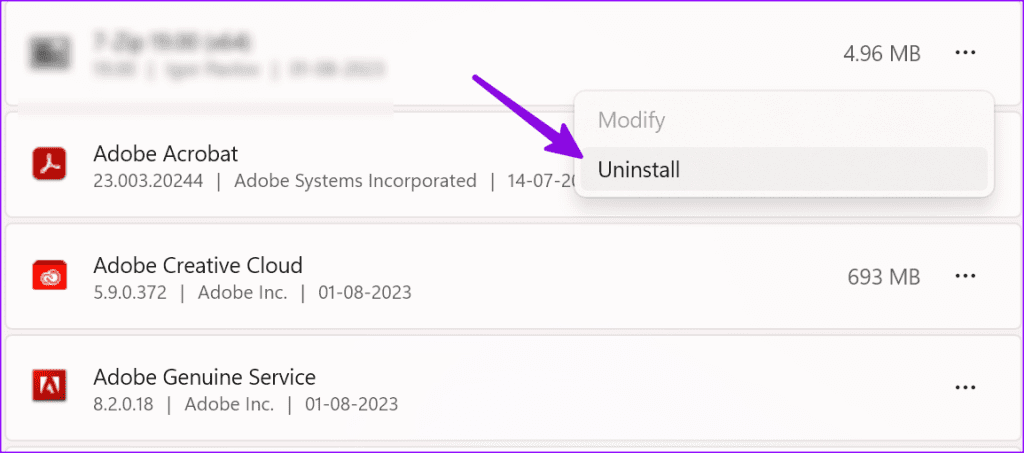
Step 2: Go to Apps and select Install apps.

Step 3: Find your anti-virus software and click the three horizontal dots menu. Select Uninstall.
6. Run SFC Scan
The System File Checker helps you troubleshoot common Windows problems in no time. You can use the Command Prompt app to run an SFC scan.
Step 1: Press the Windows key to open the Start menu, type Command Prompt in the search bar, and hit Enter.
Step 2: In the Command Prompt window, use the following command and hit Enter:
sfc /scannow
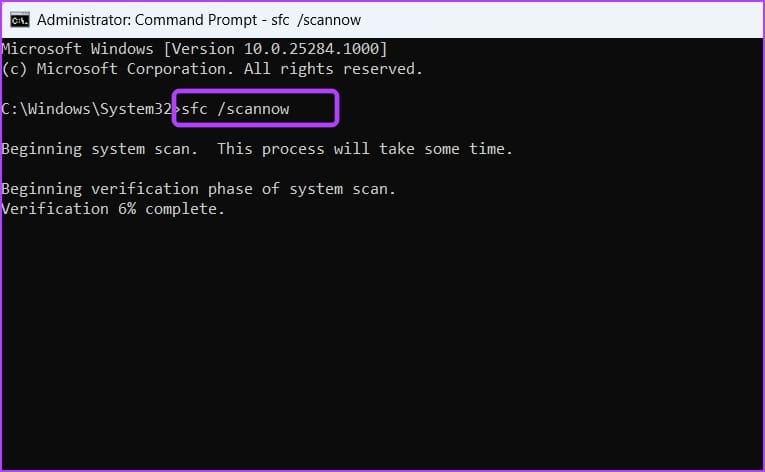
After the Command Prompt completes running the command, try signing in with Microsoft account.
7. Create a New Microsoft Account Using Command Prompt
You can use the Command Prompt to manage user accounts on your PC. So you can also use it to add a new User Account with a few commands. Here’s how to do that:
Step 1: Click the Windows Search key on the taskbar to open the Start menu, type Command Prompt in the search bar, and click on Run as administrator:

Step 2: Type the following commands and hit Enter after each one:
net user /add useraccountname mypassword
net localgroup administrators useraccountname /add
net share concfg*C:\/grant:useraccountname,full
net user useraccountname

Step 3: Restart your PC.
If Command Prompt doesn’t open on Windows, use our dedicated guide to fix the issue.
8. Delete the Credentials Directory
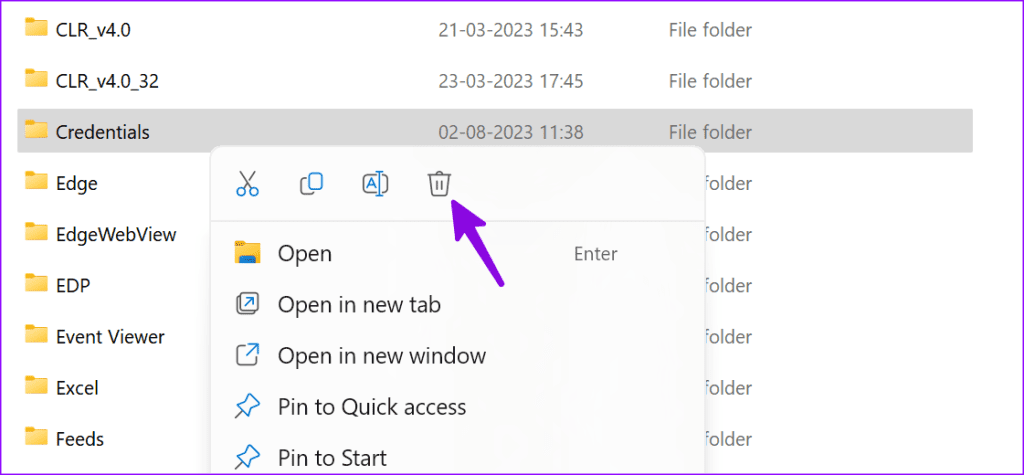
Windows may not let you sign in with Microsoft account due to corrupt credentials. It’s time to delete the credentials directory.
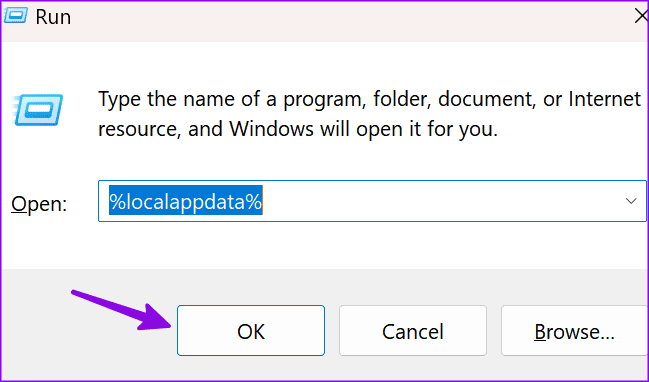
Step 1: Press the Windows + R keyboard shortcut to open the Run dialog box. Type %localappdata% and hit Enter.
Step 2: Double-click the Microsoft folder.
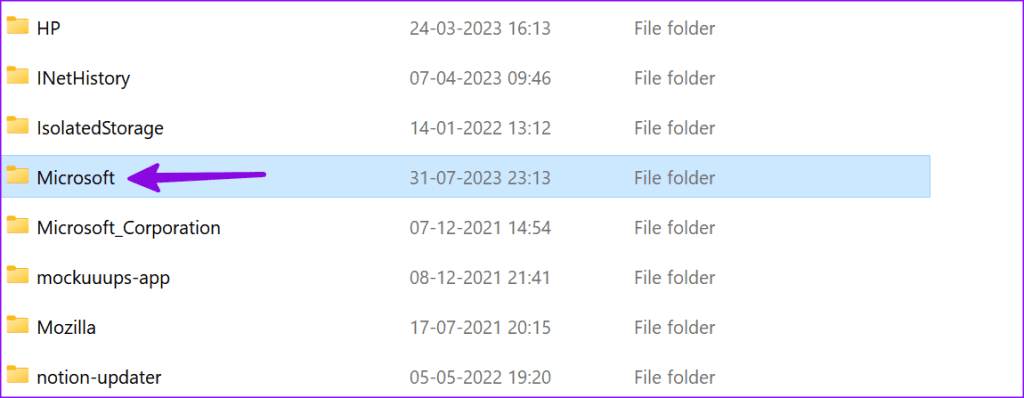
Step 3: Delete the Credentials folder.
9. Make Changes in the Registry
You can make changes in the Registry and try signing in with Microsoft account on Windows.
Step 1: Click the Windows Search key on the taskbar to open the Start menu, type Registry Editor, and click on Run as administrator.

Step 2: Navigate to the following path:
Computer\HKEY_CURRENT_USER\Software\Microsoft\IdentityCRL\UserExtendedProperties
Step 3: Find your Microsoft account and right-click on it. Select Delete.
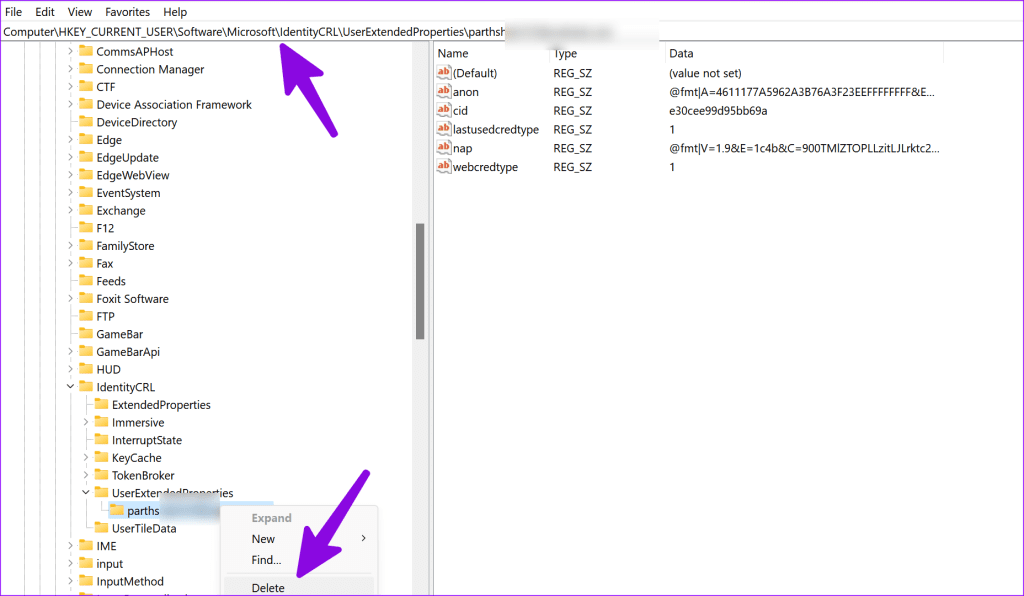
Restart the PC and add your Microsoft account from Windows Settings.
10. Update Windows
An outdated Windows build may prevent you from signing in with Microsoft account.
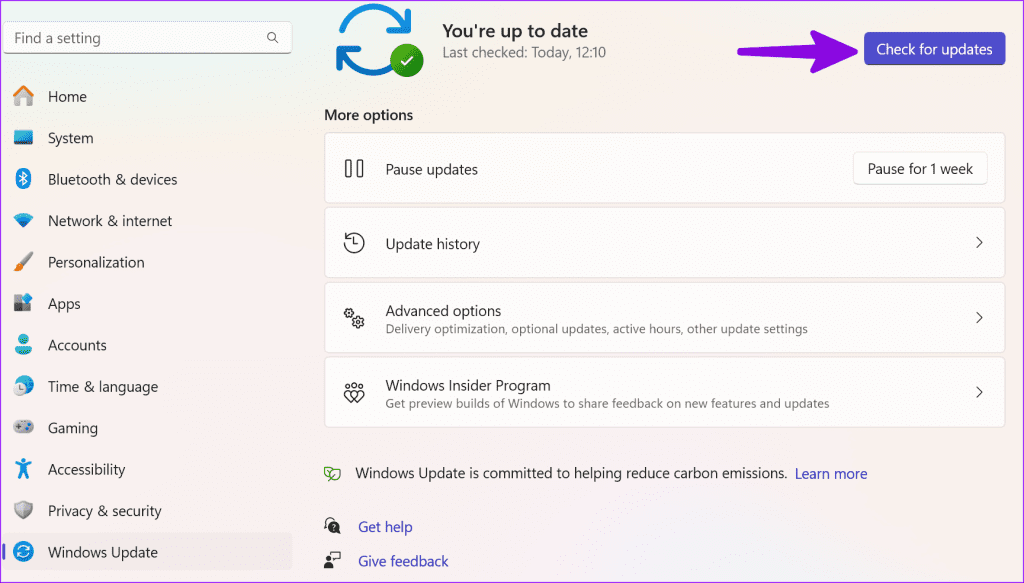
Step 1: Press the Windows + I keyboard shortcut to open the Settings app, and select Windows Update from the left sidebar.
Step 2: Download and install the latest system build on your PC.
Use Windows 11 At Its Best
Using Windows 11 without a Microsoft account is rarely an ideal setup. Instead of dealing with a guest account, use the steps above to fix login problems on Windows. Which trick worked for you? Share your findings in the comments below.
Was this helpful?
Last updated on 02 August, 2023
Read Next
 Top 6 Ways to Fix Unable to Sign in to Microsoft OneNote on Windows
Microsoft OneNote is an excellent app for creating, storing, and organizing notes on your Windows computer.
Top 6 Ways to Fix Unable to Sign in to Microsoft OneNote on Windows
Microsoft OneNote is an excellent app for creating, storing, and organizing notes on your Windows computer.
 8 Best Ways to Fix Microsoft Teams Keeps Asking to Sign in on Windows 10 and Windows 11
Microsoft Teams remains an essential part of millions of users worldwide.
8 Best Ways to Fix Microsoft Teams Keeps Asking to Sign in on Windows 10 and Windows 11
Microsoft Teams remains an essential part of millions of users worldwide.
 Top 13 Ways to Fix Microsoft Teams Sign-in Error
Microsoft Teams is enjoying its dream run in the enterprise market.
Top 13 Ways to Fix Microsoft Teams Sign-in Error
Microsoft Teams is enjoying its dream run in the enterprise market.
 Top 6 Ways to Fix Unable to Change Sign-in PIN on Windows 10 and Windows 11
From time to time, you may want to change the sign-in PIN for your Windows computer to ensure its safety.
Top 6 Ways to Fix Unable to Change Sign-in PIN on Windows 10 and Windows 11
From time to time, you may want to change the sign-in PIN for your Windows computer to ensure its safety.
 Top 5 Ways to Fix Can’t Sign In to OneDrive on Windows 11
Microsoft OneDrive is a popular cloud storage option for Windows.
Top 5 Ways to Fix Can’t Sign In to OneDrive on Windows 11
Microsoft OneDrive is a popular cloud storage option for Windows.
 Top 4 Ways to Insert a Tick Sign in Microsoft Office
While making documents, one of the best ways to make it enjoyable is by including symbols.
Top 4 Ways to Insert a Tick Sign in Microsoft Office
While making documents, one of the best ways to make it enjoyable is by including symbols.
 Top 11 Ways to Fix Can’t Sign Into Apple ID
When you change your Apple account password, iOS asks you to verify the same with the new account details on your iPhone.
Top 11 Ways to Fix Can’t Sign Into Apple ID
When you change your Apple account password, iOS asks you to verify the same with the new account details on your iPhone.
 Top 3 Ways to Fix Windows 10 Guest Account Not Appearing on Login Screen
The Windows operating system featured the ability to sign in as a guest user for the longest time.
Top 3 Ways to Fix Windows 10 Guest Account Not Appearing on Login Screen
The Windows operating system featured the ability to sign in as a guest user for the longest time.
The article above may contain affiliate links which help support Guiding Tech. The content remains unbiased and authentic and will never affect our editorial integrity.

