With the release of iOS 17, Apple introduced the Contact Posters feature for iPhone users. You can set a full-screen picture of your contact and select a template you like. After selected, the Contact Poster will appear whenever you receive a call from those contacts.

But some users complain that the Contact Posters are not working on their iPhones. If you are also facing the same, here are some working solutions to help you fix Contact Posters not working on iPhone.
1. Enable Name and Photo Sharing
The first solution we recommend is checking whether Name and Photo Sharing is enabled for your contact card. This is when your Contact Poster is not visible to others while calling or you can’t see someone’s contact poster. Here’s how to check and enable the same.
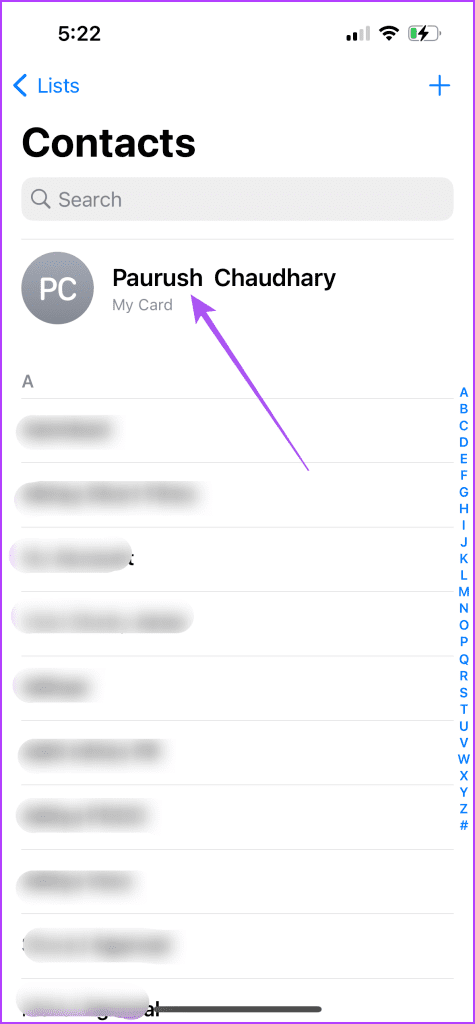
Step 1: Open the Contacts app on your iPhone.

Step 2: Tap on your Contact Card at the top.
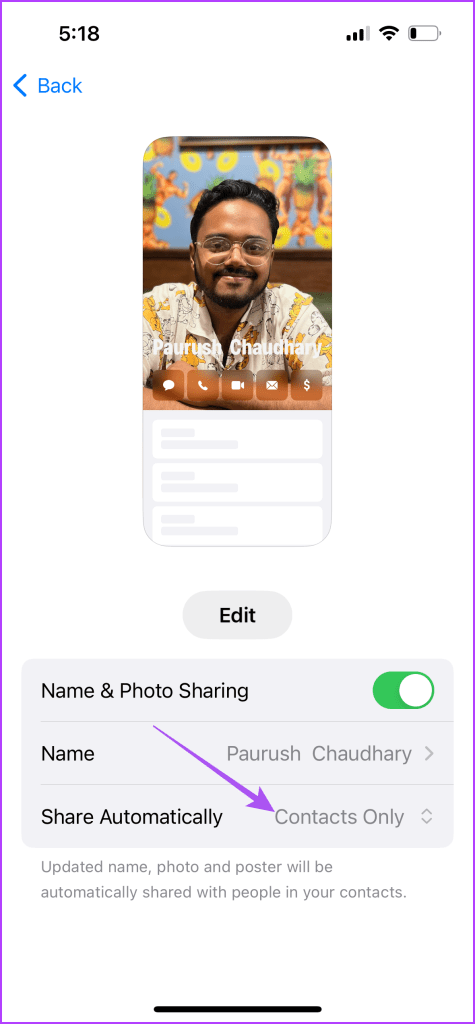
Step 3: Tap on Contact Photo and Poster.

Step 4: Tap the toggle next to Name & Photo Sharing to enable the feature.

Step 5: Ensure that the option of Share Automatically is selected to Contacts Only.
Step 6: Go back and check if the problem is solved.
2. Delete and Add Contact Poster Again
If the Contact Photo and Poster are still disabled on your iPhone, you can delete and add the Contact Poster again. Here’s how.
Step 1: Open the Contacts app on your iPhone.
Step 2: Select the contact name whose Contact Poster is not visible.
Step 3: Tap on Contact Photo and Poster below the contact name.

Step 4: Swipe up the selected Contact Poster design and tap the Delete icon to remove it.

Step 5: Tap on Delete again at the bottom to confirm.

Step 6: Tap the Plus icon at the bottom-right corner to add the Contact Poster again.

Step 7: When added, tap on Done at the top-right corner to confirm.
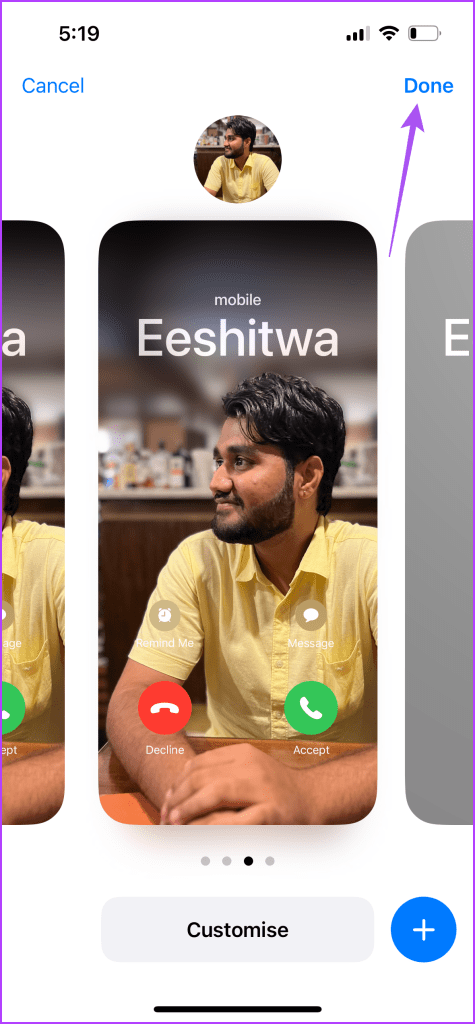
Check if the problem is solved.
3. Check if iMessage Is Enabled
Another solution suggested by a few users is checking if iMessage is enabled on your iPhone. This is a solution that seems to have worked for some of those users who are facing the same issue. Here’s how to check the same.
Step 1: Open the Settings app on your iPhone.

Step 2: Scroll down and tap on Messages.

Step 3: Scroll down and check if iMessage has been enabled on your iPhone.

If not, tap the toggle next to iMessage to enable it.
Step 4: Close the Settings app and check if the problem is solved.
You can also read our post on the best ways to hide your messages on your iPhone.
4. Update iOS
If you are still facing the issue, it could be due to a bug in the current version of iOS on your iPhone model. So we recommend updating the software, especially if you are using the Public Beta of iOS 17.
Step 1: Open the Settings app on your iPhone.
Step 2: Scroll down and tap on General.

Step 3: Tap on Software Update.
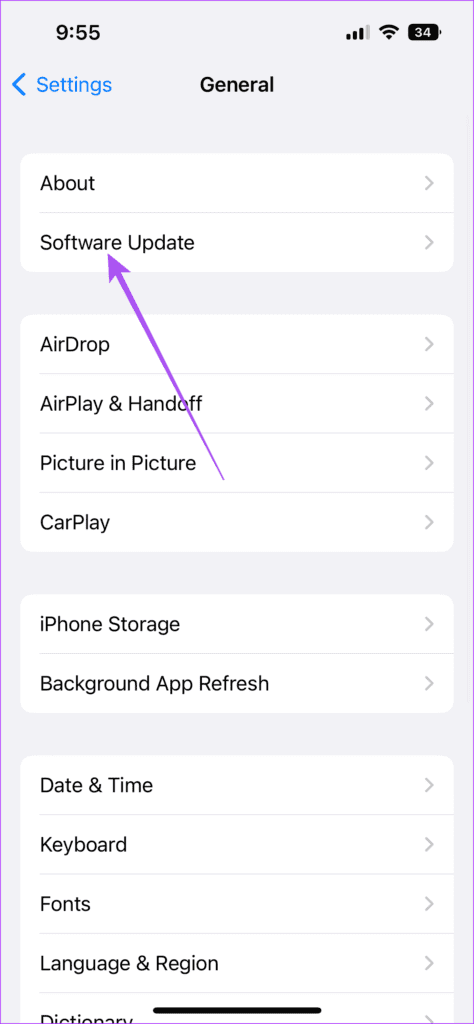
Step 4: If an update is available, download and install it.
Step 5: Once done, check if the problem is solved.
5. Reset All Settings
This is an advanced solution and should only be used if none of the solutions have worked for you so far. Once you reset all the settings on your iPhone, you will have to log in again to your Apple account.
Step 1: Open the Settings app on your iPhone.
Step 2: Scroll down and tap on General.
Step 3: Scroll down to the bottom and select Transfer or Reset iPhone.
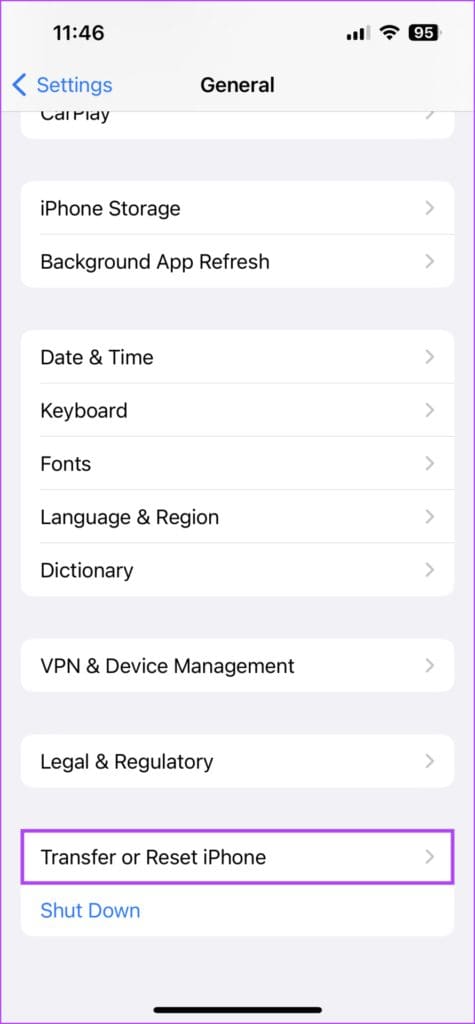
Step 4: Tap on Reset at the bottom.

Step 5: Select Reset All Settings.

Step 6: Enter your iPhone passcode to authenticate.
Step 7: Tap on Reset All Settings again at the bottom to confirm.
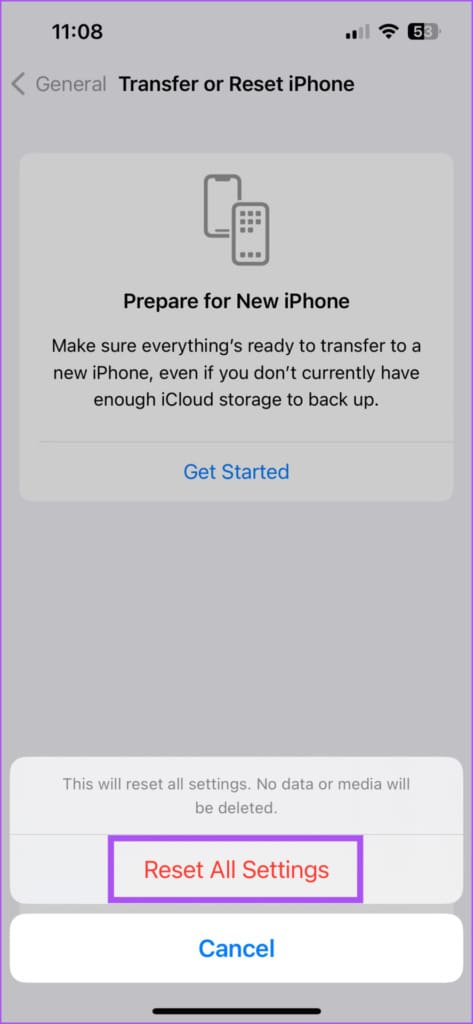
Step 8: Once done, check if the problem is solved.
Use Contact Posters on iPhone
These solutions will help fix the Contact Posters not working on your iPhone. iOS 17 has introduced a few more features to improve the user experience. But we have also prepared a list of the best hidden features of iOS 17 which you might not be aware of. Do check out our post.
Was this helpful?
Last updated on 17 August, 2023
Read Next
 iOS 17: How to Create Contact Posters on iPhone
Apple unveiled iOS 17 in WWDC'23 and it isn't a major upgrade over iOS 16.
iOS 17: How to Create Contact Posters on iPhone
Apple unveiled iOS 17 in WWDC'23 and it isn't a major upgrade over iOS 16.
 Top 6 iPhone, iPad Apps For Designing Beautiful Posters
No matter what other people say, iPhone and iPad (especially the iPad) make for great content tools.
Top 6 iPhone, iPad Apps For Designing Beautiful Posters
No matter what other people say, iPhone and iPad (especially the iPad) make for great content tools.
 Easily Design Awesome Posters, Images Online with Canva
The internet gives you plenty of tools to solve your problems.
Easily Design Awesome Posters, Images Online with Canva
The internet gives you plenty of tools to solve your problems.
 How to Create Huge, Life-sized Posters With the Rasterbator
Ever wanted to create a poster the size of your wall?
How to Create Huge, Life-sized Posters With the Rasterbator
Ever wanted to create a poster the size of your wall?
 A Guide to Use PosterMyWall for Creating Free Marketing Posters and Graphics
Thousands of brands are constantly battling for your attention daily.
A Guide to Use PosterMyWall for Creating Free Marketing Posters and Graphics
Thousands of brands are constantly battling for your attention daily.
 Contact+ for Android: Link a Contact’s Social Accounts
There was a time when a contact in your phone meant a name and a number.
Contact+ for Android: Link a Contact’s Social Accounts
There was a time when a contact in your phone meant a name and a number.
 7 Best Fixes for iMessage Not Sending to One Contact on iPhone
iMessage lets you stay connected with your contacts on the go.
7 Best Fixes for iMessage Not Sending to One Contact on iPhone
iMessage lets you stay connected with your contacts on the go.
 9 Best Fixes for iMessage Not Showing Contact Names on iPhone
iMessage lets you share pictures, videos, and voice messages with your contacts.
9 Best Fixes for iMessage Not Showing Contact Names on iPhone
iMessage lets you share pictures, videos, and voice messages with your contacts.
The article above may contain affiliate links which help support Guiding Tech. The content remains unbiased and authentic and will never affect our editorial integrity.