With iOS 16, Apple has completely redesigned the iPhone Lock Screen. Among the many new features is the AI-powered depth effect for your lock screen wallpaper, which hides the clock behind certain objects in your photo. Unfortunately, the depth effect feature hasn’t been working for many people, and if you’re in the same boat, you’ve come to the right place.

Before we get to the solutions, let’s first go through some of the common reasons why this feature may not work on your iPhone.
Why Is Depth Effect Not Working on My iPhone
The depth effect feature is only available on iPhones with an A12 Bionic chip or later. In other words, you can only use this feature on the following iPhone models:
- iPhone XR, XS, and XS Max
- iPhone SE (2nd and 3rd Gen)
- iPhone 11, 11 Pro, 11 Pro Max
- iPhone 12, 12 mini, 12 Pro, 12 Pro Max
- iPhone 13, 13 mini, 13 Pro, 13 Pro Max
- iPhone 14, 14 Plus, 14 Pro, 14 Pro Max

However, if the depth effect does not seem to work despite having compatible hardware, it may be due to the use of lock screen widgets or an incompatible wallpaper. Additionally, temporary glitches or a buggy iOS build could also cause such problems.
What to Do if Depth Effect Is Not Working on iPhone
Here are some solutions that you can try when the depth effect is not working on your iPhone.
1. Check If Depth Effect Is Enabled
Although the depth effect feature kicks in automatically when you use a supported wallpaper, you can double-check and ensure that you haven’t disabled the feature by mistake. Here’s how.
Step 1: Unlock your iPhone with Face ID and then long-press on your lock screen to edit it.
Step 2: Tap the Customize button at the bottom.

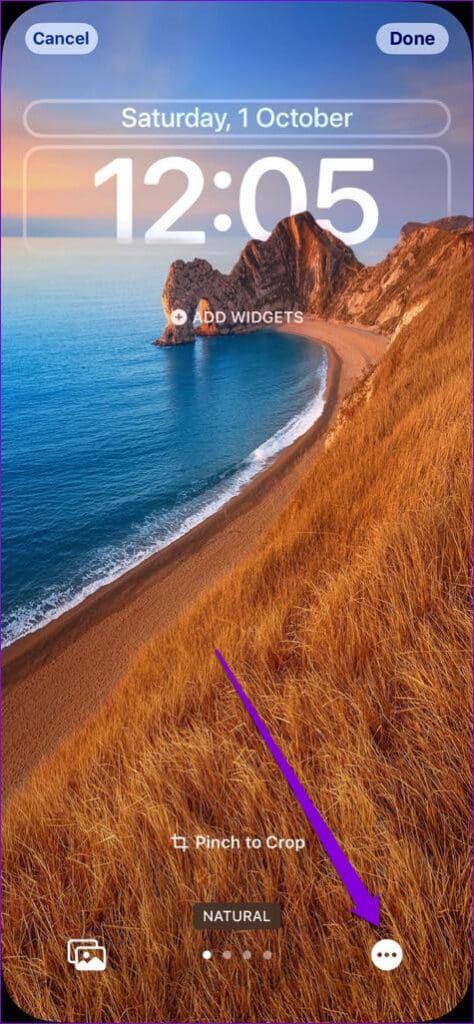
Step 3: Tap the three-dot menu icon in the bottom-right corner and enable the Depth Effect option if it isn’t already selected.

2. Remove Lock Screen Widgets
With iOS 16, Apple also introduced lock screen widgets for the iPhone. Unfortunately, you cannot use those lock screen widgets and the depth effect feature at the same time. So, to enjoy the depth effect on the lock screen wallpaper, you must remove any widgets from your lock screen.
To remove lock screen widgets, unlock your device and stay on the lock screen. Tap and hold the lock screen and then tap on the Customize button at the bottom. Tap the widget panel and use the minus sign next to a widget to remove it.

Remove all your lock screen widgets and see if the depth effect works after that.
3. Check the Image File Format
As things stand, the iOS 16 lock screen depth effect only works well with JPEG images. The depth effect may not work if your lock screen wallpaper is in another format.
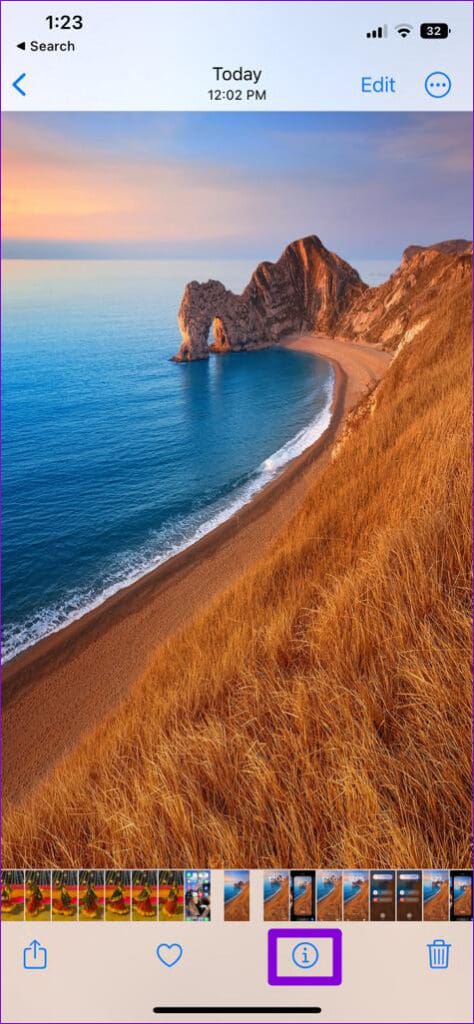
To check your wallpaper’s format, open it in the Photos app and tap the ‘i’ icon at the bottom. In the overlay pane, you’ll see the image file format.

If your image is in an unsupported format, you’ll have to convert it to JPEG or use another wallpaper to enjoy the depth screen effect.
4. Use a Depth Effect Supported Wallpaper
Another reason why the depth effect might not work is if your iPhone fails to recognize the subject in your photo. You can try using another image to see if that helps. Ideally, you should use an image in which the subject is distinguishable from the background. Photos captured in Portrait mode or with a blurred background work best.
5. Reposition or Crop the Wallpaper
If the depth effect is not working despite using a supported wallpaper, you may have to reposition or crop your image. If the subject of your wallpaper happens to cover the majority of your clock area, the depth effect will not work as expected.
Follow these steps to crop or reposition the lock screen image on your iPhone.
Step 1: Unlock your iPhone and stay on the lock screen. Then, long-press on your lock screen and tap the Customize button at the bottom.
Step 2: Use the pinch gesture to zoom in and zoom out. Adjust the wallpaper in a way that the depth effect works. You can preview the depth effect as you reposition the image.
Lastly, tap on Done in the top right corner to save changes.


6. Force Reboot iPhone
Sometimes, temporary glitches with your iPhone can cause the depth effect feature to stop working. If that seems to be the case, you can try force rebooting your iPhone.
Press and release the Volume Up button, then press and release the Volume Down button. Then, press and hold the Power button until the Apple logo appears.

After the reboot, check to see if the depth effect is working on the lock screen.
7. Install iOS Updates
It is not uncommon for newly released features to encounter issues initially. If the depth effect not working issue is limited to the iOS build your iPhone is running, installing newer updates should help.
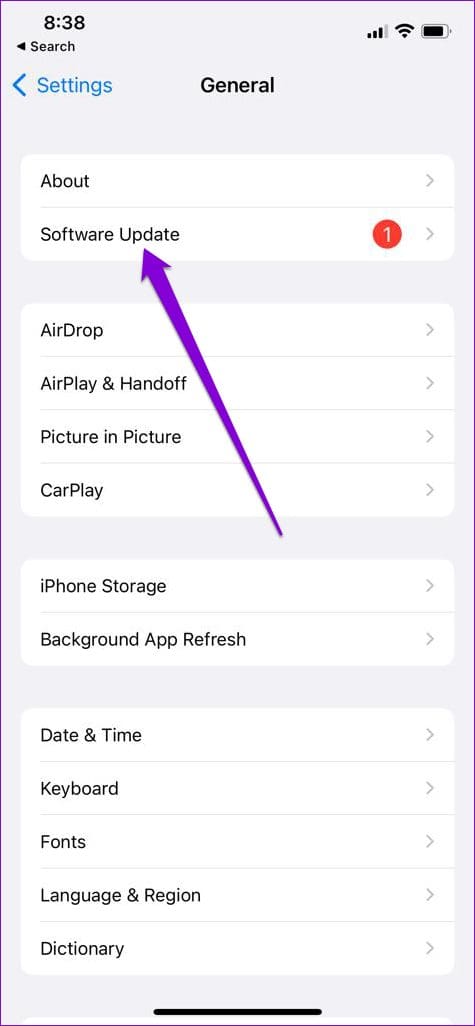
Open the Settings app and tap on General. Select Software Update to download and install pending updates. Following that, the depth effect feature should work as expected.

FAQs on Depth Effect Wallpaper Not Working on iPhone
The Depth Effect option on your iPhone may appear grayed out if you use wallpaper that is in an unsupported format or if the subject is not clearly visible in the image.
Yes, you can set separate home screen and lock screen wallpapers on your iPhone by heading over to Settings > Wallpaper.
Upgrade Your Lock Screen
Out of all the visual changes Apple implemented in iOS 16, the depth effect stands out as a distinctive feature. However, it is not perfect and can be frustrating when it does not work. Hopefully, going through the fixes above has helped you resolve the issue for good.
Was this helpful?
Last updated on 17 July, 2023
Read Next
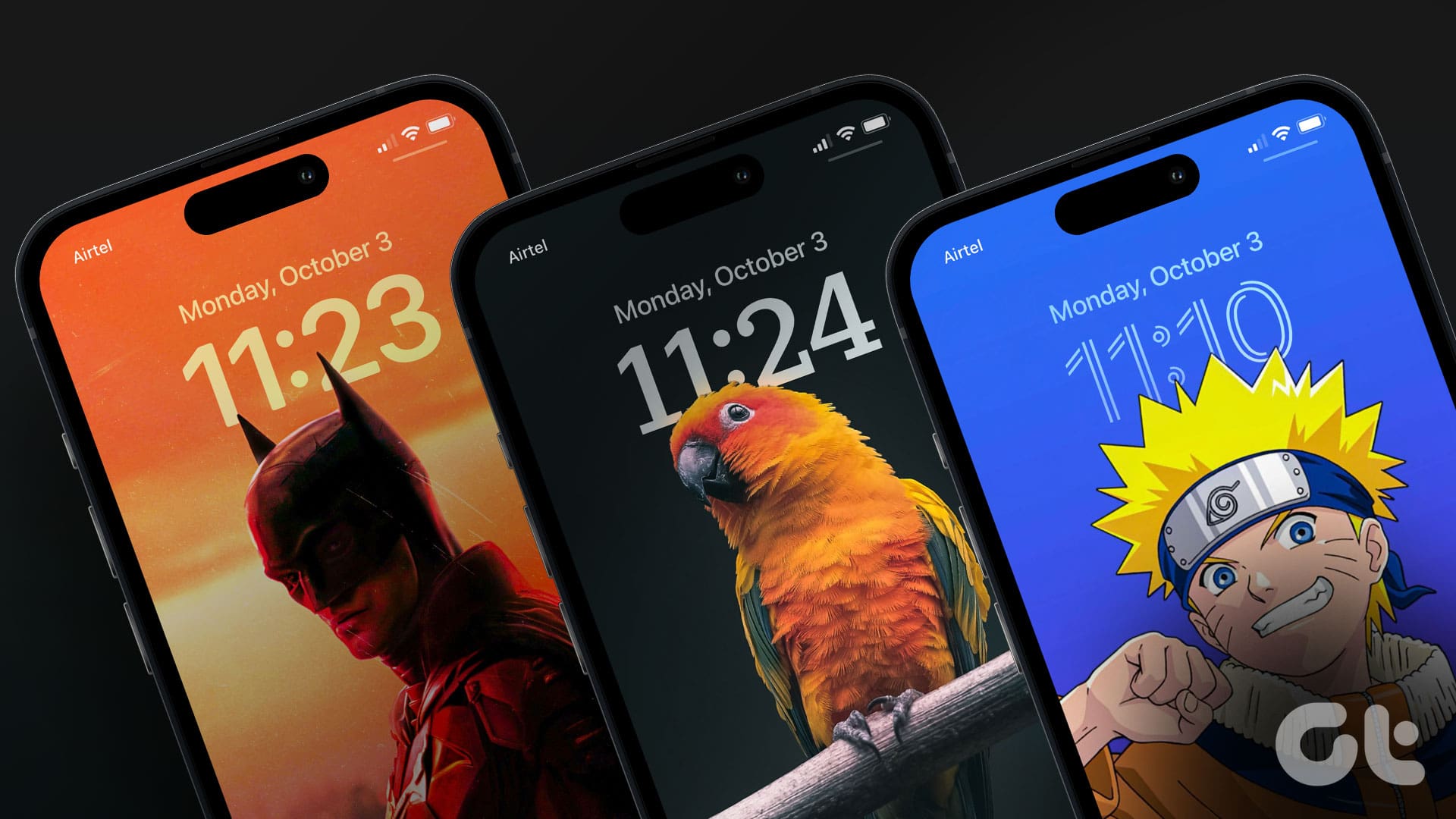 28 Best iOS 16 Depth Effect Wallpapers for iPhone Lock Screen
The latest iteration of Apple's mobile operating system, iOS 16 offers a slew of new features.
28 Best iOS 16 Depth Effect Wallpapers for iPhone Lock Screen
The latest iteration of Apple's mobile operating system, iOS 16 offers a slew of new features.
 Lock iPhone Using an Old TV Effect (Jailbroken Phones) – Guiding Tech
We have already shown you how to jailbreak your iPhone or other iOS devices running iOS 6.
Lock iPhone Using an Old TV Effect (Jailbroken Phones) – Guiding Tech
We have already shown you how to jailbreak your iPhone or other iOS devices running iOS 6.
 Dropbox Paper vs Evernote: In-Depth Comparison of Note Taking Apps
There are quite a few note-taking apps available in the market.
Dropbox Paper vs Evernote: In-Depth Comparison of Note Taking Apps
There are quite a few note-taking apps available in the market.
 Dropbox Paper vs Google Keep: In-Depth Comparison
One of the core features of a smartphone is taking notes.
Dropbox Paper vs Google Keep: In-Depth Comparison
One of the core features of a smartphone is taking notes.
 iCloud vs Google Drive: In-Depth Comparison of Cloud Storage Services
Both iCloud and Google Drive (now Google One) are two of the biggest cloud storage services in the business.
iCloud vs Google Drive: In-Depth Comparison of Cloud Storage Services
Both iCloud and Google Drive (now Google One) are two of the biggest cloud storage services in the business.
 Polarr vs VSCO: In-Depth Comparison of Image Editor Apps
I enjoy photography and can call myself an amateur photographer.
Polarr vs VSCO: In-Depth Comparison of Image Editor Apps
I enjoy photography and can call myself an amateur photographer.
 Samsung Notes vs Google Keep: In-Depth Comparison
Unlike stock Android ones, Samsung-branded phones come pre-installed with very few Google apps.
Samsung Notes vs Google Keep: In-Depth Comparison
Unlike stock Android ones, Samsung-branded phones come pre-installed with very few Google apps.
 Shazam vs Shazam Lite: In-Depth Feature Comparison
Imagine this: you are at a party, and this hip acquaintance of yours plays a melodious track with a chiming lead.
Shazam vs Shazam Lite: In-Depth Feature Comparison
Imagine this: you are at a party, and this hip acquaintance of yours plays a melodious track with a chiming lead.
The article above may contain affiliate links which help support Guiding Tech. The content remains unbiased and authentic and will never affect our editorial integrity.