
Adding hyperlinks in your Excel sheet makes accessing related information or jumping to specific sections within a large workbook. With hyperlinks, you can make your spreadsheet interactive and organize your data efficiently. But what if these hyperlinks stop working or responding in Microsoft Excel?

Whether it’s a case of a broken link or an issue with the Excel app, fixing the problem shouldn’t take long on your Windows 10 or 11 PC. Here are some tips that should help get hyperlinks working again in Microsoft Excel.
1. Double Check the Link Path
It is possible that the file path mentioned in the hyperlink is no longer accessible or the web page link is misspelled. Hence, you’ll need to verify the hyperlink for any typos.
Additionally, if the name of the linked file contains a pound (#) sign, Excel may display the ‘Cannot Open the Specified File’ error. To fix it, you must rename the file you are trying to hyperlink and remove the pound (#) sign from its name. After you have renamed the file, update the hyperlink in Excel to reflect the new filename.
2. Check AutoCorrect Options for Hyperlinks
The AutoCorrect feature in Excel can automatically convert certain types of text entries, such as internet and network paths, into hyperlinks. However, if this feature is turned off, your hyperlinks may appear as normal text in Microsoft Excel. To avoid this, you should allow Excel to replace internet and network paths with hyperlinks automatically.
Step 1: Open Microsoft Excel on your PC and click the File menu in the top left corner.

Step 2: Select Options from the left sidebar.

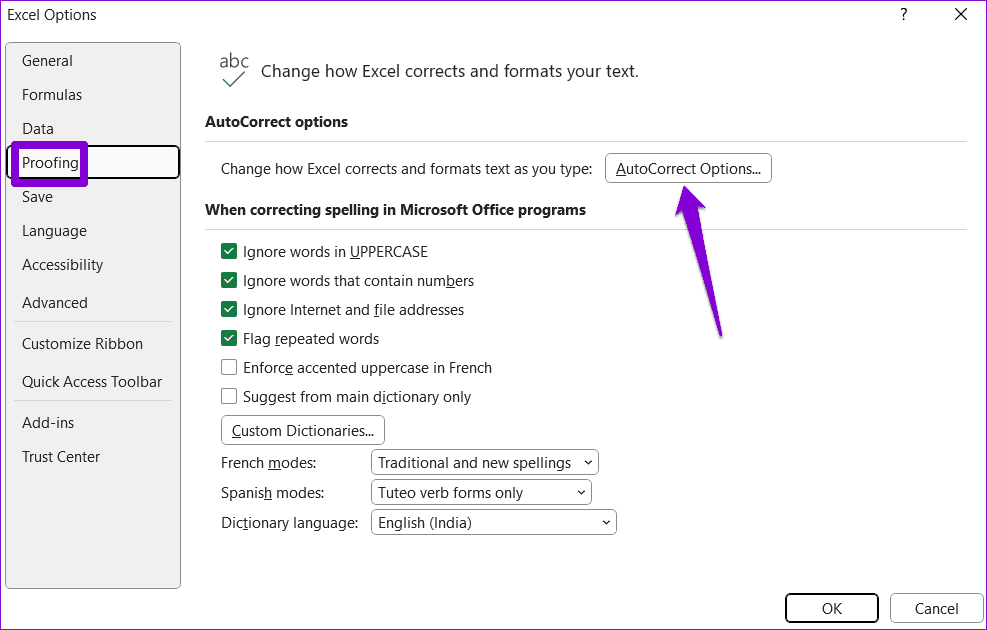
Step 3: In the Proofing tab, click the AutoCorrect Options button.
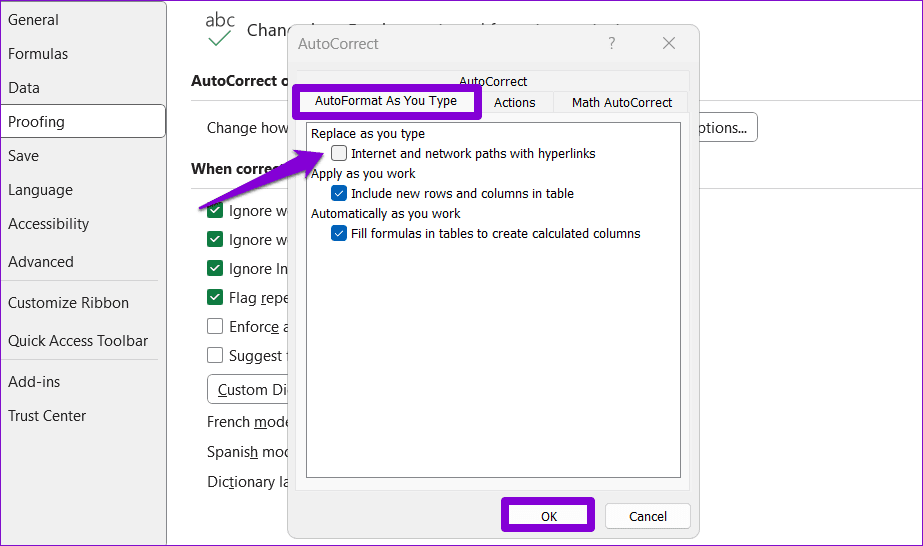
Step 4: Under the ‘AutoFormat As You Type’ tab, tick the ‘Internet and network paths with hyperlinks’ checkbox. Then, click OK.
3. Prevent Excel From Updating Links
When the ‘Update Links on Save’ feature is enabled, Microsoft Excel automatically updates links to other workbooks, charts, and websites when you save a workbook. However, this feature can sometimes end up breaking hyperlinks in your Excel workbook. You can turn off this feature to check if that solves your problem.
Step 1: Open Microsoft Excel on your PC and click the File menu at the top-left corner.
Step 2: Select Options from the left pane.
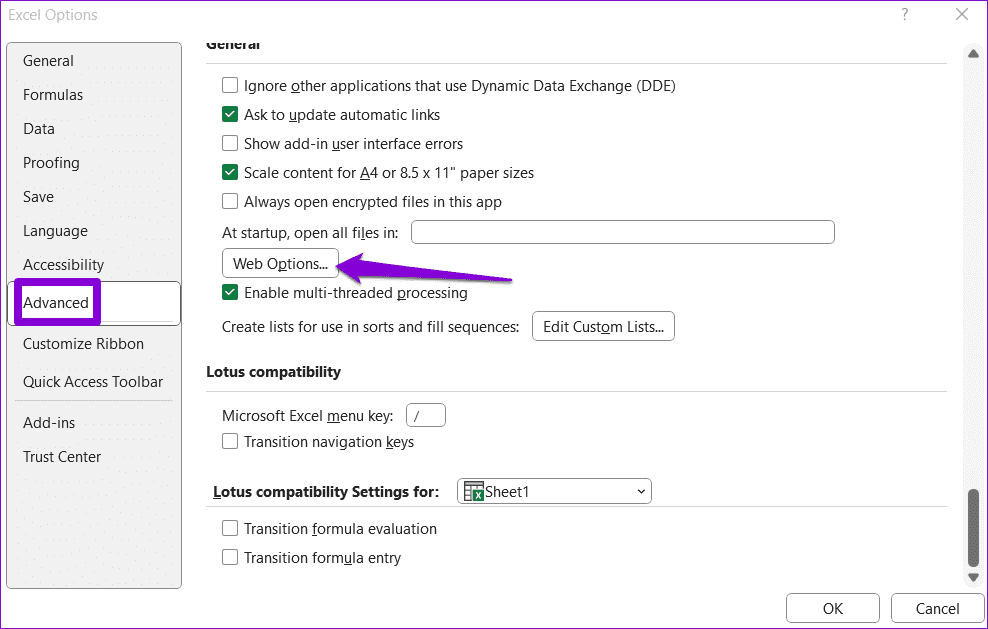
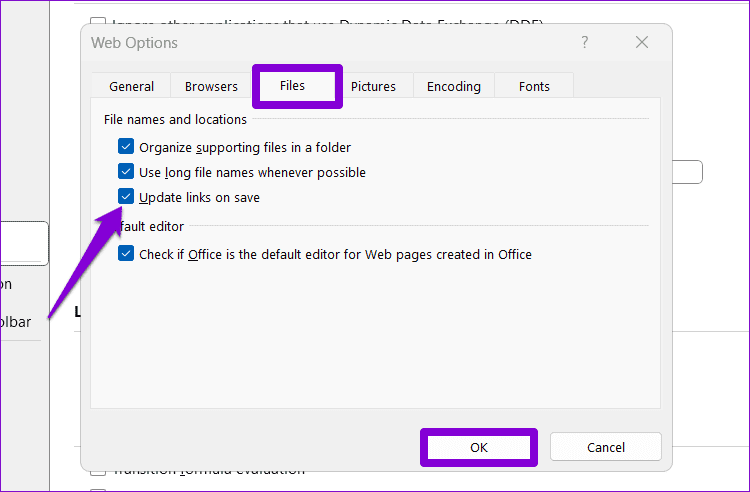
Step 3: In the Advanced tab, scroll down to click Web Options.
Step 4: Under the Files tab, uncheck the ‘Update links on save’ option. Then, hit OK to save changes.
4. Disable Protected View
Many Office apps, including Excel, have a Protected View feature that safeguards your computer against opening potentially harmful links or files. This feature may sometimes mistakenly open entirely safe Excel files in Protected View, restricting your ability to access embedded links. If you are confident that the document is legitimate, you can temporarily disable Protected View in Excel to avoid such issues.
Step 1: Open Microsoft Excel and click the File menu in the upper-left corner.
Step 2: Select Options in the bottom-left corner.
Step 3: Switch to the Trust Center tab and click the Trust Center Settings button.
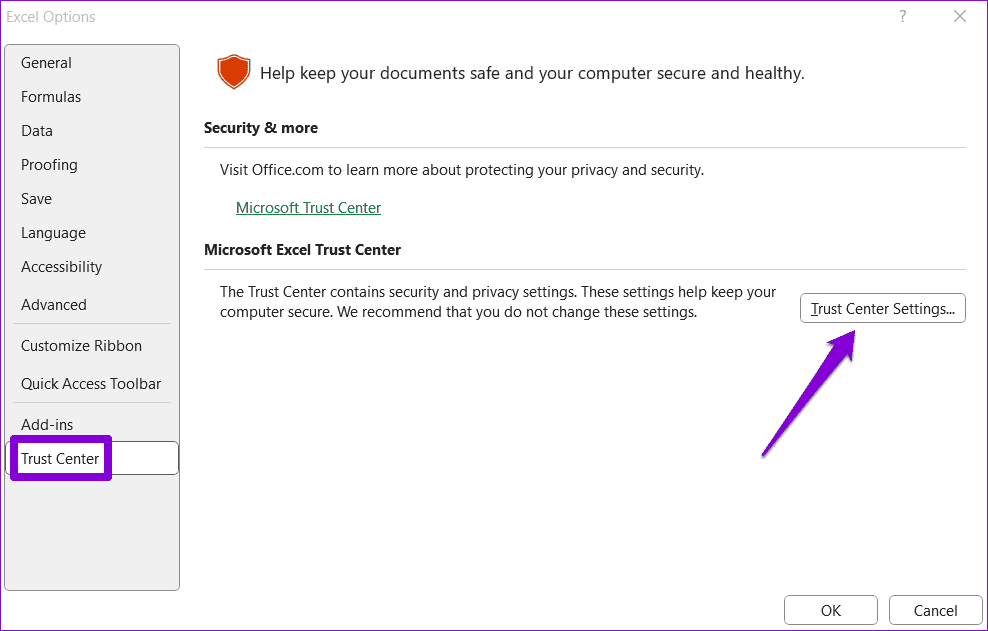
Step 4: In the Protected View tab, clear all three checkboxes to disable Protected View and click OK to save changes.

5. Repair Excel Workbook
Are hyperlinks not working only in a specific Excel workbook? If so, the issue could be related to the file itself. Fortunately, Excel includes a repair feature that can automatically identify and fix problems with your workbook. Here’s how to use it.
Step 1: Open Microsoft Excel and click the File menu at the top-left corner.
Step 2: Select Open from the left sidebar and click the Browse option.

Step 3: Browse and select your Excel file. Then, click the downward arrow next to Open to select the ‘Open and Repair’ option.

Microsoft Excel will open your file after repairing it. After that, check if the hyperlinks are working.
6. Run the Office Repair Tool
If all else fails, consider running the Microsoft Office repair tool as a last resort. This tool can automatically fix issues with all your Office apps, including Excel. Here’s how to run it.
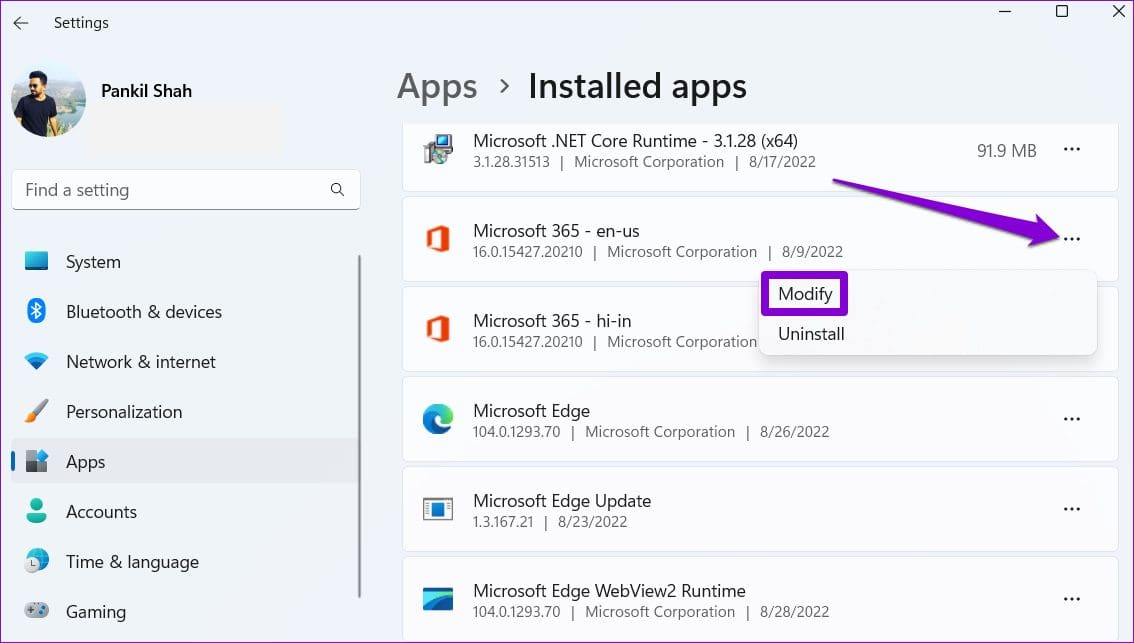
Step 1: Right-click on the Start icon and select Installed apps from the list.

Step 2: Scroll down to locate the Microsoft Office product on the list. Click the three horizontal dots menu icon next to it and select Modify.
Step 3: Select Quick Repair and click Repair.
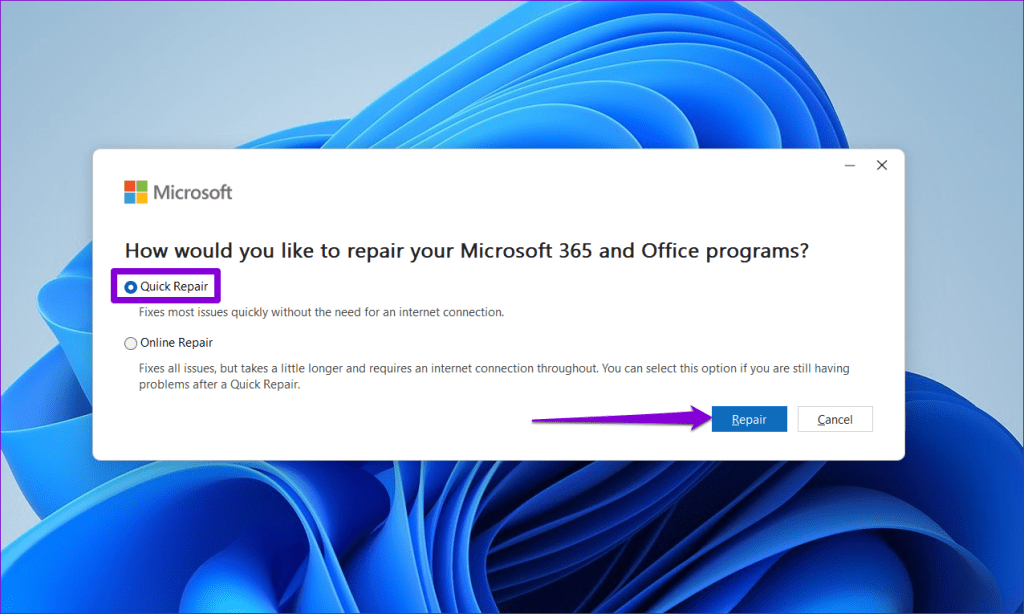
If hyperlinks do not work even after this, repeat the process to perform an Online Repair. This process may take longer, but it is more likely to resolve the issue.

Navigate Seamlessly With Working Hyperlinks
Hyperlinks are a great way to save time and effort when working in Microsoft Excel. Occasionally, they may leave you frustrated when they fail to work, but it’s nothing you can’t fix with the solutions mentioned above.
Was this helpful?
Last updated on 21 July, 2023
Read Next
 Top 6 Ways to Fix Hyperlinks Not Working in Microsoft Word for Windows
In a Word document, hyperlinks provide a convenient way for readers to navigate to specific sections or access external sources like files, websites, or emails.
Top 6 Ways to Fix Hyperlinks Not Working in Microsoft Word for Windows
In a Word document, hyperlinks provide a convenient way for readers to navigate to specific sections or access external sources like files, websites, or emails.
 Top 7 Ways to Fix Formulas Not Working in Microsoft Excel for Windows
Excel formulas are valuable for various calculations and data analysis, from simple arithmetic operations to complex financial models.
Top 7 Ways to Fix Formulas Not Working in Microsoft Excel for Windows
Excel formulas are valuable for various calculations and data analysis, from simple arithmetic operations to complex financial models.
 Top 8 Ways to Fix Microsoft Excel Stuck at Starting on Windows 11 and Windows 10
While Microsoft’s spreadsheet app is feature-rich, it feels bloated and overwhelming at times.
Top 8 Ways to Fix Microsoft Excel Stuck at Starting on Windows 11 and Windows 10
While Microsoft’s spreadsheet app is feature-rich, it feels bloated and overwhelming at times.
 How to Format Hyperlinks in Microsoft Word
When you look at the text in a Microsoft Word document, it is easy to identify the hyperlinks.
How to Format Hyperlinks in Microsoft Word
When you look at the text in a Microsoft Word document, it is easy to identify the hyperlinks.
 Top 6 Ways to Fix Find and Replace Not Working in Microsoft Excel
Microsoft Excel provides a plethora of useful features for managing and analyzing complex data.
Top 6 Ways to Fix Find and Replace Not Working in Microsoft Excel
Microsoft Excel provides a plethora of useful features for managing and analyzing complex data.
 Top 6 Ways to Fix Unable to Print From Microsoft Excel on Windows 11
Microsoft Excel is a great productivity tool with decades of version upgrades.
Top 6 Ways to Fix Unable to Print From Microsoft Excel on Windows 11
Microsoft Excel is a great productivity tool with decades of version upgrades.
 Top 6 Ways to Fix Microsoft Excel Document Not Saved Error in Windows 11
Working on complex spreadsheets in Microsoft Excel can be fun yet tiring at times.
Top 6 Ways to Fix Microsoft Excel Document Not Saved Error in Windows 11
Working on complex spreadsheets in Microsoft Excel can be fun yet tiring at times.
 Top 11 Ways to Fix Microsoft Excel Not Saving Changes on Windows
Microsoft Excel offers real-time collaboration to Microsoft 365 subscribers.
Top 11 Ways to Fix Microsoft Excel Not Saving Changes on Windows
Microsoft Excel offers real-time collaboration to Microsoft 365 subscribers.
The article above may contain affiliate links which help support Guiding Tech. The content remains unbiased and authentic and will never affect our editorial integrity.