

The Calendar app on Mac and iPhone keeps you updated with events and reminders for your daily schedule. One of the most important reminders you receive from the Calendar app is Birthdays. The Calendar app will notify you to wish your loved ones their special day.

Now it can be an awkward situation if you miss the birthday of someone special. And that’s why some users complain that their Calendar app on iPhone is not showing birthdays. If you also face the same, this post will share the best fixes for birthdays not showing in the Calendar app on your iPhone.
1. Enable Default Alert Times
The Calendar app will send you alerts for birthdays, events, and all-day events on your iPhone. So if you are not receiving birthday notifications from the app, you should check if the Default Alert Times have been turned on for your iPhone. Here’s how.
Step 1: Open the Settings app on your iPhone.

Step 2: Scroll down and tap on Calendar.

Step 3: Scroll down and select Default Alert Times.

Step 4: Select Birthdays.
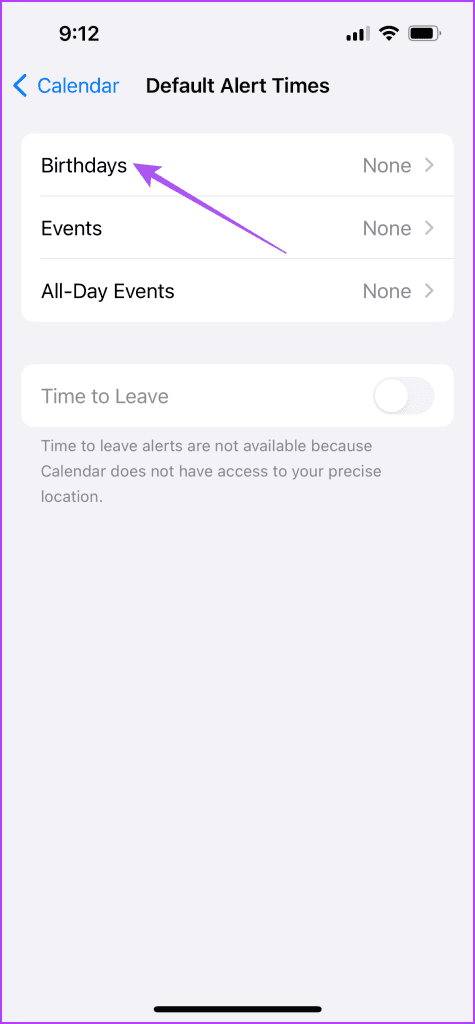
Step 5: Tap on the alert time schedule during which you want to receive the birthday notifications.

Step 6: After that, close the Settings app and check if the problem is solved.
2. Check the Default Email Account
If your contact birthdays not showing in the Calendar app on your iPhone, you need to check the default email account linked with the Calendar app. Here’s how.
Step 1: Open the Calendar app on your iPhone.

Step 2: Tap on Calendars at the bottom.
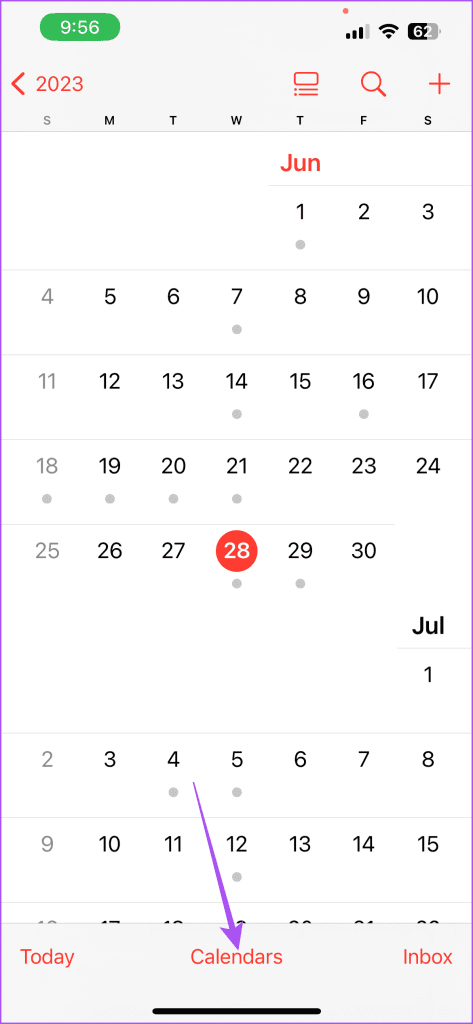
Step 3: Check if the Calendar app can access the email account associated with your contact list.

If not, tap the checkbox next to the email address to enable it.
Step 4: Tap on Done at the top-right corner to confirm.

Alternatively, here’s how you can check the default email account for the Calendar app has been enabled.
Step 1: Open the Settings app on your iPhone.
Step 2: Scroll down and tap on Calendar.
Step 3: Tap on Accounts.
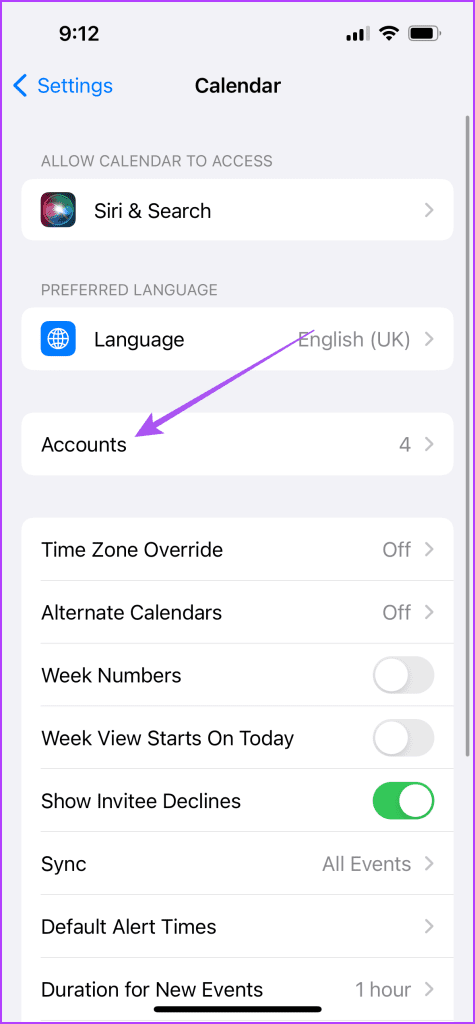
Step 4: Choose the email account linked to your contact list.
Step 5: Check if the toggle next to Calendars is enabled to confirm if it the Calendar app has access to the email account.

Step 6: After that, close the Settings app and open Calendar to check if you can see birthdays of your contacts.
3. Check iCloud Sync Settings for Calendar App
If you still can’t see birthdays in the Calendar app on your iPhone, you need to check if it is synced with iCloud on your iPhone.
Step 1: Open the Settings app on your iPhone.
Step 2: Tap on your profile name at the top.

Step 3: Tap on iCloud and select Show All.


Step 4: Tap on iCloud Calendar.
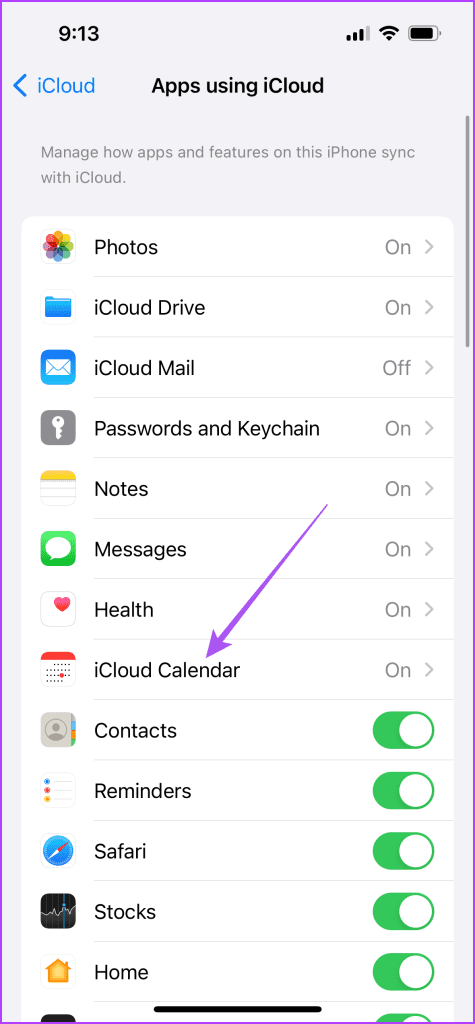
Step 5: Tap the toggle next to ‘Use on this iPhone’ to enable it.
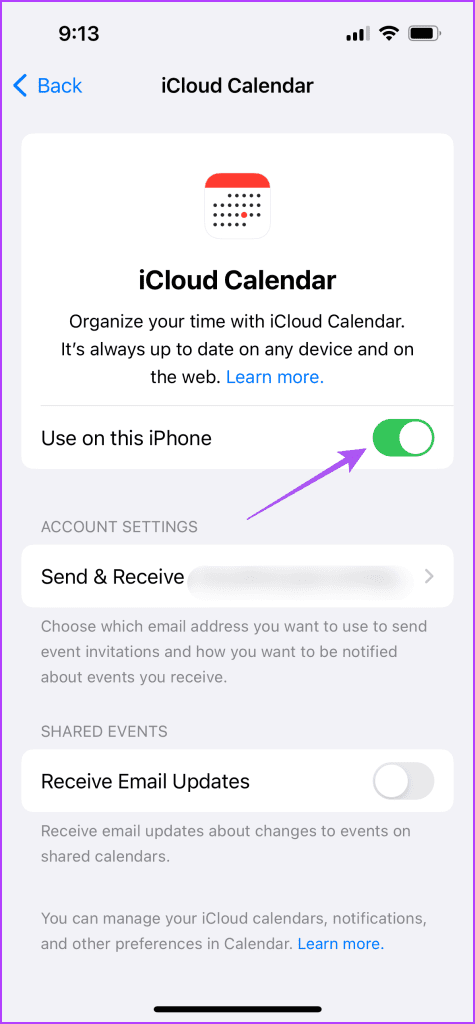
Step 6: Close the Settings app and open Calendar to check if the problem is solved.
4. Switch From Mobile Data to Wi-Fi
We suggest switching from mobile data to Wi-Fi on your iPhone to improve the speed of syncing your contacts with the Calendar app. If you have a dual-band Wi-Fi router, switching to a 5GHz would give you better and faster browser experience.
5. Force Quit and Relaunch Calendar App
You can force quit and relaunch the Calendar app to give it a fresh start on your iPhone. This will reload all the app data again and should fix the issue of birthdays not showing.
Step 1: On the home screen of your iPhone, swipe up and hold to reveal the background app windows.
Step 2: Swipe right to look for the Calendar app and swipe up to remove it.
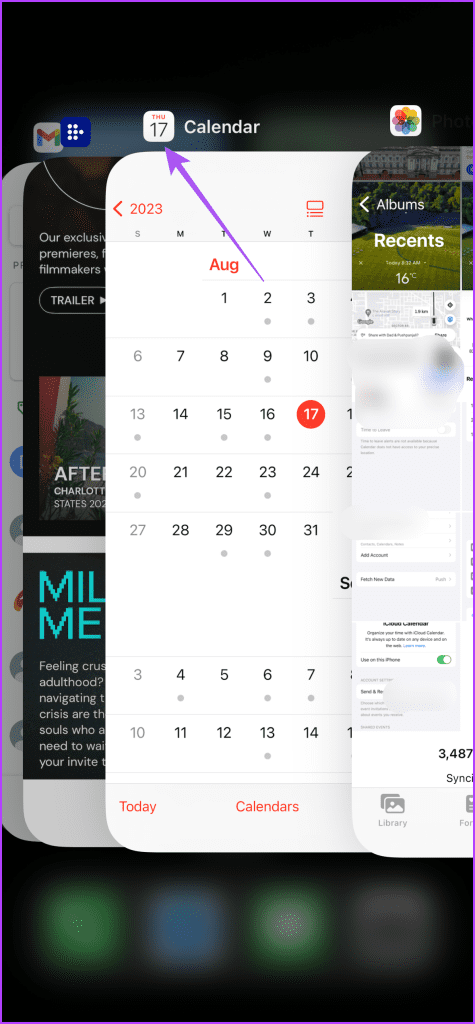
Step 3: Relaunch the Calendar app and check if the problem is solved.
6. Update iOS
It’s natural to delay installing iOS updates with a concern that it might slow down your iPhone. But the iOS update does that for first day and after that it gets better to support the apps and servers seamlessly. That’s why its necessary to is to update iOS on your iPhone.
Step 1: Open the Settings app on your iPhone.
Step 2: Scroll down and tap on General.

Step 3: Tap on Software Update.
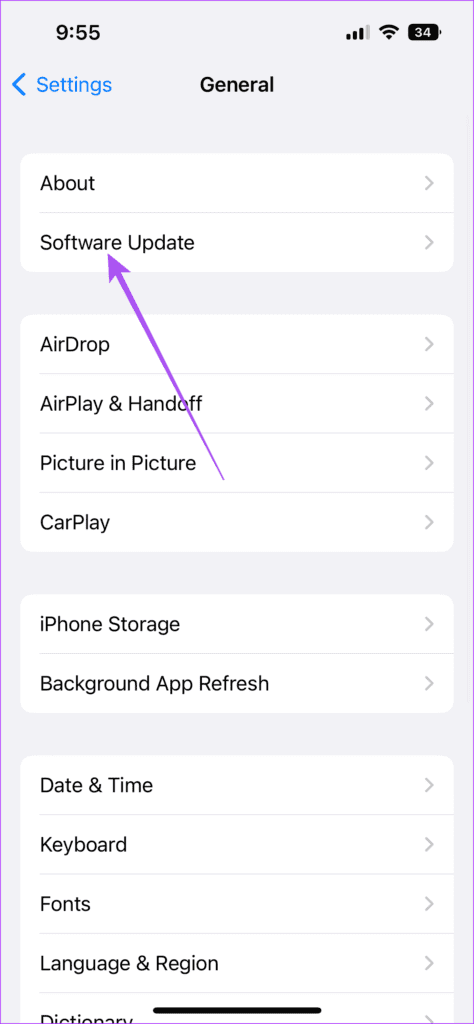
Step 4: If an update is available, download and install it.
After your iPhone reboots, open the Calendar app to check the birthdays.
Never Miss Any Birthdays
These solutions will help if your iPhone Calendar is not showing birthdays. Apart from birthdays, you can also choose to add or remove holidays from the Calendar app on your iPhone.
Was this helpful?
Last updated on 17 August, 2023
Read Next
 Apple Calendar vs Google Calendar: Which Calendar App Should You Use
Apple often faces criticism for the slow development of its iOS apps.
Apple Calendar vs Google Calendar: Which Calendar App Should You Use
Apple often faces criticism for the slow development of its iOS apps.
 2 Easy Ways to Add Birthdays to Google Calendar
Google Calendar is one of the most popular calendar services out there.
2 Easy Ways to Add Birthdays to Google Calendar
Google Calendar is one of the most popular calendar services out there.
 6 Best Fixes for Events Not Showing in Outlook Calendar on Windows 11
The Outlook app on your Windows 11 PC gives you access to the Calendar for planning your routine.
6 Best Fixes for Events Not Showing in Outlook Calendar on Windows 11
The Outlook app on your Windows 11 PC gives you access to the Calendar for planning your routine.
 12 Fixes for Samsung Calendar Not Showing Events and Holidays
Samsung Galaxy phones come with their Calendar app.
12 Fixes for Samsung Calendar Not Showing Events and Holidays
Samsung Galaxy phones come with their Calendar app.
 8 Best Fixes for Calendar App Not Syncing With Outlook on iPhone
If you prefer using Microsoft Outlook for your emails, you can also add your calendar entries like reminders and meeting schedules using the default Calendar app on your iPhone.
8 Best Fixes for Calendar App Not Syncing With Outlook on iPhone
If you prefer using Microsoft Outlook for your emails, you can also add your calendar entries like reminders and meeting schedules using the default Calendar app on your iPhone.
 5 Best Fixes for Events Disappear from Calendar App on iPhone
You can schedule events using the Calendar app on your iPhone.
5 Best Fixes for Events Disappear from Calendar App on iPhone
You can schedule events using the Calendar app on your iPhone.
 iOS Calendar vs Calvetica: Which is the Better Calendar App?
I don’t know about you, but for me, the calendar on my iPhone is one of the most important applications to help me get my daily workflow organized.
iOS Calendar vs Calvetica: Which is the Better Calendar App?
I don’t know about you, but for me, the calendar on my iPhone is one of the most important applications to help me get my daily workflow organized.
 Apple Calendar vs Fantastical: Which Calendar App Is Better for You
Apple’s default apps often face criticism for being too basic compared to the competition from the rivals in the App Store.
Apple Calendar vs Fantastical: Which Calendar App Is Better for You
Apple’s default apps often face criticism for being too basic compared to the competition from the rivals in the App Store.
The article above may contain affiliate links which help support Guiding Tech. The content remains unbiased and authentic and will never affect our editorial integrity.

