

Whenever you download a document from the web on your iPhone or Android, you can share it with your contacts using WhatsApp. However, you can also share the web link—for example, a Google Drive link or a WeTransfer link to open a collection of files with your contacts.

If links are not opening in WhatsApp, here are the solutions to help you fix this issue in WhatsApp on your iPhone or Android.
1. Check if the Link Is Correct and Working
If the links you shared with your contact are not working, you should check whether the link is correct. You might have to generate the shareable link again for a few websites. We suggest doing that and opening it in a separate browser tab to check if it works.
2. Check if External Link Permission Is Enabled (Android)
If you can’t open any links shared with you in WhatsApp on your Android, you need to check if access to opening external links is enabled for the app. Here’s how.
Step 1: Long-press the WhatsApp app icon and tap on App Info.

Step 2: Tap on Open By Default.

Step 3: Tap the toggle next to ‘Open Supported Links’ to enable the feature.

Step 4: Close App Info and open WhatsApp to check if the problem is solved.

3. Switch to 5G or Wi-Fi
If WhatsApp is still not opening links on your iPhone or Android, we suggest switching to a Wi-Fi network. If you are outdoors and your device model has the support, you can switch to 5G on your iPhone and Android. Sometimes external links take longer than usual to open. This is mainly caused due to lack of good internet connectivity. You can also read our post if 5G is not working on your iPhone or Android.
4. Force Quit and Relaunch WhatsApp
You can try to force quit and relaunch WhatsApp on your iPhone or Android to give the app a fresh start. This is another simple yet effective way to solve the issue of links not opening in WhatsApp.
On iPhone
Step 1: On the home screen of your iPhone, swipe up and hold to reveal the background app windows.
Step 2: Swipe right to look for WhatsApp. Then swipe up to remove the app.
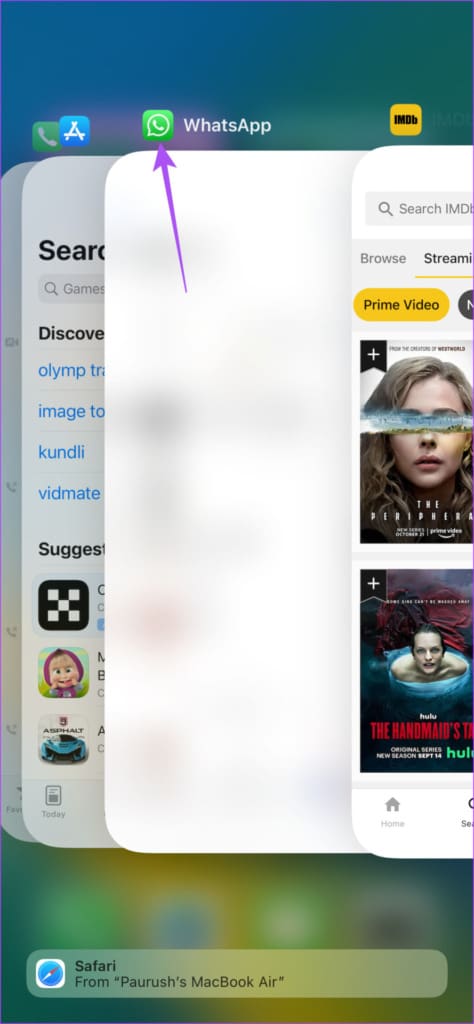
Step 3: Open WhatsApp again to check if the problem is solved.

On Android
Step 1: Long-press the WhatsApp app icon and tap on App Info.
Step 2: Tap on Force Stop.

Step 3: Select Ok to confirm.

Step 4: Close App Info and launch WhatsApp again to check if the problem is solved.
5. Disable Low Power Mode
If you have a low battery and have switched on the Low Power Mode or Battery Saver, we suggest disabling it for a while and checking if the problem is solved.
On iPhone
Step 1: Open the Settings app on your iPhone.

Step 2: Scroll down and tap on Battery.

Step 3: Tap the toggle next to Low Power Mode to disable it.

Step 4: Close Settings and open WhatsApp to check if the problem is solved.
On Android
Step 1: Open the Settings app on your Android phone.

Step 2: Tap on Battery.

Step 3: Select Battery Saver.
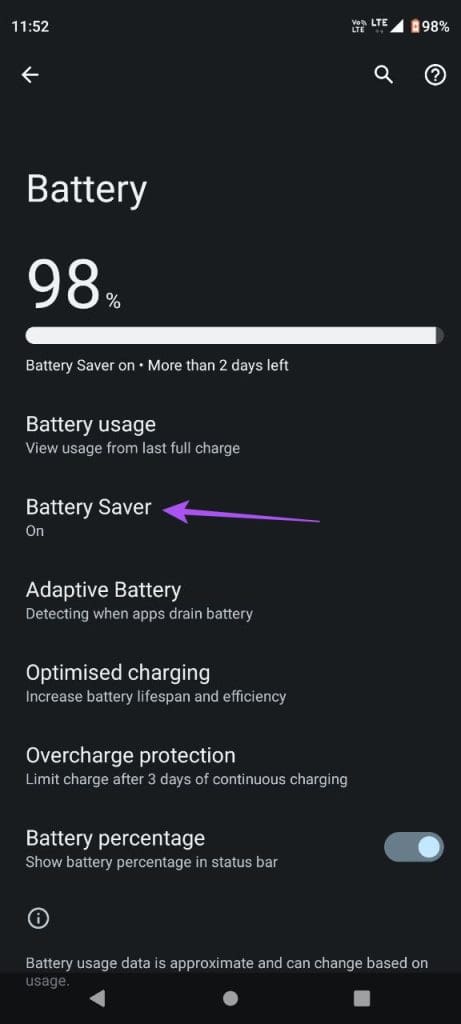
Step 4: Tap the toggle next to Use Battery Saver to disable the feature.

Step 5: Close Settings and open WhatsApp to check if the problem is solved.
6. Clear WhatsApp Cache
To improve overall usage and performance, WhatsApp collects the Cache data over a while on your iPhone and Android. However, the Cache data can get corrupted, which leads to issues like links not opening in WhatsApp. We suggest clearing WhatsApp Cache and checking if this solves the issue. You can read our post to learn how to clear WhatsApp Cache on your iPhone or Android.
7. Update WhatsApp
If none of the solutions work, updating the WhatsApp app version is your last resort. You can update WhatsApp on your iPhone or Android using the following links.
Open Links On WhatsApp
These solutions will help you solve the issue of links not opening in WhatsApp on iPhone and Android. You can also read our post if your WhatsApp Status is not showing for all contacts.
Was this helpful?
Last updated on 14 July, 2023
Read Next
 Top 8 Ways to Fix Links Not Opening in Telegram for Android and iPhone
Telegram allows users to share links for profiles, groups, channels, web pages, and more, to make sharing content easier for everyone.
Top 8 Ways to Fix Links Not Opening in Telegram for Android and iPhone
Telegram allows users to share links for profiles, groups, channels, web pages, and more, to make sharing content easier for everyone.
 Top 6 Ways to Fix Links Not Opening in Google Chrome
Google Chrome can occasionally encounter problems that make it unusable.
Top 6 Ways to Fix Links Not Opening in Google Chrome
Google Chrome can occasionally encounter problems that make it unusable.
 How to Fix Links Not Opening or Working On the Twitter App
Some tweets have links attached to them.
How to Fix Links Not Opening or Working On the Twitter App
Some tweets have links attached to them.
 12 Easy Ways to Fix Twitter Links Not Opening in Chrome and Safari
Apart from sharing videos, GIFs, and memes, Twitter also allows you to attach links to your tweets which are shortened automatically.
12 Easy Ways to Fix Twitter Links Not Opening in Chrome and Safari
Apart from sharing videos, GIFs, and memes, Twitter also allows you to attach links to your tweets which are shortened automatically.
 3 Ways to Stop Mac From Opening Links in Safari
Safari is an excellent browser on Mac.
3 Ways to Stop Mac From Opening Links in Safari
Safari is an excellent browser on Mac.
 How to Open Reddit Links in Third-Party Apps on iPhone and Android
It's no surprise how the official Reddit app is ridden with issues.
How to Open Reddit Links in Third-Party Apps on iPhone and Android
It's no surprise how the official Reddit app is ridden with issues.
 Top 7 Ways to Fix Instagram Links Not Working on Android and iPhone
While using Instagram, you might stumble upon webpage links in various locations, such as stories, profile bios, direct messages, and other areas.
Top 7 Ways to Fix Instagram Links Not Working on Android and iPhone
While using Instagram, you might stumble upon webpage links in various locations, such as stories, profile bios, direct messages, and other areas.
 6 Bests Fixes for Google Chrome Not Opening New Tabs on Windows 11
Google Chrome is undoubtedly the best web browser for Windows.
6 Bests Fixes for Google Chrome Not Opening New Tabs on Windows 11
Google Chrome is undoubtedly the best web browser for Windows.
The article above may contain affiliate links which help support Guiding Tech. The content remains unbiased and authentic and will never affect our editorial integrity.