Facebook Messenger offers voice and video calls to all users. While the company has improved Messenger calls capabilities over time, the usual quirks remain the same. Many have complained about issues while calling their friends and family members over Messenger. Here are the best ways to fix Messenger calls not working or ending immediately.

When you can’t make or receive calls on Messenger, switch to WhatsApp, or Telegram, or place a normal voice call via the carrier. But some of your friends may not be available on other platforms, or you may not have the person’s cell number. If you are stuck with Messenger, use the tricks below to call the recipient without any issues.
1. Check the Network Connection
Let’s cover the basics first. If you call someone on a slow or hazy network connection on Messenger, the app may fail to work properly. You need to connect to a high-speed Wi-Fi network and try again. You can use the Airplay mode to reset the network.

If you have an Android phone, swipe down from the home screen and enable the Airplane mode. iPhone users can access the same from the Control Center menu. Disable the Airplane mode after some time and try placing calls on Messenger again.
2. Enable Microphone and Camera Permission
When you first try to use a microphone and camera on Messenger, the app asks for relevant permission to access them on the phone. Messenger calls won’t work if you deny such permissions.
iPhone
Step 1: Open the Settings app on your iPhone and scroll to Messenger.
Step 2: Enable the Camera and Microphone permissions from the following menu.


Android
Step 1: Long-press on Messenger app icon and tap ‘i’ icon to open the App Info menu.
Step 2: Select Permissions and tap Camera.


Step 3: Tap the radio button beside ‘Allow only while using the app.’
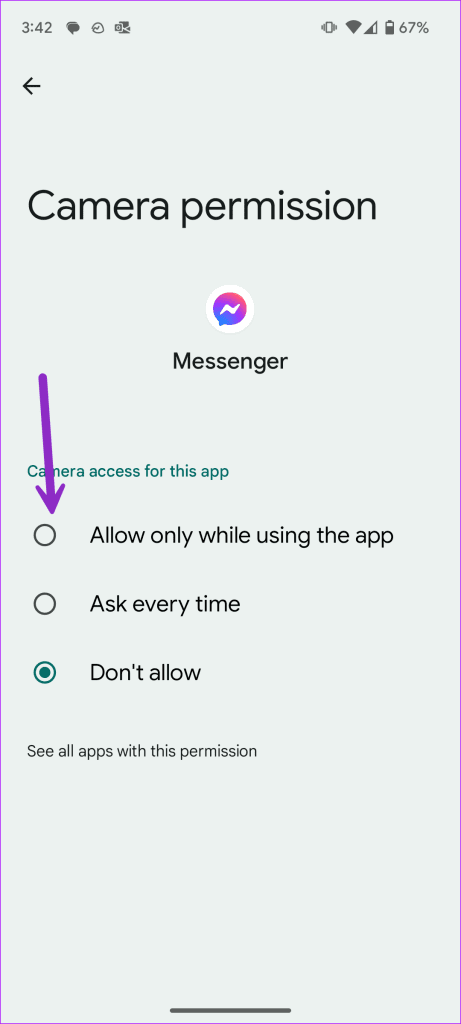
Return to the previous menu and enable the permission for the microphone.
3. The Recipient Has Turned off the Internet
If the recipient has turned off the internet on their phone, your Messenger call gets stuck on ‘connecting’ status. So unless that person uses mobile data or Wi-Fi to receive calls, you will continue to get the same error.
4. Restart Messenger
You can restart Messenger and try placing a call again. The steps are identical on iPhone and Android.
Step 1: Swipe up and hold from the bottom to open the recent apps menu.
Step 2: Swipe up on Messenger to close it.

5. The Person Has Blocked You
When things go south, the person may block you on Facebook. Your Messenger calls won’t work when someone blocks you on the platform. Refer our post to learn the indications when you are blocked on Messenger.
6. Disable VPN
Facebook Messenger may act weirdly on an active VPN connection. Since the VPN network changes the IP address on your phone, you may face issues with calling someone on Messenger. So, disable VPN and try again.
7. Clear Messenger Cache
You can clear the Facebook Messenger cache and try composing calls without any problem. Note that after clearing the Messenger apps cache on Android, the app may take a couple of seconds to load the interface and chats to collect a fresh batch of cache initially.
Step 1: Long-press on Messenger app icon and tap ‘i’ icon to open the App Info menu.
Step 2: Select Storage and cache and tap Clear cache.


8. Disable Low Data Mode
Messenger calls may not work on an active data saver mode on iPhone and Android. The system compresses mobile data usage and leaves you with less internet bandwidth to utilize on your phone.
iPhone
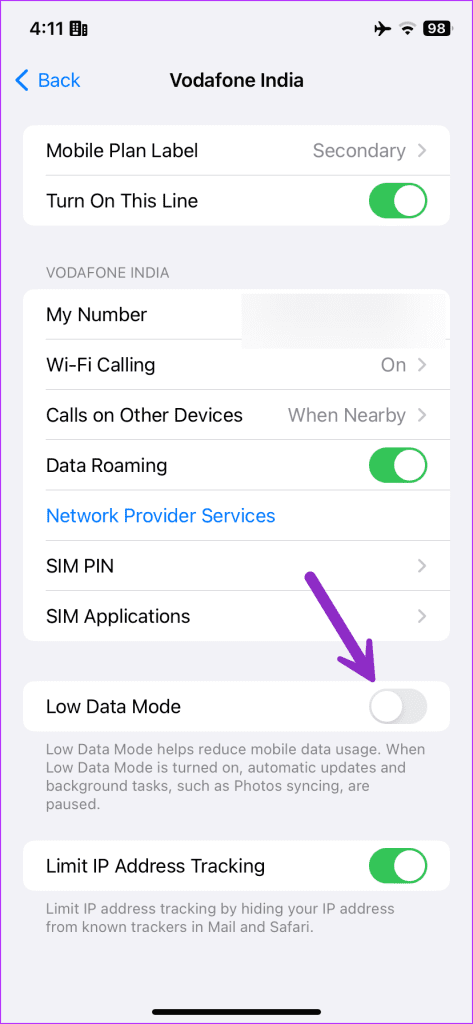
Step 1: Open the Settings app on your iPhone. Select Mobile Service.
Step 2: Select your main SIM and turn off the Low Data Mode toggle.

Android
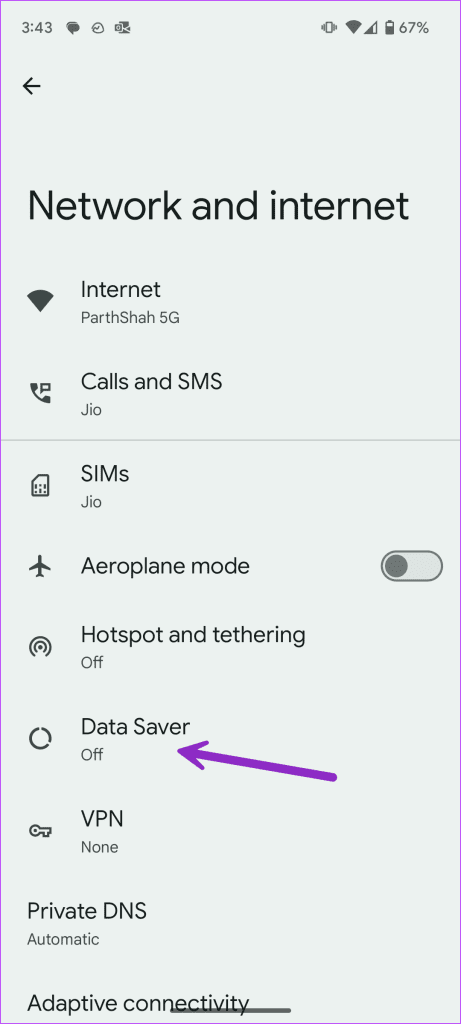
Step 1: Launch the Settings app and select Network and internet.
Step 2: Tap Data Saver and disable the same.

9. Update Messenger
Your Messenger calls may not work on an outdated app build. Facebook frequently releases updates to add new features and fix bugs on Messenger. You can head to the Play Store or App Store and download the latest Messenger update.
10. Reinstall Messenger
Do you still face issues with Messenger calls? You have no option but to reinstall the app on your phone.
iPhone
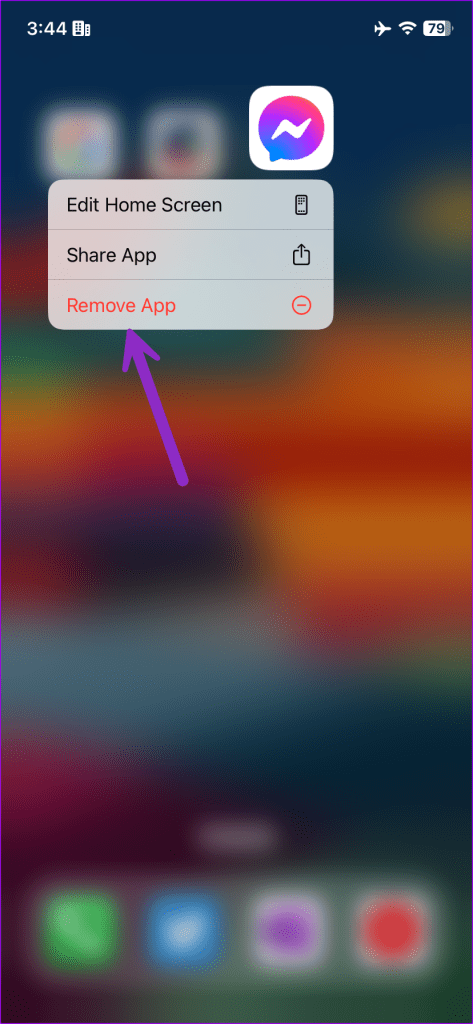
Step 1: Long-press on the Messenger app icon and select Remove App.
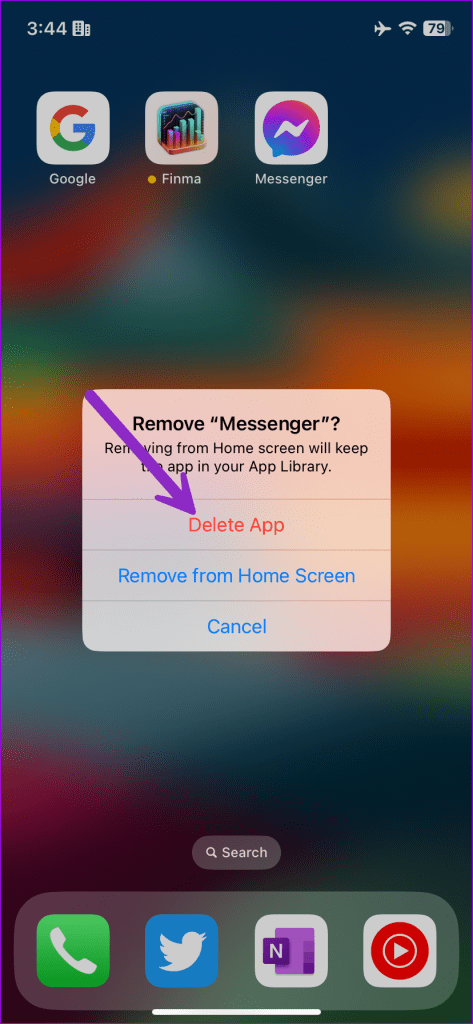
Step 2: Tap Delete App to remove it from your phone.
Android
Step 1: Head to the Messenger app info menu (check the steps above).
Step 2: Tap Uninstall and confirm the same.

Download the Messenger app, log in with account details, and try calling your friends or family members.
11. Check Messenger Service Status
When Facebook servers face an outage (and they do frequently), you may face issues with sending messages, calling, and other basic functions. You can visit Downdetector to confirm the downtime. You need to wait for Facebook to troubleshoot server-side issues and try again.
Compose Group Calls on Messenger
Why don’t Messenger calls go through? It’s one of the frequently asked questions from users. Messenger calls not working can break communication, especially when you don’t have the option to use another platform. The troubleshooting steps above will fix the problem in no time.
Was this helpful?
Last updated on 31 July, 2023
Read Next
 Top 7 Ways to Fix Facebook Messenger Camera Not Working on Android and iPhone
Whether you want to capture photos and videos for your Messenger story or connect with your favorite people over a video call, Messenger’s camera is an important part of the
Top 7 Ways to Fix Facebook Messenger Camera Not Working on Android and iPhone
Whether you want to capture photos and videos for your Messenger story or connect with your favorite people over a video call, Messenger’s camera is an important part of the
 6 Best Fixes for No Sound in Facebook Messenger Video Calls on iPhone and Android
Facebook Messenger lets you connect with your Facebook contacts like other messaging apps.
6 Best Fixes for No Sound in Facebook Messenger Video Calls on iPhone and Android
Facebook Messenger lets you connect with your Facebook contacts like other messaging apps.
 9 Best Fixes for Facebook Messenger Video Calls Not Working
Skype has been everyone's favorite for making video calls for a long time.
9 Best Fixes for Facebook Messenger Video Calls Not Working
Skype has been everyone's favorite for making video calls for a long time.
 Top 15 Ways to Fix Facebook Messenger Not Sending Messages on iPhone and Android
Facebook Messenger continues to play a major role in Facebook’s social media lineup.
Top 15 Ways to Fix Facebook Messenger Not Sending Messages on iPhone and Android
Facebook Messenger continues to play a major role in Facebook’s social media lineup.
 Top 9 Ways to Fix Facebook Messenger Story Not Showing on iPhone and Android
Facebook has integrated the Story functionality right into the Messenger app.
Top 9 Ways to Fix Facebook Messenger Story Not Showing on iPhone and Android
Facebook has integrated the Story functionality right into the Messenger app.
 Top 6 Ways to Fix Facebook Messenger Won’t Let Me Log In on Android and iPhone
The Messenger app is a key part of Facebook’s social media lineup.
Top 6 Ways to Fix Facebook Messenger Won’t Let Me Log In on Android and iPhone
The Messenger app is a key part of Facebook’s social media lineup.
 Top 7 Ways to Fix Facebook Messenger Notification Sound Not Working
Facebook Messenger is great for staying in touch with friends and family.
Top 7 Ways to Fix Facebook Messenger Notification Sound Not Working
Facebook Messenger is great for staying in touch with friends and family.
 Top 9 Ways to Fix Microphone Not Working on Facebook Messenger
Although Messenger started as a text messaging app, Facebook eventually added support for voice calls, video meetings, and voice messages.
Top 9 Ways to Fix Microphone Not Working on Facebook Messenger
Although Messenger started as a text messaging app, Facebook eventually added support for voice calls, video meetings, and voice messages.
The article above may contain affiliate links which help support Guiding Tech. The content remains unbiased and authentic and will never affect our editorial integrity.