

Microsoft has improved the default Edge browser at a brisk pace. Features like Collections, Sleep tabs, vertical tabs, and a neat Bing Chat integration is popular among users. However, it’s not void of issues. Users have complained about Microsoft Edge not opening, high-memory usage, crashing, and more. If Microsoft Edge keeps freezing, read along to fix the problem.

Here are some of the issues people usually face with Microsoft Edge.
- Microsoft Edge closed unexpectedly: It’s one of the irritating behaviors of Microsoft Edge. The browser closes out of nowhere, and you must open it and restore all the tabs again. It may impact your workflow if you have an ongoing Google Meet call or an unsaved document.
- Microsoft Edge keeps crashing: Edge automatically crashes when browsing on a slow network or with insufficient RAM.
- Microsoft Edge keeps freezing: Microsoft Edge freezes on a webpage and won’t let you scroll or perform any other task. You must use the Task Manager to force close the app.
- Edge closes immediately after opening: When you open Microsoft Edge, the browser opens for a few seconds and closes automatically.
Why Microsoft Closed Unexpectedly on Windows
Here are some common factors leading to a below-average web-browsing experience on Windows.
- Insufficient RAM
- Resource-hungry tasks running in the background
- Slow internet connection
- Bogus files on your PC affecting Microsoft Edge
- Outdated Microsoft Edge
How to Fix Microsoft Edge Crashing on Windows
As mentioned earlier, there are multiple factors at play here. We will start with the basics and move to advanced tricks to fix Microsoft Edge.
1. Check the Internet Connection
Microsoft has integrated the Edge browser with the News add-on. When you open Microsoft Edge on Windows, it loads the news articles and Bing wallpaper on the home page.
Constant news update requires a stable network connection. If you are working on a sloppy internet connection, it may fail to load the latest news articles from the web and crash on launch.
Step 1: Launch Windows Settings by pressing the Windows + I keys.
Step 2: Confirm the connected status under the Network & internet menu.

You can also use the Fast website or apps like Speedtest to ensure a high-speed internet connection on the PC. If Wi-Fi isn’t working on your PC, check our dedicated guide.
2. Force Close Microsoft Edge
Microsoft has a habit of opening the Edge browser during system startup. So, when you hit the X mark in the menu bar, the Edge browser processes keep running in the background.
In such cases, when you try to open the browser again, it may crash or close unexpectedly on your computer. You must close the Edge browser and its related background processes from the Windows Task Manager.
Step 1: Hit the Windows Key and search for Task Manager. Press Enter.
Step 2: Select Mircosoft Edge under the Processes menu and select End task in the top right corner.

Open Microsoft Edge and see if the issue persists.
3. Disable Edge Extensions
The Edge browser is built on Google’s open-source Chromium web engine. It is compatible with all the Chromium extensions from the Chrome Web Store. However, you shouldn’t go overboard and cramp the browser with dozens of extensions.
Some extensions may not be actively maintained, could be outdated, or develop compatibility issues with newer Edge builds. In such scenarios, you may run into the Edge browser closing unexpectedly on Windows. Let’s remove unnecessary extensions from Edge.
Step 1: Open Microsoft Edge.
Step 2: Click the three-dot menu in the top right corner and go to the Extensions menu.

Step 3: Select the tiny Remove button under the extension and delete it from the browser.

4. Clear Cache and Cookies
Every web browser collects cache and cookies data in the background to make your web-browsing experience snappier.
However, the corrupt cache can interfere with the Edge browser and crashes it on startup. Let’s clear the cache and try running Edge again.
Step 1: Open the Edge browser and click on the three-dot menu above.
Step 2: Select Settings.
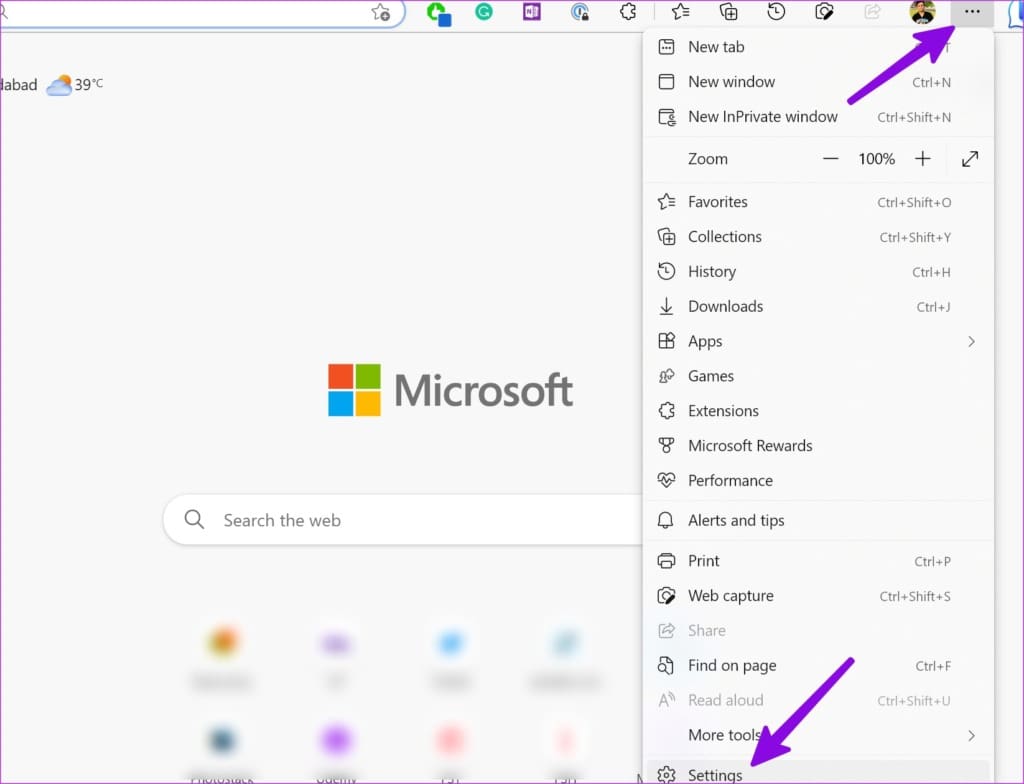
Step 3: Select ‘Privacy, search and services’ from the sidebar and click ‘Choose what to clear’.

Step 4: Select Cookies and Cache and hit Clear data at the bottom.
Note: You can check all options to clear your entire browsing data.

Relaunch the Microsoft Edge browser and inspect if problems with Edge have been fixed.
5. Check the Device’s RAM
If you have several apps and processes running in the background, Microsoft Edge may crash on startup due to low RAM. You need to close unnecessary apps and free up physical memory on Windows.
Step 1: Right-click on Windows key and open Task Manager.

Step 2: Check physical memory in use, and if it’s approaching 90%, select irrelevant apps and hit End task at the top.

Launch Microsoft Edge once you have enough RAM on your PC.
6. Enable Sleeping Tabs
Does Microsoft Edge keep freezing on your PC? You need to enable sleeping tabs that save system resources for inactive tabs.
Step 1: Open Microsoft Edge and click the three-dot menu at the top. Go to Settings.
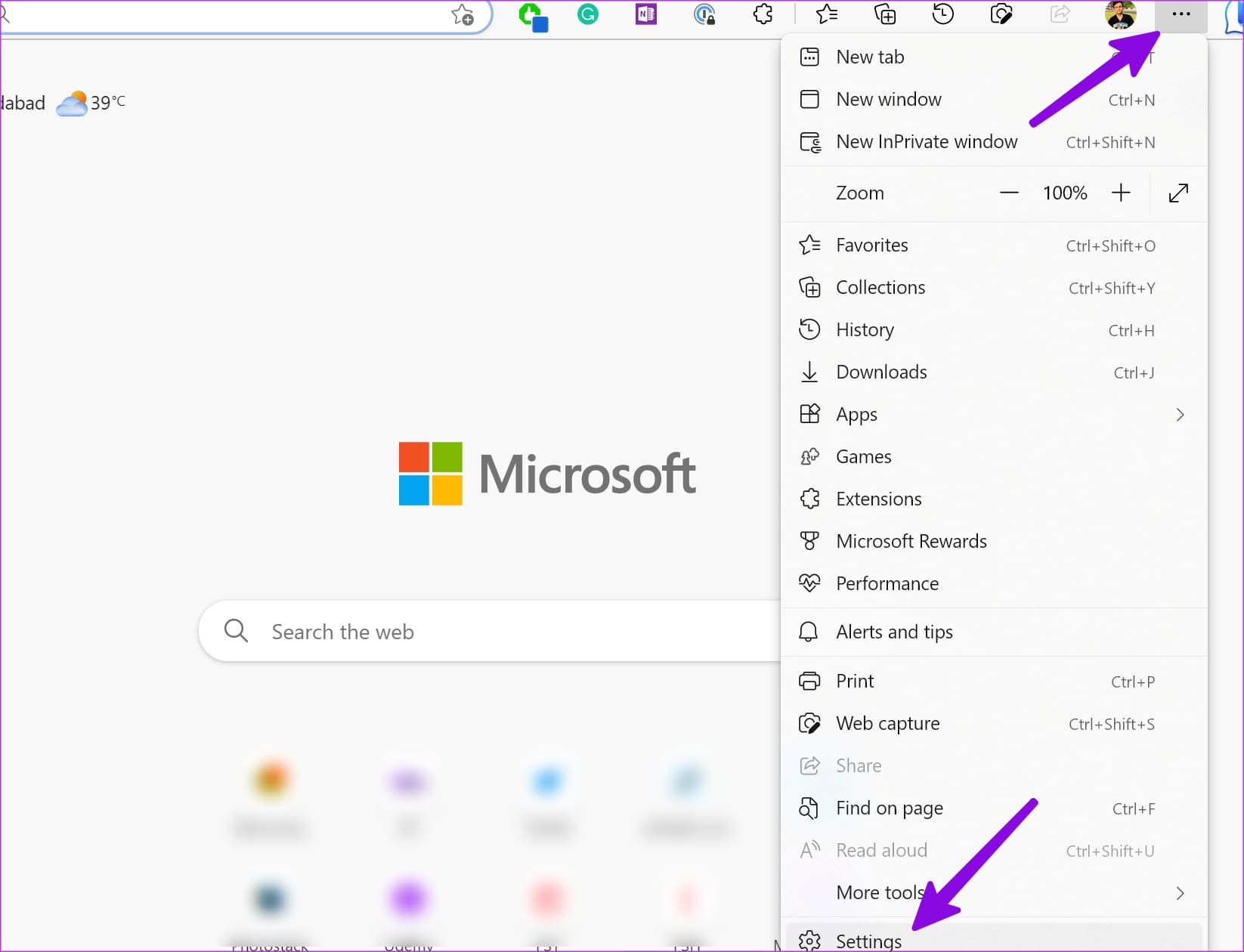
Step 2: Head to System and performance and enable the toggle for ‘Save resources with sleeping tabs’ toggle.

You can also exclude specific websites from the behavior and tweak the duration to activate sleeping tabs.
7. Enable Efficiency Mode in Microsoft Edge
If you are running Microsoft Edge on an entry-level laptop with low specifications, enable the efficiency mode to prevent the browser from crashing.
Step 1: Open Microsoft Edge and click the three-dot menu at the top. Go to Settings > System and performance menu.
Step 2: Enable the Efficiency mode to minimize power usage by saving computer resources.

8. Scan the PC for Malware
If your PC is infected with bogus and corrupt files, you may face issues running Edge. You should run a full PC scan and try again.
Step 1: Press the Windows key and search for Windows Security.

Step 2: Go to Virus & threat protection and select Scan options.

Step 3: Select Full scan from the following menu and click on Scan now.

9. Use PowerShell
You can delete the Mircosoft Edge folder from the AppData folder and use the PowerShell tool to run the browser again. Here’s how:
Step 1: Press Windows + R keys to open the Run menu. Type %localappdata% and hit Enter.

Step 2: Open the Packages folder.

Step 3: Find ‘Microsoft.MicrosoftEdge_8wekyb3d8bbwe’ folder and delete it.

Step 4: Press the Windows key and search for PowerShell. Right-click on it and run the app as admin.

Step 5: Type the following command and hit Enter.
Get-AppXPackage -AllUsers -Name Microsoft.MicrosoftEdge |Foreach {Add-AppxPackage -DisableDevelopmentMode -Register "$($_.InstallLocation)AppXManifest.xml" -Verbose}

Step 6: Restart the PC and use Microsoft Edge as usual.
10. Repair Microsoft Edge
If none of the tricks work, it’s time to repair Microsoft Edge on Windows. Here’s what you need to do.
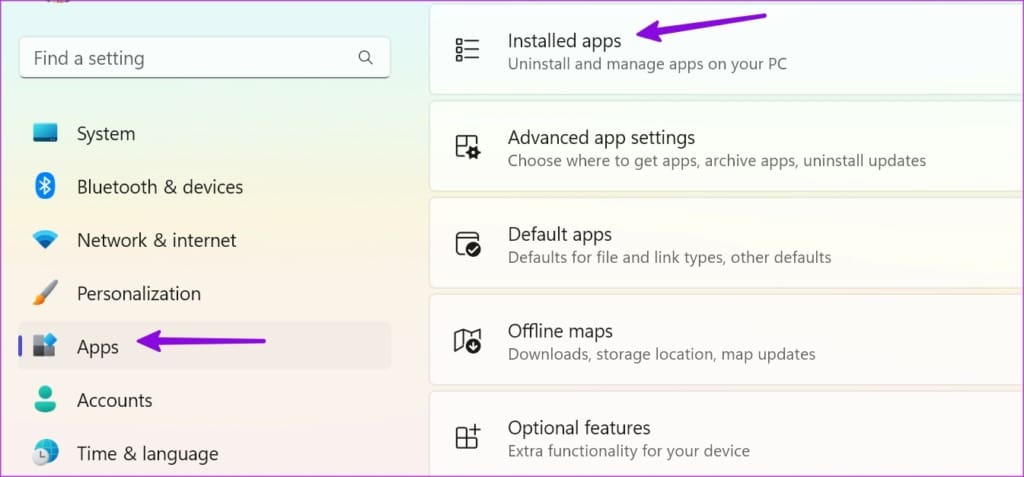
Step 1: Use the Windows + I keys to open Settings.
Step 2: Go to Apps > Installed apps.
Step 3: Scroll to Microsoft Edge and click the three-dot menu beside it. Select Modify.
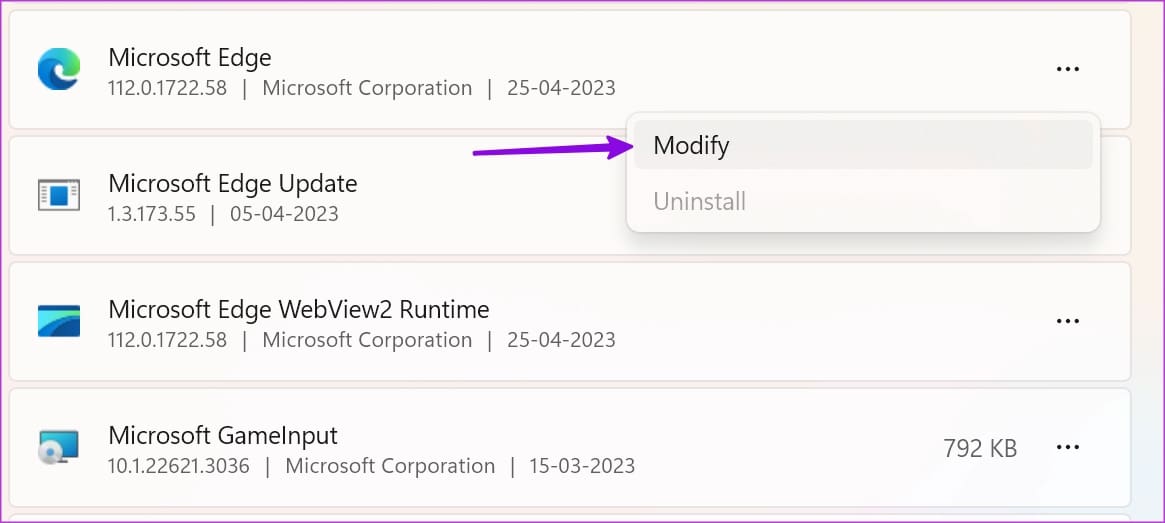
Step 4: Select Repair and use the on-screen instructions to complete the process.

11. Change Google Search Engine
Many Microsoft Edge users observed that the Edge browser crashed when Google was set as the default search engine.
You can change the default search engine from Google to Bing, Yahoo, or DuckDuckGo as a temporary workaround and continue browsing. Here are the steps to make relevant changes.
Step 1: Open Microsoft Edge and click the three-dot menu at the top. Go to Settings.
Step 2: Navigate to ‘Privacy, search and services’ > ‘Address bar and search’

Step 3: Find and click on the ‘Search engine used in the address bar’ option. Select a non-Google search engine.

12. Update Microsoft Edge
Microsoft Edge closing unexpectedly might be due to an outdated browser built on your computer. The company regularly updates the Edge browser to improve its stability and functionality.
You should install the latest update of Edge on your device for a smooth Edge experience.
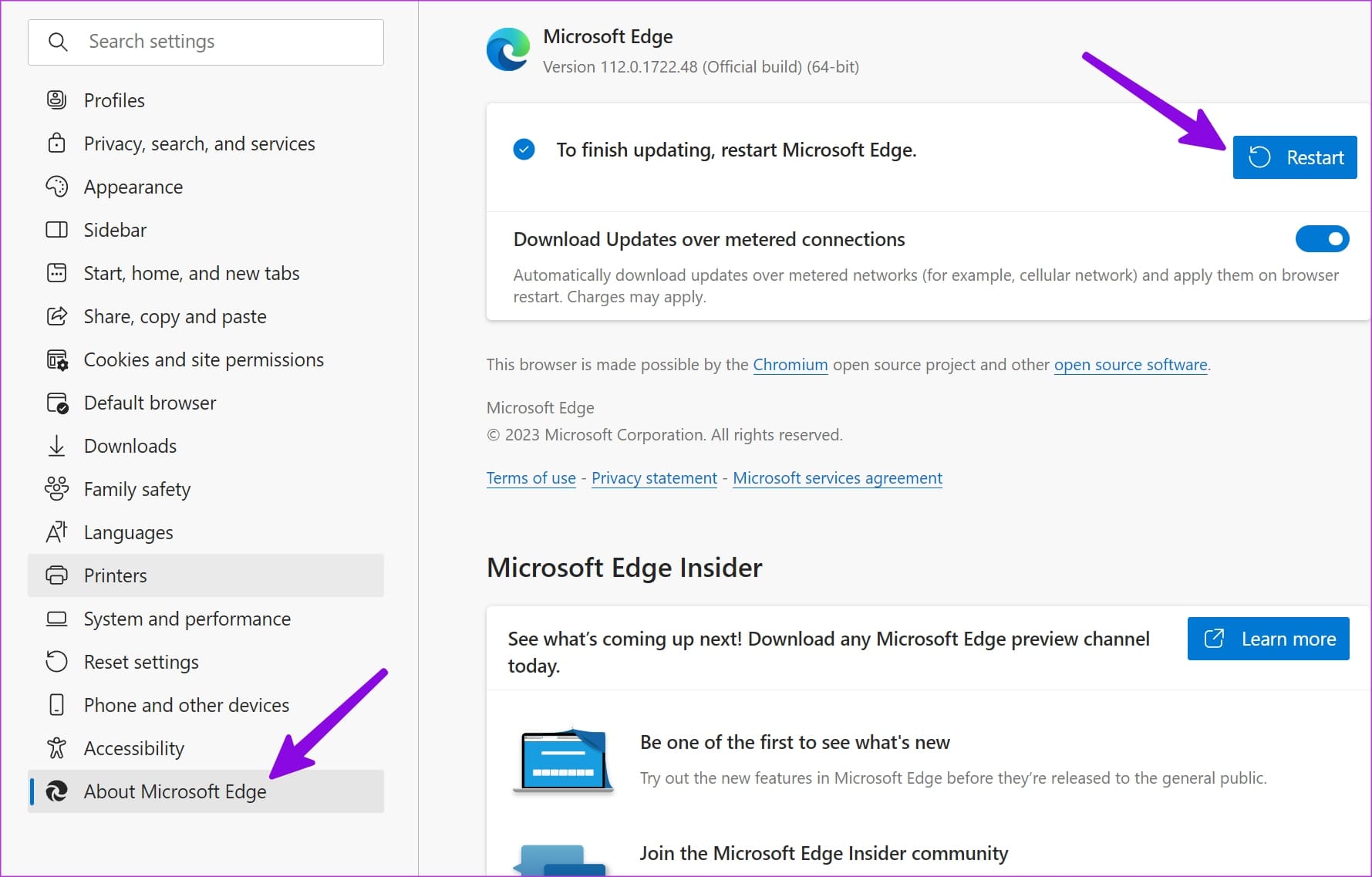
Open the Edge browser and go to Settings > About Microsoft Edge, and download the latest version on your computer.
Enjoy a Smooth Browsing Experience
Microsoft Edge closing unexpectedly can affect your workflow and browsing experience. For example, Edge may freeze or crash when several tabs are open for important research. Also, Edge may not restore all the tabs when you open the browser again. So, try out the steps mentioned above to troubleshoot the issue. Let us know in the comments below if you’ve found another solution.
Was this helpful?
Last updated on 11 August, 2023
7 Comments
Leave a Reply
Read Next
 Re-open Last Closed Programs and Folders in Windows With UndoClose
In most of the modern day browsers, we can restore the last closed tabs easily with a hotkey.
Re-open Last Closed Programs and Folders in Windows With UndoClose
In most of the modern day browsers, we can restore the last closed tabs easily with a hotkey.
 Top 8 Fixes When Mail App Quit Unexpectedly on Mac
The default Mail app on the Mac received a much-needed makeover with the macOS Big Sur update.
Top 8 Fixes When Mail App Quit Unexpectedly on Mac
The default Mail app on the Mac received a much-needed makeover with the macOS Big Sur update.
 How to Use the Edge Bar in Microsoft Edge on Windows 11
Microsoft Edge pushes new features and improvements with every update for desktop and mobile platforms.
How to Use the Edge Bar in Microsoft Edge on Windows 11
Microsoft Edge pushes new features and improvements with every update for desktop and mobile platforms.
 Top 7 Ways to Fix Slow Microsoft Edge on Windows 10 and Windows 11
With Sleep tabs, Edge Collections, Tab groups, and more, Microsoft’s latest browser Edge does feel bloated and slow sometimes.
Top 7 Ways to Fix Slow Microsoft Edge on Windows 10 and Windows 11
With Sleep tabs, Edge Collections, Tab groups, and more, Microsoft’s latest browser Edge does feel bloated and slow sometimes.
 Top 8 Ways to Fix Microsoft Edge High Memory Usage on Windows 10 and Windows 11
Being a Microsoft product, you’d naturally expect Edge browser to work flawlessly on a Windows computer.
Top 8 Ways to Fix Microsoft Edge High Memory Usage on Windows 10 and Windows 11
Being a Microsoft product, you’d naturally expect Edge browser to work flawlessly on a Windows computer.
 7 Best Ways to Fix Microsoft Edge Not Responding on Windows 10
Microsoft Edge is my go-to browser on mobile and desktop.
7 Best Ways to Fix Microsoft Edge Not Responding on Windows 10
Microsoft Edge is my go-to browser on mobile and desktop.
 Top 7 Ways to Fix Microsoft Edge Hijacked on Windows 11
Did you open the Microsoft Edge browser on Windows 11 just to receive ads, banners, and other irrelevant info?
Top 7 Ways to Fix Microsoft Edge Hijacked on Windows 11
Did you open the Microsoft Edge browser on Windows 11 just to receive ads, banners, and other irrelevant info?
 Top 8 Ways to Fix Microsoft Edge Not Opening on Windows 11
The latest Microsoft Edge has many useful features, such as Collections, vertical tabs, Edge bar, etc.
Top 8 Ways to Fix Microsoft Edge Not Opening on Windows 11
The latest Microsoft Edge has many useful features, such as Collections, vertical tabs, Edge bar, etc.
The article above may contain affiliate links which help support Guiding Tech. The content remains unbiased and authentic and will never affect our editorial integrity.


I tried all these fixes several times and just switched to Chrome browser and fixed the problem that way.
all these way are useless for me cause I cant even open the browser when 5 of 6 way need to open the browser. If I can open the edge lol
Microsoft edge is so bad, i am at the end of my rope, start computer, watch a video on my phone while it is trying to work, 10 mins later the famous message.
Microsoft edge unxpectedly closed. Nothing unexpected to me “IT HAPPENS EVERY TIME”
I have tried all the above solutions and microsoft closes when I’m scrolling or randomly. Sometimes in the middle of important work. I’m thinking of deleting and going to google chrome. I don’t think that microsoft knows what is going on or don’t care!
The solutions provided by you are very good. I think they will work, Thanks for your helps.
These fixes are useless if edge wont even open long enough to do any of them
I have done every step on these fixes and it has not fixed the problem! Microsoft Edge keeps closing unexpectedly!