

Microsoft Teams is a useful collaboration tool that allows you to easily share files with your colleagues and work on them together. However, your experience when sharing or opening shared files may not be smooth always. The Microsoft Teams screen may turn blue or gray when you try to access files within the app.

Whether you are a business professional, a student, or a remote worker, encountering such issues with Teams can significantly disrupt your workflow. This guide compiles a few effective solutions to fix the blue or gray screen issue with Microsoft Teams for Windows.
1. End Teams Processes Using Task Manager and Reopen It
Such issues with the Microsoft Teams app usually occur when certain background app processes encounter issues. In most cases, you can easily fix the problem by closing the Teams app and opening it again. So, let’s start with that.
Step 1: Press Ctrl + Shift + Esc keyboard shortcut to open the Task Manager.
Step 2: In the Processes tab, right-click on Microsoft Teams and select the End task option.

Reopen Teams on your PC and see if you encounter the problem again.
2. Avoid Double-Clicking Files
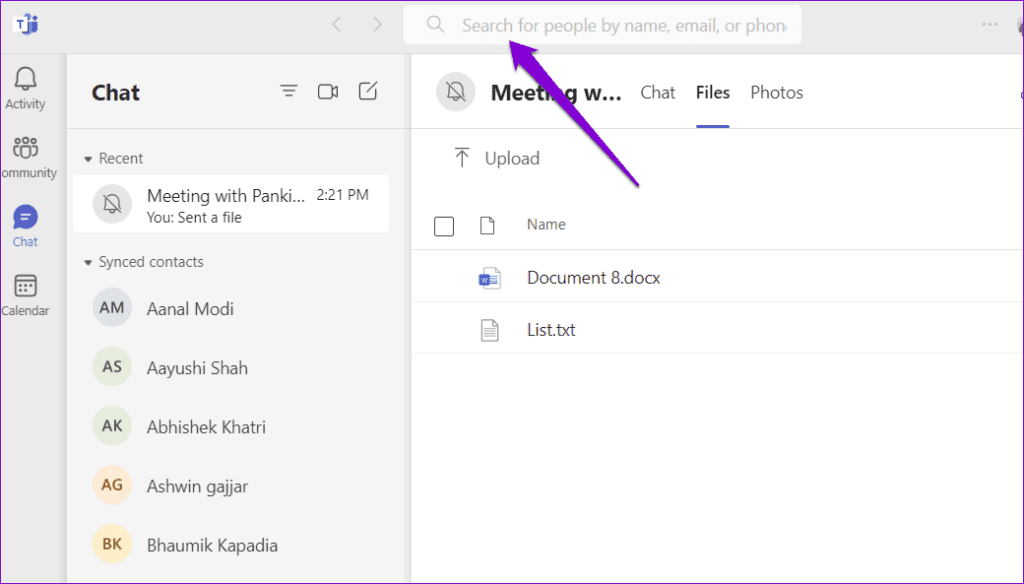
Several users on the Microsoft forums reported experiencing blue or gray screen problems when they double-clicked files in Microsoft Teams. If you accidentally double-click a file in Microsoft Teams and the screen turns blue or gray, click anywhere in the search bar to fix the issue and return the screen to its normal state.
3. Clear Teams Cache
Another reason why your Teams screen may turn blue or gray is if some of the cache data associated with the app is corrupted. Thankfully, it’s easy to clear the Teams app cache on Windows. Here are the steps for the same.
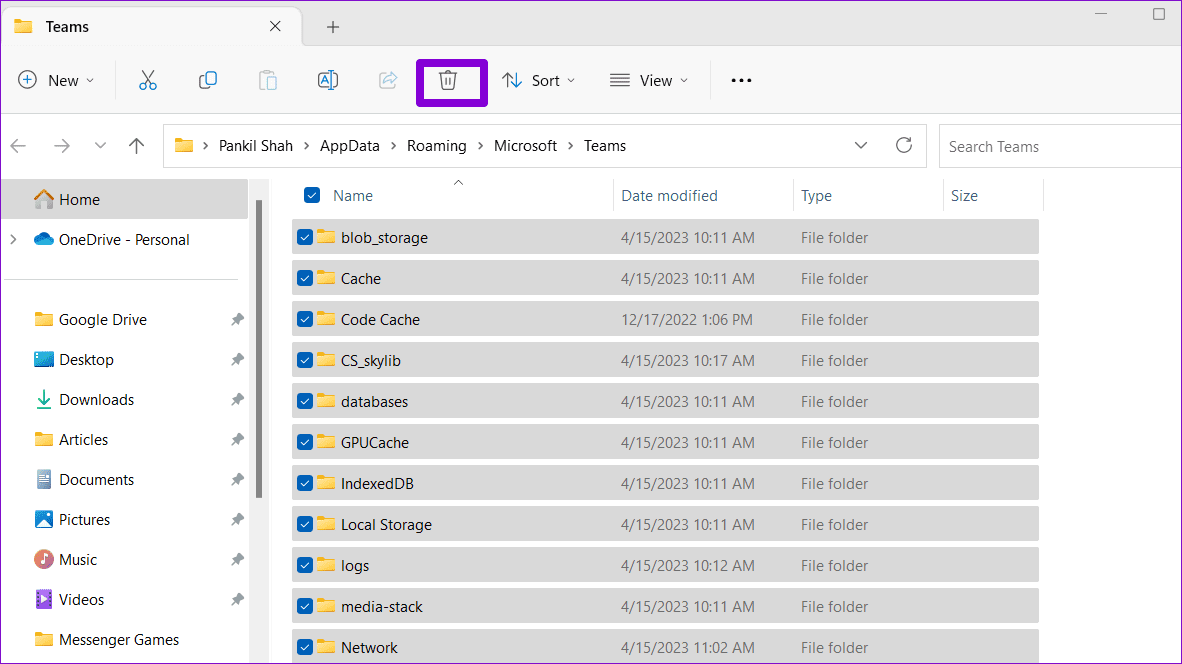
Step 1: Press the Windows + R keyboard shortcut to open the Run dialog box. Type %appdata%\Microsoft\Teams in the Open field and hit Enter.

Step 2: In the File Explorer window that opens, select all the files and folders and click the Trash icon at the top to delete them.
Restart Teams and try using it again.
4. Switch to the Default Theme
Have you recently changed the theme in the Teams app? If so, that might have caused the blue or gray screen issue in Microsoft Teams. You can switch back to the default theme to see if that resolves the problem.
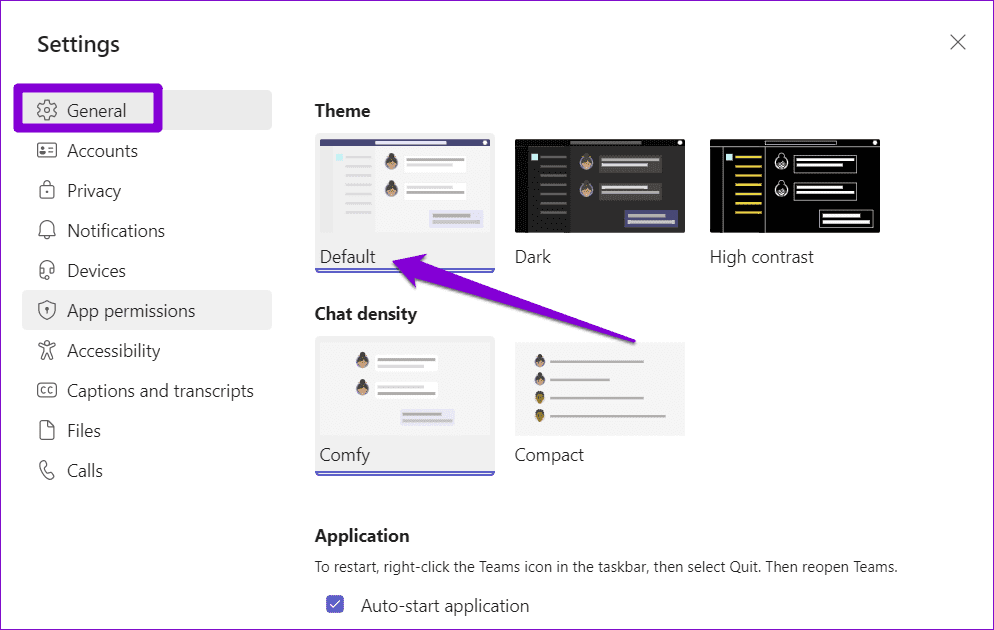
Step 1: Open Microsoft Teams on your PC. Click the three horizontal dots icon at the top-right corner and select Settings.

Step 2: In the General tab, select the Default option under Theme and try using the app again.
5. Turn Off Hardware Acceleration
GPU hardware acceleration is a nifty feature in Teams that comes pre-enabled to improve your app experience. However, if your computer’s hardware is not compatible, this feature may not function as intended and can result in various problems. To avoid this, it’s best to disable GPU hardware acceleration in Teams.
Step 1: Open the Microsoft Teams app on your PC. Click the three horizontal dots icon at the top-right and select Settings from the resulting menu.
Step 2: Select the General tab and check the box next to the ‘Disable GPU hardware acceleration’ option.

Restart the Teams app to apply the changes and check if the issue still occurs.
6. Repair or Reset the App
Your Windows computer comes with an app repair feature that can help resolve common issues with any Universal Windows Platform (UWP) app, including Teams. This feature can fix the blue or gray screen problem in Microsoft Teams. Here’s how.
Step 1: Press the Windows + S keyboard shortcut to open the search menu. Type Microsoft Teams in the search box and select App settings in the right pane.
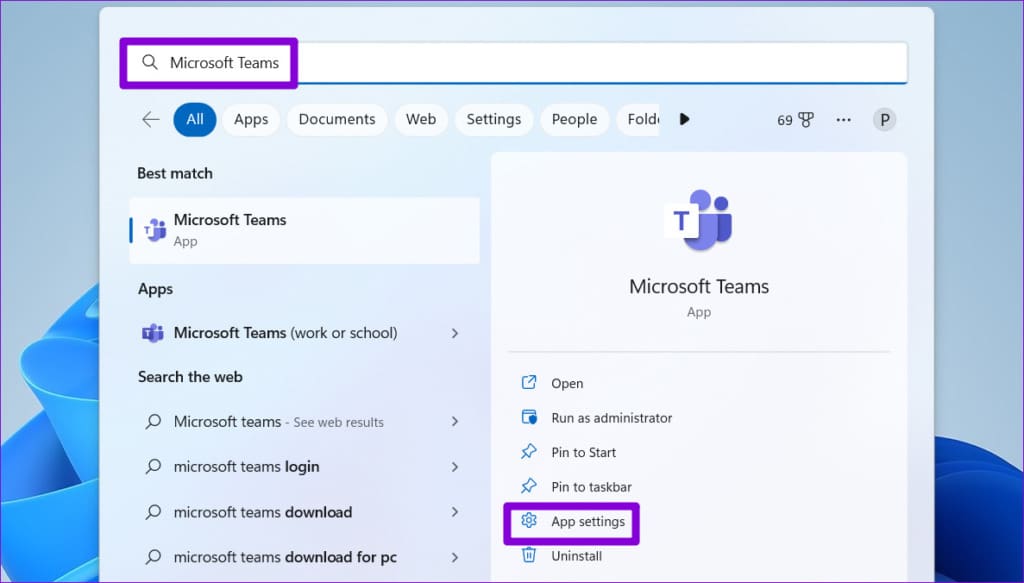
Step 2: Scroll down to the Reset section and click the Repair button. You will see a checkmark next to the Repair button when the process is complete.

If the problem persists, click the Reset option in the same menu. This will erase all app-related data from your PC and restore it to its default settings.

7. Update the App
There is a possibility that the issue is only occurring because you are using an outdated version of the Teams app. You can update the app to see if that resolves the issue.
In the Microsoft Teams app, click the three horizontal dots icon at the top-right corner and select Check for updates. The app will install any pending updates and should solve the problem.

No More Screen Surprises
While uploading and sharing files in Microsoft Teams is simple enough, it can be confusing if the screen turns blue or gray when you try to access them. We hope one of the above solution helps you to fix the problem. That said, if you encounter similar problems with other apps, it is a good idea to update the display driver on your Windows PC.
Was this helpful?
Last updated on 11 July, 2023
Read Next
 Top 8 Fixes for Samsung Phone Stops Playing Music When Screen Turns off
A few days back, I was listening to an audio on my Samsung phone, and after a few minutes, it stopped suddenly.
Top 8 Fixes for Samsung Phone Stops Playing Music When Screen Turns off
A few days back, I was listening to an audio on my Samsung phone, and after a few minutes, it stopped suddenly.
 Top 6 Ways to Fix Computer Turns On but no Display on Windows 10
It's puzzling to see a blank screen when you turn on your computer.
Top 6 Ways to Fix Computer Turns On but no Display on Windows 10
It's puzzling to see a blank screen when you turn on your computer.
 Streamus Turns Chrome into Fully Loaded YouTube Music Player
Few days ago we discussed two Android apps using which you can directly stream the audio bit of YouTube videos on your Android device.
Streamus Turns Chrome into Fully Loaded YouTube Music Player
Few days ago we discussed two Android apps using which you can directly stream the audio bit of YouTube videos on your Android device.
 Analyze Windows Blue Screen Errors with WhoCrashed
There are times when Windows hangs without warning, and the resulting error message is too complicated to understand.
Analyze Windows Blue Screen Errors with WhoCrashed
There are times when Windows hangs without warning, and the resulting error message is too complicated to understand.
 9 Ways to Fix fltMgr.sys Blue Screen Error on Windows
If you use Windows, you may have encountered blue screen errors, also known as BSODs (Blue Screen of Death).
9 Ways to Fix fltMgr.sys Blue Screen Error on Windows
If you use Windows, you may have encountered blue screen errors, also known as BSODs (Blue Screen of Death).
 How to Solve Vertical Blue Lines Appearing on Laptop Screen
Reliability is one of the reasons why professionals opt for macOS over Windows.
How to Solve Vertical Blue Lines Appearing on Laptop Screen
Reliability is one of the reasons why professionals opt for macOS over Windows.
 Top 12 Ways to Fix Microsoft Teams Screen Sharing Not Working on Windows 11
Microsoft Teams continues its dream run in the enterprise sector.
Top 12 Ways to Fix Microsoft Teams Screen Sharing Not Working on Windows 11
Microsoft Teams continues its dream run in the enterprise sector.
 5 Best Fixes for Microsoft Teams Microphone Not Working on Windows 10
More businesses and organizations now use Microsoft Teams to manage their teams working from office or remotely.
5 Best Fixes for Microsoft Teams Microphone Not Working on Windows 10
More businesses and organizations now use Microsoft Teams to manage their teams working from office or remotely.
The article above may contain affiliate links which help support Guiding Tech. The content remains unbiased and authentic and will never affect our editorial integrity.

