Microsoft To Do is a fantastic productivity app for Windows that lets you create and organize tasks, set due dates and reminders, and do a lot more. It is also available on Mac, Android, and iOS devices, allowing you to sync your tasks. However, you can’t use Microsoft To Do if it is not syncing on your Windows 10 or Windows 11 computer.

Being a Microsoft app, you’d expect To Do to work flawlessly on your Windows computer. However, that may not always be the case. This guide compiles the methods to get the Microsoft To Do app syncing again on your Windows 10 or Windows 11 PC. So, let’s take a look.
1. Close and Reopen the App
Let’s start with the basics. If one of the Microsoft To Do app processes is experiencing issues on your Windows computer, it may fail to sync or show your data. You can try closing the app completely and reopening it to see if that works.
Step 1: Press Ctrl + Shift + Esc keyboard shortcut to open the Task Manager.
Step 2: In the Processes tab, select Microsoft To Do and click the End task option at the top.

Reopen the app on your PC and see if it shows all your data.
2. Force Sync the App Manually
If the Microsoft To Do app fails to sync automatically, you can try syncing it manually. For that, open the Microsoft To Do app, click on your name at the top-left corner and select Sync.

Wait for the app to sync your tasks and check if the issue still occurs.
3. Allow the App to Run in the Background
You can prevent apps from running in the background to free up system resources on Windows. If you have previously denied Microsoft To Do permission to run in the background, it may have trouble syncing data. Here’s what you can do to fix it.
Step 1: Press the Windows + S keyboard shortcut to open the search menu. Type Microsoft To Do in the text box, right-click on the first result, and select App settings.

Step 2: Click the drop-down menu under Background apps permissions and select Always.
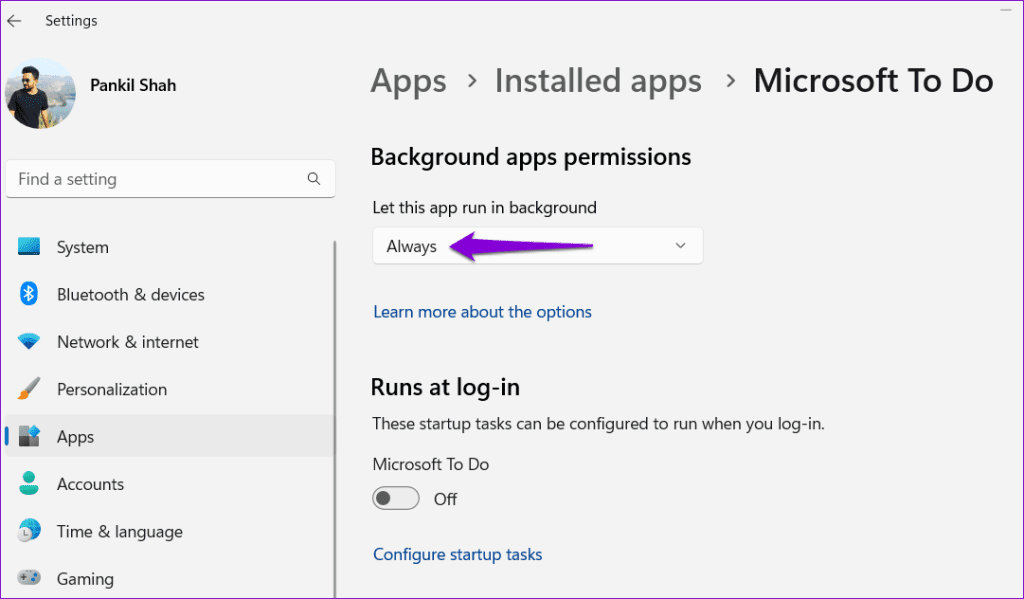
Restart the Microsoft To Do app and try using it again.
4. Sign Out and Sign Back In
Microsoft To Do app may not be syncing on your Windows 10 or Windows 11 computer due to authentication problems with your account. Signing out of the app and then signing back in can help resolve such issues and re-establish the app’s connection to the servers. Here’s how to do it.
Step 1: Open the Microsoft To Do app, click on your name at the top-left corner, and select Manage accounts.

Step 2: Click the Sign out button next to your account.

Sign back into the app with your account credentials. After that, the app should sync without any issues.
5. Check Microsoft To Do Service Status
Microsoft servers are typically reliable, but they are not immune to occasional problems. Microsoft servers may be experiencing issues, which is why the To Do app is not syncing. Microsoft maintains a service status page for all of its services. You can visit that page to check if the Microsoft To Do servers work smoothly.

If you see a red cross next to Microsoft To-Do, wait for the company to resolve the issue on its end.
6. Repair or Reset the App
Windows 10 and Window 11 include an app repair feature that can automatically diagnose and fix common issues with your UWP (Universal Windows Platform) apps. Here’s how you can use it to repair the Microsoft To Do app and address its sync problems.
Step 1: Press the Windows + S keyboard shortcut to open the search menu. Type in Microsoft To Do, right-click on the first result, and select App settings.
Step 2: Click the Repair button.
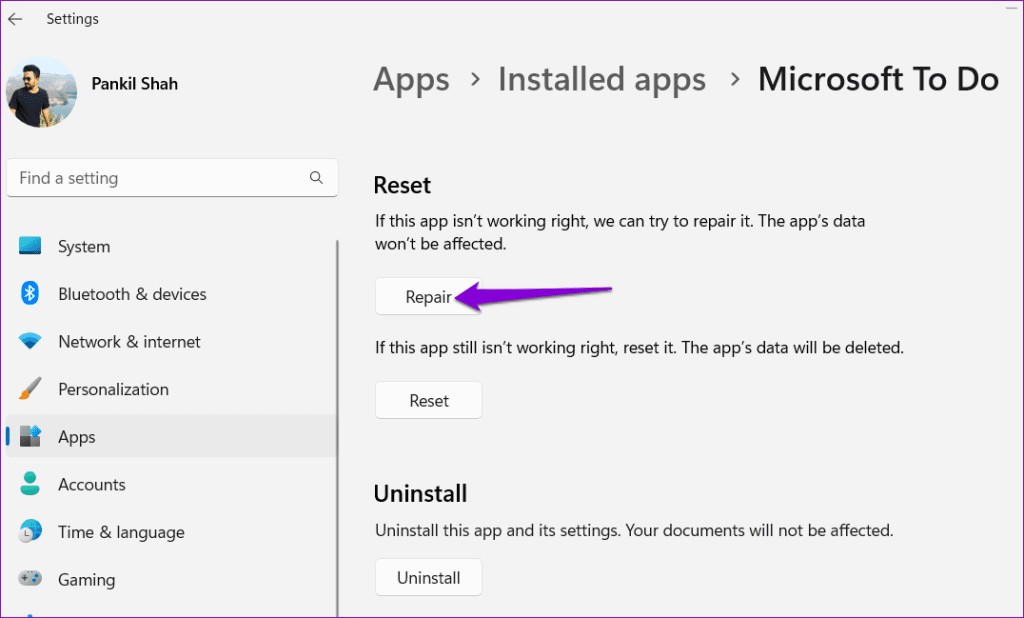
If Microsoft To Do fails to sync even after you repair it, try resetting the app from the same menu. This will erase all the app data and restore it to default settings.

7. Update the App
If you haven’t updated your apps in a while, the Microsoft To Do app version might be outdated. You can check if a newer version of the app is available by heading over to the Microsoft Store.
Once you update the Microsoft To Do app, it should sync your tasks and reminders on your computer.
Break Free From Syncing Woes
If you rely on Microsoft To Do for organizing and staying on top of your tasks, it can be frustrating when it fails to sync on your Windows 10 or 11 computer. Hopefully, one of our fixes has helped fix the underlying issue, and things are back to normal.
Was this helpful?
Last updated on 17 July, 2023
Read Next
 Top 7 Ways to Fix Microsoft Teams Not Syncing on Desktop and Mobile
Microsoft Teams aims to be the one-stop team communication tool with text, voice, and video calling support.
Top 7 Ways to Fix Microsoft Teams Not Syncing on Desktop and Mobile
Microsoft Teams aims to be the one-stop team communication tool with text, voice, and video calling support.
 Top 12 Ways to Fix OneDrive Won’t Stop Syncing Error on Windows 10
One of the fundamental features of a cloud storage app is sync.
Top 12 Ways to Fix OneDrive Won’t Stop Syncing Error on Windows 10
One of the fundamental features of a cloud storage app is sync.
 Top 9 Ways to Fix Google Drive Not Syncing on Windows 11
Google Drive has native apps on Windows and Mac to sync files across devices.
Top 9 Ways to Fix Google Drive Not Syncing on Windows 11
Google Drive has native apps on Windows and Mac to sync files across devices.
 Top 8 Ways to Fix Outlook App Not Syncing Emails on iPhone
Microsoft Outlook provides an excellent email experience even on mobile devices.
Top 8 Ways to Fix Outlook App Not Syncing Emails on iPhone
Microsoft Outlook provides an excellent email experience even on mobile devices.
 Top 7 Ways to Fix Samsung Contacts App Not Syncing on Galaxy Phones
Samsung phones have a dedicated Contacts app and offers necessary features like syncing contacts to other services such Google and Microsoft Exchange.
Top 7 Ways to Fix Samsung Contacts App Not Syncing on Galaxy Phones
Samsung phones have a dedicated Contacts app and offers necessary features like syncing contacts to other services such Google and Microsoft Exchange.
 Top 8 Ways to Fix Samsung Gallery App Not Syncing With OneDrive
Samsung Gallery app has an auto sync feature to back up all your photos and videos to your OneDrive account.
Top 8 Ways to Fix Samsung Gallery App Not Syncing With OneDrive
Samsung Gallery app has an auto sync feature to back up all your photos and videos to your OneDrive account.
 11 Best Ways to Fix Dropbox Not Connecting or Syncing on Windows 10 Error
Dropbox is a popular cloud storage solution that, for the most part, works right out of the box.
11 Best Ways to Fix Dropbox Not Connecting or Syncing on Windows 10 Error
Dropbox is a popular cloud storage solution that, for the most part, works right out of the box.
 Top 10 Ways to Fix Messages Not Syncing Between iPhone and iPad
Being in an Apple ecosystem lets you sync messages, calls, photos, and saved passwords among your iPhone, iPad, and Mac.
Top 10 Ways to Fix Messages Not Syncing Between iPhone and iPad
Being in an Apple ecosystem lets you sync messages, calls, photos, and saved passwords among your iPhone, iPad, and Mac.
The article above may contain affiliate links which help support Guiding Tech. The content remains unbiased and authentic and will never affect our editorial integrity.