If you prefer using an Outlook account to save your contacts, you can sync them with the Contacts app on your iPhone and Mac. You don’t have to install any separate app on your iPhone or Mac to access your contacts once you sync them on your devices.

However, some users complain that their Outlook contacts are not syncing with iPhone and Mac. If you are also facing the same, here are the best ways to fix Outlook contacts not syncing on iPhone and Mac.
1. Check if Contact Syncing Is Enabled
You need to check if contact syncing has been enabled for your Outlook account. This is the first solution if your iPhone or Mac is not syncing with Outlook contacts. Here’s how to check the same.
On iPhone
Step 1: Open the Settings app on your iPhone.

Step 2: Scroll down and tap on Contacts.

Step 3: Tap on Accounts.

Step 4: Select your Outlook account and check if Contacts syncing is enabled.
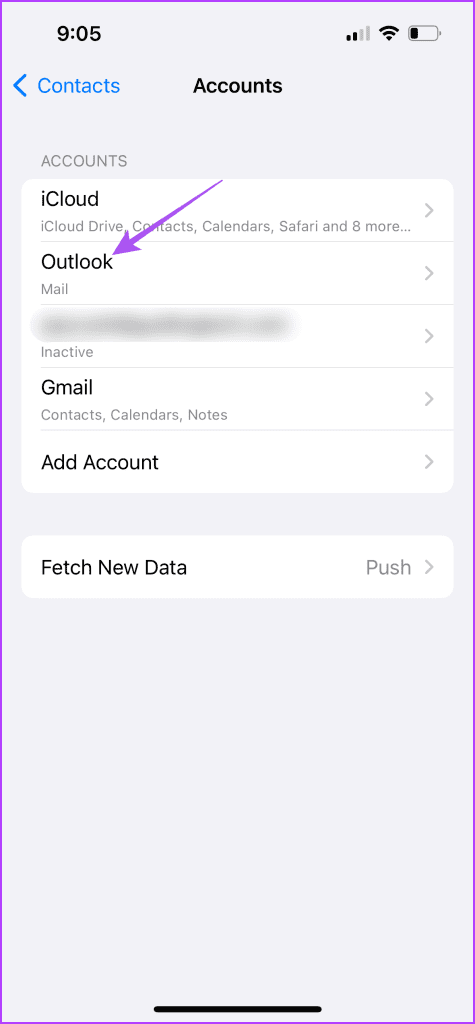
If not, tap the toggle next to Contacts to enable it.

Step 5: After that, go back and tap on your iCloud account name at the top.
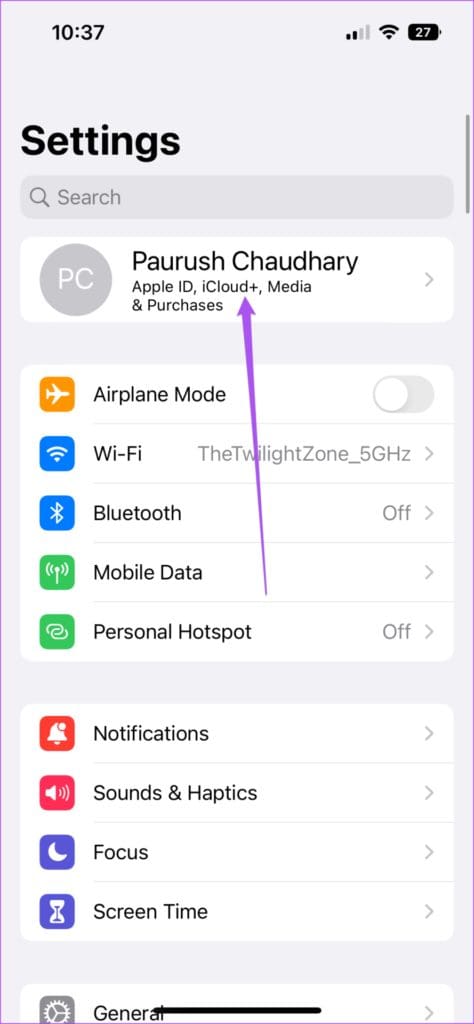
Step 6: Tap on iCloud.

Step 7: Select Show All.

Step 8: Tap the toggle next to Contacts.
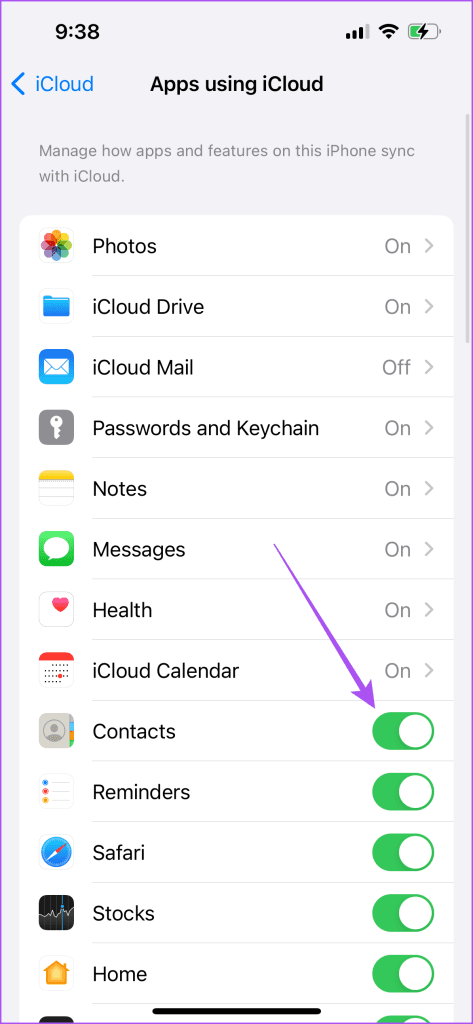
Step 9: Close the Settings app, wait for some time, and open Contacts to check if the problem is solved.
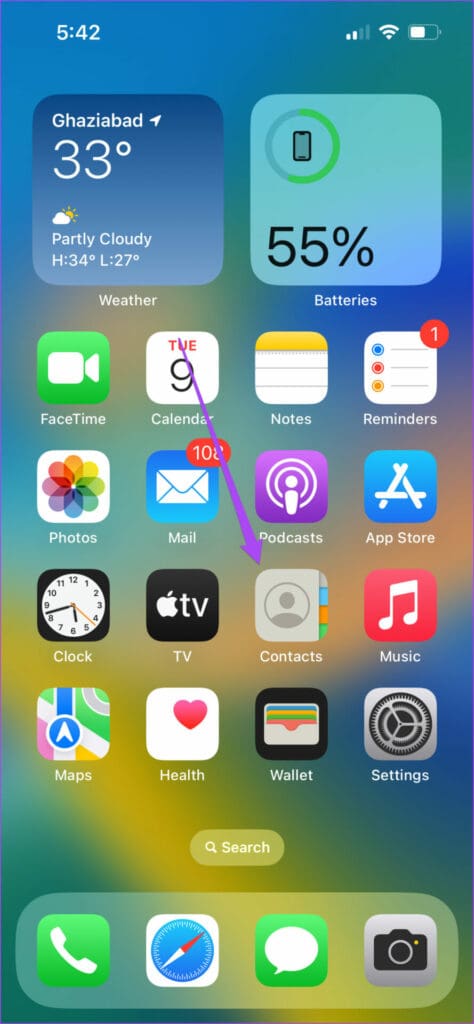
On Mac
Step 1: Press Command + Spacebar keyboard shortcut to open Spotlight Search, type Contacts, and press Return.

Step 2: Click on Contacts at the top-right corner and select Settings.
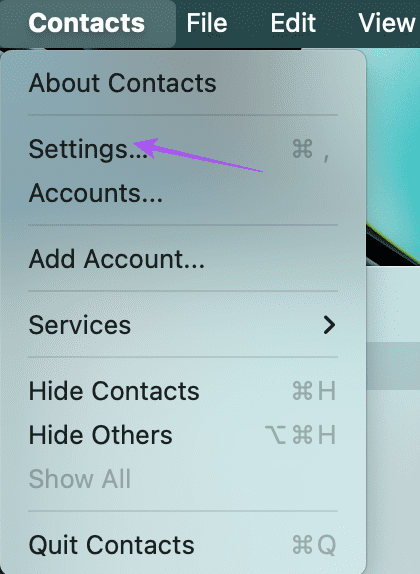
Step 3: Under the Accounts tab, select your Outlook account from the left menu and click the checkbox next to Enable This Account.

Step 4: Close the window and open Settings on your Mac.
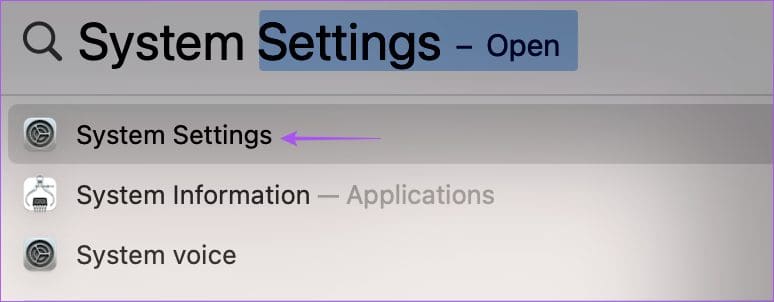
Step 5: Click on your Apple account name from the left menu.

Step 6: Select iCloud.

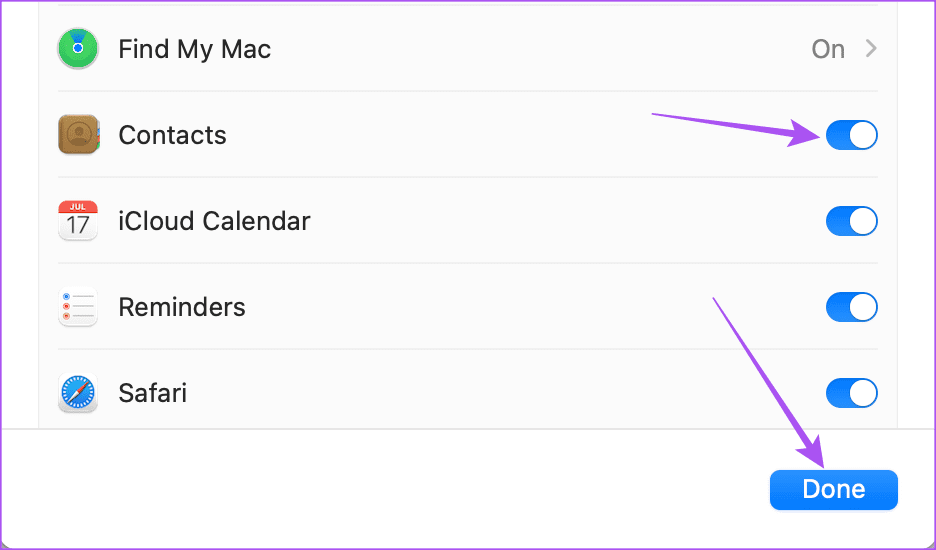
Step 7: Click on Show All.

Step 8: Click the toggle next to Contacts and select Done.
Step 9: Close the Settings window and check if the problem is solved.
2. Set Outlook As Default Account
If your Outlook contacts are still not syncing with iCloud, you can check if your Outlook account is set as default. Here’s how.
On iPhone
Step 1: Open the Settings app on your iPhone.
Step 2: Scroll down and select Contacts.
Step 3: Tap on Default Account.

Step 4: Select Outlook.
Step 5: Close the Settings app and check if the problem is solved.
On Mac
Step 1: Press Command + Spacebar keyboard shortcut to open Spotlight Search, type Contacts, and press Return.
Step 2: Click on Contacts at the top-right corner and select Settings.
Step 3: Under the General tab, click the dropdown next to Default Account.

Step 4: Select Outlook.
Step 5: Close the window and check if the problem is solved.
3. Switch From Mobile Data to Wi-Fi (iPhone)
If your contacts are still not syncing between Outlook and iCloud on your iPhone, you need to check your internet speed. If you are using Mobile Data, we suggest switching to a Wi-Fi network. This would provide a faster and more stable internet connection for your iPhone. If you have a dual-band router, we suggest connecting your iPhone to a 5GHz frequency band.
4. Disable Low Data Mode for Wi-Fi
After you connect to a Wi-Fi network, you need to ensure that Low Data Mode has been disabled for the connected Wi-Fi network. You need a good internet speed from your Wi-Fi to sync your Outlook contacts. Here’s how to check the same on your iPhone and Mac.
On iPhone
Step 1: Open the Settings app on your iPhone.
Step 2: Tap on Wi-Fi.
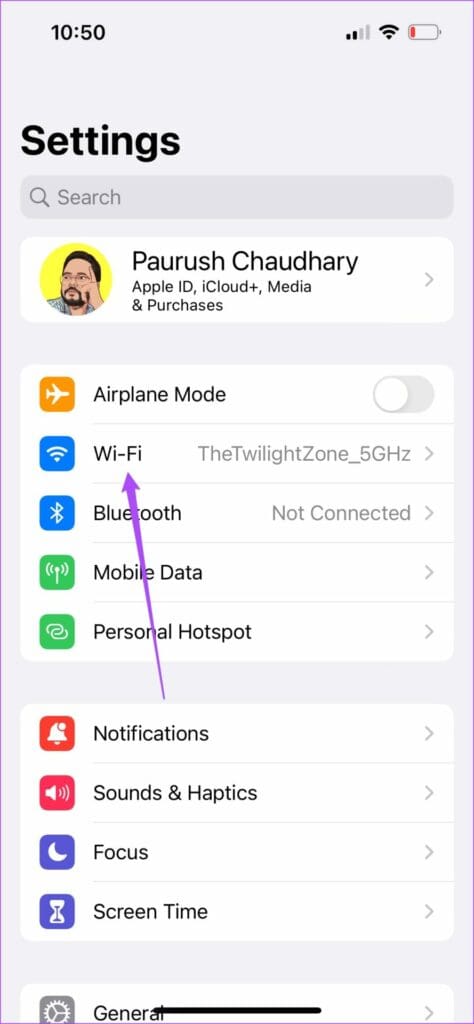
Step 3: Tap the ‘i’ icon next to the connected Wi-Fi network.

Step 4: Tap the toggle next to Low Data Mode to disable the feature.

Step 5: Close Settings and check if the problem is solved.
On Mac
Step 1: Press Command + Spacebar keyboard shortcut to open Spotlight Search, type Wi-Fi, and press Return.

Step 2: Click on Details next to the connected Wi-Fi network name.

Step 3: Click the toggle next to Low Data Mode to disable the feature.

Step 4: Click on Ok to confirm.
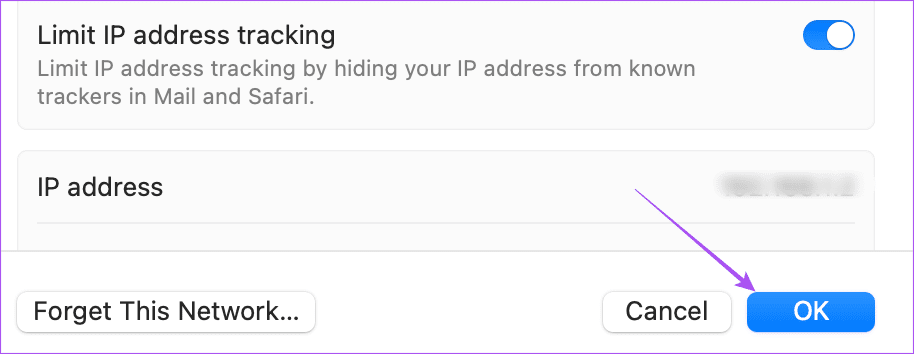
Step 5: Close the Settings window and check if the problem is solved.
5. Add Your Outlook Account Again
If your Outlook contacts are still not syncing, try adding your Outlook account again. This means you can log in again with your Outlook account on your iPhone and Mac.
On iPhone
Step 1: Open the Settings app on your iPhone.
Step 2: Scroll down and tap on Contacts.
Step 3: Select Accounts.
Step 4: Select your Outlook account and tap on Delete Account.

Step 5: Tap on Delete Account again to confirm.

Step 6: Tap on Add Account and add your Outlook account again.
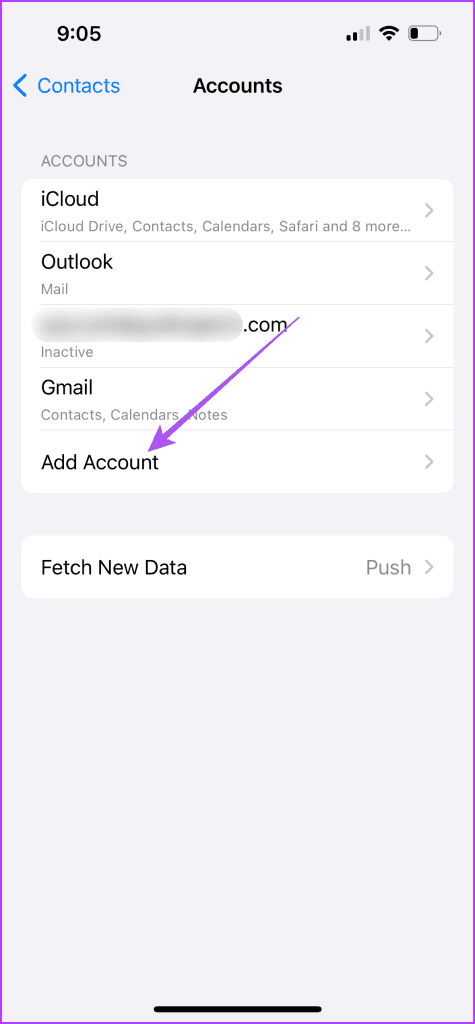
Step 7: Close Settings and check if the problem is solved.
On Mac
Step 1: Press Command + Spacebar keyboard shortcut to open Spotlight Search, type Internet Accounts, and press Return.
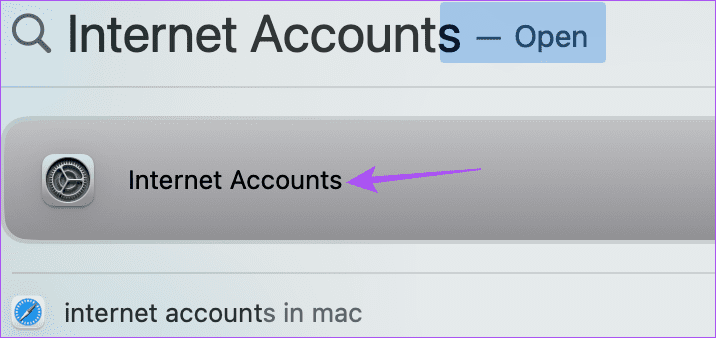
Step 2: Select your Outlook account.
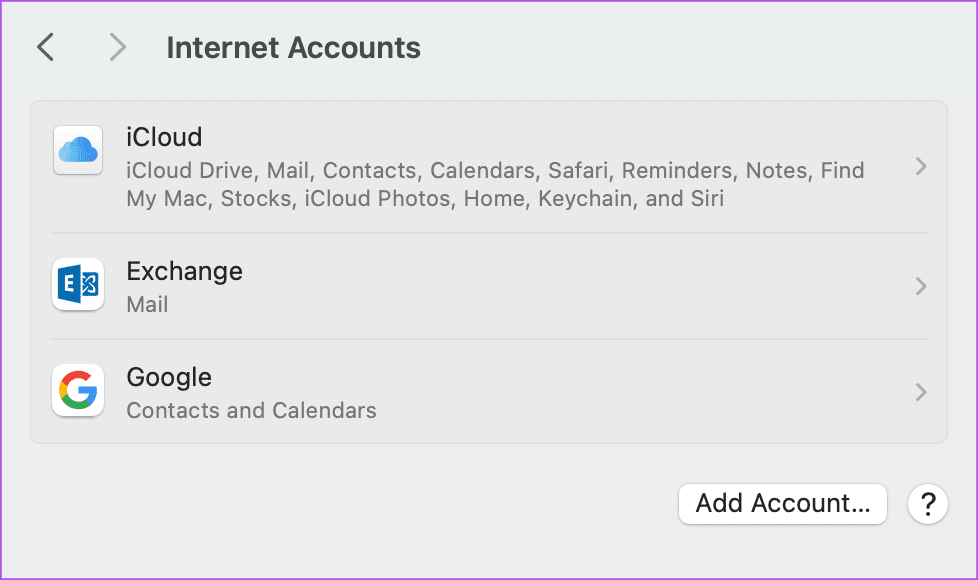
Step 3: Click on Delete Account.

Step 4: Click Ok to confirm.

Step 5: Select Add Account and enter your Outlook credentials again.
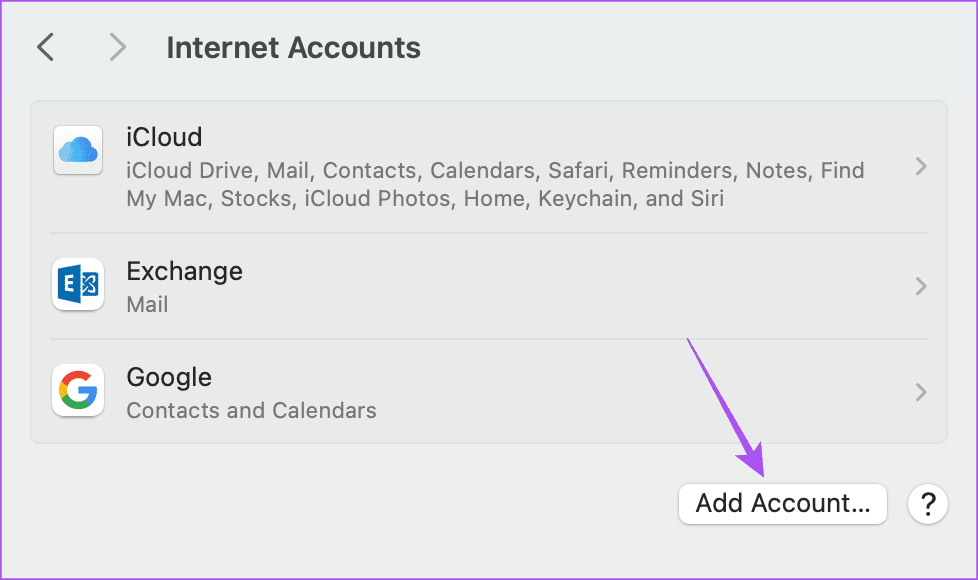
Step 6: After that, check if the problem is solved.
6. Force Quit and Restart Contacts App
You can also try to force quit and restart the Contacts app on your iPhone and Mac. This is another basic yet effective solution to give the app a fresh start.
On iPhone
Step 1: On the home screen, swipe up and hold to reveal the background app windows.
Step 2: Swipe right to look for the Contacts app and swipe up to remove it.

Step 3: Relaunch the Contacts app and check if the problem is solved.
On Mac
Step 1: Click the Apple icon at the top-left corner and select Force Quit.
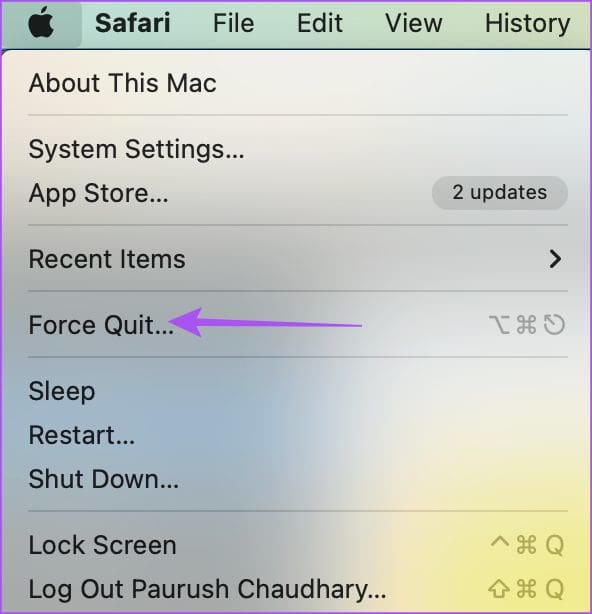
Step 2: Select the Contacts app and click on Force Quit.

Step 3: Open the Contacts app again and check if the problem is solved.
7. Update Contacts App
The last solution that we recommend is to update the Contacts app. Do this if none of the solutions have worked on your iPhone or Mac.
Update on iPhone
Step 1: Open the Settings app and tap on General.

Step 2: Tap on Software Update.
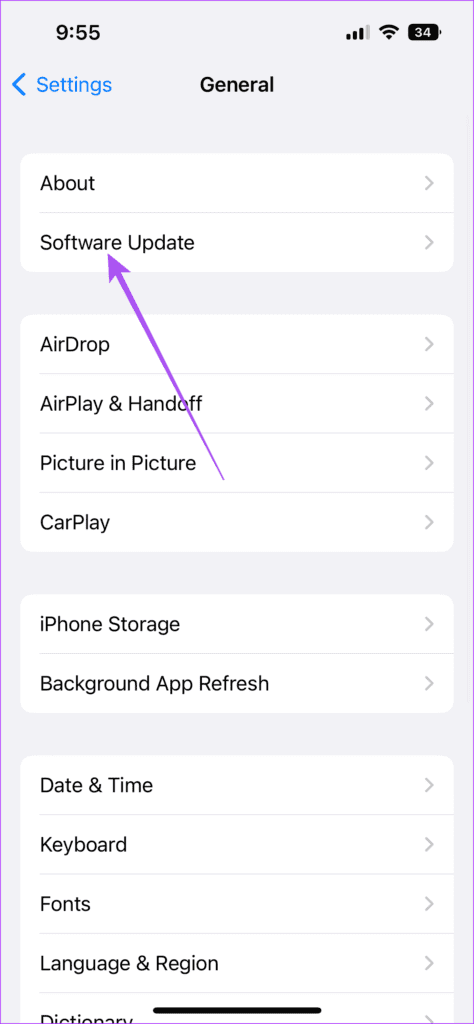
Step 3: If an update is available, download and install it.
Step 4: After that, relaunch the Contacts app and check if the problem is solved.
Update on Mac
Step 1: Press Command + Spacebar keyboard shortcut to open Spotlight Search, type Check For Software Updates, and press Return.

Step 2: If an update is available, download and install it.
Step 3: Once done, check if the problem is solved.
Sync Your Outlook Contacts
These solutions will help fix the Outlook contacts not syncing with iPhone and Mac. You can also read our post to change your Outlook account password.
Was this helpful?
Last updated on 10 August, 2023
Read Next
 8 Best Fixes for Apple Mail Not Syncing With Outlook on Mac
You can log in to your Outlook account using the default Mail app on your Mac.
8 Best Fixes for Apple Mail Not Syncing With Outlook on Mac
You can log in to your Outlook account using the default Mail app on your Mac.
 6 Best Fixes for Telegram Not Syncing Contacts on iPhone and Android
Telegram is a good alternative to WhatsApp for connecting with your contacts.
6 Best Fixes for Telegram Not Syncing Contacts on iPhone and Android
Telegram is a good alternative to WhatsApp for connecting with your contacts.
 8 Best Fixes for Calendar App Not Syncing With Outlook on iPhone
If you prefer using Microsoft Outlook for your emails, you can also add your calendar entries like reminders and meeting schedules using the default Calendar app on your iPhone.
8 Best Fixes for Calendar App Not Syncing With Outlook on iPhone
If you prefer using Microsoft Outlook for your emails, you can also add your calendar entries like reminders and meeting schedules using the default Calendar app on your iPhone.
 9 Best Fixes for Microsoft Outlook Not Syncing Emails on Android
Microsoft's Outlook app lets you add contacts on your Android and manage your emails.
9 Best Fixes for Microsoft Outlook Not Syncing Emails on Android
Microsoft's Outlook app lets you add contacts on your Android and manage your emails.
 iCloud Contacts vs Google Contacts: Where Should You Save Contacts on Your iPhone
When you are using an Android phone, one prefers using Google Contacts to store and manage contacts.
iCloud Contacts vs Google Contacts: Where Should You Save Contacts on Your iPhone
When you are using an Android phone, one prefers using Google Contacts to store and manage contacts.
 Google Contacts vs Samsung Contacts: Which App Is Best for Saving and Managing Contacts
Apart from phones running Stock Android, all other Android phones have their own set of basic apps.
Google Contacts vs Samsung Contacts: Which App Is Best for Saving and Managing Contacts
Apart from phones running Stock Android, all other Android phones have their own set of basic apps.
 6 Best Fixes for Apple Music Playlists Not Syncing Between Mac and iPhone
Apple Music allows you to create a playlist of your favorite songs.
6 Best Fixes for Apple Music Playlists Not Syncing Between Mac and iPhone
Apple Music allows you to create a playlist of your favorite songs.
 9 Best Fixes for Voice Memos Not Syncing Between iPhone and Mac
You can record voice memos on your iPhone for taking down notes, adding a quick voiceover for your presentation, or sending any instructions to your contact.
9 Best Fixes for Voice Memos Not Syncing Between iPhone and Mac
You can record voice memos on your iPhone for taking down notes, adding a quick voiceover for your presentation, or sending any instructions to your contact.
The article above may contain affiliate links which help support Guiding Tech. The content remains unbiased and authentic and will never affect our editorial integrity.