
Microsoft Outlook may be a feature-rich email app, but it is not known for its reliability, especially on Android and iPhone. Microsoft Outlook can sometimes leave you disappointed when it fails to sync your emails or stops displaying notifications. Another similar issue is when you have to send a response, but Outlook is not sending emails on your Android or iPhone.
Encountering such problems with the Outlook app can hinder your ability to send critical emails and disrupt your workflow. Before you switch to Outlook’s desktop app, try out the following tips to fix issues with the Outlook app on your Android or iPhone.
1. Double Check the Email Address and Attachment Size
First, you’ll need to check the recipient’s email address – whether it’s correct and free from any typos. If you have misspelled the email address, Outlook won’t be able to send the email. Also, if you want to send an attachment with your email, ensure the file size is within the allowable limit to avoid any issues.
2. Force Close and Reopen the App
Restarting an app is an effective way to fix temporary issues with it. That will terminate all the app-related processes and give them a fresh start on your phone.
On Android, long-press on the Outlook app icon and tap the info icon from the resulting menu. On the App info page, tap the Force stop option at the bottom.


For those using an iPhone, swipe up from the bottom of the screen (or press the Home Screen button twice) to bring up the app switcher. Swipe upwards on the Outlook card to close the app.
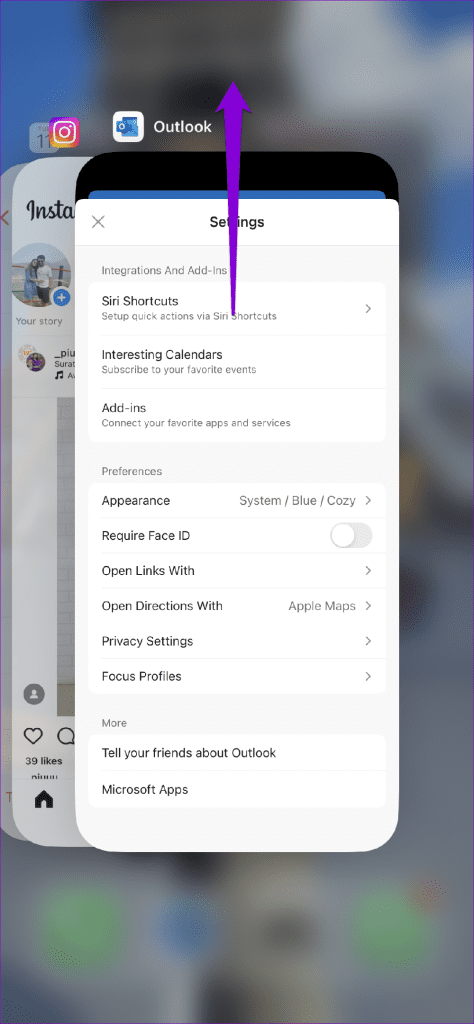
Reopen the Outlook app and try to send an email again.
3. Disable Outlook Add-Ins
Similar to its desktop version, Outlook for mobile supports third-party add-ins. Although these add-ins bring extra features, they can occasionally disrupt the app’s functionality and cause problems. You can disable your Outlook add-ins temporarily to see if that solves the problem.
Step 1: Open the Outlook app on your iPhone or Android. Tap the profile icon at the top-left corner and then tap the gear icon at the bottom-left corner.


Step 2: Scroll down to tap on Add-ins. Tap the checkmarks next to your add-ins to disable them.


Restart the app on your phone and see if you can send emails.
4. Reset Account Settings in Outlook
Issues with your account settings in Outlook can also result in your emails getting stuck in the Outbox and not being sent. You can reset your account in Outlook to see if that gets things moving again.
Step 1: Open the Outlook app on your Android or iPhone. Tap the profile icon at the top-left corner and then tap the gear icon to visit the settings menu.
Step 2: Select the problematic email account from the list.

Step 3: Tap the Reset Account option and hit OK to proceed.


5. Remove and Re-Add Your Account
If resetting your account settings does not help, you can remove your account from the app and add it back. This will help fix any authentication issues that may have caused the problem.
Step 1: Open the Outlook app on your iPhone or Android.
Step 2: Tap the profile icon at the top-left corner. Tap the gear icon at the bottom-left corner.
Step 3: Select the problematic email account from the list.
Step 4: Select the Delete Account option at the bottom.

Add your account back to the Outlook app and check if the issue is still there.
6. Clear App Cache (Android)
This is a rudimentary fix that can help fix issues with any Android app, including Outlook. Clearing Outlook’s cache will delete any temporary files associated with the app that may be causing the problem.
Step 1: Long press on the Outlook app icon and tap the info icon from the resulting menu.
Step 2: Go to Storage and tap the Clear cache option at the bottom.


7. Update the App
If you still can’t send emails, the Outlook app on your phone may be buggy or outdated. Open the Play Store (Android) or App Store (iPhone) and search for the Outlook app. If a newer version is available, tap the Update button to install it.
Send With Confidence
While many excellent email apps are available for Android and iPhone, Outlook remains to be one of the popular ones for good reasons. And, if you don’t want to switch to an alternative, apply the above tips to restore Outlook’s ability to send emails on your Android or iPhone.
Was this helpful?
Last updated on 14 July, 2023
Read Next
 Top 9 Ways to Fix Gmail Not Sending Emails on Android
Gmail for Android has received a nice makeover with Material You UI and widgets.
Top 9 Ways to Fix Gmail Not Sending Emails on Android
Gmail for Android has received a nice makeover with Material You UI and widgets.
 Top 9 Ways to Fix iPhone Not Sending Emails
It can be troublesome when you can't send an email from your iPhone.
Top 9 Ways to Fix iPhone Not Sending Emails
It can be troublesome when you can't send an email from your iPhone.
 Top 9 Ways to Fix Microsoft Outlook Not Receiving Emails on Android
Microsoft Outlook is one of the best Gmail alternatives on Android.
Top 9 Ways to Fix Microsoft Outlook Not Receiving Emails on Android
Microsoft Outlook is one of the best Gmail alternatives on Android.
 Top 9 Ways to Fix Microsoft Outlook Not Receiving Emails on Mac
Microsoft Outlook is one of the best Mail alternatives on Mac.
Top 9 Ways to Fix Microsoft Outlook Not Receiving Emails on Mac
Microsoft Outlook is one of the best Mail alternatives on Mac.
 Top 15 Ways to Fix Facebook Messenger Not Sending Messages on iPhone and Android
Facebook Messenger continues to play a major role in Facebook’s social media lineup.
Top 15 Ways to Fix Facebook Messenger Not Sending Messages on iPhone and Android
Facebook Messenger continues to play a major role in Facebook’s social media lineup.
 Top 8 Ways to Fix WhatsApp Not Sending Videos on iPhone and Android
Video sharing is one area where WhatsApp continues to lag the competition.
Top 8 Ways to Fix WhatsApp Not Sending Videos on iPhone and Android
Video sharing is one area where WhatsApp continues to lag the competition.
 Top 8 Ways to Fix Outlook Not Receiving Emails on iPhone
Microsoft Outlook is one of the best Apple Mail alternatives on the iPhone.
Top 8 Ways to Fix Outlook Not Receiving Emails on iPhone
Microsoft Outlook is one of the best Apple Mail alternatives on the iPhone.
 Top 8 Ways to Fix Outlook App Not Syncing Emails on iPhone
Microsoft Outlook provides an excellent email experience even on mobile devices.
Top 8 Ways to Fix Outlook App Not Syncing Emails on iPhone
Microsoft Outlook provides an excellent email experience even on mobile devices.
The article above may contain affiliate links which help support Guiding Tech. The content remains unbiased and authentic and will never affect our editorial integrity.