

Do you keep seeing the ‘PowerPoint found a problem with content’ error while opening PPTs on your PC? This error can occur for various reasons, including temporary glitches, misconfigured settings, corrupted files, and more. Thankfully, it is possible to resolve the error and restore your PowerPoint file.

Whether you face trouble opening one of your presentations or the one shared by a co-worker, this guide can help. Below, we’ve listed all the possible solutions to fix this annoying PowerPoint error on your Windows 10 or 11 PC.
Also Read: How to Fix Microsoft PowerPoint Not Responding on Windows 11
1. Repair the Presentation File
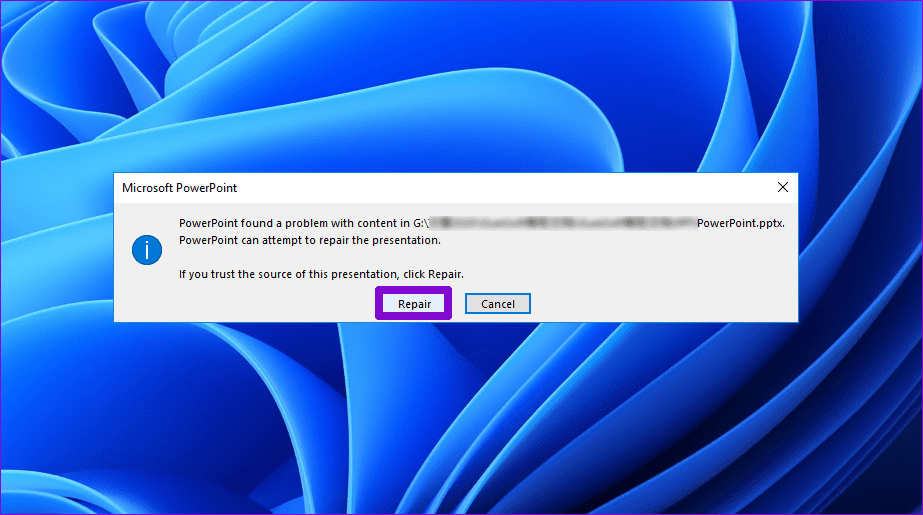
When you receive the ‘PowerPoint found a problem with content’ error, PowerPoint offers the option to repair the file. Click the Repair button to allow PowerPoint to fix any corrupt or damaged elements within your PPT file. If it’s just a minor issue, this will resolve the error and get PowerPoint to open your file on Windows.
2. Unblock the File
If Windows blocks a PPT file is also why PowerPoint may fail to open a file and display the error. This usually happens when you receive the file containing different version of PowerPoint or other components. In that case, you will need to unblock the PowerPoint file first. Here’s how to do it.
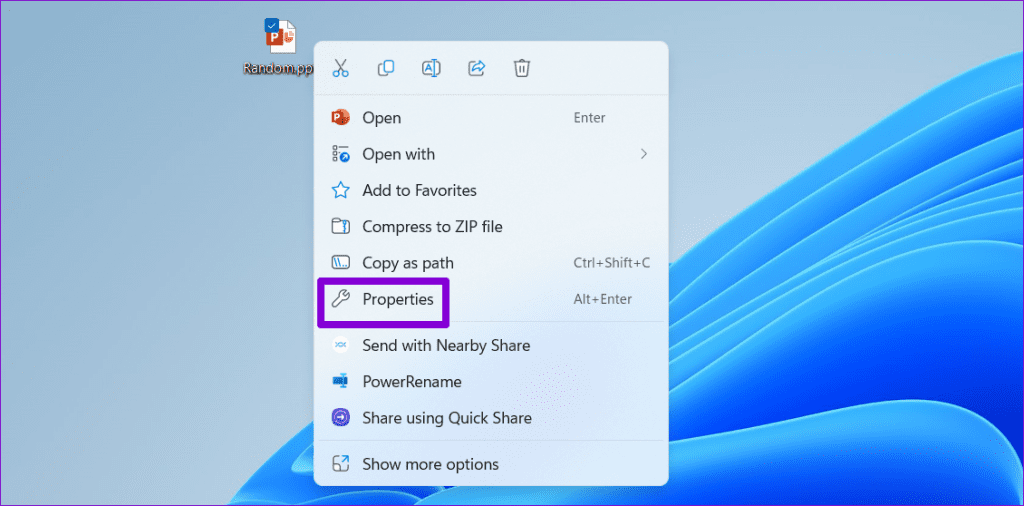
Step 1: On your PC, locate the PowerPoint file that’s triggering the error. Right-click on it and select Properties.
Step 2: Under the General tab, clear the Unblock checkbox at the bottom and hit Apply followed by OK.

3. Disable Protected View
Protected View is a security feature that prevents PowerPoint from opening files in read-only mode to prevent making changes that can be harmful to your computer. Several users on the Microsoft forums reported fixing the ‘PowerPoint found a problem with content’ error by temporarily disabling the Protected View feature. However, do this if you are opening a file that you created yourself or that you received from a trusted source.
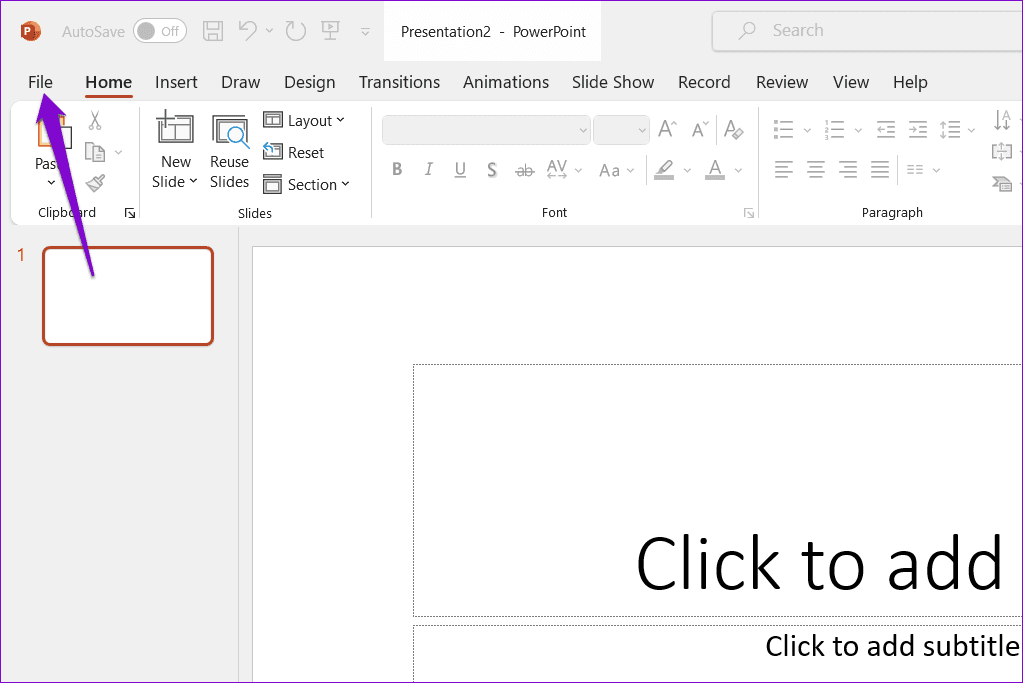
Step 1: Open Microsoft PowerPoint and click the File menu at the top-left corner.
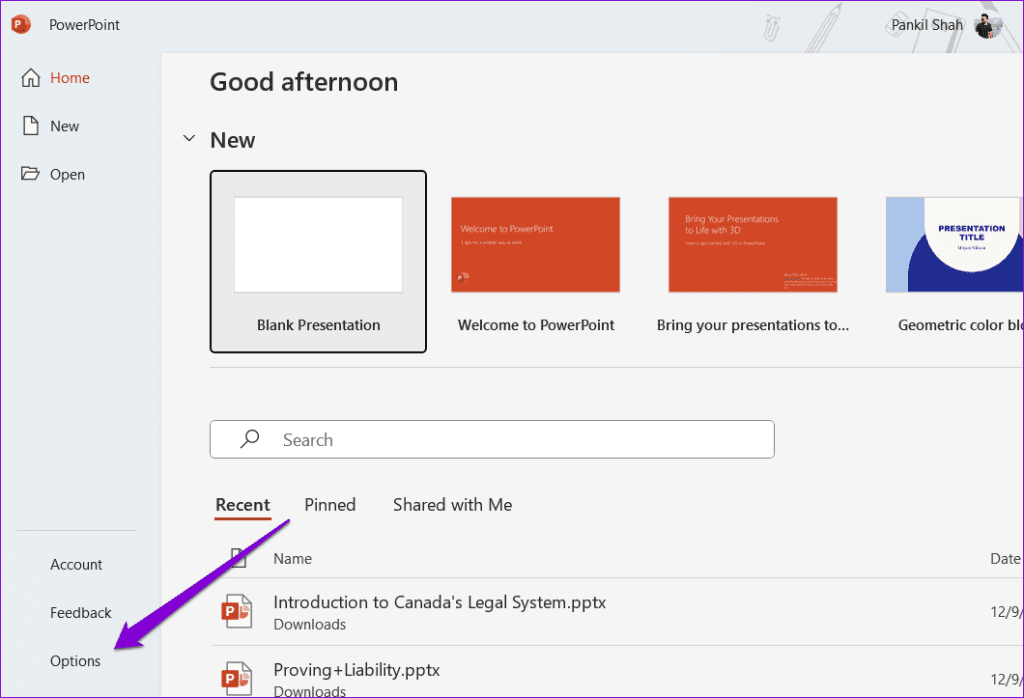
Step 2: Select Options from the left sidebar.
Step 3: In the PowerPoint Options window, switch to the Trust Center from the left sidebar and then click the Trust Center Settings button from the right pane.

Step 4: Choose the Protected View tab from the left sidebar, uncheck three checkboxes in the right pane under the Protected View section to disable the feature and click OK to save changes.

After completing the above steps, try to open your file one more time.
4. Mark the Folder Containing the File as a Trusted Location in PowerPoint
Errors like ‘PowerPoint found a problem with content’ or ‘PowerPoint found unreadable content in PPTX’ can also arise if your presentation file is located in an untrusted folder on your PC. To fix this, you need to mark the folder containing your presentation as a trusted location in PowerPoint. Here are the steps for the same.
Step 1: Open Microsoft PowerPoint and click the File menu at the top-left corner.
Step 2: Select Options from the left pane.
Step 3: Click on the Trust Center from the left sidebar and then click the Trust Center Settings button in the right pane.
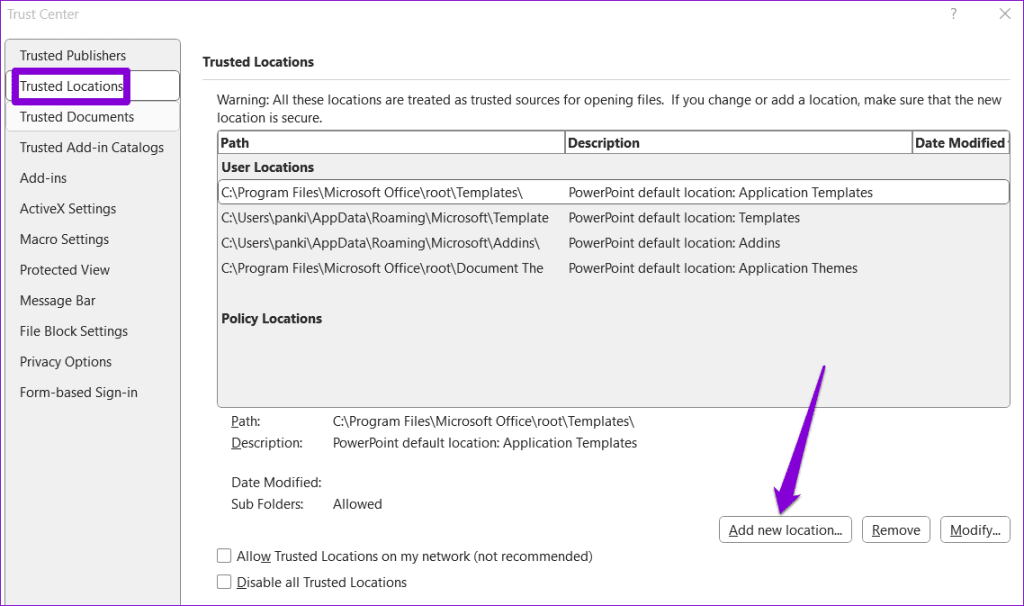
Step 4: Choose the Trusted Locations from the left sidebar and click the Add new location button from the right pane.
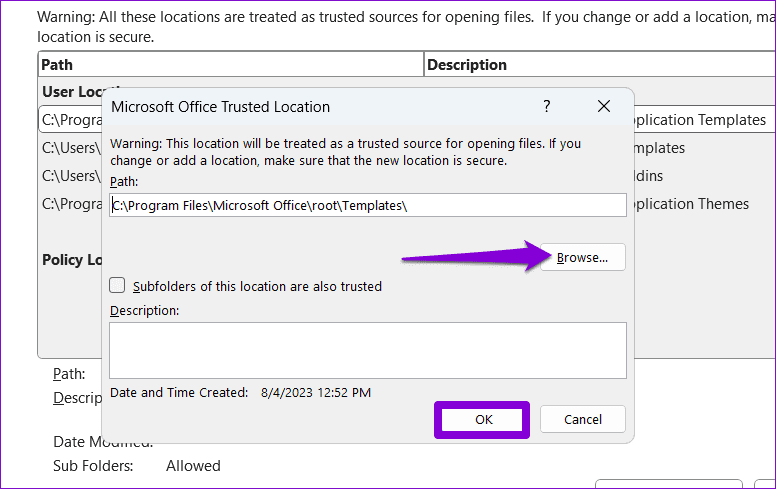
Step 5: Click the Browse button and head to the folder containing your PPT files. Then, hit OK.
After that, try opening your PowerPoint files to check for any errors.
5. Move the File Out From the Synchronized Folder
Are you getting the ‘PowerPoint found a problem with content’ error while accessing files stored in a cloud storage folder like OneDrive? You can copy it from the cloud storage folder to your computer’s local hard drive and open it.
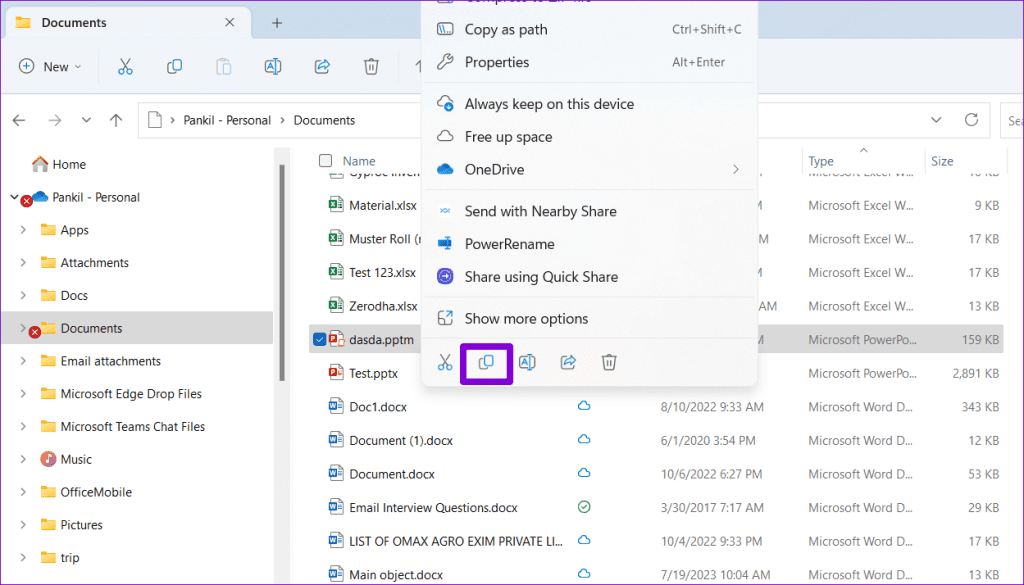
Locate the problematic PPT file, right-click on it, and select the Copy option. Then, switch to your preferred location on the hard drive and press Control + V keyboard shortcut to paste the file. After that, check if PowerPoint can open it.
6. Restore an Older Version of the File
Lastly, if none of the above tips work, your PowerPoint file may be irreparably corrupted. In that case, your best option is to restore an older version of the PPT file. Of course, this is only possible if you have previously backed up the file in OneDrive.
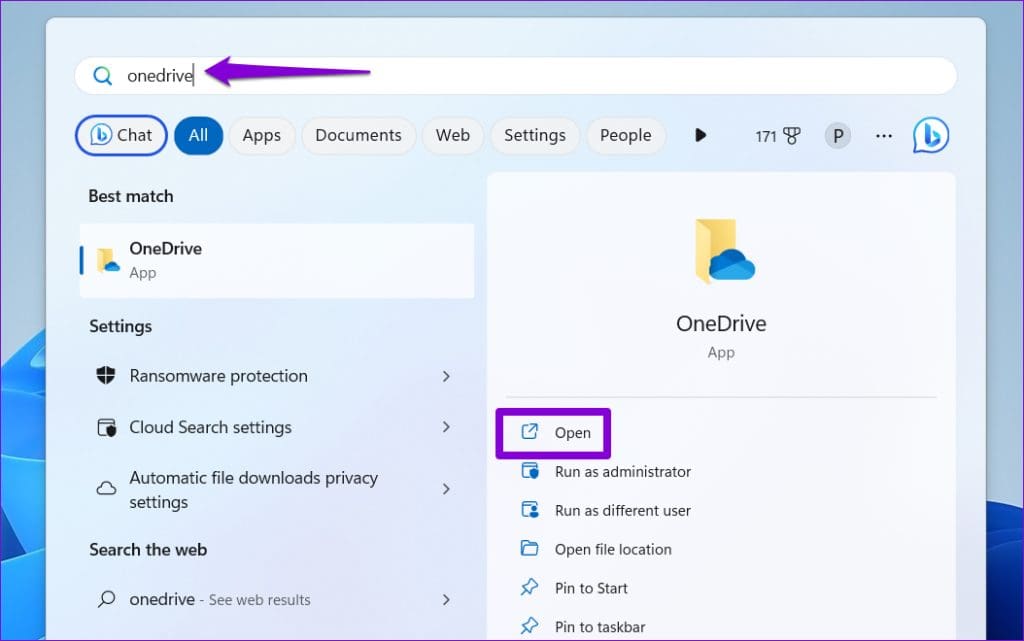
Step 1: Press the Windows + S keyboard shortcut to open the search menu, type in OneDrive and select Open.
Step 2: In the File Explorer window that opens, locate your PowerPoint file. Right-click on it and select Show more options.

Step 3: Select the Version history option from the context menu.
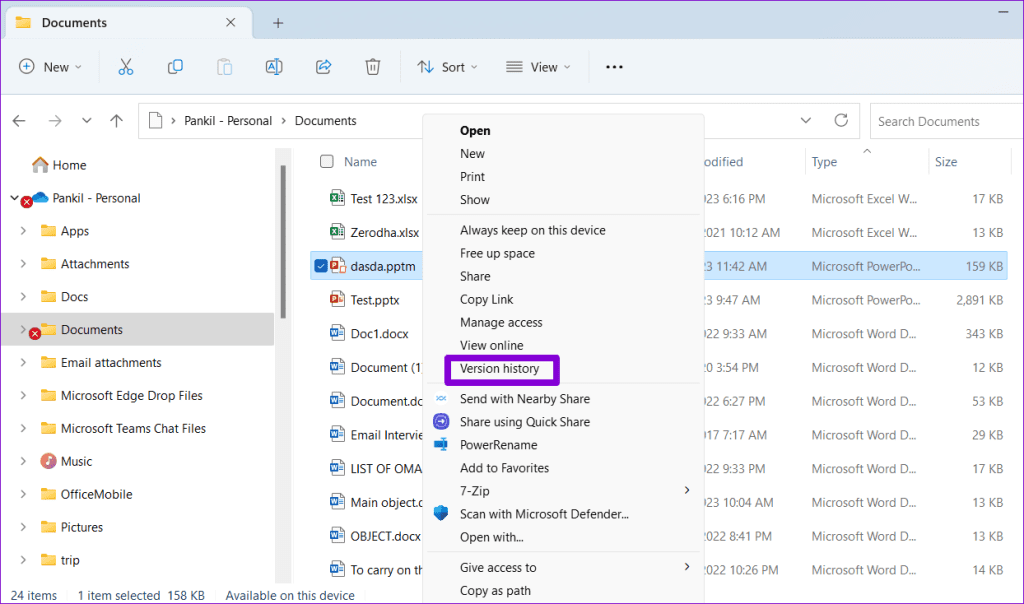
Step 4: Hover your mouse over an earlier version of the file on the list. Click the three horizontal dots menu icon and select Restore.

After Windows restores the PowerPoint file to its earlier version, you can try to open it.
Power Up Your Ideas with PowerPoint
Encountering such PowerPoint errors right before an important presentation can be stressful. Hopefully, applying the above tips has helped fix the ‘PowerPoint found a problem with content’ error on your Windows 10 or 11 PC, and things are back to normal.
Was this helpful?
Last updated on 07 August, 2023
Read Next
 Top 6 Ways to Fix Word Found Unreadable Content Error in Windows
It can be frustrating when you've spent hours working on a document and Word fails to open it.
Top 6 Ways to Fix Word Found Unreadable Content Error in Windows
It can be frustrating when you've spent hours working on a document and Word fails to open it.
 Top 7 Ways to Fix Content File Locked Error in Steam for Windows
Ensuring your games are up to date with the latest patches is vital for an optimal gaming experience on Windows.
Top 7 Ways to Fix Content File Locked Error in Steam for Windows
Ensuring your games are up to date with the latest patches is vital for an optimal gaming experience on Windows.
 Top 6 Ways to Fix Microsoft PowerPoint Not Responding on Windows 11
Microsoft PowerPoint is a popular application for creating visually appealing slideshows business meetings, educational presentations, or conferences.
Top 6 Ways to Fix Microsoft PowerPoint Not Responding on Windows 11
Microsoft PowerPoint is a popular application for creating visually appealing slideshows business meetings, educational presentations, or conferences.
 Top 7 Ways to Fix Microsoft PowerPoint Not Saving Files on Windows
It can be annoying when you have spent hours working on an important presentation, and Microsoft PowerPoint fails to save the file on your Windows computer.
Top 7 Ways to Fix Microsoft PowerPoint Not Saving Files on Windows
It can be annoying when you have spent hours working on an important presentation, and Microsoft PowerPoint fails to save the file on your Windows computer.
 Top 7 Ways to Fix Videos in PowerPoint Not Playing
Microsoft PowerPoint, which is now a part of Microsoft 365, is one popular software for making presentations.
Top 7 Ways to Fix Videos in PowerPoint Not Playing
Microsoft PowerPoint, which is now a part of Microsoft 365, is one popular software for making presentations.
 Top 8 Ways to Fix Microsoft PowerPoint Not Saving on Mac
While the Mac has Apple’s Keynote app to create presentations, most users prefer Microsoft PowerPoint for many reasons, and one of them being familiarity.
Top 8 Ways to Fix Microsoft PowerPoint Not Saving on Mac
While the Mac has Apple’s Keynote app to create presentations, most users prefer Microsoft PowerPoint for many reasons, and one of them being familiarity.
 Top 3 Ways to Convert Your Microsoft Word Document Into a PowerPoint Presentation
What if you want to make a Presentation out of a Microsoft Word document?
Top 3 Ways to Convert Your Microsoft Word Document Into a PowerPoint Presentation
What if you want to make a Presentation out of a Microsoft Word document?
 Top 2 Ways to Record a Video in Microsoft PowerPoint
Microsoft PowerPoint is perhaps more widely known software for making presentations.
Top 2 Ways to Record a Video in Microsoft PowerPoint
Microsoft PowerPoint is perhaps more widely known software for making presentations.
The article above may contain affiliate links which help support Guiding Tech. The content remains unbiased and authentic and will never affect our editorial integrity.

