Samsung uses Tizen OS for its smart TV lineup. The system has a built-in store to download popular apps and services on your Samsung TV. However, many have complained about downloading apps and their newest smart TV. If you face the same, here are the best ways to fix Samsung TV not downloading apps.

You can always stream select cable channels on your Samsung TV. But your smart TV experience is incomplete without streaming apps like Netflix, Prime Video, Disney+, Peacock, DAZN, and more. Unlike an Android TV, you can’t use your Android phone to install apps on a Samsung TV either. You must check the troubleshooting tricks below to install apps without breaking a sweat.
1. Check the Network Connection
You need to first check the network connection on your Samsung TV. You will continue to run into errors without a high-speed internet connection.
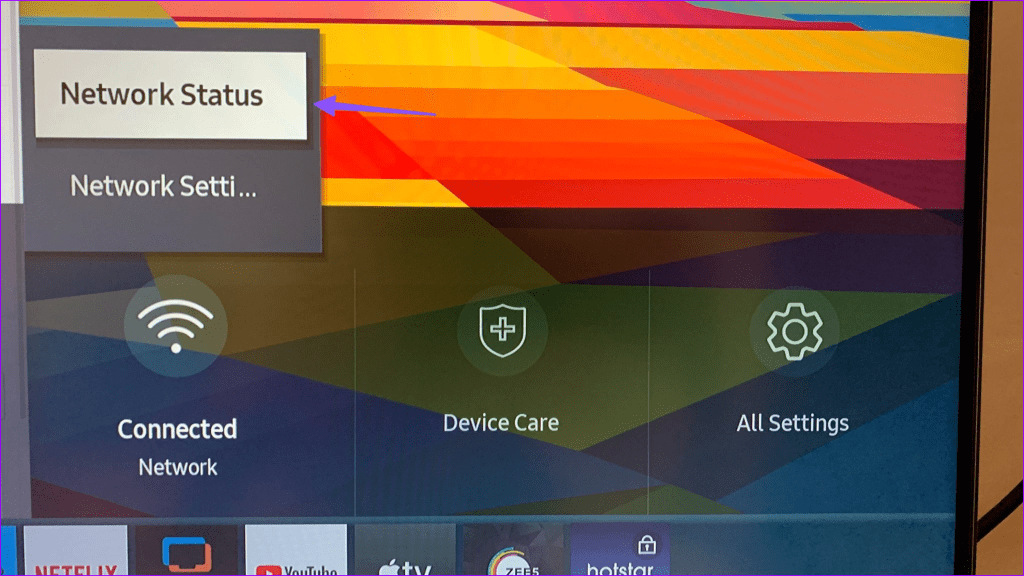
Step 1: Press the Home button on your Samsung TV remote. Slide left to Settings.

Step 2: Expand the Network and select Network Status.
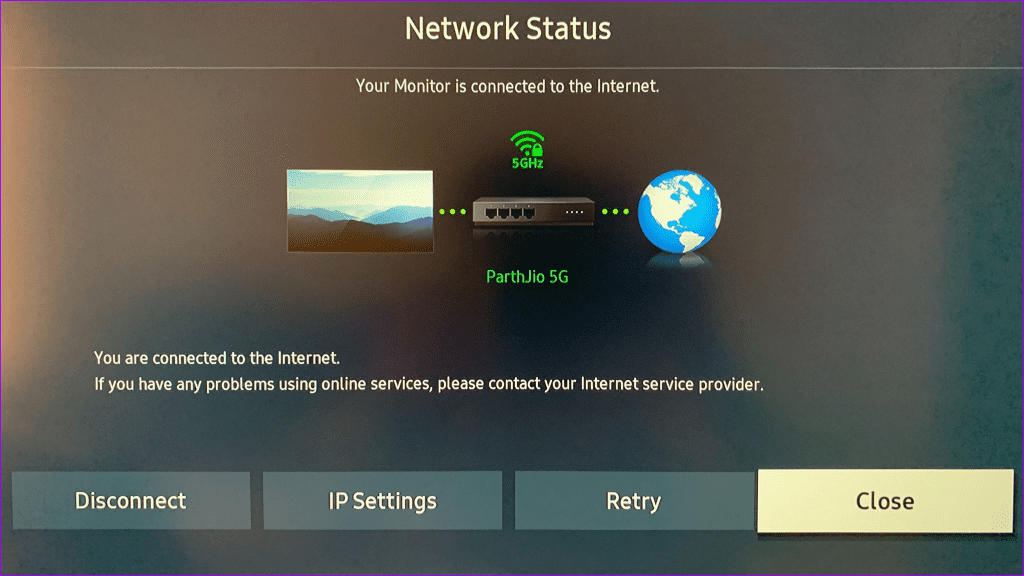
Make sure your TV is connected to the internet. If the Wi-Fi issues persist on your Samsung TV, check our dedicated post to fix the problem.
2. Restart TV
Rebooting your Samsung TV is an effective way to fix common problems. You can turn off the TV, remove it from the power source, and turn it back on. After the system reboots, open the app store and start downloading apps.
3. Restart Router
Do you face internet connectivity issues on all your connected devices? Your home or office router is the main culprit here. You need to restart the router and try downloading apps on your Samsung TV.
4. Check Device Storage
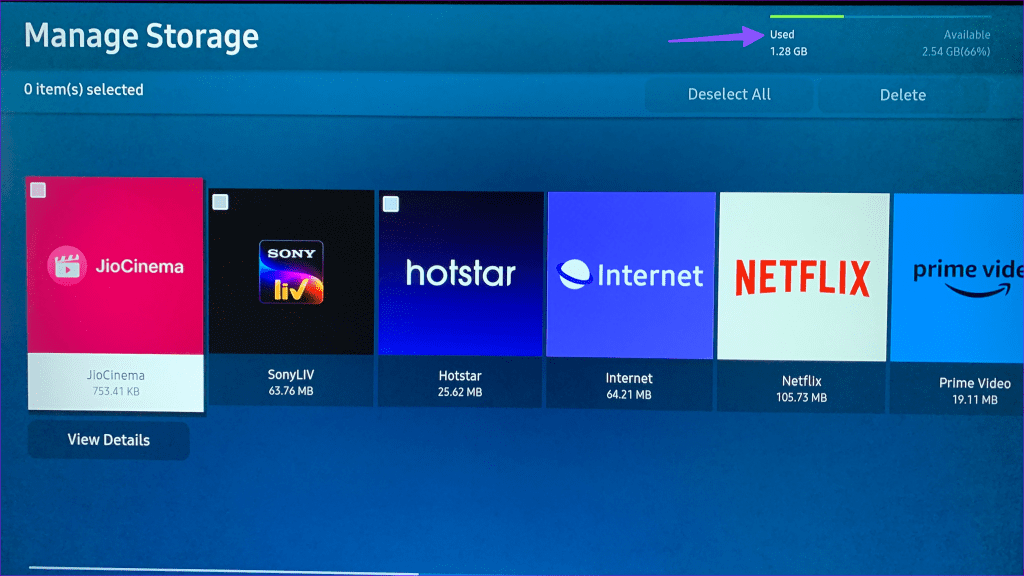
Most Samsung TVs come with 8GB of space by default. Out of which, around 5.3GB is available to utilize. If your Samsung TV is running low on storage, it may face issues with downloading apps.
Step 1: Open Samsung TV Home and slide left to Settings.
Step 2: Select the Device Care.
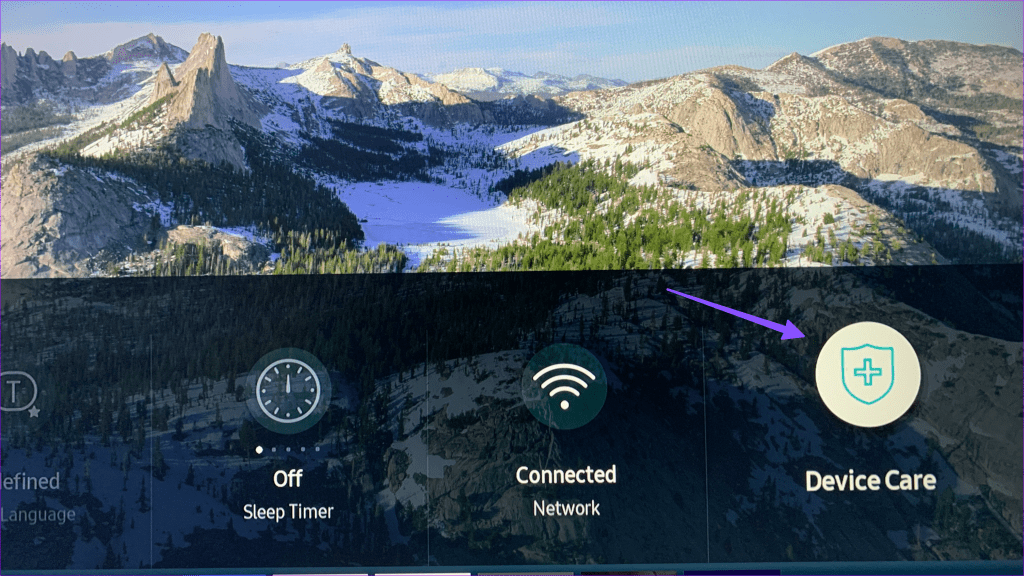
Step 3: Open Manage Storage.

Step 4: Check the storage breakdown at the top. You can select and delete irrelevant apps from the same menu.
5. Run Device Care
Do you still face issues with installing apps on Samsung TV? The company offers a Device Care app to take care of such niggles.
Step 1: Open the Device Care app on your Samsung TV (check the steps above).
Step 2: Select ‘Start Device Care’ and let the system troubleshoot the problem.

6. Log Out and Login Again
You may face issues with downloading apps due to an account authentication error on your Samsung TV. You need to sign out from your Samsung account and sign back in.
Step 1: Open the Apps menu from your Samsung TV home.
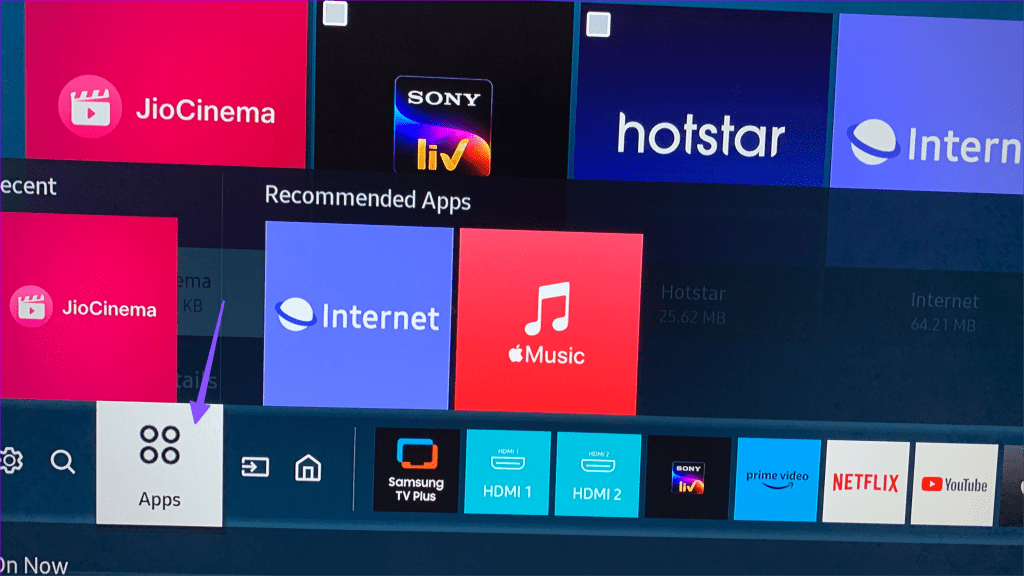
Step 2: Select your account at the top.

Step 3: Open your Samsung account and hit Sign Out.
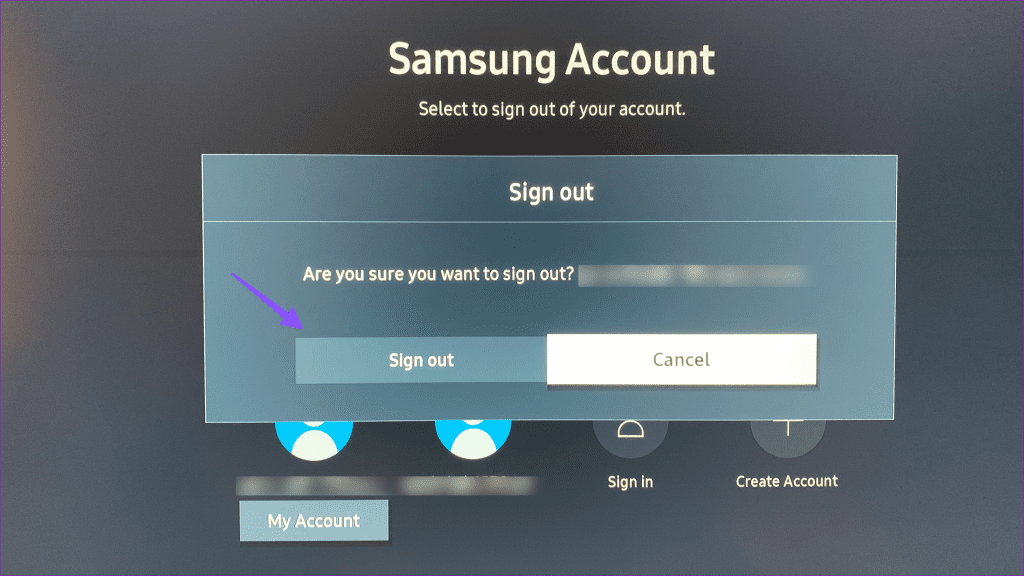
Sign in using your Samsung account details and try downloading apps again.
7. Disable VPN
Your Samsung TV may act upon an active VPN connection. You should disable any VPN connection and try again.
8. Unavailability of Apps
Some streaming apps are region specific. You can’t access and download them from unsupported countries. For example, YouTube TV, Sling TV, Hulu, Peacock, FuboTV, etc., are available only in the US and specific countries. You won’t find them in other regions.
9. Update Samsung TV
Samsung regularly releases updates to improve the stability of Tizen OS. Samsung TV may fail to download apps due to outdated system software.
Step 1: Open Samsung TV Settings (check the steps above). Select All Settings.
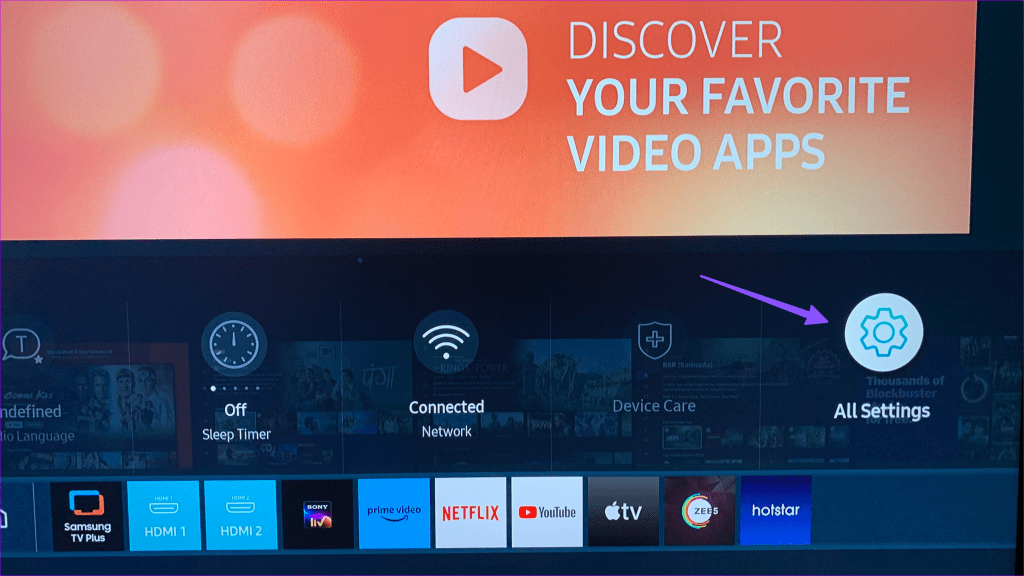
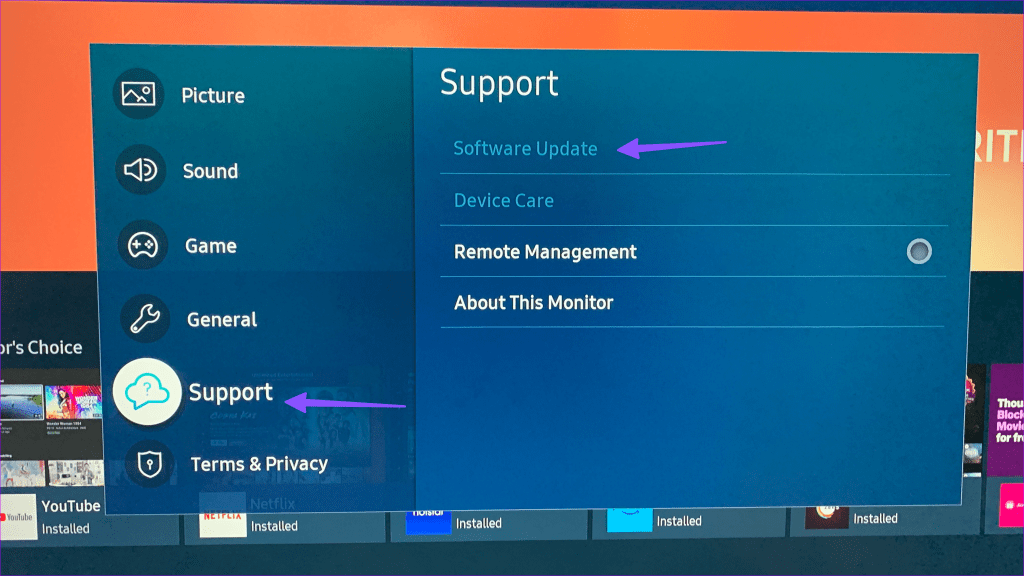
Step 2: Select ‘Support’ from the sidebar and hit Software Update to download and install the pending update.
10. Reset Samsung TV
Do you still run into app installation errors on your Samsung TV? It’s time to reset the Samsung TV and start from scratch.
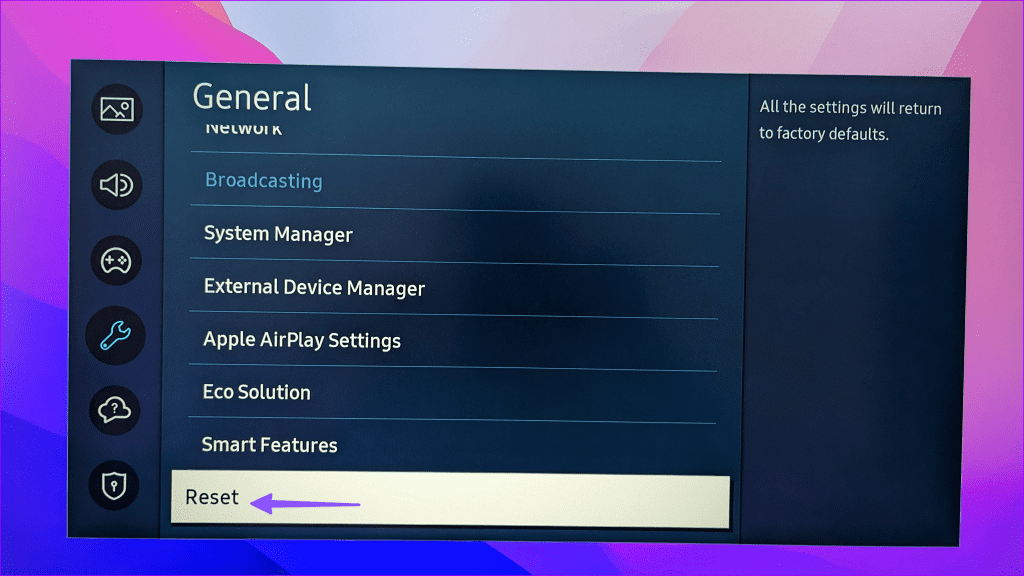
Step 1: Head to Samsung TV Settings (check the steps above). Select General.
Step 2: Select Reset and enter a four-digit PIN (the default PIN is 0000).
Follow the instructions and set up your Samsung TV.
11. Use Other Streaming Devices
A buggy Tizen OS may ruin your streaming experience on Samsung TV. You can get a Google Chromecast, Amazon Fire TV Stick, or an Apple TV, connect it to an HDMI port on your Samsung TV, and ditch the built-in Tizen OS completely.
Access Hundreds of Apps on Samsung TV
Your weekend plans will get ruined without access to streaming apps on your Samsung TV. Before you settle for a small iPad or laptop screen, go through the tricks above to fix the problem.
Was this helpful?
Last updated on 25 July, 2023
Read Next
 Top 8 Ways to Fix Android TV Not Downloading Apps
While a standard Android TV has many built-in apps to start video streaming, you must download additional apps from the Google Play Store to meet your entertainment needs.
Top 8 Ways to Fix Android TV Not Downloading Apps
While a standard Android TV has many built-in apps to start video streaming, you must download additional apps from the Google Play Store to meet your entertainment needs.
 Top 9 Ways to Fix iPhone Not Downloading Apps or Games
While the default apps from Apple are fine, the App Store offers an excellent apps and games catalog.
Top 9 Ways to Fix iPhone Not Downloading Apps or Games
While the default apps from Apple are fine, the App Store offers an excellent apps and games catalog.
 9 Best Ways to Fix Apple TV Not Downloading Apps
Apple TV is powered by tvOS and comes with a built-in App Store to download and install your favorite apps to enjoy on a big screen.
9 Best Ways to Fix Apple TV Not Downloading Apps
Apple TV is powered by tvOS and comes with a built-in App Store to download and install your favorite apps to enjoy on a big screen.
 15 Ways to Fix Microsoft Store Not Downloading Apps or Games Issue
Microsoft Store (earlier known as Windows Store) is the official destination for Windows apps.
15 Ways to Fix Microsoft Store Not Downloading Apps or Games Issue
Microsoft Store (earlier known as Windows Store) is the official destination for Windows apps.
 Top 6 Ways to Fix Spotify Not Downloading Songs on Android and iPhone
Downloading songs to listen to them offline certainly saves bandwidth and you get the uninterrupted experience.
Top 6 Ways to Fix Spotify Not Downloading Songs on Android and iPhone
Downloading songs to listen to them offline certainly saves bandwidth and you get the uninterrupted experience.
 Top 8 Ways to Fix Windows 11 Updates Not Downloading or Installing
Regular Windows 11 updates ensure that your computer runs fine, and no bugs can disrupt your work or play.
Top 8 Ways to Fix Windows 11 Updates Not Downloading or Installing
Regular Windows 11 updates ensure that your computer runs fine, and no bugs can disrupt your work or play.
 Top 8 Ways to Fix Apple Mail Stuck at Downloading Messages
Apple Mail received a welcome feature boost since the iOS 16.
Top 8 Ways to Fix Apple Mail Stuck at Downloading Messages
Apple Mail received a welcome feature boost since the iOS 16.
 Top 8 Ways to Fix Google Messages Not Downloading MMS on Android
Google Messages (formerly Android Messages) is the default messaging app on most Android phones.
Top 8 Ways to Fix Google Messages Not Downloading MMS on Android
Google Messages (formerly Android Messages) is the default messaging app on most Android phones.
The article above may contain affiliate links which help support Guiding Tech. The content remains unbiased and authentic and will never affect our editorial integrity.