

Safari is one of the best browsers in the Mac ecosystem. With each iteration of macOS, the company is further improving Safari at a rapid pace. Safari Tab Groups is a recent example of that. However, users are still moving from Safari to Google Chrome or Microsoft Edge for a fast browsing experience. If Safari feels slow to you, read along to learn to speed up the Safari browser on Mac.

We have seen many users ditching Safari on Mac due to slow or laggy web browsing. It’s not entirely Safari’s fault. With relevant changes from the System Preferences and Safari menu, you can easily troubleshoot slow Safari on Mac.
1. Connect to 5.0 GHz Wi-Fi Frequency
Most users connect a 2.4 GHz frequency band of the Wi-Fi network. To enjoy better speeds, you can connect MacBooks to the 5 GHz band on dual-band Wi-Fi routers.

You will definitely have faster internet speeds leading to an improved browsing experience in Safari.
2. Turn off iCloud Private Relay
This option is only applicable to those using Mac with macOS Monterey 12.0 or higher. With the macOS Monterey, Apple has introduced iCloud Private Relay for iCloud+ subscribers. Before you go ahead and make changes with iCloud Private Relay, let’s understand what it means and how it can lead to slow Safari on Mac.
iCloud Private Relay is designed to keep your IP address hidden from third-party trackers on the web. Apple is rerouting all the Safari browsing data through the company-branded server. While it helps you protect identity and location, you should disable it if you feel slow Safari following the Monterey update.
In that case, you should disable iCloud Private Relay from the System Preferences menu. Follow the steps below.
Step 1: Click on the little Apple icon in the menu bar.
Step 2: Go to the System Preferences menu.

Step 3: Click on Apple ID.

Step 4: Open the Private Relay menu.

Step 5: Disable toggle from the following menu.
3. Disable iCloud Private Relay for Wi-Fi Connection
The solution above is suitable for those using Mac at home. You can trust your home Wi-Fi and not worry about any data theft.
If you are always on the move and use public Wi-Fi frequently, you shouldn’t disable iCloud Private Relay. In that case, you should only disable iCloud Private Relay for your home Wi-Fi to speed up Safari on Mac.
Step 1: Open the System Preferences menu on your Mac.
Step 2: Go to Network.
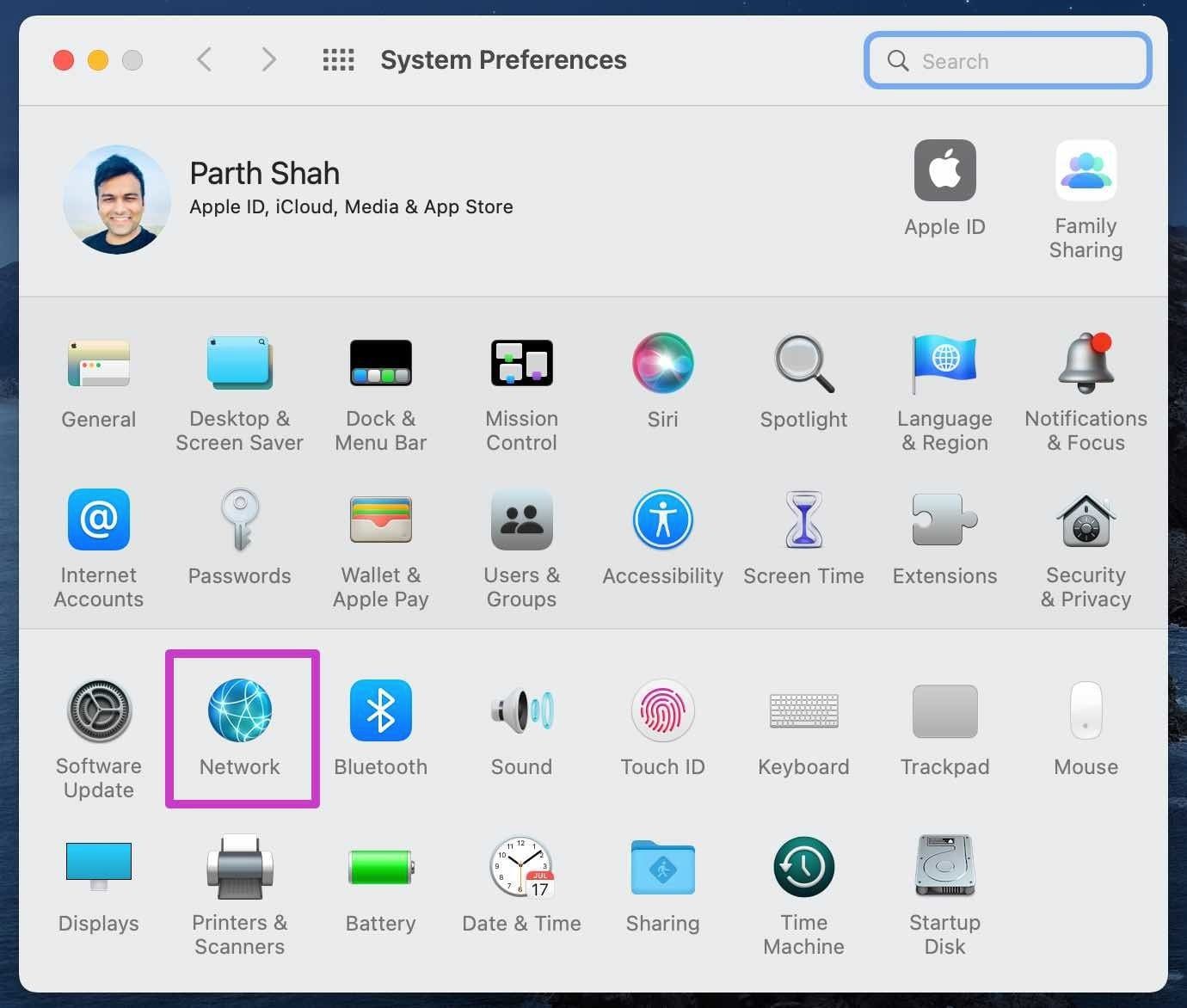
Step 3: Select your current Wi-Fi connection from the following menu.
Step 4: Disable Use iCloud Private Relay toggle as shown in the screenshot.

4. Remove Irrelevant Extensions
While Safari doesn’t carry a large number of extensions compared to Google Chrome or Firefox, it’s easy to fill up the browser with dozens of extensions. You may need to slow down with them as it can lead to slow Safari on Mac.
Follow the steps below to remove unwanted extensions from Safari on Mac.
Step 1: Open Safari browser on Mac.
Step 2: Click on Safari in the menu bar and open the Preferences menu.

Step 3: Move to the Extensions.
Step 4: Select the extension that you want to remove from the left sidebar.

Step 5: Click on Uninstall.
Repeat the steps for every extension that you want to remove, and you are good to go.
5. Remove Safari History
An absurd amount of Safari data on Mac may lead to slow performance. You need to clear your Safari history frequently. Here’s how.

Open Safari browser on Mac and use command + Y keys to open Safari history. Select Clear History at the top, select all history and clear history.
6. Check RAM Usage
This is most applicable to MacBooks and Mac Mini with 8GB of RAM. With a few apps open in the background, you might run short on RAM on the Mac. The behavior may lead to slow Safari on Mac.

Open Activity Monitor and then carefully identify to close the unwanted apps that are running in the background.
7. Update macOS
Apple updates the Safari browser with new features and reliability improvements with each OS update. If you haven’t updated the macOS version on your Mac for a while, you can update it to make the best of the Safari’s performance and features. For that, you’ll need to open System Preferences and choose Software Update.
Speed Up Safari on Mac
With Safari Tab Groups, iCloud tabs, and tons of customization options, there is a lot to like about Safari on Mac. However, slow performance may push you to look for alternatives. Before you export bookmarks and history, follow the steps above and fix slow Safari on Mac.
Was this helpful?
Last updated on 07 February, 2022
1 Comment
Leave a Reply
Read Next
 Top 8 Ways to Fix Slow Google Chrome on Mac
While Safari has improved by leaps and bounds on Mac, most users still prefer a third-party alternative such as Google Chrome or Microsoft Edge to surf the web.
 Top 7 Ways to Fix Slow Google Chrome on Windows 11 and Windows 10
Even with a built-in chromium browser Microsoft Edge, Google Chrome remains the default choice for Windows users.
 Top 7 Ways to Fix Slow Startup Times on Windows 11
While there’s a lot to like about the all-new Windows 11, it’s also demanding hardware.
 Top 8 Ways to Fix Slow Google Maps on Android and iPhone
Google Maps is arguably the best navigation app available in the market.
 Top 10 Ways to Fix Slow Internet Speed on Windows 11
A high-speed internet connection is now more of a necessity than a luxury.
 Top 8 Ways to Fix Slow Facebook on Android and iPhone
It's no secret that Facebook's mobile app is quite demanding data and memory usage.
 Top 6 Ways to Fix Slow Search on Windows 11
The search tool on Windows is incredibly useful for locating apps, files, and other important content on your PC.
 Top 7 Ways to Fix Slow USB File Transfer in Windows 11
It’s frustrating when USB file transfers in Windows 11 take longer than usual.
The article above may contain affiliate links which help support Guiding Tech. The content remains unbiased and authentic and will never affect our editorial integrity.


I am running macOS 12.6.1 on a 2019 iMac. It takes forever to finish starting up and both Safari and Mail are intolerably slow, I am connected to the internet by fast ethernet, not WiFi. I have 28 GB of memory on board. I am not connected to iCloud and I have no extensions installed. My hard disc is less than half full. So none of the causes of slow operation you mention apply. This situation has been getting steadily worse with each upgrade of the OS since at least Big Sur. The problem is therefore with Apple’s own hardware or software or both. They seem to have lost interest in their mac users and certainly do nothing to retain them. Would I do best to abandon them altogether?