

Whether you are typing, playing games, or using your computer, the spacebar is an essential key that helps you with several important functions. Hence, it can be inconvenient if the spacebar stops working on your Windows 11 computer. If you are experiencing a similar issue, you have landed on the right page.
In most cases, it’s the misconfigured settings or outdated keyboard drivers cause the problem rather than a hardware malfunction. Before you rush to a repair shop or consider a keyboard replacement, try the following tips to fix the unresponsive spacebar on your Windows 11 computer.
1. Try Basic Repairs
Before you apply any advanced troubleshooting tips, it’s a good idea to try some basic fixes. To start, use a soft brush and a can of compressed air to remove any dust particles around and beneath the spacebar on your keyboard.

If you are using an external keyboard, try disconnecting it from your computer and reconnect it. Alternatively, you can connect your keyboard to another computer and check the spacebar key. This should help you determine whether the issue is related to the hardware.
2. Turn Off Sticky Keys and Filter Keys
Windows 11 includes several accessibility features to assist users with disabilities. Sticky Keys and Filter Keys are features that can cause problems with certain keys, such as the spacebar. Hence, it’s best to turn these features off if you don’t need them.
Step 1: Press the Windows + I keyboard shortcut to open the Settings app.
Step 2: In the Accessibility tab, click on Keyboard.
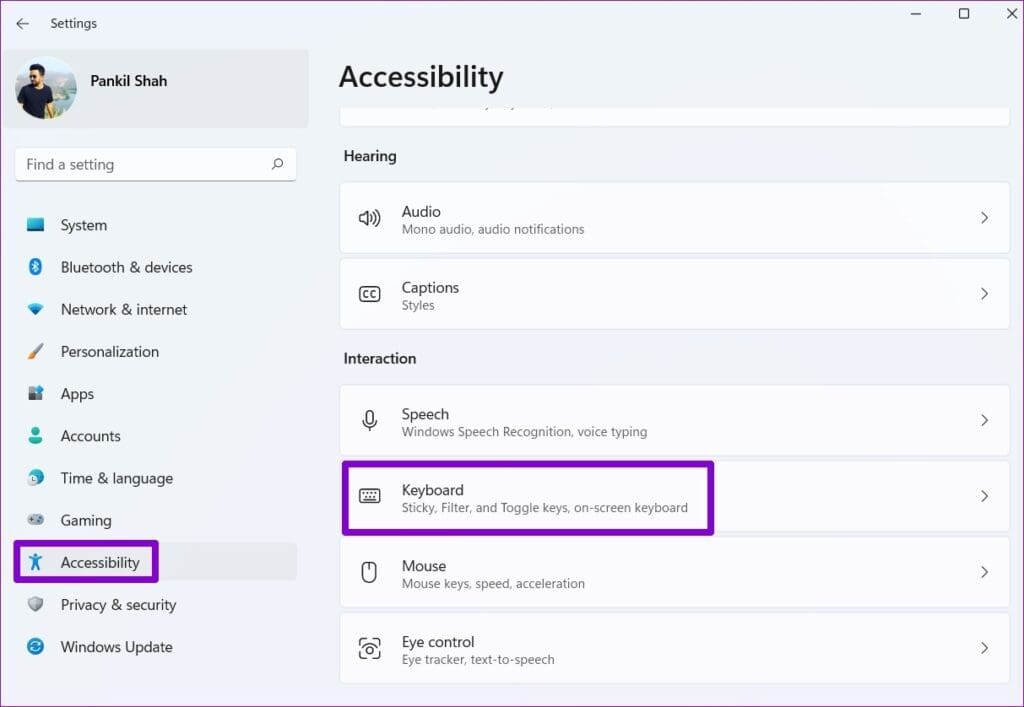
Step 3: Toggle off the switches next to the Sticky keys and Filter keys. Then, check if the issue is still there.

3. Run Windows Troubleshooters
Windows 11 offers a range of troubleshooters for resolving common issues with your computer. In this case, you can run the keyboard troubleshooter to fix any system irregularities that may have caused the spacebar to stop working on your Windows 11 PC.
Step 1: Click the Windows icon on the Taskbar to open the Start menu and click the Settings (gear) icon to launch the Settings app.

Step 2: In the System tab, click on Troubleshoot.

Step 3: Go to Other troubleshooters.

Step 4: Click the Run button next to the Keyboard and follow the on-screen instructions to run the troubleshooter.

If the keyboard troubleshooter fails to detect any issues, run the Hardware and Devices troubleshooter instead. This tool will attempt to find and fix problems with all your external devices, including the keyboard.
Step 1: Press the Windows + R keyboard shortcut to open the Run dialog box.
Step 2: Type msdt.exe -id DeviceDiagnostic in the Open field and press Enter.

Step 3: Click Next and follow the on-screen prompts to run the troubleshooter.

4. Restart the Human Interface Device Service
Human Interface Device Service is a program responsible for registering your keyboard inputs on Windows. If this service is experiencing any issues, restarting it should help restore normalcy. Here are the steps for the same.
Step 1: Press the Windows key to open the Start menu, type in services, and press Enter.

Step 2: In the Services window, scroll all the way down to locate Human Interface Device Service. Right-click on it and select Restart.

5. Update or Reinstall Keyboard Drivers
The keyboard driver on your computer serves as a bridge between Windows and your keyboard. If this driver is outdated, it can lead to the malfunctioning of specific keys, such as the spacebar. You can try updating the keyboard driver on your PC to see if that gets the spacebar to work.
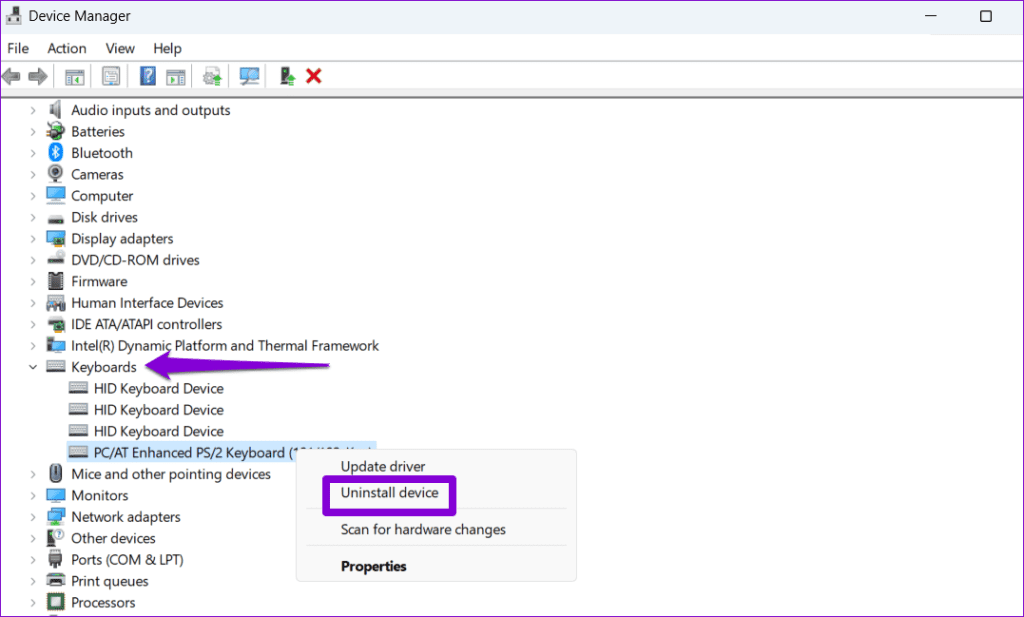
Step 1: Right-click on the Start icon and select Device Manager from the Power User menu.

Step 2: Double-click on Keyboards to expand it. Right-click on your keyboard and select Update driver.

From there, follow the on-screen prompts to update the driver. If the problem persists even after that, uninstall the keyboard driver using Device Manager and then restart your PC. Windows will automatically install the missing driver after it boots up.
6. Try System Restore
Recent changes to your computer may cause in the spacebar to become unresponsive. If you can’t pinpoint the exact cause, performing a system restore will help reverse any bad changes. Rest assured, this process will not impact your data.
Step 1: Click the search icon on the taskbar, type in create a restore point, and press Enter.

Step 2: Under the System Protection tab, click the System Restore button.

Step 3: Click Next to continue.
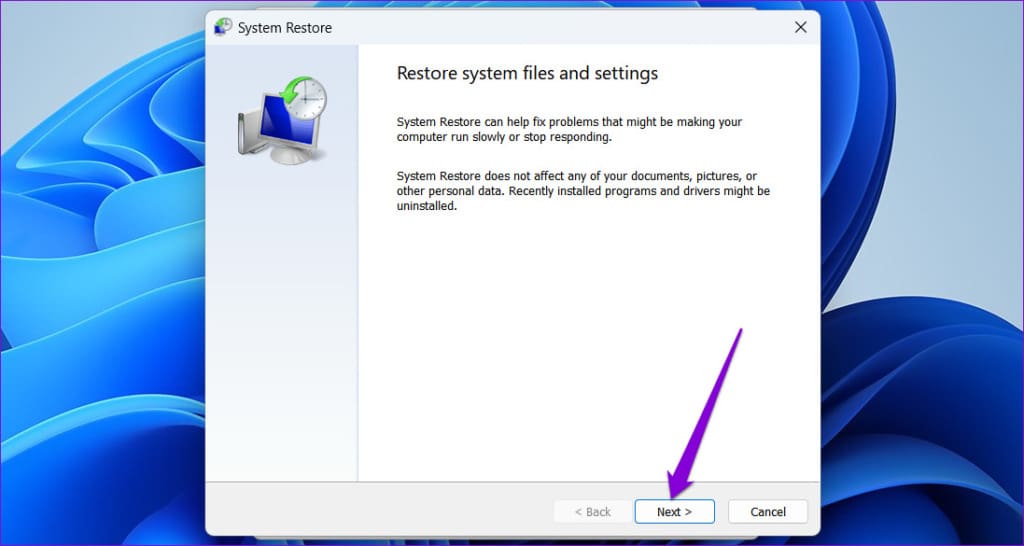
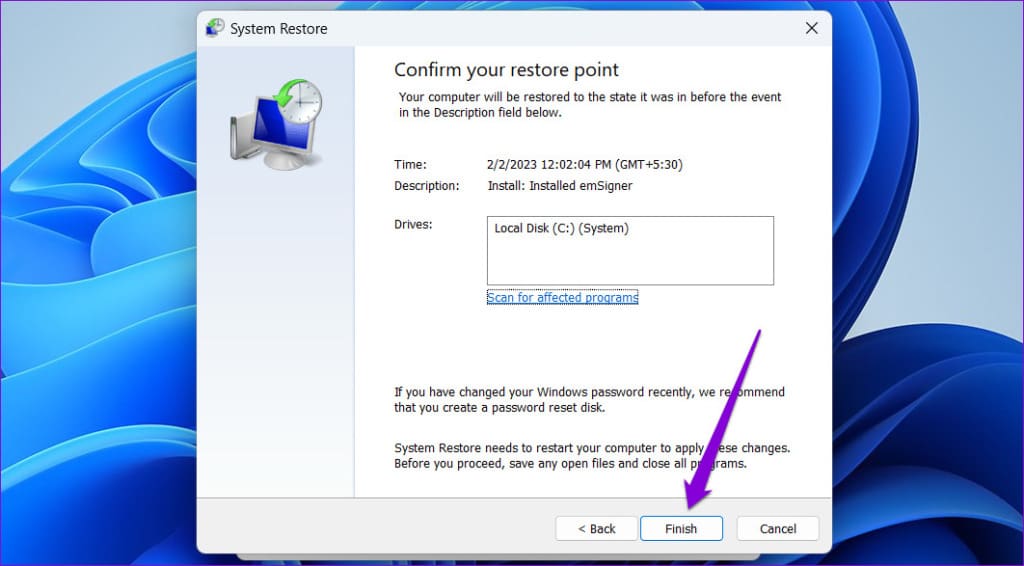
Step 4: Select a restore point before the issue first occurred and then hit Next.

Step 5: Click Finish and allow Windows to restore to the specified restore point.
No More Spacebar Woes
One of the above tips will get the spacebar to work again on your Windows 11 PC. However, if none of them prove effective, you can temporarily use the on-screen keyboard available in Windows 11 or remap a less frequently used key to function as the spacebar.
Was this helpful?
Last updated on 18 May, 2023
Read Next
 Top 7 Ways to Fix Windows Key Not Working on Windows 10
Windows 10 operating system is full of keyboard shortcuts.
Top 7 Ways to Fix Windows Key Not Working on Windows 10
Windows 10 operating system is full of keyboard shortcuts.
 8 Ways to Fix Windows Security Not Opening or Working on Windows 11
Windows Security is a built-in security app that offers real-time protection against viruses and malware for your computer.
8 Ways to Fix Windows Security Not Opening or Working on Windows 11
Windows Security is a built-in security app that offers real-time protection against viruses and malware for your computer.
 8 Best Ways to Fix Windows Key Not Working in Windows 11
We rely on the Windows key in the operating system to open the Start menu and search for apps.
8 Best Ways to Fix Windows Key Not Working in Windows 11
We rely on the Windows key in the operating system to open the Start menu and search for apps.
 Top 6 Ways to Fix Discord Notifications Not Working on Windows 10 and Windows 11
Discord is an excellent platform for connecting with friends and like-minded individuals.
Top 6 Ways to Fix Discord Notifications Not Working on Windows 10 and Windows 11
Discord is an excellent platform for connecting with friends and like-minded individuals.
 Top 7 Ways to Fix Telegram Notifications Not Working on Windows 10 and Windows 11
Telegram app is also available for desktops to let you connect with your friends from your Windows computer.
Top 7 Ways to Fix Telegram Notifications Not Working on Windows 10 and Windows 11
Telegram app is also available for desktops to let you connect with your friends from your Windows computer.
 Top 6 Ways to Fix Microsoft Word Dictation Tool Not Working on Windows 10 and Windows 11
Microsoft Word includes a handy dictation tool that lets you easily create and edit documents.
Top 6 Ways to Fix Microsoft Word Dictation Tool Not Working on Windows 10 and Windows 11
Microsoft Word includes a handy dictation tool that lets you easily create and edit documents.
 6 Best Ways to Fix Keyboard Backlight Not Working on Windows 10 and Windows 11
A backlit keyboard provides a comfortable typing experience in a low-light environment.
6 Best Ways to Fix Keyboard Backlight Not Working on Windows 10 and Windows 11
A backlit keyboard provides a comfortable typing experience in a low-light environment.
 7 Best Ways to Fix Windows Subsystem for Android Not Working on Windows 11
Windows users always resorted to emulator software to run Android apps on their systems.
7 Best Ways to Fix Windows Subsystem for Android Not Working on Windows 11
Windows users always resorted to emulator software to run Android apps on their systems.
The article above may contain affiliate links which help support Guiding Tech. The content remains unbiased and authentic and will never affect our editorial integrity.

