

Over the years, Spotify has established itself as the go-to audio streaming service. The addition of background music playback, even in the free version, is the cherry on the cake. However, what to do if Spotify stops playing music when the screen is off?

If you’re tired of keeping your phone awake simply because Spotify stops playing audio when the screen is off repeatedly, this guide is for you. We faced this issue on our Android device, and the below fixes helped us troubleshoot the problem. What’s more? They will also help if you’re an iOS user. Let’s begin.
1. Check the Internet Connection
Having a steady internet speed is always priority #1 when using any app on Android and iPhone. So, if you’ve been facing issues with Spotify not playing audio in the background, it may be time to check your internet speed. To do this, run a speed test and see if the speeds are as expected. If not, consider switching from mobile data to Wi-Fi. Then, check again.
However, if the speeds are not an issue, proceed with the below-mentioned troubleshooting steps.
2. Force Close and Reopen Spotify
Force closing and reopening any application will kill off all app background processes and start them all over again. This can help you fix any temporary bugs or issues that have previously occurred. Follow the below steps to do it.
On Android
Step 1: Either tap on the Recent icon or swipe up from the bottom of the screen.
Step 2: Once the background apps open, long-press on the Spotify app and swipe up to clear it from the screen.

Then, tap on the Spotify app icon again to reopen the app. Use the app and see if the app services are working as expected.
On iOS
Step 1: Swipe up from the bottom of the screen. Or, if available, double-press the home button.
Step 2: Once the background apps appear, swipe up the Spotify app and clear it from your screen.
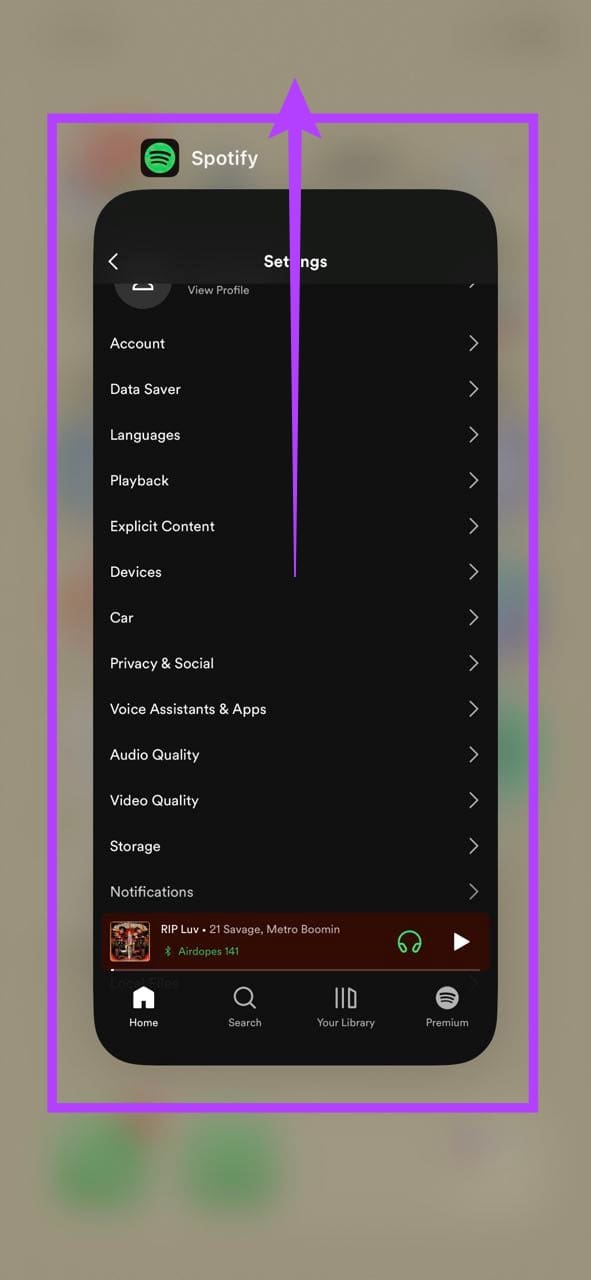
Now, reopen the Spotify app by tapping on the app icon. Then, turn off the screen of your iPhone and see if Spotify is working as expected. However, if Spotify stops playing music when your phone locks, move on to the next fix.
3. Restart Your Device
While closing and reopening the Spotify app restarts only the app functions, restarting your device restarts all device functions. This can help if there have been any glitches during the previous system boot that might prevent Spotify from playing music when your device’s screen is locked. Here’s how to do it.
On Android
Step 1: Long-press the on/off button.
Step 2: Once the options appear, tap on Restart.

Step 3: Wait for your device to restart. Enter your device password, if required, and open the Spotify app again. Then, check if it is working as expected.
On iOS
Step 1: Follow the below steps to turn off your iPhone:
- For iPhone SE 1st gen, 5s, 5c, and 5: Long-press the top button.
- For iPhone SE 2nd gen onwards, 7, and 8: Long-press the side button.
- For iPhone X and above: Long-press the power and any volume button simultaneously.
Step 2: Now, hold the slider and drag it until the end.
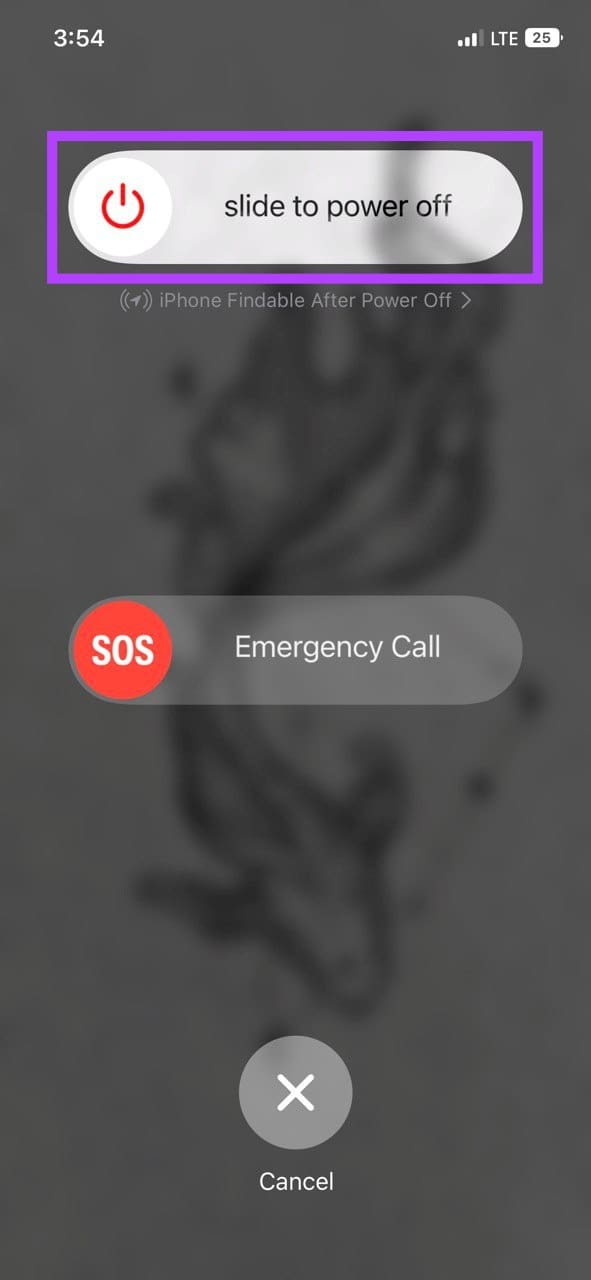
Step 3: Once iPhone’s screen turns blank, long-press the power button to turn it back on.
Now, see if you can play Spotify tracks even with the screen off.
4. Unrestrict Spotify on Android
While different battery modes can help you extend the battery life of your device, they can end up restricting app functions as well. This can also be one of the reasons why Spotify stops playing music when your phone screen locks.
To ensure this does not happen, you can set Spotify’s battery profile to have unrestricted usage access. Here’s how.
Step 1: Open Settings and tap on Apps.
Step 2: Scroll down and tap on Spotify.
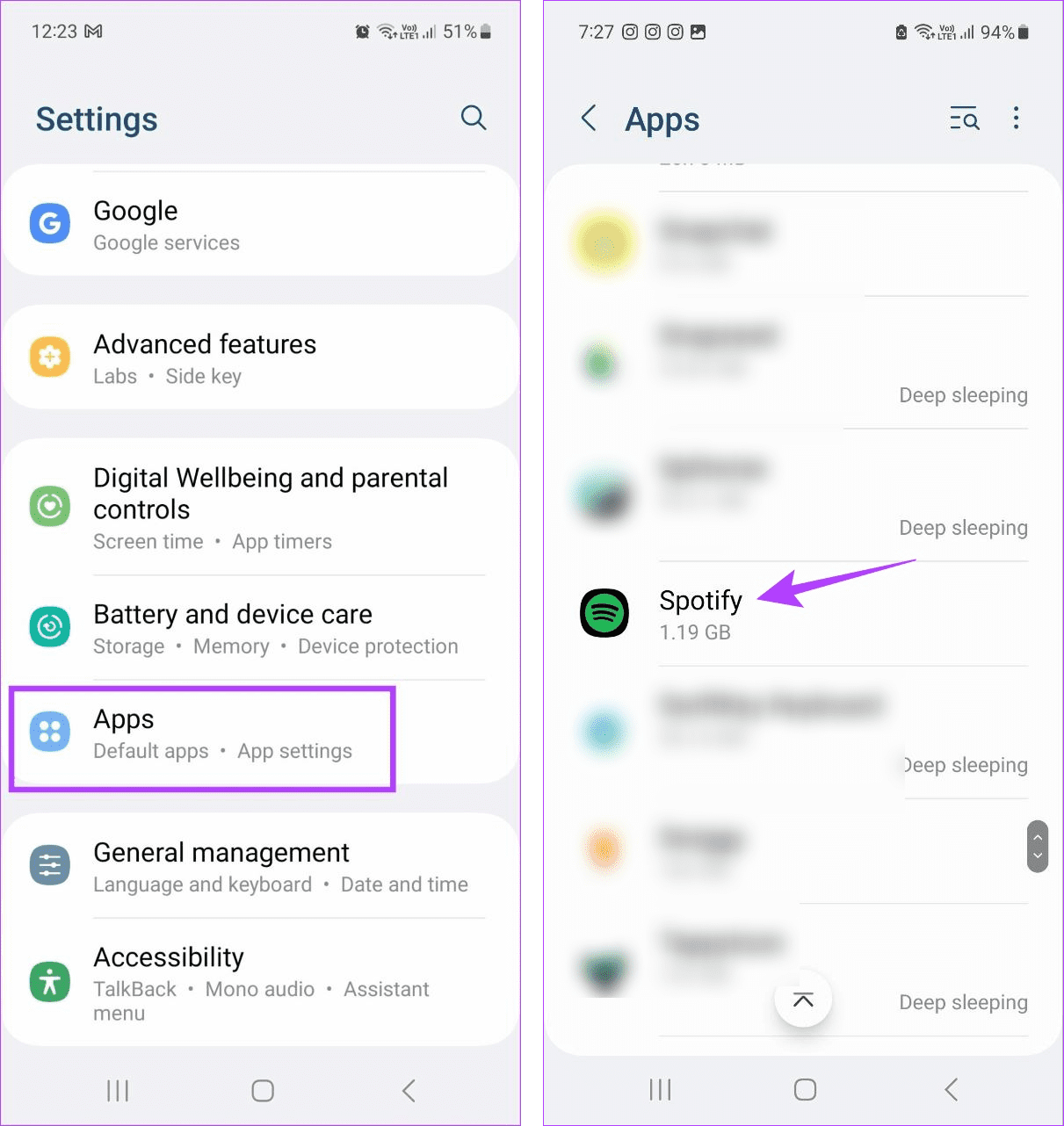
Step 3: Here, tap on Battery.
Step 4: Select Unrestricted (or Don’t Optimize, depending on your Android OEM).

Now, check and see if Spotify is working properly. Although, after doing this, your device might experience faster than normal battery drain.
5. Turn off Low Power Mode
Just like the battery profile, Low Power Mode (iPhone) or Battery Saver (Android) might also end up restricting app activity as it prioritizes battery saving on your device. This can also mean that Spotify cannot play music when the screen is off. To check if this is the case, turn off Low Power Mode and check again. Here’s how to do it.
On iPhone
Step 1: Open Settings on your iOS device.
Step 2: Scroll down and tap on Battery.
Step 3: Here, turn off the toggle for Low Power Mode.
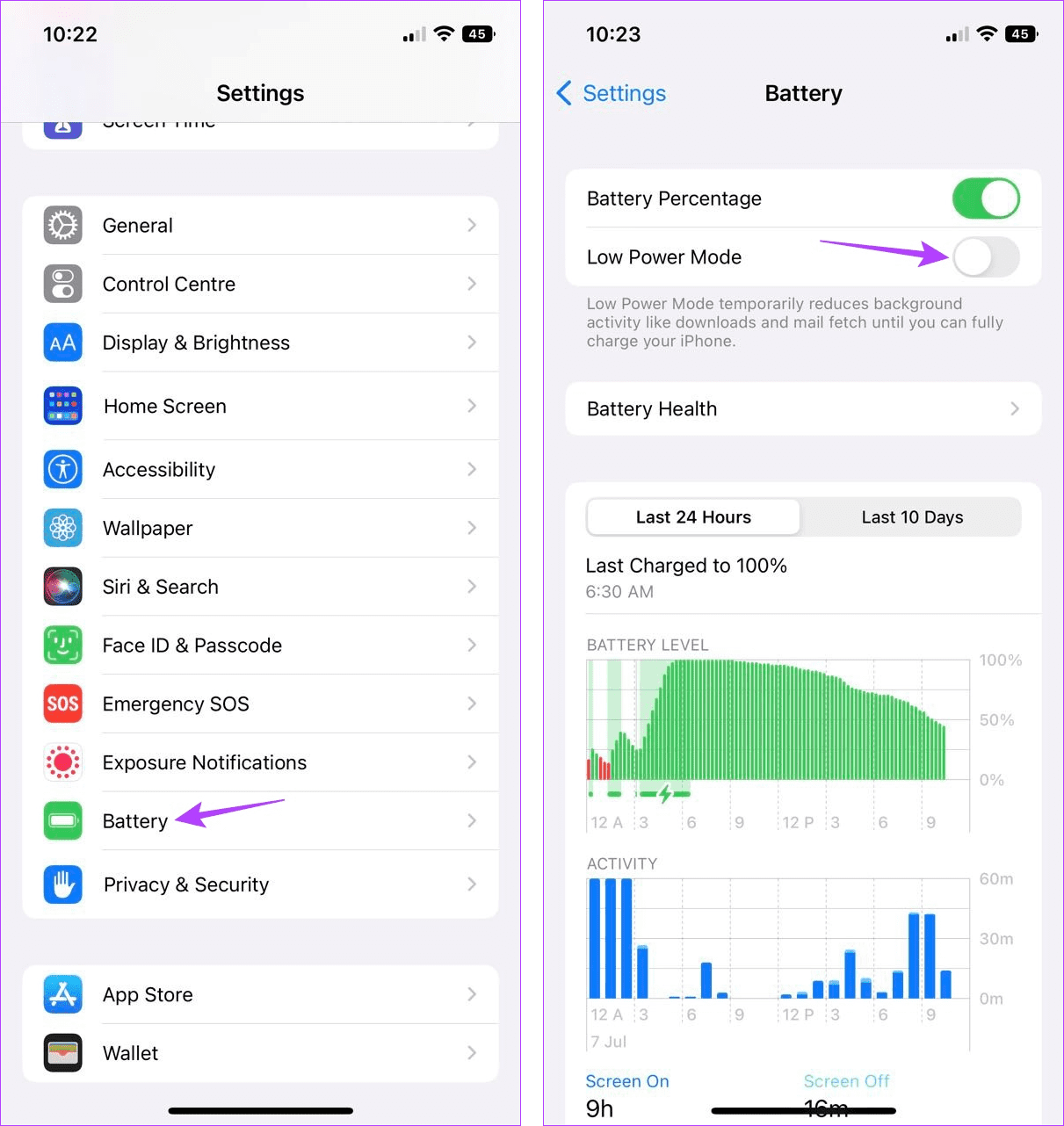
This will turn off Low Power Mode systemwide on your iOS device. Now, open the Spotify app and check if it can operate in the background.
On Android
Simply pull down the Quick Settings menu and tap on the Battery Saver icon to disable it.
6. Enable Background App Refresh on iPhone
As the name suggests, Background App Refresh on iPhone helps ensure apps on your device can check and refresh their data even when they’re not actively used. This is especially helpful if you switch between apps or using apps like Spotify, even when your phone’s screen is locked.
So, go into Settings and ensure Background App Refresh is enabled for the Spotify app. Here’s how.
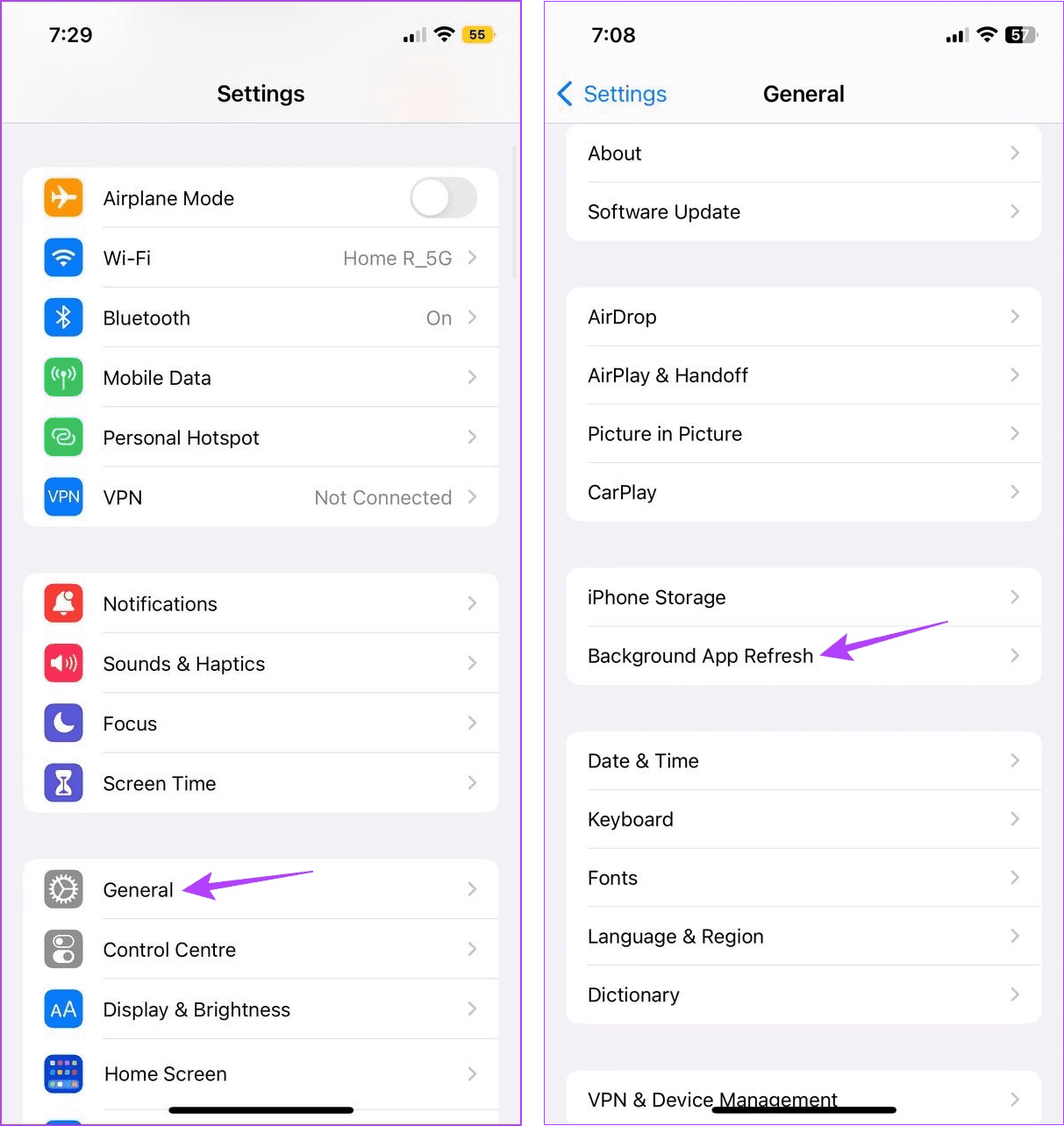
Step 1: Open Settings and tap on General.
Step 2: Now, tap on Background App Refresh.
Step 3: Here, scroll down and locate the Spotify app.
Step 4: Ensure the corresponding toggle is turned on.
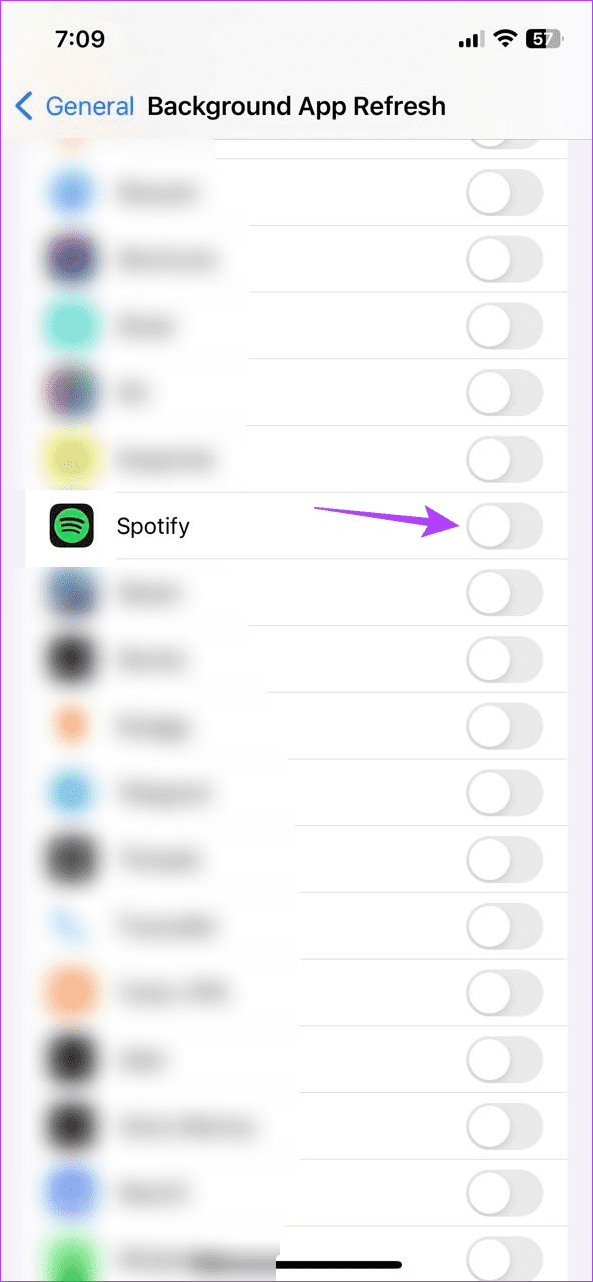
This will allow Spotify to run in the background and might also solve the issue of Spotify not playing tracks in the background on your iPhone.
7. Clear Spotify Cache on Android
App cache can be extremely helpful in ensuring smooth app functions, especially when opening the app. However, this data can also cause your app issues if it gets corrupted or exceeds size limits. When this happens, it is best to clear the cache for the relevant app.
While you can clear the cache for Spotify on Android using Settings, you must rely on Spotify’s settings menu on iPhone.
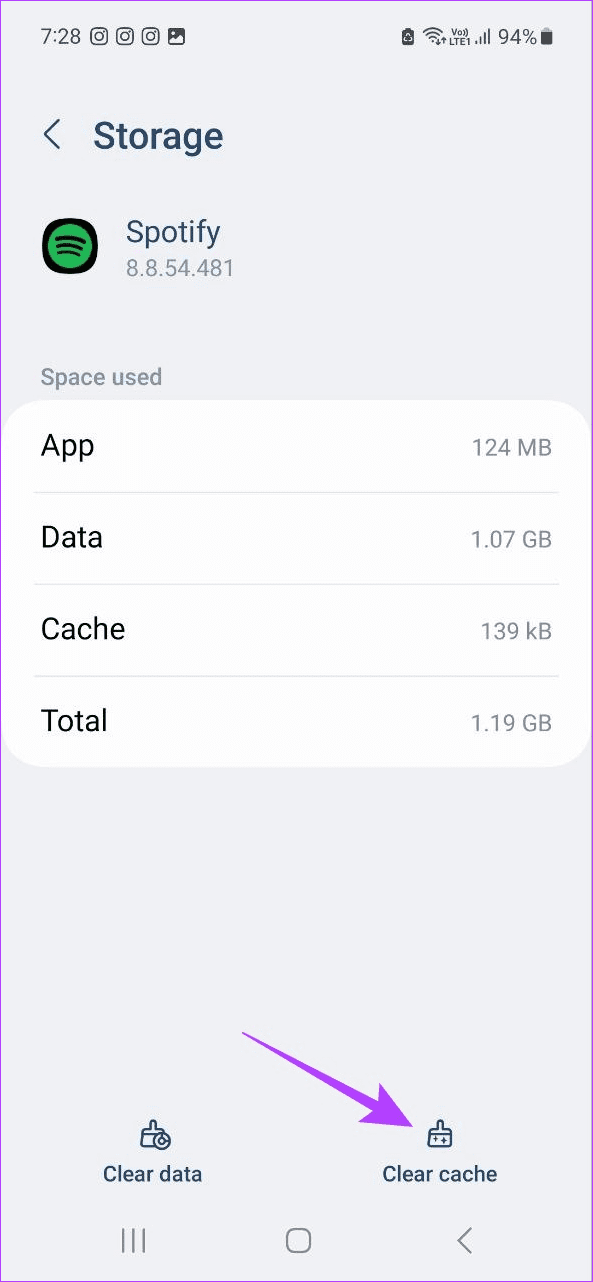
For more details, check our explainer on what happens when you clear Spotify cache.
8. Check for App Updates
Timely app updates can keep app glitches and bugs at bay. This also means that if you haven’t regularly updated your Spotify app, it might cause issues like preventing Spotify from playing music whenever your device screen is locked.
If this is true, check how to check the pending updates and update Spotify on Android and iPhone.
9. Reinstall Spotify
Uninstalling the app might seem too much, but it is almost always a sure-shot way of fixing any app-related issue. So, if Spotify still stops playing songs when the screen is off, uninstall the app and delete all app data and settings. Then, reinstall a fresh copy of the Spotify app and see if this fixes the issue.
Follow the below steps to do it.
On Android
Step 1: Long-press the Spotify app.
Step 2: Here, tap on Uninstall.
Step 3: Tap on OK to confirm.

Step 4: Wait for the app to finish uninstalling. Then, go to Google Play Store and reinstall the Spotify app.
Now, log in to your Spotify account and check if you can play music even after turning your Android device’s screen off.
On iOS
Step 1: Long-press the Spotify iOS app.
Step 2: Then, tap on Remove App.
Step 3: Tap on Delete App.
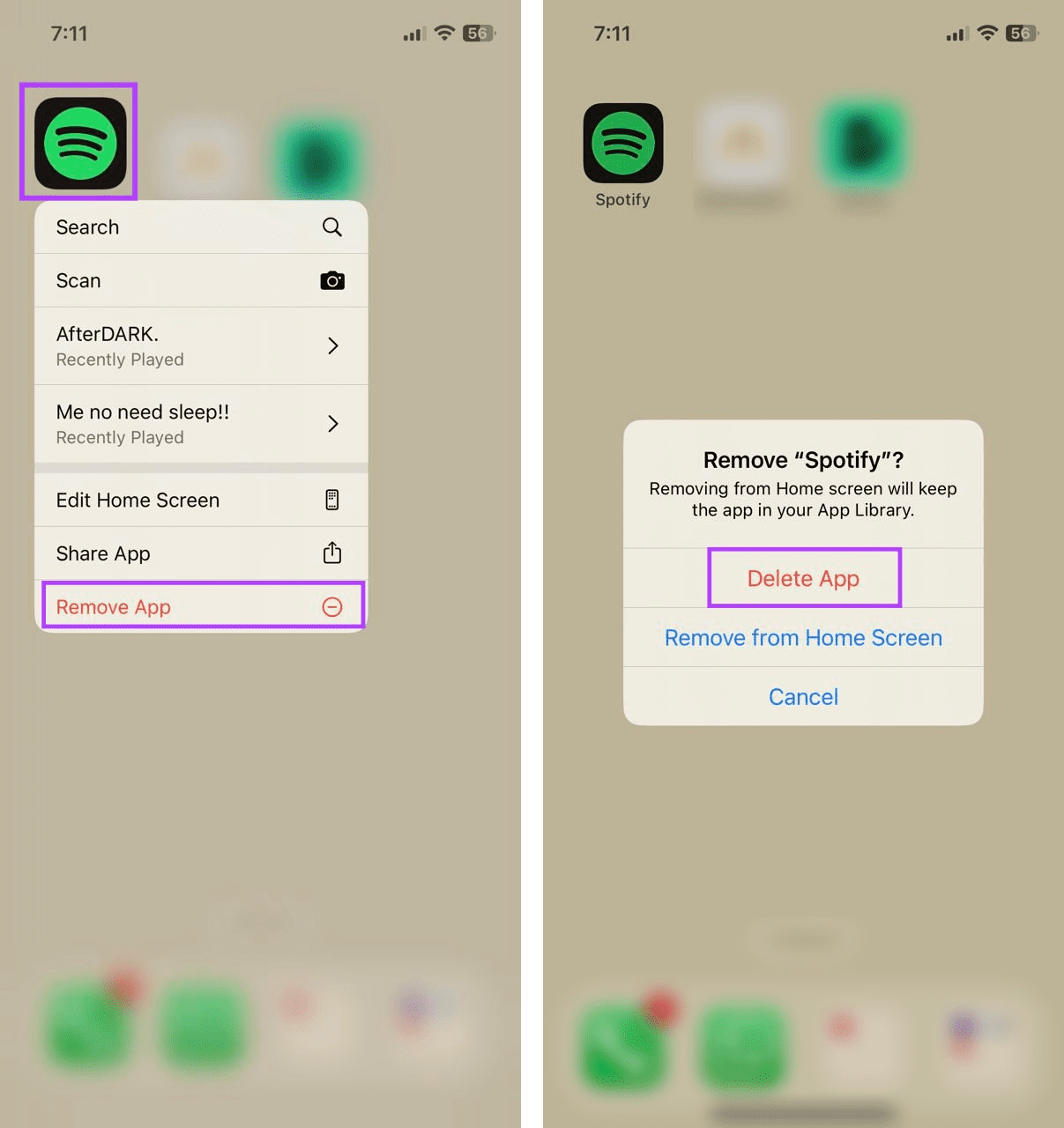
Step 4: If prompted, tap on Delete to confirm.
Step 5: Now, reinstall the Spotify app, log in to your account, and check again.
FAQs for Fixing Spotify Playback Issues
Before troubleshooting, check if the Canvas feature is available in your region. Then, use the abovementioned steps to clear the Spotify app cache and check for software updates, if any. For more details, check out our article on fixing Spotify Canvas not working on Android and iPhone.
If you cannot play Spotify podcasts on your Android device, check your internet connection or switch from mobile data to Wi-Fi. You can also restart the Spotify Android app to fix the issue. If it’s still not fixed, consider uninstalling and reinstalling the Spotify app on your Android device. Then, check again.
Get Spotify Working Again
We hope this article helped you fix Spotify if it stops playing music when the screen is off. May you enjoy uninterrupted playback. Additionally, if you’re looking for some me time when using your Spotify, consider turning on Spotify privacy settings to make sessions and playlists private.
Was this helpful?
Last updated on 27 July, 2023
Read Next
 Top 8 Fixes for Samsung Phone Stops Playing Music When Screen Turns off
A few days back, I was listening to an audio on my Samsung phone, and after a few minutes, it stopped suddenly.
Top 8 Fixes for Samsung Phone Stops Playing Music When Screen Turns off
A few days back, I was listening to an audio on my Samsung phone, and after a few minutes, it stopped suddenly.
 Spotify Comes to Groove Music, Microsoft Stops Music Purchases
Microsoft has announced that it’ll be discontinuing Music Pass support in Groove and music purchase in the Windows Store.
Spotify Comes to Groove Music, Microsoft Stops Music Purchases
Microsoft has announced that it’ll be discontinuing Music Pass support in Groove and music purchase in the Windows Store.
 Top 17 Fixes for Alexa Not Playing Music from Spotify
Are you at the stage where you are wondering “Does Alexa work with Spotify?” Yes, it does.
Top 17 Fixes for Alexa Not Playing Music from Spotify
Are you at the stage where you are wondering “Does Alexa work with Spotify?” Yes, it does.
 8 Best Fixes for Podcasts Not Playing on Spotify on iPhone
Spotify continues to be the perfect destination for listening to podcasts.
8 Best Fixes for Podcasts Not Playing on Spotify on iPhone
Spotify continues to be the perfect destination for listening to podcasts.
 10 Fixes for Android Auto Not Playing Music From Spotify or YouTube Music
It’s 9.30 PM.
10 Fixes for Android Auto Not Playing Music From Spotify or YouTube Music
It’s 9.30 PM.
 Top 5 Ways to Fix Spotify Not Working on Lock Screen
A lot of Android users are complaining that Spotify doesn't work on their phone's lock screen.
Top 5 Ways to Fix Spotify Not Working on Lock Screen
A lot of Android users are complaining that Spotify doesn't work on their phone's lock screen.
 How to Set Tab Stops in Microsoft Word
In Microsoft Word, the cursor skips several spaces if you mistakenly press the tab key on your keyboard.
How to Set Tab Stops in Microsoft Word
In Microsoft Word, the cursor skips several spaces if you mistakenly press the tab key on your keyboard.
 How to Use Tab Stops in Google Docs
One of the ways to ensure the text of a Google Docs file has uniform spacing is by using tab stops.
How to Use Tab Stops in Google Docs
One of the ways to ensure the text of a Google Docs file has uniform spacing is by using tab stops.
The article above may contain affiliate links which help support Guiding Tech. The content remains unbiased and authentic and will never affect our editorial integrity.

