The Google Messages app on Android is competing with the likes of iMessage, WhatsApp, and Telegram. You can enable the Google RCS service to access chat features like reacting to messages and sending media like images, videos, and voice messages to your contacts.

But some users complain of voice messages not working in the Messages app. If the same happens on your Android phone, here are some troubleshooting methods to fix voice messages/audio messages not working in the Messages app on Android.
1. Check Microphone Permissions
If you cannot record the audio message in the Messages app on your Android, we recommend first checking whether the app is allowed to use the microphone. While setting the Messages app, you might have turned off this permission on your Android phone. Here’s how to check the same.
Step 1: Long-press the Messages app icon and select App Info.

Step 2: Tap on Permissions.

Step 3: Select Microphone.

Step 4: Ensure that the Microphone is allowed to be used by the Messages app.

Step 5: Close App Info and open Messages again to check if the problem is solved.

2. Check if the Contact Is Blocked
The next solution is to check whether you have blocked your contact. The Messages app allows you to block your contacts, especially to prevent spam messages. But if your voice messages aren’t working in the Messages app, you should check and unblock your contact.
Step 1: Open the Messages app on your Android phone.
Step 2: Tap the hamburger menu icon at the top-left corner.

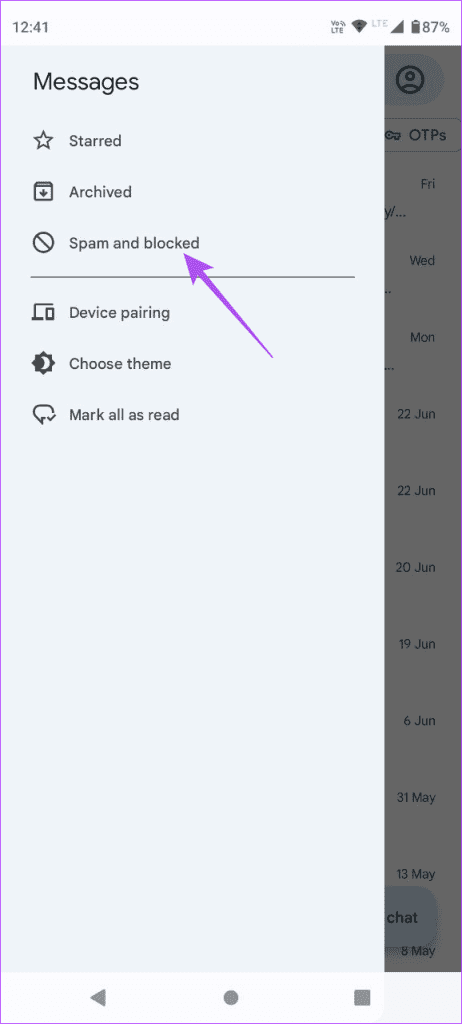
Step 3: Select Spam and Blocked.
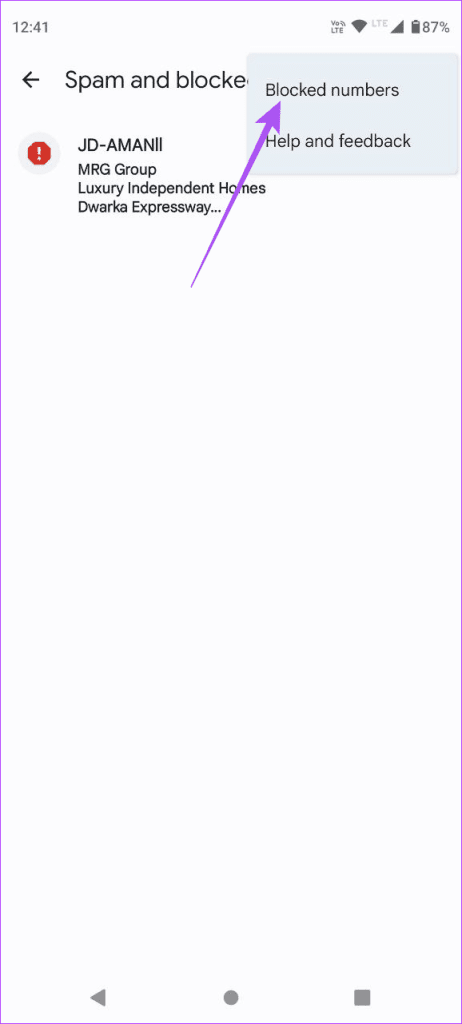
Step 4: Tap the three horizontal dots at the top-right corner and select Blocked Contacts.

Step 5: Tap the X icon next to the phone number you wish to unblock.

Step 6: After that, return to your chats and check if the problem is solved.
3. Check if RCS Messaging Is Connected
The Google RCS Messaging or Rich Communication Service was introduced for Android users. It needs to be connected at all times to keep texting with your contacts and sending media files, including voice messages. Here’s how to check its connection status.
Step 1: Open the Messages app on your Android phone.
Step 2: Tap on your profile icon at the top-right corner.
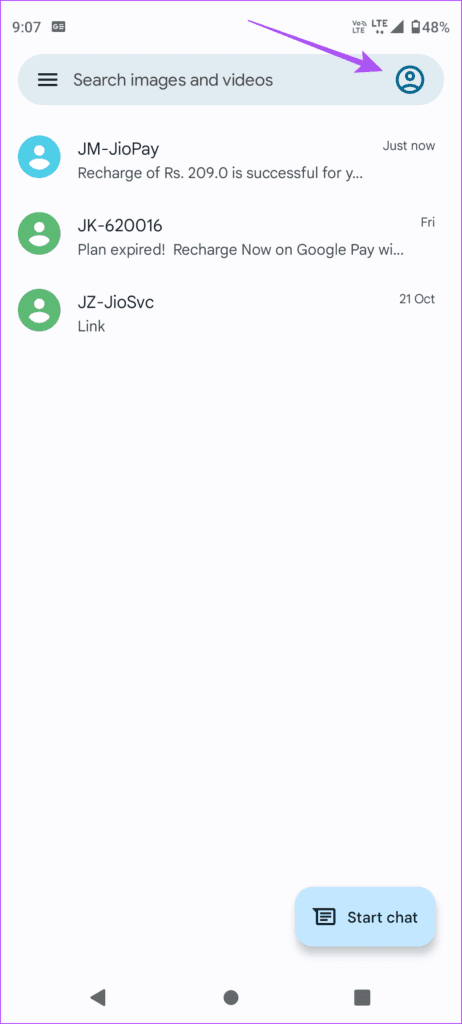
Step 3: Select Messages Settings.

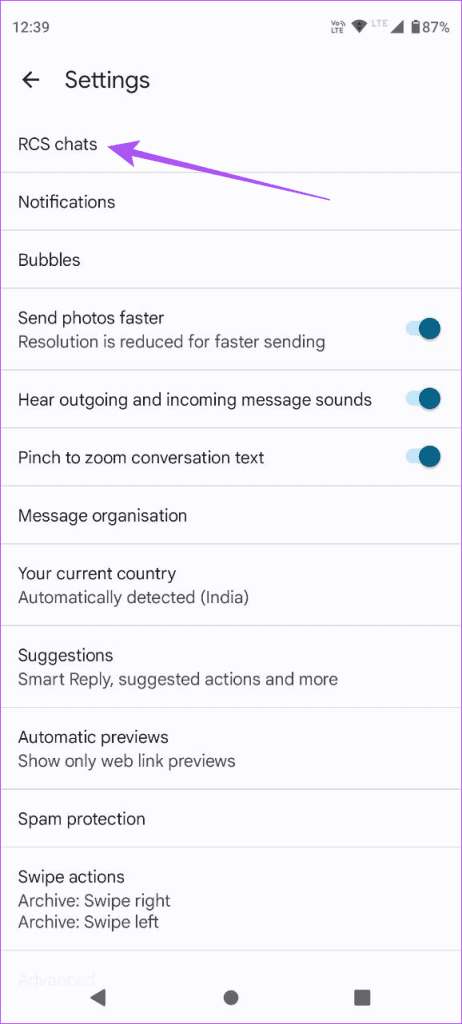
Step 4: Tap on RCS Chats.
Step 5: Tap the toggle next to Turn On RCS Chats to enable it, if disabled.

After it connects, return to your chats and check if the problem is solved.
4. Force Stop and Relaunch Messages App
After you re-enable Google RCS service, we suggest you force quit and relaunch the Messages app to give it a fresh start.
Step 1: Long-press the Messages app icon and tap on App Info.
Step 2: Tap on Force Stop.

Step 3: Tap on Ok to confirm.

Step 4: Close App Info and open Messages app to check if the problem is solved.
5. Clear Messages App Cache
You can clear the Messages app cache if you still can’t send or receive audio in Google Messages app. Here’s how.
Step 1: Long-press the Messages app icon and tap on App Info.
Step 2: Tap on Storage and Cache.

Step 3: Tap on Clear Cache.

Step 4: After that, close App Info and open Messages again to check if the problem is solved.
6. Update the Messages App
If none of the solutions have worked for you so far, you can update the version of the Messages app on your Android phone. There might be some bugs in the current version which might be causing this issue for you. You can use the following link to update the app and check if the problem is solved.
Send Voice Messages
These solutions will fix the issue of voice messages not working in the Messages app on your Android phone. Like Apple devices, what if we told you that you can access the Messages app on your computer? The new web version of the Messages app allows you to keep a tab on your chats on a bigger screen. You can read our post on how to get Android Messages on Windows Desktop and Mac.
Was this helpful?
Last updated on 04 July, 2023
Read Next
 6 Best Fixes for Reactions Not Working in Google Messages App
Google has introduced Message Reactions for Android phone users to compete with iMessage and WhatsApp.
6 Best Fixes for Reactions Not Working in Google Messages App
Google has introduced Message Reactions for Android phone users to compete with iMessage and WhatsApp.
 8 Best Fixes for Messages App Not Sending Pictures from iPhone to Android
You can reach your contacts using the Messages app on your iPhone.
8 Best Fixes for Messages App Not Sending Pictures from iPhone to Android
You can reach your contacts using the Messages app on your iPhone.
 7 Best Fixes for Link Previews Not Working in Messages App on iPhone
The Messages app on your iPhone lets you stay connected with friends and family.
7 Best Fixes for Link Previews Not Working in Messages App on iPhone
The Messages app on your iPhone lets you stay connected with friends and family.
 Top 10 Fixes for Telegram Voice Messages Not Working on Android and iPhone
Voice messaging is a useful communication feature available in almost every instant messaging app, including Telegram.
Top 10 Fixes for Telegram Voice Messages Not Working on Android and iPhone
Voice messaging is a useful communication feature available in almost every instant messaging app, including Telegram.
 Top 11 Fixes for Bluetooth Audio Delay on iPhone and Android
When Apple launched the iPhone 7 without the headphone jack, most companies followed suit.
Top 11 Fixes for Bluetooth Audio Delay on iPhone and Android
When Apple launched the iPhone 7 without the headphone jack, most companies followed suit.
 Top 11 Fixes for FaceTime Audio Not Working on iPhone and iPad
FaceTime is a fantastic video-calling service that Apple users cherish.
Top 11 Fixes for FaceTime Audio Not Working on iPhone and iPad
FaceTime is a fantastic video-calling service that Apple users cherish.
 9 Best Fixes for Android Messages Keeps Crashing Issue
Does your Android phone keep bothering you with ‘Unfortunately, Messages has stopped’ error?
9 Best Fixes for Android Messages Keeps Crashing Issue
Does your Android phone keep bothering you with ‘Unfortunately, Messages has stopped’ error?
 5 Best Fixes for Subtitles Not Working in Amazon Prime Video App on iPhone and Android
You can install the Amazon Prime Video app on your iPhone or Android and watch your favorite content on the go.
5 Best Fixes for Subtitles Not Working in Amazon Prime Video App on iPhone and Android
You can install the Amazon Prime Video app on your iPhone or Android and watch your favorite content on the go.
The article above may contain affiliate links which help support Guiding Tech. The content remains unbiased and authentic and will never affect our editorial integrity.