

Besides sending messages, you can send videos, GIFs, voice messages, and so much more using WhatsApp. However, it becomes an issue when WhatsApp keeps crashing or won’t open on your iPhone. If this has happened to you, keep reading as we look at 10 ways to fix it.
In order to fix the issue of WhatsApp crashing or not opening on your iPhone, we will first start by checking if WhatsApp is working as expected. Once done, we will move on to fixes, like checking your internet connection and enabling Background App Refresh. So, without further ado, let’s get started.
1. Check WhatsApp Server Status
Before starting with the troubleshooting fixes, it is always worth checking if WhatsApp is working as expected. To do this, go to Downdetector’s WhatsApp Server Status page and see if any outages have been reported.
If yes, wait a while before using WhatsApp again. However, if this is not the case, proceed with the below-mentioned fixes.
2. Check Your Internet Connection
WhatsApp requires a stable internet connection to function properly. So, it comes as no surprise that if your current internet connection is weak, it might cause issues like WhatsApp not opening or loading properly on your iPhone.
To make sure this is not the case, open YouTube on your iOS device and try playing a video at the highest setting.

If you see any visible buffering issues, run a speed test and check your current internet speeds. If any issues are detected, you can either switch to 5G or a Wi-Fi connection. Then, open WhatsApp again and see if the issue is fixed.
3. Force Close and Restart WhatsApp
Restarting an app is a simple yet effective fix. By doing this, your device will close all app functions and restart them from scratch. This can help solve issues related to any temporary bugs or glitches that might be preventing WhatsApp from working properly on your iPhone.
Here’s how to do it.
Step 1: Either double-press the home button or swipe up from the bottom of the screen and hold.
Step 2: Once WhatsApp is visible, swipe up to clear it from your screen.
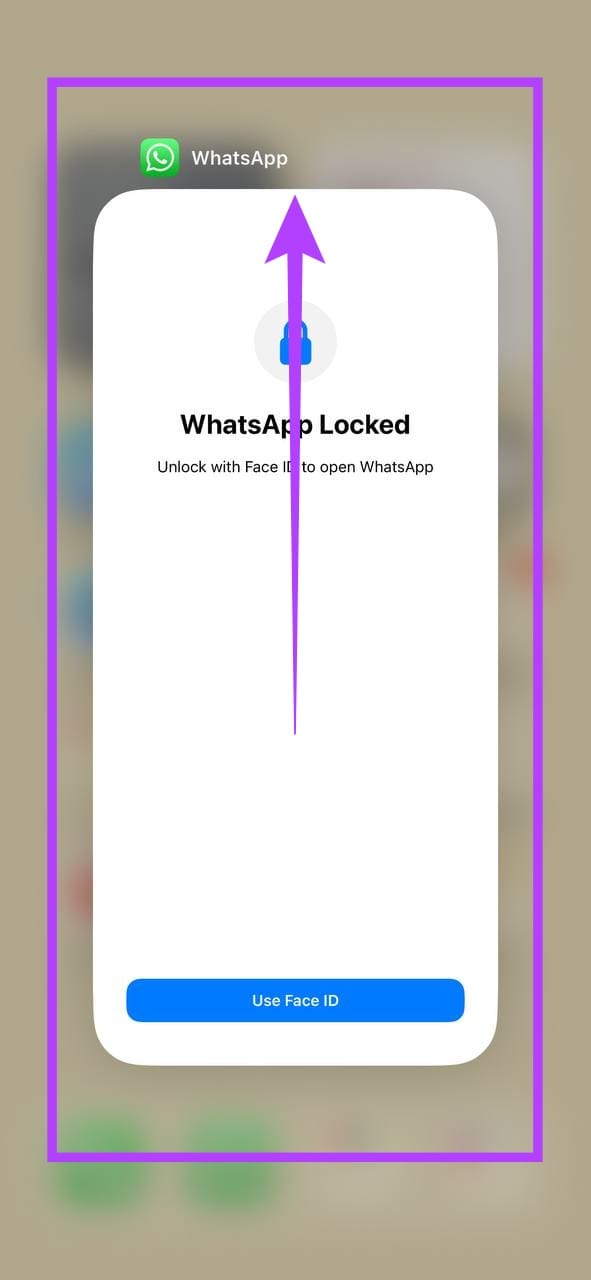
Then, tap on the app icon again to open WhatsApp. If you still face issues using the app, move on to the next fix.
4. Restart iPhone
While restarting an app helps restart the functions related only to that app, restarting your device helps restart all the functions and services for your device as a whole. Do this if WhatsApp is still not opening on your iOS device.
Here’s how.
Step 1: Depending on the model of your device, follow the below step:
- For iPhone SE 1st gen, 5s, 5c, and 5: Long-press the top button.
- For iPhone SE 2nd gen onwards, 7, and 8: Long-press the side button.
- For iPhone X and above: Long-press the power and any volume button simultaneously.
Step 2: Once the slider appears, hold and move the power icon till the end.

Step 3: Once your device’s screen turns blank, long-press the power button to restart your device.
Now, open WhatsApp again and see if it is working properly.
5. Check Storage Space
While WhatsApp isn’t known to be a resource hogger, like any other app, it needs a decent amount of space to function properly. So, if you have been facing issues like WhatsApp closing unexpectedly or altogether stops responding, it might be a good idea to check if you have sufficient storage space on your iPhone. Follow the below steps to do it.
Tip: Check out how to reduce WhatsApp storage on iPhone
Step 1: Open Settings and tap on General.
Step 2: Scroll down and tap on iPhone Storage.
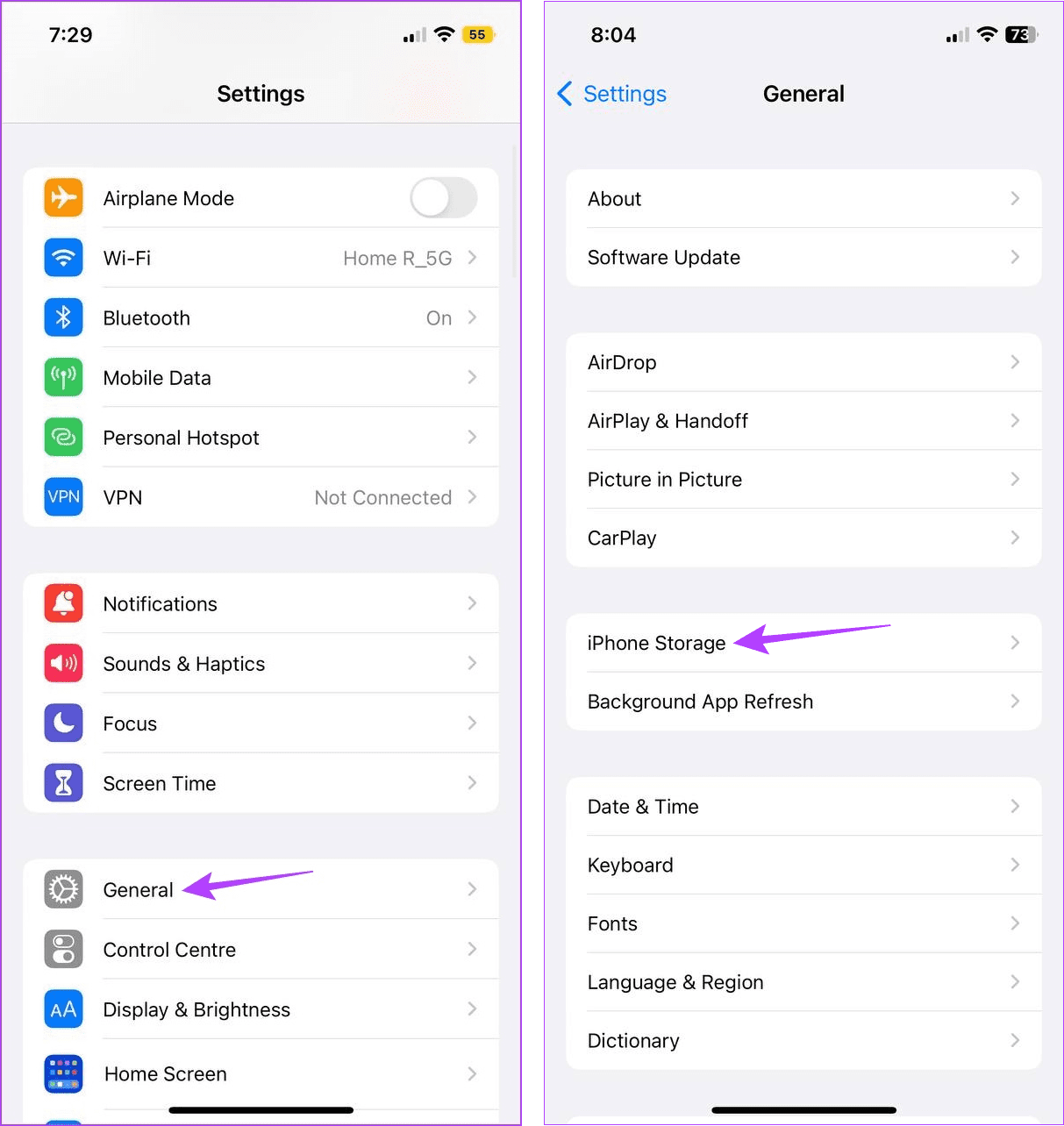
Step 3: Here, check the storage space available.

If your device does not have enough space, try freeing up some space. For more details, you can check out our guide on how to free up space on your iPhone without deleting apps. Then, open WhatsApp and check again.
6. Check for App Updates
Updating an app is crucial. This is because regular app updates help ensure your app stays bug- and glitch-free while being compatible with your device. So, if you’re behind on updating WhatsApp, you can manually check for app updates using the App Store. Here’s how to do it.
Step 1: Open WhatsApp on App Store.
Step 2: Tap on Update.

Step 3: Once the update is installed, restart WhatsApp and see if it work as expected.
7. Enable Background App Refresh
As the name suggests, Background App Refresh helps your apps refresh their data even when they’re not actively used. So, if Background App Refresh is disabled for WhatsApp, it can prevent some features from working properly, which can also crash the app. To fix this, enable Background App Refresh for WhatsApp. Here’s how.
Note: Before starting, make sure Background App Refresh is enabled on your iPhone.
Step 1: Open Settings and tap on General.
Step 2: Here, tap on ‘Background App Refresh’.

Step 3: On this page, locate WhatsApp and turn on the corresponding toggle.
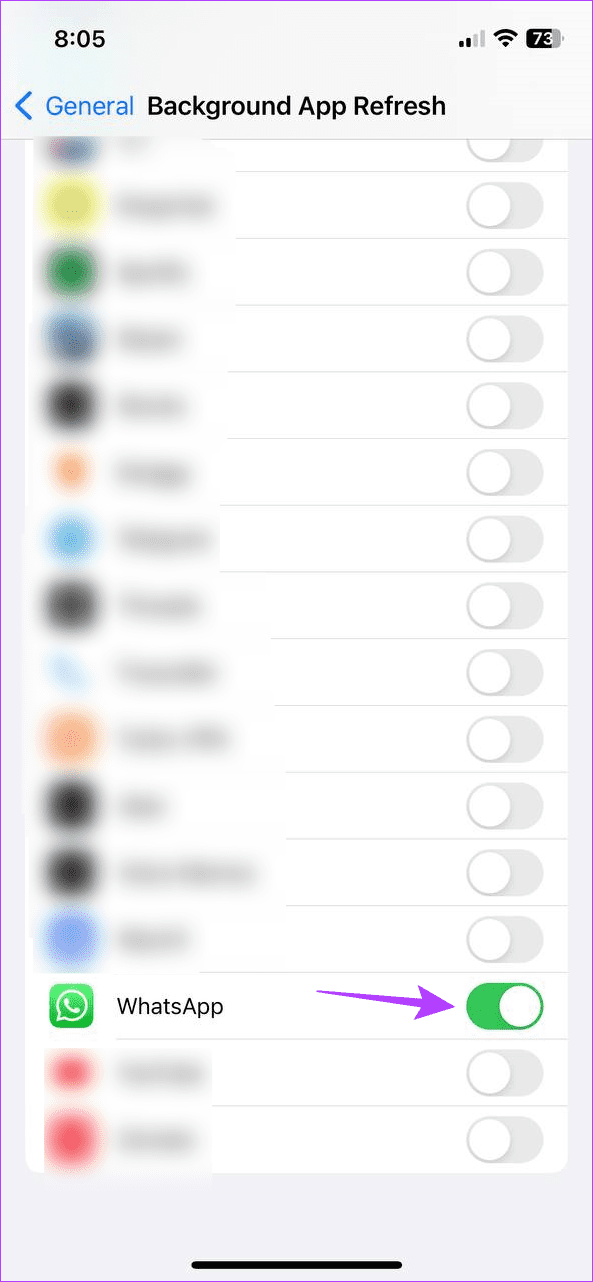
Then, open WhatsApp again and see if you can use the app on your iPhone.
8. Check for iOS Updates
Just like app updates ensure your app stays updated, software updates for your device ensure your iOS device also keeps up with the apps. Additionally, each update has its share of bugs and security fixes to keep your device functioning properly.
So, if your device is pending an update, installing it might fix the issue of WhatsApp not loading as well. Here’s how to do it.
Step 1: Open the Settings app.
Step 2: Here, tap on General.
Step 3: Tap on Software Update. If an update is available, tap on Download & install.

If an update is available, wait for it to finish installing. Then, reopen WhatsApp and see if the issue has been resolved.
9. Reinstall WhatsApp
While uninstalling WhatsApp might seem a little drastic, it can be helpful if you can’t figure out why WhatsApp keeps crashing or won’t open on your iPhone. This way, you can delete all app data and settings and install a fresh copy. Follow the below steps to do it.
Step 1: Long-press the WhatsApp app icon.
Step 2: Here, tap on Remove App.
Step 3: Tap on Delete App.
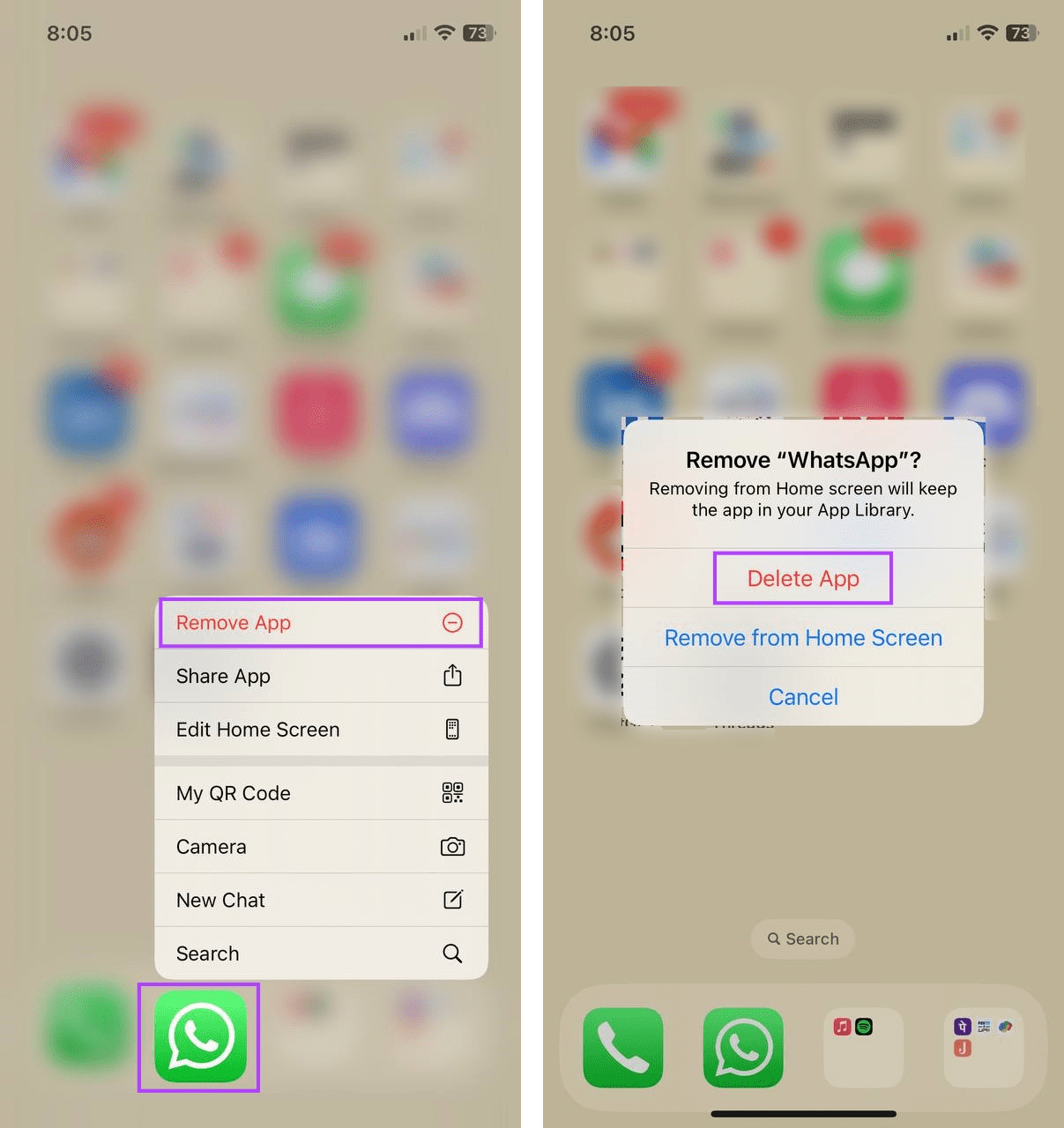
If prompted, tap on Delete to finish the process. Then, go to App Store and reinstall WhatsApp. Once done, sign in again and see if the app works as expected. Additionally, if you have iCloud backups turned on, don’t forget to restore your WhatsApp data.
Also Read: How to fix WhatsApp backup not restoring on iPhone
10. Contact WhatsApp Support
WhatsApp always encourages users to contact their support team if they’re facing issues with the app. So, if your WhatsApp app is still crashing or not opening properly, it might be worth getting in touch with WhatsApp’s support team to try and get this issue resolved.
Here’s how.
Step 1: Open WhatsApp on your iPhone.
Step 2: From the menu options at the bottom, tap on Settings.
Step 3: Here, tap on Help.
Step 4: Then, tap on Contact Us.
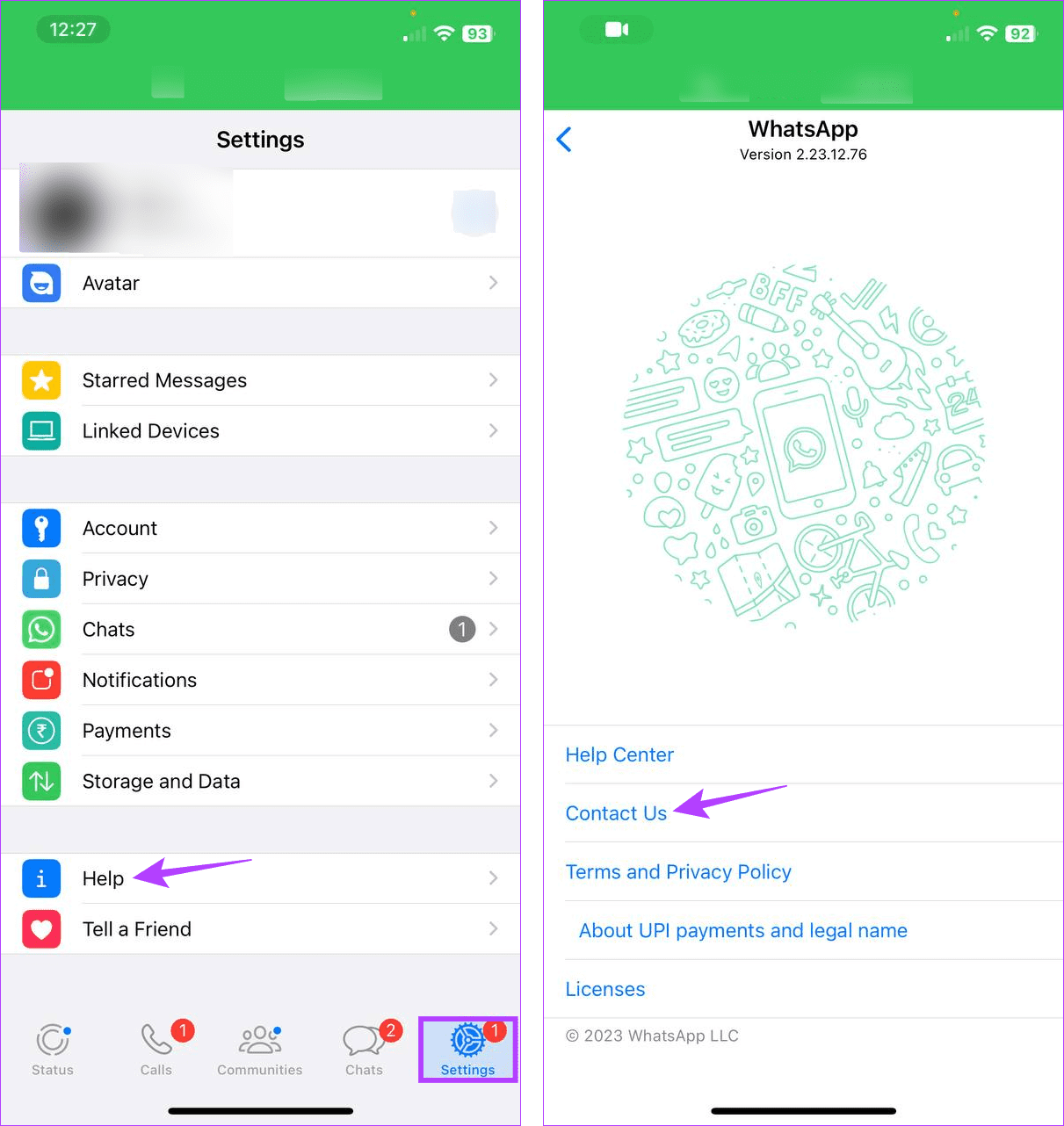
Now, fill in all the relevant fields and submit your query to WhatsApp’s support team. Make sure to be as detailed as possible to get a quick resolution. Then, wait for WhatsApp’s support team to revert to you with a viable solution.
FAQs for Fixing WhatsApp Not Opening or Loading
While it is not a sure-shot way, there have been reports of users being able to use WhatsApp on their iPhone again by switching to a WhatsApp Business account. This can also help you simultaneously use 2 WhatsApp accounts on your iPhone. To know more about the WhatsApp Business account and how it is different from a regular WhatsApp account, check this detailed comparison of WhatsApp vs. WhatsApp Business.
Chat backups usually happen as you use the app. This also means that if the chat backup takes too long, it can cause WhatsApp not to work properly on your iPhone. But, while you can disable WhatsApp Chat backup on your iPhone, we advise using any other third-party app to back up your data as a precaution.
Use WhatsApp on Your iPhone
Keeping in touch with others has now become easier, all thanks to social media and messaging apps. So, we hope that with this article, you could resolve the issue of WhatsApp crashing or not opening on your iPhone and again connect with your loved ones.
Was this helpful?
Last updated on 28 July, 2023
Read Next
 9 Best Fixes for Android Messages Keeps Crashing Issue
Does your Android phone keep bothering you with ‘Unfortunately, Messages has stopped’ error?
9 Best Fixes for Android Messages Keeps Crashing Issue
Does your Android phone keep bothering you with ‘Unfortunately, Messages has stopped’ error?
 8 Best Fixes for Honor Band 5 Won’t Pair Issue on Android and iPhone
Pairing is important when it comes to fitness bands.
8 Best Fixes for Honor Band 5 Won’t Pair Issue on Android and iPhone
Pairing is important when it comes to fitness bands.
 12 Best Fixes for Windows 10 Laptop Won’t Connect to iPhone Hotspot
I usually travel light with my Windows laptop and iPhone.
12 Best Fixes for Windows 10 Laptop Won’t Connect to iPhone Hotspot
I usually travel light with my Windows laptop and iPhone.
 12 Ways to Fix Instagram App Keeps Crashing on iPhone
Are you facing problems using Instagram on your iPhone?
12 Ways to Fix Instagram App Keeps Crashing on iPhone
Are you facing problems using Instagram on your iPhone?
 Top 7 Ways to Fix Safari Keeps Crashing on iPhone
When it comes to browsing, Safari for iPhone is quite reliable.
Top 7 Ways to Fix Safari Keeps Crashing on iPhone
When it comes to browsing, Safari for iPhone is quite reliable.
 Top 6 Ways to Fix Telegram Keeps Crashing on Android and iPhone
Telegram has managed to allure users by constantly bringing new features and improving the end-user experience.
Top 6 Ways to Fix Telegram Keeps Crashing on Android and iPhone
Telegram has managed to allure users by constantly bringing new features and improving the end-user experience.
 Top 9 Fixes for YouTube Restricted Mode Won’t Turn off on Mobile and PC
You'll find all kinds of videos on YouTube, and some may not be safe for your kids.
Top 9 Fixes for YouTube Restricted Mode Won’t Turn off on Mobile and PC
You'll find all kinds of videos on YouTube, and some may not be safe for your kids.
 Top 7 Fixes for Snapchat Won’t Let Me Export Snaps to Phone
Snapchat allows you to save your favorite snaps within your chats and Snapchat Memories.
Top 7 Fixes for Snapchat Won’t Let Me Export Snaps to Phone
Snapchat allows you to save your favorite snaps within your chats and Snapchat Memories.
The article above may contain affiliate links which help support Guiding Tech. The content remains unbiased and authentic and will never affect our editorial integrity.

