Memory Integrity is a security feature in Windows 11 that monitors all memory access and prevents unauthorized programs from accessing sensitive data or code. However, if this feature is disabled, Windows 11 may display the ‘Memory integrity is off. Your device may be vulnerable’ errors.
While you can easily enable the Memory integrity feature from the Windows Security app, there can be times when the feature appears grayed out on your PC. If this has happened to you, here are some troubleshooting tips to help.
1. Scan for Incompatible Drivers and Update Them
One of the primary causes of the ‘Memory integrity is off’ error message on Windows 11 is the presence of incompatible drivers. First, scan your PC for incompatible drivers using the Windows Security app. Here’s how to do it.
Step 1: Click the Windows Search icon on the taskbar, type in windows security and press Enter.

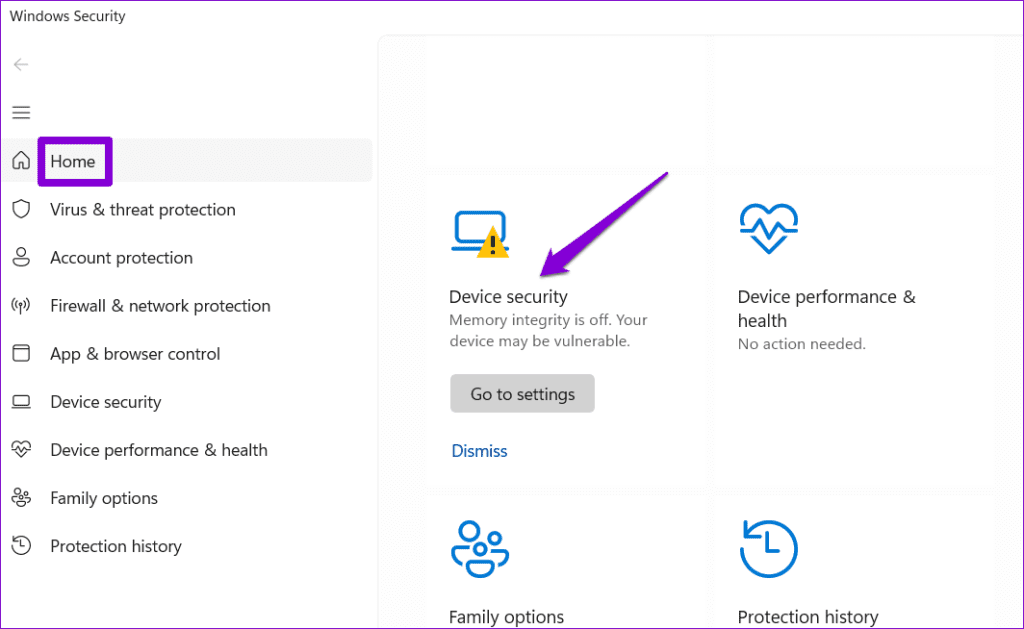
Step 2: In the Home tab, click on Device security.
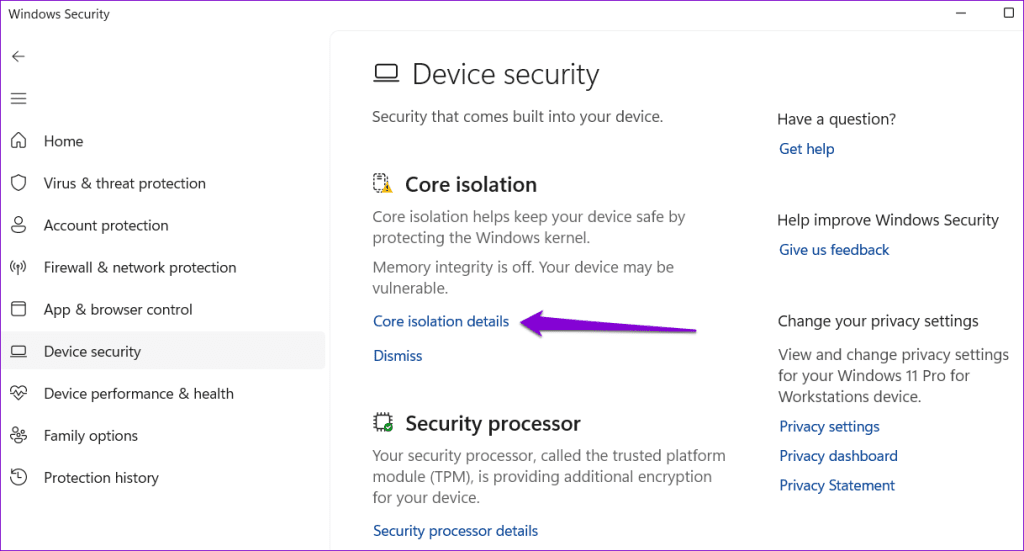
Step 3: Click on Core isolation details.
Step 4: Enable the toggle under Memory integrity. If the option is grayed out, you will see the ‘Resolve any driver incompatibilities and scan again’ error. Click the Review incompatible drivers link to continue.

Step 5: Note down the name of the problematic incompatible driver.
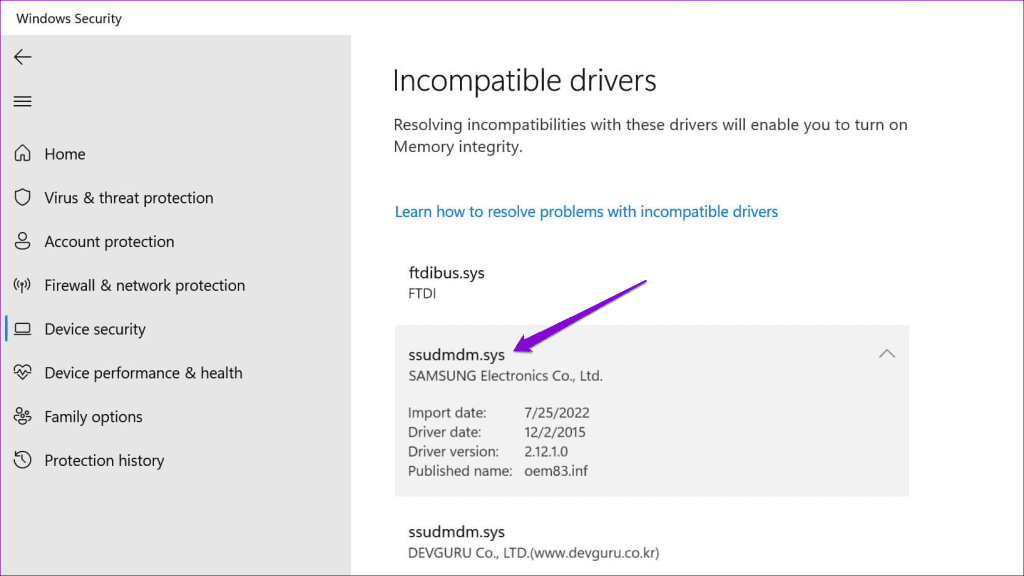
Step 6: Close the Windows Security app. Right-click on the Start icon and select Device Manager from the list.

Step 7: Click the View menu at the top and select ‘Show hidden devices.’

Step 8: Locate the problematic incompatible driver on the list. Right-click on it and select Update driver.
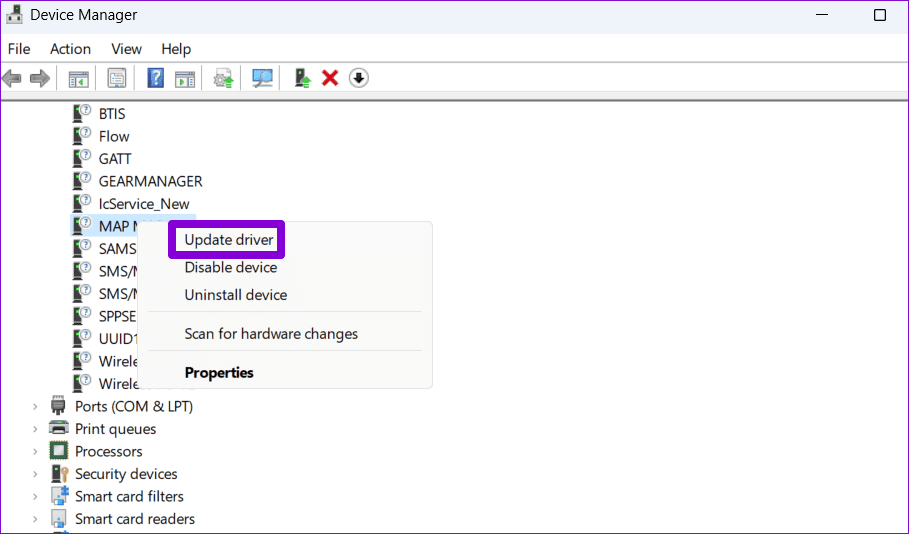
Follow the on-screen prompts to finish updating the driver and see if you can enable the Memory Integrity feature after that.
2. Uninstall Problematic Drivers and Related Programs
If updating the driver does not help, your next best option is to remove the faulty driver from your PC. Here’s how to do it.
Step 1: Press the Windows + S keyboard shortcut to open the search menu. Type in device manager and press Enter.

Step 2: Click the View menu at the top and select ‘Show hidden devices’ from the list.
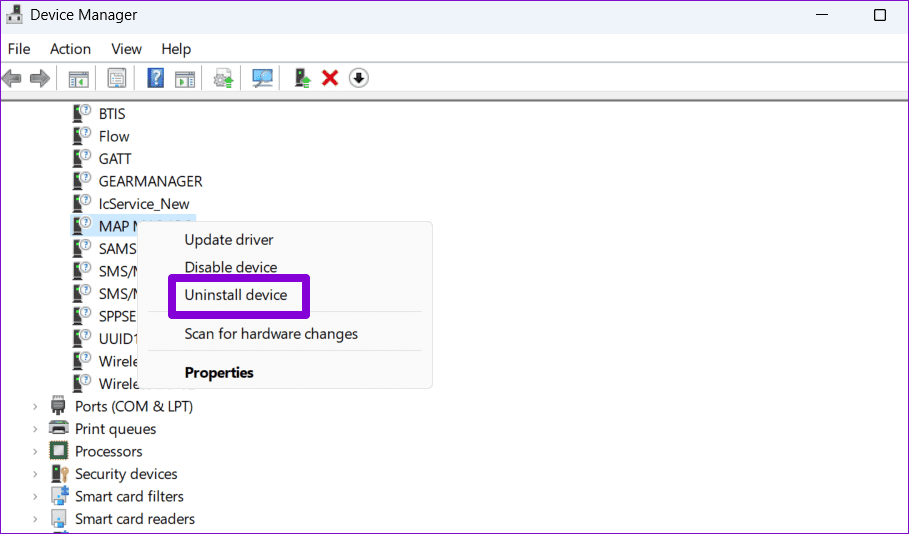
Step 3: Right-click on the faulty driver and select Uninstall device.
Additionally, you can also remove any programs or software related to the problematic driver. To do so, use these steps:
Step 1: Right-click on the Start icon and select Installed apps from the list.

Step 2: Locate the app or program related to the troublesome driver. Click the three horizontal dot menu icon next to it and select Uninstall.
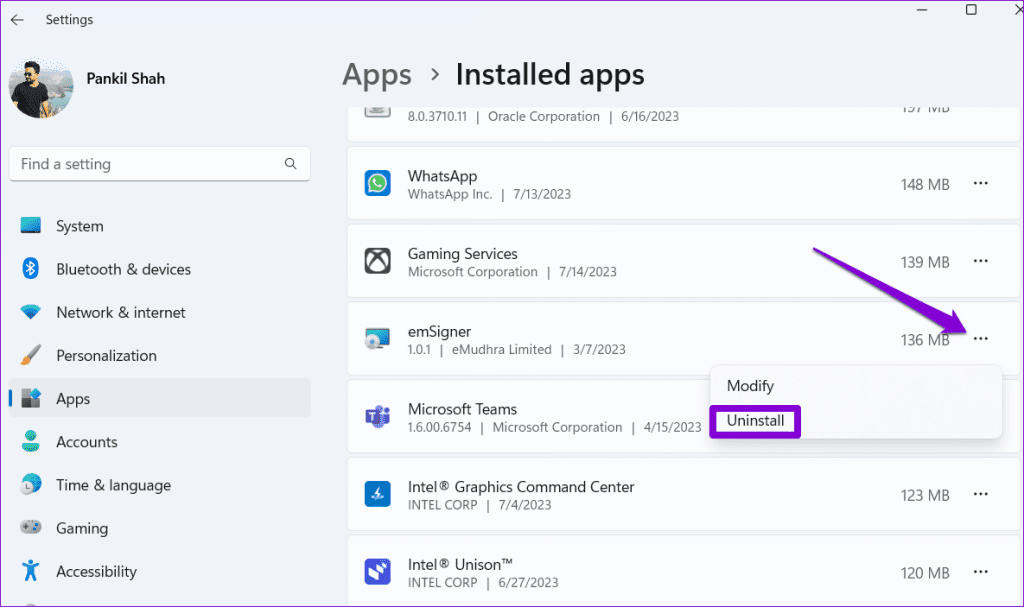
After completing the above steps, check if you can turn on Memory Integrity on your Windows 11 PC.
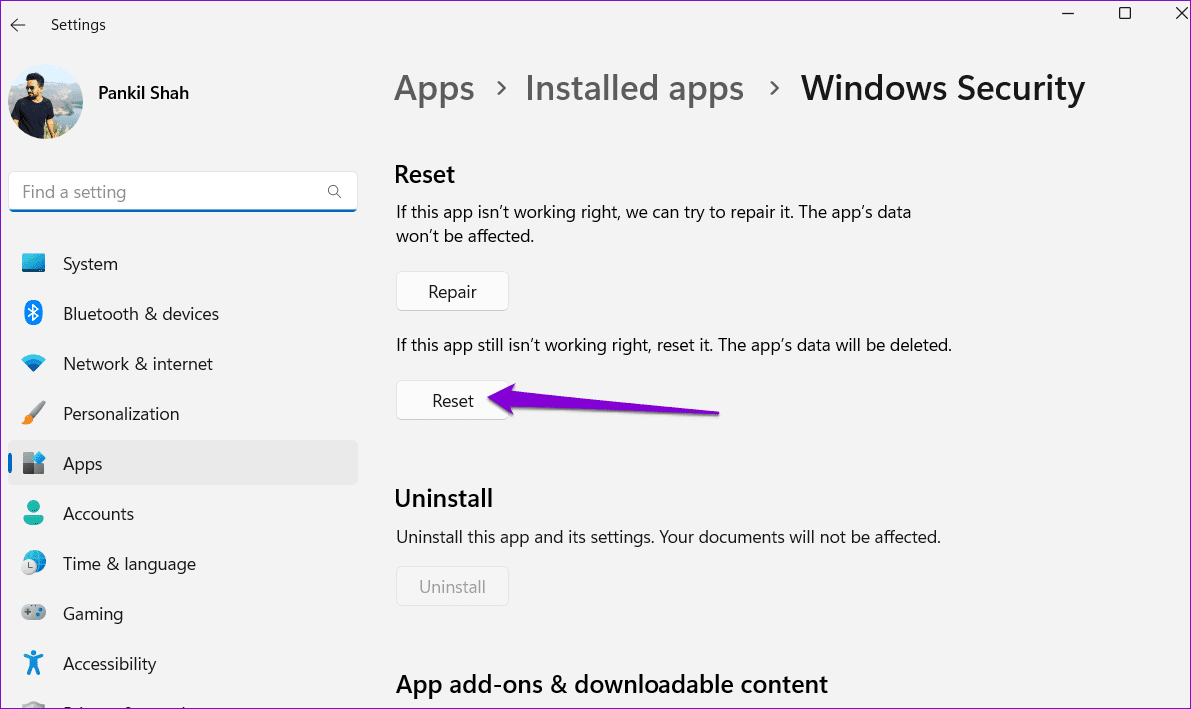
3. Reset the Windows Security App
There’s a chance that the ‘Memory integrity is off’ error has nothing to do with the drivers but rather the Windows Security app itself. If that’s the case, resetting the Windows Security app should help solve the problem.
Step 1: Press the Windows + S keyboard shortcut to open the search menu. Type in Windows Security, right-click on the first result that appears, and select App settings.

Step 2: Click the Reset button.
4. Use Registry Editor to Enable Memory Integrity
If you still can’t turn on the Memory Integrity feature through Windows Security, you can edit a few registry files to enable the feature. However, since editing registry files is slightly risky, you should consider backing up all the registry files or creating a restore point before proceeding.
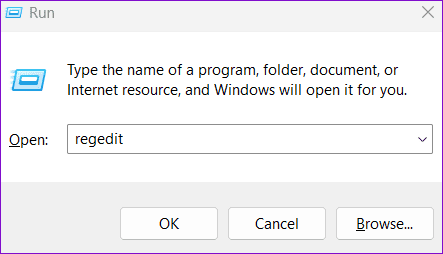
Step 1: Press the Windows + R keyboard shortcut to open the Run dialog box. Type regedit in the box and press Enter.
Step 2: Select Yes when the User Account Control (UAC) prompt appears.

Step 3: Paste the following path in the address bar at the top and hit Enter.
Computer\HKEY_LOCAL_MACHINE\SYSTEM\CurrentControlSet\Control\DeviceGuard\Scenarios\HypervisorEnforcedCodeIntegrity

Step 4: Double-click the Enabled entry in the right pane and enter 1 in the Value data field. Then, click OK.
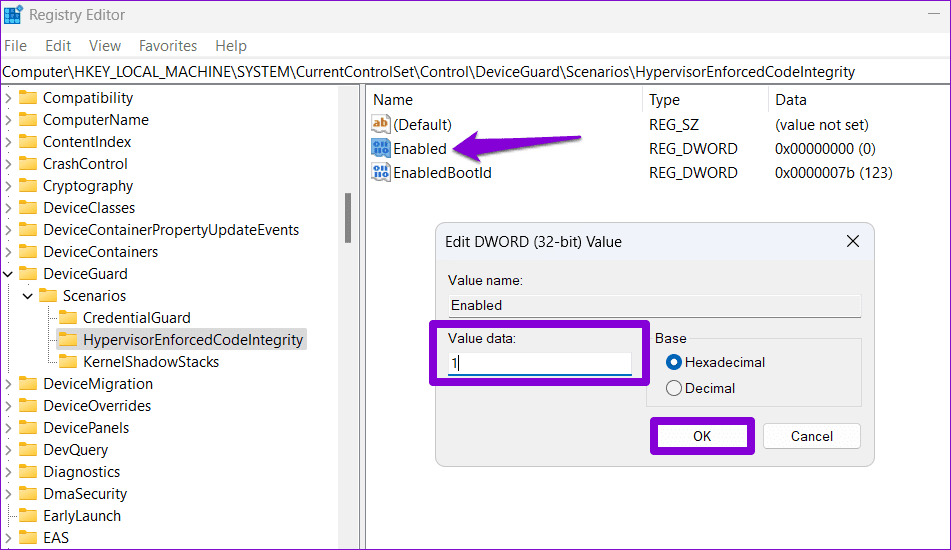
After completing the above steps, restart your PC and see if you get the ‘Memory integrity is off’ error in Windows 11.
5. Run SFC and DISM Scans
Another reason why the Memory Integrity feature may appear grayed out on your Windows 11 PC is if some of the system files are corrupt or missing. Running the SFC (System File Checker) and DISM (Deployment Image Servicing and Management) scans can help you repair such problematic system files.
Step 1: Press the Windows + X keyboard shortcut to open the Power User menu and select Terminal (Admin) from the list.

Step 2: Select Yes when the User Account Control (UAC) prompt appears.

Step 3: Type the following command and press Enter:
SFC /scannow

Step 4: Run the following commands one by one and press Enter after each one to run the DISM scan:
DISM /Online /Cleanup-Image /CheckHealth
DISM /Online /Cleanup-Image /ScanHealth
DISM /Online /Cleanup-Image /RestoreHealth

Restart your PC one more time and check if the issue is still there.
6. Install Windows Updates
Running an outdated version of Windows can also lead to such problems. So, if the above fixes prove ineffective, try installing any pending system updates and see if that helps.
Press the Windows + I keyboard shortcut to open the Settings app and navigate to the Windows Update tab. Click the Check for updates button in the top right corner to download and install pending updates.

Enjoy a Safer Computing Experience
Memory Integrity is an essential feature ensuring only trusted code and drivers can run in the Windows kernel, protecting your system from malware. Hence, it’s critical not to ignore errors like ‘Memory integrity is off’ on your Windows 11 computer and resolve them promptly.
Was this helpful?
Last updated on 17 July, 2023
Read Next
 Top 7 Ways to Fix Your Computer Is Low on Memory Error on Windows 10 and Windows 11
Do you keep getting the ‘Your computer is low on memory’ error message while performing basic tasks on your Windows PC?
Top 7 Ways to Fix Your Computer Is Low on Memory Error on Windows 10 and Windows 11
Do you keep getting the ‘Your computer is low on memory’ error message while performing basic tasks on your Windows PC?
 Top 11 Ways to Fix Google Chrome Is Out of Memory Error on Windows 10
Google Chrome may be widely used my billions across the globe, but it is posthumously notorious for hogging resources.
Top 11 Ways to Fix Google Chrome Is Out of Memory Error on Windows 10
Google Chrome may be widely used my billions across the globe, but it is posthumously notorious for hogging resources.
 Use Windows Memory Diagnostics Tool to Check For Memory Problems
Problems related to memory in Windows could lead to errors and crashes.
Use Windows Memory Diagnostics Tool to Check For Memory Problems
Problems related to memory in Windows could lead to errors and crashes.
 How to Control Integrity Level of Windows 10 Files, Folders
Ever had the problem of ‘Access is Denied’ while browsing through your own computer?
How to Control Integrity Level of Windows 10 Files, Folders
Ever had the problem of ‘Access is Denied’ while browsing through your own computer?
 Top 8 Ways to Fix Microsoft Edge High Memory Usage on Windows 10 and Windows 11
Being a Microsoft product, you’d naturally expect Edge browser to work flawlessly on a Windows computer.
Top 8 Ways to Fix Microsoft Edge High Memory Usage on Windows 10 and Windows 11
Being a Microsoft product, you’d naturally expect Edge browser to work flawlessly on a Windows computer.
 Top 7 Ways to Fix Memory Leak in Windows 11
Microsoft has had some hiccups with Windows 11 rollout.
Top 7 Ways to Fix Memory Leak in Windows 11
Microsoft has had some hiccups with Windows 11 rollout.
 Top 8 Ways to Reduce Microsoft Teams Memory Usage in Windows 11 and Windows 10
Microsoft Teams is an excellent team collaboration app that comes pre-installed on Windows computers.
Top 8 Ways to Reduce Microsoft Teams Memory Usage in Windows 11 and Windows 10
Microsoft Teams is an excellent team collaboration app that comes pre-installed on Windows computers.
 Top 7 Ways to Fix Memory Leak In Google Chrome on Windows and Mac
Google Chrome continuous to top the browser popularity charts and is often the go-to browser for many users.
Top 7 Ways to Fix Memory Leak In Google Chrome on Windows and Mac
Google Chrome continuous to top the browser popularity charts and is often the go-to browser for many users.
The article above may contain affiliate links which help support Guiding Tech. The content remains unbiased and authentic and will never affect our editorial integrity.