

Do you stumble upon the ‘The specified procedure could not be found’ error often on your Windows 10 or Windows 11 PC? This error appears when you attempt to open photos and videos or launch specific programs on your PC. While the cause of this error can be anything from corrupted system files to malware infection, you can easily troubleshoot and resolve it.

In most cases, restarting your PC will solve the error on Windows. However, if that does not work or if the error keeps coming back, follow the troubleshooting tips below to resolve the issue.
1. Use the ‘Open With’ Option
If you only get the ‘The specified procedure could not be found’ error while opening files, you can try using the Open With option. For instance, if the Photos app is not opening an image or video, right-click on the file, go to Open with, and select the appropriate app from the submenu.

Of course, this is just a temporary workaround to avoid the error. If you want to resolve the underlying issue for good, continue with the fixes below.
2. Check Permissions for the WindowsApps Folder
Another reason you may get ‘The specified procedure could not be found’ error is if your current user account does not have the necessary permissions to access the WindowsApps folder. Here’s what you can do to fix it.
Step 1: Press the Windows + R keyboard shortcut to open the Run dialog box. Type C:\Program Files\ in the box and press Enter.

Step 2: In the File Explorer window, right-click on the WindowsApps folder and select Properties.

Step 3: Switch to the Security tab and click the Advanced button.

Step 4: Click the Change button next to the Owner field.

Step 5: Select Yes when the User Account Control (UAC) prompt appears.

Step 6: Enter your user name in the text field and click the Check Names button. Then, click OK.

Step 7: Tick the ‘Replace owner on subcontainers and objects’ checkbox and hit Apply followed by OK.

After completing the above steps, see if you encounter any errors while opening files or apps.
3. Run the SFC and DISM Scans
Such errors can also arise if some of the system files on your PC are corrupt or missing. If that is the case, you can run the SFC (System File Checker) and DISM (Deployment Image Servicing and Management) scans to allow Windows to find and replace any damaged files.
Step 1: Right-click the Start icon and select Terminal (Admin) from the list.

Step 2: Select Yes when the User Account Control (UAC) prompt appears.

Step 3: In the console, type the following command and press Enter.
SFC /scannow

Step 4: Run the following commands one by one and press Enter after each one to run the DISM scan.
DISM /Online /Cleanup-Image /CheckHealth
DISM /Online /Cleanup-Image /ScanHealth
DISM /Online /Cleanup-Image /RestoreHealth

This may take a while, so be patient. After the scan completes, restart your PC and check if the error still appears.
4. Repair or Reset the Problematic App
Does ‘The specified procedure could not be found’ error only appear when you try to open a specific app? If so, repair the problematic app using the following steps.
Step 1: Right-click on the Start icon and select Installed apps from the list.

Step 2: Scroll through the list to locate the problematic app. Click the three horizontal dots menu icon next to it and select Advanced options.
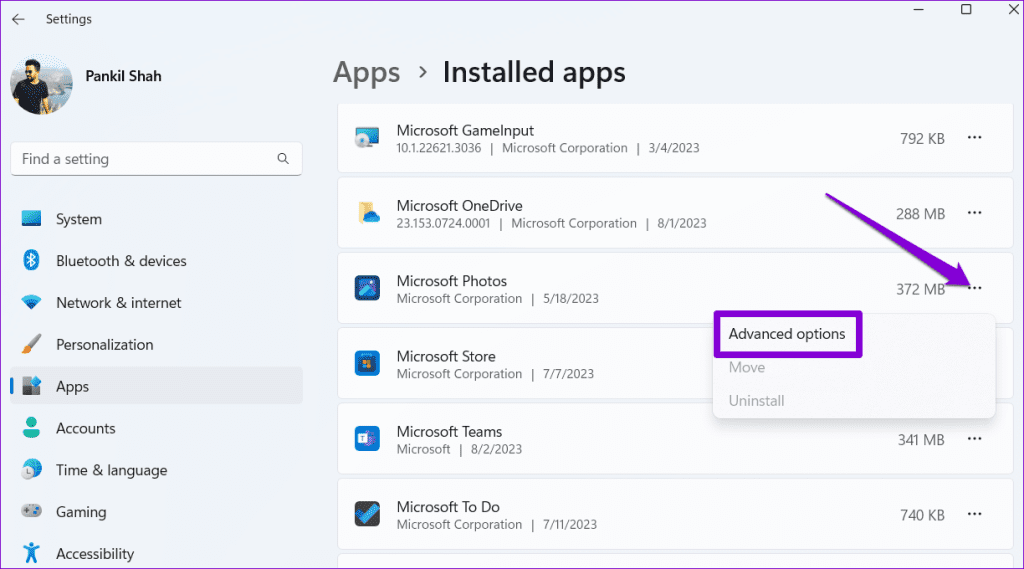
Step 3: Click the Repair button under the Reset section.

If the error persists even after repairing the app, you can try resetting it from the same menu. This will help resolve issues due to faulty app data or misconfigured settings.

5. Check for Malware
The presence of malware can also disturb Windows processes and trigger such errors. To overrule this possibility, you can scan your PC for malware using Windows Defender or a reliable third-party antivirus program. If the scan reveals anything suspicious, take the recommended steps to remove it.

6. Install Windows Updates
Updates are essential for any operating system, and Windows is no exception. In addition to new features and security patches, these updates also include important bug fixes for your PC. You can try installing any pending Windows updates and see if that resolves the problem.
Press the Windows + I keyboard shortcut to launch the Settings app. Switch to the Windows Update tab from the left sidebar and click the Check for updates button from the right pane. Download and install pending updates and then check if the issue persists.

7. Perform a System Restore
There’s a chance that recent changes made to your system have resulted in this error. If you can’t tell what’s causing the issue, performing a system restore will help.
Step 1: Click the Windows Search icon on the taskbar, type in create a restore point, and press Enter.

Step 2: Head to the System Protection tab, click the System Restore button.
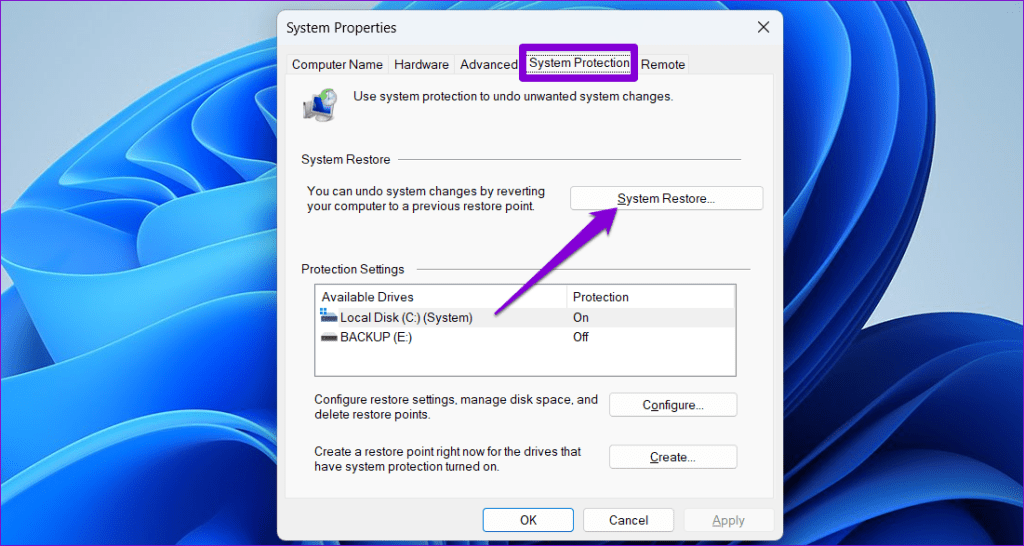
Step 3: Select the Recommended restore option and click Next.

Step 4: Click Finish and allow Windows to restore to the specified restore point.

Restore Your Access
It’s annoying when errors like ‘The specified procedure could not be found’ on your Windows 10 or 11 PC keep you from opening files and using your favorite apps and programs. Fortunately, it’s not something you can’t fix with some troubleshooting. Go through the above tips and let us know which one worked for you in the comments below.
Was this helpful?
Last updated on 02 August, 2023
Read Next
 Top 6 Fixes for the Specified User Does Not Have a Valid Profile Error on Windows
When opening apps downloaded from the Microsoft Store in Windows, you may sometimes come across 'The specified user does not have a valid profile' error.
Top 6 Fixes for the Specified User Does Not Have a Valid Profile Error on Windows
When opening apps downloaded from the Microsoft Store in Windows, you may sometimes come across 'The specified user does not have a valid profile' error.
 Top 6 Fixes for Microsoft Word Experienced an Error Trying to Open the File Error in Windows
Microsoft Word is a powerful word processor to create, edit, and format documents.
Top 6 Fixes for Microsoft Word Experienced an Error Trying to Open the File Error in Windows
Microsoft Word is a powerful word processor to create, edit, and format documents.
 Top 5 Fixes for a Problem With Your Office License Error on Windows 11
When Office apps keep bothering you with the ‘There’s a problem with your Office license’ error, it's natural to be confused and frustrated with the prompt often.
Top 5 Fixes for a Problem With Your Office License Error on Windows 11
When Office apps keep bothering you with the ‘There’s a problem with your Office license’ error, it's natural to be confused and frustrated with the prompt often.
 Top 6 Fixes For Setup Incomplete Because of a Metered Connection Error on Windows 11
Windows 11 makes it simple to connect Bluetooth devices to your computer.
Top 6 Fixes For Setup Incomplete Because of a Metered Connection Error on Windows 11
Windows 11 makes it simple to connect Bluetooth devices to your computer.
 Top 5 Fixes for Outlook Data File Has Reached the Maximum Size Error in Windows
As you continue to use Microsoft Outlook on your Windows computer, the app creates PST files to store your emails, attachments, and other relevant data.
Top 5 Fixes for Outlook Data File Has Reached the Maximum Size Error in Windows
As you continue to use Microsoft Outlook on your Windows computer, the app creates PST files to store your emails, attachments, and other relevant data.
 Top 7 Fixes for ‘Looks Like You’re Stranded’ Xbox App Error on Windows 11
The Xbox app is the go-to platform for purchasing and downloading games on your Windows computer.
Top 7 Fixes for ‘Looks Like You’re Stranded’ Xbox App Error on Windows 11
The Xbox app is the go-to platform for purchasing and downloading games on your Windows computer.
 Top 5 Fixes for ‘User Profile Service Failed the Sign-In’ Error in Windows 11
While signing into your user profile in Windows 11 is usually a straightforward, errors like ‘User Profile Service failed the sign-in’ can sometimes act as a roadblock.
Top 5 Fixes for ‘User Profile Service Failed the Sign-In’ Error in Windows 11
While signing into your user profile in Windows 11 is usually a straightforward, errors like ‘User Profile Service failed the sign-in’ can sometimes act as a roadblock.
 Top 5 Fixes for ‘Not All of the Updates Were Successfully Uninstalled’ Error on Windows
Although installing Windows updates is generally a good idea, these updates can sometimes go wrong.
Top 5 Fixes for ‘Not All of the Updates Were Successfully Uninstalled’ Error on Windows
Although installing Windows updates is generally a good idea, these updates can sometimes go wrong.
The article above may contain affiliate links which help support Guiding Tech. The content remains unbiased and authentic and will never affect our editorial integrity.

