

If your Windows PC or laptop has AMD CPU or GPU, it comes with the AMD Software: Adrenaline Edition app to handle driver updates, game statistics, and more. However, many have complained about the ‘Windows update has replaced your AMD driver’ error when they launch the app. Before the driver incompatibilities disrupt your work or gaming hours, read along to learn to fix the ‘Windows keeps installing wrong or old AMD drivers’ issue.

AMD regularly releases new drivers to keep meeting system requirements and take care of any graphical issues and performance vows. But when Windows OS installs incorrect AMD Radeon drivers on your PC, you may run into glitches and errors. It’s time to prevent Windows from auto-installing AMD drivers and reinstalls the current ones. Before we go through the troubleshooting steps, let’s understand the root cause of such problems.
Reasons Behind Windows Replacing Your AMD Graphics Drivers
Windows OS comes with the Microsoft Basic Display Adapter capable enough to deliver display graphics during setup. It also serves as a backup when the discrete GPU drivers act up during the update process or for any reason.
You run into such errors when a Windows update downloads your AMD GPU’s Universal Windows Platform (UWP) drivers. You have two different versions of the same driver installed on your PC. When you launch the AMD Adrenaline Edition software, the app throws an error like ‘Windows update may have automatically replaced your AMD graphics driver.’
1. Roll Back AMD Drivers Using the Device Manager
Using the default Device Manager app, you can simply roll back AMD drivers to the previous version. Let’s quickly go through it.
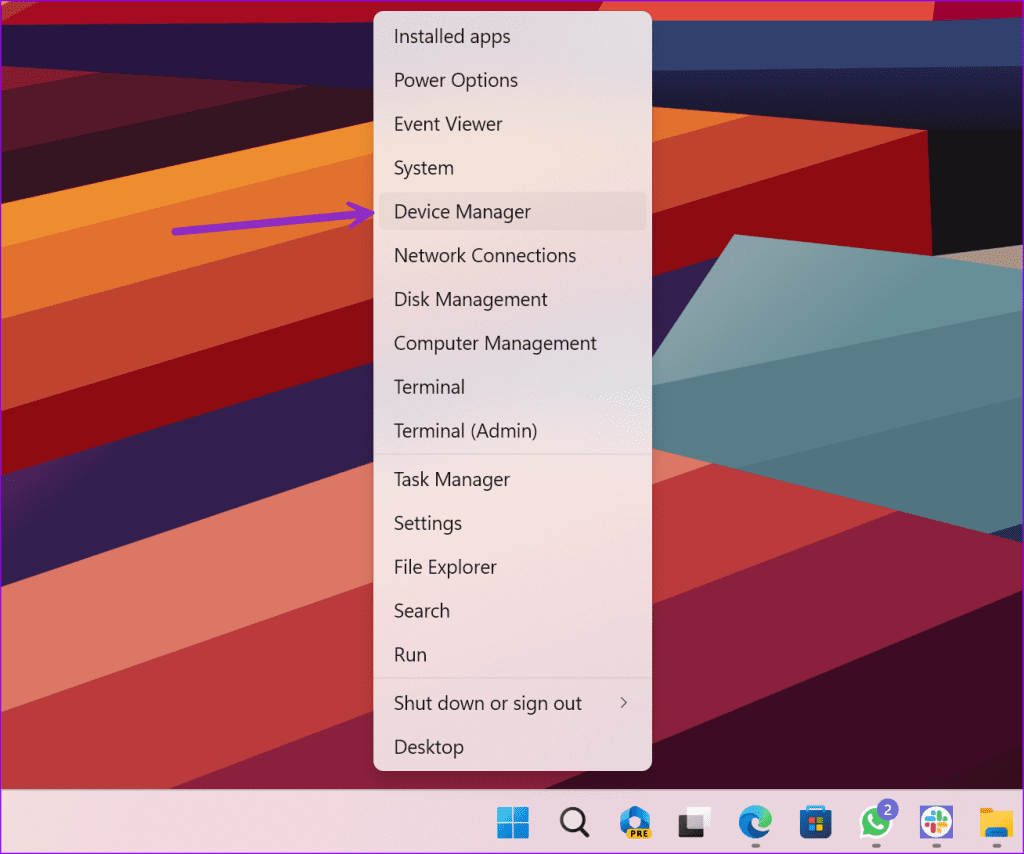
Step 1: Right-click on the Windows key and select the Device Manager from the Power User menu.
Step 2: Expand the Display Adapters menu.

Step 3: Right-click on AMD graphics and select Properties.

Step 4: Move to the Driver menu and select Roll Back Driver. Confirm your decision.
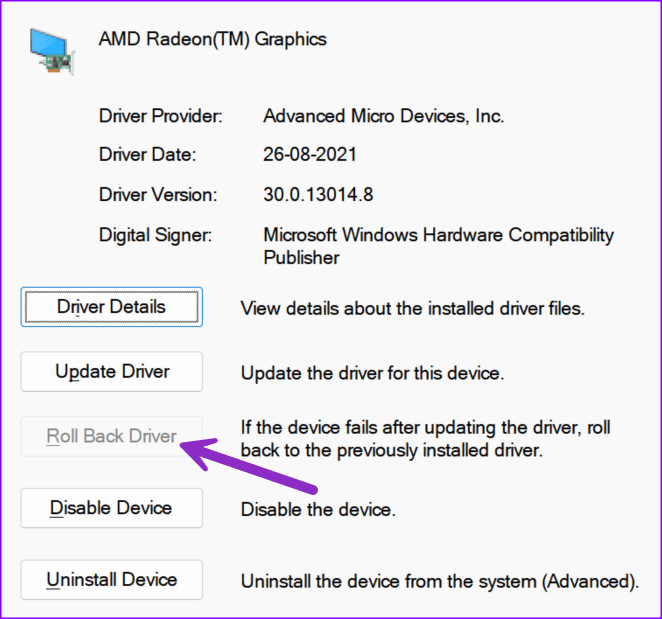
After you have rolled back the AMD drivers, it’s time to stop Windows from automatically updating AMD drivers.
The Windows Update utility automatically installs the latest drivers and overwrites the old drivers on your computer. But when it installs the wrong drivers, you take a hit on GPU performance and lose FPS (Frames Per Second) in your favorite titles. You can stop the behavior using the steps below.
Step 1: Press the Windows + I keyboard shortcut to launch Settings.
Step 2: Go to System and open About.

Step 3: Select ‘Advanced system settings.’

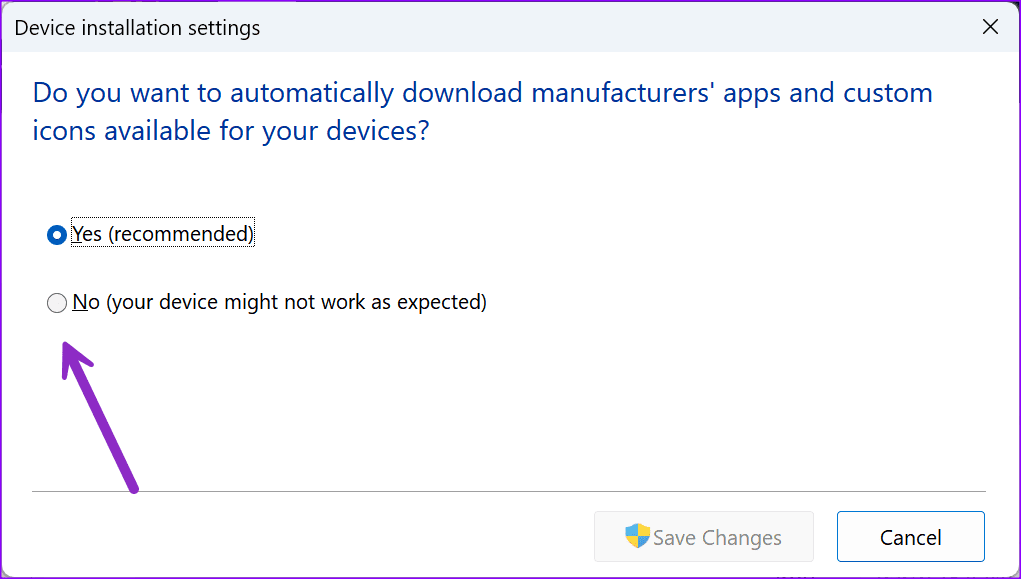
Step 4: Move to the Hardware tab and open Device Installation Settings.

Step 5: Click the radio button beside No and save changes.
If the trick above doesn’t work, you need to use the Local Group Policy Editor or Registry Editor to stop automatic driver updates from Windows. You can read our dedicated post to learn more.
2. Uninstall the Current AMD Drivers
Sometimes, the ‘Roll Back Drivers’ option greyed out. If you face the same, use the Device Manager menu to uninstall the AMD drivers. Here’s what you need to do.
Step 1: Right-click on the Windows key and select the Device Manager from the Power User menu.
Step 2: Right-click on AMD graphics and select Uninstall Device.

Follow the on-screen instructions to complete the process. You can restart the PC to install relevant drivers during the reboot process. You can download the latest software from the AMD Software: Adrenalin Edition too.
3. Repair and Reinstall the AMD Software Driver
It’s a temporary fix to take care of driver conflicts on your PC. Follow the steps below.
Step 1: Press the Windows + E keyboard shortcut to open the File Explorer menu.
Step 2: Go to the C:/ drive and open the AMD folder.

Step 3: Open the AMD software folder.
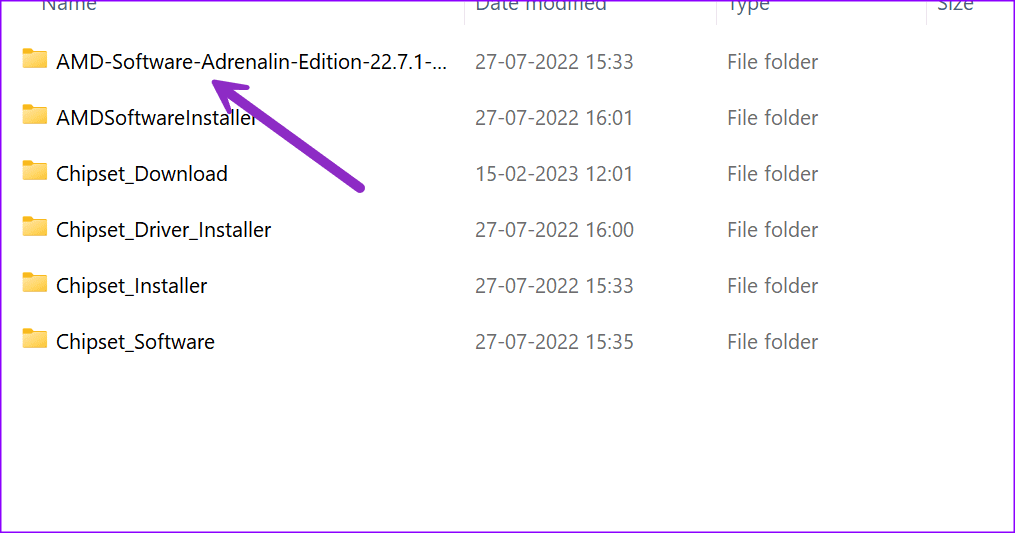
Step 4: Double-click on the .exe file and follow the instructions to install the drivers.

4. Use System Restore
If you or the system has created a system restore, use the steps below to restore your computer to the state it was in before the selected event.
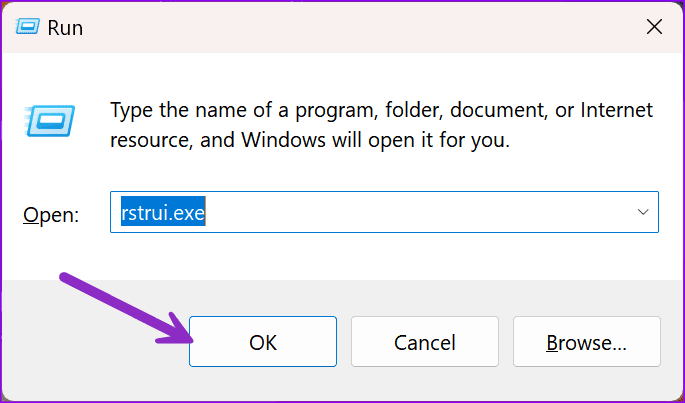
Step 1: Press Windows + R keyboard shortcut to open the run dialog. Type rstrui.exe and hit Enter.
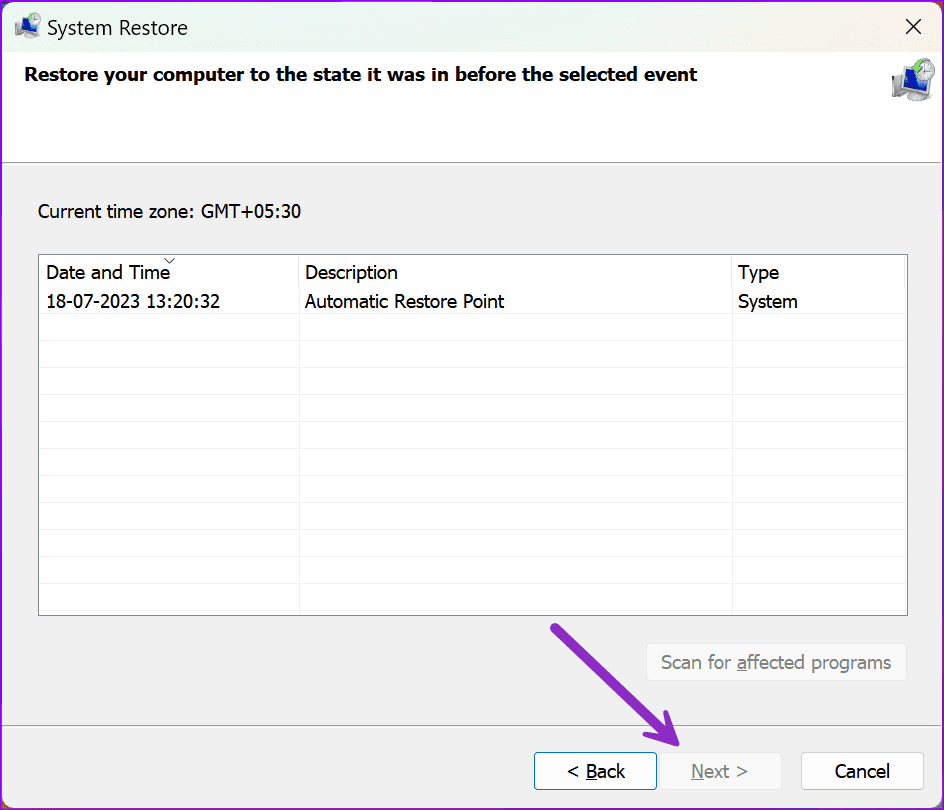
Step 2: Click Next on the dialog box.

Step 3: Check date and time and select the system restore. Hit Next.
Step 4: Click Finish.
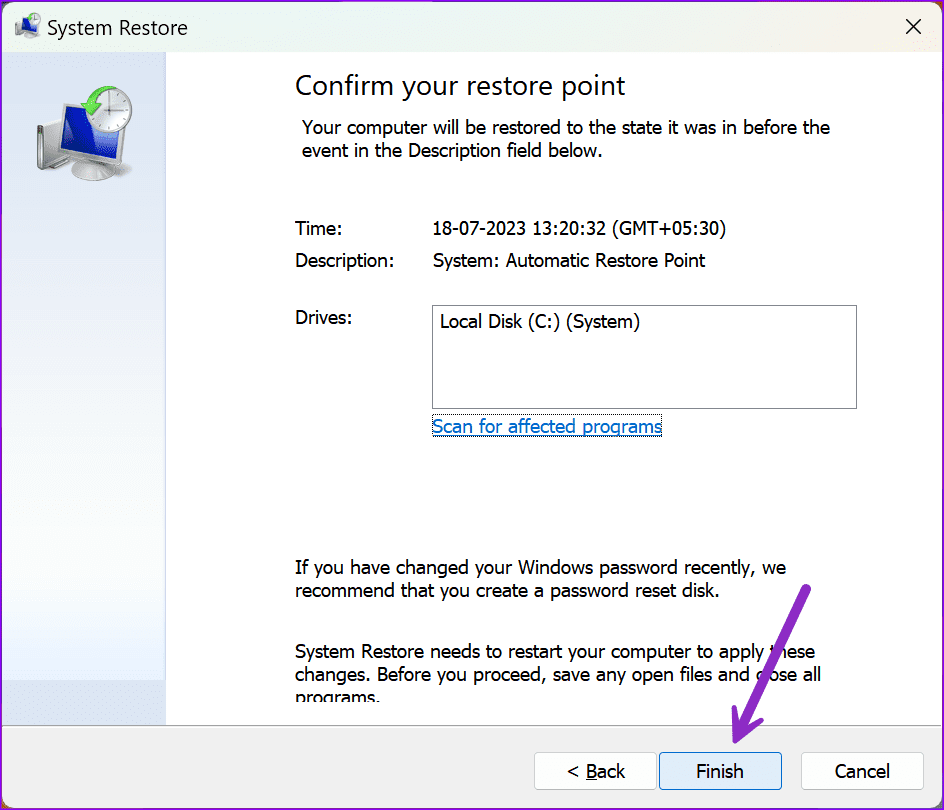
Wait for the system to restart the PC.
Install Relevant AMD Drivers on Windows
Windows installing old or wrong AMD drivers can confuse you. Instead of dealing with irregularities, use the tricks above to troubleshoot the problem. Which trick worked for you? Share it in the comments below.
Was this helpful?
Last updated on 18 July, 2023
Read Next
 Top 6 Ways to Fix Windows Keeps Installing the Same Update
Windows updates are vital for the smooth and secure operation of your computer.
Top 6 Ways to Fix Windows Keeps Installing the Same Update
Windows updates are vital for the smooth and secure operation of your computer.
 Top 6 Ways to Fix Windows 11 Showing Wrong Time
It is critical that your Windows computer shows the correct date and time.
Top 6 Ways to Fix Windows 11 Showing Wrong Time
It is critical that your Windows computer shows the correct date and time.
 Top 6 Ways to Fix Windows 11 Laptop Showing Wrong Battery Percentage
The battery percentage reading on your Windows 11 laptop can be helpful to you plan your work and avoid unexpected shutdowns.
Top 6 Ways to Fix Windows 11 Laptop Showing Wrong Battery Percentage
The battery percentage reading on your Windows 11 laptop can be helpful to you plan your work and avoid unexpected shutdowns.
 Top 7 Ways to Fix Something Went Wrong Error in Microsoft Teams for Windows
Microsoft Teams is a popular communication app pre-installed on your Windows computer.
Top 7 Ways to Fix Something Went Wrong Error in Microsoft Teams for Windows
Microsoft Teams is a popular communication app pre-installed on your Windows computer.
 Top 8 Ways to Fix Windows 11 Updates Not Downloading or Installing
Regular Windows 11 updates ensure that your computer runs fine, and no bugs can disrupt your work or play.
Top 8 Ways to Fix Windows 11 Updates Not Downloading or Installing
Regular Windows 11 updates ensure that your computer runs fine, and no bugs can disrupt your work or play.
 Top 7 Ways to Fix DirectX Not Installing Error on Windows 11
DirectX installer often pops up when you try installing a game on Windows 11.
Top 7 Ways to Fix DirectX Not Installing Error on Windows 11
DirectX installer often pops up when you try installing a game on Windows 11.
 Top 5 Ways to Fix Corrupt Drivers in Windows 10
Gone are the days when we manually installed required driver updates from the manufacturer's website or third-party sources on Windows machines.
Top 5 Ways to Fix Corrupt Drivers in Windows 10
Gone are the days when we manually installed required driver updates from the manufacturer's website or third-party sources on Windows machines.
 Top 7 Ways to Fix Unable to Install Drivers on Windows 11
Drivers are essential programs that allow Windows to communicate with the hardware devices connected to your system.
Top 7 Ways to Fix Unable to Install Drivers on Windows 11
Drivers are essential programs that allow Windows to communicate with the hardware devices connected to your system.
The article above may contain affiliate links which help support Guiding Tech. The content remains unbiased and authentic and will never affect our editorial integrity.

