

Windows Security is an excellent tool to keep your system free from virus and malware attacks. But, like most Windows apps, it isn’t perfect. Now and then, you might come across a Windows Security app issue that’ll leave your system vulnerable to online and offline attacks. One such issue is the ‘You’ll need a new app to open this windowsdefender link” error.

Usually, the error appears due to corruption in the important system files or interruptions by third-party antivirus programs. Worry not if you’re also struggling with the same error. Below are five quick ways to fix the ‘You’ll need a new app to open this windows defender link” error in Windows 11.
1. Run SFC and DISM Scan
Corrupt system files can cause a plethora of issues on a Windows PC. Fortunately, you can quickly detect and repair these files by running an SFC scan.
System File Checker (SFC) scan, is a built-in Windows utility that lets you find and repair corrupt system files. You can run an SFC scan by following the below steps:
Step 1: Press the Windows key to open the Start Menu.
Step 2: In the Start Menu search bar, type Command Prompt and choose Run as administrator from the right pane.

Step 3: Type sfc /scannow and press Enter.

Now, wait till the SFC scan is complete. Once done, you will see a message indicating whether or not the scan was able to detect and fix an issue. Next, check if the Windows Security app is back to its normal state.
Alternatively, you can run the Deployment Image Servicing and Management (DISM) scan.
In addition to scanning the OS for corruption, DISM will also scan the recovery and boot sector for corrupt files. To run the DISM scan, launch Command Prompt as an administrator and execute the below commands one by one.
DISM /Online /Cleanup-Image /CheckHealth
DISM /Online /Cleanup-Image /ScanHealth
DISM /Online /Cleanup-Image /RestoreHealth

The DISM scan might take some time. After it completes, restart your computer and check for the issue.
2. Repair and Reset the Windows Security App
Windows offers a dedicated repair option for most of its applications. You can use it to remove bugs or glitches that might be causing problems to the app.
As such, if Windows Security is not working properly and showing the ‘You’ll need a new app to open this windowsdefender link” error, try to repair the app and check if it makes any difference. Here’s how to do that:
Step 1: Press the Windows + I keyboard shortcut to open the Settings app.
Step 2: Choose Apps from the left sidebar and then select Installed Apps from the right pane.

Step 3: Click three horizontal dots next to Windows Security and choose Advanced options.

Step 4: Click the Repair button.

After the process is complete, you will see a checkmark next to the Repair button. Check if the problem is fixed. If not, click the Reset button to reset the Windows Security app. This helps if the app’s data is corrupt which results in the error.

3. Remove Third-Party Security App
Do you have a third-party antivirus program installed on your computer? If yes, it might interfere with the Windows Security app and cause the error at hand.
To confirm if that’s causing the error, disable the third-party antivirus program. You can do that by right-clicking on its icon in the system tray area and choosing Disable from the context menu. Alternatively, you can go through the security app user manual to learn more about the disabling process.
After disabling the third-party security app, check for the error. If its fixed, then you’ve found the culprit behind the issue. You can keep the security app disabled or uninstall it from your computer. To uninstall the app, follow these steps:
Step 1: Open the Start Menu, type Control Panel, and press Enter.

Step 2: Choose Uninstall a program.

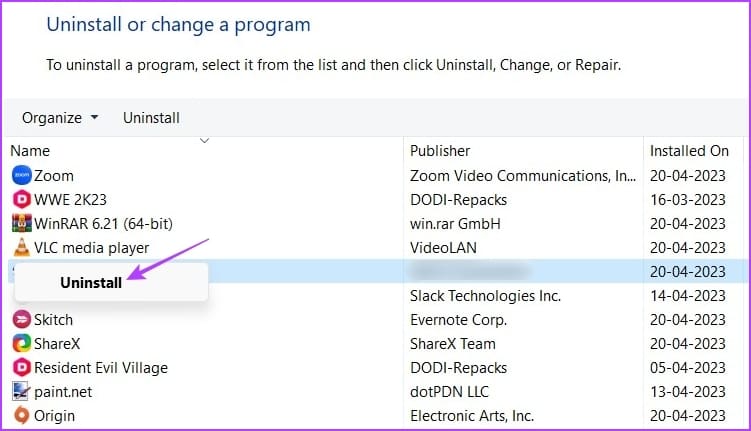
Step 3: Right-click on the third-party security app and choose Uninstall. Then, follow the on-screen instructions to complete the uninstallation process.
4. Update Windows
Oftentimes, the best way to eliminate any Windows issues, including the one at hand, is to download the latest Windows update. To update Windows, launch Settings and choose Windows Update from the left sidebar. Then, click the ‘Check for updates’ option in the right pane.

Now, allow Windows to search for and download every available update. After the download is complete, you might need to restart your computer to complete the installation of the update.
5. Reinstall and Re-register the Windows Security App
Are you still seeing the error message? If yes, then you’re left with no option other than to reinstall and re-register the Windows Security app. Here’s how:
Step 1: Launch the Start Menu, type Windows PowerShell, and choose Run as administrator from the right pane.

Step 2: Execute the following commands one by one.
Set-ExecutionPolicy Unrestricted

Get-AppXPackage -AllUsers | Foreach {Add-AppxPackage -DisableDevelopmentMode -Register “$($_.InstallLocation)\AppXManifest.xml”}

Set-ExecutionPolicy restricted

Protect Your Computer Using Windows Security
Windows Security is an essential Windows app. For any reason, if it starts acting up and throws the ‘You’ll need a new app to open this windowsdefender link” error, your system becomes prone to virus and malware attacks. Fortunately, you can troubleshoot this issue using the above solutions.
Was this helpful?
Last updated on 20 April, 2023
Read Next
 Top 7 Ways to Fix Phone Link App Not Working on Windows 11
Microsoft Phone Link, formerly known as Your Phone, is an app that connects your Windows PC to your Android device.
 7 Best Ways to Fix the Error Opening File for Writing Error in Windows 11
While the Microsoft Store is the go-to option for installing the most popular apps, it does not carry every application or software.
 5 Best Ways to Fix Can’t Open Files in OneDrive Error in Windows
People use OneDrive for storing and saving files in all formats.
 Top 8 Ways to Fix ‘File Is Open in Another Program’ Error in Windows
Windows supports multiple file types and applications.
 Top 6 Fixes for Microsoft Word Experienced an Error Trying to Open the File Error in Windows
Microsoft Word is a powerful word processor to create, edit, and format documents.
 Top 7 Ways to Fix No App Found to Open URL Error on Android
Are you having trouble opening links on your Android phone due to the 'No app found to open URL' error?
 How to Fix Windows 11 Phone Link App Not Working With iPhone
With the recent announcement of Phone Link's support for iPhone, connecting your iOS device with your Windows device has become a whole lot easier.
 Top 6 Ways to Fix This App Can’t Run on Your PC Error in Windows 11
Do you keep getting the ‘This app can’t run on your PC’ error while opening apps and programs on Windows 11 computer?
The article above may contain affiliate links which help support Guiding Tech. The content remains unbiased and authentic and will never affect our editorial integrity.

