YouTube keeps track of every video you watch when you are signed in. This not only helps YouTube offer better recommendations but also gives you the option to revisit your previously viewed videos easily. However, you can’t do that if your YouTube watch history stops working.
While the reason behind this could be anything from misconfigured watch history settings or a corrupted cache, fixing the problem isn’t too difficult. Below, we share some useful tips that should get YouTube to display your watch history as before.
1. Turn on Watch History
A common reason YouTube might not save or update your watch history is if you have paused it““. Here’s how to enable it.
Desktop
Step 1: Open your preferred browser, navigate to the YouTube website, and sign in to your account.
Step 2: Use the left pane to switch to the History tab.

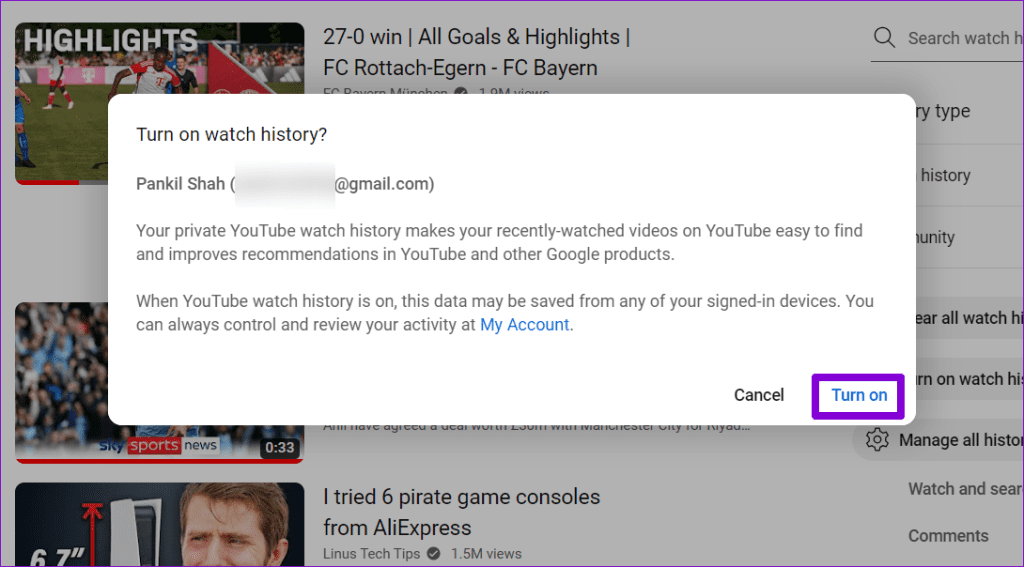
Step 3: On your right, click the ‘Turn on watch history’ button. If you see the ‘Pause watch history’ option, it means the watch history is already enabled.

Step 4: Select Turn on to confirm.
Mobile
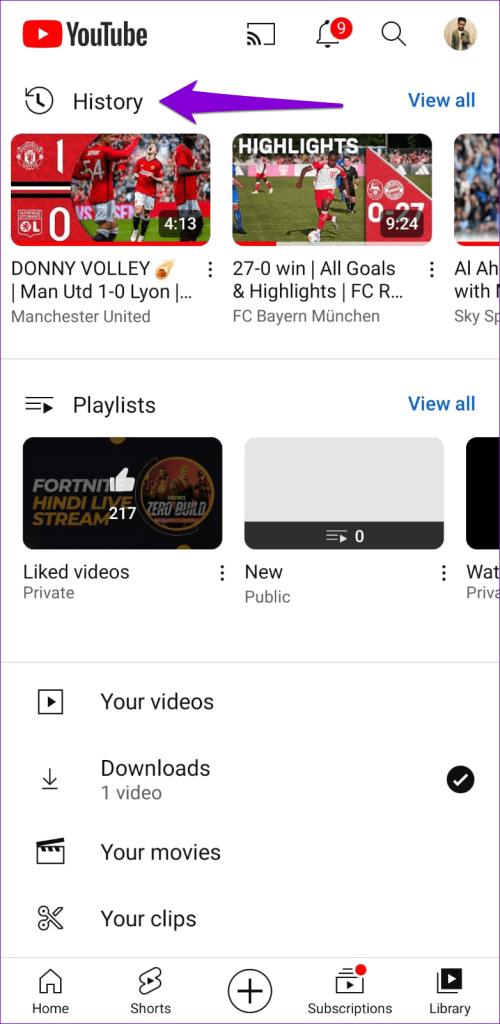
Step 1: Open the YouTube app on your Android or iPhone. Switch to the Library tab and tap on History.
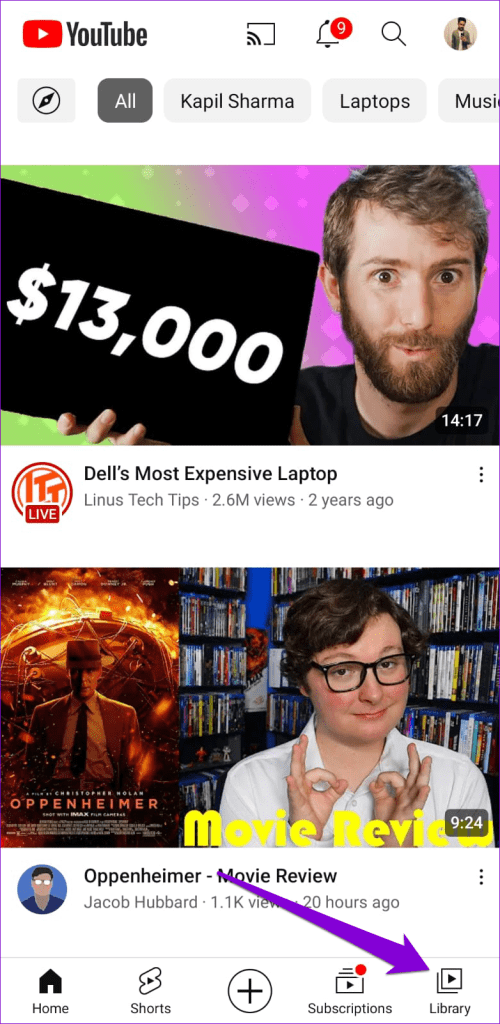
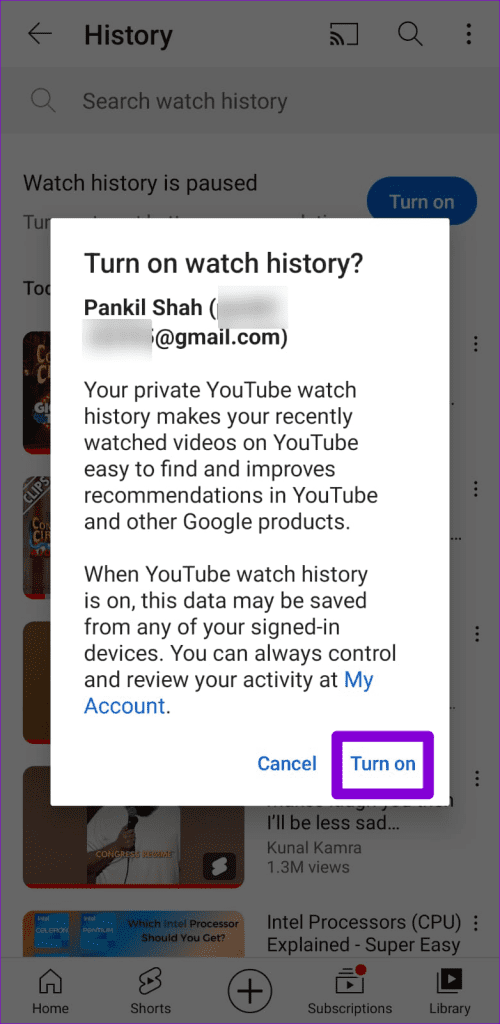
Step 2: If the watch history is paused, you should see the Turn on button at the top. Tap on it and then select Turn on again to confirm.

2. Restart the YouTube App or Refresh the Webpage
Sometimes, temporary glitches with the YouTube app can prevent it from updating or showing your watch history. You can try closing and reopening the app to see if that helps.
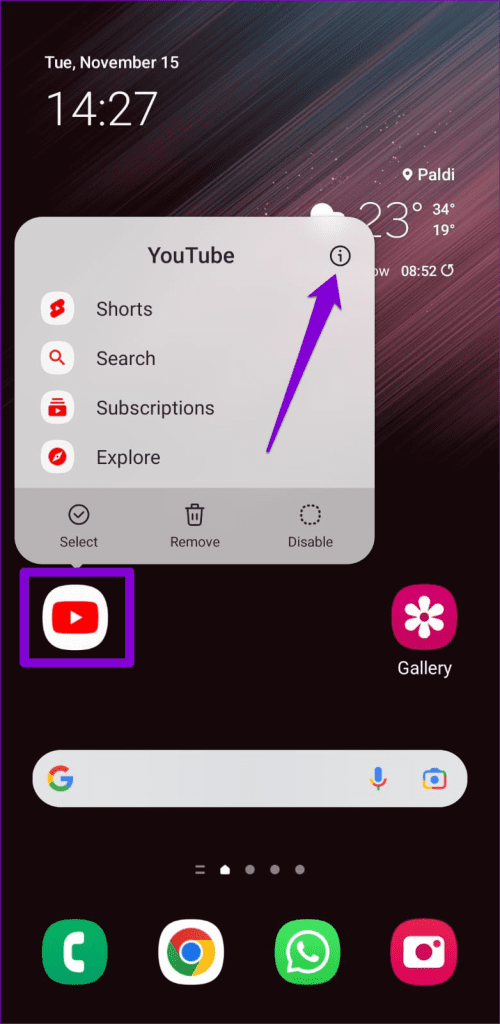
To close YouTube on Android, long-press on its app icon and tap the info icon from the resulting menu. Then, tap the Force stop option at the bottom.

On the iPhone, swipe up from the bottom of the screen (or press the Home Screen button twice) to bring up the app switcher. Then, swipe upwards on the YouTube card to close the app.

Those using YouTube in a web browser can reload the webpage by clicking the refresh icon and see if that helps.

3. Sign Out and Sign Back In
You can sign out of YouTube and then sign back in. This should help re-establish YouTube’s connection with its servers and resolve any issues.
If you use YouTube on a desktop, click the profile icon at the top-right corner and select Sign out.

The process of signing out of the YouTube app varies for Android and iPhone. Here are the steps you can follow.
Android
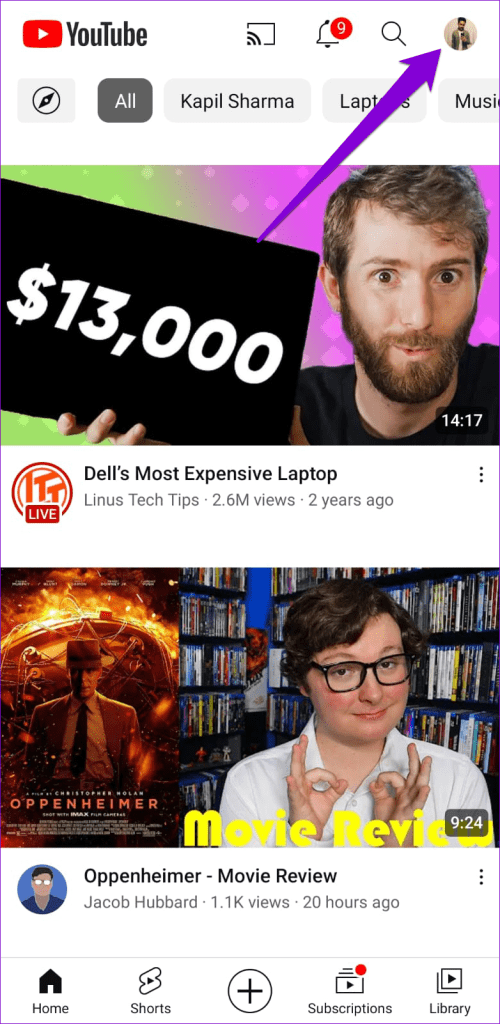
Step 1: Open the YouTube app on your Android, tap the profile icon at the top-right corner, and tap on your username.
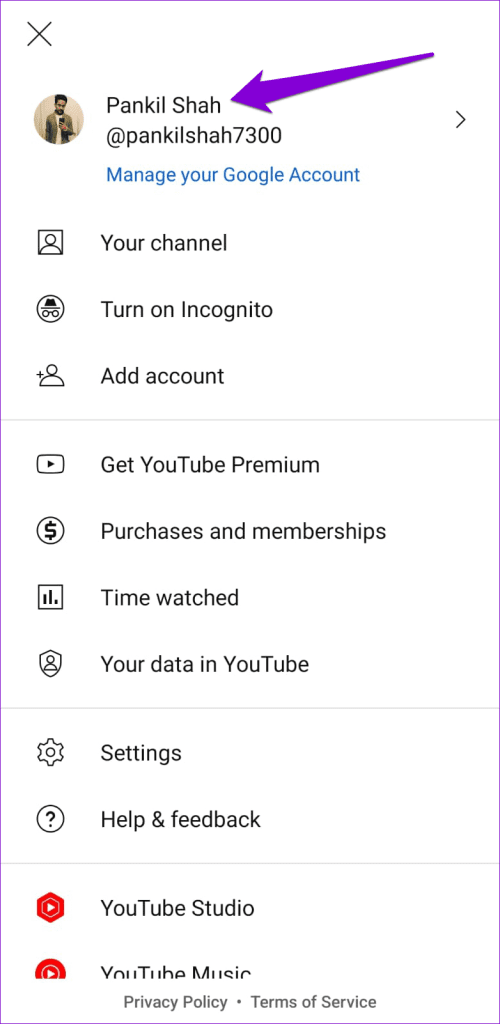
Step 2: Select the Manage accounts option.
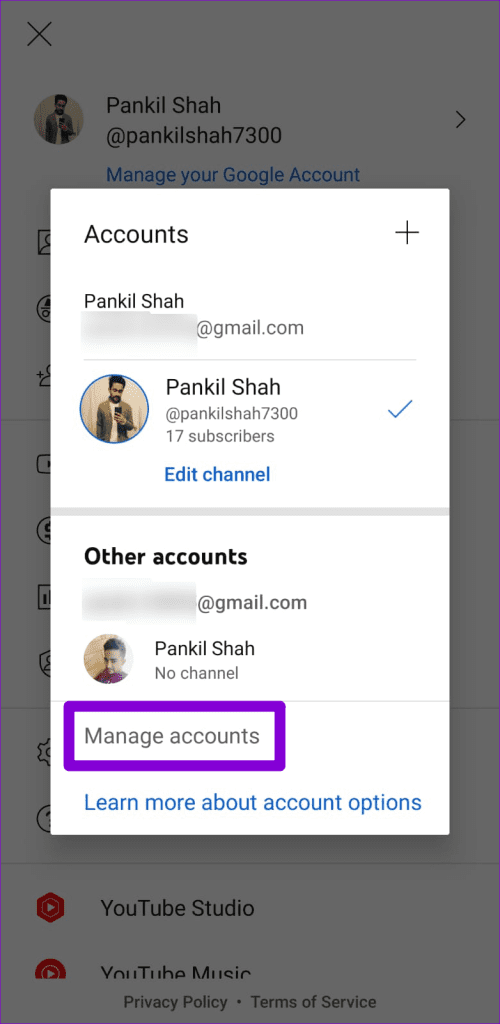
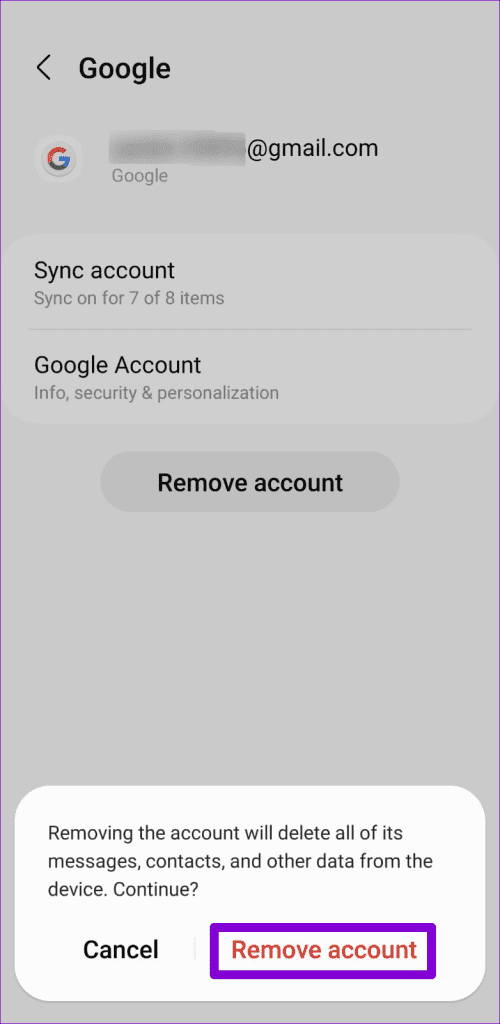
Step 3: Select your account from the list and click the Remove account option.


Step 4: Select Remove account again to confirm.
Step 5: Restart the YouTube app, tap the profile icon and select Add account. Then, follow the on-screen prompts to sign in with your account.

iPhone
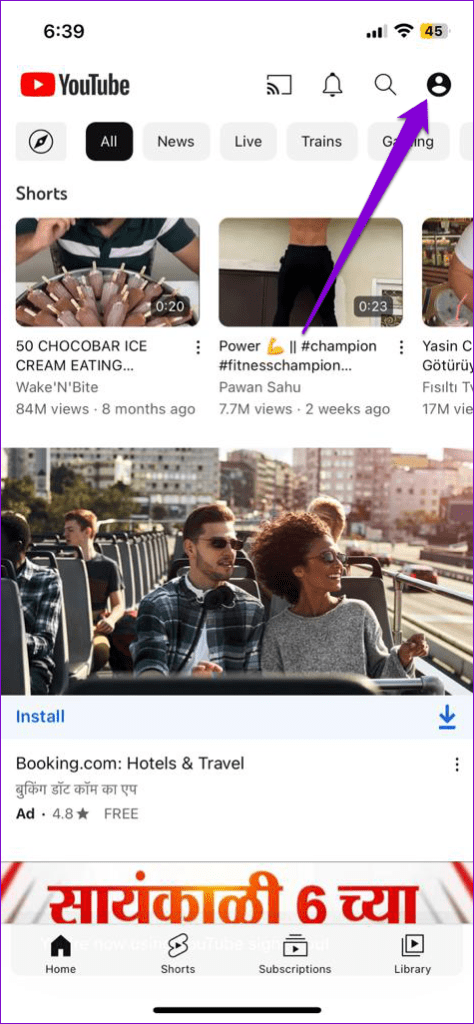
Step 1: Open the YouTube app and tap the profile icon in the top right corner.

Step 2: Tap on your account name and select the ‘Use YouTube signed out’ option.
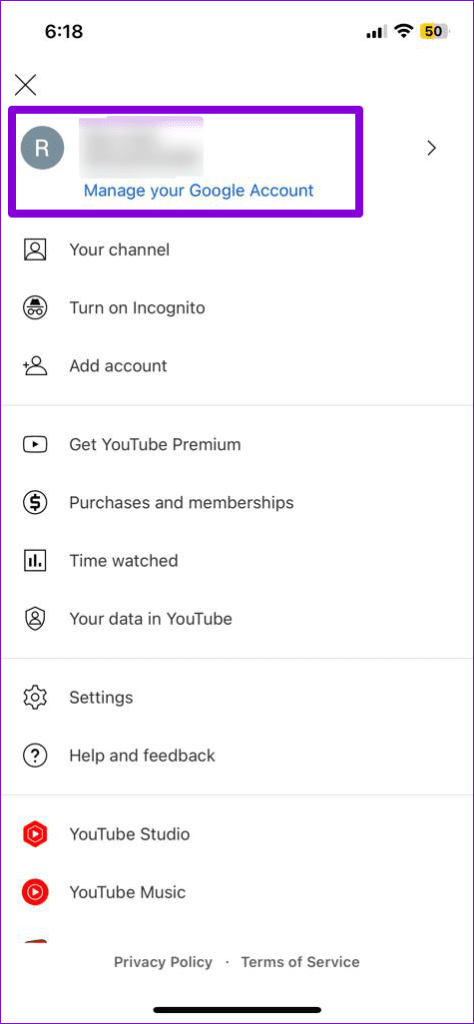

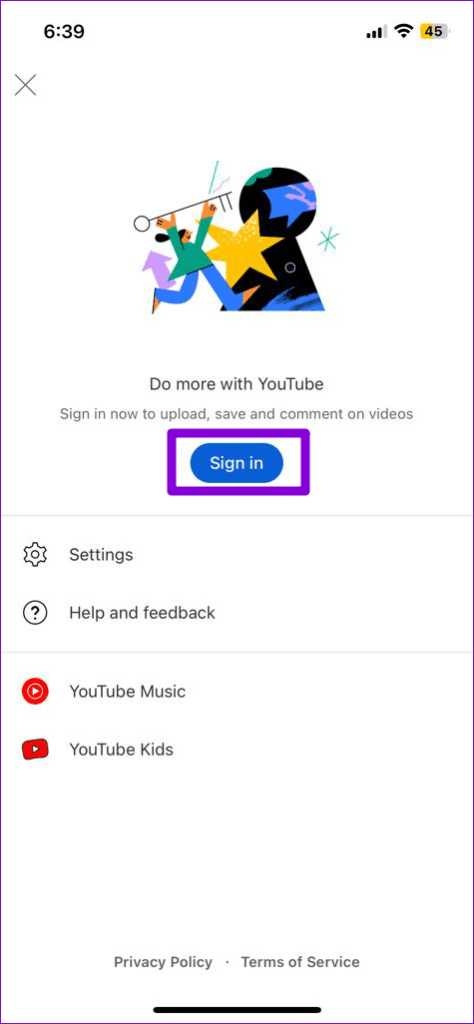
Step 3: Tap the profile icon again, select the Sign in option, and then add your account.
4. Disable Ad-Blocker Extensions (Desktop)
If you have an ad-blocker extension installed on your browser, it might interfere with YouTube’s ability to save your watch history. To check for this possibility, you can temporarily disable any ad-blocker extensions on your browser.
In Google Chrome, type chrome://extensions in the address bar at the top and press Enter. Then, turn off the toggle next to the ad-blocker extension.

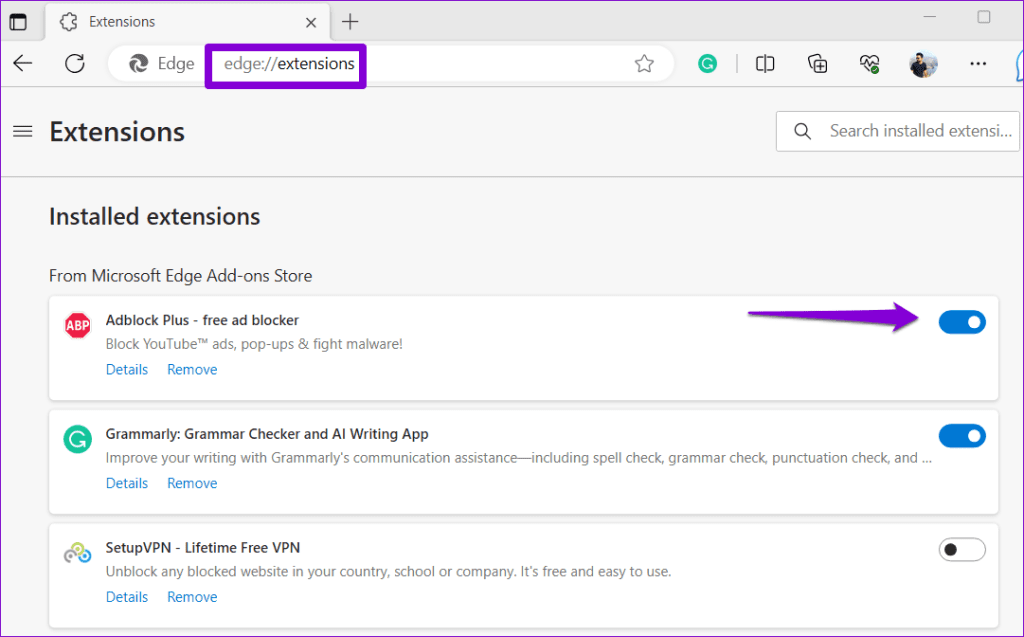
For those using Microsoft Edge, type edge://extensions in the URL bar and hit Enter. Turn off the ad-blocker extension using the toggle next to it.
Restart your browser after this and check if the issue is still there.
5. Clear YouTube App Cache (Android)
Corrupted or inaccessible cache data can also prevent the YouTube app from running smoothly on your Android device, resulting in such issues. You can purge the existing YouTube app cache to see if that solves the problem.
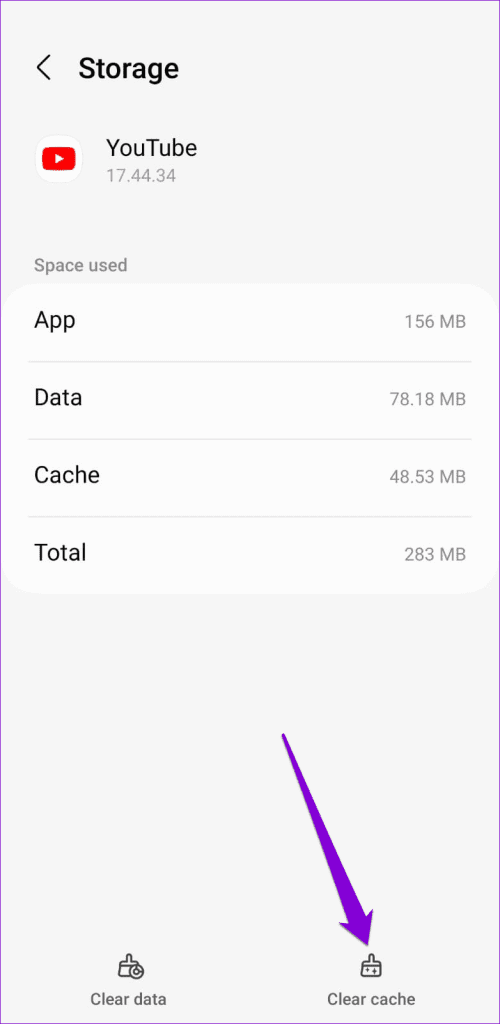
Step 1: Long-press on the YouTube app icon and tap the info icon from the menu that appears.
Step 2: Go to Storage and tap the Clear cache option.

6. Clear Cache and Cookies for YouTube (Desktop)
YouTube watch history may stop working in your browser if the cache and cookies associated with the site are old or corrupted. You can clear the cache and cookies for YouTube to fix the issue.
If you use Chrome, visit the YouTube website, click the padlock icon in the address bar, and select Site settings.
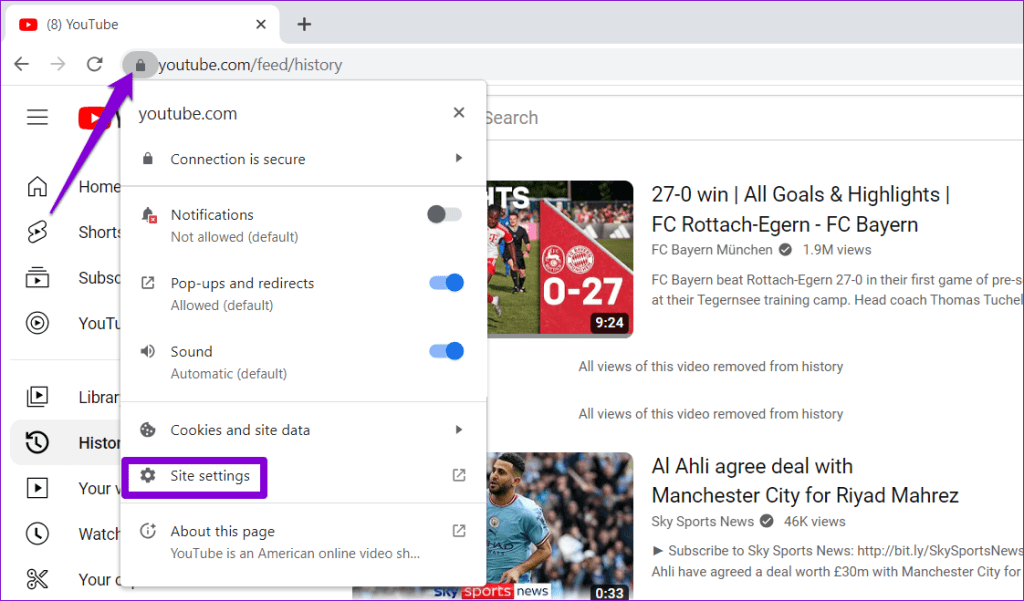
Click the Clear data button under the Usage section.

Similarly, you can clear YouTube’s cache and cookies in Edge, Safari, or any other browser you use.
7. Update the App (Mobile)
If nothing works, the YouTube app on your phone is likely outdated or buggy. To fix it, update the YouTube app to its latest version by visiting the Play Store (Android) or App Store (iPhone).
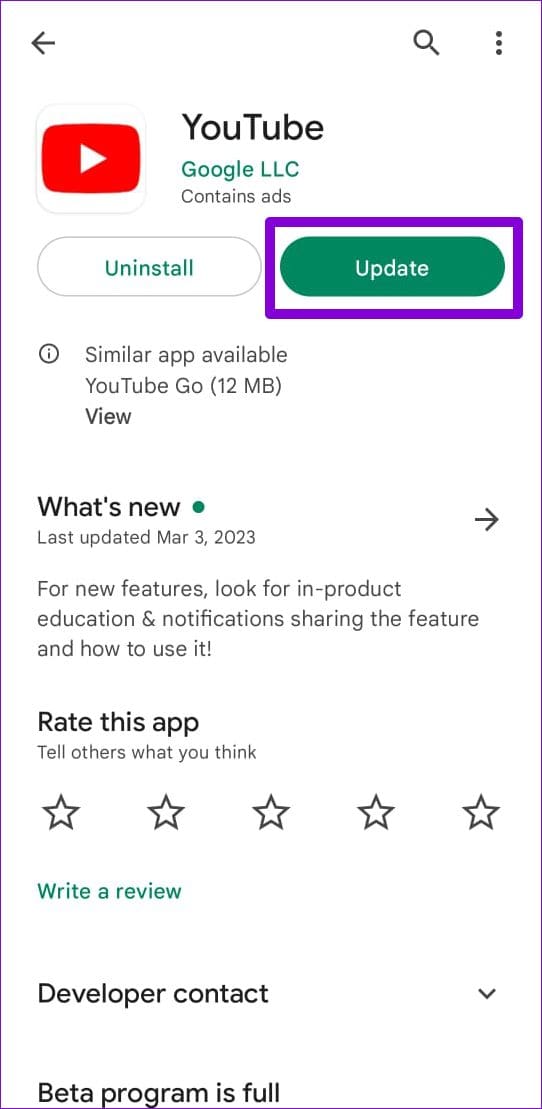
Once updated, the YouTube app should display your watch history as before.
Reclaim Your Watch History
It can be frustrating when you want to rewatch an important tutorial or recipe video and it’s missing from your watch history. Hopefully, one or more of the above tips have helped you solve the problem and rework YouTube watch history.
Was this helpful?
Last updated on 21 July, 2023
Read Next
 How to Reset YouTube Watch History
To provide better video suggestions, YouTube keeps track of every video search and your watch history in the app.
How to Reset YouTube Watch History
To provide better video suggestions, YouTube keeps track of every video search and your watch history in the app.
 How to Get Samsung Galaxy Watch 5 Watch Faces on Galaxy Watch 4
Samsung's Galaxy Watch is generally regarded as the Apple Watch of the Android world.
How to Get Samsung Galaxy Watch 5 Watch Faces on Galaxy Watch 4
Samsung's Galaxy Watch is generally regarded as the Apple Watch of the Android world.
 How to Clear YouTube Search and Watch History on Web and Mobile
Are you tired of seeing recommendations on YouTube that don't align with your current interests?
How to Clear YouTube Search and Watch History on Web and Mobile
Are you tired of seeing recommendations on YouTube that don't align with your current interests?
 Top 6 Ways to Fix Clipboard History Not Working on Windows 11
When you copy any text or image (less than 4 MB in size) on your PC, Windows automatically stores that item in the clipboard.
Top 6 Ways to Fix Clipboard History Not Working on Windows 11
When you copy any text or image (less than 4 MB in size) on your PC, Windows automatically stores that item in the clipboard.
 6 Cool Sites to Watch YouTube Without YouTube
I don’t know about you but I feel YouTube is a bit cluttered and full of distractions.
6 Cool Sites to Watch YouTube Without YouTube
I don’t know about you but I feel YouTube is a bit cluttered and full of distractions.
 Top 10 Ways to Fix Apple Watch Swipe Up Not Working
The Apple Watch has one of the best UIs on a smartwatch.
Top 10 Ways to Fix Apple Watch Swipe Up Not Working
The Apple Watch has one of the best UIs on a smartwatch.
 Top 9 Ways to Fix YouTube Not Working on Google Chrome
While there's no native YouTube app for Windows or Mac, you're limited to using it in a browser.
Top 9 Ways to Fix YouTube Not Working on Google Chrome
While there's no native YouTube app for Windows or Mac, you're limited to using it in a browser.
 Top 9 Ways to Fix Sound Not Working in YouTube on Mobile and PC
Thousands of videos get uploaded to YouTube every day.
Top 9 Ways to Fix Sound Not Working in YouTube on Mobile and PC
Thousands of videos get uploaded to YouTube every day.
The article above may contain affiliate links which help support Guiding Tech. The content remains unbiased and authentic and will never affect our editorial integrity.