In most word processors like Google Docs, you have printing and non-printing characters. Printing characters are visible, like your text and numbers, and you can easily identify them in a document. On the other hand, non-printing characters are typically formatting features used to manage the layout of a document. Hence, the reason why non-printing characters are often not visible.

However, with the new Google Docs update, users can view non-printing characters in their documents. If you want to know the features in Google Docs that count as non-printing characters and how you can view these non-printing characters in your document, read below:
The 7 Non-Printing Characters in Google Docs
Google Docs has seven (7) non-printing characters, and users are familiar with most of them. They include:
Paragraph / Hard Break
To show the division between bodies of text, a single line space and/or an indentation called a paragraph is often used. Starting a paragraph in Google Docs is similar to what you would do for other processors. Here’s how:
Step 1: On your preferred web browser, open the Google Docs file. If you have the Google Docs app, you can launch it and open your document.

Step 2: Type in your text on the Google Docs canvas.
Step 3: To start a new paragraph, hit the Enter key on your keyboard for a hard paragraph return.

Step 4: If you want to include a space between paragraphs, highlight the paragraphs.

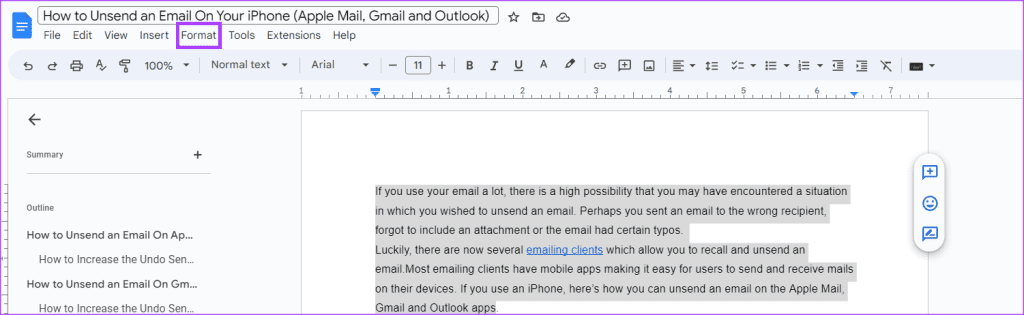
Step 5: Click the Format tab on the Google Docs Ribbon.
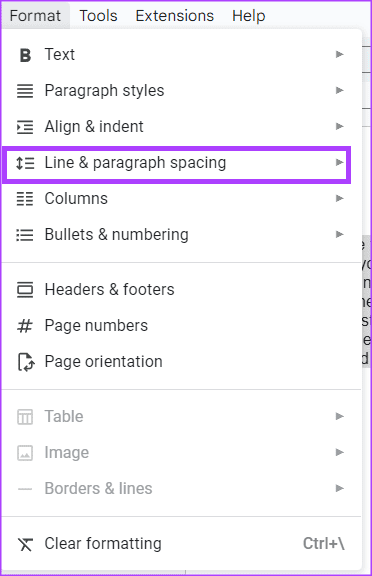
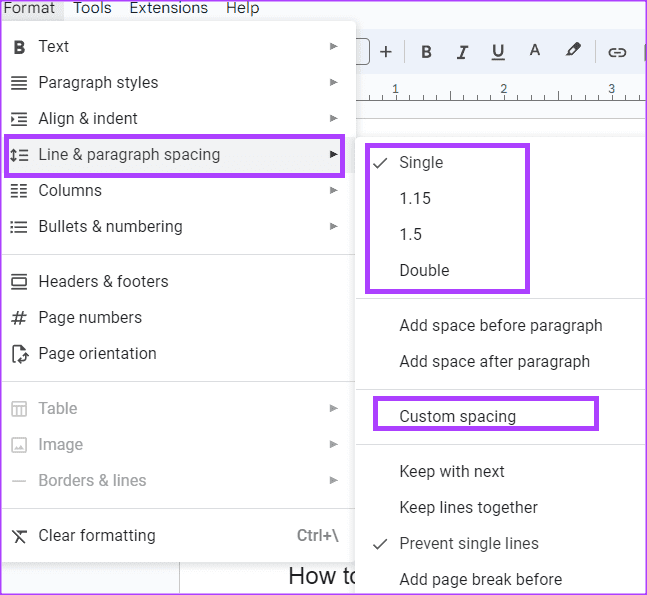
Step 6: Click the Line & paragraph spacing option.
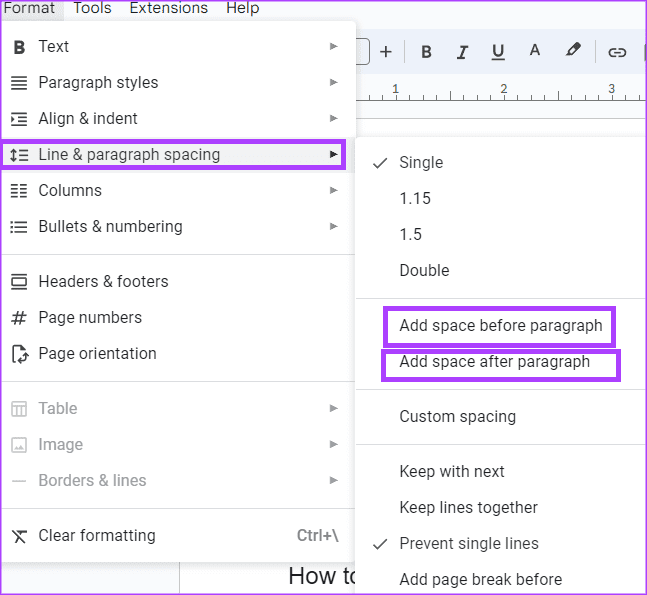
Step 7: Click ‘Add space before paragraph’ and ‘Add space after paragraph.’ This will add a white space before and after the selected paragraphs.
Line / Soft Break
In a paragraph, you can have multiple lines of text. Users can adjust the spacing between these lines. Here’s how:
Step 1: On your preferred web browser, open the Google Docs file. If you have the Google Docs app, you can also launch it and open your document.
Step 2: Type in your text on the Google Docs canvas.
Step 3: To adjust the space between lines of text in the document, highlight the text.
Step 4: Click the Format tab on the Google Docs Ribbon.
Step 5: Click the Line & paragraph spacing option.
Step 6: Choose from the following options to set your line spacing:
- Single
- 1.15
- 1.5
- Double
- Custom spacing
Section Break
A section break allows you to split a document into different parts. For example, if you are trying to create chapters in a document, you can use a section break. Here’s how to do so in Google Docs:
Step 1: On your preferred web browser, open the Google Docs file. If you have the Google Docs app, you can also launch it and open your document.
Step 2: Type in your text on the Google Docs canvas.
Step 3: To introduce a section break in the document, select where you want a new section to begin.
Step 4: Click the Insert tab on the Google Docs Ribbon.

Step 5: Click the Break option.

Step 6: Select either of the below options:
- Section break (next page): start the new section on the next page
- Section break (continuous): start the new section on the same page

Page Break
A page break is a marker that ends an active page and starts a new one. For example, if you are trying to separate your title page from the table of contents. Here’s how to do so in Google Docs:
Step 1: On your preferred web browser, open the Google Docs file. If you have the Google Docs app, you can launch it and open your document.
Step 2: Type in your text on the Google Docs canvas.
Step 3: To introduce a section break in the document, select where you want a new page to begin.
Step 4: Click the Insert tab on the Google Docs Ribbon.
Step 5: Click the Break option.
Step 6: Select Page break.

Column Break
If you have text in your Google Docs file arranged in columns (similar to newspaper layouts), you can use a column break to control how the text flows. Here’s how to do so in Google Docs:
Step 1: On your preferred web browser, open the Google Docs file. If you have the Google Docs app, you can launch it and open your document.
Step 2: Type in your text on the Google Docs canvas with the Column format.
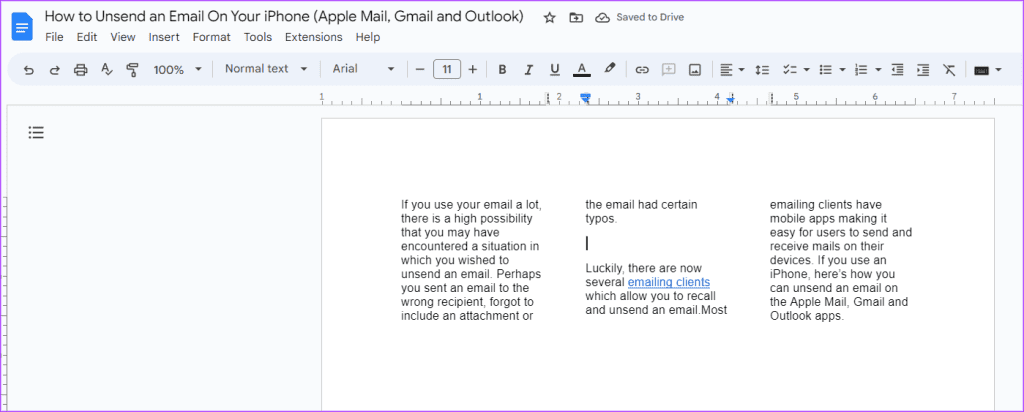
Step 3: To introduce a column break in the document, select where you want the column break to begin.

Step 4: Click the Insert tab on the Google Docs Ribbon.
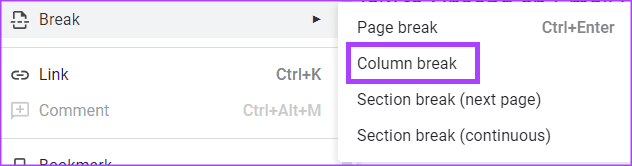
Step 5: Click the Break option.
Step 6: Select Column break.
Tab
A tab in Google Docs allows you to add horizontal space in the middle of a line that contains text or numbers. Here’s how to do so:
Step 1: On your preferred web browser, open the Google Docs file. If you have the Google Docs app, you can launch it and open your document.
Step 2: Type in your text on the Google Docs canvas.
Step 3: To introduce a tab, place your cursor where you want the tab, then tap the Tab key on your keyboard.

As you hit the Tab key, the text after the cursor steadily moves to the right.
Space
The space tool allows you to introduce a gap between text, words, or numbers in Google Docs. All you need to do is tab the space bar on your keyboard.
How to View the Non-Printing Characters in Google Docs
Now that you know what the non-printing characters in Google Docs are and how to access them, here’s how to make them visible. By displaying the non-printing characters, it allows you see how your document is laid out and make further adjustments.
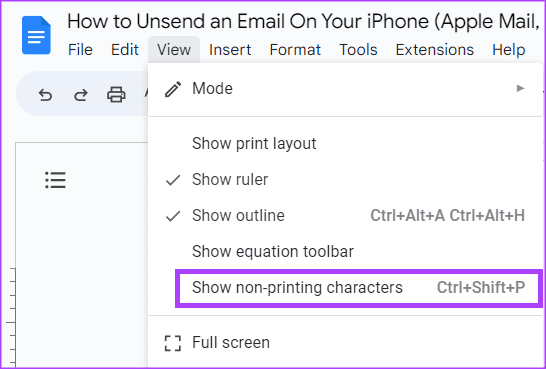
Step 1: On the Google Docs Ribbon, click the View tab.

Step 2: From the View tab, select Show non-printing characters.
If your document has the non-printing characters we explained above, you should see symbols or markers highlighting them.
Using Google Docs Like a Pro
Getting familiar with the non-printing characters in Google Docs is one of the ways to ensure you have a well-formatted document. However, to become a Google Docs pro user, there are other tricks you need to learn.
Was this helpful?
Last updated on 17 July, 2023
Read Next
 Top 5 Tips to Insert Special Characters in Google Docs
Whenever you want to insert a special character to a document, Google Docs is happy to oblige with its library of built-in symbols, emojis, and punctuations.
Top 5 Tips to Insert Special Characters in Google Docs
Whenever you want to insert a special character to a document, Google Docs is happy to oblige with its library of built-in symbols, emojis, and punctuations.
 Top 6 Ways to Fix Google Docs Not Printing Correctly
Google Docs is an excellent word processing software that lets you create everything from flyers to blog posts.
Top 6 Ways to Fix Google Docs Not Printing Correctly
Google Docs is an excellent word processing software that lets you create everything from flyers to blog posts.
 How to Add or Remove Non-Steam Games From Your Steam Library
Although Steam is a popular source for downloading PC games, it’s not the only option.
How to Add or Remove Non-Steam Games From Your Steam Library
Although Steam is a popular source for downloading PC games, it’s not the only option.
 10 Best Ways to Fix Google Sheets Not Printing Error
The cloud storage-based document editors like Google Docs and Sheets have reduced the need for printing documents.
10 Best Ways to Fix Google Sheets Not Printing Error
The cloud storage-based document editors like Google Docs and Sheets have reduced the need for printing documents.
 Change Android Lock Screen ( For Non-Rooted Android Phones )
When I bought my Samsung Galaxy S, I was highly impressed with the level of customization it offered.
Change Android Lock Screen ( For Non-Rooted Android Phones )
When I bought my Samsung Galaxy S, I was highly impressed with the level of customization it offered.
 2 Best Non-Apple Task Managers For Both Mac and the iPhone
For many people, task managers are as essential as email.
2 Best Non-Apple Task Managers For Both Mac and the iPhone
For many people, task managers are as essential as email.
 NoRoot Firewall App: Great Way to Secure Non-Rooted Androids
Each app that connects to the internet on your Android has a special permission called Network Access that you need to approve before you install it from the Play Store.But
NoRoot Firewall App: Great Way to Secure Non-Rooted Androids
Each app that connects to the internet on your Android has a special permission called Network Access that you need to approve before you install it from the Play Store.But
 Photoshop: Using Destructive and Non-destructive Adjustments
For many people, Photoshop is this strange, complicated application that almost everyone knows about but finds daunting to use mainly because Photoshop’s options seem to be obscure and confusing.
Photoshop: Using Destructive and Non-destructive Adjustments
For many people, Photoshop is this strange, complicated application that almost everyone knows about but finds daunting to use mainly because Photoshop’s options seem to be obscure and confusing.
The article above may contain affiliate links which help support Guiding Tech. The content remains unbiased and authentic and will never affect our editorial integrity.