Efficient communication is crucial among teams. For example, you might want your team members’ opinions on something. You ask the question, and fifty of your team members send a text, each quoting their opinion. Result? Endless scrolling through the responses without a clear idea of what to take. The solution – polls. Here’s how to create a poll Slack and use them.

In this article, we’ll show you an easy way to use a third-party app and create a poll in Slack. The app is called Simple Poll, and it packs all the features you need. Further, if you cannot download or add third-party apps to Slack, you can create a poll without it as well. We’ll show it all. Let’s begin.
Also Read: Microsoft Forms vs. Google Forms: Which is better for surveys and polls
Method 1: Do a Poll in Slack Using Simple Poll
The Simple Poll app is a free and easy-to-use third-party application you can integrate into Slack to make polls. Here’s how to install it.
Download Simple Poll in Slack
As a team member, you can download and connect apps to the Slack app or website. However, your administrator can restrict downloading third-party apps without their approval. So, ensure you have the necessary permissions before following the below steps.
Step 1: In the sidebar of the Slack app, click on Apps. If you do not find the option, you can click on More and then select Apps.
Step 2: Search for Simple Poll in the Slack app directory. Click on the Add button under Simple Poll.

Step 3: Click on ‘Add to Slack’.
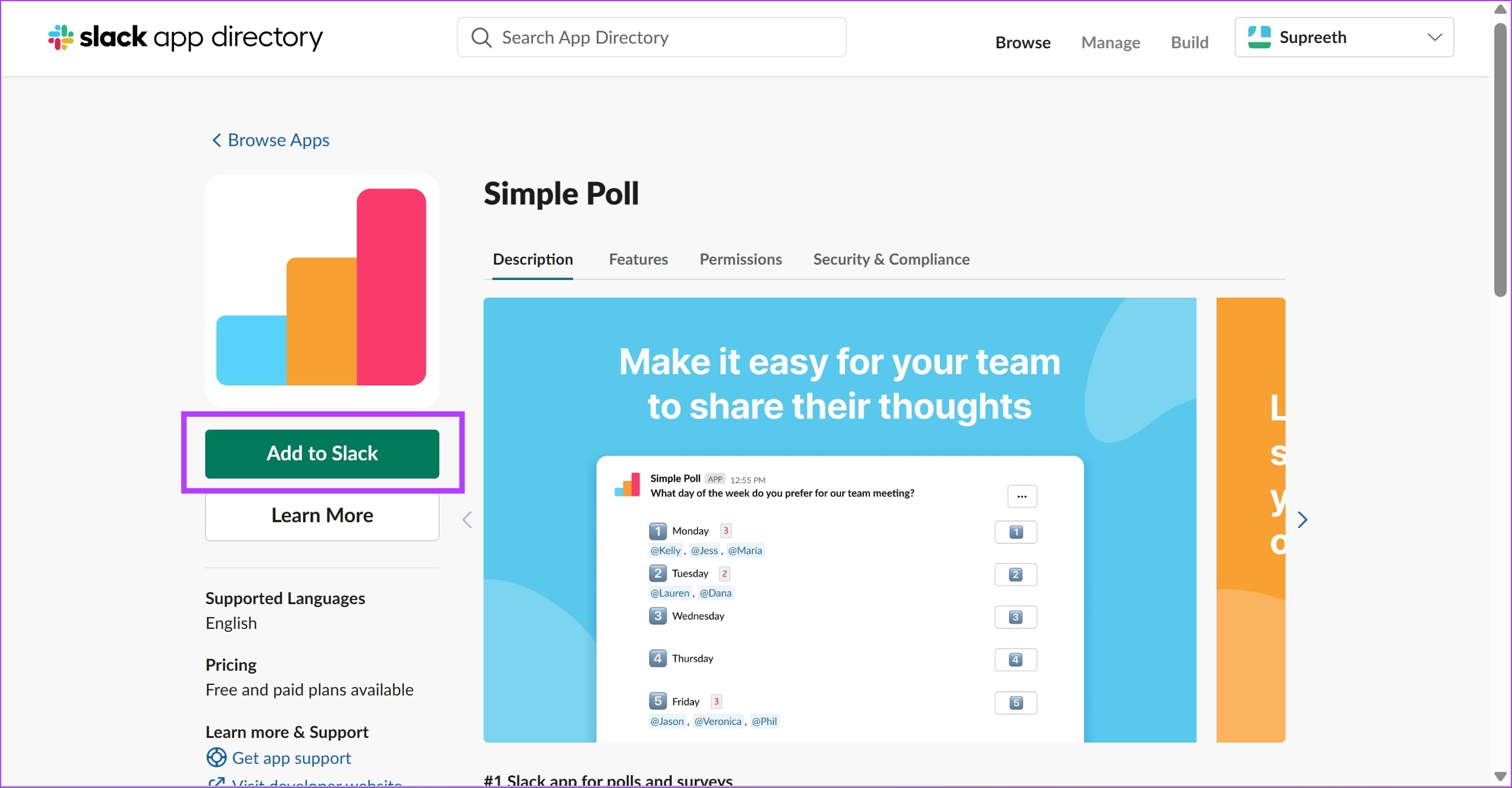
You will now be asked to authenticate with a one-time password and add some basic information regarding your workspace to Simple Poll. Once you install the app, here’s how to create a poll.
We’ll first show you how to create a basic Slack poll. Further, we’ll show you how to create an anonymous or recurring poll on Slack.
Create a Poll Using Simple Poll
Once you download the app, here’s how you can create polls on any Slack channel.
Step 1: Open the channel in which you want to create a poll.
Step 2: Type /create poll and select the option from the menu.
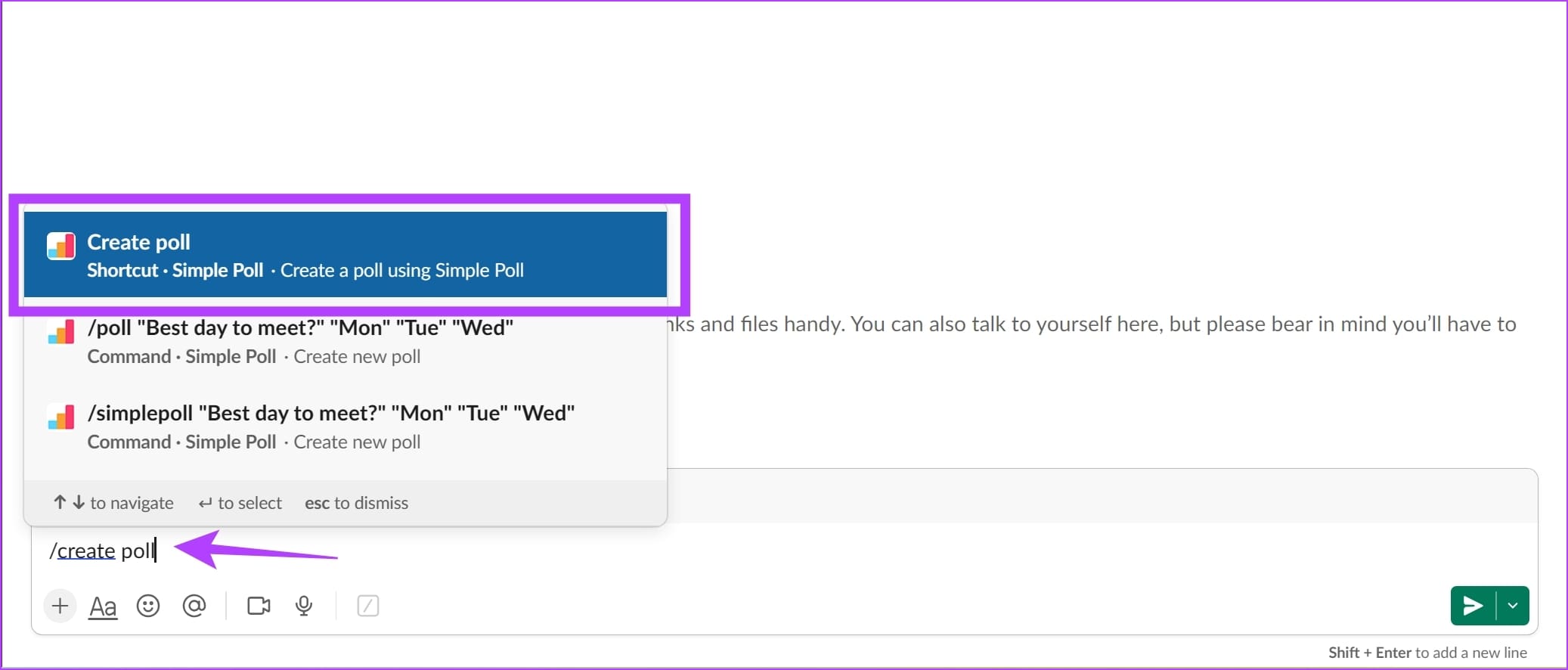
Step 3: In the modal window, scroll down and type your question under ‘Question or Topic’.
Note: Click on Template gallery to choose from the preset poll options.
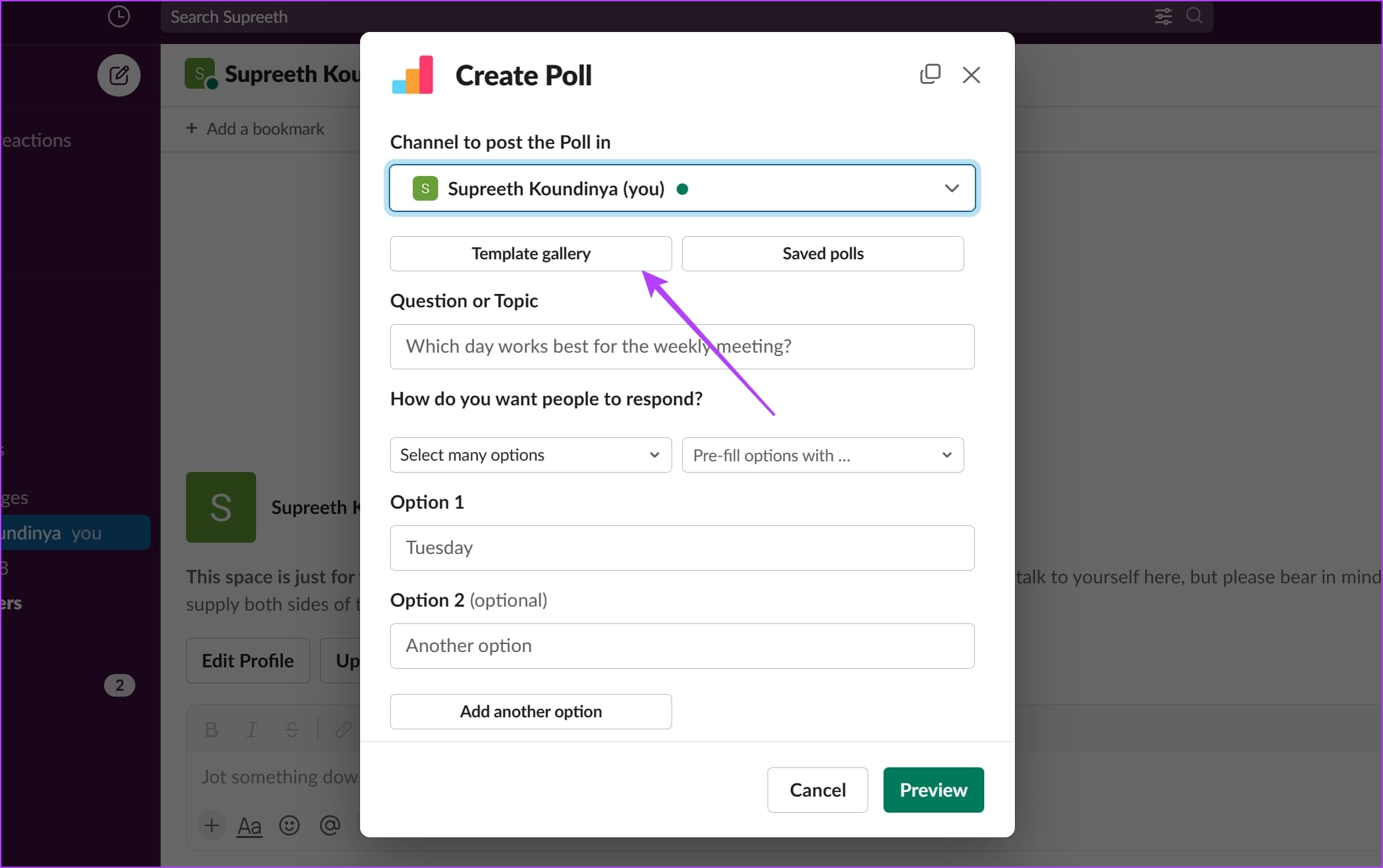
Step 4: You can pick an option for ‘How do you want people to respond’. You can select either a rank-based poll, a scale-based poll, or write a short text.

Step 5: You can also opt to pre-fill your poll with options. Click on ‘Pre-fill options with’ and select the relevant ones.
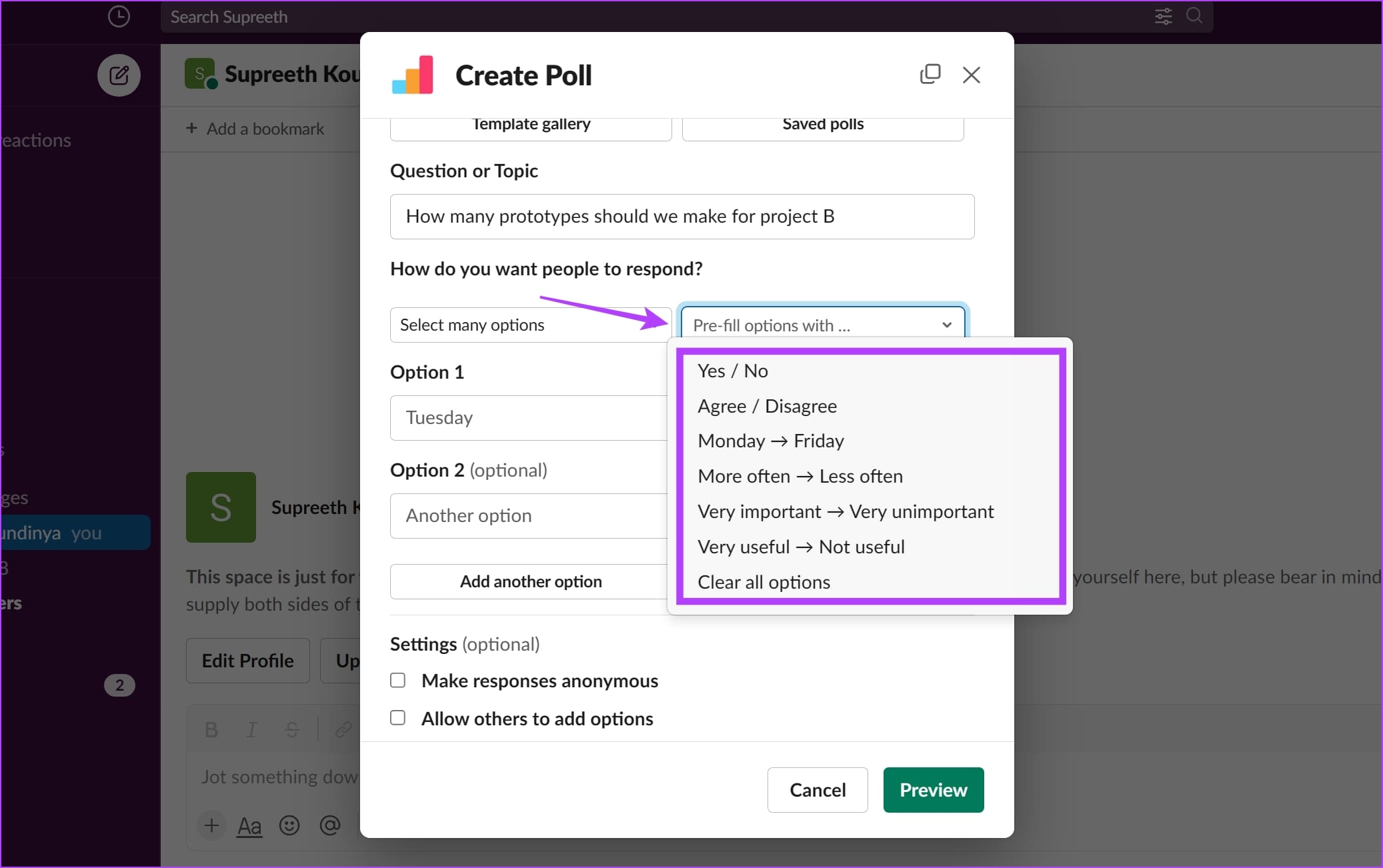
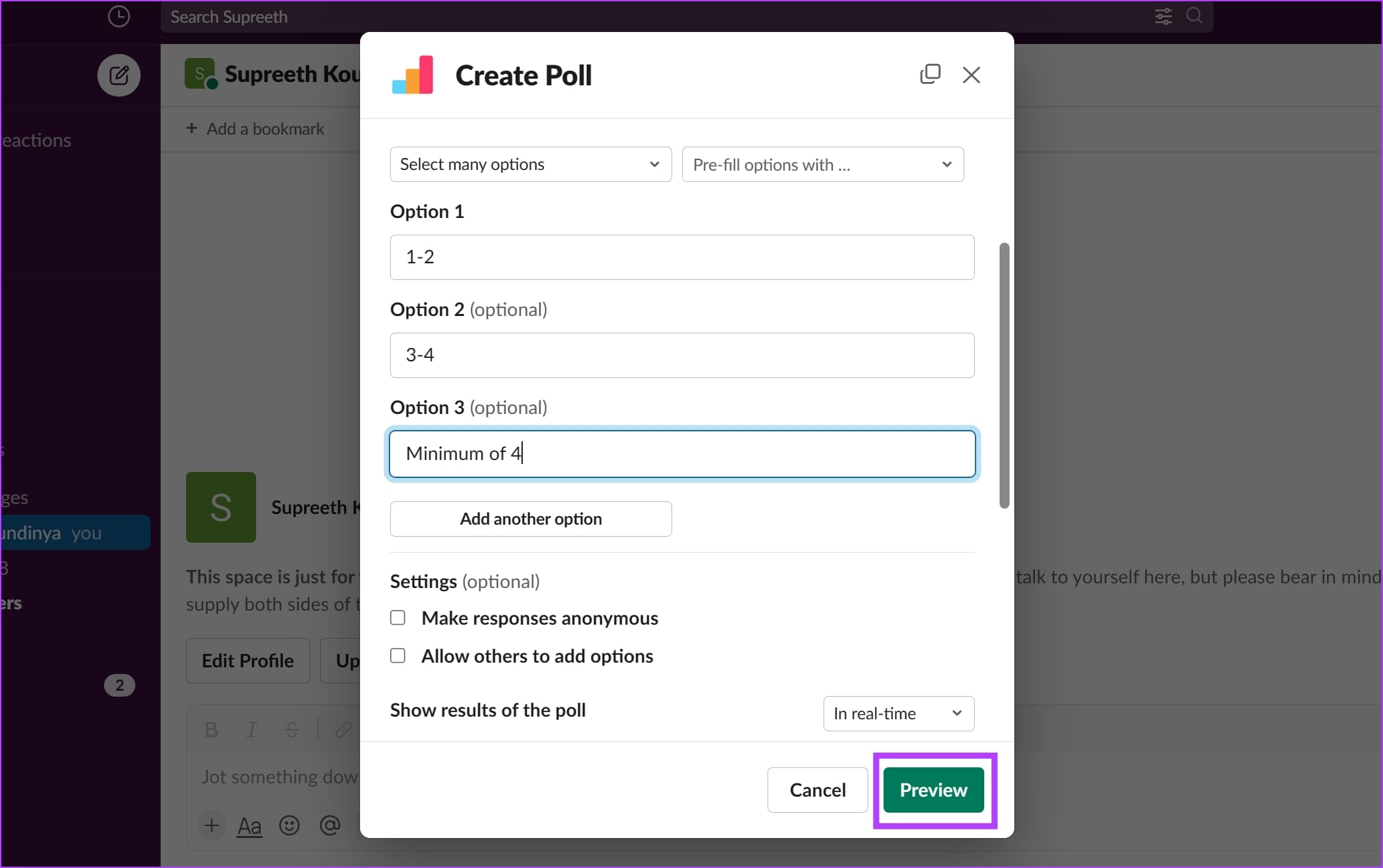
Step 6: Next, scroll down and enter the details for options. We’ve selected a short text-based poll. Therefore, we’ll be typing out our options.
If you want more options, click on ‘Add another option’.
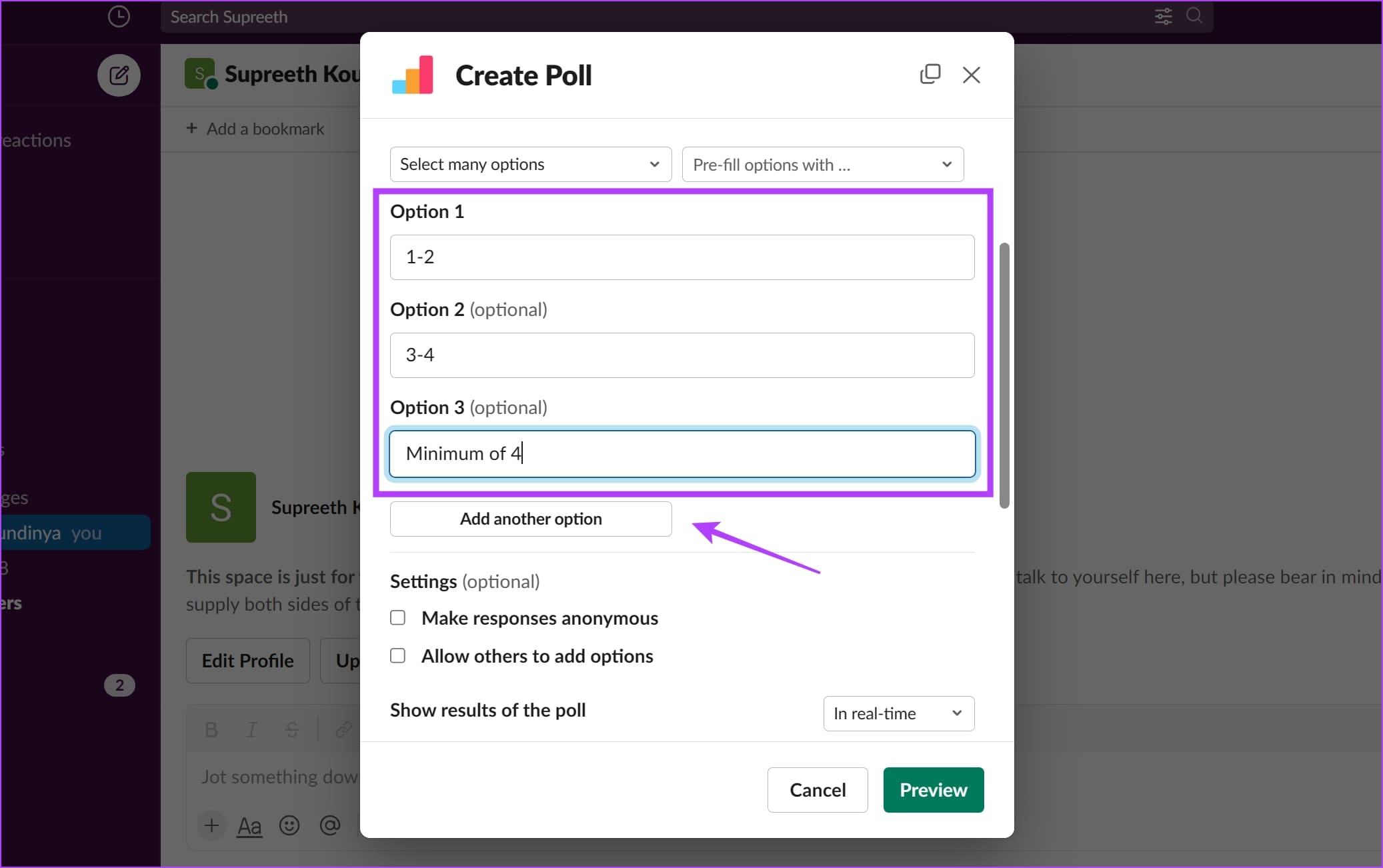
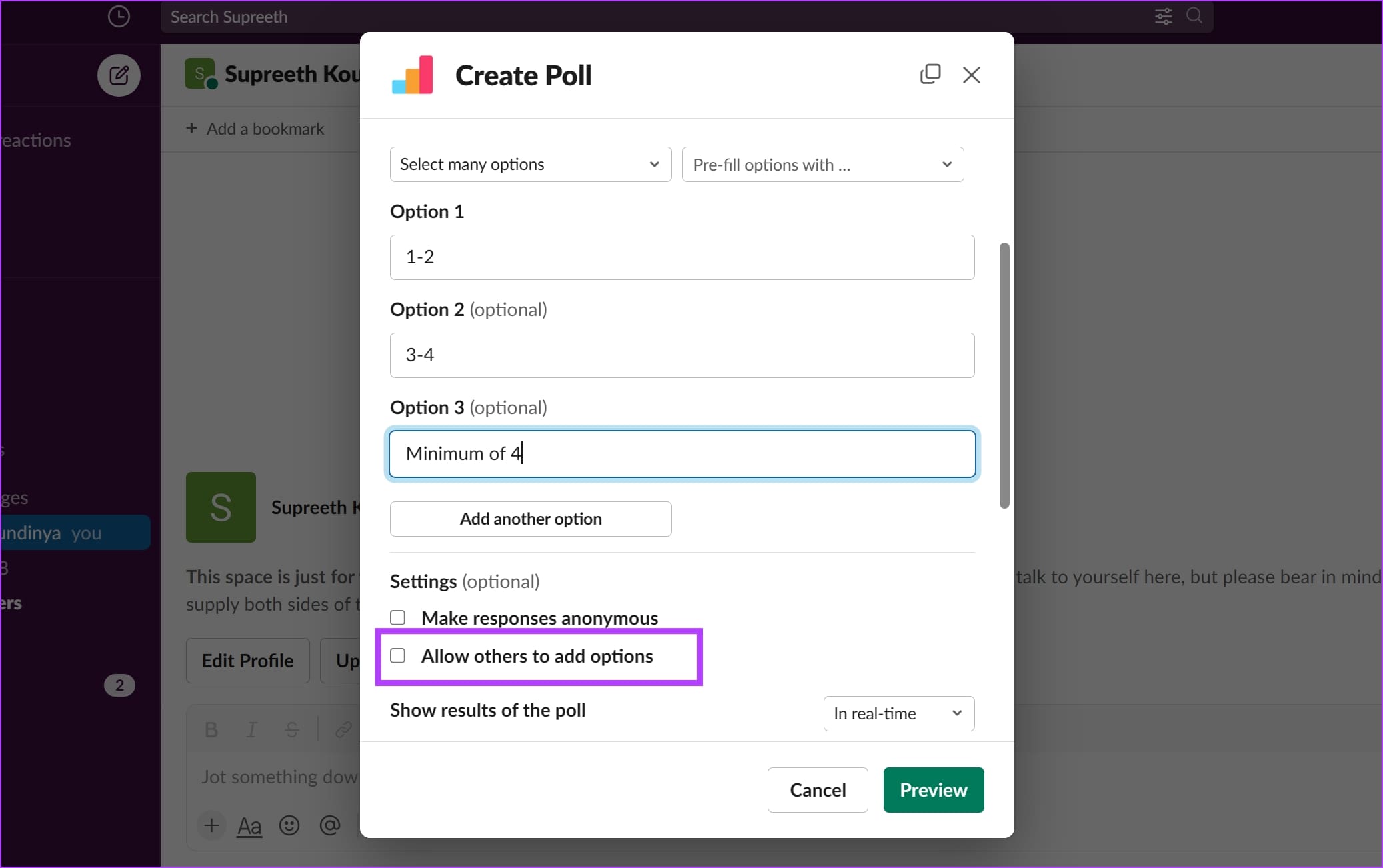
Step 7: Check the box for ‘Allow others to add options’ to let others add preferred options.
Step 8: To select how you want to display the poll results, click on the drop-down menu for Show results of the poll and choose the relevant option from In real-time, After closing, and To creator only.
Tip: To order results in ascending order, select Yes from the drop-down menu for ‘Order results by most votes’.

Step 9: Once done, click on Preview.
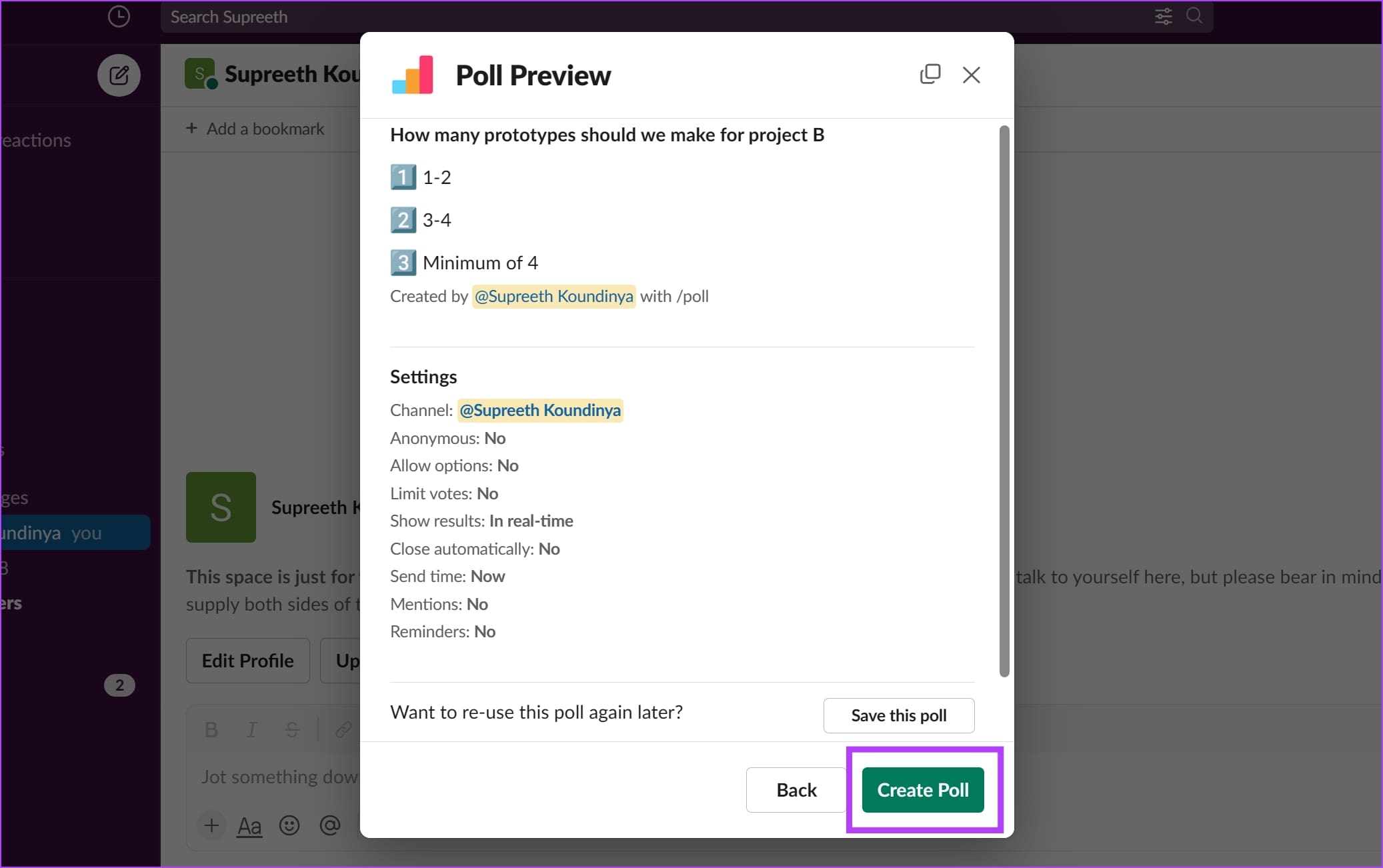
Step 10: You will see a summary of your poll. If you’re satisfied, click on Create Poll. If you want to make further changes, select Back.
That’s it! The poll will be sent as a message. Team members can simply click on the desired option to cast their vote.
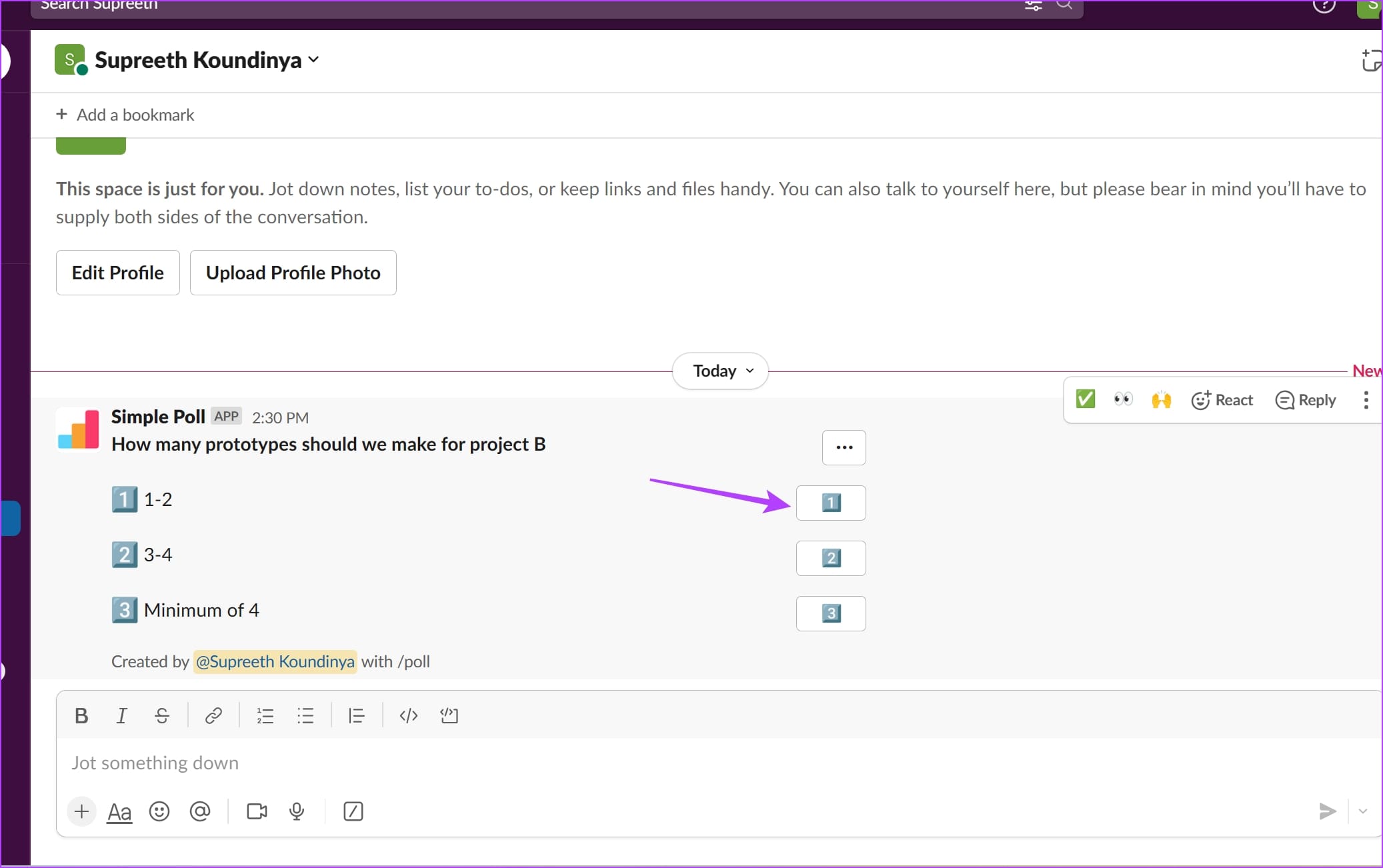
By default, you can see the users’ names and their respective votes. Thankfully, there’s also a feature that lets you conduct anonymous polls.
How to Do an Anonymous Poll in Slack
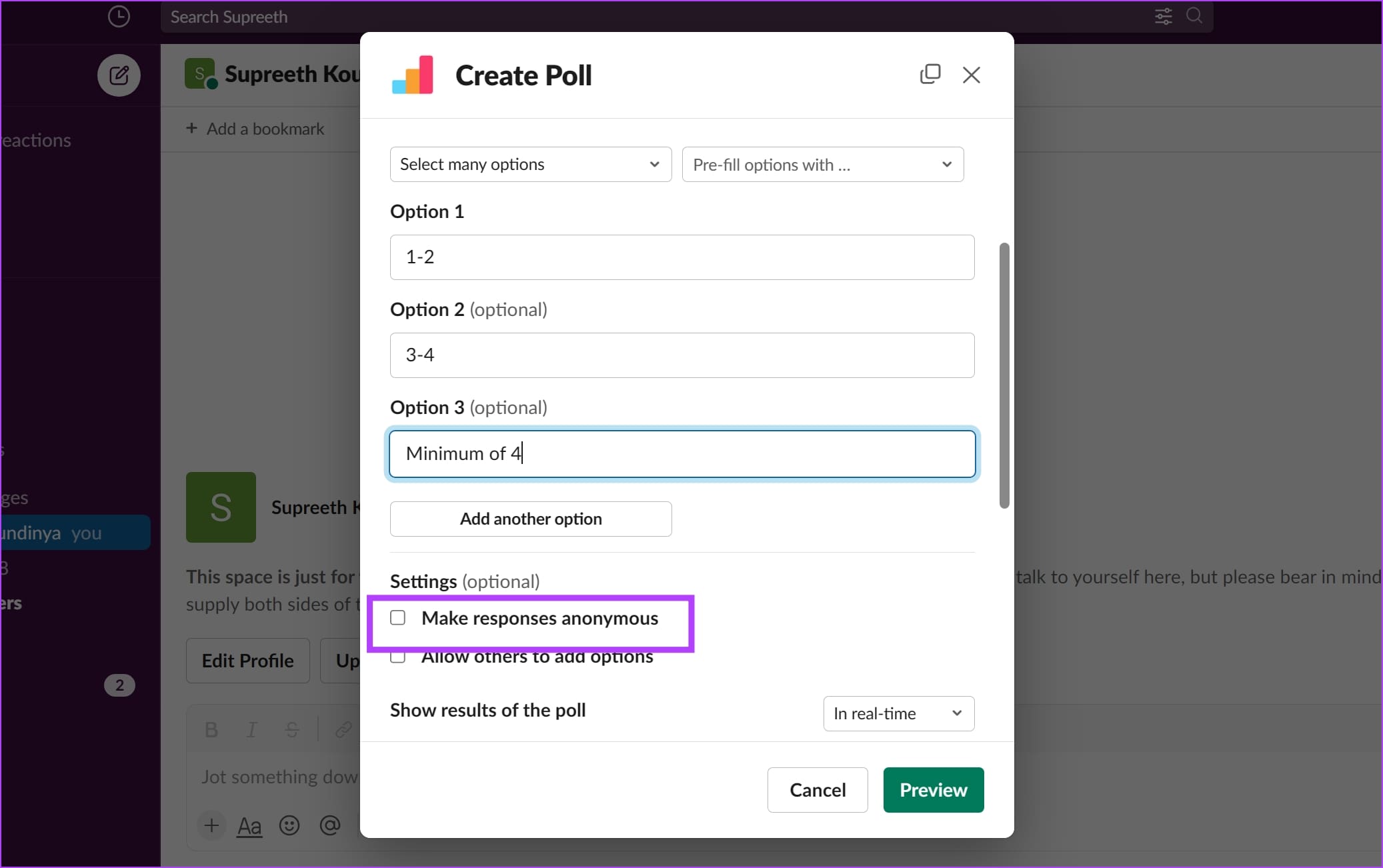
All you need to do is check the box for ‘Make responses anonymous’ in step 7 from the previous section, and the results will not reveal the details. This way, your team members may find it more comfortable and share their opinions in the poll without any hesitation or bias.
However, if you want to create a daily, weekly, or monthly poll, the app also lets you create a recurring poll. Here’s how to do it.
How to Create a Recurring Poll Using Simple Poll in Slack
While creating a poll using Simple Poll, here’s how you can create a recurring poll and ensure the poll is conducted automatically in the selected time intervals.
Step 1: Open the channel in which you want to create a poll.
Step 2: Type /create poll and select the option from the menu.
Step 3: Add your poll question and answer options as usual. Once done, scroll down and click on the Schedule button in front of Scheduling.
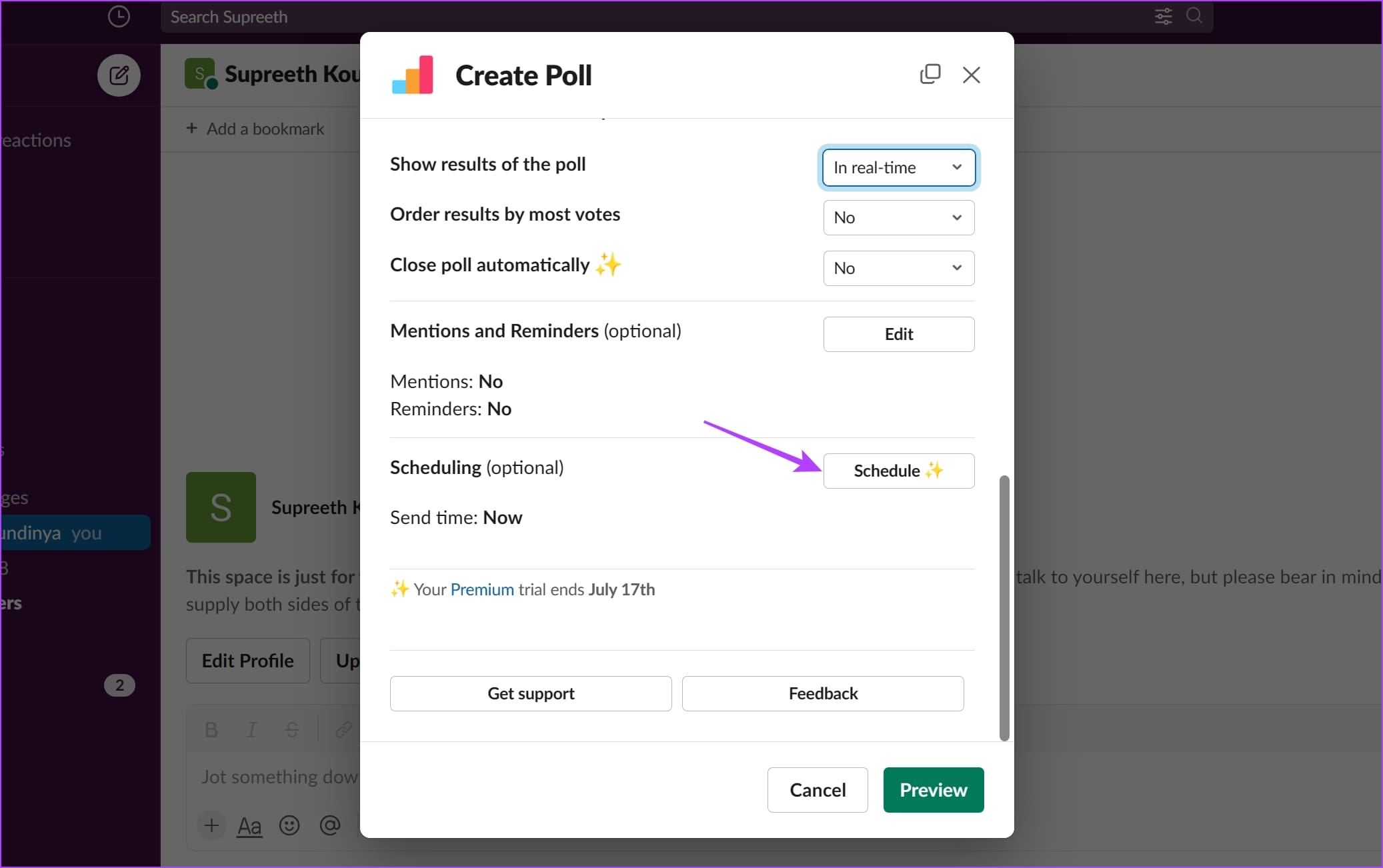
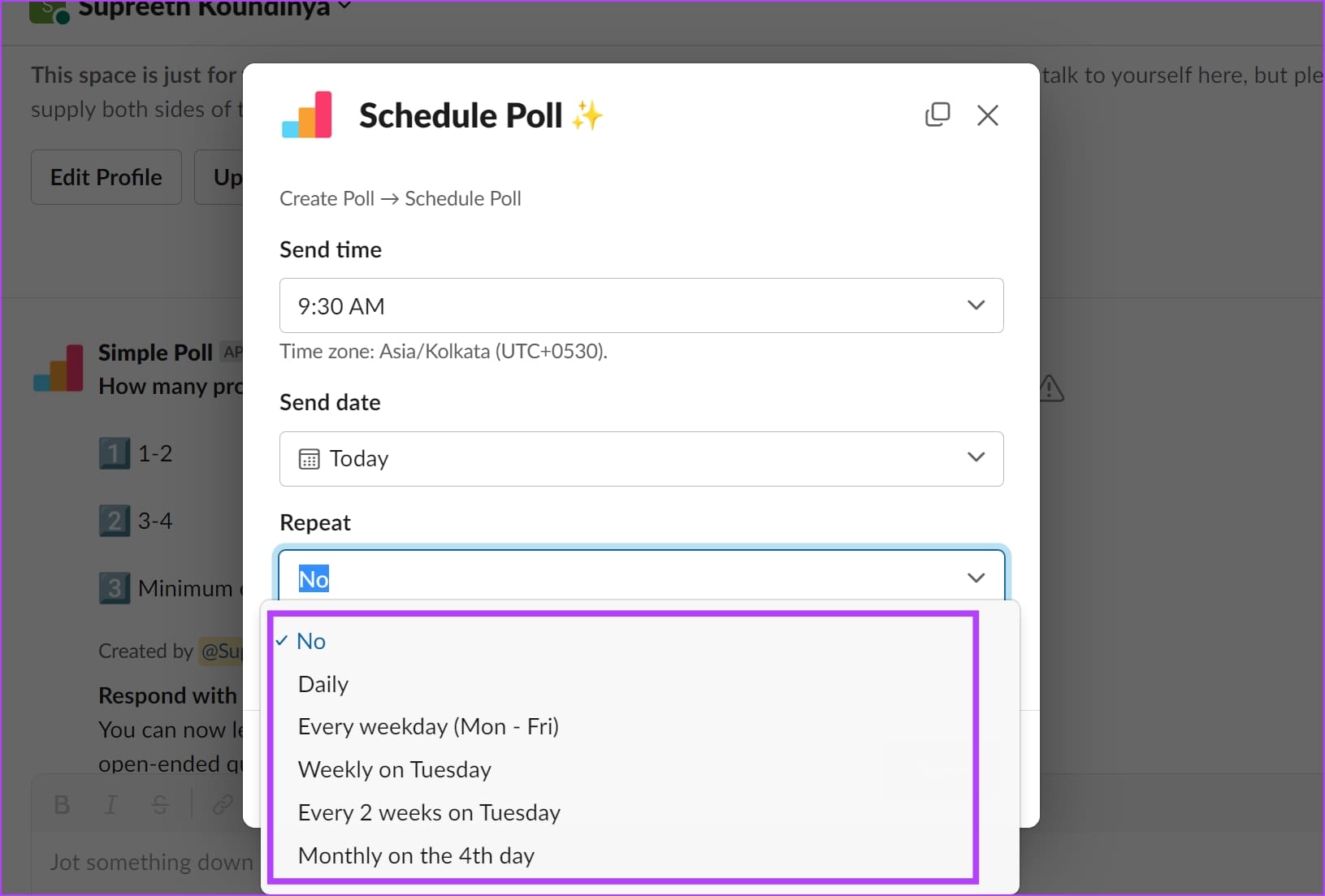
Step 4: Click on the drop-down menu for the Repeat option.

Step 5: Select your preferred time interval for poll to repeat. Once done, click on Save.
Edit an Existing Slack Poll
If you missed out on any detail while creating the poll, here’s how you can edit it and change the settings in Simple Poll. Click on the three dots icon next to the poll and select Edit Poll.
Now, a modal window will appear where you can modify the poll settings. Make the necessary changes and click on Save.
Further, you can delete, close, or even promote the poll within the menu.

Method 2: Make a Poll With Emojis in Slack
As mentioned earlier, you may not be able to integrate a third-party app into Slack workspace if your administrator has restricted app installations without their approval. If so, you can simply create a poll using emojis on Slack. Here’s how.
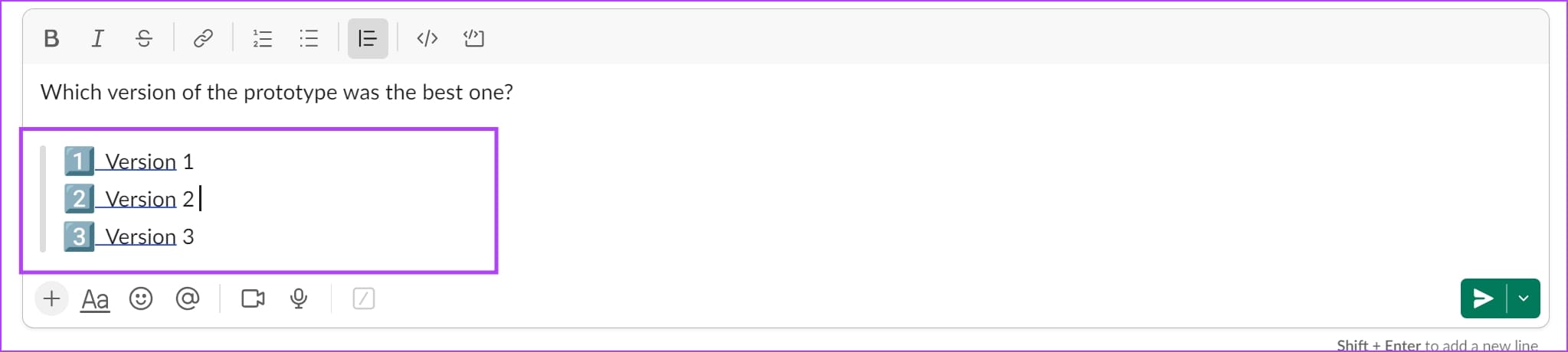
Step 1: Open the channel where you want to conduct a poll. Enter your question.
Step 2: Use the blockquote formatting to ensure a clear distinction between the question and the answer options.

Step 3: Enter all the options for your poll and add a different emoji for each option.
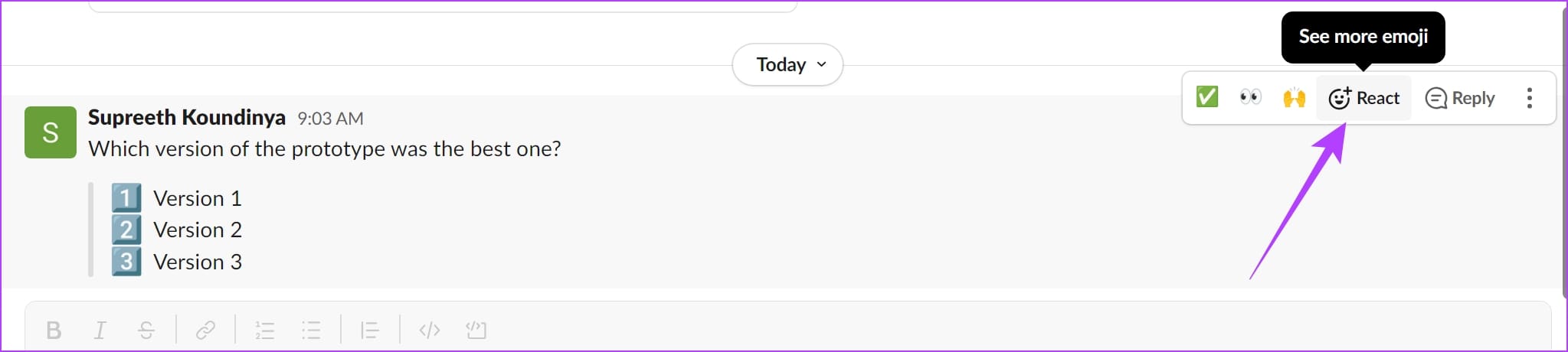
Step 4: Once the poll is sent, team members can hover their mouse over the poll and use the emoji reaction option.
They can now react with the emoji that represents their answer.
Step 5: As your team members cast their votes, you will see the count for each emoji.

So, that is everything you need to know on how to create quick polls in Slack and quicken your decision-making process. If you have any further questions, look at the FAQ section below.
FAQs on Slack Polls
No. Slack does not have the native option to create polls.
Yes. Polly is also a good option for creating polls in Slack.
Yes. It is safe to install third-party apps in Slack.
Best Way to Take Group Decisions
Polls are an easy way to make decisions at work. Therefore, we hope this article helps you create polls in Slack easily. However, if you are facing issues with notifications in Slack, here’s how to fix Slack notifications not working.
Was this helpful?
Last updated on 05 July, 2023
Read Next
 2 Best Ways to Create a Poll on Discord for Desktop and Mobile
Want a quick and easy way to gain input from friends, family, or a community on Discord?
2 Best Ways to Create a Poll on Discord for Desktop and Mobile
Want a quick and easy way to gain input from friends, family, or a community on Discord?
 How to Create a Poll on Telegram
While instant messaging apps like Telegram make it easy to connect with friends and family around the globe, they also leave room for miscommunication.
How to Create a Poll on Telegram
While instant messaging apps like Telegram make it easy to connect with friends and family around the globe, they also leave room for miscommunication.
 How to Create a Poll Using the Voting Buttons on Microsoft Outlook
Whether you're a student or run your business independently, you might have to collect data at some point.
How to Create a Poll Using the Voting Buttons on Microsoft Outlook
Whether you're a student or run your business independently, you might have to collect data at some point.
 How to Make a Poll on Reddit Web, iPhone, and Android
The front page of the internet, as Reddit is rightfully called, has millions of curious and interesting users using the platform every day.
How to Make a Poll on Reddit Web, iPhone, and Android
The front page of the internet, as Reddit is rightfully called, has millions of curious and interesting users using the platform every day.
 6 Best Ways to Fix Delayed Notifications in Slack for Android
Slack is one of the popular messaging and file-sharing apps to help employees effectively communicate over messages and voice calls.
6 Best Ways to Fix Delayed Notifications in Slack for Android
Slack is one of the popular messaging and file-sharing apps to help employees effectively communicate over messages and voice calls.
 Instagram Stories Gets These New Poll Stickers and Creative Tools
Last week, Instagram rolled out a new glasses filter and took steps to ensure that the platform stays a ‘safe and positive place for self-expression’ by giving more control to users.
Instagram Stories Gets These New Poll Stickers and Creative Tools
Last week, Instagram rolled out a new glasses filter and took steps to ensure that the platform stays a ‘safe and positive place for self-expression’ by giving more control to users.
 10 Best Ways to Fix Slack Not Making Notification Sound on Mac
Notification sounds are white knights.
10 Best Ways to Fix Slack Not Making Notification Sound on Mac
Notification sounds are white knights.
 How to Bulk Delete Slack Files to Free Space
Slack users on the free plan know the perils of sharing too many images and gifs.
How to Bulk Delete Slack Files to Free Space
Slack users on the free plan know the perils of sharing too many images and gifs.
The article above may contain affiliate links which help support Guiding Tech. The content remains unbiased and authentic and will never affect our editorial integrity.