
If you’re considering deleting your Snapchat account, you’re not alone. There are still several people who fail to use Snapchat regularly. So whether you don’t use the app anymore or don’t want to maintain your presence on Snapchat, it’s natural to delete your account from the service.
This comprehensive guide will show you how to delete your Snapchat account from your Android, iPhone, and from the web. We will also touch upon what happens when you deactivate your Snapchat account and how to download Snapchat data before you delete it.
What Happens When You Delete Your Snapchat Account
When you put a request to your Snapchat account, Snapchat will delete your account settings, friends, Snaps, Chats, Story, and device data from its servers. After that, your friends can’t see your account or send you snaps.
It’s important to note that after you place a request to delete your account, Snapchat saves snaps and messages on its servers for up to 30 days. So, if you reactivate your account within 30 days, you can gain access to your snaps and messages. But if you miss that grace period of 30 days, Snapchat will all your account data permanently.
That said, Snapchat retains certain personal data like your purchases on Snapchat for legal purposes. If you’re confident about deleting your Snapchat account, it’s a good idea to download a copy of your account data first.
How to Download Snapchat Data Before Deleting Account
It’s necessary to give a working email address to get a copy of your Snapchat data. And make sure that your email is verified with your Snapchat account. After that, you can start the process to download your Snapchat data. Here’s how:
Email Address Verification
The steps are same for both Android and iOS. For demonstration, we are going with Android. However, if you are on iOS, you can follow along.
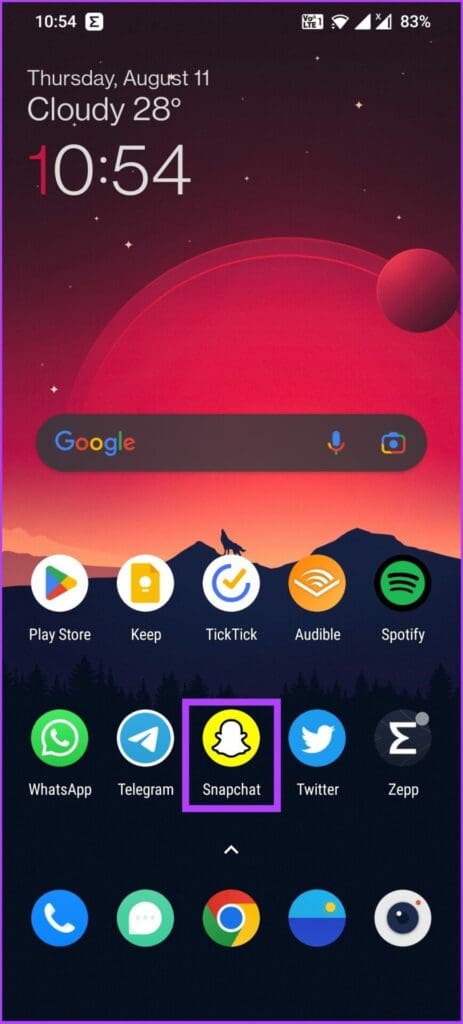
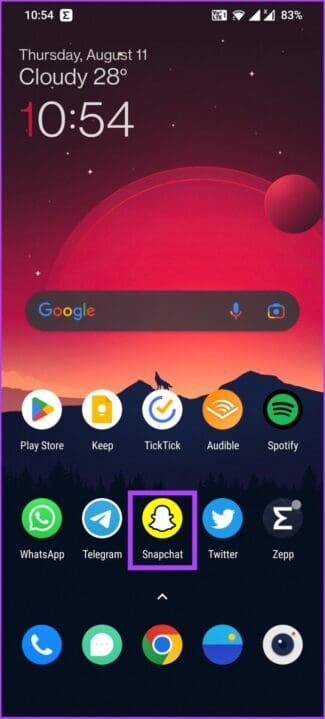
Step 1: Open the Snapchat app on your Android or iOS device. Once opened, tap on your profile in the top-left corner.
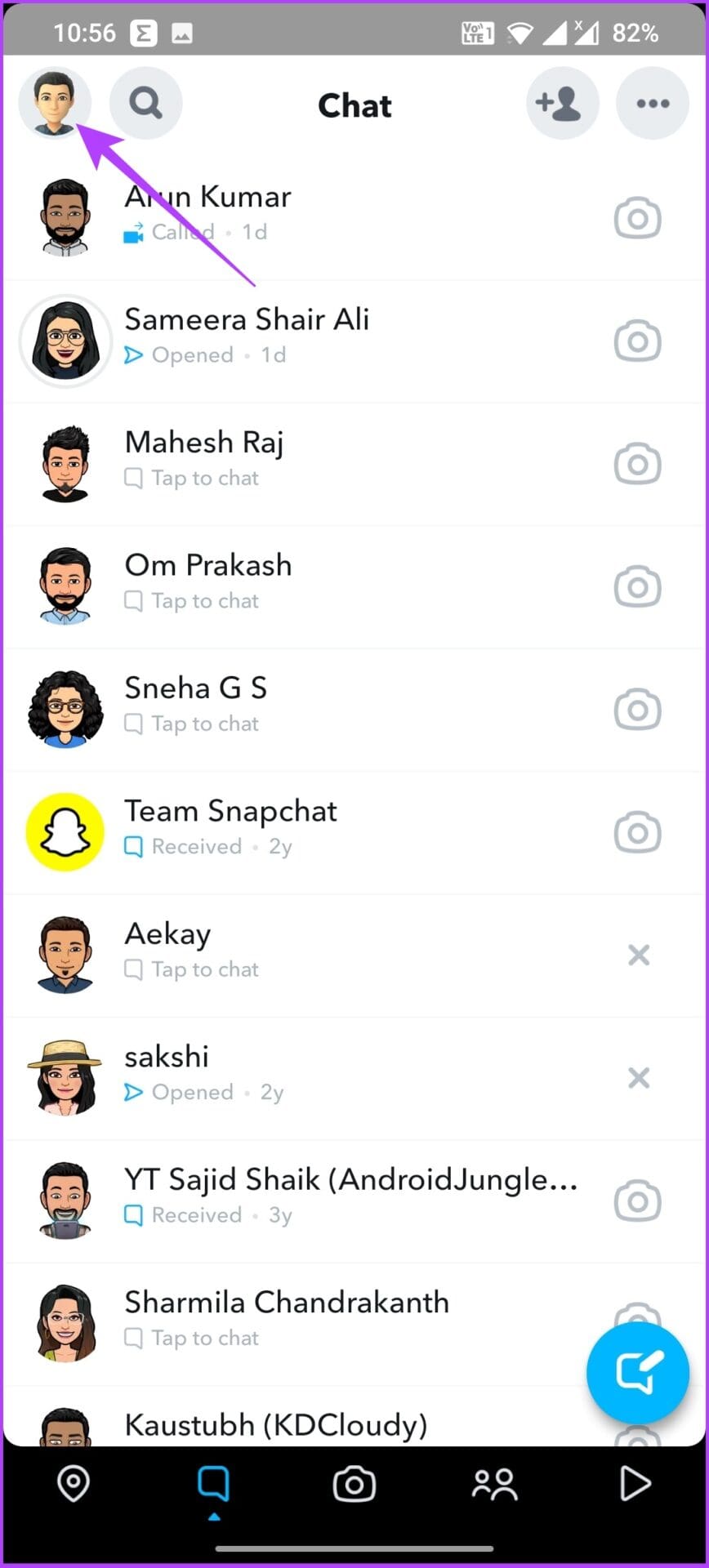
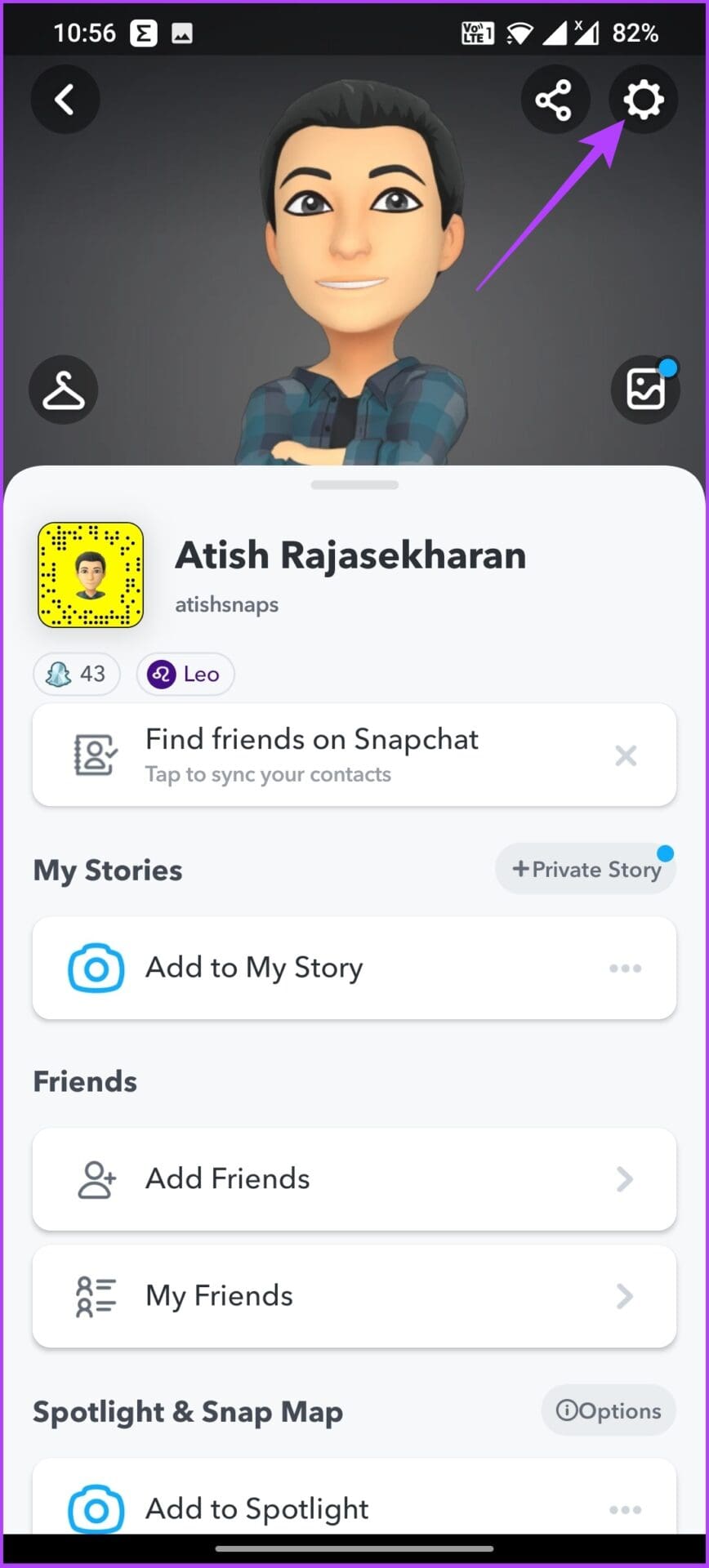
Step 2: Under your profile, tap on the gear (settings) icon.
Step 3: Scroll down and tap on Email and verify it.
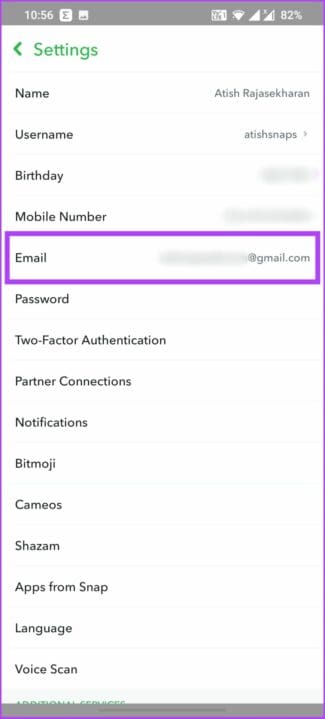

After that, you can begin to request your Snapchat data.
Download Your Snapchat Data
To get a copy of your Snaps and messages, you’ll have to request the download from Snapchat from the app’s Settings. Here’s how:
Step 1: Open the Snapchat app and tap on your profile in the top-left corner.

Step 2: Click on the gear icon in the top-right corner. Scroll down to the bottom and tap on My Data.

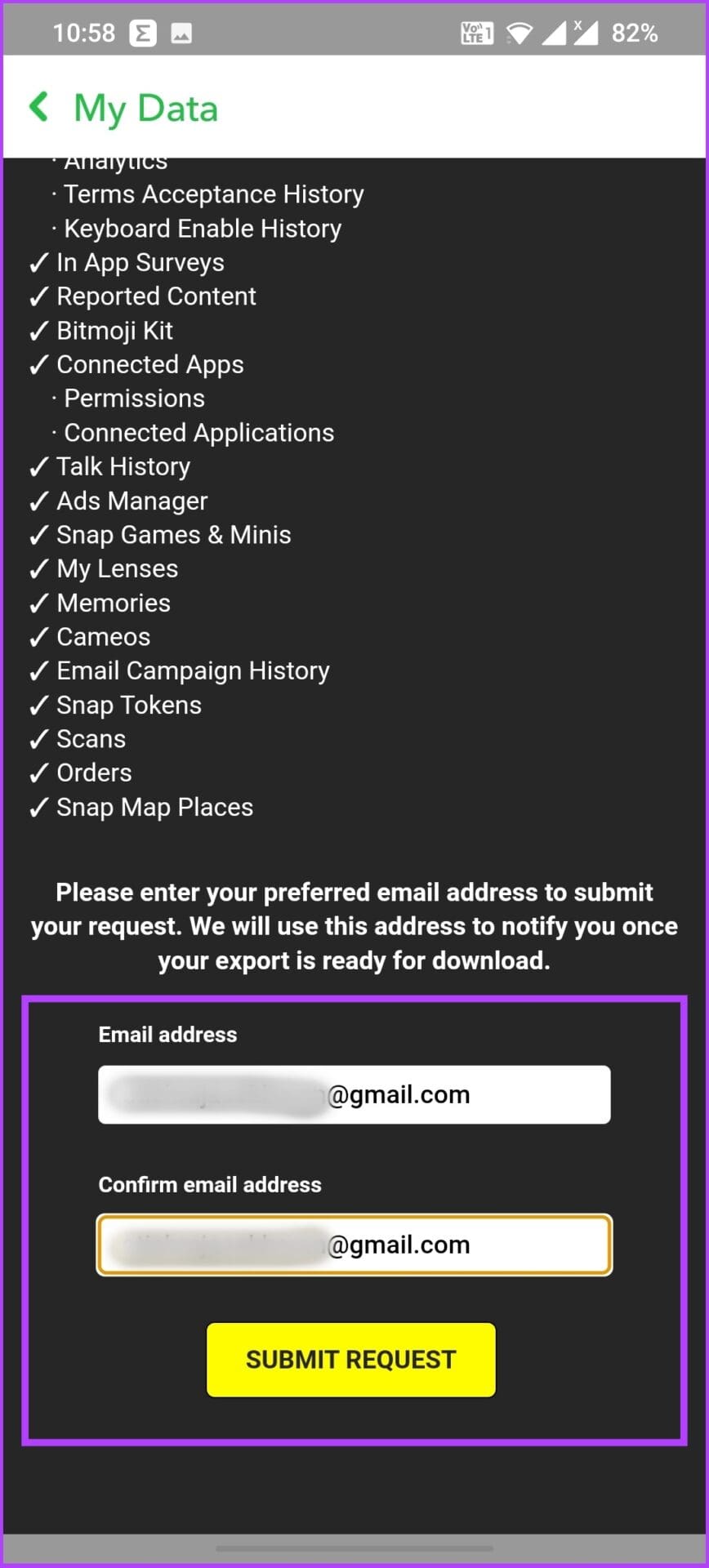
Step 3: Read through the document, enter and confirm your email address, and tap Submit Request.
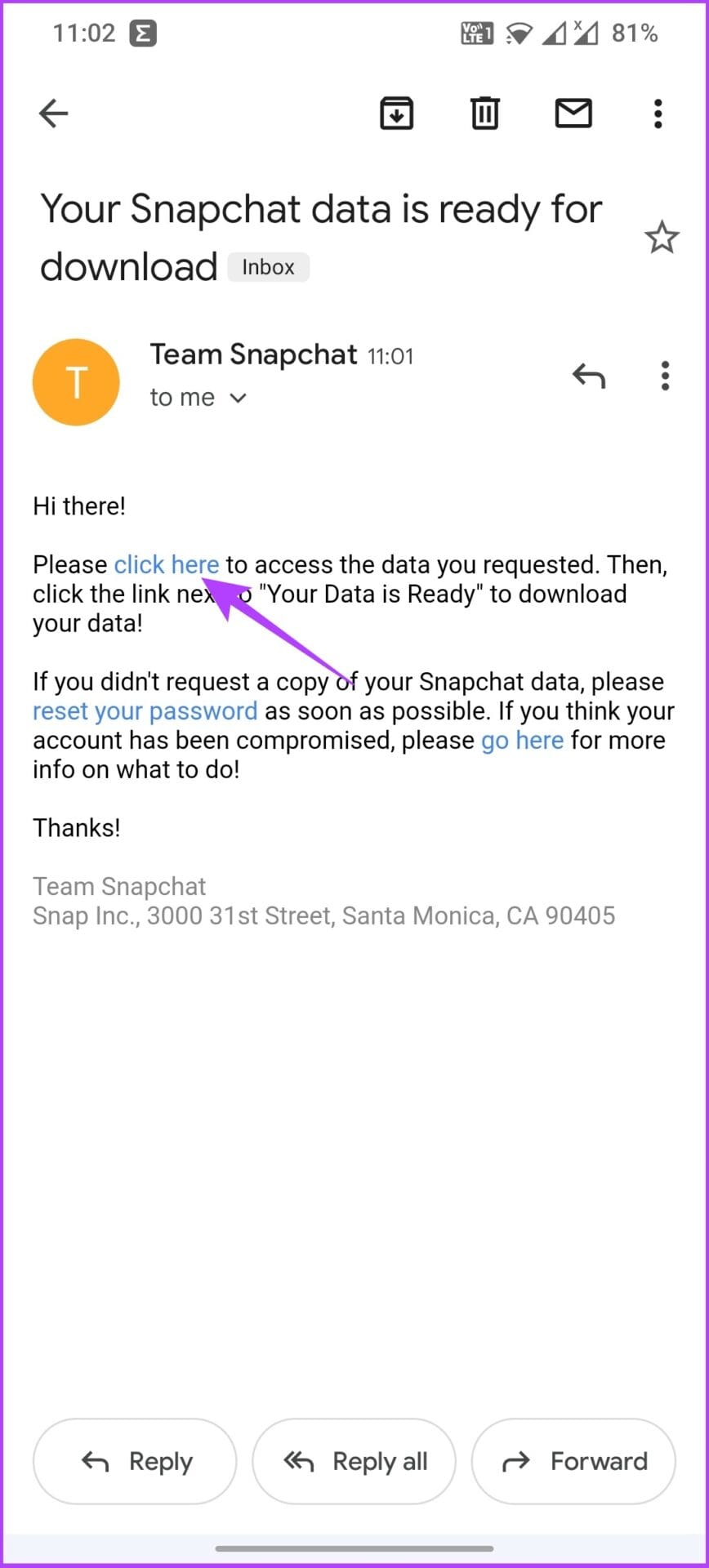
Step 4: Snapchat will send an email with a link to download your data in a few minutes. Open the email and tap on ‘click here’ hyperlink in the email text.
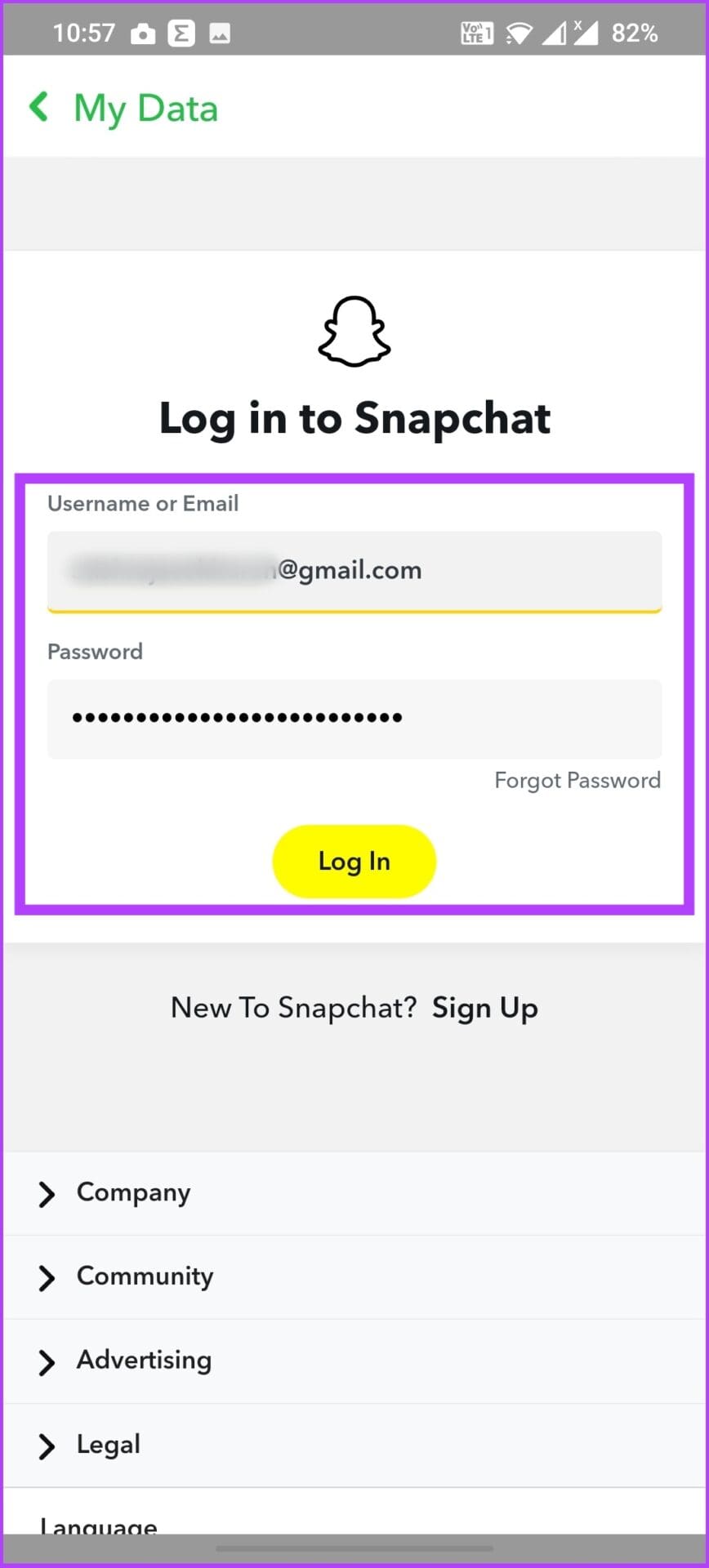
Step 5: Now, log in to your Snapchat account on the displayed webpage. Once logged in, all you need to is tap on Download to save it as a .ZIP file.
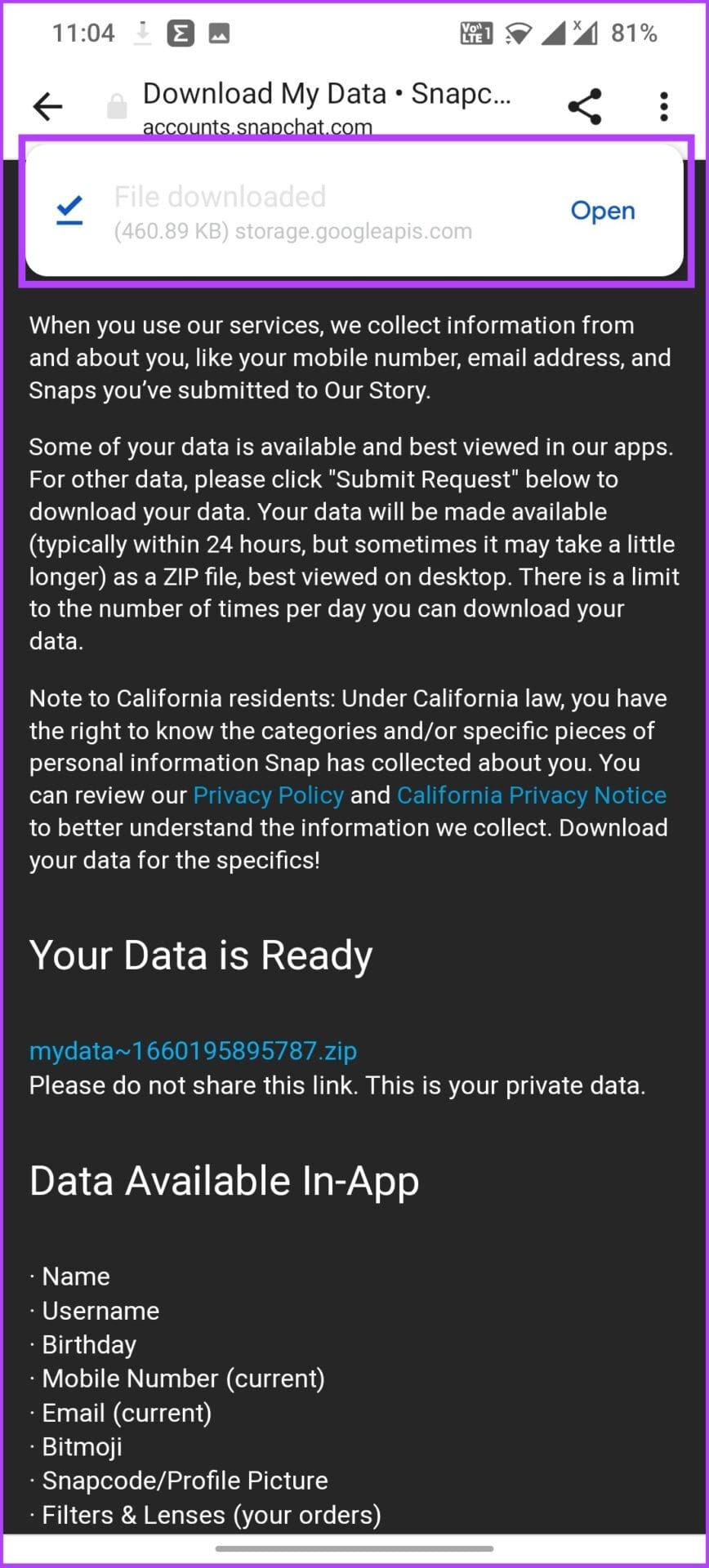
After your Snapchat data download completes, you can unzip the file on any major OS, including Android, iOS, Windows, and macOS.
Next, move on to deleting your account. The steps for deleting differ depending on Android and iPhone.
How to Deactivate or Delete a Snapchat Account on Android
Step 1: Open the Snapchat app on your Android device. Once opened, tap on your profile in the top-left corner.
Step 2: From your profile screen, tap on the gear icon in the top-right corner.
Step 3: Scroll down and tap on ‘I Need Help’ under Support.
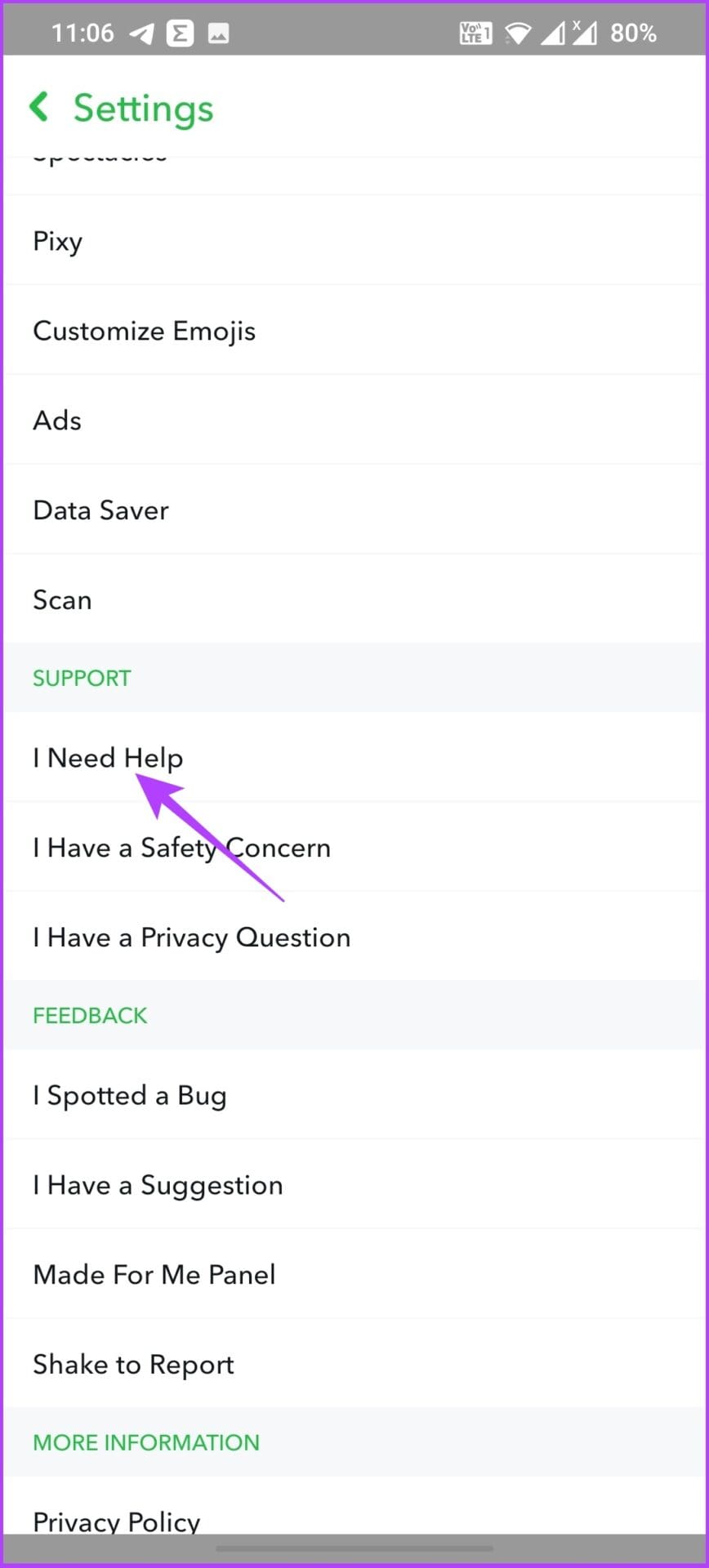
Step 4: Under ‘I Need Help’ screen, tap on the search button to find ‘Delete My Account’ and select it.
Step 5: Further, tap the accounts portal under ‘how do I delete my Snapchat account.’
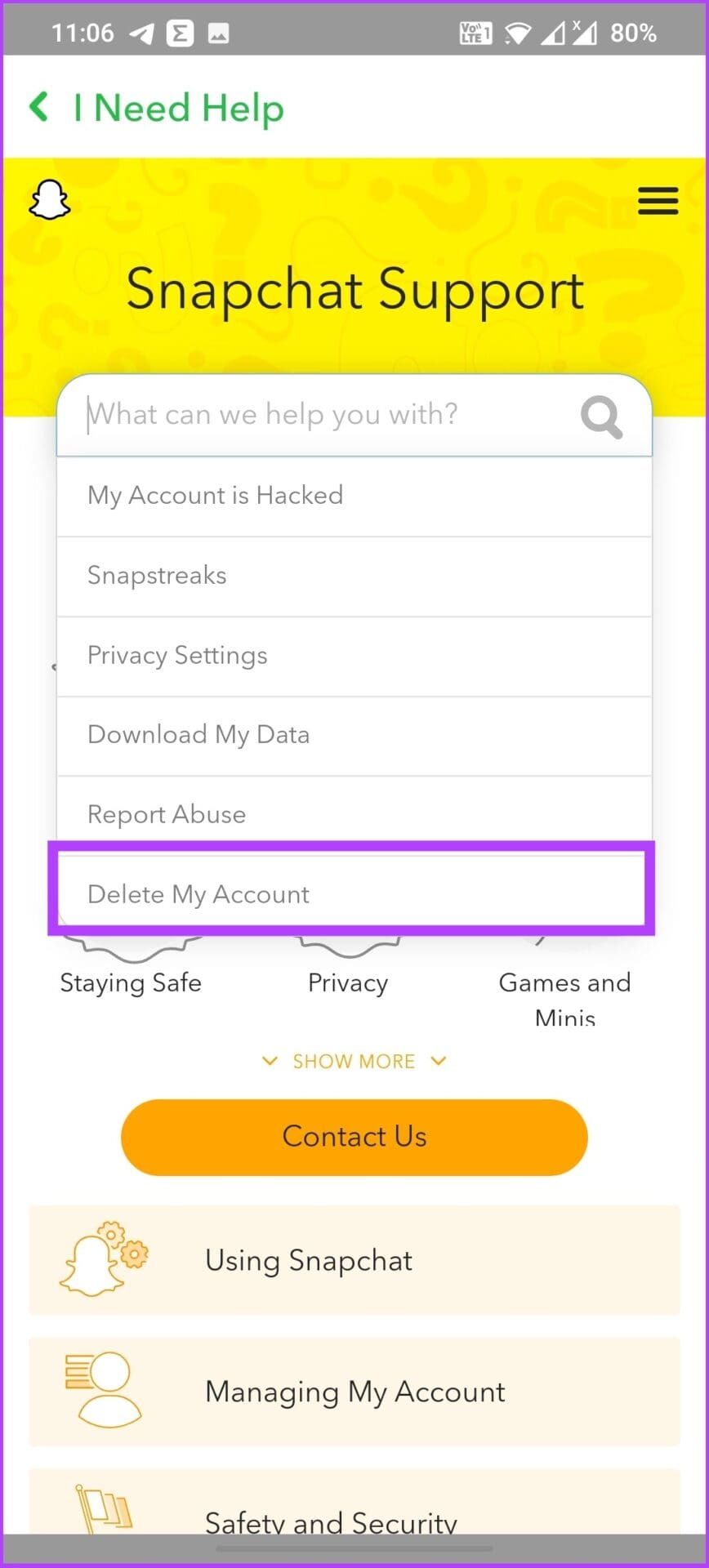
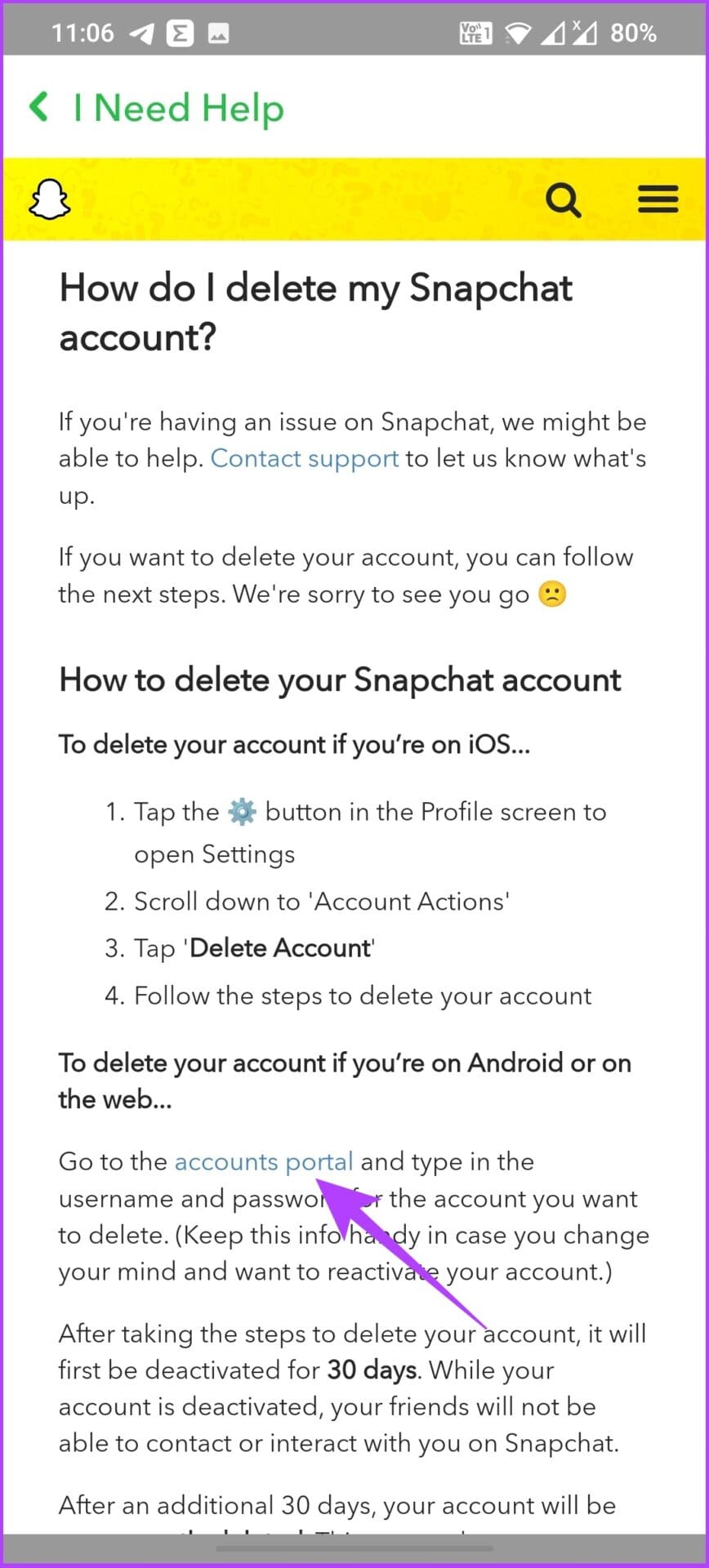
Step 6: It will take you to the Delete Account page. Finally, confirm your username and password, and tap on Continue.
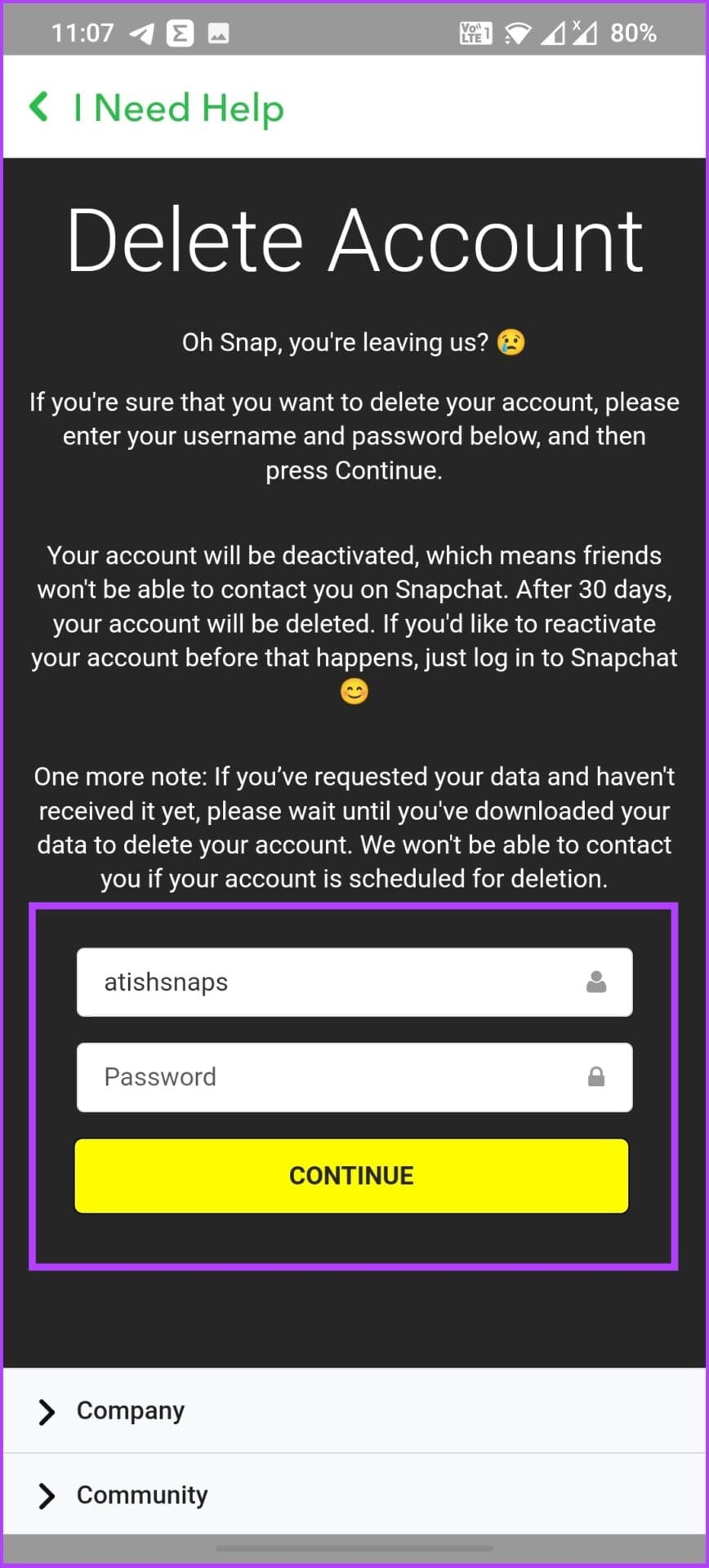
Once execute, your Snapchat account will deactivate for 30 days. If you don’t log into it within the 30-day grace period, Snapchat will delete your account permanently.
How to Delete a Snapchat Account on an iPhone
Unlike Android, deactivating your Snapchat account on the iPhone is comparatively straightforward.
Step 1: Open the Snapchat app on your iPhone and tap on your profile in the top left.

Step 2: Now, tap on the gear icon in the top right. Under Settings screen, scroll to the bottom and tap Delete Account.

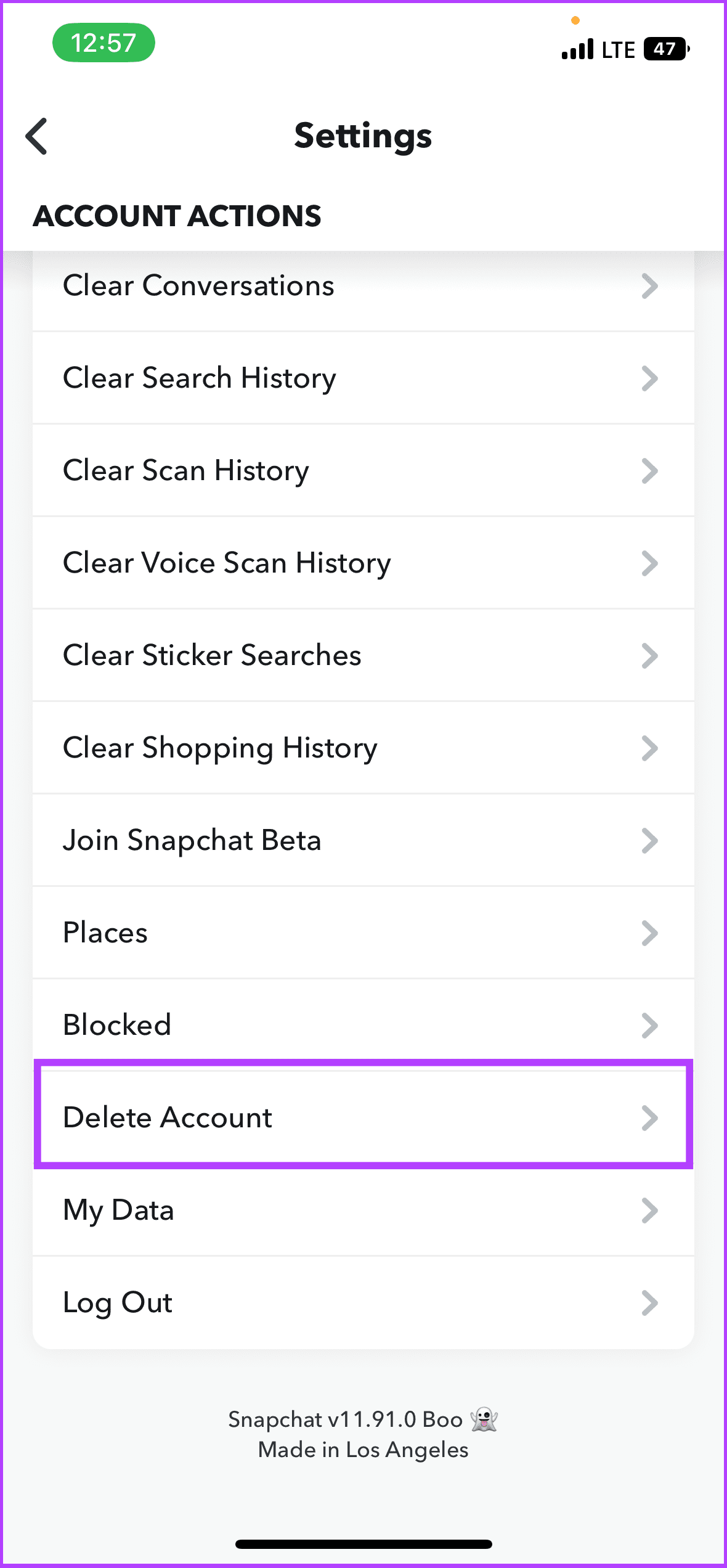
Step 3: Log in to your Snapchat account. On the Delete Account page, confirm your username, enter the password, and tap on Continue.

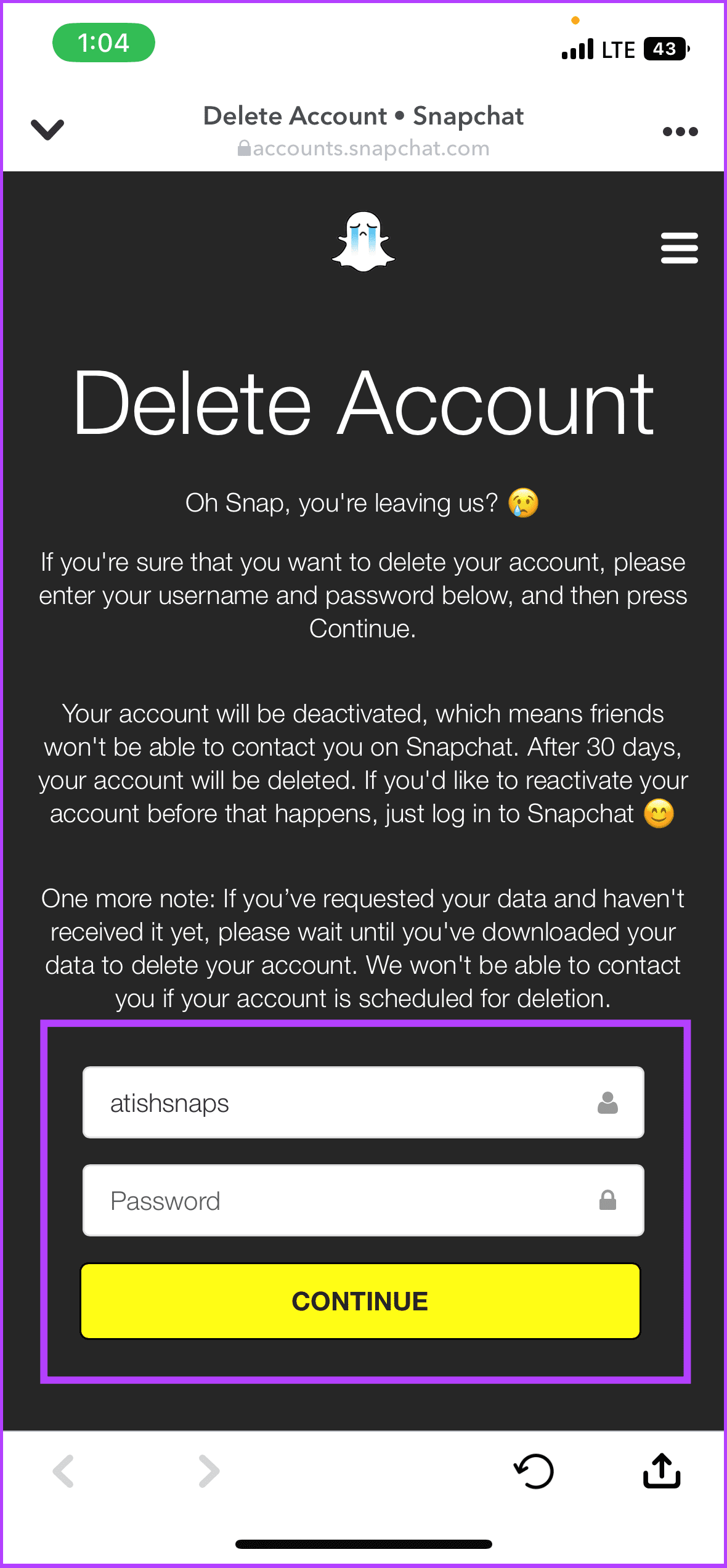
Next, your Snapchat account will deactivate for 30 days. You get 30-day grace period if you change your mind. And if you don’t log back in to cancel the request, Snapchat will delete your account permanently.
If you don’t have access to your Android or iOS device, you can execute the same using desktop, continue reading.
How to Delete a Snapchat Account on Snapchat Web
Snapchat has made the web versions available for all user, you haven’t setup already, you can check out our article on how to setup and use Snapchat on web. Once you done setting up, follow the below steps.
Step 1: Use the link below to visit Snapchat on the web.
Step 2: Login with your account detail. Snapchat might ask for a verification code if you have enabled 2FA (two-factor authentication) on your account or will ask for verification from the mobile app.
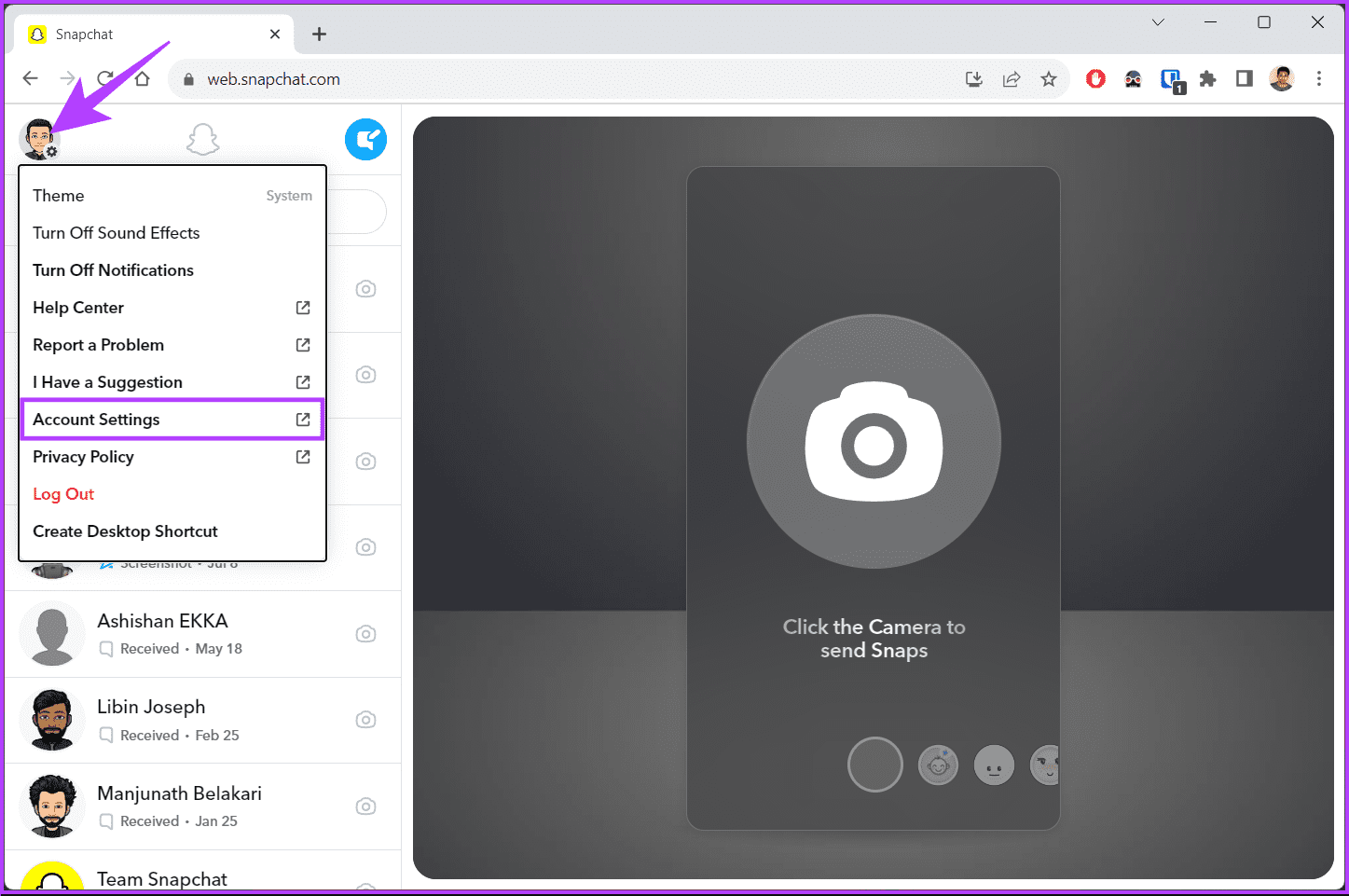
Step 3: Once you login to Snapchat web, click on your profile picture in the top left corner.
Step 4: From the drop-down, choose Account Settings option.
You will be taken to the new window where you will see the Snapchat account settings.
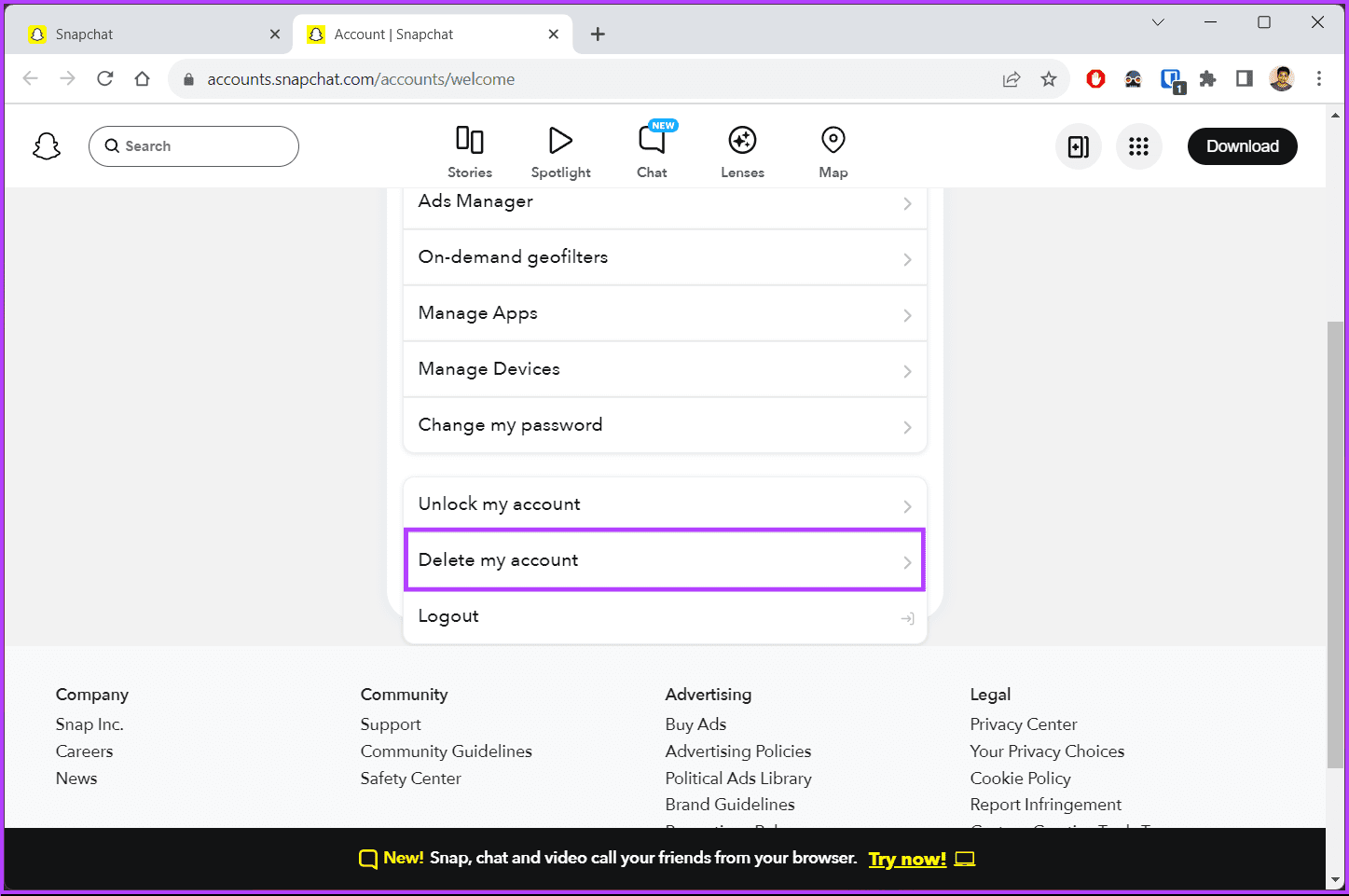
Step 5: Scroll down and click on ‘Delete my account.’
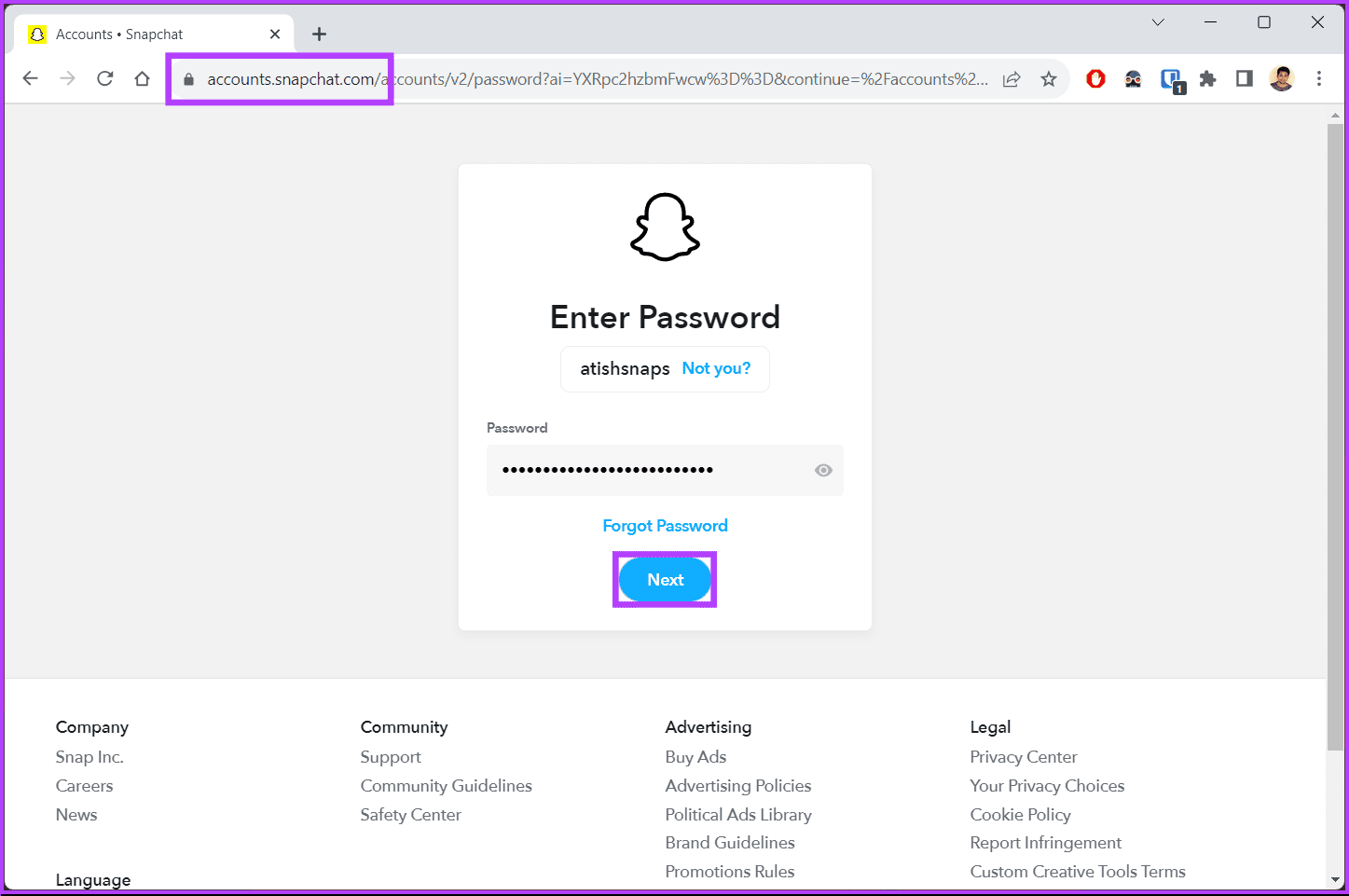
Step 6: In the Delete Account page, enter your Snapchat account password and click Continue button.
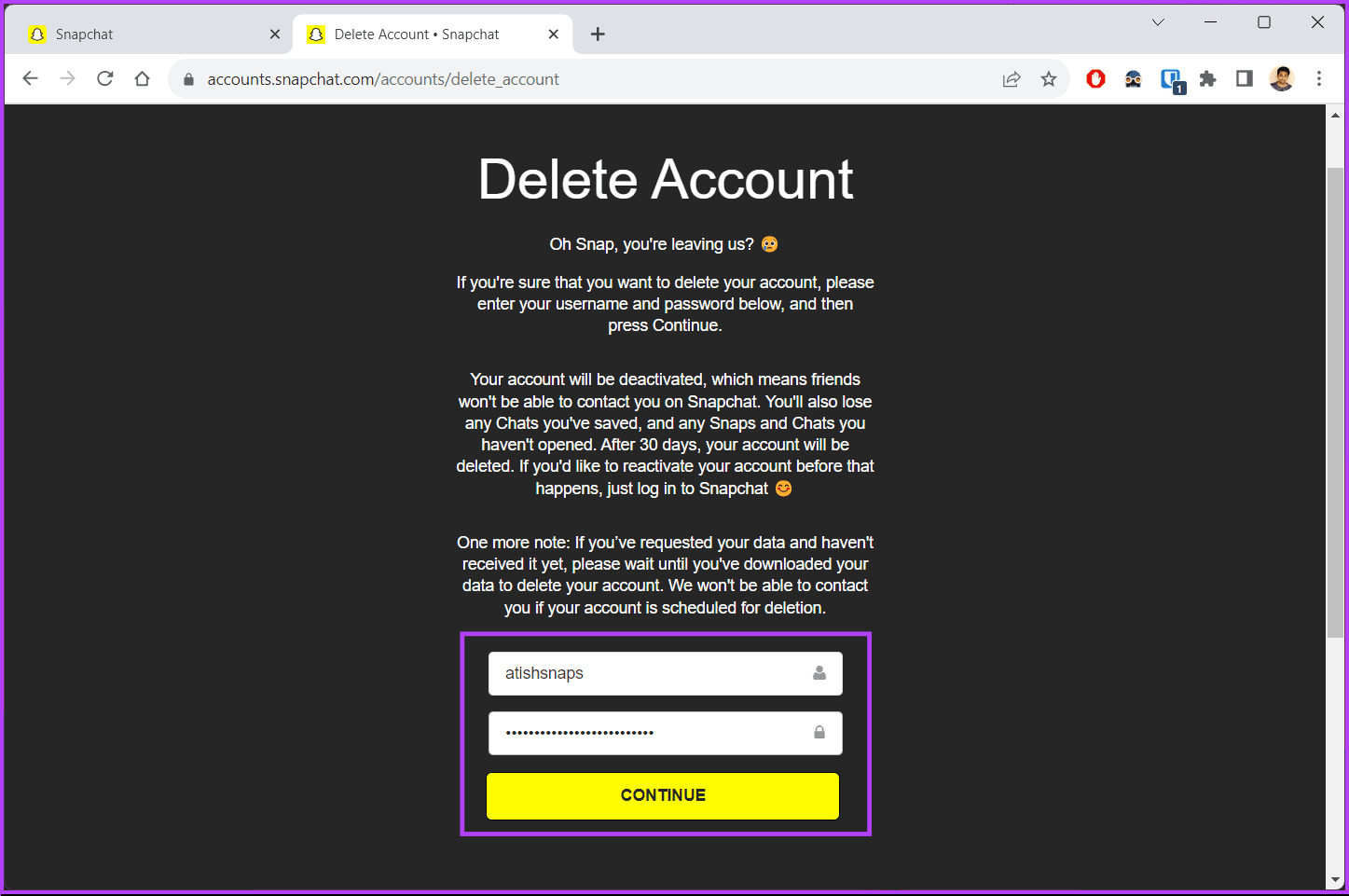
There you go. You have successfully deactivated using Snapchat web. Do note, if you change your mind, you cannot reactivate the account using Snapchat web. At times, you may be unable to delete your Snapchat account; continue reading to know the reasons.
Why Can’t I Delete My Snapchat Account
There are multiple reasons why you can’t delete your Snapchat account;
- Ensure that you have entered the correct username and password.
- If you have two-factor authentication enabled, make sure to follow the steps accurately.
- Additionally, if your account is temporarily locked, you might need to wait until the lock period expires before attempting to delete your account.
If you wish to reactivate your account? Move on to the next section.
How to Reactivate a Snapchat account
If you’ve deactivated your Snapchat account and want to reactivate it, follow these steps within 30 days of placing the request to delete your account.
Note: The steps are same for both Android and iOS. However, for demonstration we are going with Android. If you are iOS, you can follow the same steps.
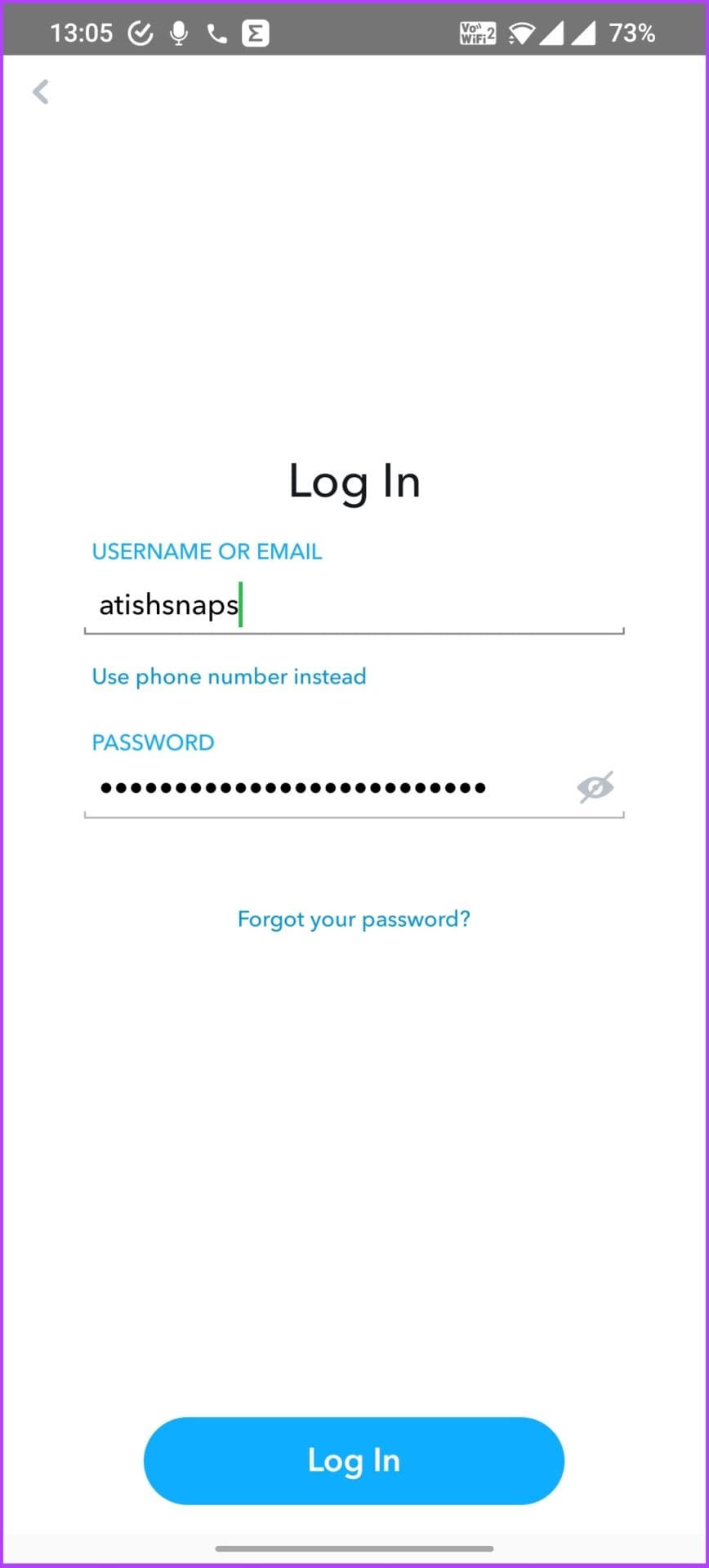
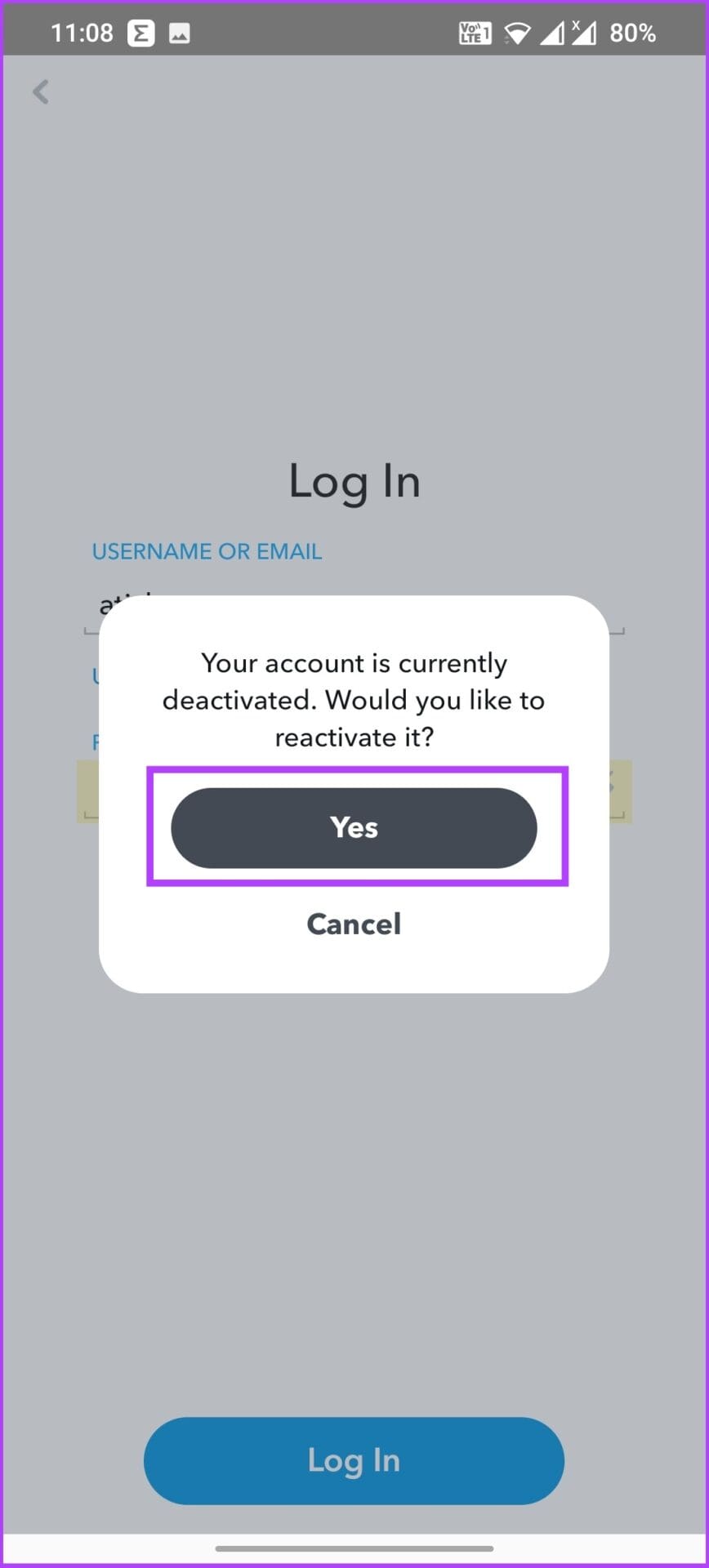
Step 1: Launch the Snapchat app on your device. Log in to the Snapchat account you want to reactivate. In the pop-up, choose Yes to confirm account reactivation.
Step 2: Choose the reason and tap on ‘Reactivate my account.’ Next, tap Okay to confirm.

Step 3: Enter your username (you can’t log in with your email address) and password on the appearing page.

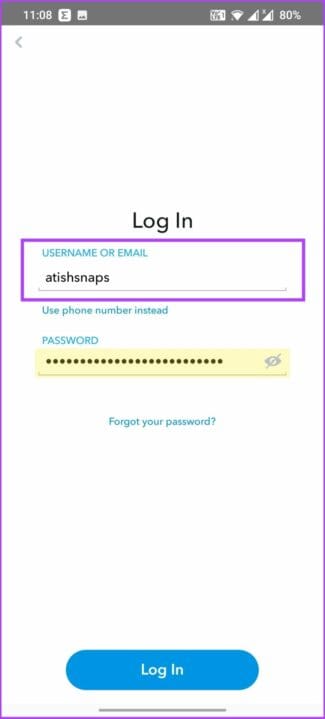
After you log in, Snapchat will reactivate your account within 24 hours. That’s how you can reactivate your Snapchat account. If you have any queries we missed addressing, check out the FAQ section below.
Frequently Asked Questions on Deleting a Snapchat Account
If you delete your Snapchat account rather than just the app, Snapchat will remove your account from your friends’ contact lists, and they won’t be able to send you snaps. Although Snapchat doesn’t notify your friends about account deletion, your friends would soon find out if you were active on Snapchat.
To request the deletion of an account for which you do not have the username and password, you must complete an online form explaining why the account should be deleted. Following this Snapchat may or may not oblige to your request.
When you delete your Snapchat account, your friends will no longer be able to see your profile, send you snaps, or view your stories. Your conversations and shared media will also be removed from their accounts.
Once you delete your Snapchat account, the account and its data will be permanently removed from Snapchat’s servers. However, Snapchat may retain certain information for legal and security purposes, as outlined in their Privacy Policy.
No More Snapchatting
Whether it’s a change in priorities, a desire for a fresh start, or simply a need to disconnect, know that you know how to delete Snapchat account on Android, iPhone and web, you’re ready to take control of your online presence, and bid a farewell to Snapchat. You may also want to read how to get rid of My AI on Snapchat.
Was this helpful?
Last updated on 15 August, 2023
Read Next
 How to Remove Saved Snapchat Account on iPhone and Android
Most social media apps like Instagram, Facebook, TikTok, and Snapchat remember your saved login info on the device.
How to Remove Saved Snapchat Account on iPhone and Android
Most social media apps like Instagram, Facebook, TikTok, and Snapchat remember your saved login info on the device.
 How to Setup and Use Snapchat on Web
After running a beta program with Snapchat+ (the company’s premium plan) subscribers in the US, UK, Canada, Australia, and New Zealand, Snapchat has made the web version available for all
How to Setup and Use Snapchat on Web
After running a beta program with Snapchat+ (the company’s premium plan) subscribers in the US, UK, Canada, Australia, and New Zealand, Snapchat has made the web version available for all
 What is Deep Web and How is it Different from Dark Web
Often used interchangeably, deep web and dark web aren’t actually the same things, rather, the dark web makes for a small part of the deep web.People often confuse both the
What is Deep Web and How is it Different from Dark Web
Often used interchangeably, deep web and dark web aren’t actually the same things, rather, the dark web makes for a small part of the deep web.People often confuse both the
 How to Make a Group Chat on Snapchat Android and iOS App
Group chats are a good way to have all your friends in one place, despite being physically present at different locations.
How to Make a Group Chat on Snapchat Android and iOS App
Group chats are a good way to have all your friends in one place, despite being physically present at different locations.
 WeTransfer: Share Files Up to 10 GB on Web, iOS, Android
If I start counting the awesome cloud based services that help me send files to my friends and family, I’ll run out of fingers in about 8 seconds.
WeTransfer: Share Files Up to 10 GB on Web, iOS, Android
If I start counting the awesome cloud based services that help me send files to my friends and family, I’ll run out of fingers in about 8 seconds.
 How to Clear Cache on TikTok on Android, iOS, or Web
TikTok has quickly become one of the most popular social media platforms with millions of users worldwide.
How to Clear Cache on TikTok on Android, iOS, or Web
TikTok has quickly become one of the most popular social media platforms with millions of users worldwide.
 How to Enable NSFW on Reddit on Android, iOS, and the Web
You may have seen blurry Reddit content on your feed and wondered why it is like that.
How to Enable NSFW on Reddit on Android, iOS, and the Web
You may have seen blurry Reddit content on your feed and wondered why it is like that.
 How to Clear Twitter Cache from Android, iOS, or Web
If you are a Twitter user, you may have occasionally noticed the Twitter app freezing, slow loading, repeated content recommendations, or some features not working properly.
How to Clear Twitter Cache from Android, iOS, or Web
If you are a Twitter user, you may have occasionally noticed the Twitter app freezing, slow loading, repeated content recommendations, or some features not working properly.
The article above may contain affiliate links which help support Guiding Tech. The content remains unbiased and authentic and will never affect our editorial integrity.