Steam’s diverse and massive library of games has brought in gamers from all around. However, you may be in a stage where you are done with gaming and want to stop and move out permanently, or you may not be aligned with the company’s privacy policies. Whatever the reason, we are here to guide you on how to delete a Steam account quickly and effectively.

Deleting a Steam account clears all your associated data from Steam’s server. But before you process, it’s fair to know the repercussions of deleting the account. So, let’s start from there.
What Happens When You Remove Your Steam Account
When you delete your Steam account, all the games you purchased or redeemed through your account will be gone forever. Hence, if you plan to create a new account, you will need to repurchase them.

In addition, all your saves, progress, personal information, forum posts, Steam activity, and the games you claimed through CD keys will be lost forever. Additionally, the unique username associated with your Steam accounts will be lost forever. Even if you create a new account, you wouldn’t be able to claim the username, even if it is unused.
With all this said, if you still want to proceed with deleting your Steam account, move on to the next section.
How to Delete Your Steam Account
The steps to permanently delete your Steam account are the same on Windows and Mac. So, regardless of your device, follow along.
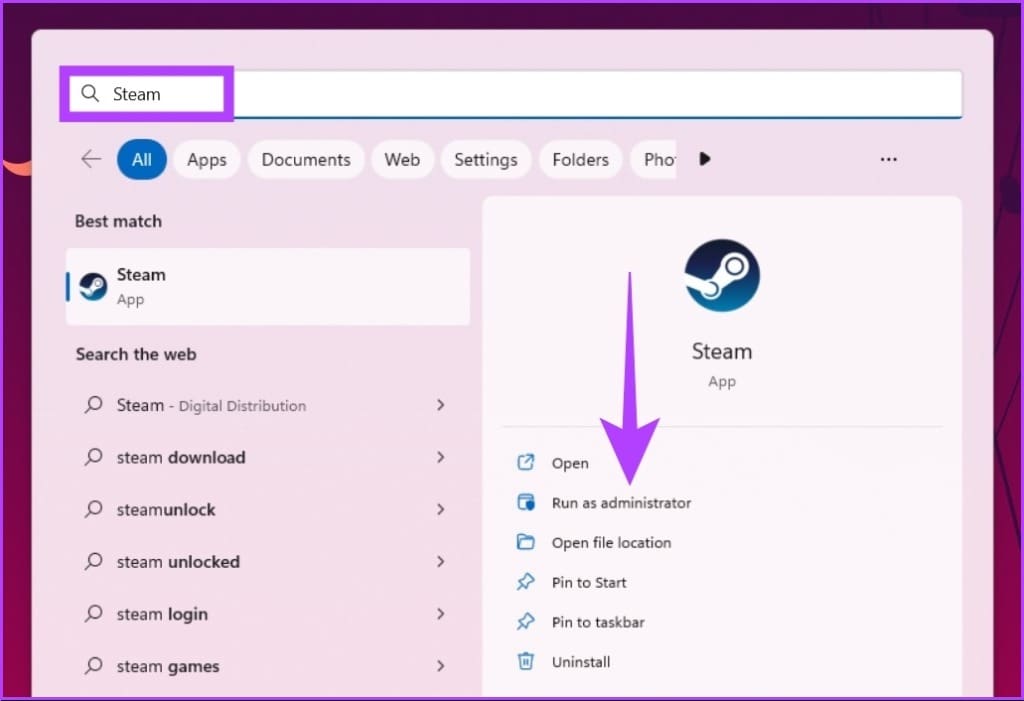
Step 1: Press the Windows key on your keyboard, type Steam, and click on Run as administrator to open the Steam app.
Note: You can open Steam’s website on any web browser and follow the steps if you haven’t installed the app.
Step 2: Click on your username in the top right corner and select Account details from the drop-down menu.

Step 3: Scroll down and click on the ‘Delete my Steam account’ link under Family Settings.

The Steam account link will take you to the account deletion process. Read the displayed information thoroughly.
Step 4: Click on the ‘Proceed to account deletion’ button.

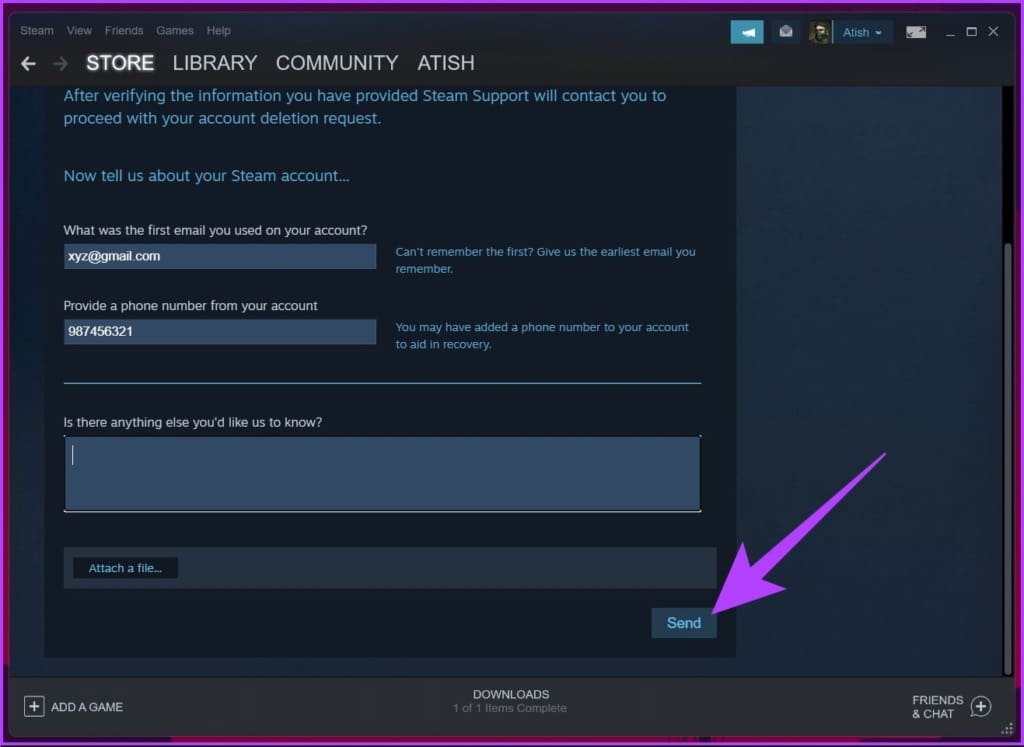
Step 5: In the ‘Submit Account Deletion Request’ form, enter your account details to prove your account ownership. Now, click Send.
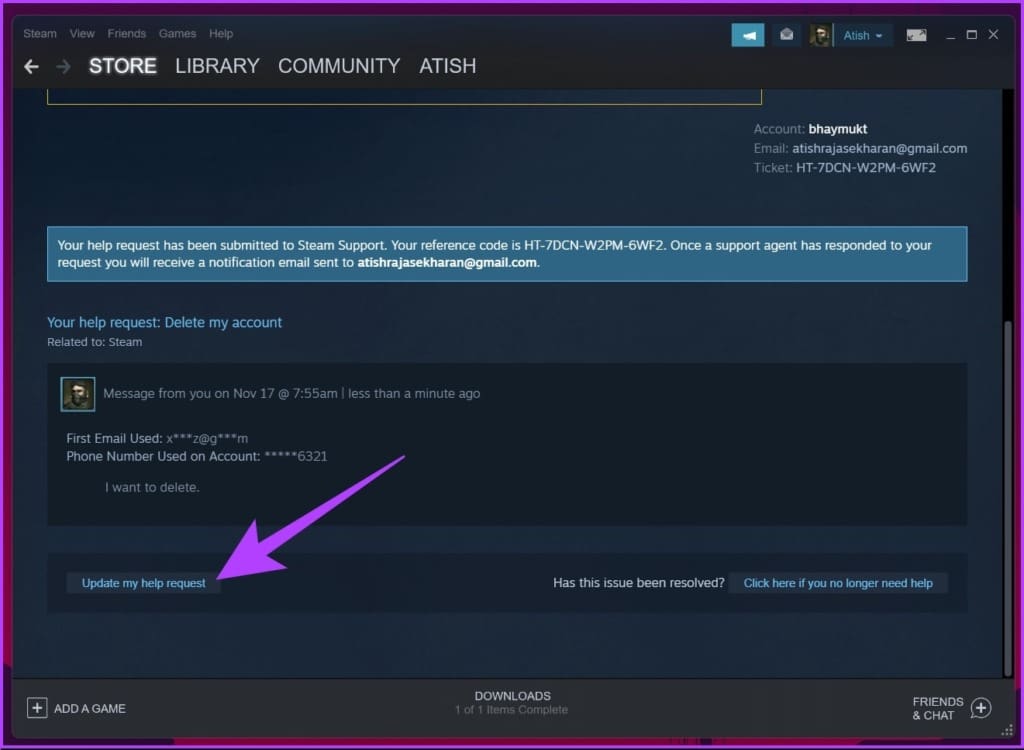
This submission gets your account locked. It also creates a support ticket and takes you to a new screen, where you can see any replies from the Steam support team. You can also send messages by clicking the ‘Update my help request’ button at the bottom of the screen.
But what if you change your mind after generating the account deletion request?
Can You Recover a Deleted Steam Account
Yes and no. When you submit the form claiming ownership to delete the Steam account, you get a 30-day grace period to rethink the decision. And if you want to go back, you have to log in to your Steam account, click on the red notification, and press the ‘No, I changed my mind or wanted to request a refund’ button.

However, if you have crossed the 30-day grace period, sadly, the answer is no. You cannot recover your deleted Steam account. So, rather than deleting the Steam account, we recommend you uninstall Steam from your devices or delete the games from the Steam account. This protects your account and other details. Want to know how? Keep reading.
2 Alternatives to Deleting Steam Accounts
If you only wish to deactivate your Steam account temporarily and access it later, here’re some alternatives to deleting your Steam account.
1. Uninstall Steam on Windows and Mac
If you don’t want to use Steam, instead of deleting the account that has details about your profiles, interactions, and gameplay, you can uninstall the Steam app from your devices.
How to Uninstall the Steam App on Windows
Step 1: Press the Windows key on your keyboard, type Control Panel, and click Enter.

Step 2: Go to ‘Programs and Features’.

Step 3: Navigate to the Steam app, right-click on it, and click Uninstall.

That’s about it. Much better than deleting the account, right? If you are a Mac user, jump to the next method.
How to Remove the Steam App on Mac
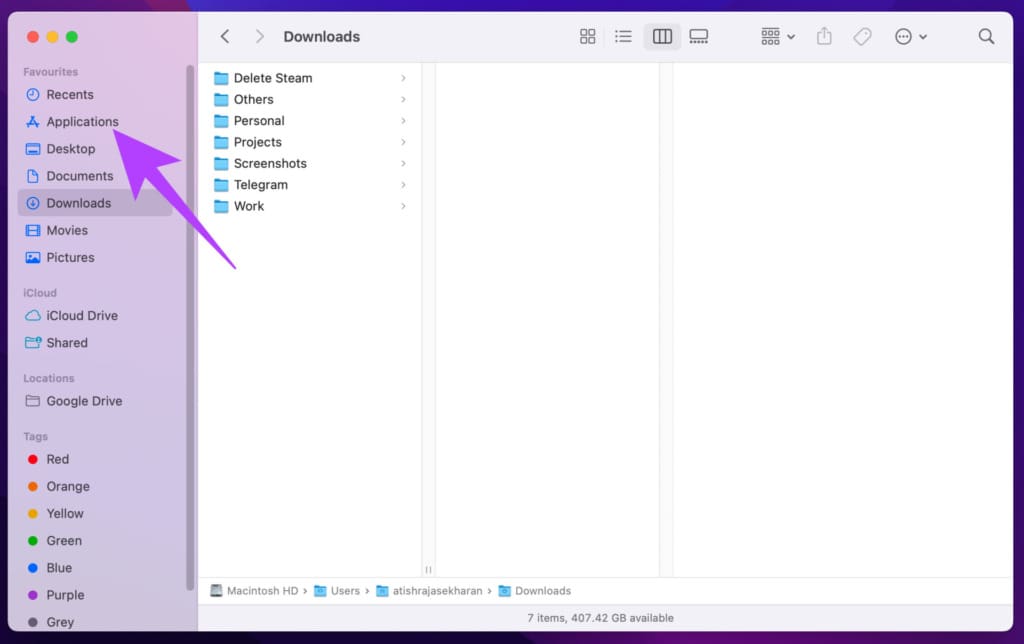
Step 1: Go to the Finder and select the Applications folder.
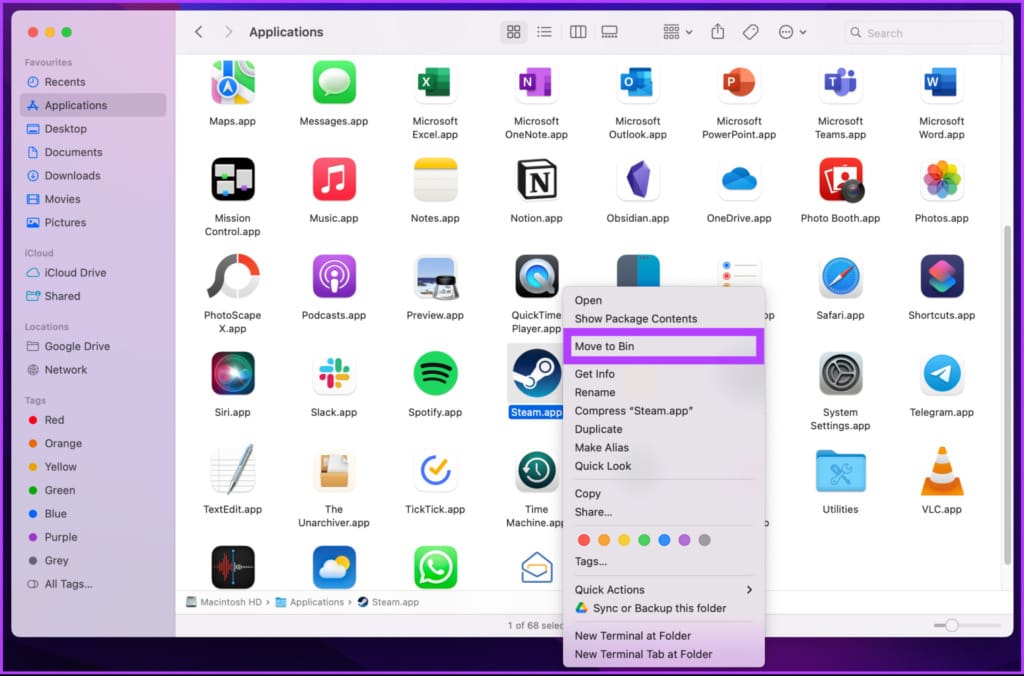
Step 2: Locate Steam.app and right-click on it. From the drop-down menu, select ‘Move to Bin.’
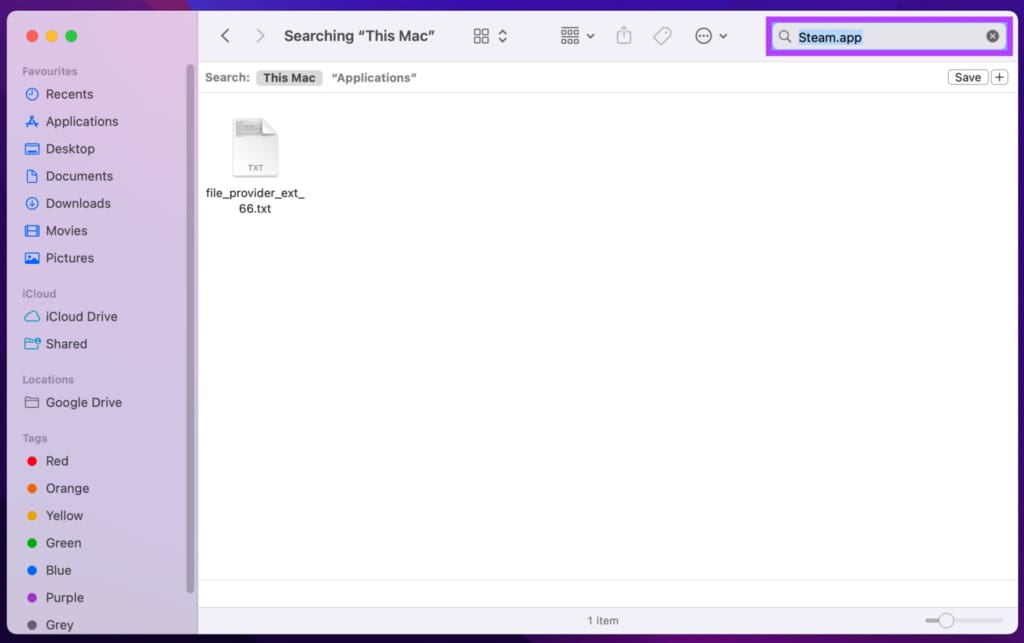
Step 3: Now, search for Library by clicking on the magnifying glass icon in the upper right corner.
Step 4: Now, press command + spacebar together to open Spotlight search, type Application Support, and open the respective folder.

Look for the Steam folder. If you find it, right-click on it and click ‘Move to trash.’
And there you go. You have successfully uninstalled the Steam application from your Mac. What if you don’t want to uninstall the Steam application but instead want to delete a game from Steam? That’s possible too.
2. How to Delete Games From a Steam Account
Note: The steps are almost the same on Windows and Mac.
Step 1: Open the Steam app.
Step 2: Go to the Library and right-click on the game you want to remove. Click Manage > Uninstall.
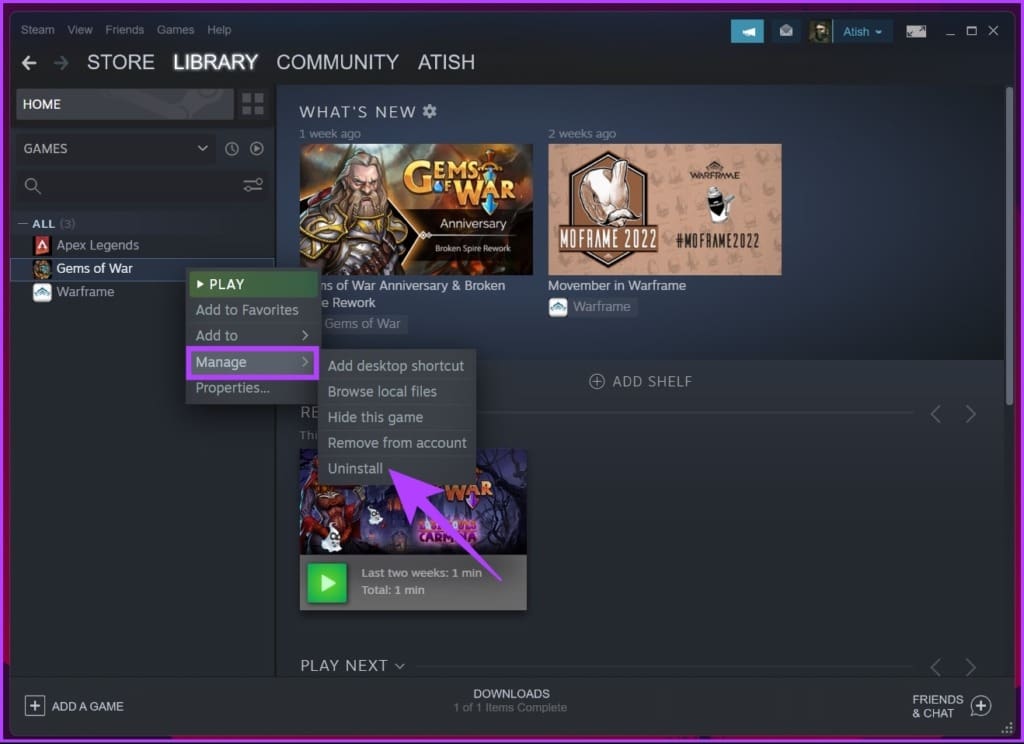
In the prompt, click OK to confirm.
Repeat the steps if you have multiple games to remove and free up your hard disk.
FAQs on Deleting Steam Account
No, you cannot. Steam doesn’t allow you to create a new account with the same email ID. When you try logging in, it says ‘a steam account already exists with these credentials.’
Well, nothing really. You can use both accounts, but not at once. Both accounts will have their custom files to hold their custom content and configuration files.
No, it cannot. One Steam account cannot support multiple players simultaneously. The games you purchase and play on Steam have a license for the sole use of the owner of the account.
When you delete your Steam account, you will lose all your game data and your Steam wallet will get deleted too. There’s no way to recover it.
Steam doesn’t delete inactive accounts. The deletion of the account is only processed at the request of the account holder.
If you have purchased any game within two weeks of deleting the account or if the game has been played for less than two hours, you can request for a refund. You can reach out to Steam help and ask for a refund.
Putting an End to Gaming
If you are a gamer, Steam gives you enough reasons to stick around. But if you’ve had enough, you can easily delete your Steam account. However, we don’t recommend it. Instead, you can uninstall Steam on all your devices and leave the account active. That said, if you’ve removed Steam, here are 5 alternatives to move on to.
Was this helpful?
Last updated on 23 November, 2022
Read Next
 How to Delete Your Reddit Account Permanently
Reddit is a fun and informative social platform.
How to Delete Your Reddit Account Permanently
Reddit is a fun and informative social platform.
 How to Delete a LinkedIn Account Permanently
If you don't need your LinkedIn account anymore for whatever reason, you can deactivate or delete it.
How to Delete a LinkedIn Account Permanently
If you don't need your LinkedIn account anymore for whatever reason, you can deactivate or delete it.
 How to Delete a Discord Account Permanently
Discord is the hub for gamers to come together, communicate, and play.
How to Delete a Discord Account Permanently
Discord is the hub for gamers to come together, communicate, and play.
 How to Delete TikTok Account Permanently Using Mobile or PC
TikTok has emerged as one of the popular social media platforms that stands firm against social media giants.
How to Delete TikTok Account Permanently Using Mobile or PC
TikTok has emerged as one of the popular social media platforms that stands firm against social media giants.
 How to Delete Your BeReal Account Permanently
While BeReal may not enjoy the same level of popularity as platforms like Snapchat or Instagram, it has its unique appeal in the realm of filters.
How to Delete Your BeReal Account Permanently
While BeReal may not enjoy the same level of popularity as platforms like Snapchat or Instagram, it has its unique appeal in the realm of filters.
 Permanently Disable or Delete Your Google+ (Plus) Account
So you are one of those who made a Google+ account with the horde trying to explore the new social-networking service but later realize that Facebook is more than enough
Permanently Disable or Delete Your Google+ (Plus) Account
So you are one of those who made a Google+ account with the horde trying to explore the new social-networking service but later realize that Facebook is more than enough
 How to Deactivate or Permanently Delete Your Facebook Account
As you know, Facebook has experienced staggering growth in recent years and it’s now the undisputed leader in social networking space.
How to Deactivate or Permanently Delete Your Facebook Account
As you know, Facebook has experienced staggering growth in recent years and it’s now the undisputed leader in social networking space.
 How to Delete a WhatsApp Group Permanently
WhatsApp groups can be nasty or pleasant depending on the group that you are part of.
How to Delete a WhatsApp Group Permanently
WhatsApp groups can be nasty or pleasant depending on the group that you are part of.
The article above may contain affiliate links which help support Guiding Tech. The content remains unbiased and authentic and will never affect our editorial integrity.