

Android TVs have a casting function built-in that lets you mirror your Android phone’s screen to a big display. It’s handy for checking your holiday, marriage, or birthday pictures and videos on your Android TV. But what if your Android TV doesn’t appear to cast in the first place? Here are the best ways to fix Android TV cast feature not working.
Whether you use Chromecast or Cast for Android TV, the solutions below will work for all your Android smart TVs. Before you view your memories on a small screen, use the tricks below to start casting the same on your TV. Let’s get started.
1. Restart Android TV and Phone
You’ll need to go through some basics first. You can restart your Android phone and TV and start casting.
Step 1: Swipe down from the home screen to access quick toggles. Swipe down again.
Step 2: Tap on the power button and select Restart.


Follow the steps below to restart your Android TV.
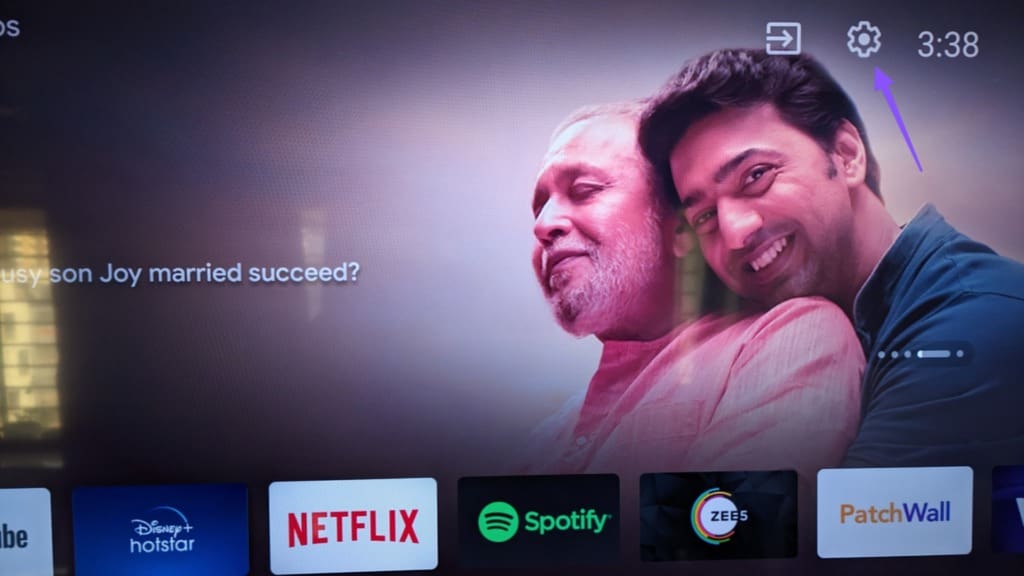
Step 1: Open Android TV Home and move to Settings from the top-right corner.
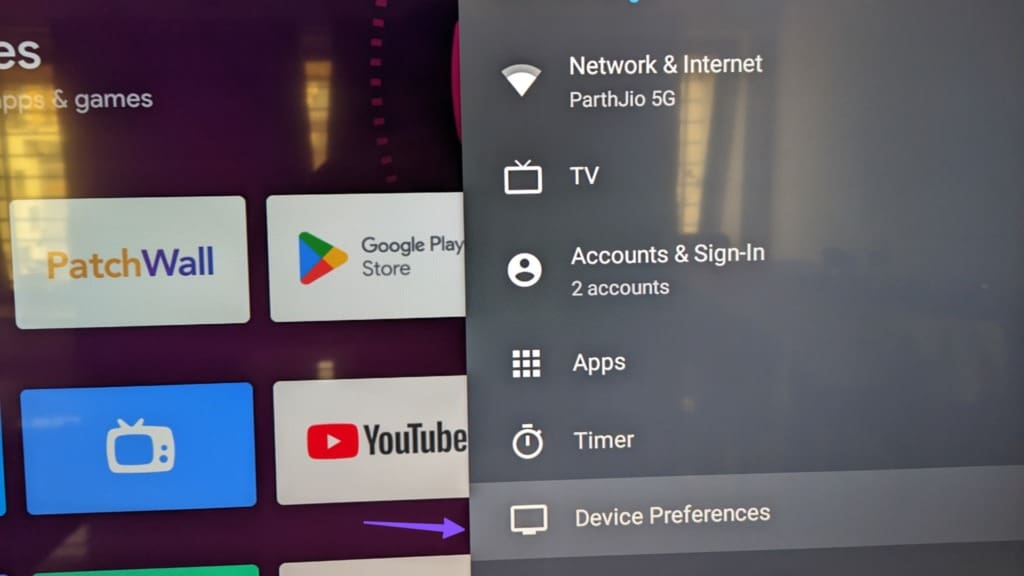
Step 2: Select Device Preferences.
Step 3: Click About.

Step 4: Select Restart.

Check your Android phone and see if your Android is showing up on cast.
2. Connect Your Mobile Phone and Android TV to the Same Network
You should connect your Android phone and TV to the same Wi-Fi network. Otherwise, you can’t cast to your Android TV. If you use a dual-band wireless router, connect devices to the same frequency.
3. Enable Chromecast Service
Did you disable Chromecast on your Android TV? You can’t cast to your Android TV until you enable the function.
Step 1: Open Android TV Home and move to Settings from the top-right corner.
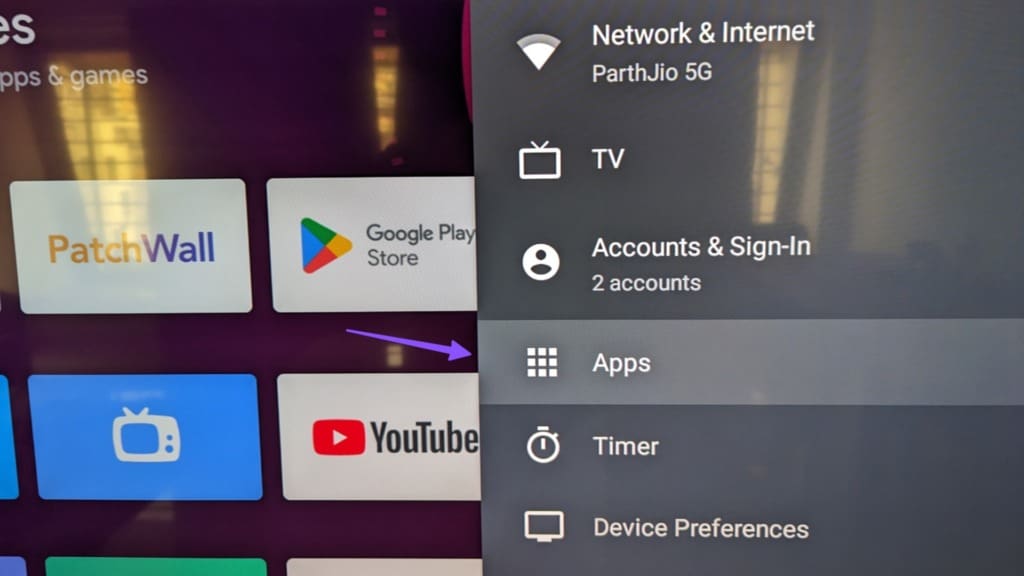
Step 2: Select Apps.
Step 3: Click See all apps.
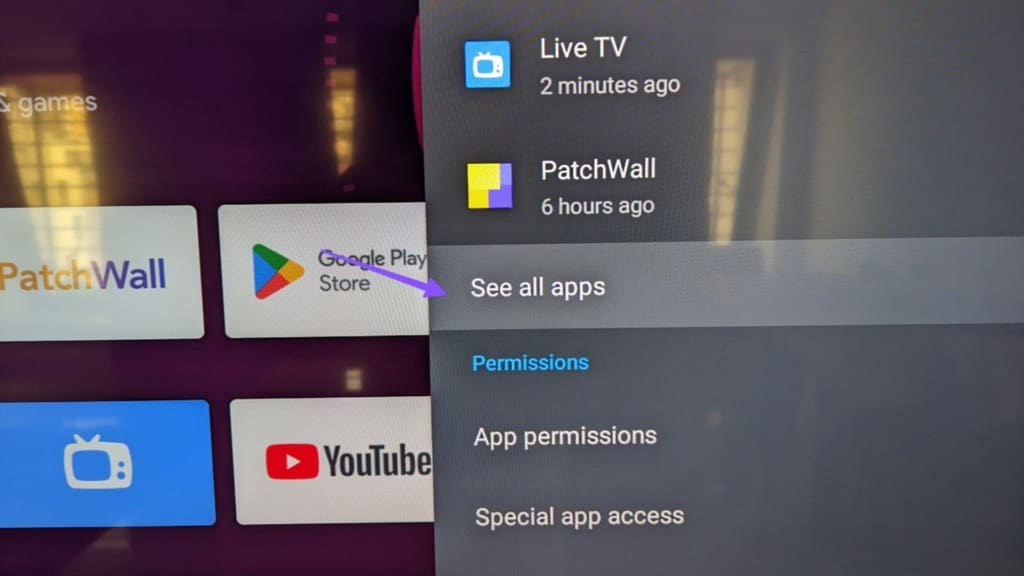
Step 4: Scroll to ‘Show system apps.’
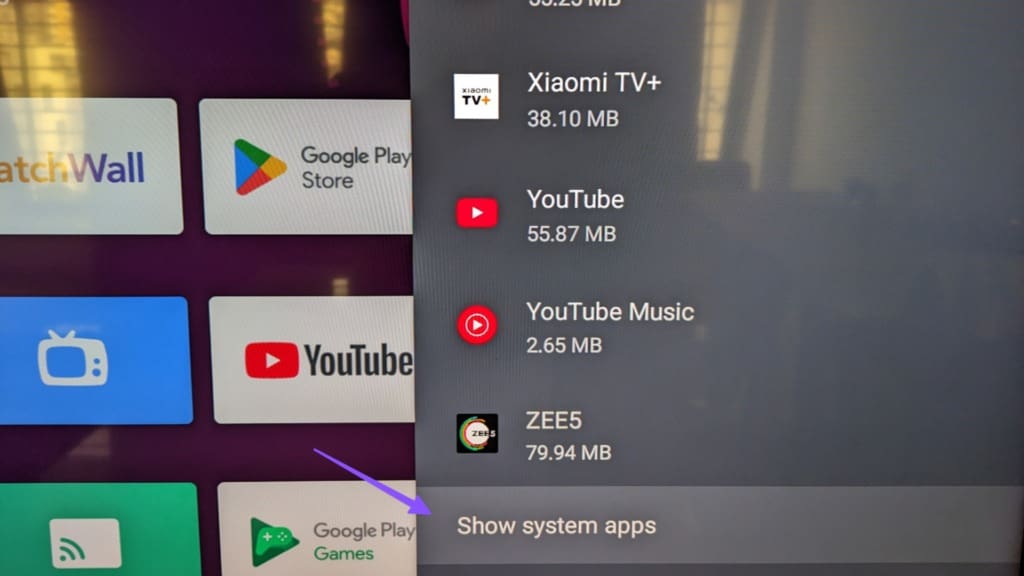
Step 5: Open ‘Chromecast built-in.’

Step 6: Enable the function from the following menu.
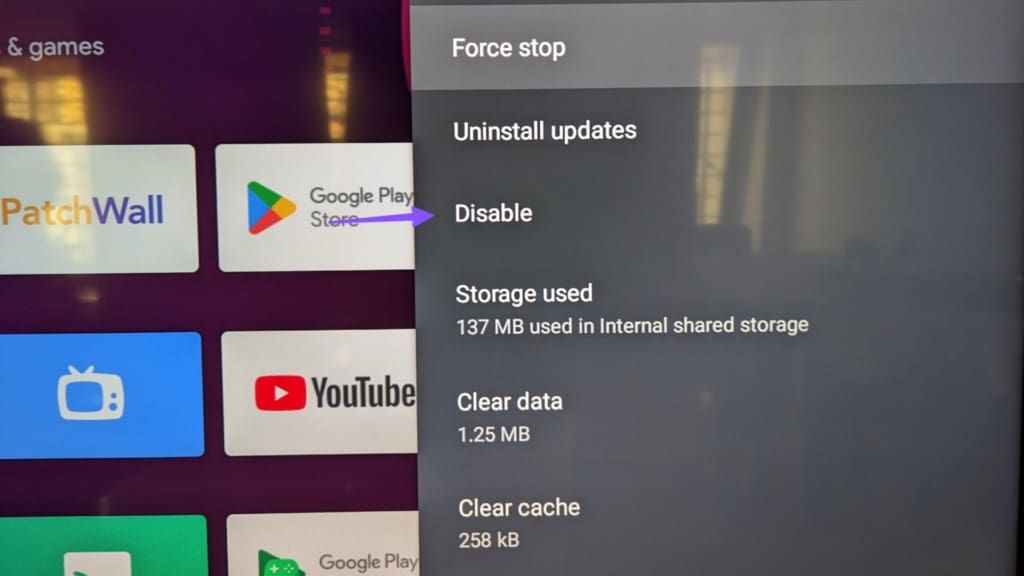
4. Clear Data for Chromecast and Android System WebView
You’ll need to clear data for Chromecast and Android System WebView and try casting from your Android phone.
Step 1: Open Android TV Home and move to Settings from the top-right corner.
Step 2: Select Apps.
Step 3: Click See all apps.
Step 4: Click ‘Show system apps.’
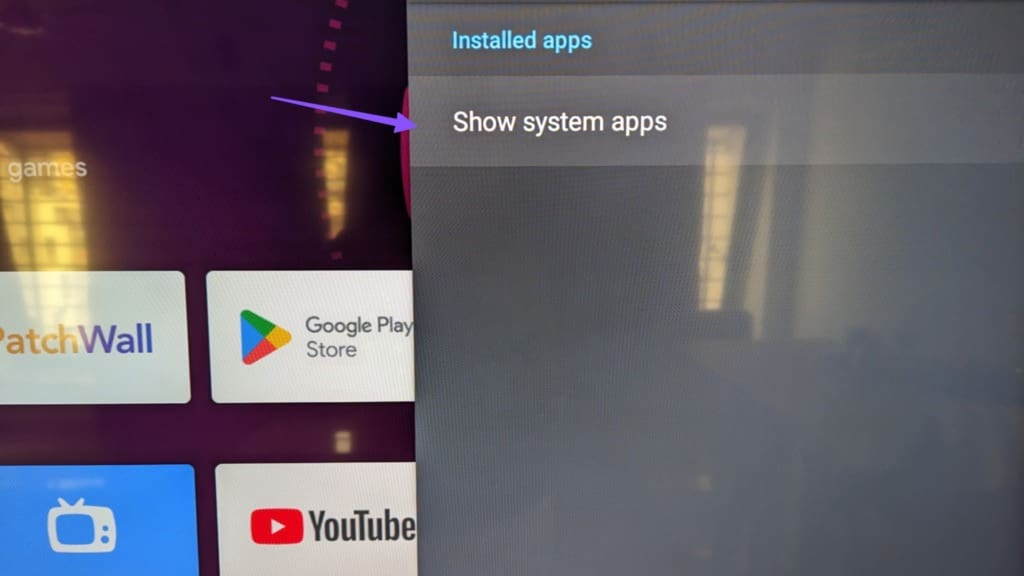
Step 5: Scroll to ‘Android System WebView.’
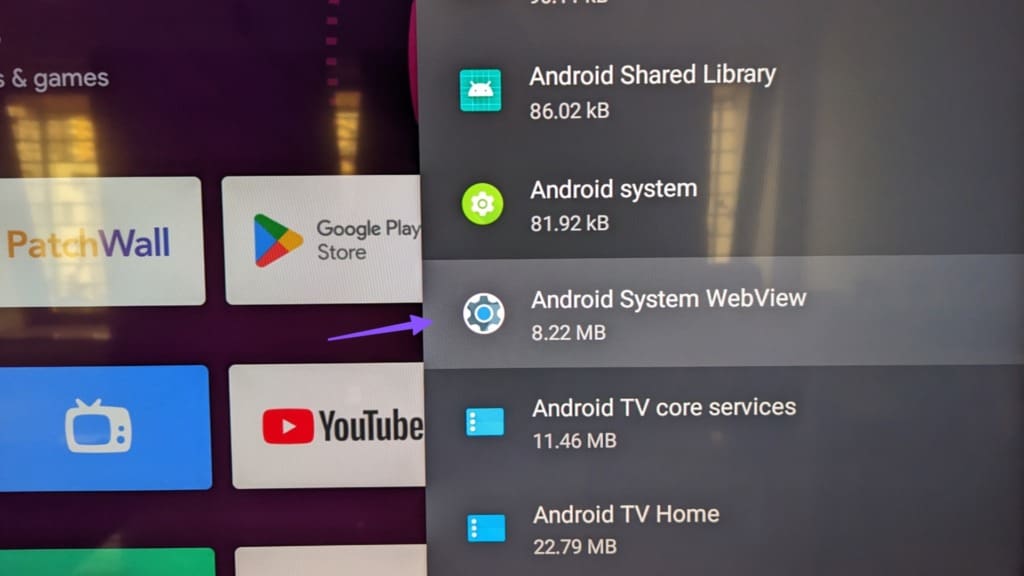
Step 6: Select Clear data.
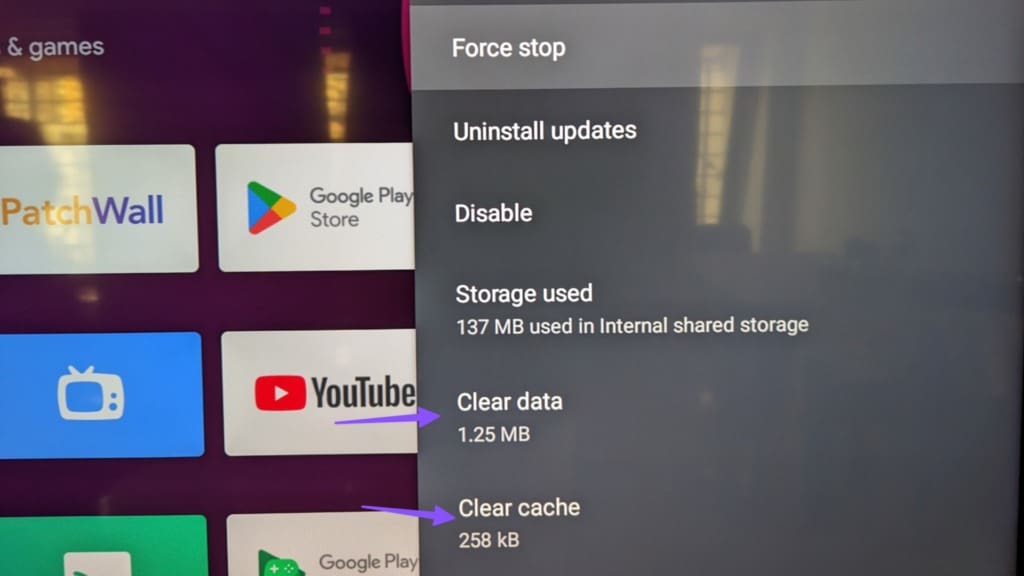
Step 7: Go back and select Chromecast.
Step 8: Hit Clear data.
5. Uninstall Updates for Chromecast and Android System WebView
A recent update to Android System WebView and Chromecast may be why you cannot cast from your phone to Android TV. You should uninstall updates and try again.
Step 1: Open Android TV Home and move to Settings from the top-right corner.
Step 2: Select Apps.
Step 3: Click See all apps.
Step 4: Click ‘Show system apps.’
Step 5: Scroll to ‘Android System WebView.’
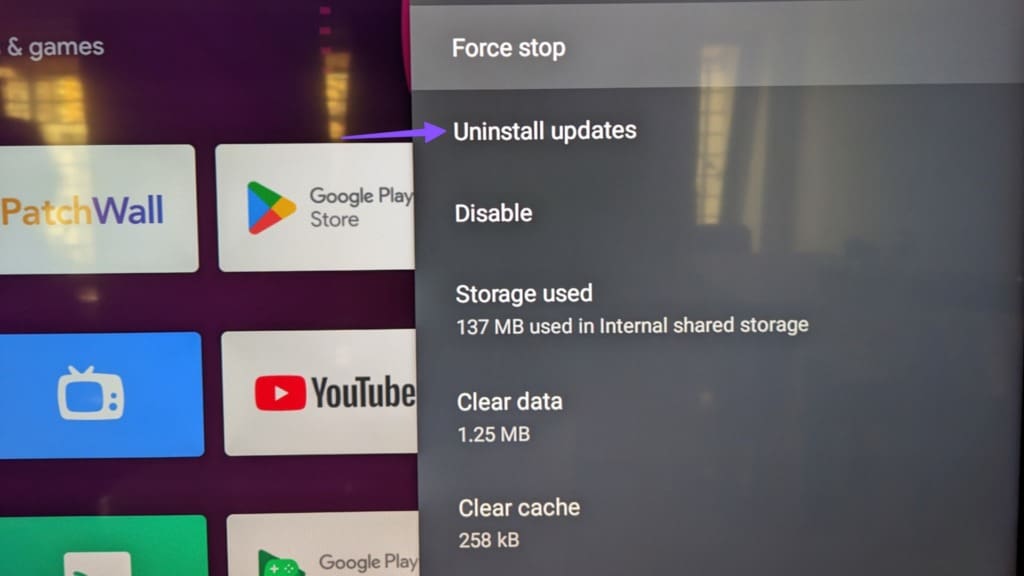
Step 6: Click Uninstall updates.
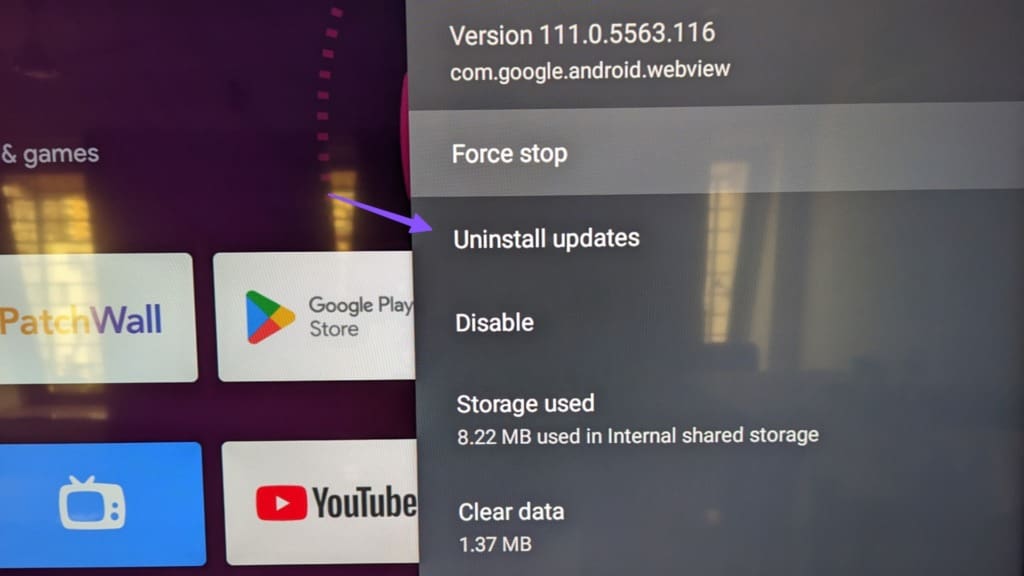
Step 7: Go back to the system apps and select Chromecast.
Step 8: Click Uninstall updates.
6. Force Stop Chromecast
You can force stop Chromecast on your Android TV and start casting from your Android TV without any glitches.
Step 1: Open Android TV Home and move to Settings from the top-right corner.
Step 2: Select Apps.
Step 3: Click See all apps.
Step 4: Click ‘Show system apps.’
Step 5: Scroll to ‘Chromecast built-in.’
Step 6: Select Force Stop and confirm your decision.
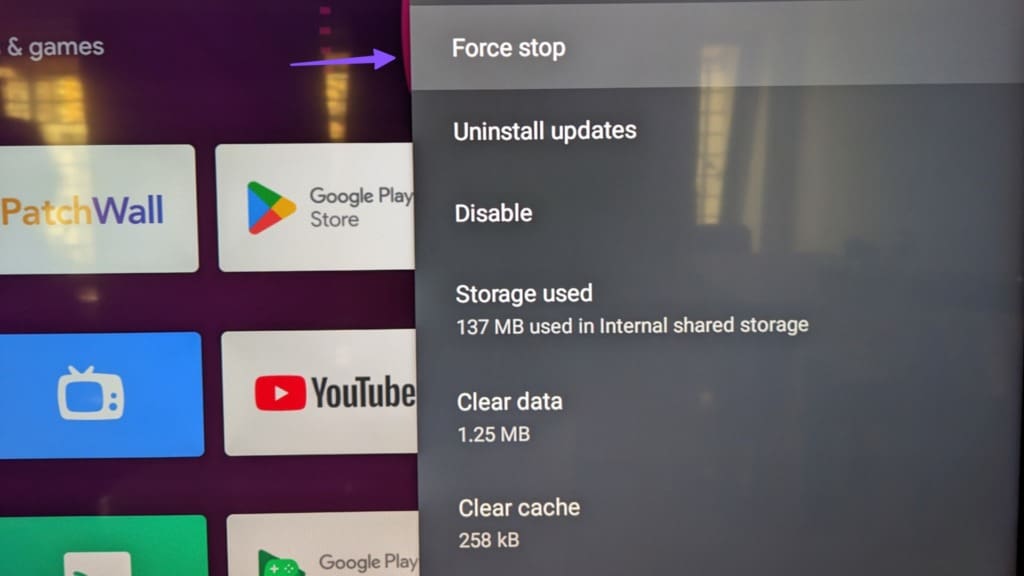
Restart your Android TV and it should show up on your Android phone.
7. Set Correct Date and Time on Android TV
If your Android TV has an incorrect date and time, it may not appear during casting on your phone.
Step 1: Open Android TV Home, move to Settings from the top-right corner and select Device Preferences.
Step 2: Select Date & time.
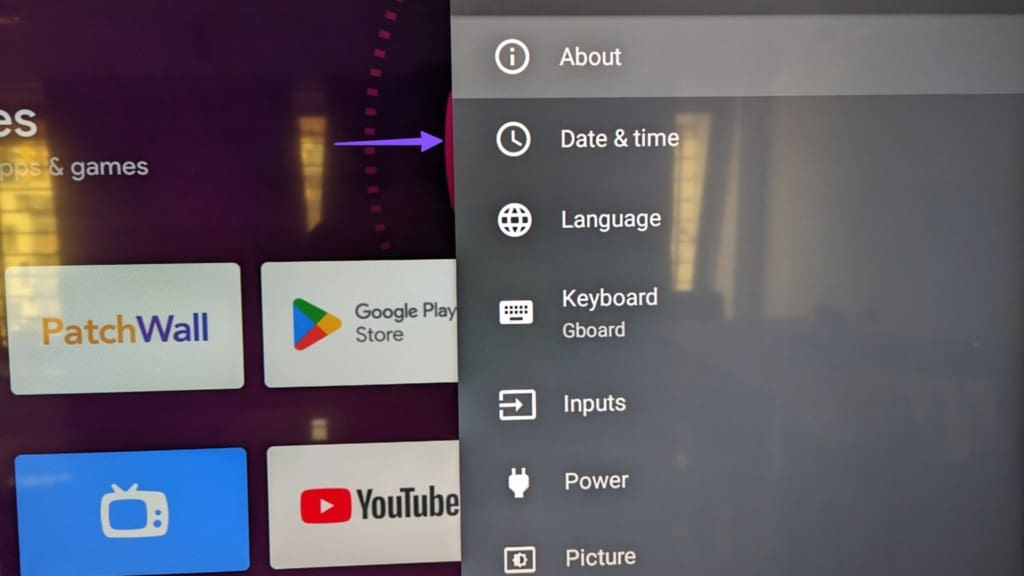
Step 3: Disable ‘Automatic date and time.’
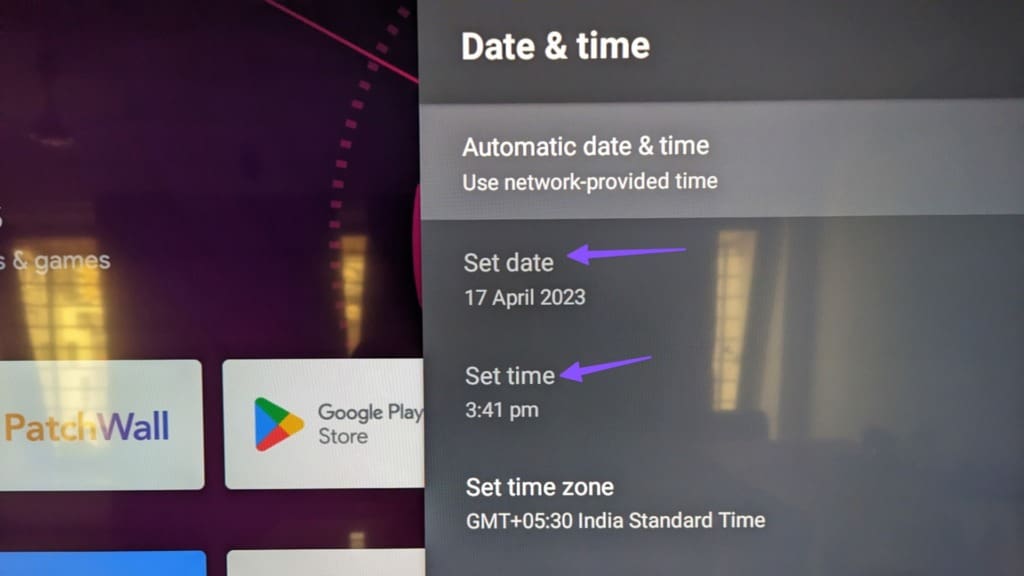
Set the correct date and time.
8. Restart Router
A glitchy network connection can be the main reason behind the ‘Android TV cast feature not working’ issue. You should restart the router and connect to a 5GHz Wi-Fi frequency for a smooth performance.
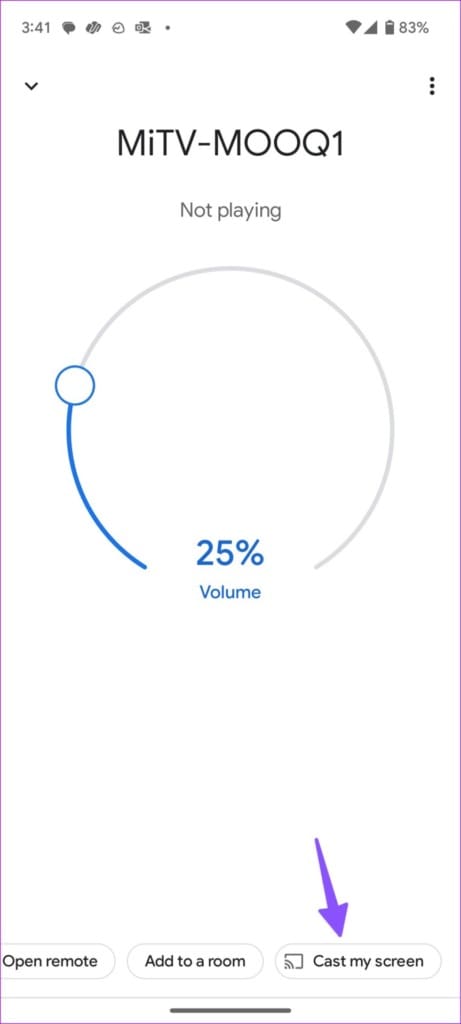
9. Start Casting From Google Home App
If casting isn’t working from Google Photos or phone settings, use the Google Home app to mirror your phone content.
Step 1: Download Google Home from the Play Store.
Step 2: Launch Google Home and follow the on-screen instructions to set up your Android TV. Select it under the Local Devices menu.
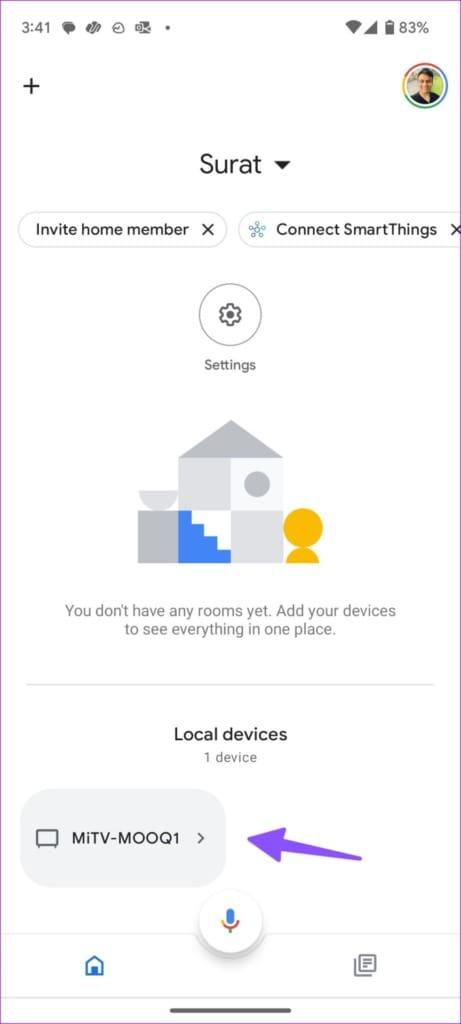
Step 3: Tap ‘Cast my screen’ at the bottom and confirm the same from the dialog box.
10. Update Android TV
An outdated Android TV system can lead to casting issues.
Step 1: Open Android TV Home and move to Settings from the top-right corner.
Step 2: Select Device Preferences.
Step 3: Click About.
Step 4: Select System Update and install the software version from the following menu.

Check Your Memories on the Big Screen
Android TV supports casting from iPhone too. You can check our dedicated post to mirror iPhone screen to Android TV. Which trick worked for you? Share your findings with us in the comments below.
Was this helpful?
Last updated on 17 April, 2023
1 Comment
Leave a Reply
Read Next
 How to Easily Cast and Mirror Videos from Android to Xiaomi Mi TV
If you look at it, the very core idea of a Smart TV differs from one manufacturer to another.
How to Easily Cast and Mirror Videos from Android to Xiaomi Mi TV
If you look at it, the very core idea of a Smart TV differs from one manufacturer to another.
 How to Cast Videos from Laptop to Android TV Box
A few years back, no one would have imagined that they could download apps on their TV.
How to Cast Videos from Laptop to Android TV Box
A few years back, no one would have imagined that they could download apps on their TV.
 How to Enable Google Home Guest Mode to Cast Without Wi-Fi
Google Home Mini adds more fun to any party.
How to Enable Google Home Guest Mode to Cast Without Wi-Fi
Google Home Mini adds more fun to any party.
 Top 6 Fixes for YouTube Cast Button Missing on Mobile and PC
Casting YouTube videos from the phone or computer is one of the best ways to enjoy them on a larger screen.
Top 6 Fixes for YouTube Cast Button Missing on Mobile and PC
Casting YouTube videos from the phone or computer is one of the best ways to enjoy them on a larger screen.
 Top 9 Ways to Fix Netflix Not Working on Android TV
Your perfect weekend plans get ruined when Netflix stops working on your Android TV.
Top 9 Ways to Fix Netflix Not Working on Android TV
Your perfect weekend plans get ruined when Netflix stops working on your Android TV.
 7 Best Ways to Fix Android TV Remote Not Working
If you watch a lot of content online on streaming services like Netflix and Prime Video, an Android TV is a great investment.
7 Best Ways to Fix Android TV Remote Not Working
If you watch a lot of content online on streaming services like Netflix and Prime Video, an Android TV is a great investment.
 Top 9 Ways to Fix YouTube Not Working on Android TV
Although YouTube is available on every possible platform, the service offers the best experience on a smart TV.
Top 9 Ways to Fix YouTube Not Working on Android TV
Although YouTube is available on every possible platform, the service offers the best experience on a smart TV.
 Top 10 Ways to Fix Android TV Sound Not Working
Your Android TV experience is complete with a capable sound system.
Top 10 Ways to Fix Android TV Sound Not Working
Your Android TV experience is complete with a capable sound system.
The article above may contain affiliate links which help support Guiding Tech. The content remains unbiased and authentic and will never affect our editorial integrity.

Restarted phone and tv, worked. Thanks.