
Interpreting a spreadsheet full of data can be daunting at times. Highlighting important cells in your spreadsheet is one way to make important data or words stand out. Thankfully, your favorite spreadsheet editor, Google Sheets, includes several built-in functions that allow you to highlight cells in a few easy steps.

In Google Sheets, you can highlight either entire cells or just the text within them. This guide will walk you through several ways to highlight cells in Google Sheets. So, let’s get right to it.
How to Highlight Cells in Google Sheets Using a Fill Color
Using a fill color is the fastest and most commonly used method for highlighting cells in Google Sheets. So, if you are short on time and need to highlight a few cells quickly, follow these steps:
Step 1: Open Google Sheets in your web browser, sign in, and open your spreadsheet.
Step 2: Select the cell that you want to highlight. You can also select multiple cells.
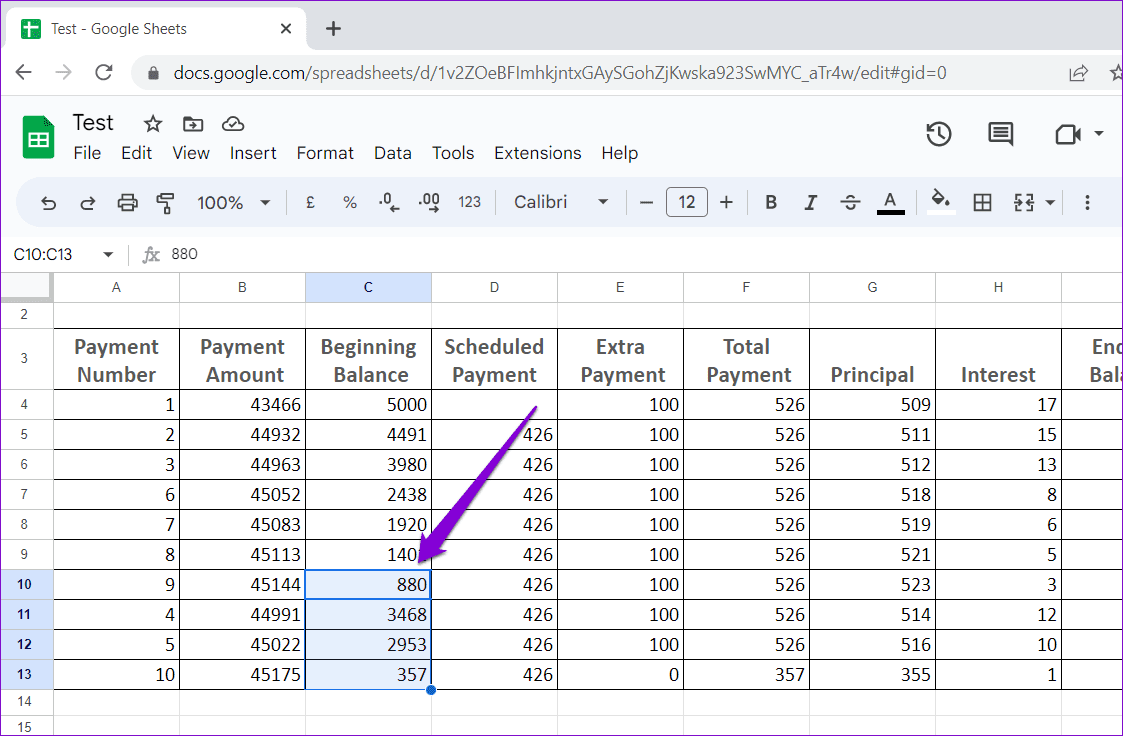
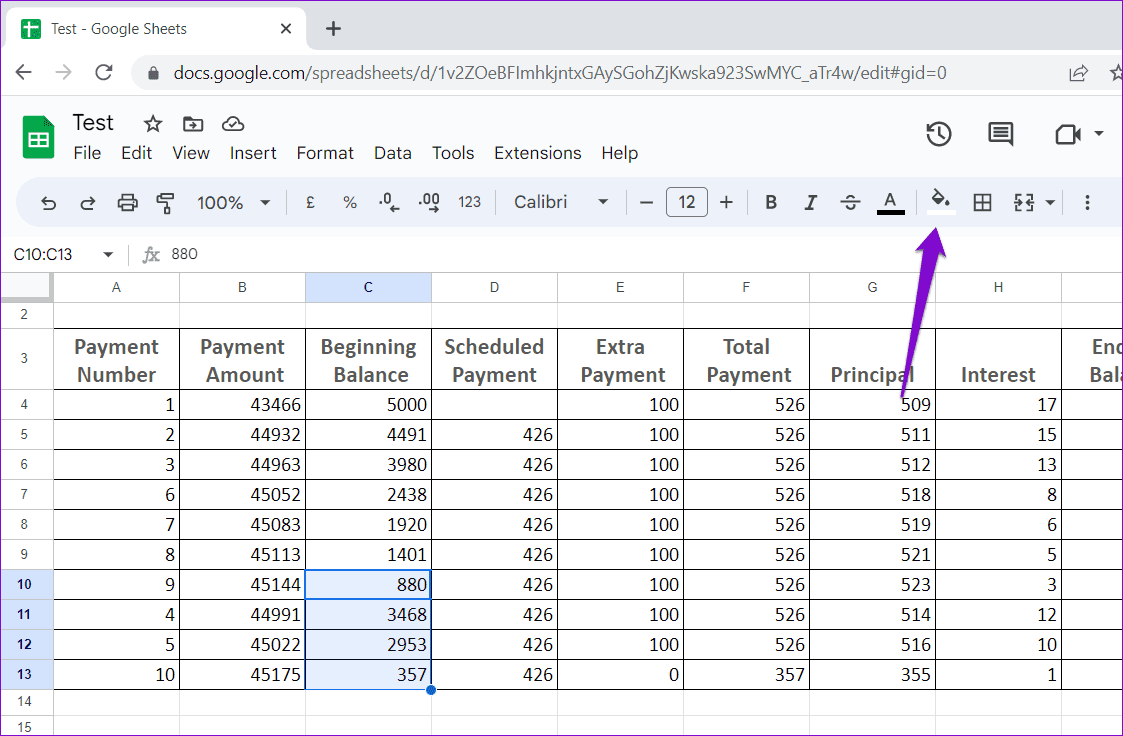
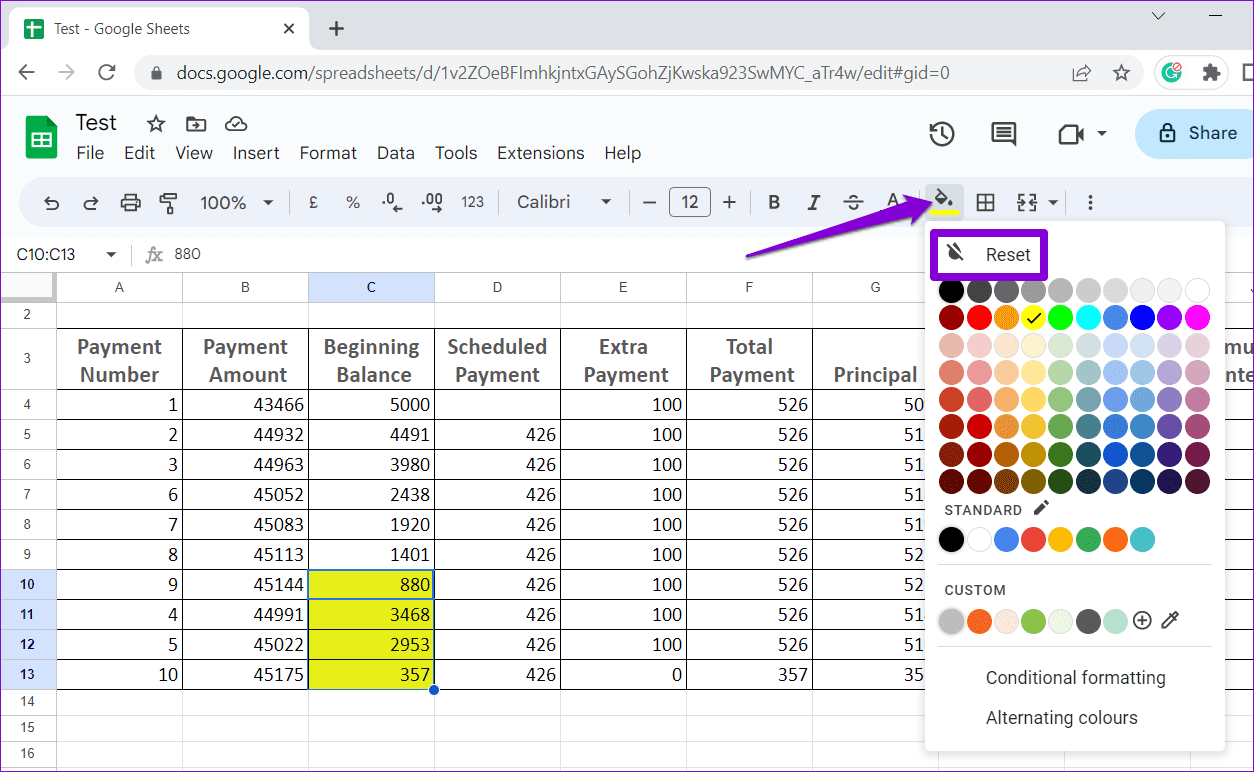
Step 3: Click the fill color icon on the toolbar.
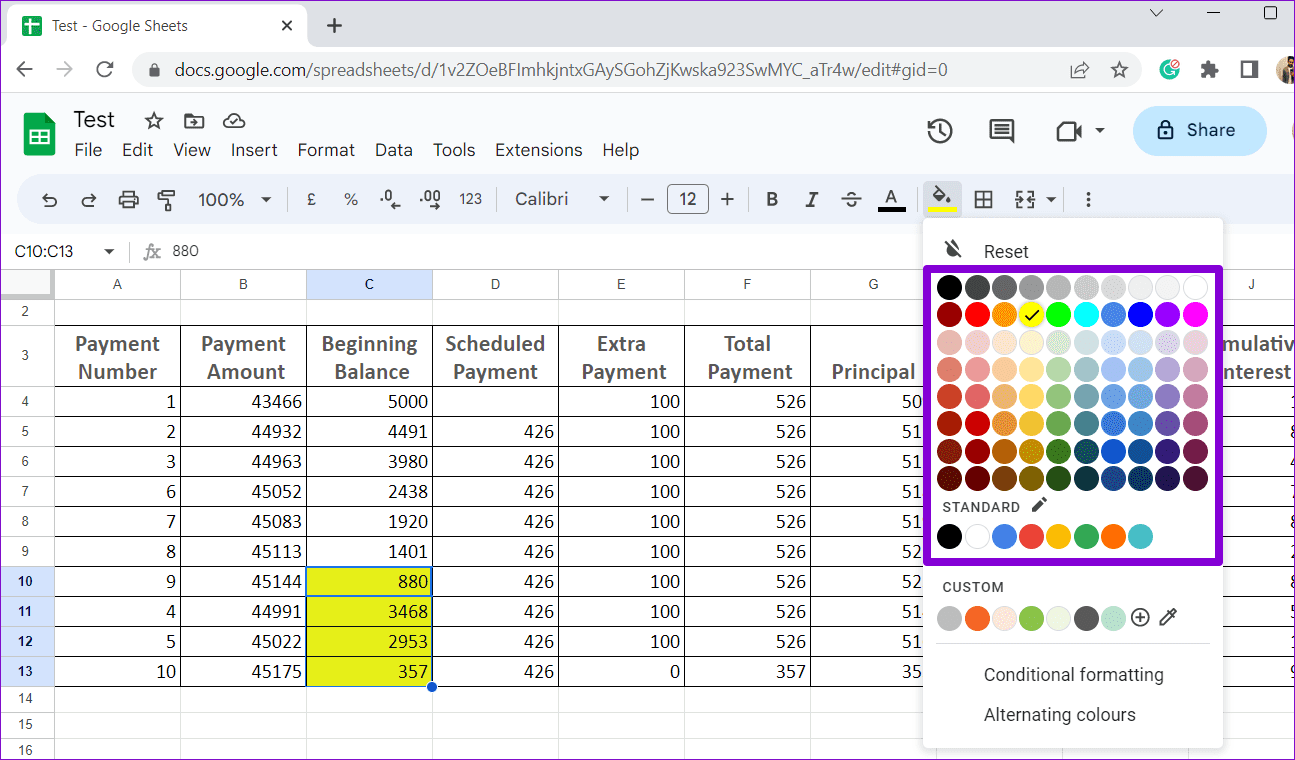
Step 4: Select your preferred color option from the palette.
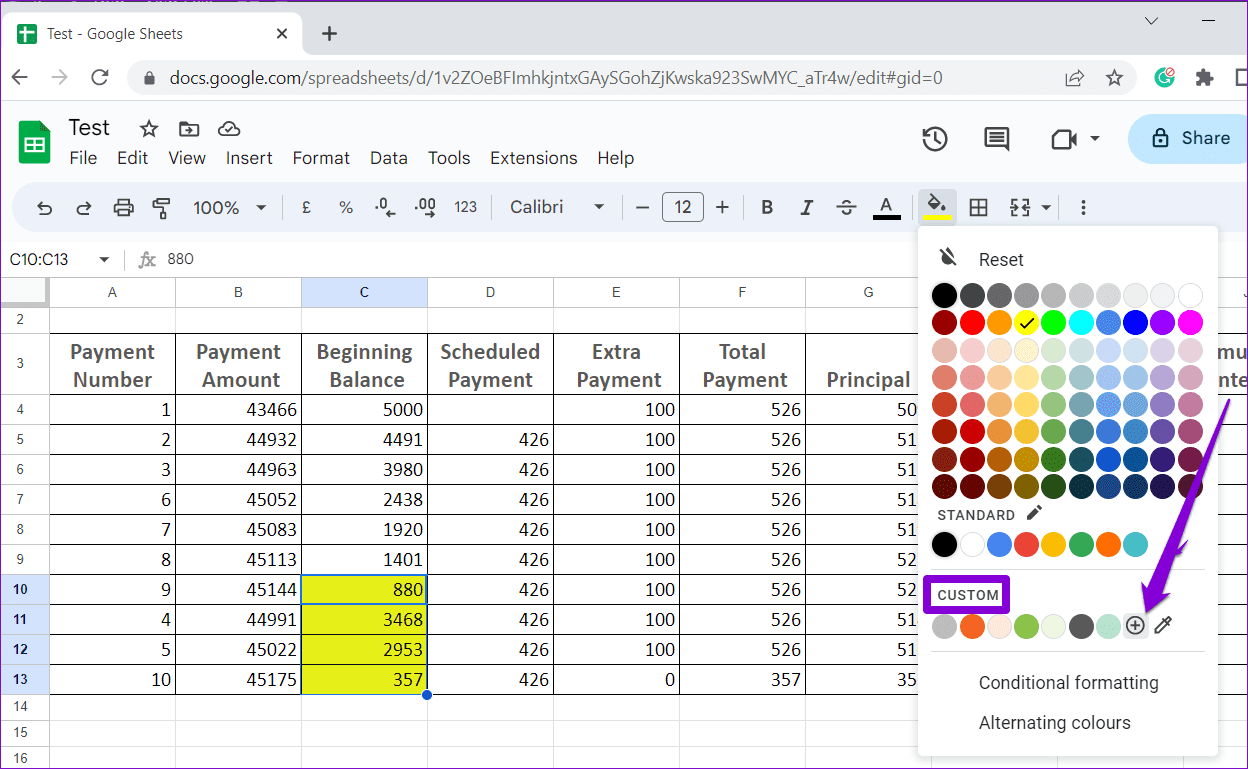
You can also apply a custom color to your cells. For that, click the plus icon under Custom.
Specify the hex code of the desired color or select your preferred option from the color map and click OK.
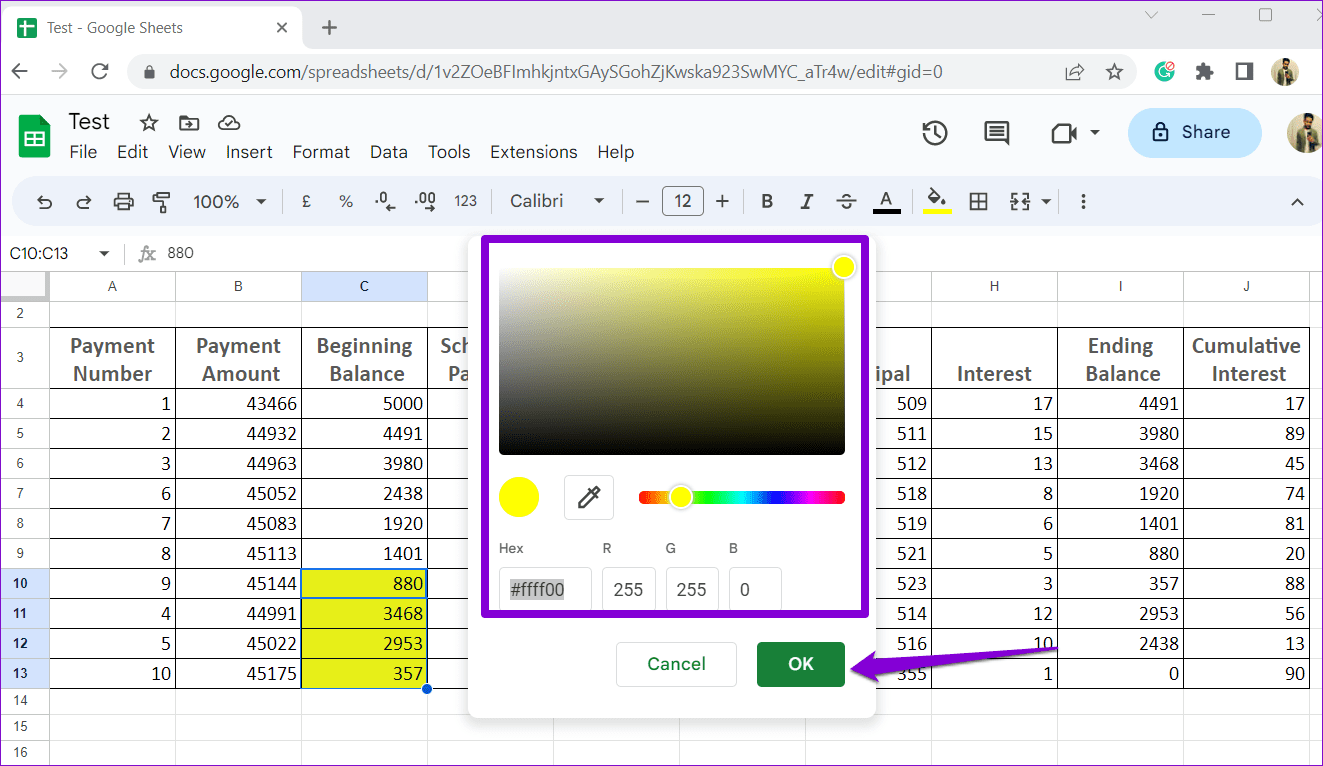
After you complete the above steps, Google Sheets will highlight the selected cells. If you want to remove the highlight, select the cells again, click the fill color icon, and then choose Reset.
How to Highlight Cells in Google Sheets by Applying Alternating Colors
Using alternating colors in your table is another way to highlight cells and improve the readability of important data. With this approach, you can easily distinguish between different rows and focus on the information you are interested in.
Step 1: Navigate to Google Sheets in your browser and then open your spreadsheet.
Step 2: Select the cells you want to highlight.
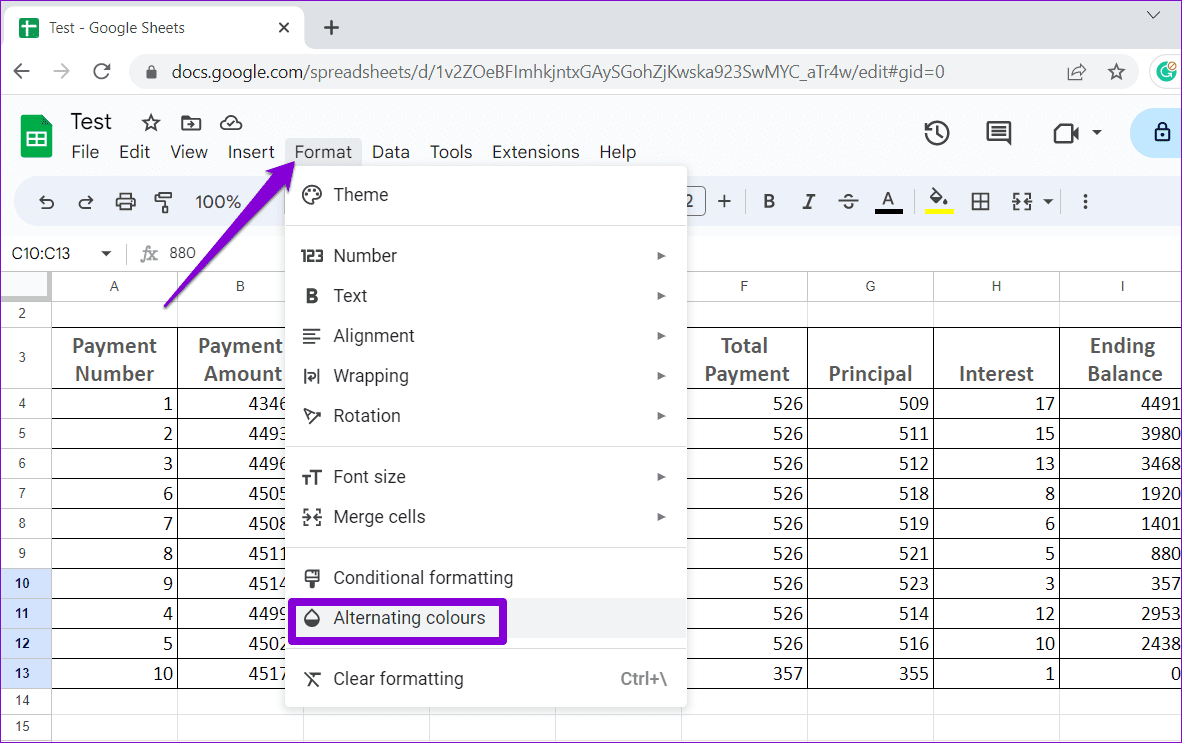
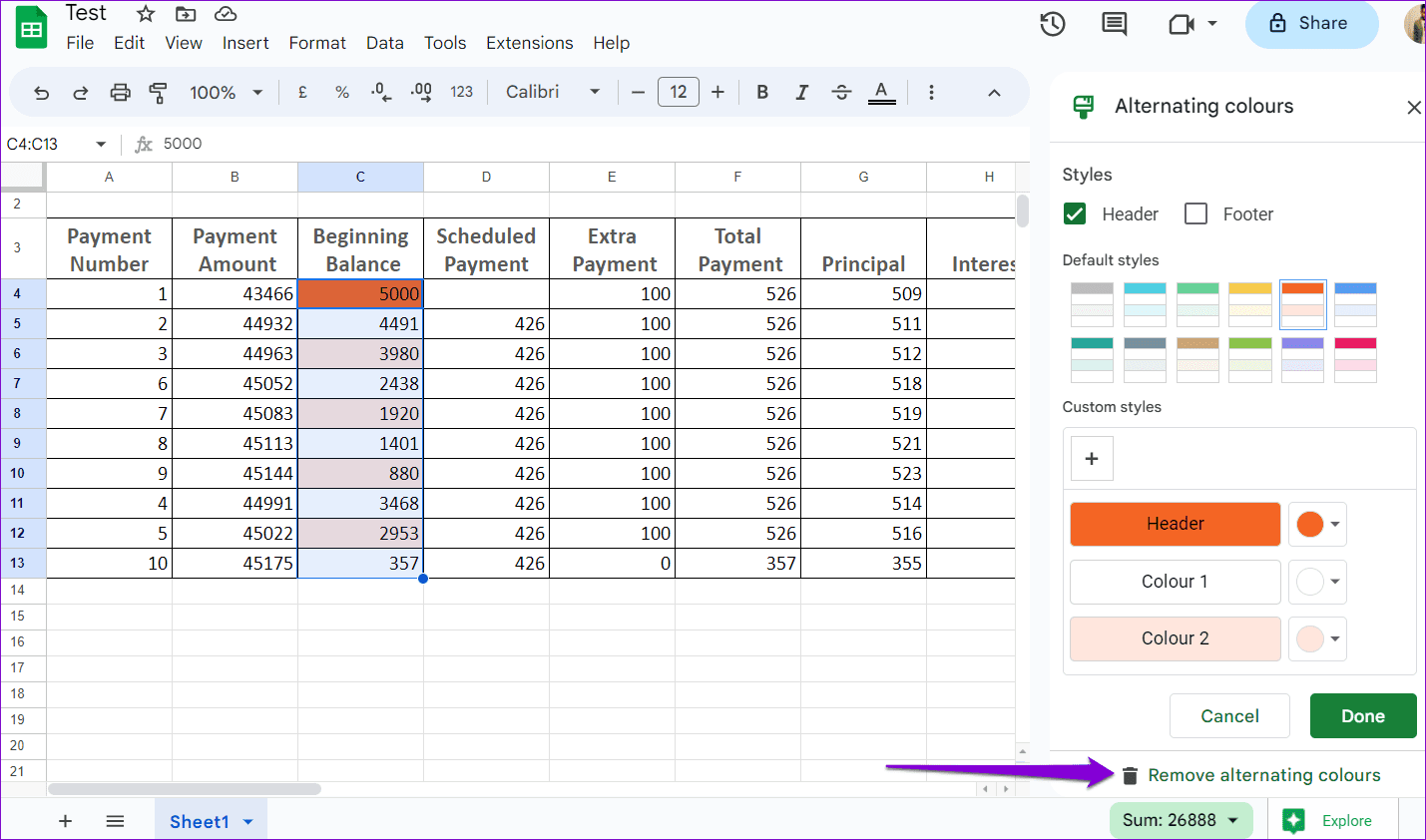
Step 3: Click the Format menu at the top and select Alternating colors from the list.
Step 4: In the Alternating colors panel on your right, select from the available styles or pick colors to create a custom style manually.
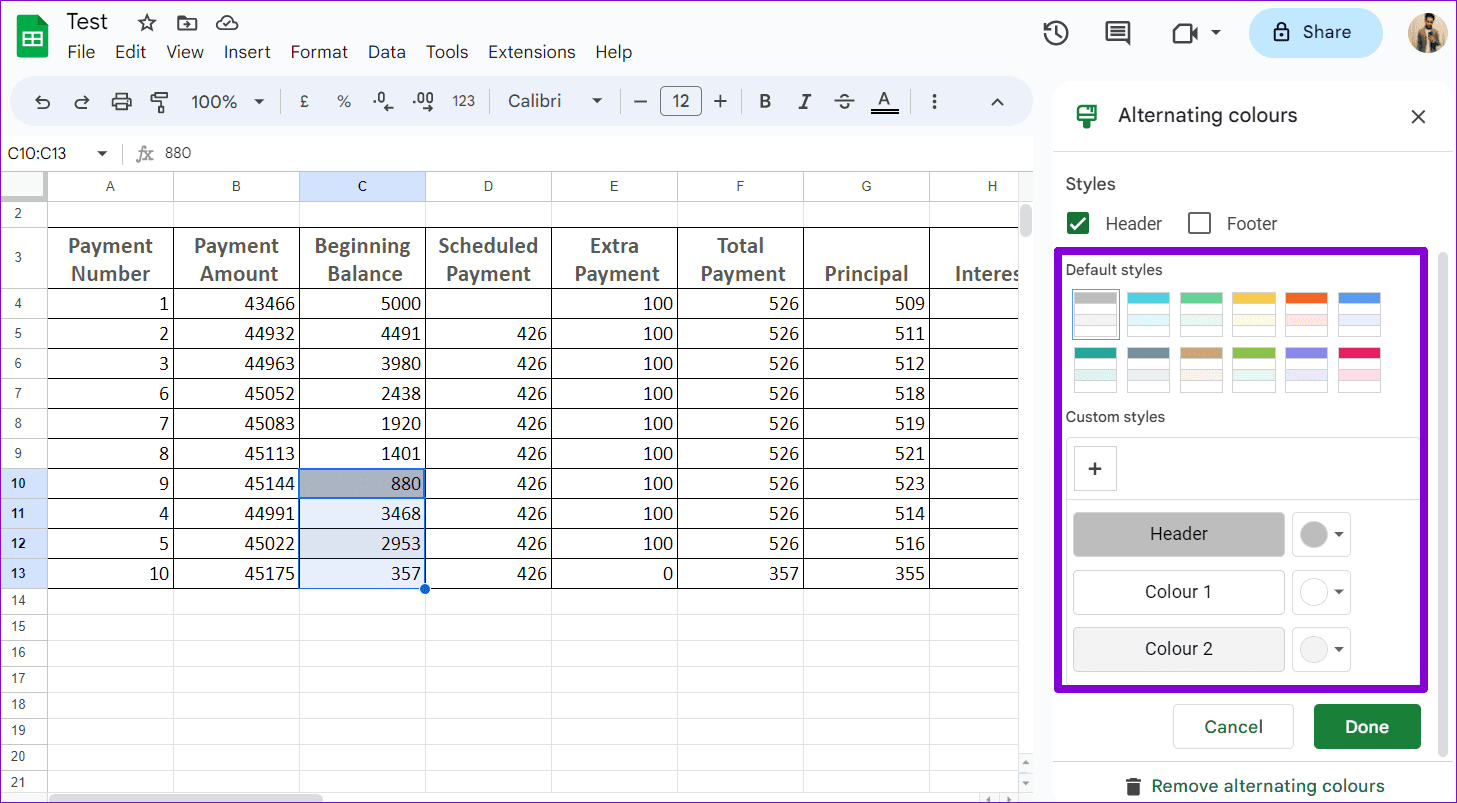
Step 5: Click Done to apply the highlight.

If you want to remove the highlight from your cells, click the ‘Remove alternating colors’ option at the bottom.
How to Highlight Cells in Google Sheets With Conditional Formatting
Conditional formatting is a useful feature in Google Sheets that allows you to highlight specific cells based on certain conditions. This method can be useful when working with a large data set and wanting to quickly highlight cells that meet specific criteria, such as empty cells or cells with a specific numerical value.
To highlight cells using conditional formatting, use these steps:
Step 1: Open Google Sheets in your favorite browser and open a spreadsheet.
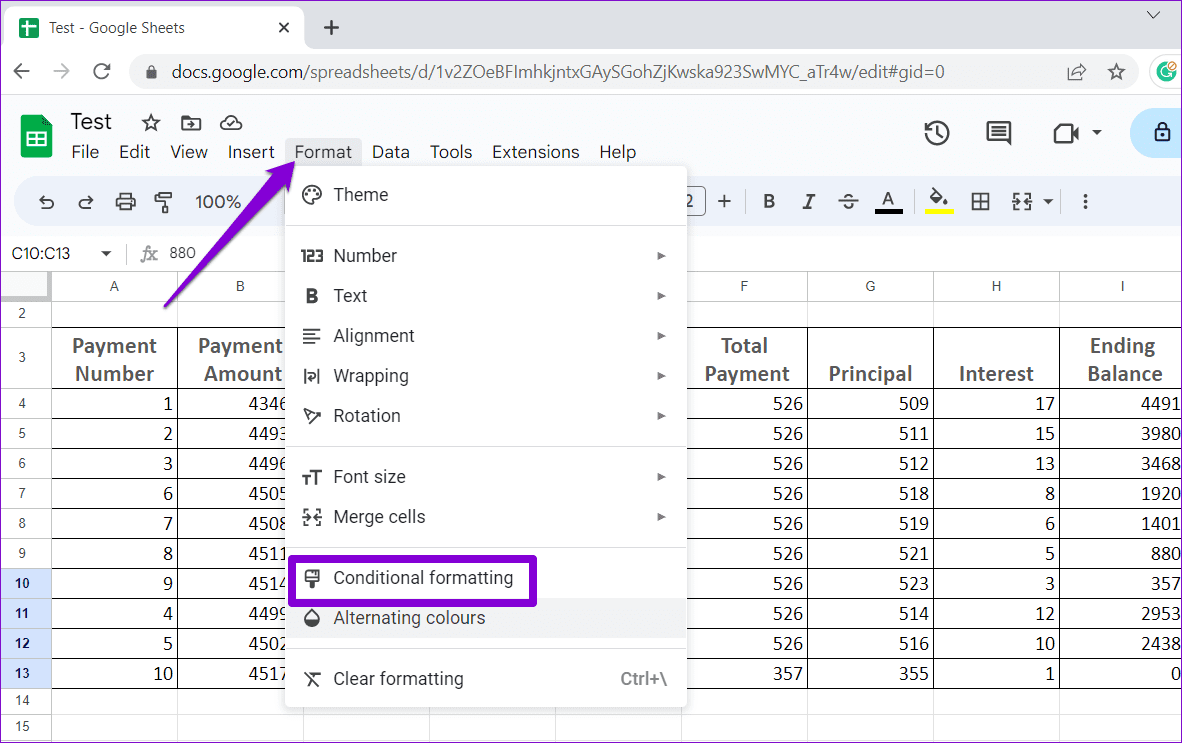
Step 2: Select the table where you want to highlight cells. Click the Format menu at the top and select Conditional formatting.
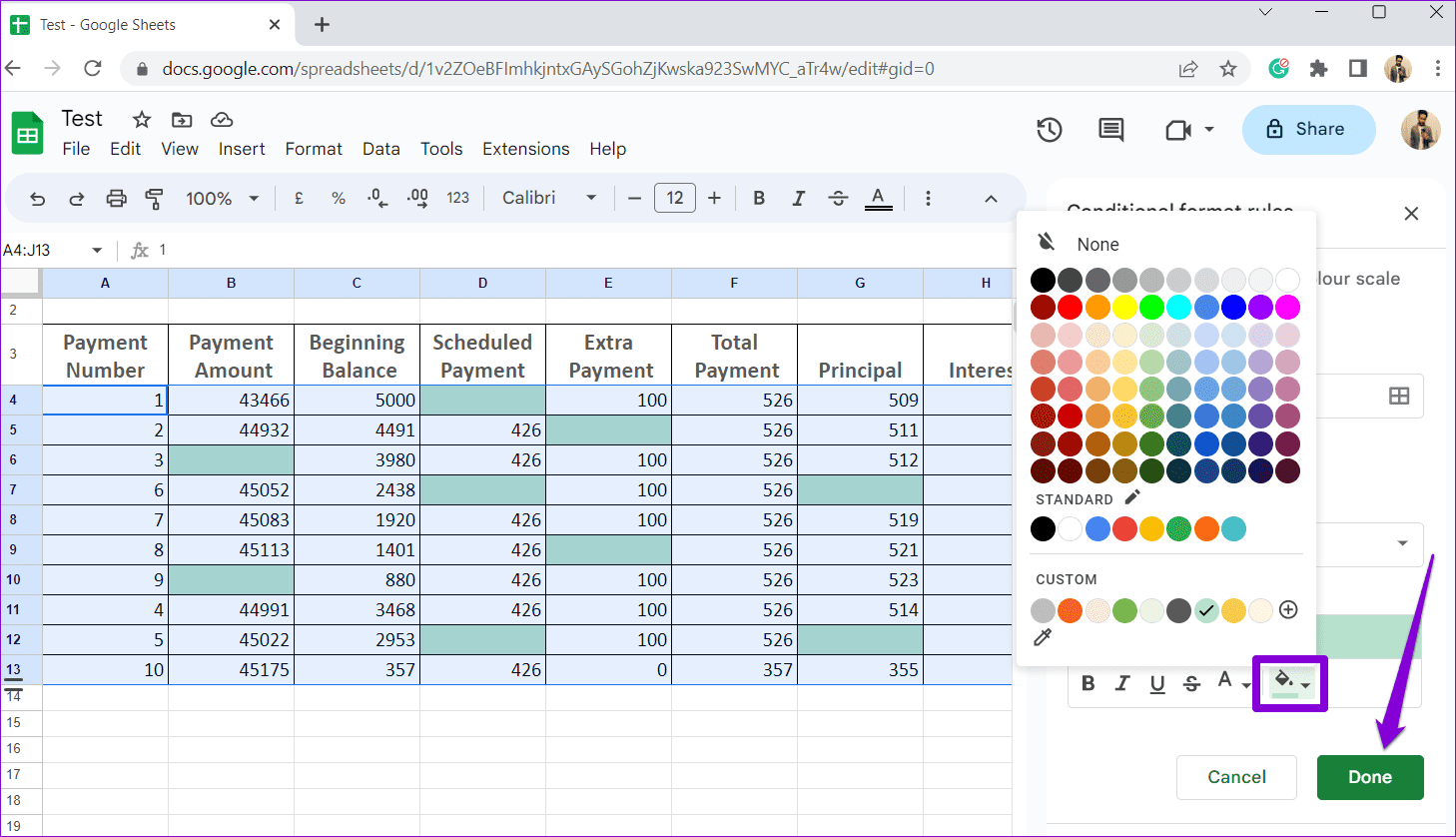
Step 3: Click the drop-down menu under Format rules to select which types of cells you want to highlight.

Step 4: Under Formatting style, click the fill color icon and select your preferred color. Then, click Done.
How to Highlight Only Texts Within Cells in Google Sheets
Google Sheets also lets you highlight text within a cell if you want to highlight only some of the cell. You can choose to highlight all text or certain words within a cell. Here’s how to do it.
Step 1: Open your spreadsheet in a web browser and select the cells that contain the text you want to highlight.
Step 2: Click the text color icon from the toolbar and select your preferred option.

If you wish to highlight only specific text, such as a word or number, within a cell, you can use these steps instead.
Step 1: Locate the cell that contains the text you want to highlight in a spreadsheet.
Step 2: Double-click the cell to enter editing mode, and then use your mouse to select your text.

Step 3: Click the text color icon from the toolbar and select your preferred option.

Let Colors Guide the Way
Highlighting cells in Google Sheets can make your spreadsheet look professional and make the data easier to analyze. You can pick your preferred method from the above depending on the number of cells you want to highlight.
Apart from highlighting cells, you can also format your tables using themes or Google Sheets add-ons to make the data easier to read.
Was this helpful?
Last updated on 14 April, 2023
Read Next
 How to Lock Cells and Rows in Google Sheets on the Web
It's very convenient to collaborate on a Google Sheet document, and inviting others is easy.
How to Lock Cells and Rows in Google Sheets on the Web
It's very convenient to collaborate on a Google Sheet document, and inviting others is easy.
 How to Restrict Editing Cells in a Google Docs Spreadsheet
While power usage still might be Microsoft Excel’s strongpoint, Google Docs and its spreadsheet offers you an alternative especially when you are on the go.
How to Restrict Editing Cells in a Google Docs Spreadsheet
While power usage still might be Microsoft Excel’s strongpoint, Google Docs and its spreadsheet offers you an alternative especially when you are on the go.
 How Do LiFePO4 Cells Make a Difference in Bluetti Solar Generators
Promoted: This is a sponsored post on which the Bluetti and Guiding Tech Editorial teams worked together.
How Do LiFePO4 Cells Make a Difference in Bluetti Solar Generators
Promoted: This is a sponsored post on which the Bluetti and Guiding Tech Editorial teams worked together.
 2 Best Ways to Import Questions Into Google Forms From Google Sheets
Typically, when you create a Google Form, you need to perform several steps.
2 Best Ways to Import Questions Into Google Forms From Google Sheets
Typically, when you create a Google Form, you need to perform several steps.
 How To Open, Highlight and Annotate PDFs in Chrome
I’ve professed my dislike of PDFs as a format for files in general before.
How To Open, Highlight and Annotate PDFs in Chrome
I’ve professed my dislike of PDFs as a format for files in general before.
 How to Use Canva App for Creating Instagram Highlight Covers
Instagram highlight covers are a great way to welcome users on your profile.
How to Use Canva App for Creating Instagram Highlight Covers
Instagram highlight covers are a great way to welcome users on your profile.
 How to Highlight Duplicates in Excel: 2 Easy Ways
When working with a large spreadsheet in Excel, it can be challenging to spot duplicate entries.
How to Highlight Duplicates in Excel: 2 Easy Ways
When working with a large spreadsheet in Excel, it can be challenging to spot duplicate entries.
 A Review of Google Docs and Google Sheets for iOS
With the recent release of Office for iOS devices and with the excellent iPad and iPhone versions of Numbers, Pages and Keynote, Google has deemed in their best interest to
A Review of Google Docs and Google Sheets for iOS
With the recent release of Office for iOS devices and with the excellent iPad and iPhone versions of Numbers, Pages and Keynote, Google has deemed in their best interest to
The article above may contain affiliate links which help support Guiding Tech. The content remains unbiased and authentic and will never affect our editorial integrity.