

An indent is a gap between the left page margin and the beginning of the text in a Word document. The indent signifies the beginning of the text in a paragraph. It also has different styles. In Microsoft Word, you get three styles of paragraph indentation – Standard, First Line, and Hanging.

Each indentation style has its uses in different situations. For the Standard indentation style, each line of text is indented by a specified amount. The First line indentation style is applied to the first line of each paragraph. Finally, the Hanging indentation style is applied to the second and subsequent lines of each paragraph. Here’s how you can select either of these indent styles for paragraphs in Microsoft Word.
How to Indent Single Paragraphs in Microsoft Word Using the Tab Key
The Tab key on your keyboard is the quickest method for indenting paragraphs. However, it is best used when indenting individual paragraphs in your Word document. Here’s how to use it:
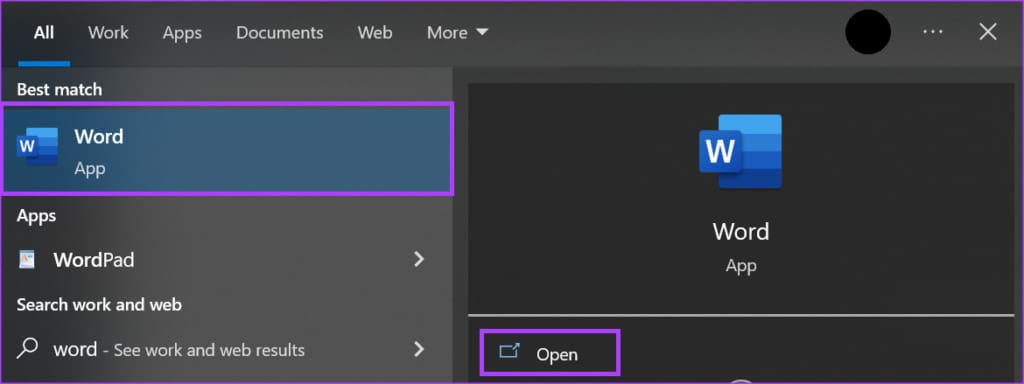
Step 1: Click the Start button on the Taskbar and type word to search for the app.

Step 2: From the results, click on the Microsoft Word app or document to open it.
Step 3: Place your cursor on the paragraph in the document you want to indent. For the first line indent, place your cursor at the start of the paragraph. While for standard indent, place your cursor at the start of any other line in the paragraph.

Step 4: Press the Tab key on your keyboard. For the first line indent, pressing the tab key should leave a gap between the left page margin and the first line. For standard indent, leave a gap between the left page margin and the entire paragraph.

How to Indent Multiple Paragraphs in Word Using the Ruler Method
You can use the Ruler to indent your paragraphs in Microsoft Word. The Ruler has markers that you can adjust to create paragraph indents. This makes it easier and faster to adjust the indent for multiple paragraphs at once. Here’s how to do so:
Step 1: Click the Start button on the Taskbar and type word to search for the app.
Step 2: From the results, click on the Microsoft Word app or document to open it.
Step 3: Place your cursor on the Word document.
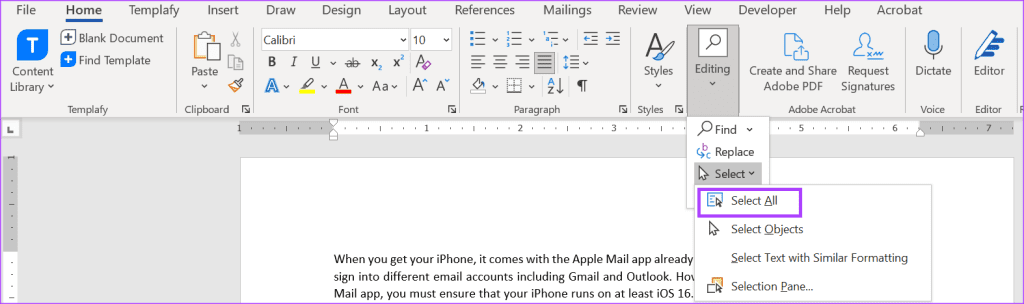
Step 4: Press the Control + A keyboard shortcut on your keyboard to select all text in the Word document. Alternatively, in the Editing group of the Word Home Ribbon, click the Select All option.
Step 5: Click the View tab on the Word Ribbon.

Step 6: Tick the box beside Ruler to ensure the Ruler is visible on the Word canvas.

Step 7: Hover your cursor on the markers on the Word Ruler and it should show First Line Indent, Left Indent, and Right Indent.
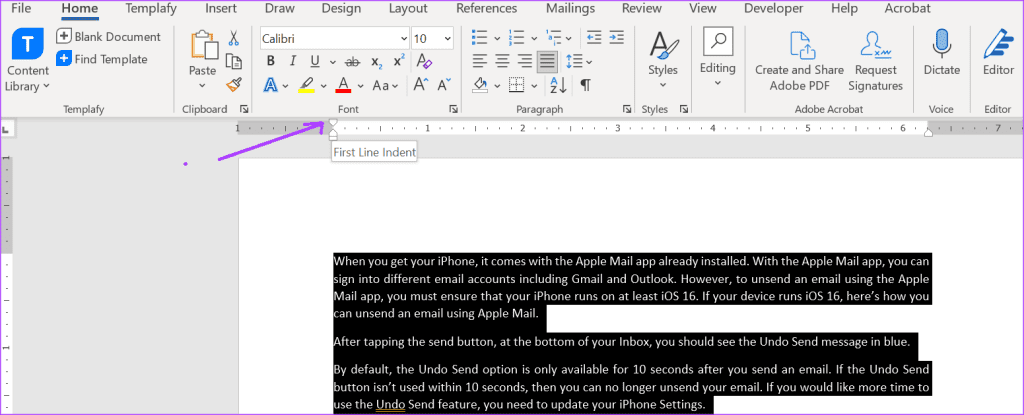
Step 8: Drag the markers to get the desired indent.
How to Indent Multiple Paragraphs in Word Using the Paragraph Dialog Box Method
The paragraph dialog box method allows you to choose the type of indent you want for the paragraphs in your document. You can also decide on the width of the indent gap between the page margins and the lines of text in the paragraph. Here’s how to do so:
Step 1: Click the Start button on the Taskbar and type word to search for the app.
Step 2: From the results, click on the Microsoft Word app or document to open it.
Step 3: Place your cursor on the Word document.
Step 4: Press the Ctrl + A keys on your keyboard to select all text in the Word document. Alternatively, in the Editing group of the Word Home Ribbon, click the Select All option.
Step 5: In the Home tab of the Word Ribbon, click the dialog box launcher beside the Paragraph group.

Step 6: In the Paragraph dialog box, click the Indents and Spacing tab.

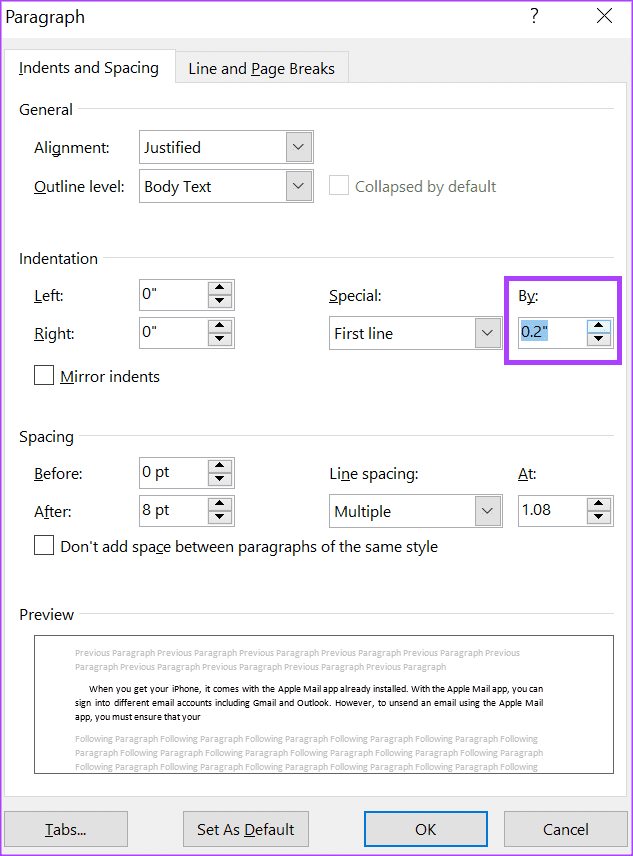
Step 7: In the Indentation section, click the drop-down beneath Special.
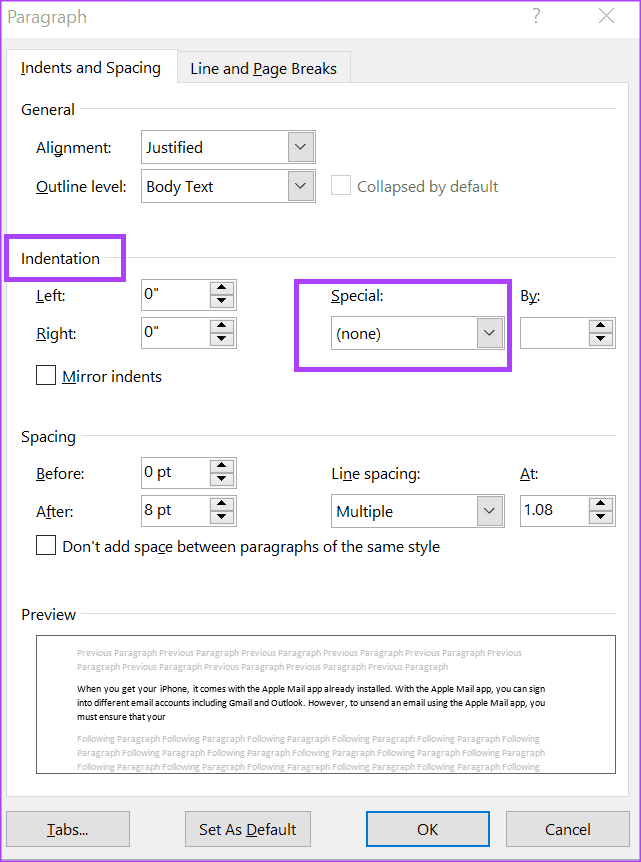
Step 8: Choose your preferred indentation from (none), First line, and Hanging.

Step 9: In the By field, select the width of the indent using the increment arrows.
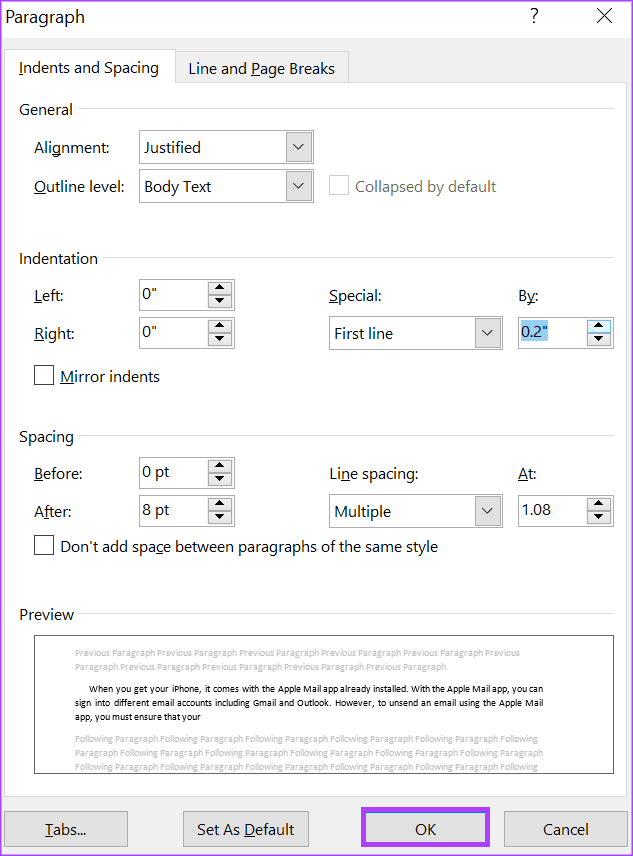
Step 10: Click the OK button to save your choices and close the dialog box.
Using the Ruler in Microsoft Word
The Microsoft Word Ruler also serves other purposes apart from indenting paragraphs. You can use the Word Ruler to adjust page margins and add tab stops to a document.
Was this helpful?
Last updated on 26 July, 2023
Read Next
 3 Best Ways to View Word Count in Microsoft Word
If you need to know the number of words within an article, Microsoft Word can help.
3 Best Ways to View Word Count in Microsoft Word
If you need to know the number of words within an article, Microsoft Word can help.
 Google Docs vs. Microsoft Word Online: Which Word Processor Is Better
Google Docs goes toe-to-toe with Microsoft Word, especially with the Microsoft 365 subscription.
Google Docs vs. Microsoft Word Online: Which Word Processor Is Better
Google Docs goes toe-to-toe with Microsoft Word, especially with the Microsoft 365 subscription.
 How to Convert PDF to Microsoft Word With Flip PDF to Word
PDF conversion tools are quite thick on the ground.
How to Convert PDF to Microsoft Word With Flip PDF to Word
PDF conversion tools are quite thick on the ground.
 Apple Pages vs Microsoft Word: Which Word Processing Software Is Better
Every major tech company out there is offering their version of the productivity suite.
Apple Pages vs Microsoft Word: Which Word Processing Software Is Better
Every major tech company out there is offering their version of the productivity suite.
 2 Best Ways to Reveal Bookmarks in Microsoft Word
The Bookmark feature in Microsoft Word works like physical bookmarks, while they're different from footnotes and endnotes.
2 Best Ways to Reveal Bookmarks in Microsoft Word
The Bookmark feature in Microsoft Word works like physical bookmarks, while they're different from footnotes and endnotes.
 3 Best Ways to Delete a Page in Microsoft Word
A page on Microsoft Word can take up to 500 words.
3 Best Ways to Delete a Page in Microsoft Word
A page on Microsoft Word can take up to 500 words.
 3 Best Ways to Adjust the Page Margin in Microsoft Word
Page margins are the blank spaces you see lining your Microsoft Word document's top, bottom, left, and right sides.
3 Best Ways to Adjust the Page Margin in Microsoft Word
Page margins are the blank spaces you see lining your Microsoft Word document's top, bottom, left, and right sides.
 4 Best Ways to Access the Page Setup Dialog Box in Microsoft Word
Microsoft Word offers the Page Setup dialog box to help you modify the appearance of the document page you want to work on.
4 Best Ways to Access the Page Setup Dialog Box in Microsoft Word
Microsoft Word offers the Page Setup dialog box to help you modify the appearance of the document page you want to work on.
The article above may contain affiliate links which help support Guiding Tech. The content remains unbiased and authentic and will never affect our editorial integrity.

