

Did you know that you can make changes in a PDF file? At times, there’s no need to convert a PDF into a DOCX file (Microsoft Word) to make changes and reconvert it. Adobe Acrobat DC lets you add or remove pages and even re-order them in a PDF file.

So if you want to make a PDF file better, you can directly work on it instead of converting it into a word processing format. Here’s how you can do so:
How to Insert a New Page into a PDF Using Adobe Acrobat DC
Adobe Acrobat DC has a Ribbon interface at the top with several features and tools to edit a PDF. One is the Insert feature, which you can use to add pages. Here are the steps to follow to insert a new page into an existing PDF file:
Note: The steps explained in this post work for Adobe Acrobat Pro DC, Adobe Acrobat 2020, and Adobe Acrobat 2017.
Step 1: On your PC, click on the Start menu and search for Adobe Acrobat.
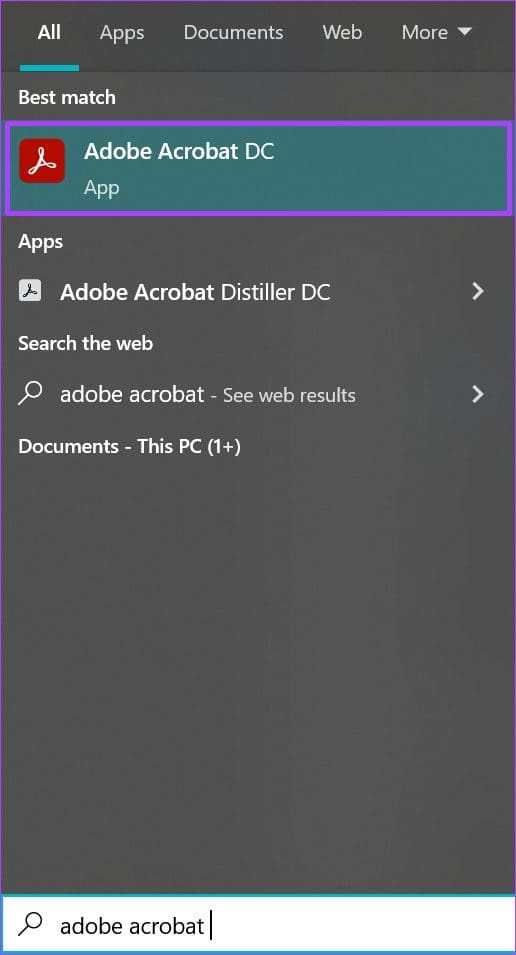
Step 2: Click on Open to launch the Adobe Acrobat app from the results.

Step 3: After the app launches, click on File option in the top-left corner.

Step 4: Click on Open from the options shown.

Step 5: Browse to the PDF file you want to insert new pages into, and click on Open to launch it.

Step 6: At the left of the Adobe Acrobat app, click on the page icon representing Page Thumbnails.

Step 7: Scroll down the thumbnail to where you want the new page inserted.

Step 8: Place your cursor beneath the page preceding the new page insertion (you should see a blue line when you do this) and right-click.

Step 9: Click on Insert Pages to view a range of options.
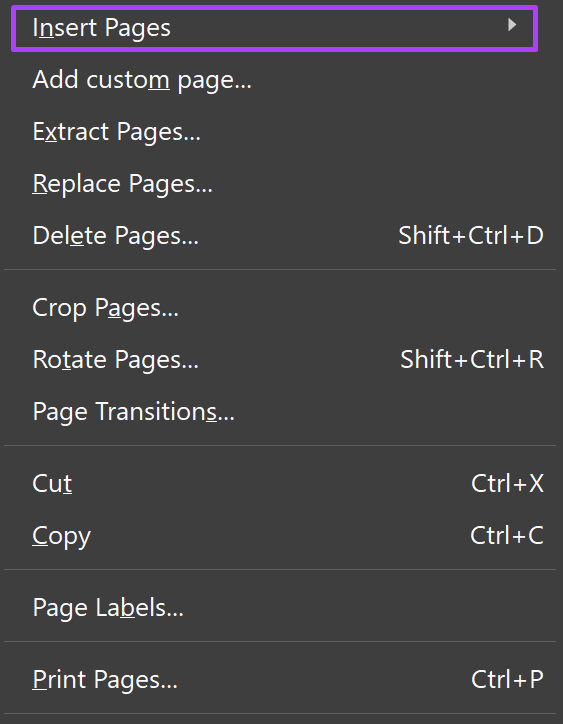
Step 10: From the options, you can opt to Insert Pages
- From File: if you would like to merge the pages of another file with your current file.
- From Clipboard: if you already have a page copied from another document.
- A Blank Page: creates a completely new blank page.

Step 11: After choosing your preferred option (in this case, we opted for a Blank Page), confirm from the dialog box the new location of your new page. Click on OK.

Note: If you select the option to create a Blank Page, Adobe Acrobat will not replicate the format of the previous pages of the PDF.
How to Re-Order Pages in a PDF Using Adobe Acrobat DC
Whenever you scan documents, one of the preferred options is to save them as a PDF. But if you happen to scan the documents in an incorrect order, you do not have to start the scan process again. Here’s how you can re-order the pages inside the PDF using Adobe Acrobat DC.
Step 1: On your PC, click on the Start menu and search for Adobe Acrobat.
Step 2: Click on Open to launch the Adobe Acrobat app from the results.
Step 3: After the app launches, click on the Tools tab.

Step 4: Click on Organize Pages from the options shown.

Step 5: Click on Select a File.

Step 6: Browse to the PDF file you want to re-order the pages, and click on Open to launch it.
Step 7: At the left of the Adobe Acrobat app, click on the page icon representing Page Thumbnails.
Step 8: Scroll down the thumbnail to the page you want to re-order.
Ensure your cursor displays an arrow with a page and not a hand when you place it on the page.
Step 9: Place your cursor on the page. Drag and drop the page to the preferred new location.
To drag multiple pages at once, keep the Shift key pressed.
How to Delete a Page in a PDF Using Adobe Acrobat DC
You can also remove unwanted pages from a PDF file. Doing that is quite easy, here are the steps to do so:
Step 1: On your PC, click on the Start menu and search for Adobe Acrobat.
Step 2: Click on Open to launch the Adobe Acrobat app from the results.
Step 3: On launching the app, navigate your cursor to its top left and click on File.
Step 4: Click on Open from the options shown.
Step 5: Browse to the PDF file containing the pages you want to delete and click on Open to launch it.
Step 6: At the left of the Adobe Acrobat app, click on the page icon representing Page Thumbnails.
Step 7: Scroll down the thumbnail to the location of the page you would like to delete.
Step 8: Click on the page you want to delete and click on the Delete icon on the toolbar.

Step 9: On the pop-up box, click on OK to confirm the decision to delete the page.

Inserting a Word File into a PDF
With the right PDF reader, you can edit or make changes to a PDF just like you can on Word. For example, you can link an attachment or insert a Word file in your PDF.
Was this helpful?
Last updated on 31 July, 2022
Read Next
 How to Crop Pages of a PDF in Adobe Acrobat
Usually, it's easy to convert a Word or Excel file to a PDF file before you share it.
How to Crop Pages of a PDF in Adobe Acrobat
Usually, it's easy to convert a Word or Excel file to a PDF file before you share it.
 How to Insert a Word File into a PDF Using Adobe Acrobat
Both Word and PDF files are very important in today’s work environment.
How to Insert a Word File into a PDF Using Adobe Acrobat
Both Word and PDF files are very important in today’s work environment.
 How to Insert Audio Comments in a PDF Using Adobe Acrobat in Windows 11
If you work on a document with several individuals, things may get moved around.
How to Insert Audio Comments in a PDF Using Adobe Acrobat in Windows 11
If you work on a document with several individuals, things may get moved around.
 PDF Expert vs Adobe Acrobat: Which PDF Editor Is Better on Mac
Now that work from home is the new norm, you would want to invest in a capable PDF Editor on your main work machine.
PDF Expert vs Adobe Acrobat: Which PDF Editor Is Better on Mac
Now that work from home is the new norm, you would want to invest in a capable PDF Editor on your main work machine.
 How to Validate Digital Signatures in PDF Files in Adobe Acrobat Reader
PDF is one of the most popular document formats and preferred mostly for creating and sending official documents.
How to Validate Digital Signatures in PDF Files in Adobe Acrobat Reader
PDF is one of the most popular document formats and preferred mostly for creating and sending official documents.
 How to Encrypt or Protect a PDF Using Adobe Acrobat DC
Whether you're saving PDFs to your PC, uploading them to a drive, or sharing them over email, they are likely to contain sensitive information.
How to Encrypt or Protect a PDF Using Adobe Acrobat DC
Whether you're saving PDFs to your PC, uploading them to a drive, or sharing them over email, they are likely to contain sensitive information.
 How to Open a PDF in Full Screen Mode Using Adobe Acrobat on Windows 11
While exchanging documents and forms, many prefer to convert those files to PDFs.
How to Open a PDF in Full Screen Mode Using Adobe Acrobat on Windows 11
While exchanging documents and forms, many prefer to convert those files to PDFs.
 How to Add Page Transitions to a PDF Using Adobe Acrobat
Most individuals use the PDF file format when sending files over the internet.
How to Add Page Transitions to a PDF Using Adobe Acrobat
Most individuals use the PDF file format when sending files over the internet.
The article above may contain affiliate links which help support Guiding Tech. The content remains unbiased and authentic and will never affect our editorial integrity.

