

Despite intense competition from the likes of Apple Music, Amazon Music, and YouTube Music, Spotify continues to dominate the music streaming market. The service is available on all the major platforms, including smart speakers from Amazon, Google, and Apple. If you are invested in the Apple ecosystem, you can easily play your favorite Spotify playlists on a HomePod.

Apple HomePod doesn’t come with Bluetooth connectivity, unlike Amazon Echo or Google Nest speakers. Third-party music streaming services like Spotify need to implement relevant components in its services to enable Siri support on the HomePod or rely on your phone or tablet’s AirPlay connectivity to stream playlists.
Does Spotify Support Siri on HomePod
Apple allows third-party developers to add Siri support on HomePod. If you use Pandora or Tidal, you can ask Siri to play your favorite songs from the library. Apps like Spotify and Amazon Music haven’t added HomePod support yet. You’ll need to use AirPlay to stream songs on Apple’s smart speaker. Android and Windows devices lack AirPlay connectivity. That leaves you with iPhone, iPad, or Mac to stream Spotify on HomePod. Let’s check it in action.
Play Spotify on HomePod Using an iPhone
Interestingly, Spotify supports Siri on iPhone, but not on a HomePod. Thankfully, Spotify has a built-in AirPlay function. Follow the steps below to play Spotify on HomePod. Before you proceed, refer to our guide to fix AirPlay not working iPhone and ensure that it works flawlessly.
Step 1: Download Spotify from the Apple App Store.
Step 2: Launch Spotify and sign in with your account details.
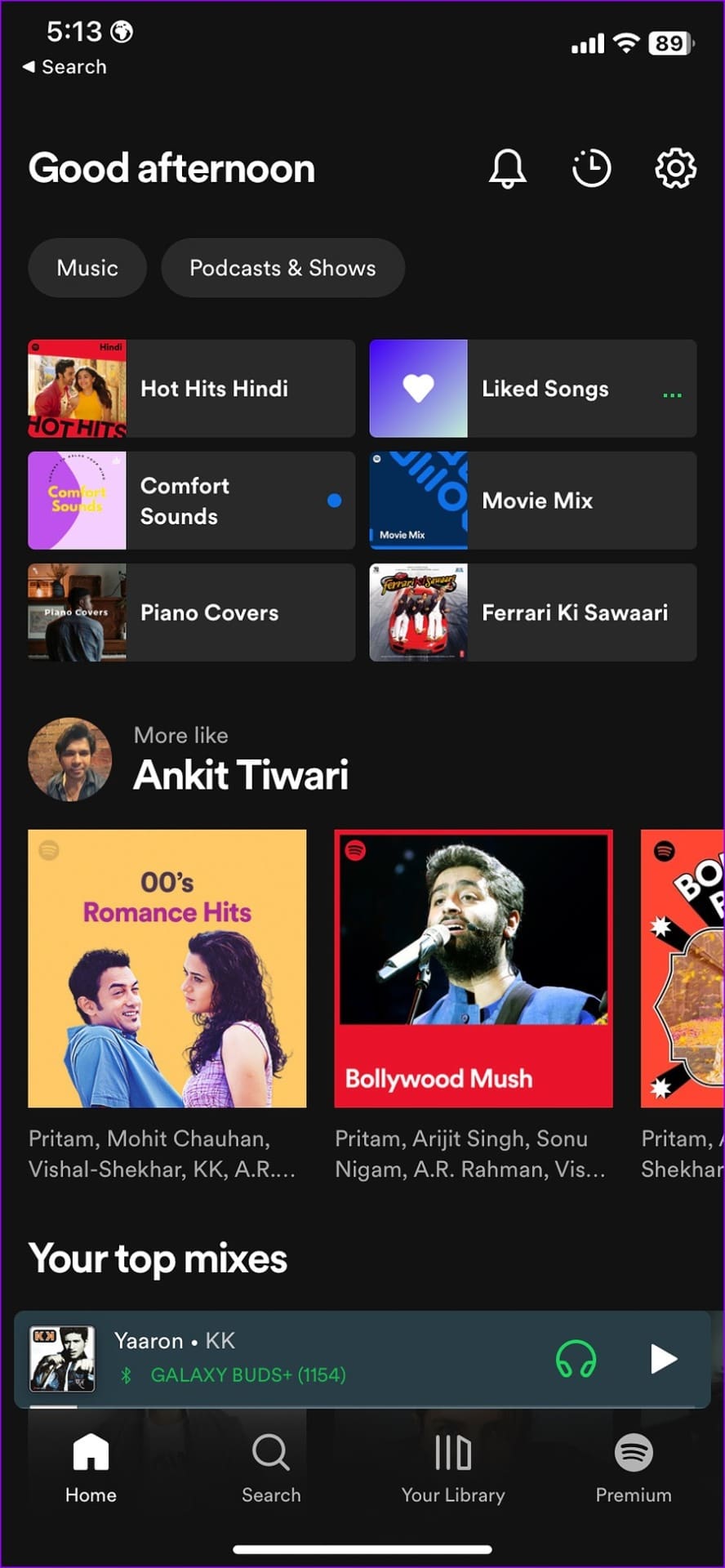
Step 3: Pick any song from your playlist or Spotify’s excellent recommendation list.
Step 4: From the song info menu, tap the device menu in the bottom left corner.

Step 5: Tap AirPlay or Bluetooth from the ‘Current device’ menu.

Step 6: Find your HomePod under the ‘Speakers & TVs’ menu.

Step 7: Tap on your HomePod and stream the same on Apple’s smart speaker.
Spotify’s lack of Siri support on HomePod shouldn’t hold you back from playing your favorite songs on it. AirPlay does the same without breaking a sweat. You don’t need to head to Spotify every time to change the sound output. You can change the same from the lock screen too.
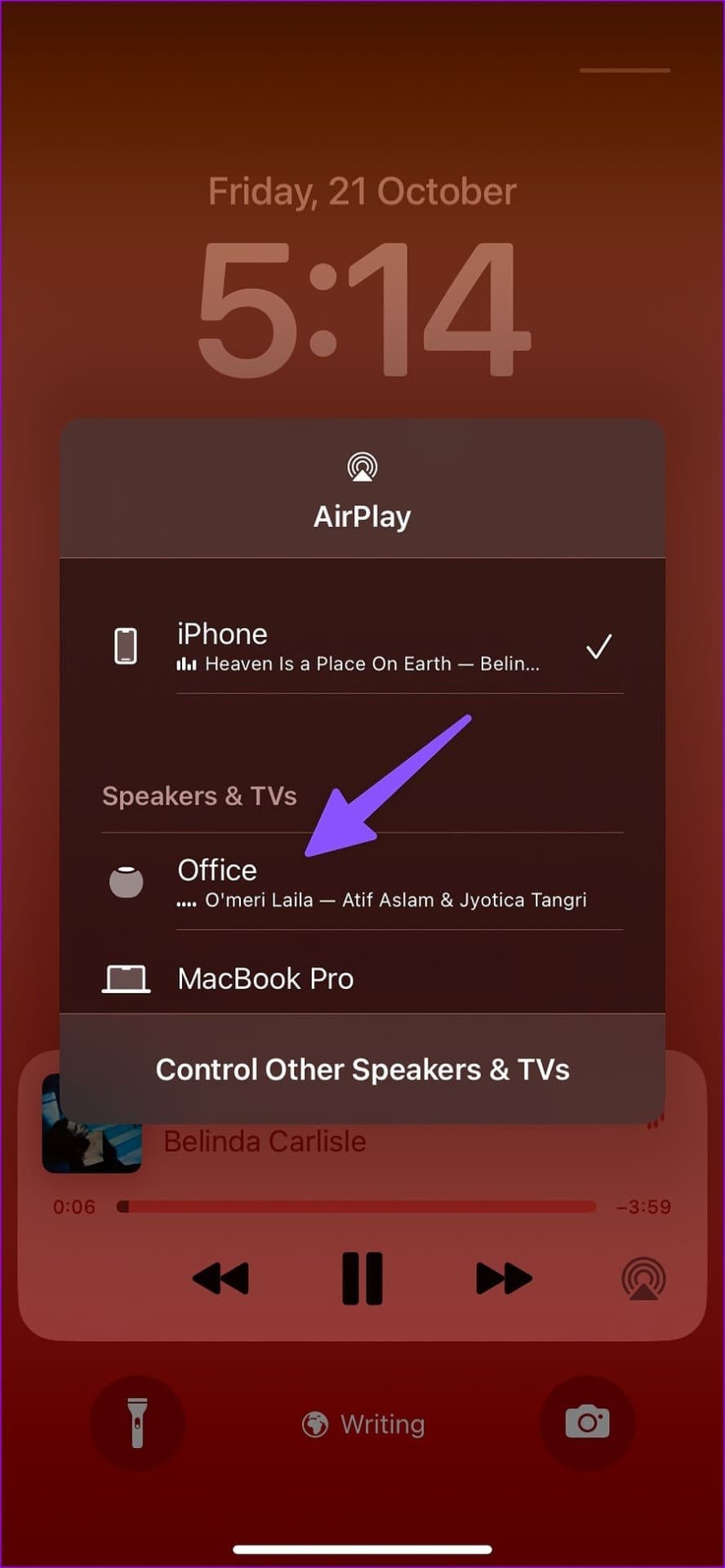
Step 1: Press the power button and check your iPhone lock screen.
Step 2: Tap the AirPlay icon on the music player widget.

Step 3: Select your HomePod from the pop-up menu and enjoy Spotify songs on a HomePod.
You don’t need to subscribe to Spotify Premium to play songs on a HomePod.
Stream Spotify on HomePod via an iPad
Apple iPad also comes equipped with AirPlay support. If you have an iPad at home or office, you can play Spotify on your HomePod. Go through the steps below.
Step 1: Download and open Spotify on your iPad.
Step 2: Pick any song you want to play in Spotify on your iPad.
Step 3: Tap the devices icon in the bottom-left corner.
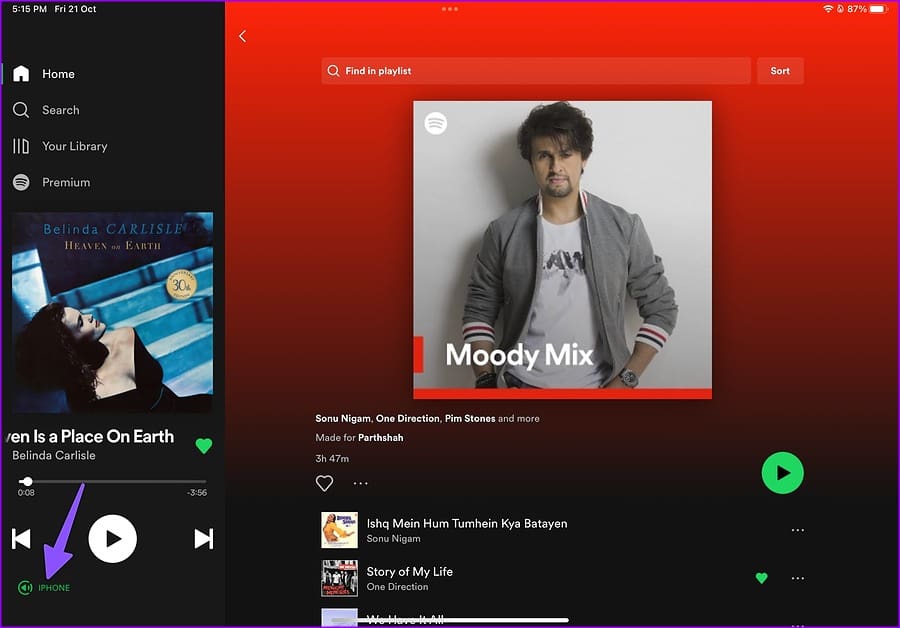
Step 4: Select AirPlay or Bluetooth.

Step 5: Tap on your HomePod from the AirPlay menu.

Similar to iPhone, you can change the sound output from the iPad lock screen too.
Step 1: Power on your iPad lock screen.
Step 2: Select the AirPlay icon on the music widget.

Step 3: Tap on your HomePod, and you are good to go.
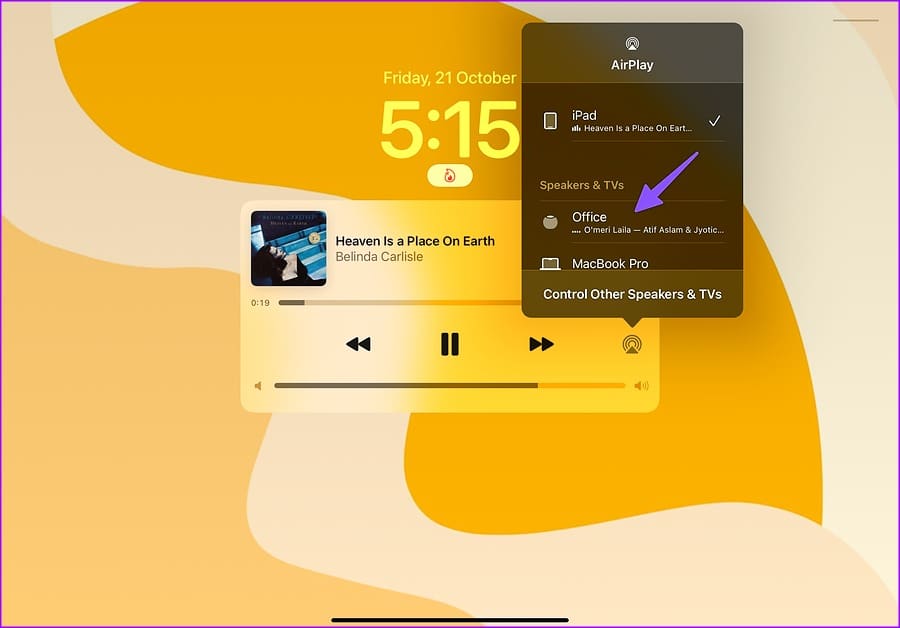
It’s good to see Apple offering the AirPlay option right on the lock screen. You don’t need to open Spotify to change the sound output.
Play Spotify on HomePod Using a Mac
If you mostly work on a Mac, you don’t need to reach out to your iPhone or iPad to play Spotify on a HomePod. You can do the same using Spotify web or the native Mac app. Let’s take Spotify web as an example here.
Step 1: Head to Spotify web on your Mac and log in with your account credentials.

Step 2: Select Control Center from the top-right corner.
Step 3: Click the AirPlay icon under the Sound menu.

Step 4: Select your HomePod to change the sound output.
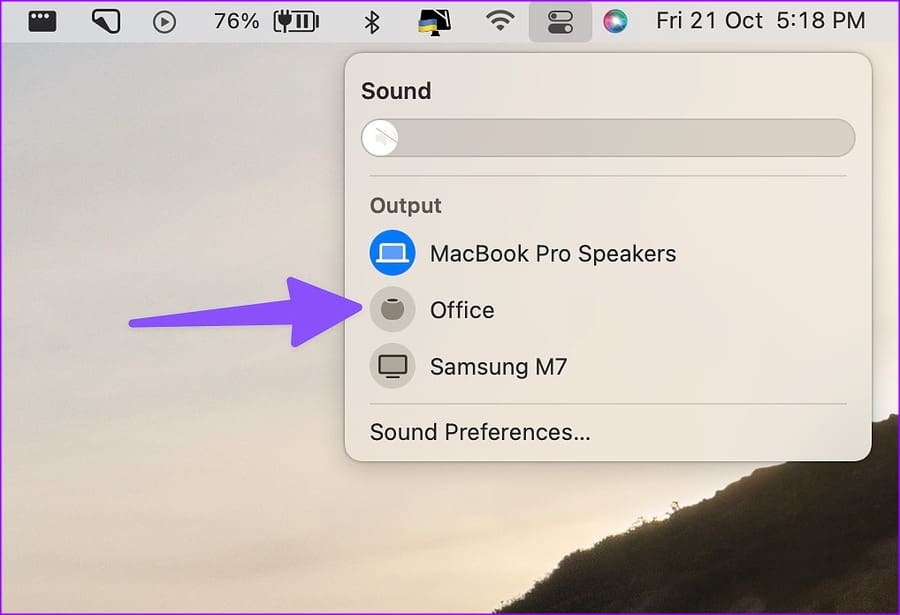
Your Mac will start using HomePod to play your favorite Spotify tunes. Although modern Macs come with exceptional sound quality, nothing beats the bass and overall sound performance of a HomePod.
Spotify Needs to Step up
We look forward to seeing Spotify add support for Siri on HomePod. So that you can ask Siri to play, pause, or skip songs on the go. Which streaming service do you use with HomePod? Pin down your preference in the comments below.
Was this helpful?
Last updated on 21 October, 2022
Read Next
 HomePod (2nd Gen) vs HomePod (1st Gen): Should You Upgrade
Apple silently launched HomePod 2nd Generation via a press release recently.
HomePod (2nd Gen) vs HomePod (1st Gen): Should You Upgrade
Apple silently launched HomePod 2nd Generation via a press release recently.
 How to Play Amazon Music on Apple HomePod
Unlike other smart speakers like Google Nest, Amazon Echo, Sonos, offerings from JBL, and others, Apple HomePod doesn’t come with Bluetooth functionality.
How to Play Amazon Music on Apple HomePod
Unlike other smart speakers like Google Nest, Amazon Echo, Sonos, offerings from JBL, and others, Apple HomePod doesn’t come with Bluetooth functionality.
 How to Play YouTube Music on HomePod
The original HomePod never received a warm welcome from users.
How to Play YouTube Music on HomePod
The original HomePod never received a warm welcome from users.
 Everything Apple Unveiled at WWDC 2017: iOS 11, iMac Pro, HomePod
Apple wrapped up WWDC 2017 and the product announcements were quite plentiful.
Everything Apple Unveiled at WWDC 2017: iOS 11, iMac Pro, HomePod
Apple wrapped up WWDC 2017 and the product announcements were quite plentiful.
 7 Interesting Apple HomePod Features That Make It Really Amazing
Apple announced its revolutionary HomePod audio system back in June 2017.
7 Interesting Apple HomePod Features That Make It Really Amazing
Apple announced its revolutionary HomePod audio system back in June 2017.
 Top 6 Wall Mounts for Apple HomePod Mini
The Apple HomePod Mini is the culmination of many interesting things.
Top 6 Wall Mounts for Apple HomePod Mini
The Apple HomePod Mini is the culmination of many interesting things.
 Top 8 Ways to Fix HomePod Not Working or Responding
Apple has nailed the HomePod experience with stellar sound quality and Siri integration.
Top 8 Ways to Fix HomePod Not Working or Responding
Apple has nailed the HomePod experience with stellar sound quality and Siri integration.
 Top 9 Ways to Fix HomePod Not Showing Up in the Home App
The Home app on iPhone or iPad is necessary to manage HomePod, HomePod Mini, Apple TV, and other smart devices.
Top 9 Ways to Fix HomePod Not Showing Up in the Home App
The Home app on iPhone or iPad is necessary to manage HomePod, HomePod Mini, Apple TV, and other smart devices.
The article above may contain affiliate links which help support Guiding Tech. The content remains unbiased and authentic and will never affect our editorial integrity.

