

Both Android Auto and Apple CarPlay are great ways to access navigation or music controls when you’re driving. While both of them have features that are unique to their respective platforms, there’s one thing common between both – they automatically start playing music in your car.

As soon as your iPhone or Android device connects to your car’s Bluetooth system, media will automatically start blasting through the speakers. This is far from ideal. In fact, it’s borderline annoying. Don’t worry, though, as you can disable this feature pretty easily. Here’s how to stop music from automatically playing in your car every time you connect to Apple CarPlay or Android Auto.
Why Does Music Start Playing Automatically in the Car
Both Google and Apple, by default, start playing music as soon as your phone connects to your car’s Bluetooth head unit. This is because your phone assumes that you would want to start listening to music as soon as you start driving. However, this may not be the case always.
If you’re driving with friends or family, music can be distracting. Or, you may just want to listen to a different track from what you were playing the last time you were driving. For these reasons, it’s not always ideal to have Android Auto or Apple CarPlay playing music automatically.
How to Stop Apple CarPlay From Automatically Playing Music
If you have an iPhone, unfortunately, there’s no toggle or option by default to stop Apple Music auto-play. Instead, you will have to stick to a workaround that makes use of the Shortcuts app on your iPhone.
Here’s how to stop Apple Music from automatically playing when connected to CarPlay.
Step 1: Open the Shortcuts app on your iPhone. We will use this app to create Automation.

Step 2: Navigate to the Automation tab. You will find it at the bottom of the screen.

Step 3: Select the ‘Create Personal Automation’ button.
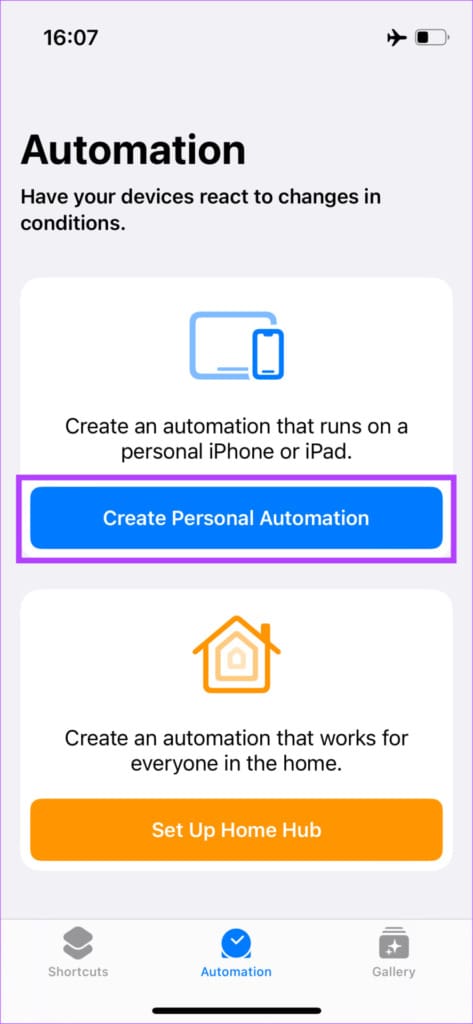
The New Automation menu will now pop up.
Step 4: If you connect your iPhone to your car via Bluetooth, scroll down and select Bluetooth.

If you connect your iPhone to your car via a cable, select CarPlay.

Step 5: If you selected the Bluetooth option, tap on the Choose button next to Device. Select your car’s Bluetooth name from the list of devices.

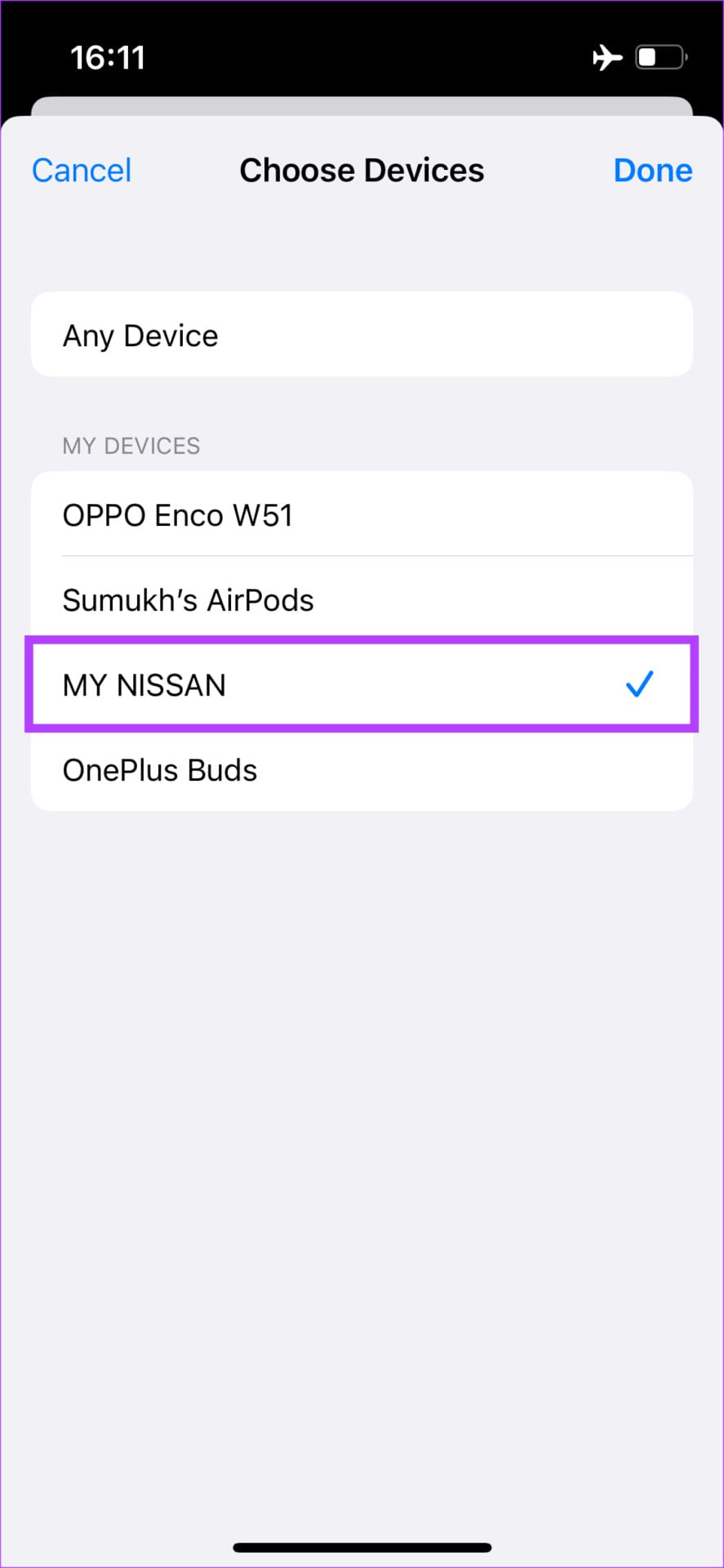
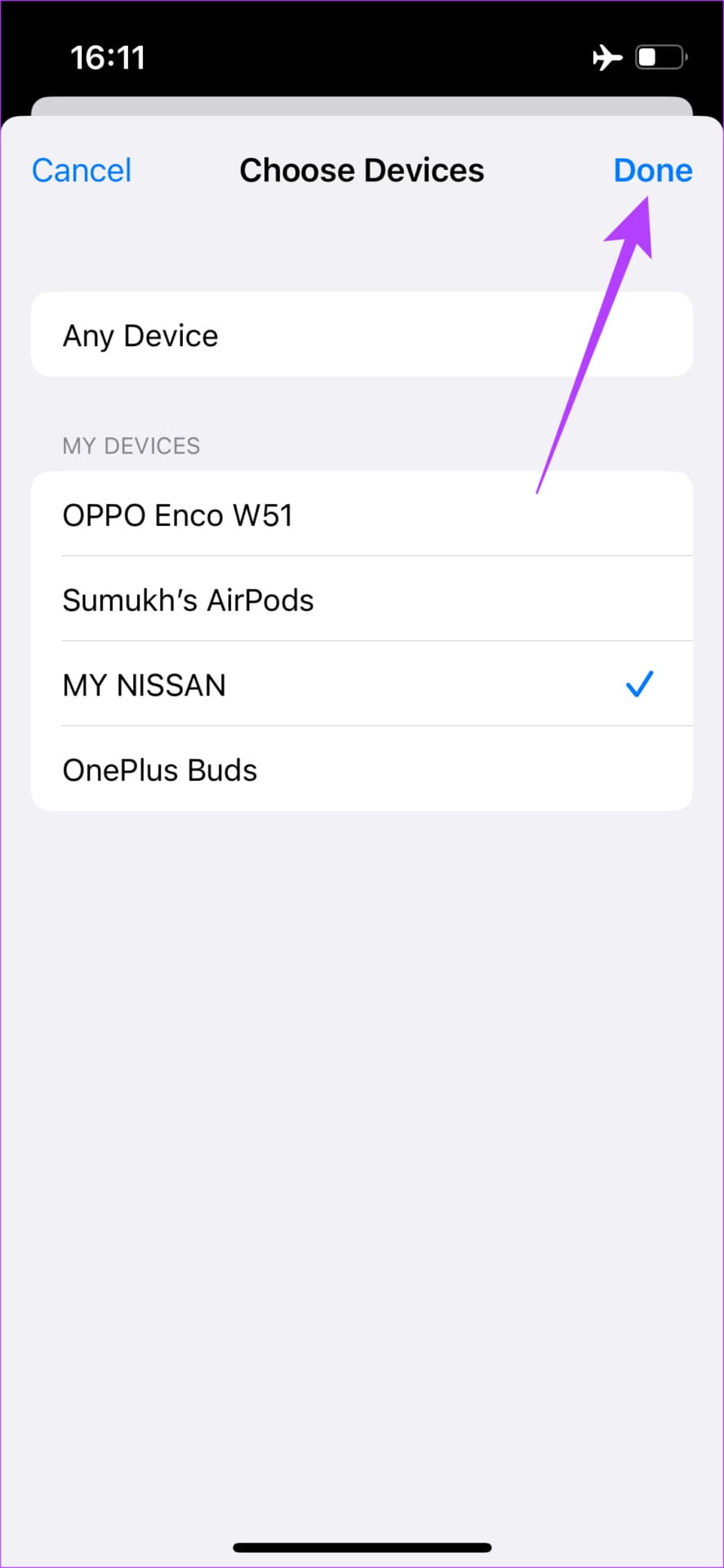
Then, tap on Done. Select Next to move to the next step.
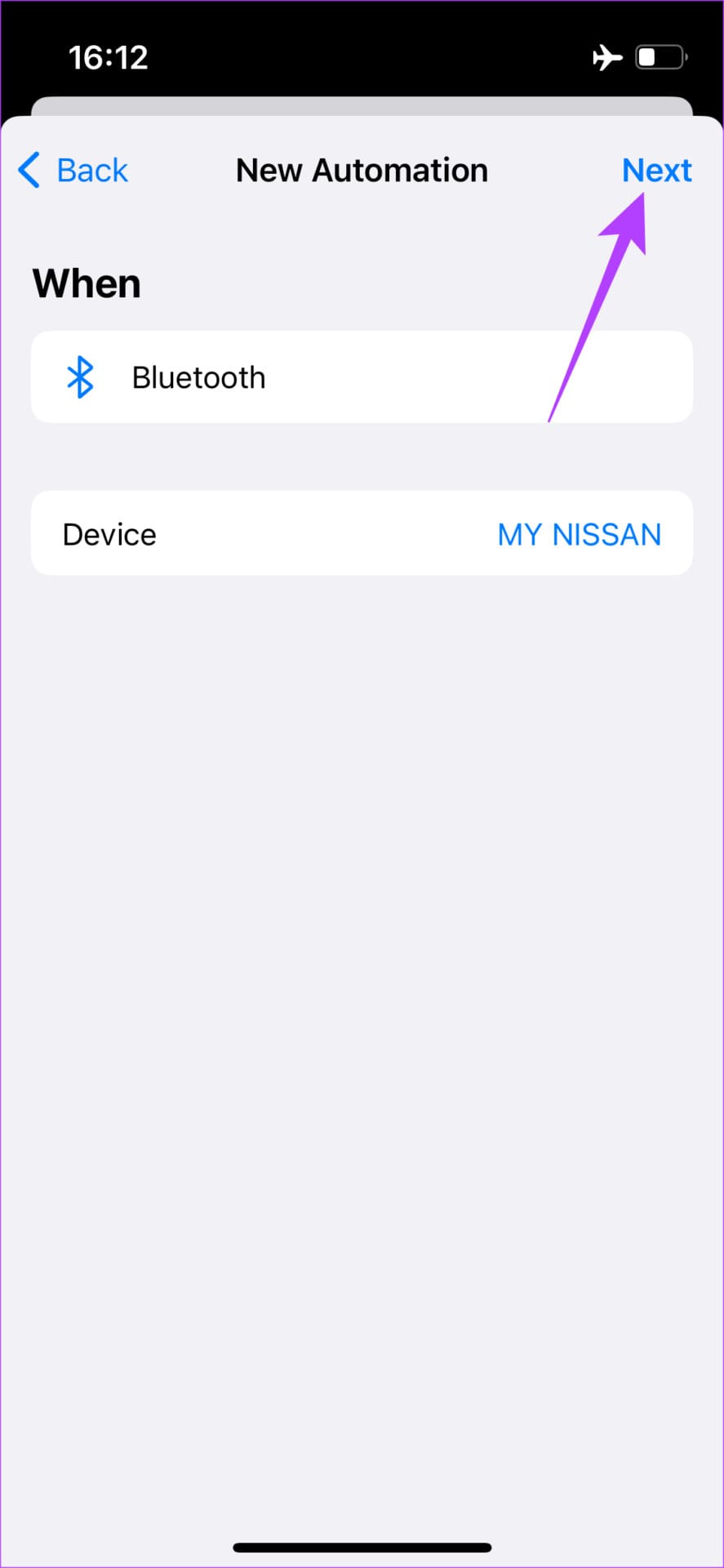
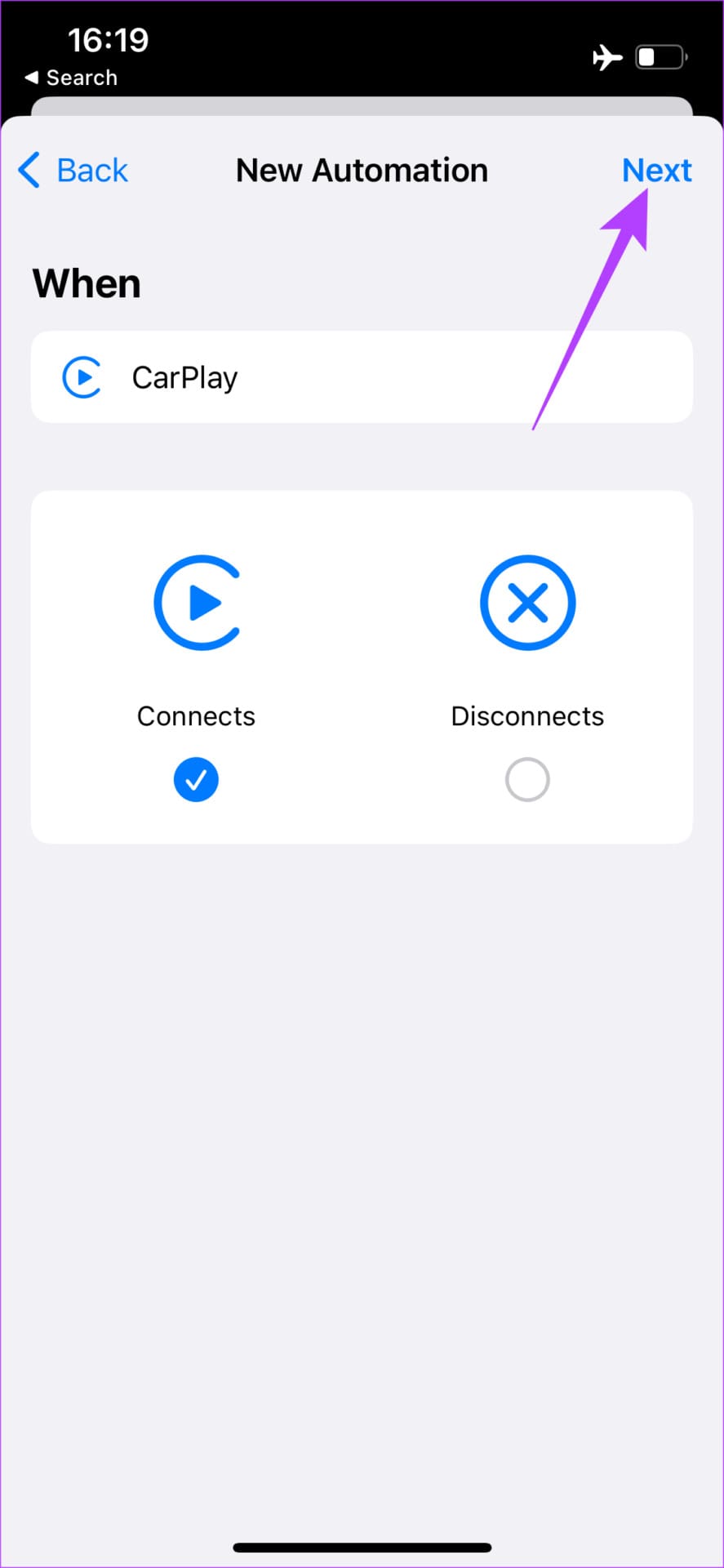
In case you selected the CarPlay option, choose Connects and then tap on Next.

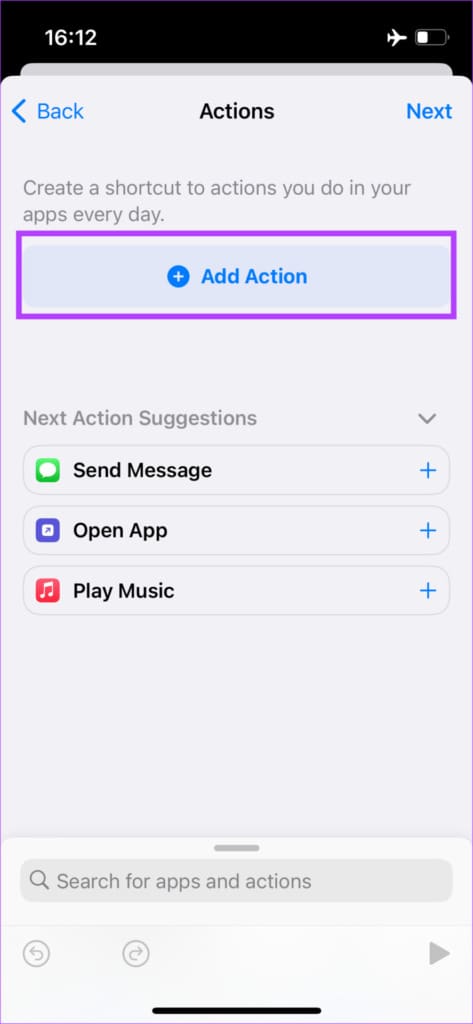
Step 7: Use the Add Action button to choose the action you want to perform.
Step 8: You will now see a list of available actions. Select Media.

Step 9: Scroll all the way down to Playback and select the Play/Pause button.

Step 10: Tap on the Play/Pause automation that was created. Here, select Pause.


Step 11: Select Next in the top-right corner to proceed. Finally, tap on Done to create the automation.


Voila! Connect your iPhone to your car and your music will not start playing automatically.
This is a one-time process so while it’s slightly time-consuming, you just have to do it once and then forget about it. Also, if you select a different device in Step 5 other than your car’s stereo like your AirPods or a pair of headphones, you can stop Apple Music from automatically playing when you connect that particular device.
How to Stop Android Auto from Automatically Playing Music
Unlike the iPhone, Android gives you a built-in option to stop Android Auto from playing music automatically in your car. Here’s how to enable it.
Step 1: Open the Settings app on your Android phone. Navigate to the Connected devices menu.

Step 2: Now, choose the Connection preferences option.

Step 3: Select Android Auto. Ideally, it should be the last option on the page.

Step 4: Scroll down and turn off the toggle next to ‘Start music automatically’.

Much easier than what iPhone users have to do, eh?
Frequently Asked Questions
Yes, following the above steps will stop music from playing automatically regardless of the app you use.
No matter which car you drive, you should be able to stop music from playing automatically using this method.
Drive Without Disturbance
Once you stop music from automatically playing in your car, you won’t be bothered anymore by music constantly playing and annoying you. When you want some entertainment, fire up the Music app manually or use the voice assistant to play your favorite tracks.
Was this helpful?
Last updated on 18 October, 2022
19 Comments
Leave a Reply
Read Next
 10 Fixes for Android Auto Not Playing Music From Spotify or YouTube Music
It’s 9.30 PM.
10 Fixes for Android Auto Not Playing Music From Spotify or YouTube Music
It’s 9.30 PM.
 Android Auto vs Apple CarPlay: Which Is Better and Why
The tussle between Android and iOS users to brag about the superior mobile operating system is never-ending.
Android Auto vs Apple CarPlay: Which Is Better and Why
The tussle between Android and iOS users to brag about the superior mobile operating system is never-ending.
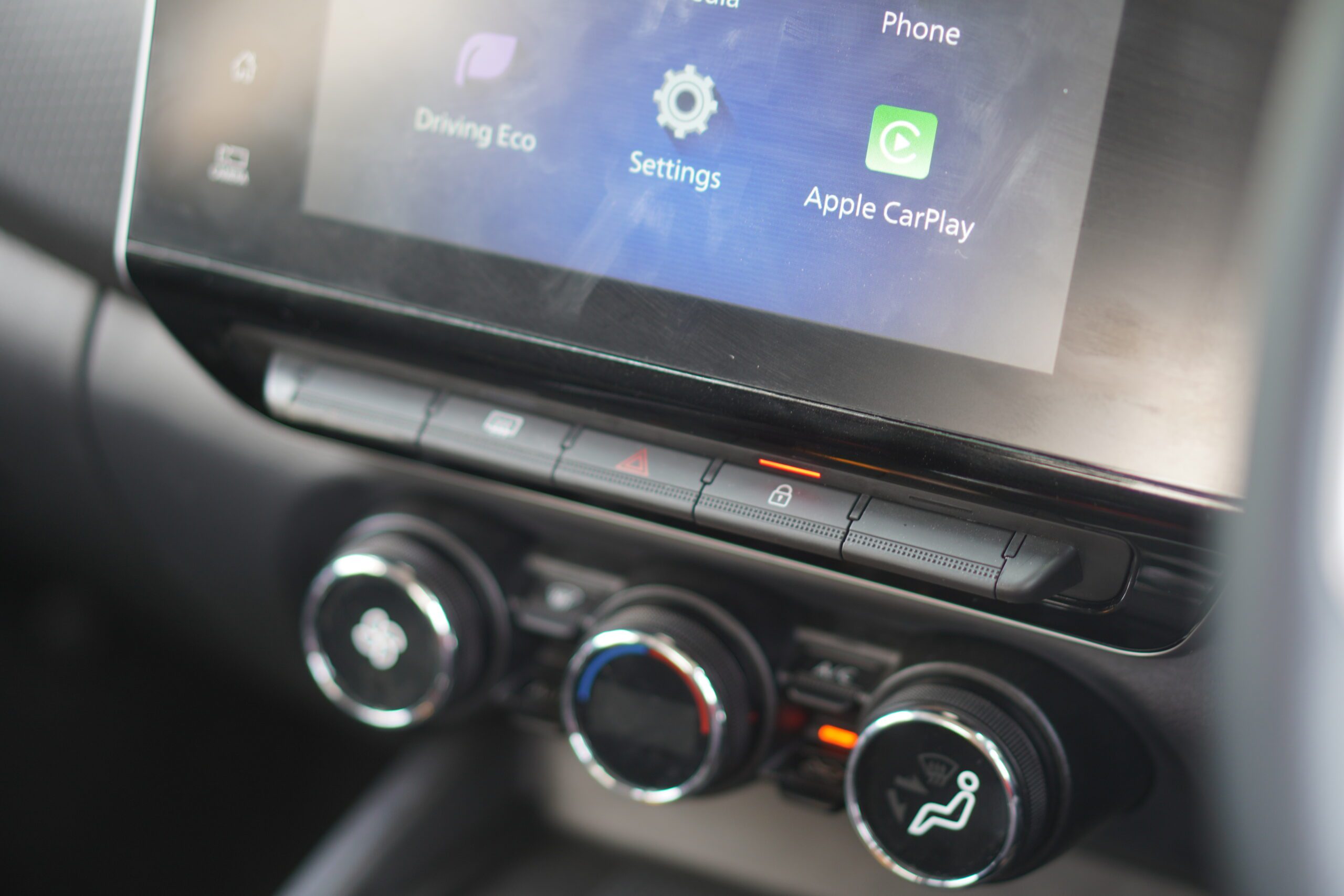 How to Take Screenshots on Android Auto and Apple Carplay
In your car, Android Auto and Apple CarPlay interface are great companions to assist you while you drive.
How to Take Screenshots on Android Auto and Apple Carplay
In your car, Android Auto and Apple CarPlay interface are great companions to assist you while you drive.
 How to Stop Videos from Automatically Playing On Facebook
Are you tired of scrolling through your Facebook feed only to have videos start playing automatically, catching you off guard and disrupting your browsing experience?
How to Stop Videos from Automatically Playing On Facebook
Are you tired of scrolling through your Facebook feed only to have videos start playing automatically, catching you off guard and disrupting your browsing experience?
 Top 7 Ways to Fix Siri Not Playing Music from Apple Music
Siri not recognizing your voice and not playing music from Apple Music can lead to an undesirable experience.
Top 7 Ways to Fix Siri Not Playing Music from Apple Music
Siri not recognizing your voice and not playing music from Apple Music can lead to an undesirable experience.
 Amazon Music vs Apple Music: Which Music Streaming Platform Is Better
The music streaming war is heating up.
Amazon Music vs Apple Music: Which Music Streaming Platform Is Better
The music streaming war is heating up.
 9 Ways to Fix Wireless Android Auto Not Connecting Automatically
Right from calls and music to maps and podcasts -- Android Auto comes with a host of features.
9 Ways to Fix Wireless Android Auto Not Connecting Automatically
Right from calls and music to maps and podcasts -- Android Auto comes with a host of features.
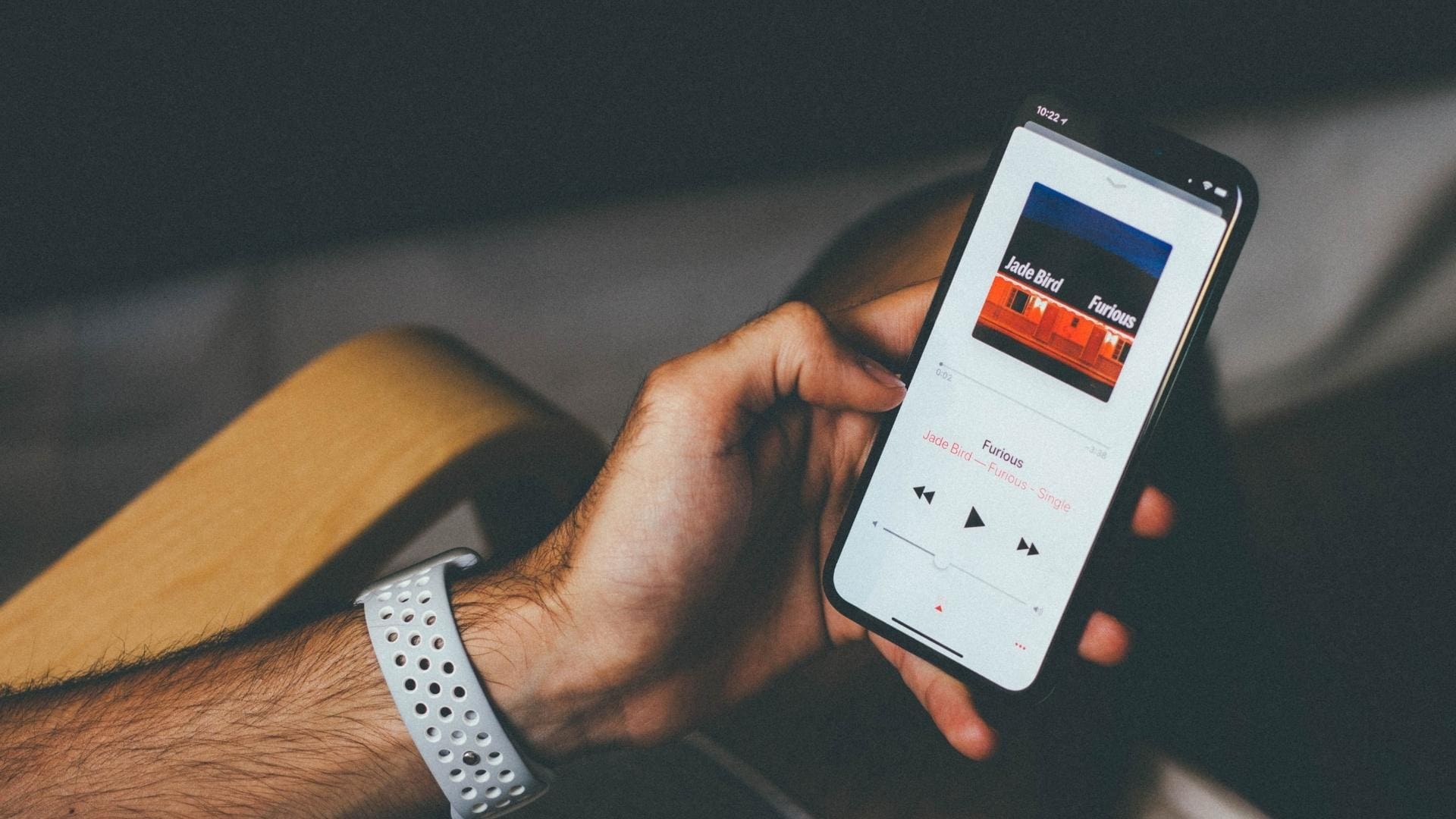 9 Best Fixes for Apple Music Not Playing Next Song on iPhone
Apple Music lets you listen to your favorite music tracks on the go.
9 Best Fixes for Apple Music Not Playing Next Song on iPhone
Apple Music lets you listen to your favorite music tracks on the go.
The article above may contain affiliate links which help support Guiding Tech. The content remains unbiased and authentic and will never affect our editorial integrity.
For Android, why not just go to android auto and shut the automatic music play.
Brilliant article! I’d never have figured this one out by myself.
Thank you!! EXCELLENT instructions.
Android Auto Instructions are no good. I did exactly what was in the instructions and music still plays automatically. Ive basically stopped connecting Bluetooth to my car.
I was so excited to find this fix because this drives me absolutely bonkers…but it is still not stopping my Honda from blasting something from my iPhone. If I was recently listening to a book or watching Netflix…it starts playing those, if not it plays music. It is the most asinine function a car can have. it’s great if you are listening to something as you get in the car, but not when your phone is locked with nothing open.
Thanks pal!!!
Greatly written directions, but USB connection still starts music. Even after pausing the music then using Siri to perform a function, it starts up again. Frustrating.
Wow fantastic instructions to solve a really annoying feature. Thank you!
Nicely explained, but completely useless because it’s not working. Apple music starts even after the automation ????
I have no automation option on my shortcuts tab (iphone) so no help sadly.
The Android instructions don’t work. I followed them carefully, verified that “start music automatically” is turned off but the damn music still automatically starts when I start my car.
Thank you! I just set up my shortcut. Hopefully, tomorrow morning my music won’t blow me out of the car when I crank up.
well written instructions, but did not work. apple music still starts playing the minute the iphone pairs with the car audio system via bluetooth. i cannot tell you how annoying this is. someone at apple should be fired for this.
These instructions look great but don’t work. The automation pops up but then the phone starts playing again a moment later.
Sorry, iPhone and Subaru, still plays.
Thanks for guidance. Hope it works.
Why does Apple do these f’n annoying things where there are tons of people complaiing??
Android Auto ignores the setting. No matter what you choose, it will always start playing music automatically. It is a Google product, meaning that the quality level is below the floor.
Which brings up the obvious question: what is the point of this article? People come here to figure out how to force Android Auto NOT to play music, since the existing option DOES NOT work.
Android Auto user, followed the directions, but the music still starts. Even went into my music app and turned on the “Don’t allow other apps to control” option, still didn’t stop the music from playing.
I just created the shortcut for my iPhone. I hope it works!
This feature has been frustrating. And I’ve been blaming Honda, because my phone doesn’t automatically start music in our Subaru.