

Sleep mode is a handy feature on Windows that helps your PC reduce power consumption when you’re away from your computer. While that’s convenient, entering a login password every time you wake your PC from sleep can be a hassle, especially if you’re the only one using it.

In this post, we’ll show how to disable the login screen after sleep on Windows 11. So, without further ado, let’s get right to it.
1. Disable Login After Sleep From the Settings App
Let’s start with the easiest method first. You can use the Settings app on Windows to modify sign-in options and skip the login screen after sleep. Read on to learn how.
Step 1: Press the Windows key + I to launch the Settings app.
Step 2: Head over to the Accounts tab on your left and go to Sign-in options.

Step 3: Under Additional settings, use the drop-down menu next to ‘If you’ve been away, when should Windows require you to sign in again?’ and select Never.
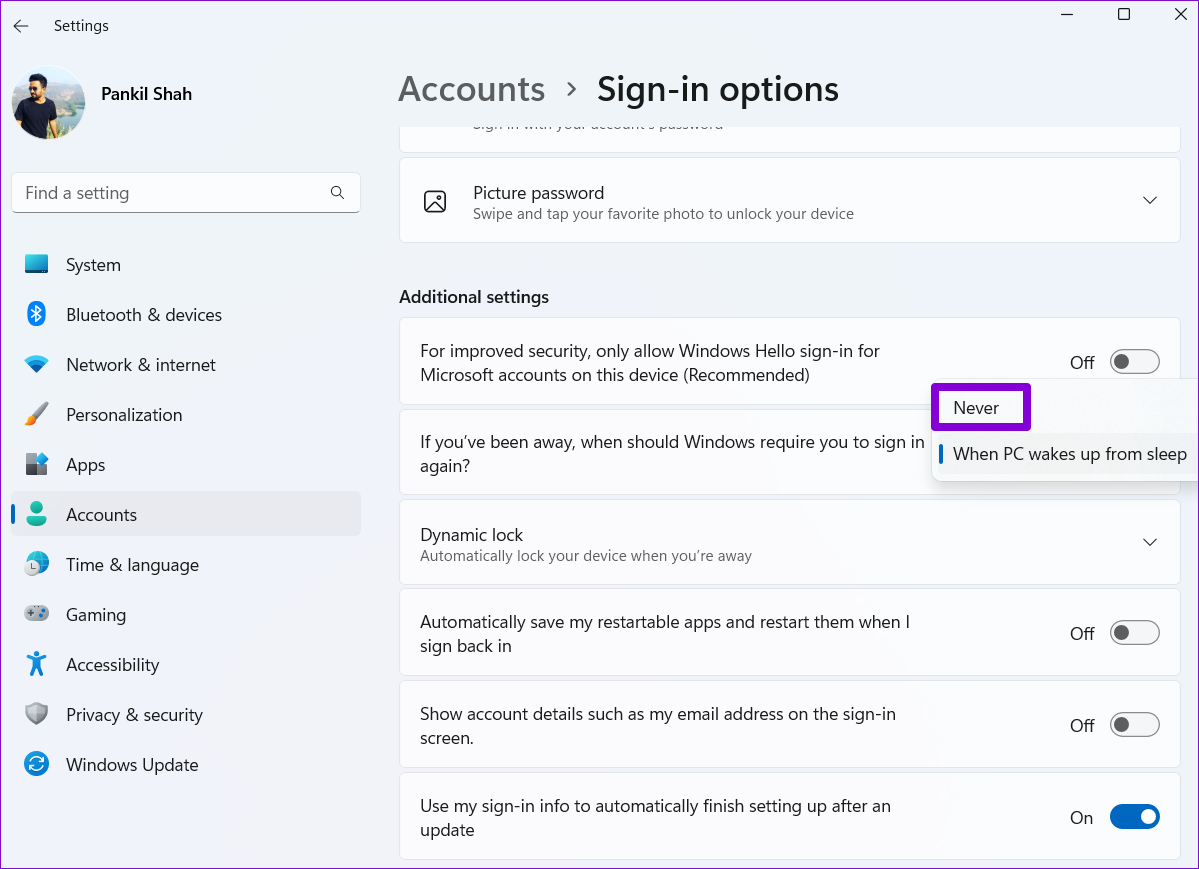
That should do it. Windows will sign you in automatically when you wake your PC from sleep.
2. Disable Login After Sleep via Command Prompt
You can also use the command prompt on your PC to disable the login screen after you put your laptop to sleep. This method allows you to alter the said behavior according to your PC’s current power state of your Windows laptop. Read on to learn how.
Step 1: Right-click on the Start menu and select Windows Terminal (Admin) from the list.
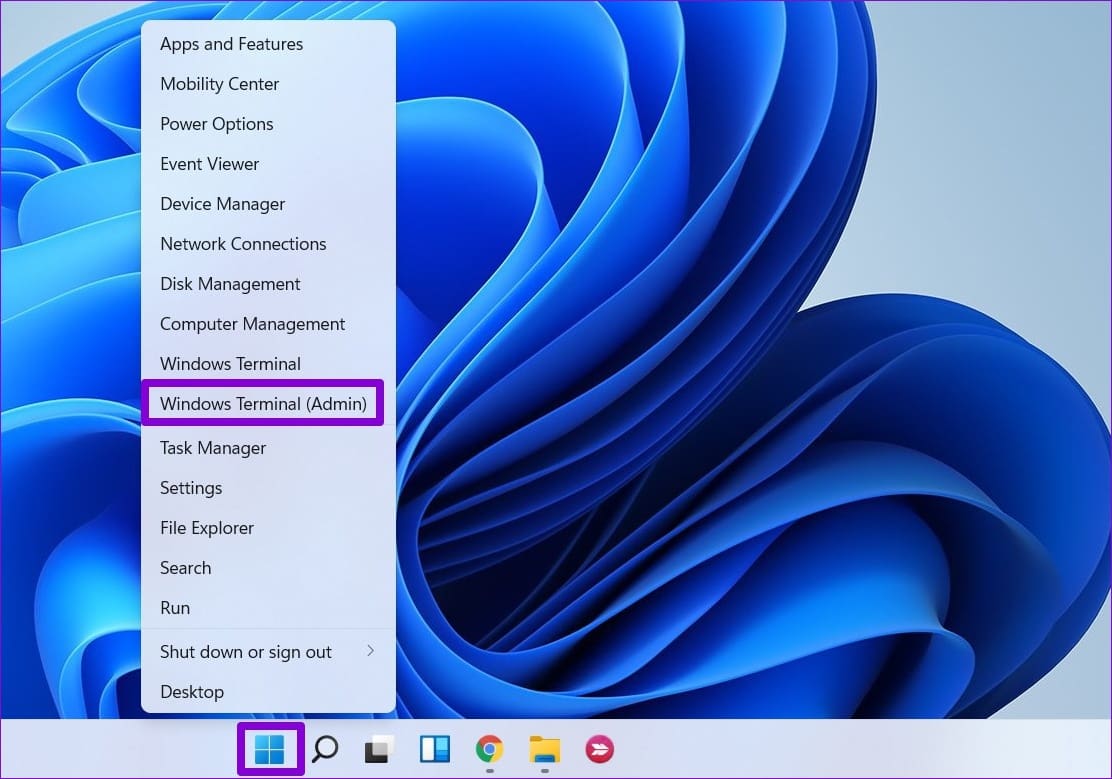
Step 2: Click on Yes when the User Account Control prompt appears.

Step 3: Run the following command to disable the login screen while your laptop is running on battery.
powercfg /SETDCVALUEINDEX SCHEME_CURRENT SUB_NONE CONSOLELOCK 0

Step 4: Run the following command to disable the login screen while your laptop is plugged in.
powercfg /SETACVALUEINDEX SCHEME_CURRENT SUB_NONE CONSOLELOCK 0
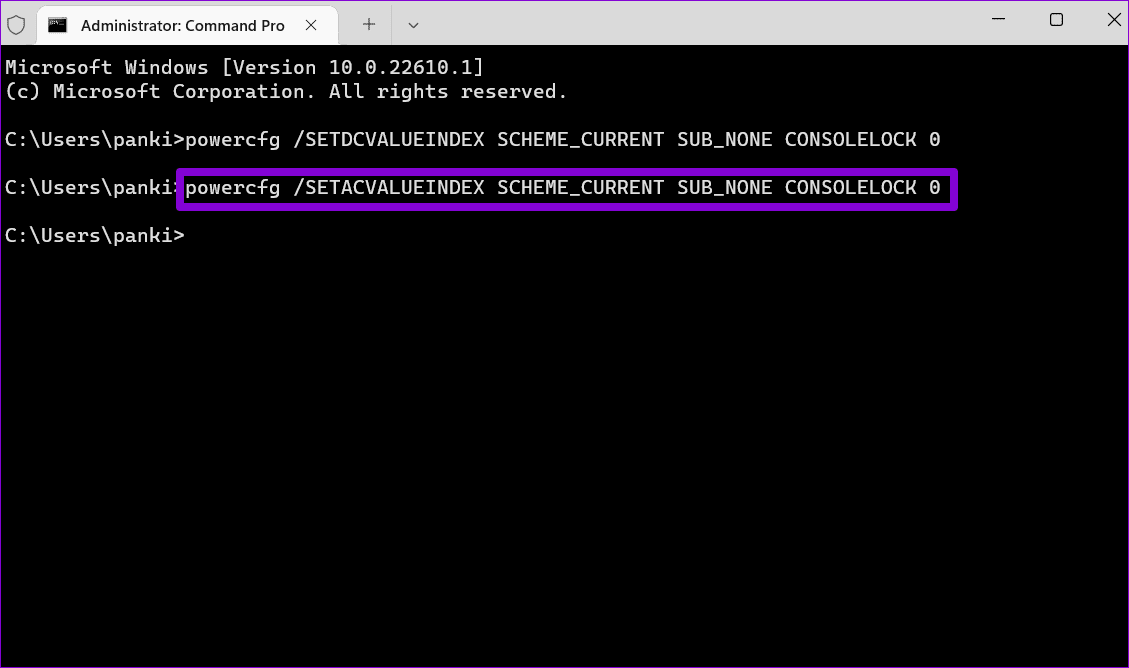
Restart your PC to apply the changes. After that, Windows will no longer show the login screen when it wakes from sleep.
3. Disable Login After Sleep From the Registry Editor
Another way to disable login screen after you put your computer to sleep is by using a Registry Editor. Changing a particular registry keys incorporates a permanent change without tinkering any visible options. However, since the Registry Editor carries settings for Windows and its apps, you’ll need to create a backup of your registry files before making any changes.
After creating a backup, use the following steps to avoid the sign-in screen after sleep.
Step 1: Press the Windows key + R to launch the Run dialog. Type regedit in box and press Enter.
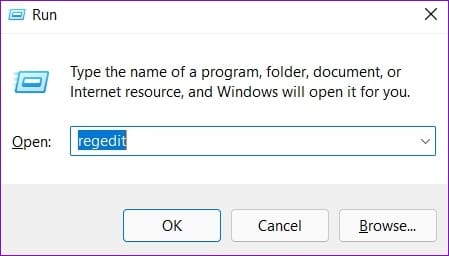
Step 2: Select Yes when the User Account Control prompt appears.

Step 3: In the Registry Editor window, copy and paste the following path the address bar.
Computer\HKEY_CURRENT_USER\Control Panel\Desktop

Step 4: Right-click on the Desktop registry key, go to New and select DWORD (32-bit Value) from the sub-menu. Name it DelayLockInterval.

Step 5: Double-click on the newly created DelayLockInterval DWORD and change its Value data to 0 (zero).

Exit the Registry Editor window and reboot your PC to apply the change.
4. Disable Login After Sleep via Group Policy Editor
Alternatively, you can also use the Group Policy Editor to skip the password prompt after sleep on your Windows 11 laptop. However, Group Policy Editor is only available for Windows Pro, Enterprise, and Education editions. So, if you’re using Windows Home edition, you’ll have to use one of the methods mentioned above.
Note that you must be signed in as an administrator to use this option on your laptop.
Step 1: Press the Windows key + R to launch the Run dialog box. Type in gpedit.msc in the Open field and press Enter.

Step 2: In the Local Group Policy Editor window, use the left pane to navigate to the Sleep Settings folder. Here’s the address path:
Computer Configuration\Administrative Templates\System\Power Management\Sleep Settings

Step 3: From the right pane, double-click the ‘Require a password when a computer wakes (plugged in)’ policy.
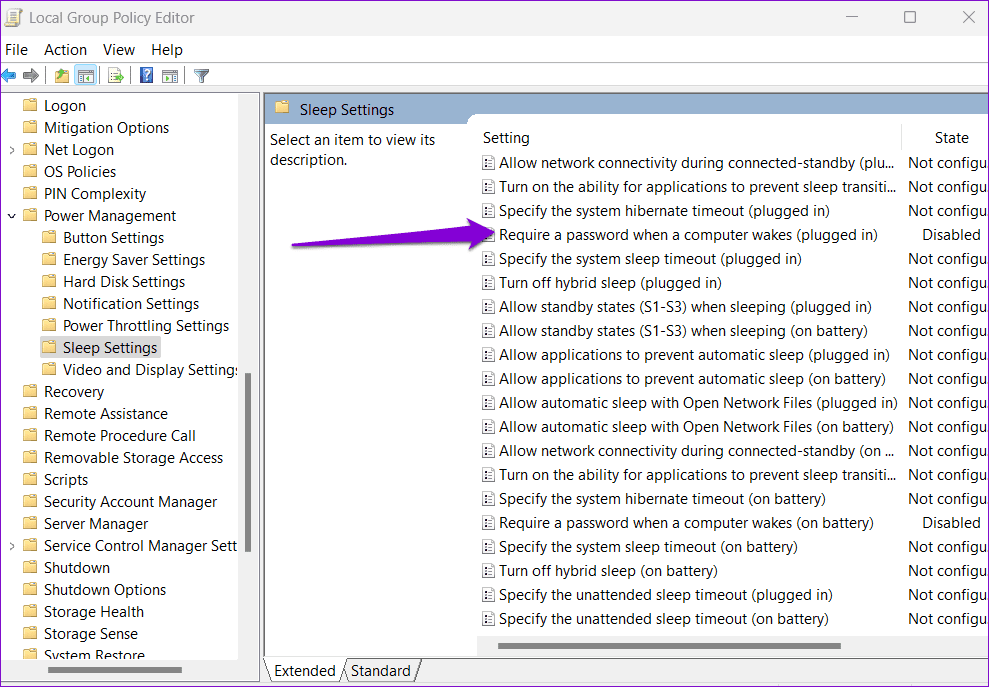
Step 4: Select Disabled and click on Apply.

Step 5: Next, double-click on the ‘Require a password when a computer wakes (on battery)’ policy.

Step 6: Select Disabled and hit Apply.

No More Prompts
The next time you wake your PC from sleep, you can resume your work without having to enter your password. Although disabling the login screen after sleep is convenient, it poses a risk to your computer’s privacy. Hence, you should only do this if it’s a personal computer and no one can access it physically without your permission.
Was this helpful?
Last updated on 18 May, 2022
3 Comments
Leave a Reply
Read Next
 Top 3 Ways to Fix Windows 10 Guest Account Not Appearing on Login Screen
The Windows operating system featured the ability to sign in as a guest user for the longest time.
Top 3 Ways to Fix Windows 10 Guest Account Not Appearing on Login Screen
The Windows operating system featured the ability to sign in as a guest user for the longest time.
 Top 11 Ways to Fix Windows 10 Showing Black Screen Before Login
What happens when you switch on your computer?
Top 11 Ways to Fix Windows 10 Showing Black Screen Before Login
What happens when you switch on your computer?
 Top 5 Ways to Fix the ‘Switch user’ Option Missing From Windows Login Screen
Windows lets you use multiple user accounts on a single PC.
Top 5 Ways to Fix the ‘Switch user’ Option Missing From Windows Login Screen
Windows lets you use multiple user accounts on a single PC.
 How to Disable the Login Password Screen in Windows 10
Entering a password every time you log in to your Windows 10 computer can get tiring after a while.
How to Disable the Login Password Screen in Windows 10
Entering a password every time you log in to your Windows 10 computer can get tiring after a while.
 7 Best Ways to Fix Login Screen Not Showing in Windows 11
Signing into your Windows 11 computer is relatively straightforward.
7 Best Ways to Fix Login Screen Not Showing in Windows 11
Signing into your Windows 11 computer is relatively straightforward.
 4 Best Ways to Disable Sleep Mode in Windows 11
Sleep mode is a useful feature on Windows that helps conserve system power.
4 Best Ways to Disable Sleep Mode in Windows 11
Sleep mode is a useful feature on Windows that helps conserve system power.
 4 Top Ways to Remove Login Password From Windows 11
Every time you log into your Windows account, you will be prompted to enter your password.
4 Top Ways to Remove Login Password From Windows 11
Every time you log into your Windows account, you will be prompted to enter your password.
 Top 7 Ways to Fix the Login Error Code E84 in Steam for Windows
It can be confusing if Steam keeps showing you the error code E84 and the ‘Something went wrong while attempting to sign you in’ error.
Top 7 Ways to Fix the Login Error Code E84 in Steam for Windows
It can be confusing if Steam keeps showing you the error code E84 and the ‘Something went wrong while attempting to sign you in’ error.
The article above may contain affiliate links which help support Guiding Tech. The content remains unbiased and authentic and will never affect our editorial integrity.


Regarding Disabling Login after Sleep in Win 11. I tired all the steps and still I have to login. This is in my home – …. But, i have Hello set to use Finger Print. So, i take it all the options you gave doesn’t work with finger print scanners? I have 2 computers and bounce between them, or my 3d printer, etc. and even though i have the computer set to not sleep for 2 hours, the screen goes off after 5 min. When i come back after just over 5 min i still have to swipe the finger print scanner to get in. I have a laptop on one desk and desktop monitor and wireless keyboard connected to the laptop on my main desk. I have to get up and walk over to scan to get in. Frustrating. I will now set my screen saver to 2 hours, but, if any way to disable finger print scanner after screen goes off, would appreciate it
Unfortunatly these steps did not work. Windows 11 on SP 8. Lock screen still appears after using power button to toggle device on/off.
If you are on window 11 pro use the last option. Gpedit is best.
And a quick reminder this has nothing to do with the logon screen that appears when turning the pc on/off or when you go afk for 5 minutes this is when you put it into sleep and re-awake it.