

iOS is generally regarded as the stabler operating system for smartphones. However, that does not mean an iPhone does not have bugs or issues. You may face problems with autocorrect on your keyboard, or location services not working on your iPhone. Another similar issue is the iPhone randomly restarting.

If you’re facing random reboots while using your iPhone, it can ruin the entire experience. You won’t be able to use your phone properly as any work you may be doing will get interrupted if your iPhone restarts. If you face the problem, here are some simple ways to fix the issue if your iPhone keeps restarting itself.
Why Does My iPhone Keep Restarting Randomly
Right from an internal software issue to external damage, several factors could cause your iPhone to keep restarting itself. On the software front — any new apps or system changes could cause your iPhone to restart intermittently.
Ponder whether you dropped your phone. If there are physical signs of damage to your phone, this may be the culprit causing your iPhone to restart on its own. Does your iPhone restart only when charging? Interestingly, many times this issue may occur when the charger is faulty. Any physical or internal damage to the charger could cause iPhone to restart on its own. We’ll suggest steps to solve the issue regardless of the cause.
How to Fix iPhone Restarting on Its Own
1. Clear All Apps From Memory and Force Restart Your iPhone
One of the reasons why your iPhone could be rebooting randomly is the lack of free memory. An iPhone has limited memory or RAM, and if there’s not enough free RAM, it could lead to your system crashing.

You can ensure sufficient free RAM on your iPhone by clearing all apps from the recent apps tray. Then, force reboot your iPhone by following these steps.
For iPhone 6s or lower:
Press and hold the Home button and the Power button at the same time. Release them when you see the Apple logo on the screen.
For iPhone 7:
Press and hold the Volume down key and the Power button. Release them when you see the Apple logo on the screen.
For iPhone 8 and higher:
Press and release the Volume up key, press and release the Volume down key, and then press and hold the Side/Power button till you see the Apple logo on the screen.
2. Update All Apps From the App Store
An old or outdated app can cause issues with your iPhone. So, update all the apps on your iPhone to the latest version via the App Store. Here’s how you can do it.
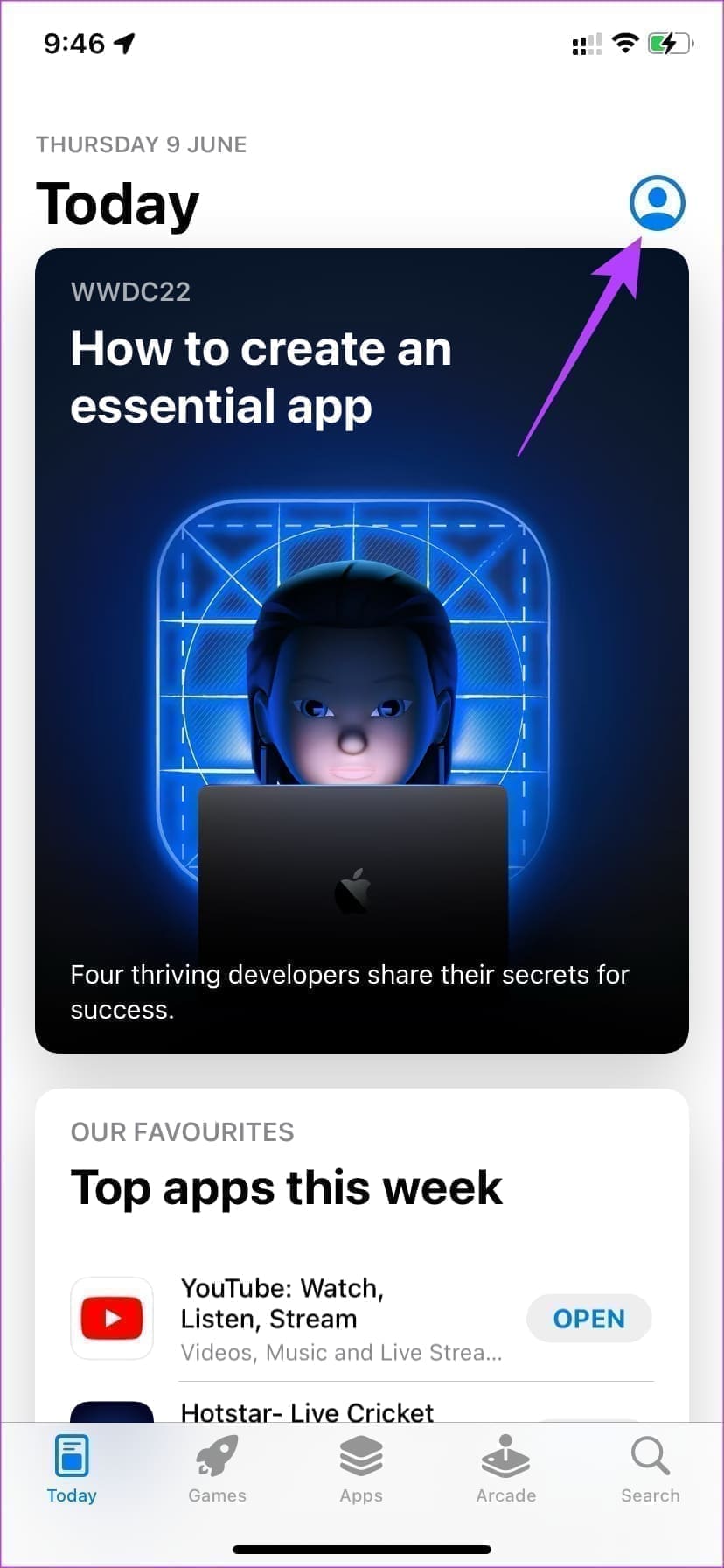
Step 1: Open the App Store on your iPhone. Tap on your picture in the top-right corner of the app.
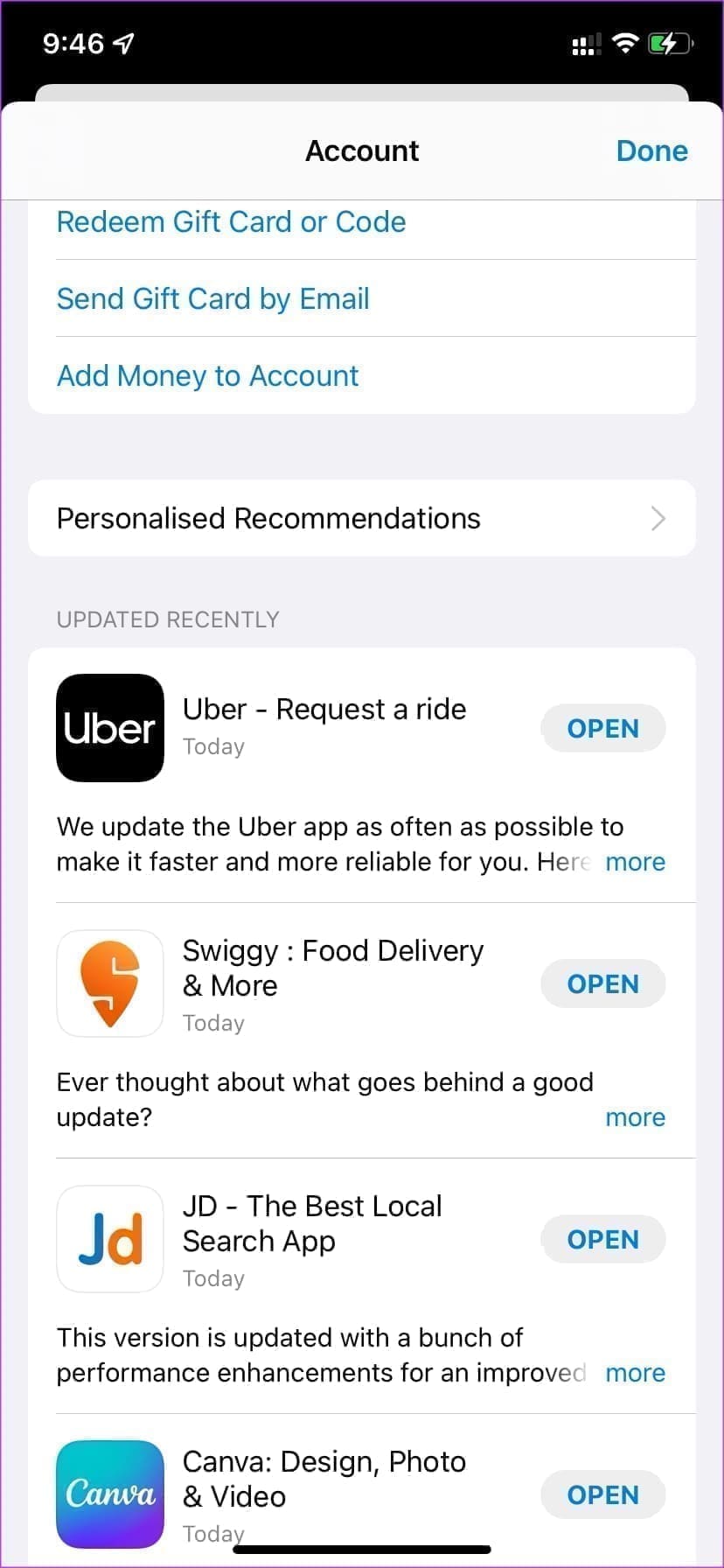
Step 2: You will now see all the apps that require an update. Update all the apps manually. Or use the pull to refresh gesture to get the Update All option.
3. Install the Latest Version of iOS on Your iPhone
Most of the time when your iPhone reboots automatically, the issue is with the software on the phone. The iOS version on your iPhone could have some bugs that are leading to the iPhone misbehaving. Update your iPhone to the latest version of iOS to fix any potential bugs. Here’s how to do it.
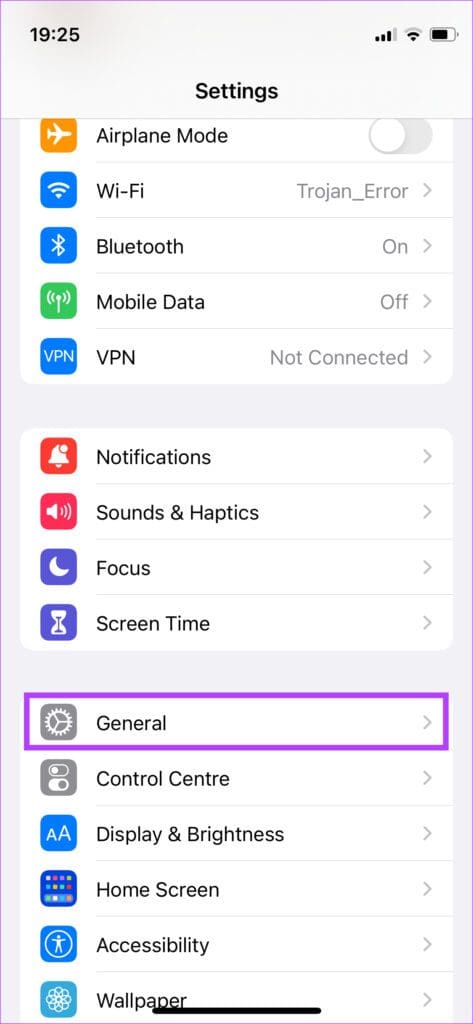
Step 1: Open the Settings app on your iPhone. Select General.
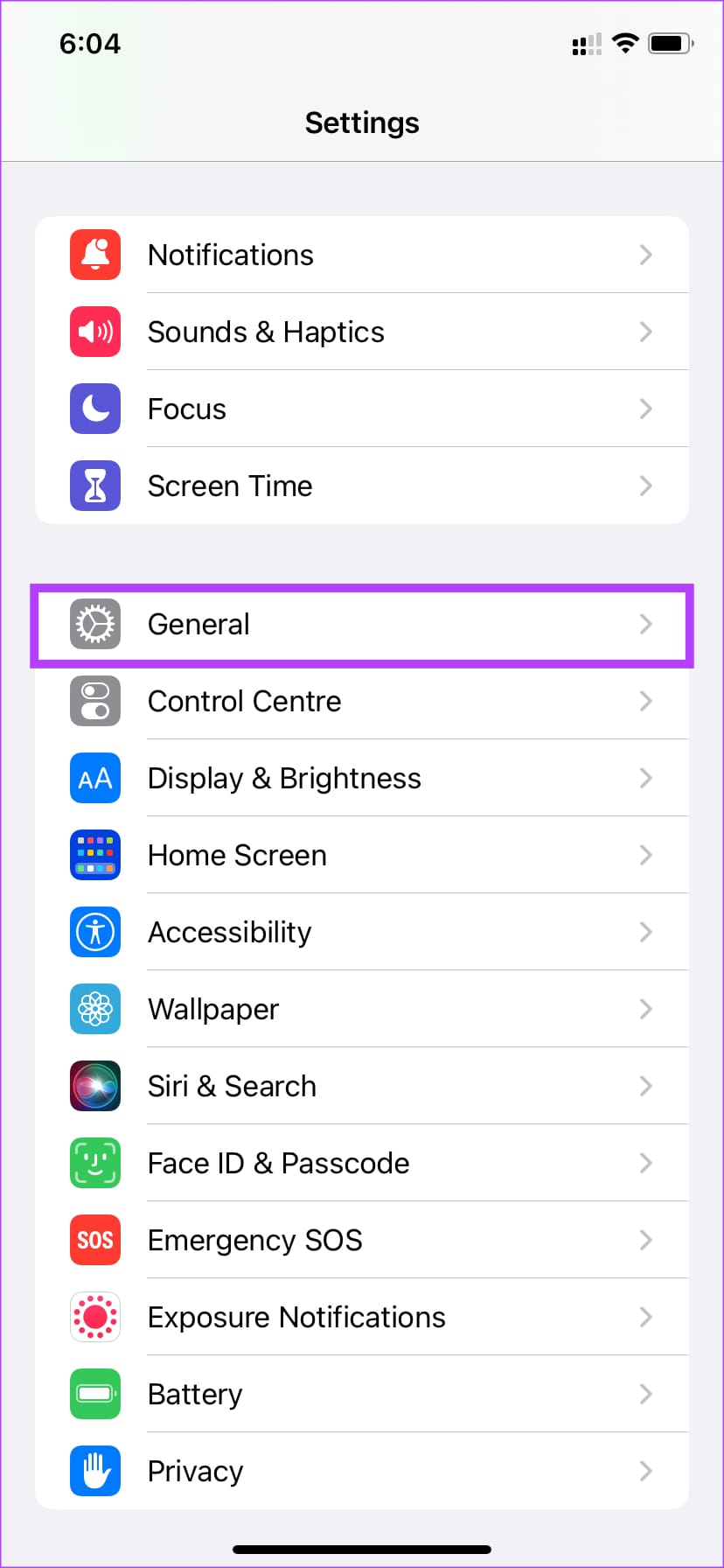
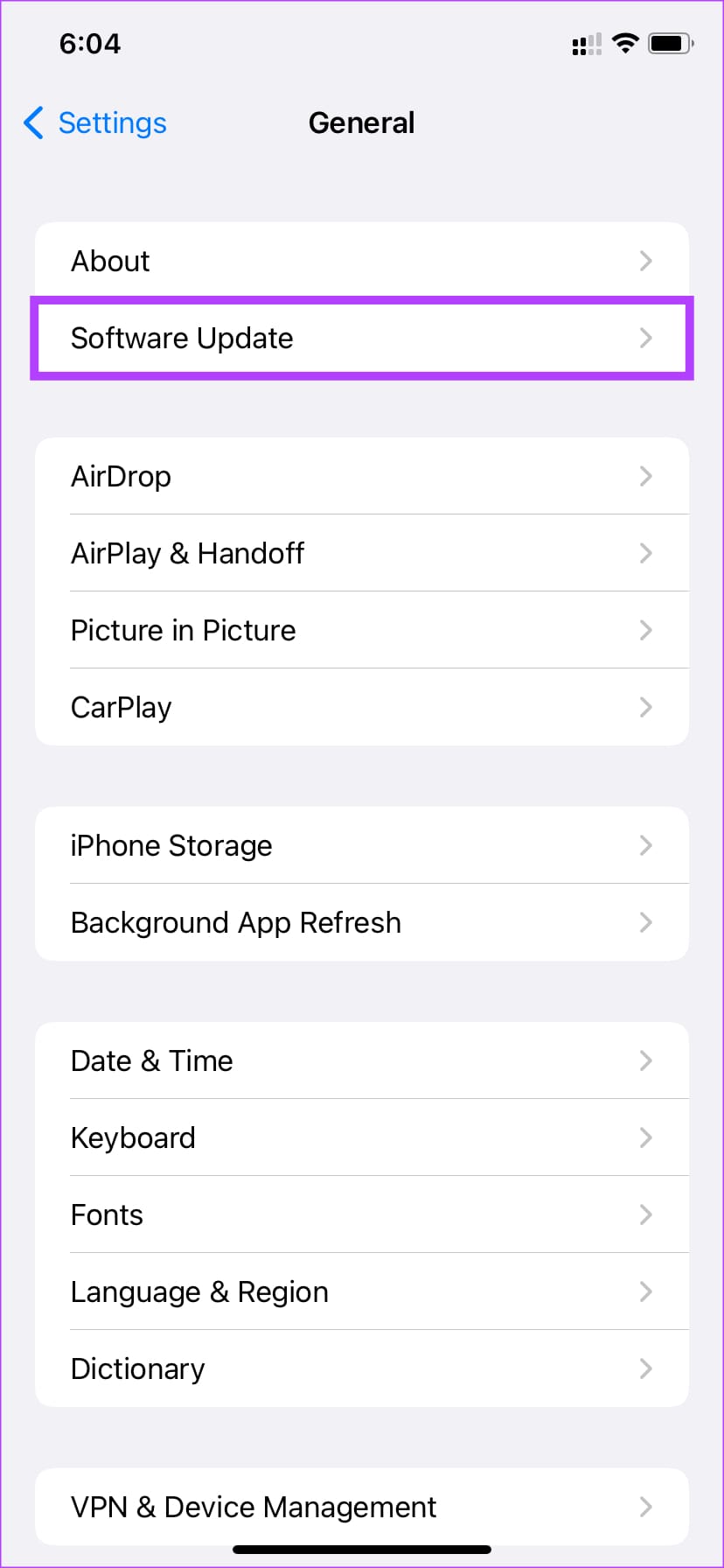
Step 2: Tap on Software Update.
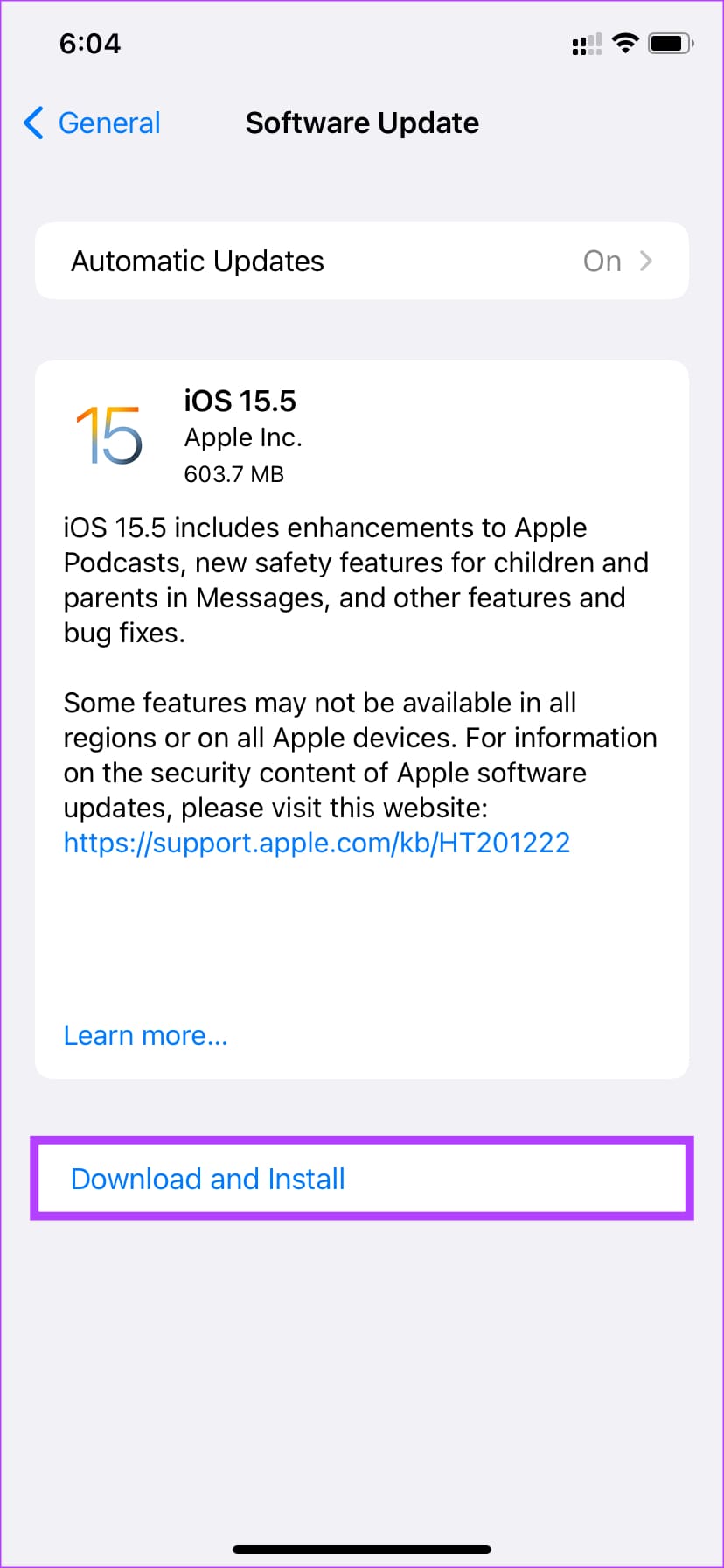
Step 3: If a new update is available for your iPhone, it’ll appear on that screen. Tap ‘Download and Install’ and wait for the installation to complete.
4. Switch to the Stable Version of iOS if You’re on Beta
Beta versions of iOS may give you more features and let you stay ahead of the curve. However, the possibility of bugs and errors like random reboots on beta versions is always high. If you’ve been using the iOS beta on your iPhone, switch back to the stable version. Here’s how to do it.
Step 1: Open the Settings app on your iPhone. Tap on General.
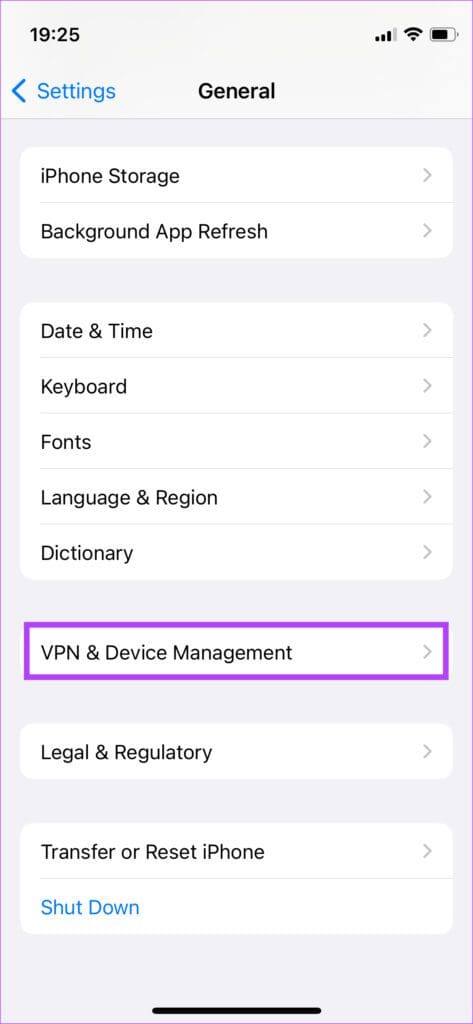
Step 2: Scroll down and select ‘VPN & Device Management’. Tap on iOS Beta Profile.
Step 3: Select Remove Profile.

Whenever the stable version of that particular software is available, you will get an option to update your iPhone. You can also restore your iPhone, which will erase all the data on your iPhone.
5. Check iPhone Analytics to Find Problematic Apps
Apple gives users an in-built analytics tool on iOS to detect apps or functions causing issues on the iPhone. You can use this tool to detect any malfunctioning app and then uninstall it to ensure your iPhone doesn’t reboot randomly. Here’s how to use it.
Step 1: Open the Settings app on your iPhone. Scroll down to the Privacy section.

Step 2: Select ‘Analytics & Improvements. You will find it at the bottom of the screen.
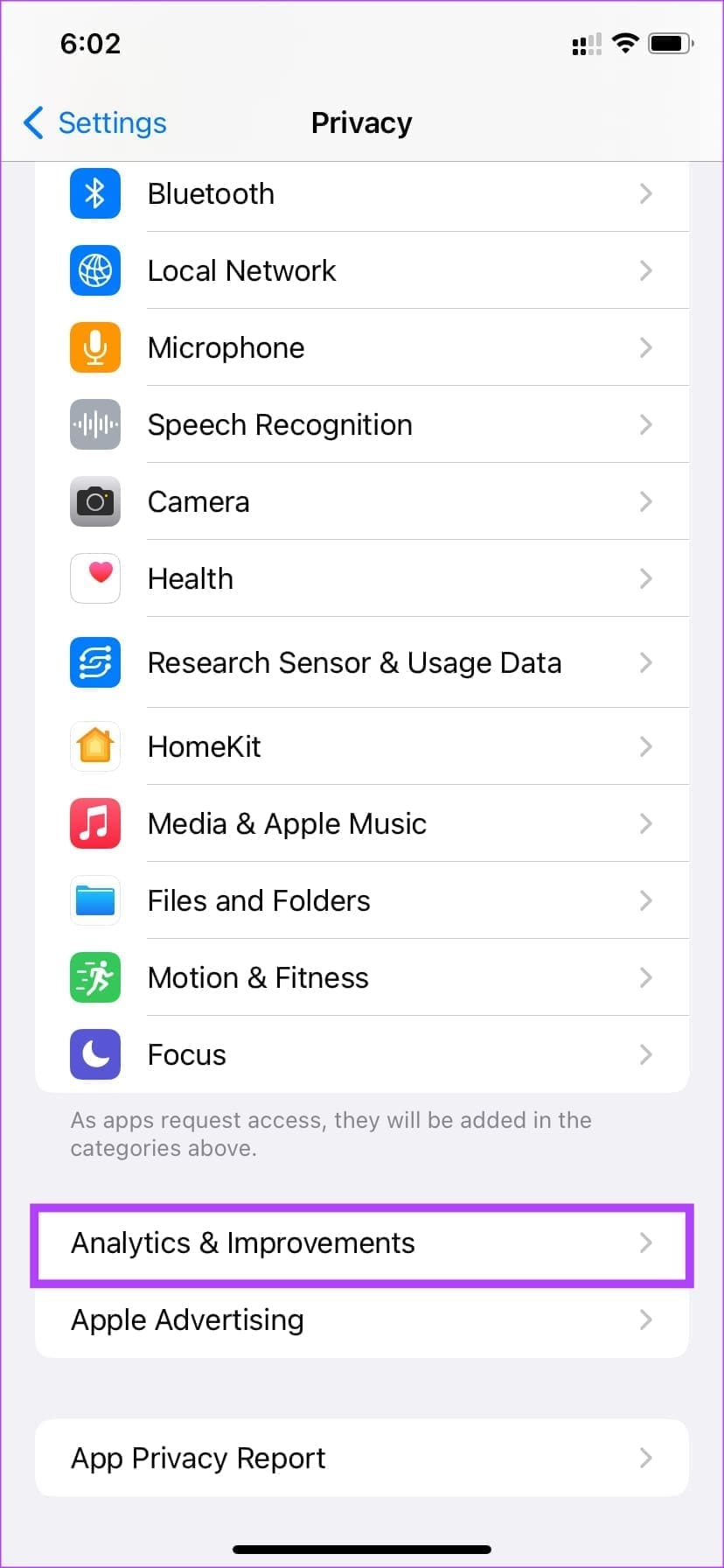
Step 3: Now, tap on Analytics Data.
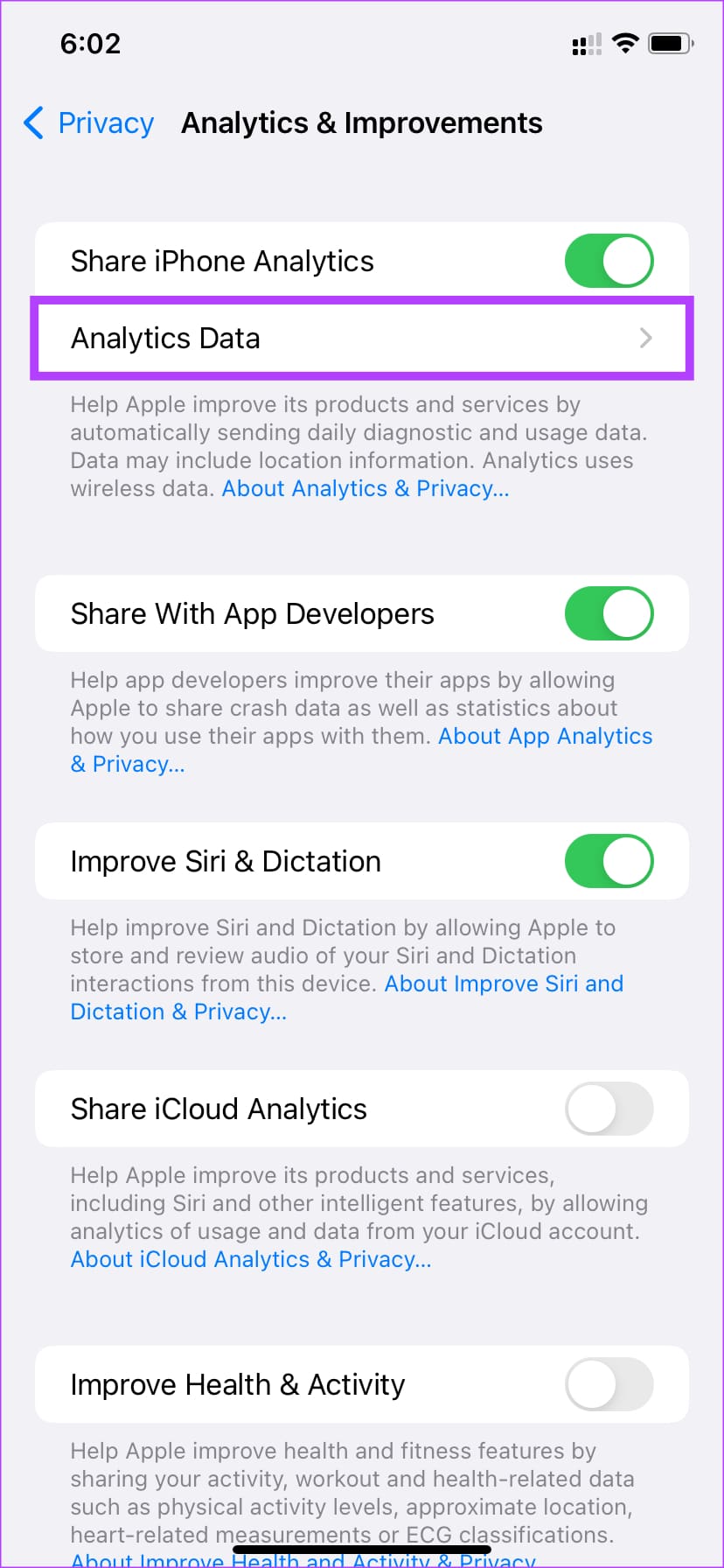
Look through the list to spot any app names.
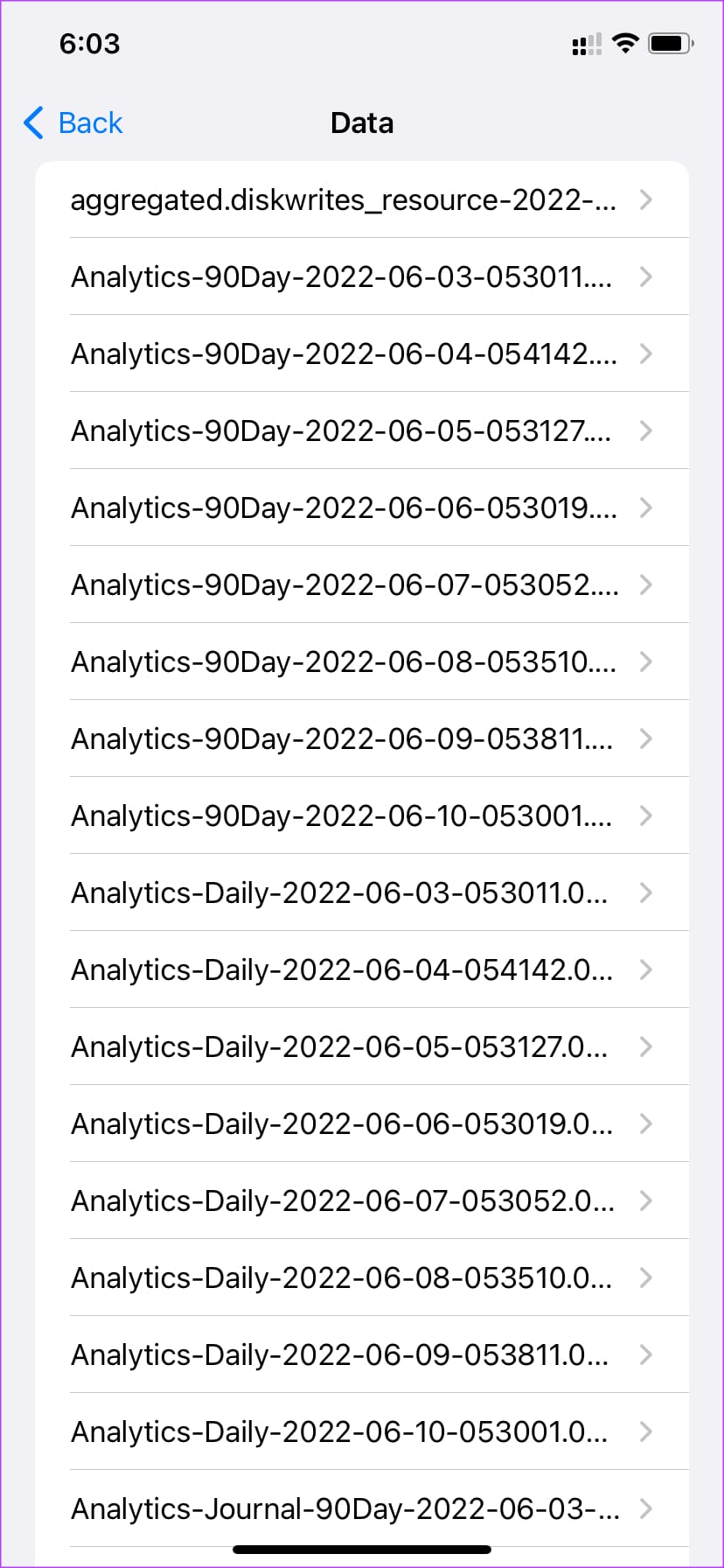
If you spot a single app with multiple entries on this list, it could mean that the app is causing problems. Uninstall the app from your iPhone, and the random reboot issue should be fixed.
6. Free up Storage on Your iPhone
Besides ensuring that you have free RAM on your iPhone, it’s also important to check whether you have adequate free storage. This is to ensure that important system files have enough storage space and that apps can function properly by storing relevant data on your phone. Here’s how to check the remaining storage on your iPhone.
Step 1: Go to the Settings app on your iPhone. Select General.
Step 2: Tap on About.
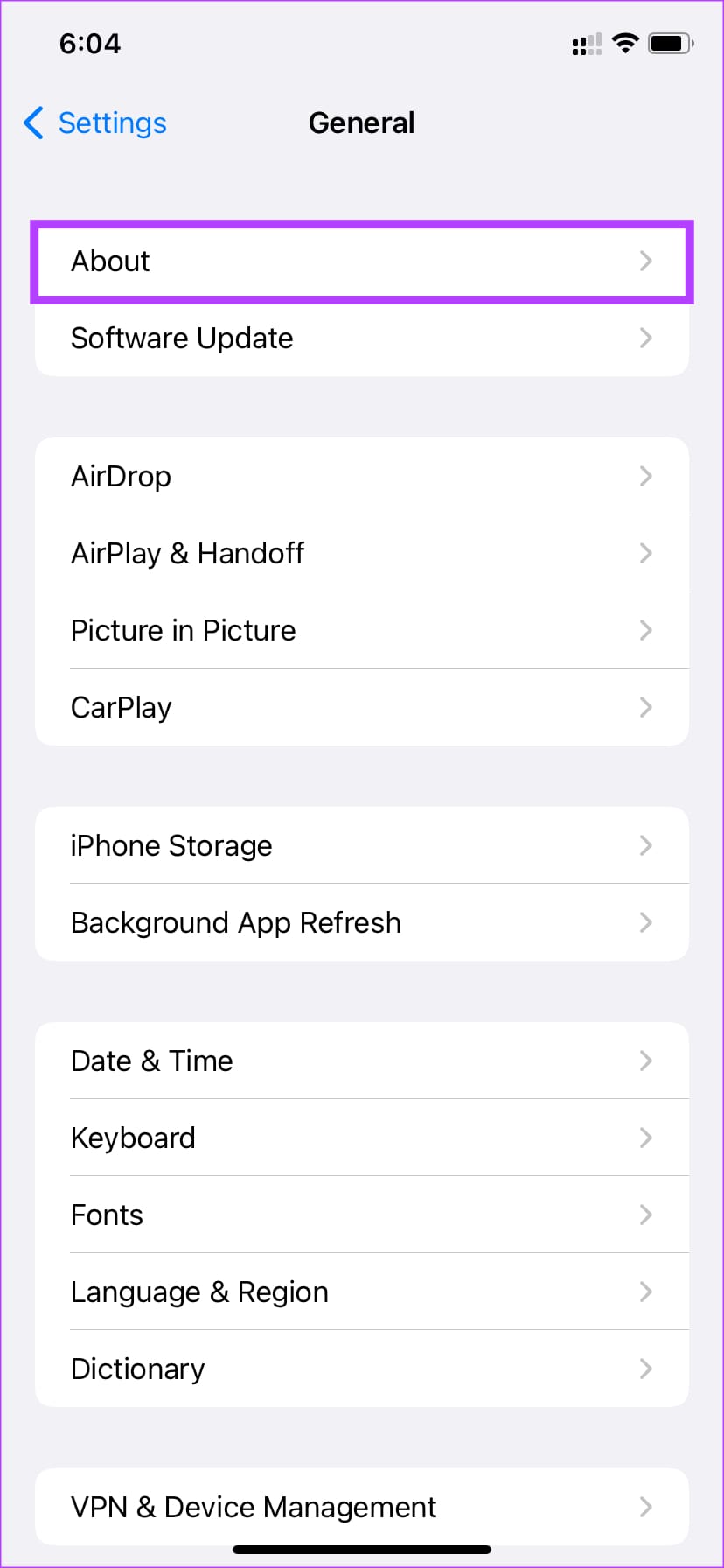
Step 3: The capacity displayed next to Available will denote the free storage.
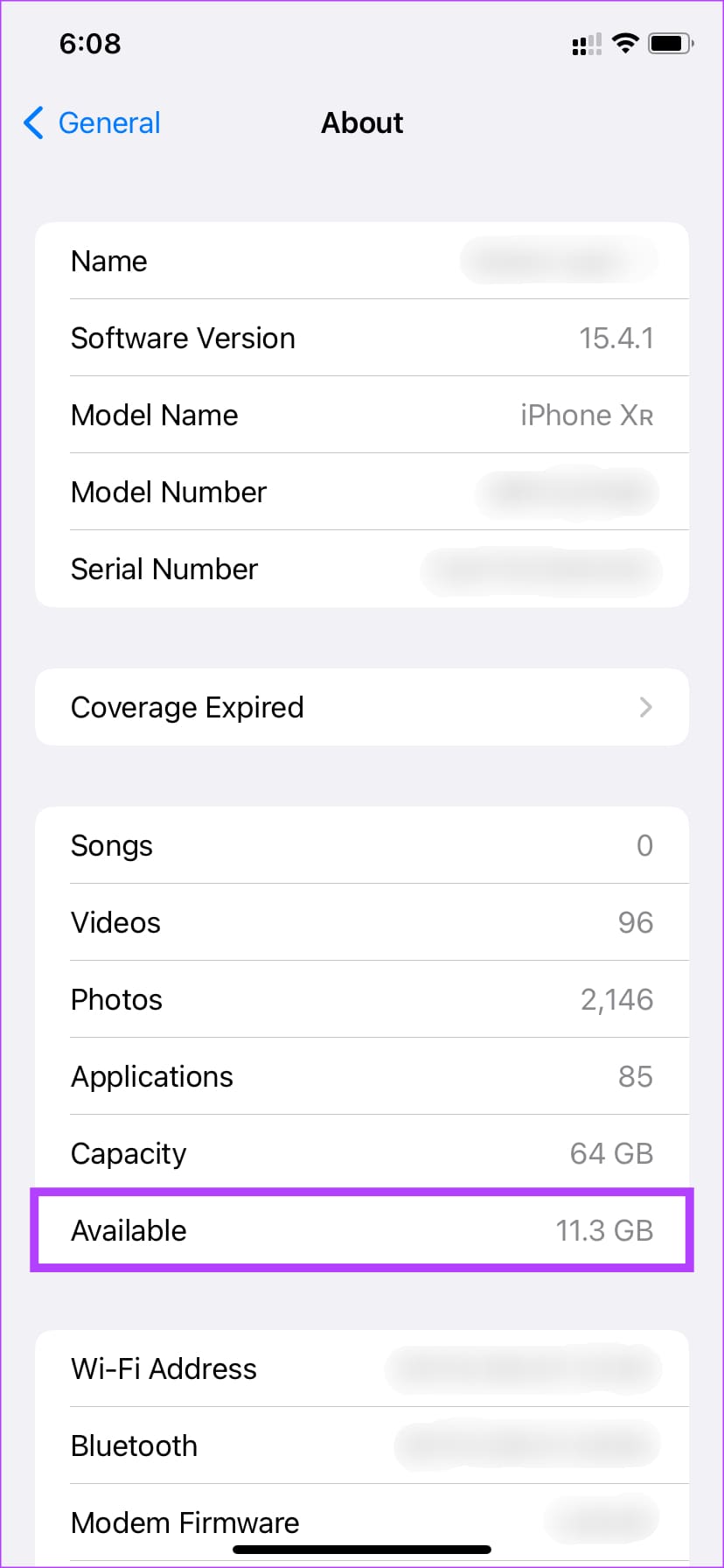
If your available storage is low, delete some files from your iPhone like photos, videos, apps, etc. which should help the cause.
7. Reset Settings on Your iPhone
Before you factory reset your device, there’s one last option you can try. Resetting your iPhone’s settings might help fix this issue if an in-built setting is causing the random restart issue on your iPhone. Here’s how you can reset your iPhone’s settings back to default.
Step 1: Open the Settings app on your iPhone. Tap on General.
Step 2: Scroll down to the bottom of the page. Select ‘Transfer or Reset iPhone’.
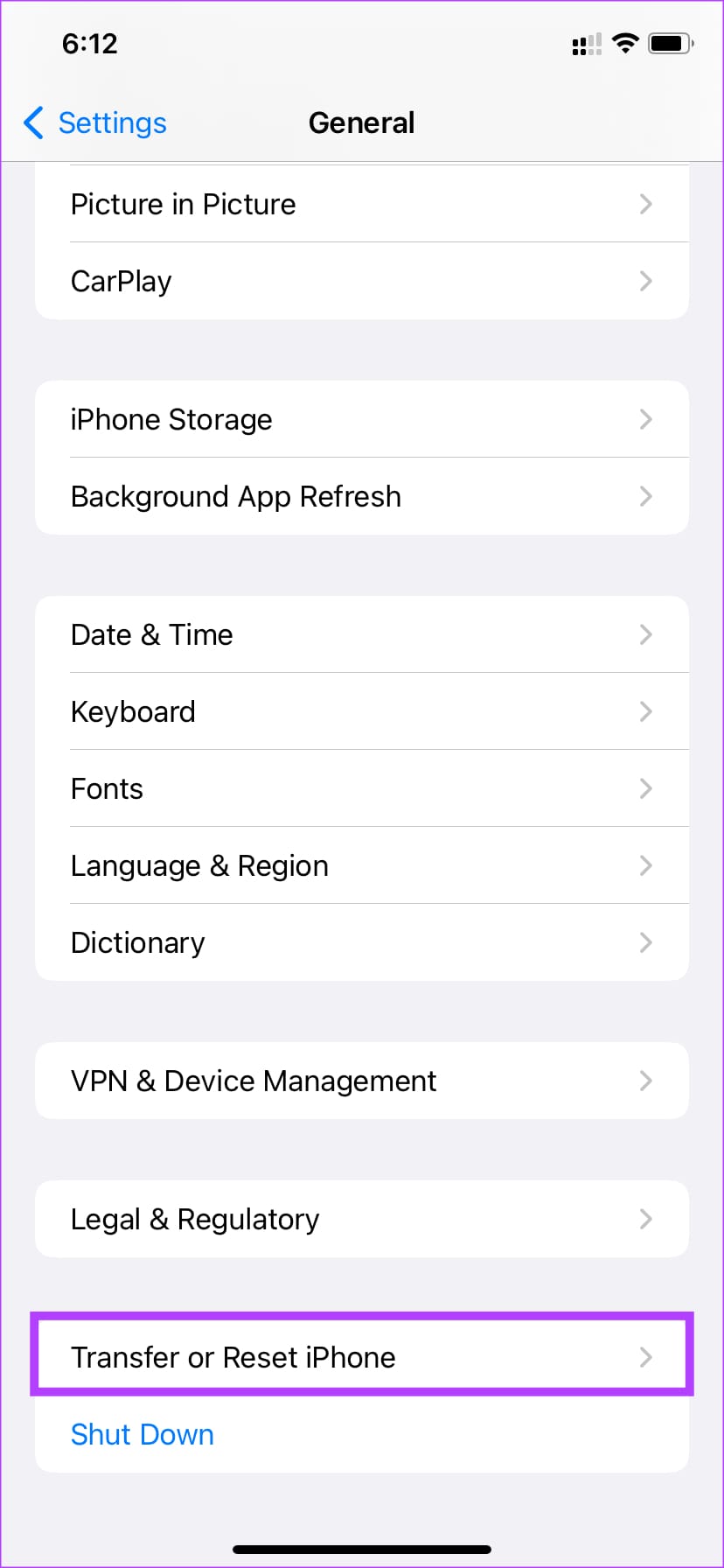
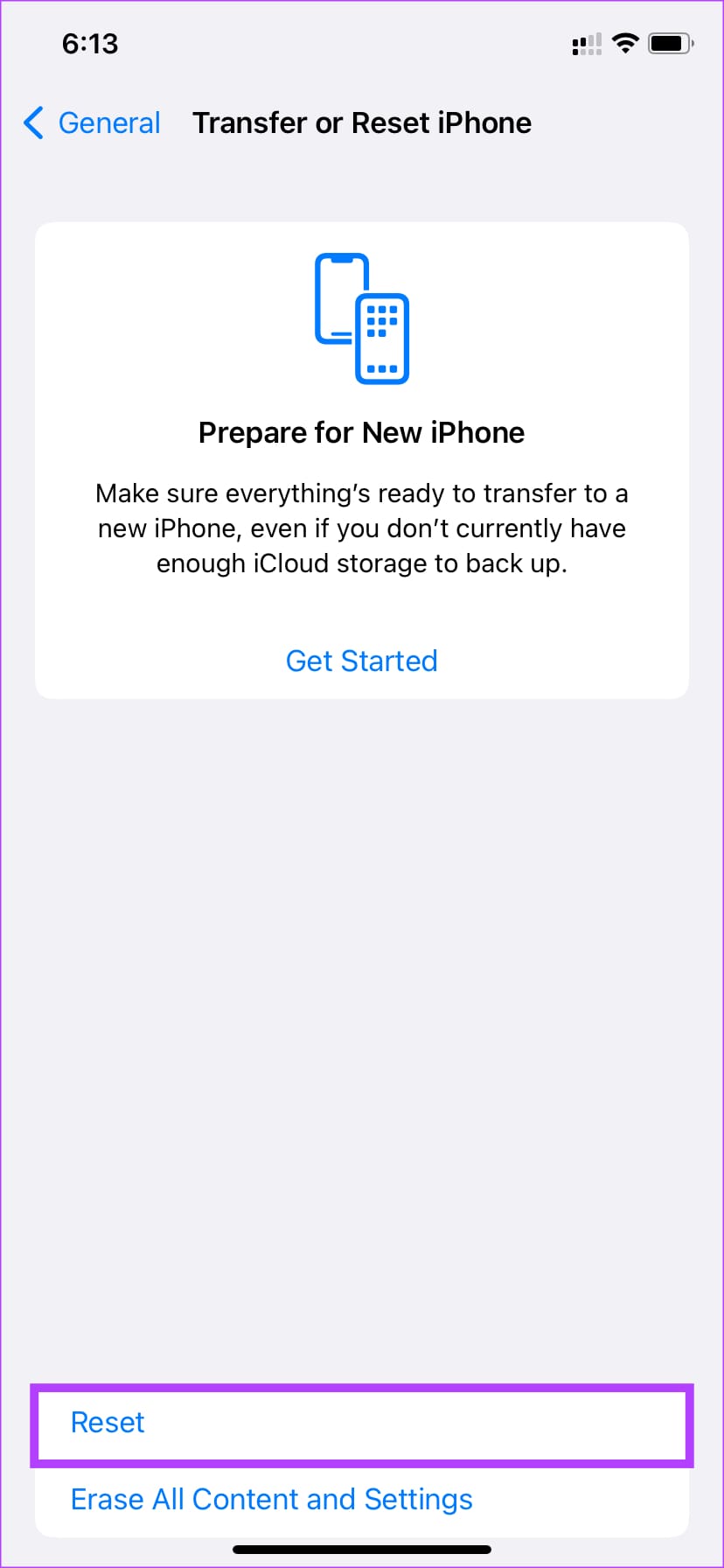
Step 3: Tap on Reset.
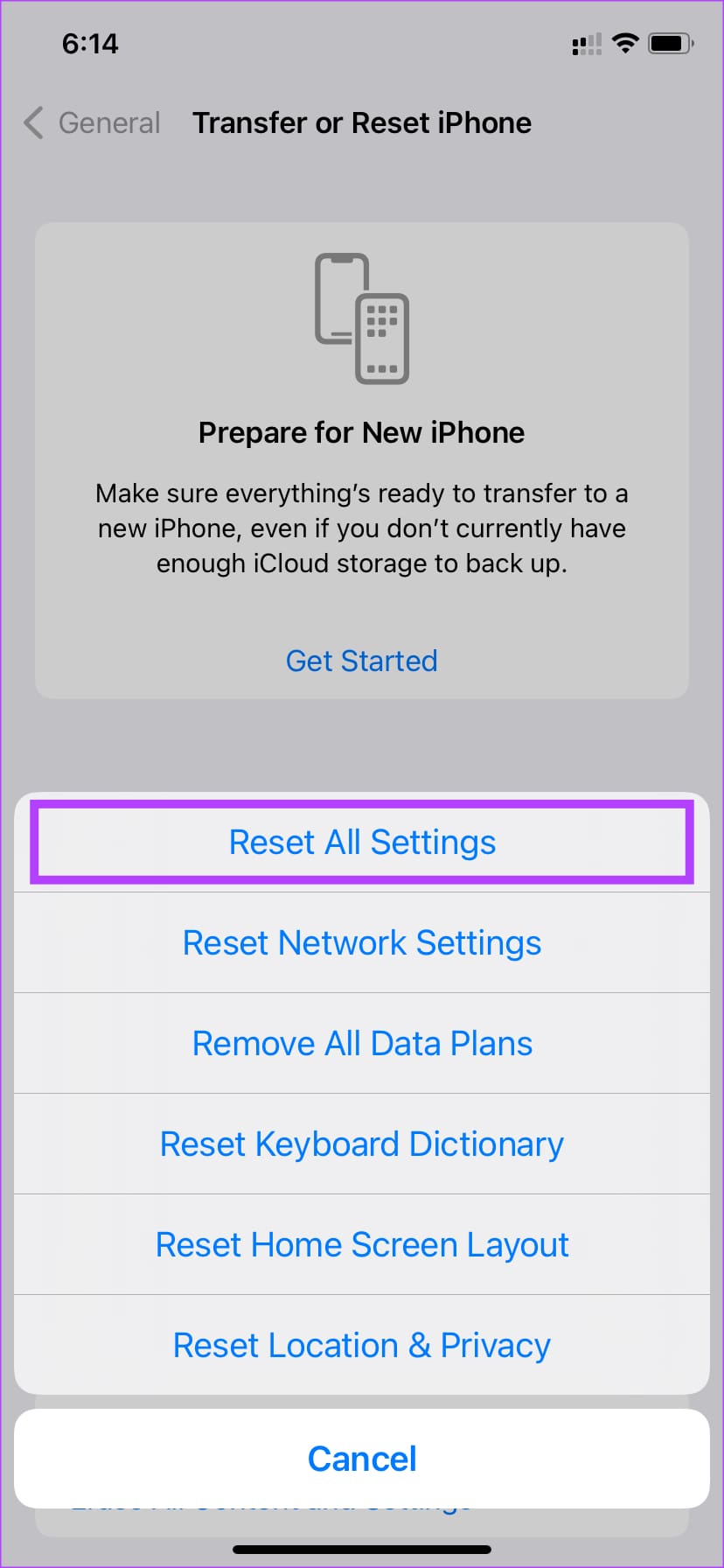
Step 4: You’ll see a bunch of reset options. Select ‘Reset All Settings’.
Step 5: Enter your passcode to reset all settings.

8. Set the Date and Time to Automatically Update
Have you switched on an old iPhone? Or is your iPhone running on an older date and time? Users have reported that some older versions of iOS had the issue of the iPhone restarting randomly when the date and time were set incorrectly.
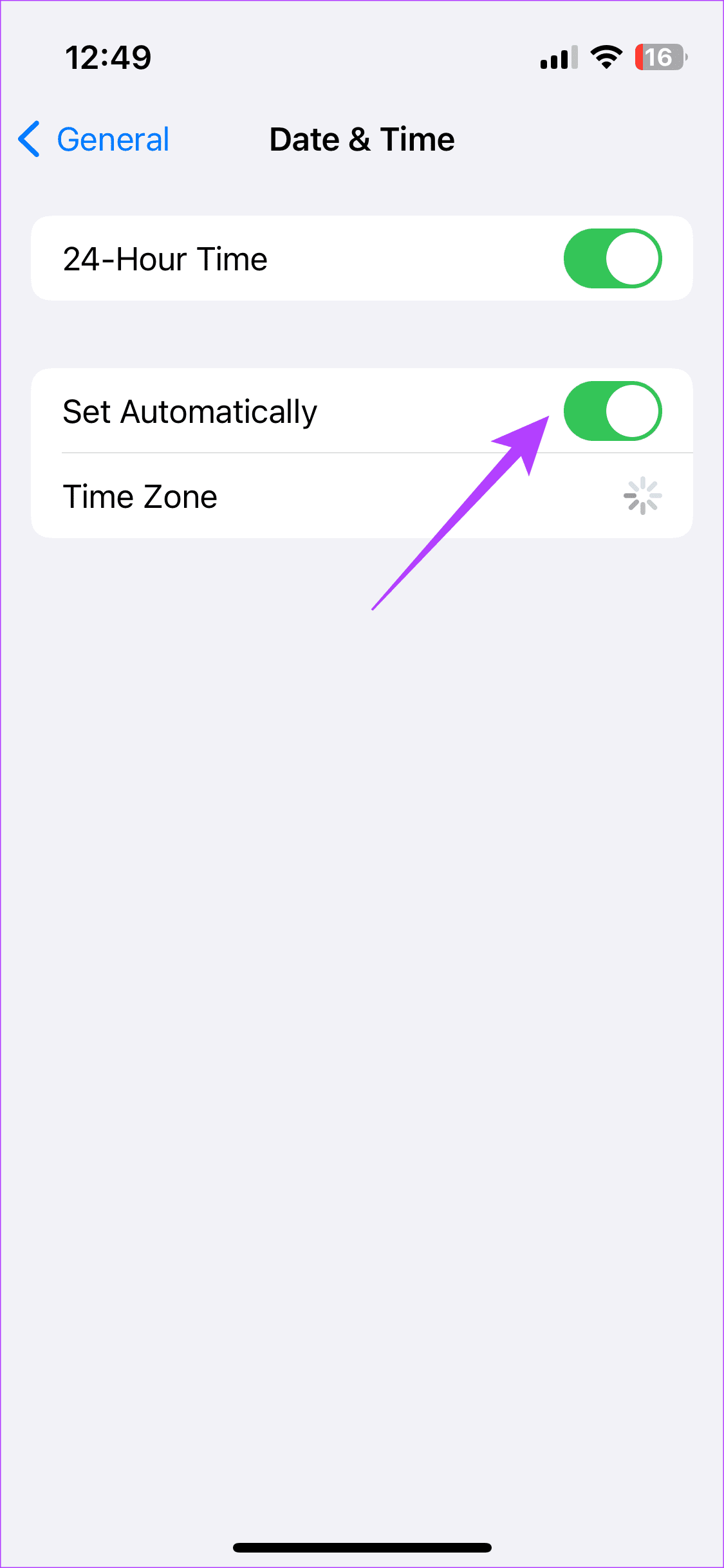
So, try setting the date and time as per iPhone’s automatic setting to mitigate your iPhone from randomly turning off. Here’s how to set the date and time on your iPhone.
Step 1: Open the Settings app on your iPhone and proceed to the General option. Now, select ‘Date and Time’.


Step 2: Turn on the toggle beside Set Automatically. If the toggle is already turned on, turn it off. Then, switch the toggle on again.
9. Check the Charger if the iPhone Is Restarting When Charging
A fault in the charger could be the root cause of your iPhone restarting randomly. So, check if the restarting issue sprouts when you plug your iPhone into a charger. If that’s the case, it’s best to replace the charger. Use another charger and test if your iPhone’s restarting issue remains. If so, try other fixes on this list.

On an important note, it is always advisable to use a good fast charger for your iPhone from a reputed brand. If you’re using the lightning cable or adapter by another brand, stick to the Apple counterpart and see if the iPhone intermittent restart issue persists.
10. Check Battery Health and Replace the Battery if It’s Below 80%
The battery health of your iPhone decides its efficiency. So, the higher the battery health percentage of your iPhone, the better your iPhone functions. Thus, bad battery life could be the causative factor if your iPhone keeps restarting automatically time and again.
If you see that the battery health of your iPhone is below 80%, it is advised that you get the battery replaced. This would help your iPhone function better thus ensuring that your iPhone does not turn off randomly.
Here’s how you can check the battery health of your iPhone:
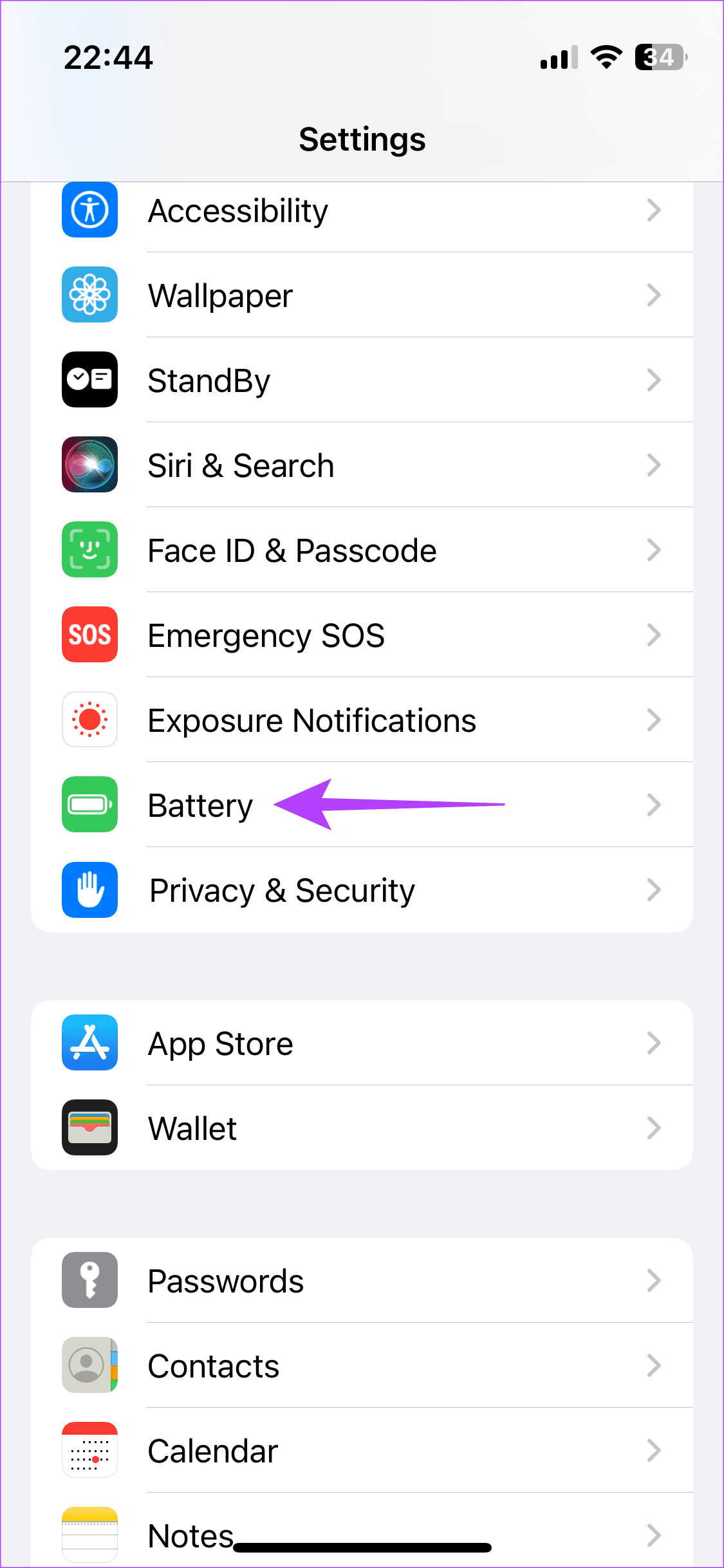
Open Settings on your iPhone and scroll down to locate the Battery section. Then, tap on ‘Battery Health & Charging’.
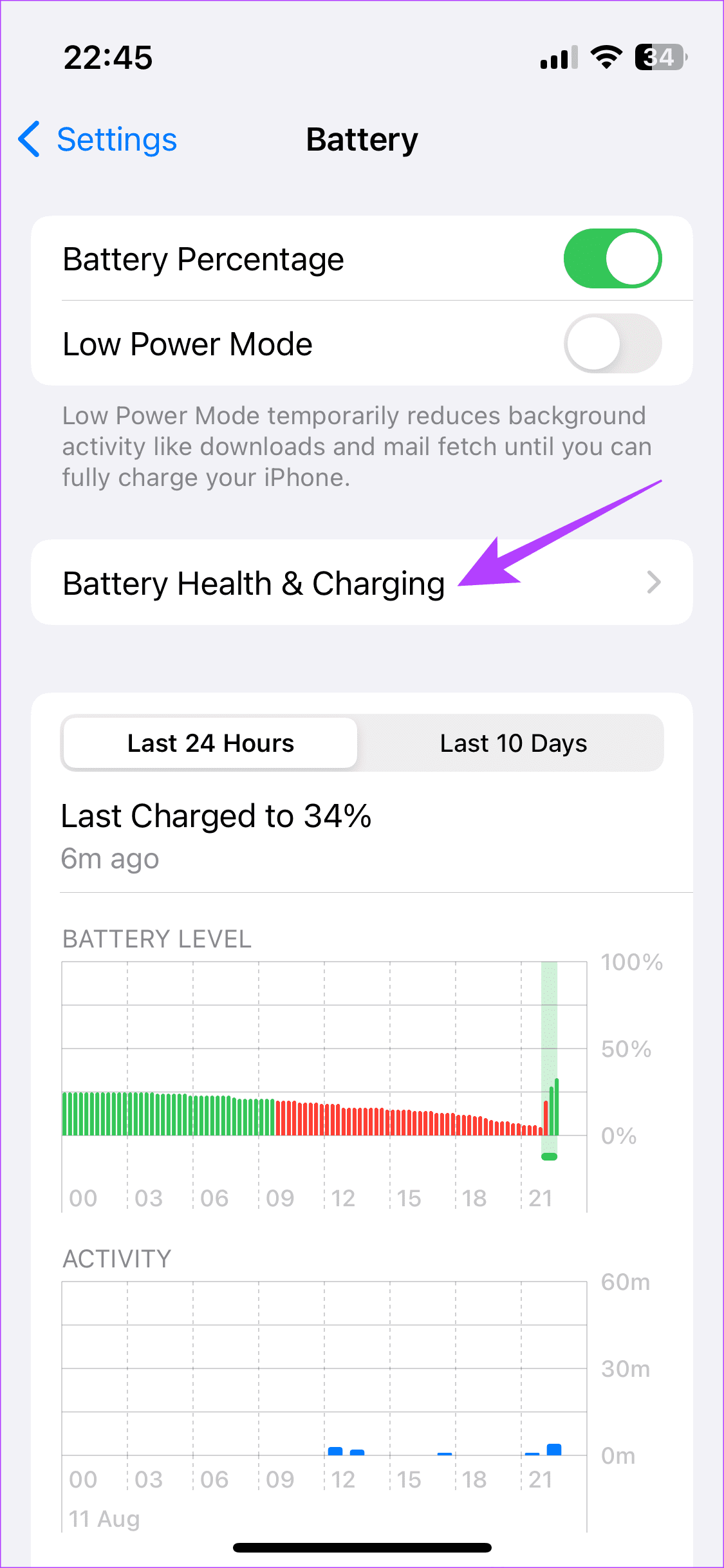
Now, you should see your battery health percentage beside the option Maximum Capacity.

If it’s below 80%, it’s time to head to Apple.
11. Factory Reset Your iPhone
If your iPhone keeps restarting randomly even after following all the above steps, it’s time to reset it to factory settings and set it up from scratch to see if that fixes the problem. Note that this step will wipe all your data, so it’s best to take a backup of your iPhone before proceeding further. Here’s how to do it.
Step 1: Open the Settings app on your iPhone. Tap on General.
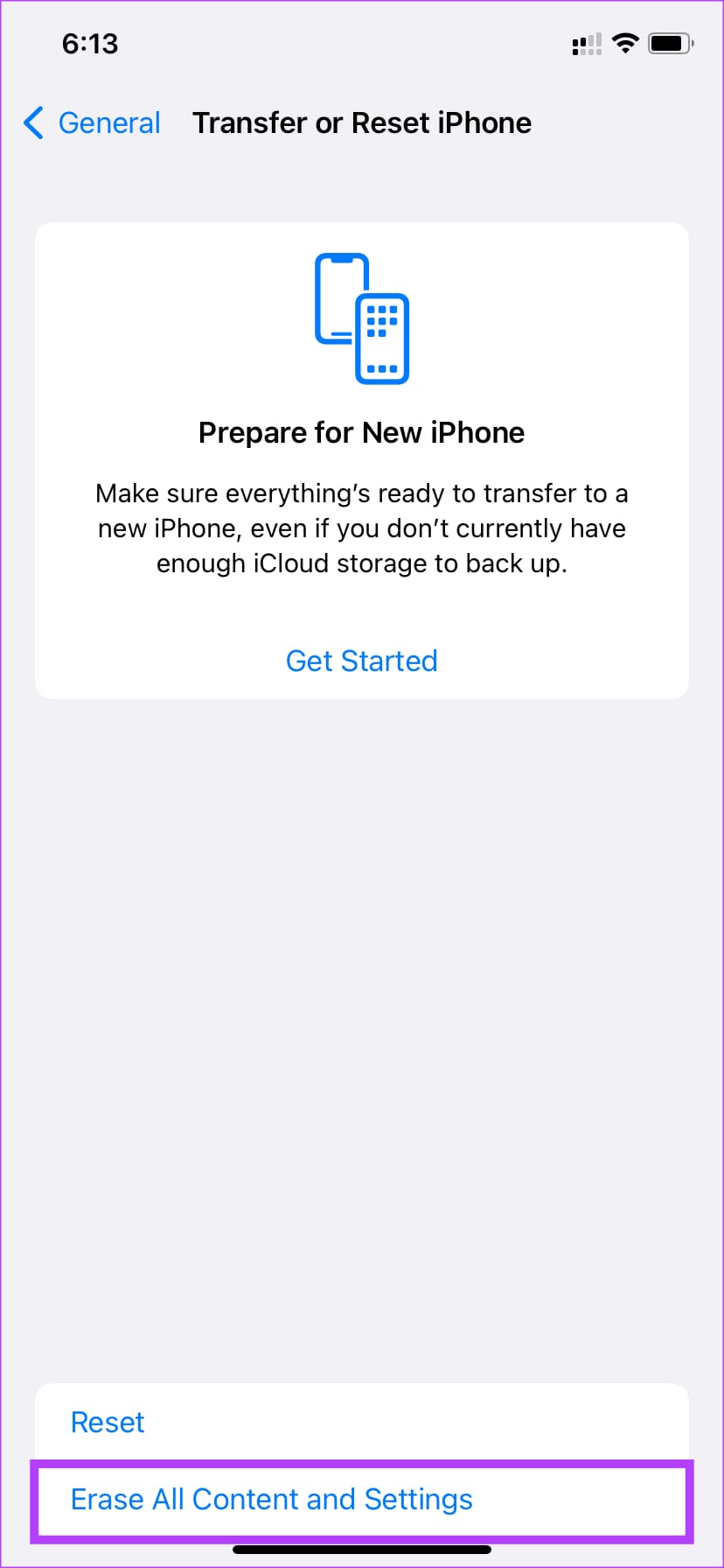
Step 2: Scroll down to the bottom of the page. Select ‘Transfer or Reset iPhone.’
Step 3: Tap on ‘Erase All Content and Settings.’ Do not select Reset.
Step 4: Then, tap on Continue. You’re now at the final step
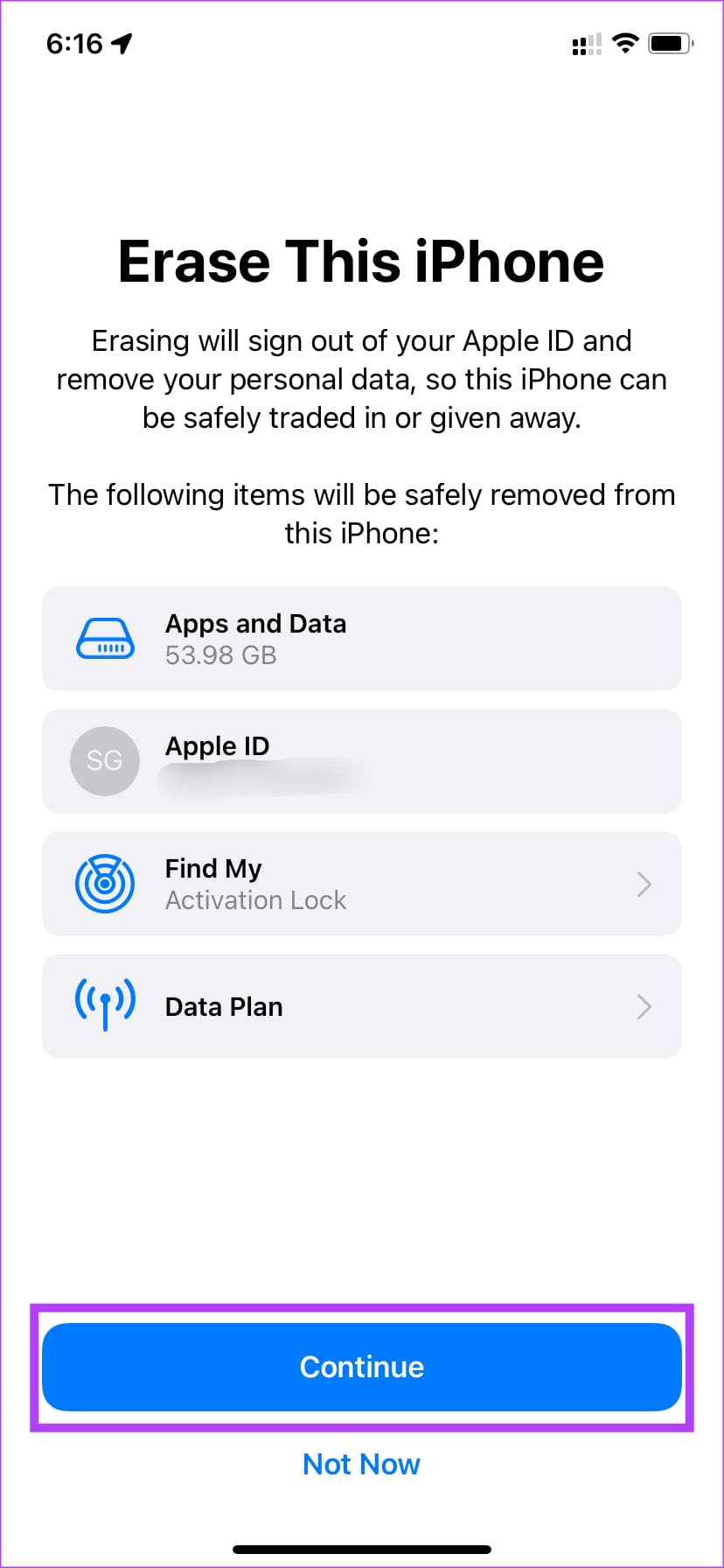
Step 5: Enter your passcode followed by the password to your Apple ID. Your iPhone will be reset.
12. Restore Your iPhone
When there’s something wrong with your Mac, the best way to fix it is to restore it using your computer. If a factory reset also didn’t help, see if restoring your iPhone does the trick.
We have a comprehensive guide on restoring your iPhone on Mac and Windows. Follow it step-by-step and you can restore your iPhone to factory settings.
13. Contact Apple Support
If none of these quick fixes have resolved your issue of iPhone restarting intermittently, we would recommend that you seek help from the professionals at Apple. Sometimes, there may be a complicated internal issue that would require a deeper diagnosis. So, if you’re persistently facing the issue of your iPhone randomly turning off despite trying these fixes, contact Apple’s support team.
FAQs for iPhone Randomly Restarting
It’s a good habit to restart your phone once every few days to ensure the OS operates smoothly and all the necessary parameters are refreshed.
Unlike several Android devices, an iPhone doesn’t have the option to schedule a restart. You will have to perform it manually.
Some older versions of iPhones had issues with random reboots when used without a SIM card. However, newer iPhones don’t have this issue anymore. So you can use them without a SIM.
Stop Random Reboots on Your iPhone
An iPhone that’s restarting randomly is something nobody wants to experience. It’s surely annoying and can ruin your entire experience. Follow these steps, and you should be able to resolve the issue on your iPhone. Then, use it as you would normally without any issues.
Was this helpful?
Last updated on 11 August, 2023
Read Next
 Top 9 Ways to Fix Android Phone Keeps Restarting
While Google has improved overall Android stability, your phone might randomly crash at times, and you'll be clueless about it.
Top 9 Ways to Fix Android Phone Keeps Restarting
While Google has improved overall Android stability, your phone might randomly crash at times, and you'll be clueless about it.
 Top 7 Ways to Fix Search Menu Keeps Opening Randomly in Windows 11
The Windows 11 Search menu is a powerful tool that allows you to search for files, launch apps, and even perform web searches from your desktop.
Top 7 Ways to Fix Search Menu Keeps Opening Randomly in Windows 11
The Windows 11 Search menu is a powerful tool that allows you to search for files, launch apps, and even perform web searches from your desktop.
 Top 10 Ways to Fix Windows 11 Keeps Rebooting Randomly
You are up for a broken workflow when your Windows 11 PC restarts randomly.
Top 10 Ways to Fix Windows 11 Keeps Rebooting Randomly
You are up for a broken workflow when your Windows 11 PC restarts randomly.
 11 Ways to Fix Amazon Fire TV Stick Keeps Restarting
Suppose you are watching your favorite show on TV and suddenly, the Amazon Fire TV Stick restarts.
11 Ways to Fix Amazon Fire TV Stick Keeps Restarting
Suppose you are watching your favorite show on TV and suddenly, the Amazon Fire TV Stick restarts.
 Top 7 Ways to Fix iPhone Vibrates Randomly for No Reason
Typically, your iPhone vibrates when you receive a call or notification, or interact with on-screen buttons or other elements.
Top 7 Ways to Fix iPhone Vibrates Randomly for No Reason
Typically, your iPhone vibrates when you receive a call or notification, or interact with on-screen buttons or other elements.
 Top 6 Fixes for Samsung Galaxy Watch Keeps Vibrating Randomly
Typically, your Samsung Galaxy smartwatch should vibrate when you receive a notification.
Top 6 Fixes for Samsung Galaxy Watch Keeps Vibrating Randomly
Typically, your Samsung Galaxy smartwatch should vibrate when you receive a notification.
 Top 6 Ways to Fix Windows 11 Stuck on Restarting Screen
Is your Windows 11 PC stuck at restarting screen?
Top 6 Ways to Fix Windows 11 Stuck on Restarting Screen
Is your Windows 11 PC stuck at restarting screen?
 Top 7 Ways to Fix Mac Restarting Because of a Problem
Most Mac users put their devices to sleep instead of shutting them down entirely.
Top 7 Ways to Fix Mac Restarting Because of a Problem
Most Mac users put their devices to sleep instead of shutting them down entirely.
The article above may contain affiliate links which help support Guiding Tech. The content remains unbiased and authentic and will never affect our editorial integrity.

