

Thumbnail previews on Windows give you a glimpse of your files without opening them. Windows 11 can stop showing you those file thumbnails for various reasons sometimes. If a similar issue is bugging you on your Windows 11 computer, you can troubleshoot and fix it.
While the reason behind this could range anywhere from a minor glitch to corrupted system files, this guide covers all the possible solutions that will help you bring those thumbnails back. So, let’s get right to it.
1. Enable Thumbnails on Windows
First, you need to check the File Explorer Options on Windows to ensure that thumbnails are enabled on your PC.
Step 1: Press Windows key + S to open Windows Search, type file explorer options, and press Enter.

Step 2: In the following window, switch to the View tab and uncheck the ‘Always show icons, never thumbnails’ box. Then, click on Apply followed by OK.

2. Restart Windows Explorer
File Explorer on Windows is known to run into errors at times. The thumbnails not showing issues can also occur due to that. Thankfully, such issues are often easily resolved once you restart File Explorer.
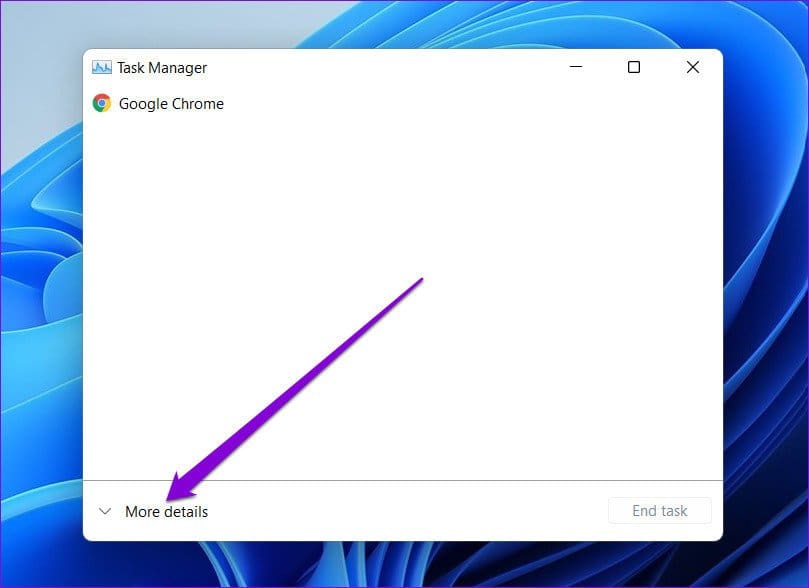
Step 1: Press Ctrl + Shift + Esc on your keyboard to quickly launch the Task Manager.
Step 2: Click on More details to expand Task Manager.
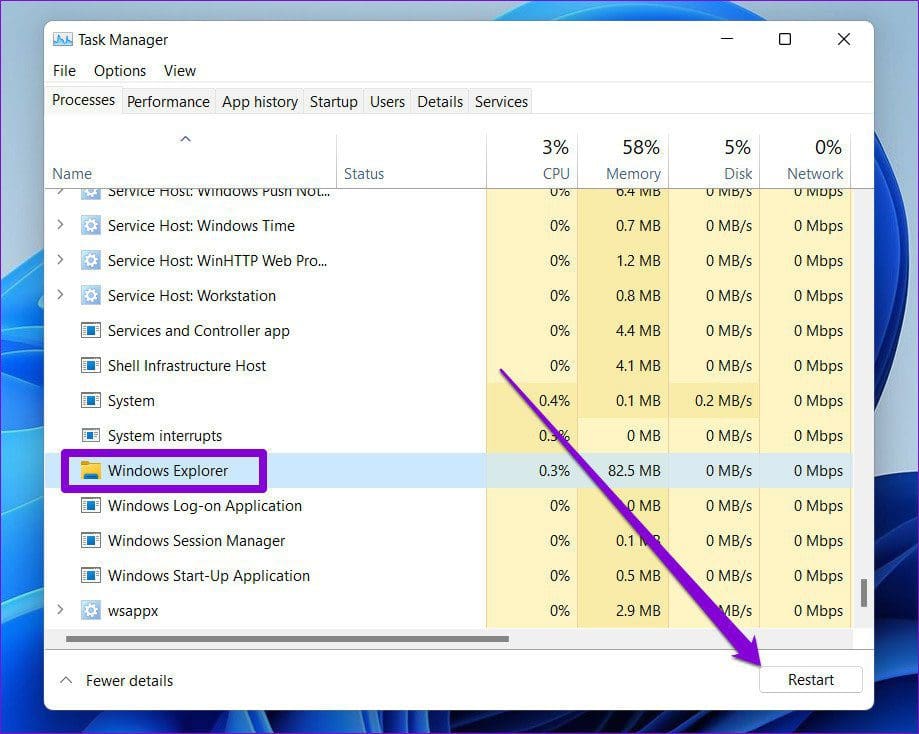
Step 3: In the Process tab, scroll down to find Windows Explorer. Select it and then hit Restart.
3. Rebuild Thumbnail Cache
All thumbnail data on Windows gets stored in the form of cache. When that data gets corrupted, Windows might fail to load up thumbnails. To remedy that, you can force Windows to rebuild that thumbnail cache.
Step 1: Press Windows key + I to open Settings and go to Storage.

Step 2: Click on Temporary Files.

Step 3: Scroll down to select Thumbnails and click on the Remove files option at the top.

4. Change Default App Type
If the thumbnail not showing the issue is limited to only a few file types, it might be due to the set default application. You can try changing the default app for the file type to see if that helps.
Step 1: Right-click on the problematic file type, go to Open with and select Choose another app.

Step 2: Pick a different application and mark the box that reads ‘Always use this app to open files’. Click on OK to save changes.

5. Modify Advanced System Settings
If you’ve recently tweaked any of the Windows performance options, you might not see any thumbnails previews on Windows. Here’s how to change that.
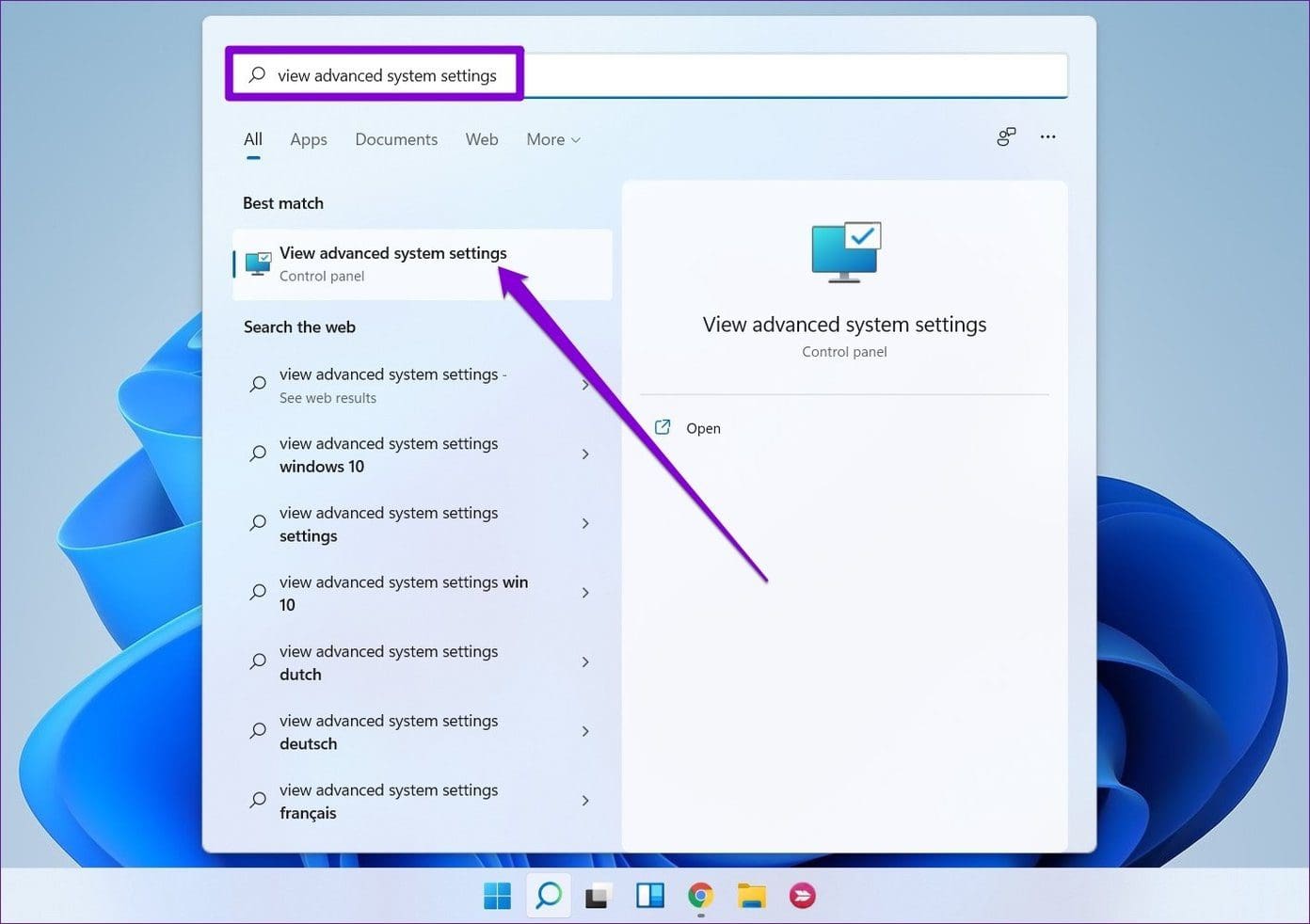
Step 1: Open the Start menu, type view advanced system settings, and press Enter.
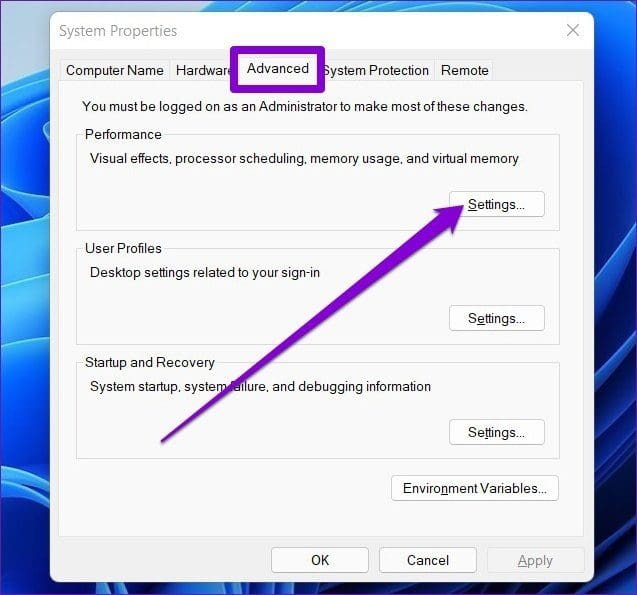
Step 2: In the System Properties window that opens, switch to the Advanced tab and click on the Settings button under Performance.
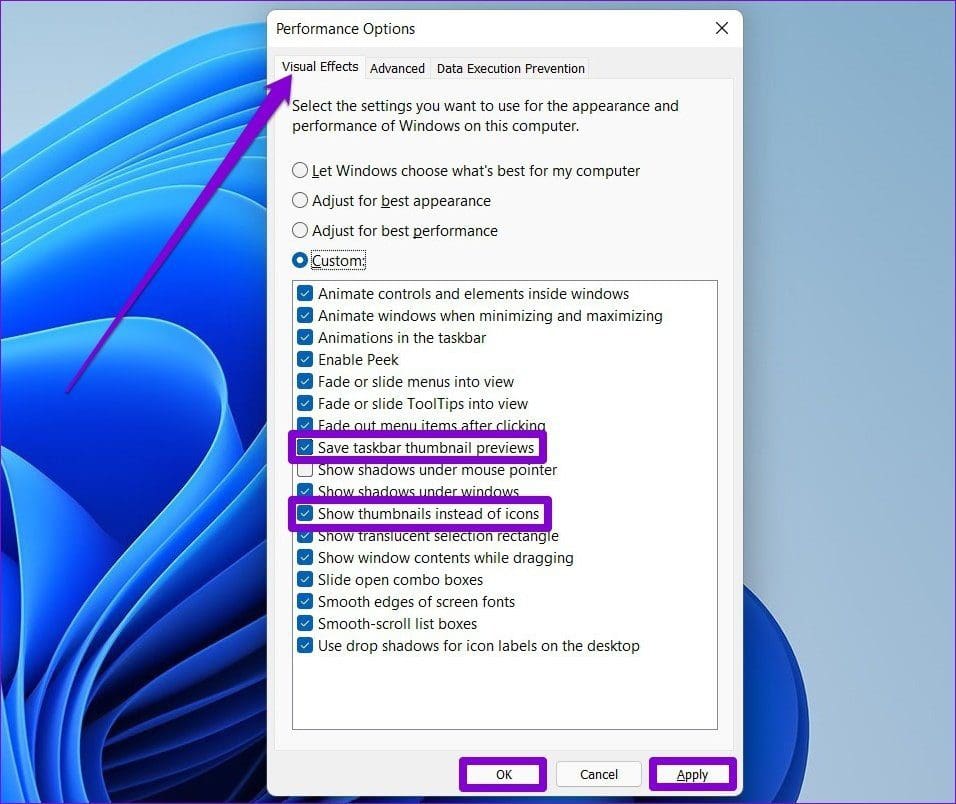
Step 3: In the Visual effects tab, select Custom and check ‘Save taskbar thumbnail previews’ and ‘Show thumbnails instead of icons’.
Lastly, click on Apply and OK to save changes.
6. Restore File Explorer Options
Lastly, if nothing seems to work, you can try restoring the File Explorer Options to its default settings to see if that brings back thumbnails.
Step 1: Open the Start menu, type file explorer options, and press Enter.
Step 2: In the following window, switch to the View tab and click on the Restore Defaults button. Then click on Apply followed by OK.

See if the thumbnails are appearing now.
7. Run SFC Scan
Corrupted or missing system files can lead to errors on Windows 11, including this one. Thankfully, Windows 11 comes equipped with an SFC, aka System File Checker scan, that can find corrupted system files on your PC and restore them to their previous version.
If Windows 11 is failing to load up thumbnails, you can try running an SFC scan by following the steps below.
Step 1: Right-click on the Start menu icon Windows Terminal (admin) option from the resulting menu.

Step 2: Type in the command given below and press Enter.
sfc /scannow

Wait for the process to complete and then restart your PC.
8. Scan for Malware
If the above solutions fail to resolve the thumbnails not showing issue on Windows, then malware may affect your PC. You can try running a thorough scan of your PC using Windows Defender or any of your preferred anti-virus programs to verify that.
Preview Your Files
Many of us prefer using thumbnails over icons. While Windows 11 does not show any folder thumbnails by design, it still supports file thumbnails. Hopefully, one of the solutions above has helped you bring those thumbnails back.
Was this helpful?
Last updated on 07 February, 2022
8 Comments
Leave a Reply
Read Next
 Top 5 Ways to Fix YouTube Thumbnails Not Showing
YouTube is undoubtedly a popular video streaming service for many users for various reasons.
Top 5 Ways to Fix YouTube Thumbnails Not Showing
YouTube is undoubtedly a popular video streaming service for many users for various reasons.
 Customize Windows Taskbar Thumbnails in All Possible Ways
We have talked about Windows 7 taskbar on many occasions.
Customize Windows Taskbar Thumbnails in All Possible Ways
We have talked about Windows 7 taskbar on many occasions.
 Show Icons Instead of Thumbnails in Windows Explorer – Guiding Tech
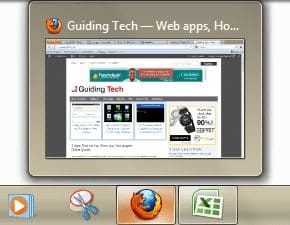
Recently, we talked about disabling the Windows taskbar thumbnail preview and also switching off explorer features like Navigation Pane, Details Pane and Preview Pane.Actually, these are wonderful features that the
Show Icons Instead of Thumbnails in Windows Explorer – Guiding Tech
Recently, we talked about disabling the Windows taskbar thumbnail preview and also switching off explorer features like Navigation Pane, Details Pane and Preview Pane.Actually, these are wonderful features that the
 Get Video Thumbnails For MKV and FLV Files on Windows
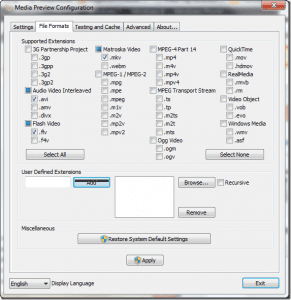
Windows generates thumbnail previews for most of the common video files like AVI, MP4, WMV, etc.
Get Video Thumbnails For MKV and FLV Files on Windows
Windows generates thumbnail previews for most of the common video files like AVI, MP4, WMV, etc.
 Bulk Resize Images, Apply Watermarks, Get Thumbnails
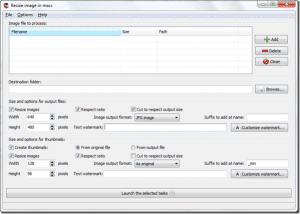
You might remember this tool we recently covered, called Photo Magician, using which you can resize and edit your photos in bulk.
Bulk Resize Images, Apply Watermarks, Get Thumbnails
You might remember this tool we recently covered, called Photo Magician, using which you can resize and edit your photos in bulk.
 Why Do You See Blank Thumbnails on Netflix?
Admit it, the carousels of impressive thumbnails on Netflix entices you every day to try out new shows and movies.
Why Do You See Blank Thumbnails on Netflix?
Admit it, the carousels of impressive thumbnails on Netflix entices you every day to try out new shows and movies.
 Top 6 Ways to Fix Windows 11 Laptop Showing Wrong Battery Percentage
The battery percentage reading on your Windows 11 laptop can be helpful to you plan your work and avoid unexpected shutdowns.
Top 6 Ways to Fix Windows 11 Laptop Showing Wrong Battery Percentage
The battery percentage reading on your Windows 11 laptop can be helpful to you plan your work and avoid unexpected shutdowns.
 Top 6 Ways to Fix Mail App Showing HTML Code for Emails in Windows 11
The Mail app is the go-to option to check and manage emails on Windows 11.
Top 6 Ways to Fix Mail App Showing HTML Code for Emails in Windows 11
The Mail app is the go-to option to check and manage emails on Windows 11.
The article above may contain affiliate links which help support Guiding Tech. The content remains unbiased and authentic and will never affect our editorial integrity.

If you move the taskbar to the top of your screen, the taskbar thumbnail previews show above the taskbar (off screen) and not below. Do you know if there’s a way to make the previews show below the taskbar?
I want to personally thank you for your tutorial on how to repair the thumbnails issue on Windows 11. This is the first guide I found that actually repaired the issue; most of them only suggest the File Explorer Options method to only view thumbnails. I only needed to complete step “3. Rebuild Thumbnail Cache” in this tutorial to resolve my issues. I strongly believe that there may be issues with the MS OneDrive that may also be a culprit in this scenario. I never had a system with OneDrive, and frankly I’m only living with it for 1 year. None of my older computers with previous Windows OS versions had this issue ever. Thanks again.
Thank you for mentioning OneDrive. I’ve tried everything on this article and another one like it, and they didn’t work. What did work? Uninstalling OneDrive. There is no reason uninstalling it should have done anything, but I guess that is the story of Microsoft products.
I have tried everything in this article, and have also uninstalled One Drive. I still do not have thumbnails. I just bought this desktop- it is brand new and I’m just getting everything set up, and no matter what I do I cannot get my thumbnails to appear. Anyone have any other suggestions? This is driving me crazy! I purchased this desktop specifically so my editing software would run faster, and now this. Help, please!
Any update on this? Same as other users, I have gone through all the troubleshooting steps listed above but the issue persists.
I found the solution. First, you need to uninstall OneDrive, then Rebuild Corrupt Icon Cache here is how to do it.
Open File Explorer > Folder Options > Views to show Hidden System Files.
Next, go to C:\Users\%username%\AppData\Local folder
Delete the hidden IconCache.db file. Reboot.
This action would purge and rebuild the icon cache.
After reboot, you should be able to see the thumbnails like normal. I am about to smash my laptop because of this issue. THank God I was able to resolve it. Credit to the author. https://www.thewindowsclub.com/rebuild-icon-clear-thumbnail-cache-windows-10
thank you – that is the only method that worked
OneDrive as an online signin and upload or download is a helpful resource, for me.
When they made it a “mandatory” it really soured me on them because of syncing issues. Now knowing all the time I have spent over the past year trying to resolve the problem and it too was OneDrive really (_(*)W(*E#.
After trying 1,000 fixes, I followed all your steps to fix my photos, icons, thumbnails, etc. IT WORKED…Thank you so very much for your tutorial…!!